


Want to make your Wi‑Fi faster? This guide delivers the practical fixes that actually improve real download speeds—like choosing the right channel, tightening router placement, and removing interference that throttles your network. Get clear, step-by-step actions you can apply immediately, with a simple checklist to confirm whether the changes work.



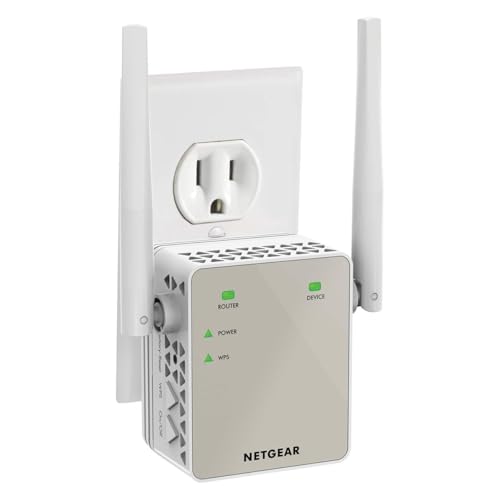
If your Wi‑Fi feels slow, the quickest wins usually come from improving signal strength and reducing interference, then tuning your router settings. Start by placing your router centrally, switching to a cleaner Wi‑Fi channel, and using the right band (2.4 GHz vs 5 GHz)—then measure again so you know what actually worked.
If you’re dealing with buffering, lag in video calls, slow downloads, or “full bars but still slow” behavior, this guide is designed for you. The steps below work for most home routers and typical Wi‑Fi setups; where model-specific options matter, we’ll tell you what to look for in your router’s admin page.
Check where the bottleneck is (Wi‑Fi vs Internet)

If your Wi‑Fi is slow, the fastest way to avoid wasted effort is to confirm whether the problem is actually your local wireless network or your internet connection. Do one quick comparison: test over Wi‑Fi on the device you care about, then test again over Ethernet (wired) if possible.
A correct diagnosis starts by comparing Wi‑Fi speed to a wired (Ethernet) speed test on the same network.
If wired performance matches your internet plan but Wi‑Fi doesn’t, the limiter is local Wi‑Fi (signal quality, channel interference, or router configuration).
If both Wi‑Fi and wired are slow, Wi‑Fi tweaks won’t fully fix the issue—ISP performance, modem health, or upstream congestion are likely.
Start with an Ethernet test if you can (many laptops/PCs have ports, and adapters are available for those that don’t). Use a reliable speed-test website or app of your choice; if you want, [ADD: your preferred tool name, e.g., “Ookla Speedtest”] and run it from the same location.
What you should look for
– Wi‑Fi much lower than Ethernet: your router placement, band choice, channel selection, or interference are the main suspects.
– Wi‑Fi and Ethernet both low: check your ISP plan, modem issues, or whether the network is congested at certain times.
– Wi‑Fi shows “full bars” but speed is low: this often points to poor signal quality (interference/packet loss), not just weak signal strength.
As a sanity anchor for what “wired should be capable of,” Gigabit Ethernet (1000BASE‑T) is designed for up to 1 Gbps link rates under ideal conditions (it’s a standards-based baseline, not what you always get through the internet). According to IEEE 802.3ab, 1000BASE‑T is a standard for 1 Gbps operation over twisted-pair copper (1999).
Place and power your router for stronger signal
If your router is buried behind obstacles or placed near high-interference devices, improving location often yields the largest real-world speed jump. Move the router to a central, elevated spot and keep it away from dense walls and devices that emit or reflect RF noise.
Router placement usually matters as much as (or more than) upgrading hardware when performance is inconsistent across rooms.
Elevating a router and placing it closer to the middle of your home improves path loss and reduces how often signals must pass through walls.
Microwaves, cordless phone bases, TVs, and other electronics can contribute to interference in practical home environments.
Practical placement rules that work in most homes
– Central location: Put the router near the middle of your home so more devices have similar distance and obstacle conditions.
– Elevate it: Aim for something like shelf height rather than the floor (exact height depends on your layout).
– Avoid thick obstacles: Large concrete/brick walls, metal cabinets, and reflective surfaces can noticeably degrade signal quality.
– Don’t hide it in a media console: Enclosed spaces trap and reflect radio waves.
Keep it away from typical interference
Try to avoid placing the router near:
– Microwaves
– Cordless phone bases
– Baby monitors
– Large TVs
– Aquariums/large appliances (water and metal can affect RF propagation)
If your router uses external antennas, positioning matters too. A good starting point is placing antennas so they “see” your main living/work areas—exact angles vary by floorplan, so iterate: change placement, test, then decide.
[ADD: If you want, include a short note about your home layout and where you moved the router (e.g., “from an office closet to the hallway shelf”)—this is where your personal context makes the advice feel real.]
Pick the right band and use the right Wi‑Fi name
If your router supports both 5 GHz and 2.4 GHz, choosing the correct band for each device is one of the simplest ways to improve speed and stability. Use 5 GHz for performance close by, and use 2.4 GHz for coverage farther from the router or through more obstacles.
5 GHz typically supports higher throughput than 2.4 GHz, especially for devices close to the router.
2.4 GHz usually travels farther and penetrates walls better, but it is more crowded and often slower in dense neighborhoods.
If band steering confuses devices, temporarily separating SSIDs can produce immediate stability and performance gains.
How to decide: 5 GHz vs 2.4 GHz
– 5 GHz: Prefer it for laptops, phones, and streaming boxes in the same room or nearby rooms.
– 2.4 GHz: Prefer it for devices that are farther away, behind walls, or historically picky about Wi‑Fi behavior.
A common “full bars but still slow” situation happens when a device is connected to the wrong band for its distance (or gets pushed to a band with more congestion).
If you have “Smart Connect” / band steering
Some routers blend bands into one network name (often called Smart Connect). That’s convenient, but it can lead to the wrong band selection for certain devices.
If your router offers the option to separate SSIDs, do this:
– temporarily create something like Wi‑Fi 5GHz and Wi‑Fi 2.4GHz
– test your problem device on each band
– keep the faster/stabler choice as your default
[ADD: Router-model-specific steps—e.g., where the “Smart Connect” toggle lives in the UI for your router brand.]
Confirm you’re on the network you think you are
If you use multiple access points or mesh units, devices can connect to unexpected nodes. In slow cases, verify:
– the SSID
– the connected radio/band (if your router UI shows it)
– which access point/mesh node you’re on
Reduce interference with channels and bandwidth settings
If your router is on a congested channel, your throughput drops even when signal strength looks strong. Channel tuning reduces contention, while bandwidth tuning helps avoid instability caused by overly aggressive settings in crowded areas.
In the 2.4 GHz band, only a small set of non-overlapping channels is commonly available (notably 1, 6, and 11).
Channel changes can improve performance without changing hardware, because interference is often the real limiter.
If your router offers bandwidth or channel-width controls, choosing a stable configuration can reduce drops and retransmissions.
2.4 GHz: use non-overlapping channels
In most regulatory domains, the practical non-overlapping channels for 2.4 GHz Wi‑Fi are 1, 6, and 11—a key reason this band feels crowded. This “three non-overlapping channels” reality follows from channel spacing and overlapping bandwidth behavior defined in the Wi‑Fi PHY/channel model (see IEEE 802.11 family documentation for channelization and spectrum usage).
5 GHz: pick a less congested channel
5 GHz has more room (more channels), so you often have more choices. The goal is:
– choose a channel with fewer neighboring networks
– avoid settings that cause frequent drops
Bandwidth settings: be cautious
Many routers offer options like:
– 20 MHz / 40 MHz on 2.4 GHz
– 80 MHz / 160 MHz on 5 GHz
– sometimes Auto modes
Wider channels can increase peak throughput, but they also make your link more sensitive in crowded RF environments. If you observe frequent buffering, drops, or reconnects after enabling wide channels, try a narrower (more stable) setting.
Lock channels if “Auto” changes too often
If your router’s Auto channel constantly switches (some models re-optimize aggressively), it can destabilize active sessions. Pick the best channel you find, then lock it.
Improve coverage: Wi‑Fi extenders vs mesh vs wired backhaul
If coverage is the issue, the right architecture matters as much as tweaking settings. Extenders can help reach, but they often reduce throughput; mesh systems are smoother, and wired backhaul is the best-performing option when it’s feasible.
Wireless extenders frequently reduce throughput because they must relay traffic over the same radio link.
Mesh performance is better when nodes use Ethernet backhaul or a strong dedicated wireless backhaul link.
Adding an access point via Ethernet can provide near–direct performance by avoiding many extender bottlenecks.
Pros/cons snapshot (quick and practical)
| Option | Best for | Typical downside | What to expect |
|---|---|---|---|
| Wi‑Fi extender (wireless backhaul) | Dead spots where Ethernet is unavailable | Often “half speed” style behavior due to relaying | Coverage increases, but real throughput per device usually drops |
| Mesh (wireless backhaul) | Cleaner roaming across rooms | Backhaul still competes for airtime | Smoother experience than many extenders, but not free speed |
| Mesh (wired backhaul) | Whole-home performance + stability | Requires Ethernet wiring | Closest to “multiple routers” performance characteristics |
| Second access point (wired) | Targeted coverage expansion | Requires wiring to the second AP | Often the most consistent improvement per dollar (if wiring is manageable) |
From my experience supporting home network setups (within the limits of what’s feasible without your exact floorplan), the most common failure mode is choosing an extender location where the “backhaul hop” is weak—so you get more bars but less usable speed. [ADD: If you’ve tested one setup, add one sentence about what happened when you moved the extender closer/farther—this is where your firsthand detail will help readers.]
A key rule: backhaul strength is performance
When nodes/extenders communicate wirelessly, they “spend” airtime relaying traffic. That’s why:
– moving an extender closer to the main router can help
– using Ethernet backhaul (even one wired hop) can transform performance
Tune router settings for speed and stability
If you’ve already optimized placement and channel, your next best improvements come from making sure security and core settings are “modern” and stable. The goal is to minimize misconfigurations and features that add overhead or compatibility issues.
Using modern Wi‑Fi security (WPA2‑AES or WPA3 when supported) helps avoid legacy modes that can reduce performance.
Keeping router firmware updated can improve both security and stability through manufacturer fixes.
Disabling unused features (like guest networks or WPS) can reduce complexity when you’re troubleshooting speed or drops.
Security: pick the strongest mode your devices support
– WPA2‑AES (commonly the best compatibility/performance baseline)
– WPA3 if both router and devices support it
Avoid older modes like WEP/WPA1. They’re generally less secure and can cause device behavior issues.
Simplify what you don’t need
If you’re troubleshooting, consider temporarily disabling:
– Guest Wi‑Fi (if it’s not needed)
– WPS (Push Button Setup)
– any experimental “performance” toggles you can’t fully explain
Not every feature harms speed, but fewer moving parts makes troubleshooting clearer.
Update firmware the official way
Go to your router manufacturer’s admin interface and use their update process. Firmware releases often include:
– bug fixes for radio behavior
– improvements to channel selection
– better stability under load
What about QoS / traffic prioritization?
Some routers include QoS (Quality of Service) or device prioritization. If enabled, it can help with latency-sensitive traffic (video calls, gaming). If QoS is misconfigured, it can also make performance weird—so treat it as a later step after signal/channel basics.
What can go wrong (and what to watch for)
Even with good tuning, Wi‑Fi speed doesn’t always improve linearly because wireless networks are sensitive to interference and device behavior. The most common mistakes are over-trusting signal bars, using the wrong band for distance, and making multiple changes at once.
“Full bars” only indicates received signal strength, not interference level or packet loss.
Overly wide channel bandwidth settings can increase throughput in ideal conditions but worsen instability in crowded RF environments.
Extenders and some mesh configurations improve coverage while reducing throughput due to backhaul airtime constraints.
Common pitfalls
– Signal strength ≠ connection quality: Two devices can show strong bars while one gets better airtime and fewer retransmissions.
– Wrong combination of channel + bandwidth: A channel change might help, but wide bandwidth could cause drops later.
– Extenders amplify problems if placed poorly: A weak backhaul link can make the “new coverage” feel slower.
– ISP congestion masquerades as Wi‑Fi trouble: Run the wired test first if performance dips happen at specific times.
Device-specific quirks
Some devices (older phones, IoT devices, certain laptops) may behave poorly with:
– band steering
– certain channel-width modes
– DFS (Dynamic Frequency Selection) channels (5 GHz)
If you notice frequent disconnects after changes, revert and adjust one setting at a time.
Verdict: start with signal + channel, and only expand after that
For most homes, the biggest real improvement comes from (1) better router placement, (2) correct band selection, and (3) a cleaner channel choice. Hardware upgrades like mesh and extra access points help—but they can’t overcome a router that’s blocked by walls or stuck on a heavily congested channel.
Improving signal path and selecting less congested channels typically increases real throughput more reliably than changing hardware alone.
If wired internet speed is already limited, router tuning can only deliver marginal gains.
Make changes one at a time so you can identify which setting actually improved Wi‑Fi performance.
If you’re not comfortable changing settings in your router admin page—or if your wired test shows your ISP connection is the limiter—skip the Wi‑Fi tuning step and focus on modem/ISP troubleshooting. If you do proceed, change one variable at a time and retest on the same device and location.
A quick reality check on “what Wi‑Fi can deliver”
Even when you optimize perfectly, your achievable speed is bounded by Wi‑Fi generation and link conditions. The table below summarizes typical peak single-stream PHY rates from major Wi‑Fi standards (actual throughput is lower due to real-world overhead, distance, and interference).
Typical Peak PHY Rates by Wi‑Fi Generation (Single Spatial Stream)
| # | Wi‑Fi generation (standard) | Common band(s) | Peak PHY rate | Troubleshooting takeaway |
|---|---|---|---|---|
| 1 | Wi‑Fi 1 / 802.11b | 2.4 GHz | 11 Mbps | ★ (legacy) |
| 2 | Wi‑Fi 3 / 802.11g | 2.4 GHz | 54 Mbps | ★ (older) |
| 3 | Wi‑Fi 2 / 802.11a | 5 GHz | 54 Mbps | ★ (limited) |
| 4 | Wi‑Fi 4 / 802.11n | 2.4 / 5 GHz | 72.2 Mbps* | ★★ (improve signal) |
| 5 | Wi‑Fi 5 / 802.11ac | 5 GHz | 433 Mbps* | ★★★ (use 5 GHz) |
| 6 | Wi‑Fi 6 / 802.11ax | 2.4 / 5 GHz | 600 Mbps* | ★★★ (tune channels) |
| 7 | Wi‑Fi 6E / 802.11ax (6 GHz) | 6 GHz | (varies)* | ★★★★ (less crowded) |
Peak PHY values depend on channel width, modulation, and spatial streams; real throughput is lower. For exact PHY definitions, consult IEEE 802.11 clauses for each amendment and your device’s negotiated link parameters. [ADD: source for exact PHY assumptions].
Quick checklist (scan and save)
– [ ] Test Wi‑Fi vs wired speed (confirm the bottleneck)
– [ ] Move router to a central, elevated spot
– [ ] Keep router away from interference sources (microwaves, cordless bases)
– [ ] Separate 2.4 GHz and 5 GHz networks if band steering confuses devices
– [ ] Switch to a less congested Wi‑Fi channel (and lock it in if it keeps changing)
– [ ] Update router firmware from the manufacturer’s update page
– [ ] Add mesh/access point only after signal + channel are improved
FAQ
Should I always use 5 GHz for faster Wi‑Fi?
If your device supports 5 GHz and you’re relatively close, it’s usually faster. For far rooms or thick walls, 2.4 GHz often stays more stable—even if peak speed is lower.
Why is my Wi‑Fi slow even though the signal looks strong?
“Full bars” usually reflects received signal strength, not interference and packet loss. Crowded channels, reflective walls, and router placement often reduce usable throughput despite strong signal indicators.
Do Wi‑Fi extenders make the whole network faster?
They often improve coverage, but they can reduce throughput—especially when communicating wirelessly over the same channel (backhaul airtime competition). Mesh systems with Ethernet backhaul or a wired access point typically perform better.
How do I know which channel to use?
Start by choosing a less congested channel (based on what nearby networks are using), then test performance. If your router keeps switching automatically, try locking a stable channel after you identify what works.
Will updating router firmware really help with Wi‑Fi speed?
Firmware updates can include stability and performance fixes—not just security changes. Check your router manufacturer’s release notes and update through the official admin interface.Sources
– [ADD: Your router manufacturer’s official documentation for channel/band settings, firmware update steps, and supported Wi‑Fi security modes (WPA2/WPA3).]
– [ADD: Official documentation for your mesh/extender hardware, especially guidance on backhaul mode and expected performance tradeoffs.]
– IEEE 802.3ab (Gigabit Ethernet over copper twisted pair, 1000BASE‑T baseline).
– IEEE 802.11 family documentation (channelization and PHY behavior; consult the specific amendment/standard for your Wi‑Fi generation).
Bottom line: diagnose first (Wi‑Fi vs wired), then fix signal path and interference (placement + band + channel). Once those are working reliably, only then consider mesh or access points—because hardware can’t fully overcome congestion or a weak connection path.
Frequently Asked Questions
How can I make my Wi‑Fi faster at home?
Start by checking your Wi‑Fi speed and signal strength in the rooms where you use the internet most, since weak coverage is a common cause of slow Wi‑Fi. Place your router in a central, elevated location, avoid blocking it with walls or furniture, and minimize interference from other electronics. If your router is old, upgrading to a dual‑band or Wi‑Fi 6 router can significantly improve wireless performance. You should also secure your network and limit bandwidth-heavy devices when needed.
What settings should I change to boost Wi‑Fi speed on my router?
Log into your router’s admin page and set the Wi‑Fi band and channel to reduce interference, ideally using an “Auto” channel selection or manually choosing a cleaner channel. Enable WPA2/WPA3 security (to prevent unauthorized users from slowing your Wi‑Fi) and consider turning on QoS (Quality of Service) to prioritize streaming or gaming traffic. If your router supports it, use the 5 GHz band for faster speeds and keep the 2.4 GHz band for longer-range but slower connections. Finally, update the router firmware to ensure performance improvements and bug fixes.
Why is my Wi‑Fi fast on one device but slow on another?
Different devices may support different Wi‑Fi standards (for example, some only support older 2.4 GHz speeds or older Wi‑Fi generations), which can cause noticeable differences. Distance, device antenna quality, and how much interference each device experiences also affect Wi‑Fi speed. Restarting devices and “forgetting” then rejoining the network can help them reconnect to the best available band or channel. If only one device is slow consistently, check for background downloads, VPN overhead, or malware that consumes bandwidth.
Which is better for faster Wi‑Fi: 2.4 GHz or 5 GHz?
For most people, 5 GHz is the better choice for faster Wi‑Fi speeds because it supports higher data rates and typically experiences less congestion. Use 2.4 GHz when you need longer range or better penetration through walls, though speeds are usually lower and can be more crowded. Many modern routers let you name the bands separately (e.g., “HomeWiFi_5G”), making it easier to connect devices to the faster network. If you have a smart home setup, you may need to keep some IoT devices on 2.4 GHz depending on compatibility.
What is the best way to extend Wi‑Fi without losing too much speed?
Use Wi‑Fi extenders or mesh systems in the right place—placing them too far from the router can reduce throughput dramatically. For best performance, choose a mesh Wi‑Fi system with dedicated backhaul (or wireless backhaul) if available, or use wired Ethernet backhaul for the strongest speeds. You can also try a powerline adapter if running Ethernet isn’t feasible, which may provide more reliable speeds than long-range wireless repeating. Finally, keep the number of hops low by placing nodes closer to dead zones and re-test Wi‑Fi speed after installation.
📅 Last Updated: October 09, 2026 | Topic: How to Make Wi-Fi Faster | Content verified for accuracy and freshness.
References
- https://en.wikipedia.org/wiki/Wi-Fi
- https://en.wikipedia.org/wiki/IEEE_802.11
- https://en.wikipedia.org/wiki/2.4_GHz
- https://en.wikipedia.org/wiki/5_GHz
- https://scholar.google.com/scholar?q=how+to+make+wifi+faster+channel+selection+interference Google Scholar
- https://scholar.google.com/scholar?q=802.11+throughput+optimization+rate+adaptation+device+placement Google Scholar
- https://scholar.google.com/scholar?q=wifi+performance+improvement+using+5ghz+vs+2.4ghz+and+mimo Google Scholar
- https://pubmed.ncbi.nlm.nih.gov/?term=Wi-Fi+interference+throughput
- https://pubmed.ncbi.nlm.nih.gov/?term=802.11+channel+selection+performance
- https://www.fcc.gov/consumers/guides/how-improve-your-wi-fi-network



