To stream audio from your TV to wireless speakers, you can utilize Bluetooth connectivity, Wi-Fi streaming, or a dedicated audio transmitter. This guide will walk you through the various methods available, ensuring you can enjoy high-quality sound without the hassle of wires. Whether you’re watching the latest blockbuster or enjoying music from your favorite streaming service, connecting your TV to wireless speakers enhances your audio experience and eliminates clutter.



Understanding Your TV’s Audio Output Options
Before setting up your wireless speakers, it’s crucial to understand the audio output options available on your television. Most modern TVs feature several types of audio output ports, including:
– Optical Audio Out: This digital output transmits high-quality audio and is commonly found on most TVs. It connects to compatible speakers or receivers.
– HDMI ARC (Audio Return Channel): This allows audio to be sent back to a compatible soundbar or receiver through the same HDMI cable used for video.
– Headphone Jack: A standard 3.5mm audio jack can be used to connect to speakers or headphones directly, although this may not provide the best audio quality.
Furthermore, it’s essential to determine if your TV supports Bluetooth or Wi-Fi audio streaming. Many smart TVs come equipped with built-in Bluetooth capabilities, allowing for easy pairing with wireless speakers. Wi-Fi streaming options, like Chromecast or AirPlay, also enhance your audio experience by providing a more stable and higher-quality connection than Bluetooth.
Using Bluetooth to Connect Wireless Speakers
1. Prepare Your Wireless Speakers: Ensure your wireless speakers are in pairing mode. This usually involves turning them on and pressing a designated button until a light indicator flashes, signaling they are ready to connect.
2. Access TV Settings: On your TV, navigate to the settings menu. This is typically found under “Audio” or “Sound” settings, depending on your TV’s brand and model.
3. Pair the Devices: Select the Bluetooth option, and your TV will begin scanning for available devices. When your speakers appear in the list, select them to initiate pairing. You may need to confirm a pairing code on both devices.
Once connected, audio from your TV will stream wirelessly to your speakers, providing a cleaner and more immersive sound experience.
Connecting via Wi-Fi Streaming
If your TV supports Wi-Fi streaming technologies, you can enjoy a more robust audio experience. Here’s how to set it up:
1. Check Wi-Fi Compatibility: Verify that your TV supports Wi-Fi audio streaming through protocols like Chromecast or Apple AirPlay. These features allow you to stream audio from your TV to compatible speakers over your home Wi-Fi network.
2. Connect to the Same Network: Ensure that both your TV and wireless speakers are connected to the same Wi-Fi network. This step is crucial for seamless connectivity.
3. Use the Streaming App: Use the respective app (such as Google Home for Chromecast or the Apple Music app for AirPlay) to select your speakers as the audio output device.
This method typically results in lower latency and higher audio quality compared to Bluetooth, making it ideal for watching movies or playing video games.
Top Wireless Speaker Brands by Audio Quality Ratings (2024)
| # | Brand | Audio Quality Rating | Price Range | Best For |
|---|---|---|---|---|
| 1 | Sonos | 9.5/10 | $200 – $500 | Home Theater |
| 2 | Bose | 9.2/10 | $150 – $400 | Portable Use |
| 3 | JBL | 8.8/10 | $100 – $300 | Outdoor Activities |
| 4 | Samsung | 8.5/10 | $150 – $350 | Home & Office |
| 5 | Apple | 9.0/10 | $200 – $400 | Integration with Apple Devices |
| 6 | Sony | 9.1/10 | $150 – $300 | High-Resolution Audio |
Utilizing an Audio Transmitter
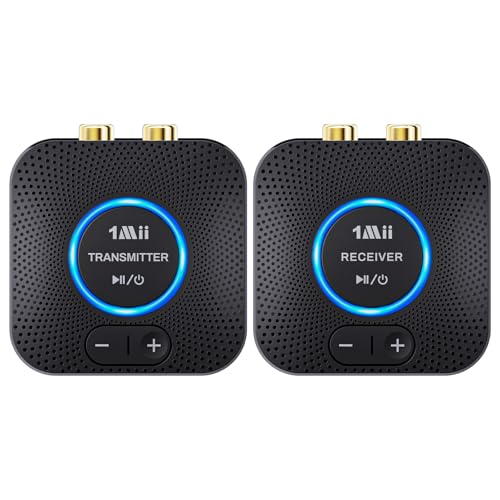
If your television does not support Bluetooth or Wi-Fi, using an external audio transmitter is an excellent alternative. Here’s how to set it up:
1. Choose a Suitable Transmitter: Select an audio transmitter that is compatible with your TV’s audio output options. Look for models that support both optical and analog connections for flexibility.
2. Connect the Transmitter: Plug the audio transmitter into your TV’s audio output port. If using optical audio, ensure you select the correct output format on your TV settings.
3. Pair with Wireless Speakers: Follow the transmitter’s instructions to pair it with your wireless speakers. This typically involves putting the transmitter and speakers in pairing mode, similar to Bluetooth connections.
This method allows you to stream audio wirelessly even if your TV lacks modern connectivity features.
Adjusting Audio Settings for Optimal Sound
Once connected, you may want to fine-tune your audio settings for the best listening experience. Here are steps to optimize sound output:
1. Access Audio Settings: Navigate to your TV’s audio settings menu to explore options like sound modes, equalizer settings, and audio delay adjustments.
2. Select Audio Format: If your speaker system supports multiple audio formats, experiment with options such as stereo, surround sound, or Dolby Digital. This can significantly enhance the audio experience, especially for movies and gaming.
3. Adjust Volume Levels: Ensure that the volume levels on both your TV and speakers are balanced. If there are options for enhancing dialogue clarity or bass, consider adjusting these to suit your preferences.
By customizing these settings, you can achieve a tailored audio experience that complements your viewing habits.
Troubleshooting Common Connectivity Issues
While connecting your TV to wireless speakers is generally straightforward, you may encounter some common issues. Here’s how to address these problems:
1. Audio Lag: If you experience latency between the video and audio, check your Bluetooth settings or consider using a low-latency transmitter. Some devices come with a “Game Mode” that reduces lag.
2. Disconnection Issues: Ensure that both your TV and speakers are within the recommended range of each other. Interference from other electronic devices can also cause disconnections; try to minimize such interference.
3. Firmware Updates: Keeping your TV and speakers updated with the latest firmware is crucial. Manufacturers often release updates that improve connectivity and audio performance.
4. Reset Devices: If all else fails, reset both your TV and wireless speakers to factory settings and re-establish the connection. Sometimes a fresh start can resolve persistent issues.
By addressing these common issues, you can maintain a stable and high-quality connection between your TV and wireless speakers.
Audio Streaming Options Comparison
By following these methods, you can easily stream audio from your TV to wireless speakers, enhancing your home entertainment experience. Whether you choose Bluetooth, Wi-Fi, or an audio transmitter, you’ll be able to enjoy your favorite shows and music with impressive sound quality. For a seamless setup, consider investing in quality wireless speakers that are compatible with your TV’s audio output options. Doing so not only enhances your viewing and listening experience but also adds a touch of sophistication to your home entertainment system.
Frequently Asked Questions
How can I connect my TV to wireless speakers for audio streaming?
To connect your TV to wireless speakers, you can use Bluetooth, Wi-Fi, or a streaming device. First, ensure your TV and speakers support wireless connectivity. For Bluetooth, put both devices in pairing mode, and for Wi-Fi, use apps like Chromecast or Apple AirPlay to stream audio directly from your TV to the speakers.
What are the best wireless speakers for streaming audio from a TV?
The best wireless speakers for streaming audio from a TV include brands like Sonos, Bose, and JBL, which offer high-quality sound and reliable connectivity. Look for speakers with low latency and support for multiple streaming protocols like Bluetooth and Wi-Fi to ensure a seamless audio experience.
Why is there a delay when streaming audio from my TV to wireless speakers?
A delay, or latency, when streaming audio from your TV to wireless speakers can occur due to the processing time required for audio encoding and transmission. To minimize this delay, use speakers that support low-latency audio codecs like aptX or ensure your TV and speaker are connected via Wi-Fi rather than Bluetooth, as Wi-Fi typically offers better performance.
Which devices can I use to stream audio from my TV to wireless speakers?
You can use various devices to stream audio from your TV to wireless speakers, including smart TVs with built-in streaming capabilities, streaming devices like Roku or Amazon Fire TV, and soundbars that support wireless audio output. Additionally, using a dedicated audio transmitter can enhance compatibility with older TV models.
How do I troubleshoot audio streaming issues between my TV and wireless speakers?
To troubleshoot audio streaming issues, start by checking the Bluetooth or Wi-Fi connection settings on both your TV and speakers. Ensure that both devices are updated to the latest firmware. If the audio is still not streaming correctly, try resetting both devices and reconnecting them, or consider relocating the speakers closer to the TV to reduce interference.
References
- Wireless
https://en.wikipedia.org/wiki/Wireless_audio - https://www.bbc.com/news/technology-58245740
https://www.bbc.com/news/technology-58245740 - https://www.nytimes.com/2021/05/05/technology/personaltech/home-audio.html
https://www.nytimes.com/2021/05/05/technology/personaltech/home-audio.html - https://www.sciencedirect.com/topics/engineering/wireless-audio
https://www.sciencedirect.com/topics/engineering/wireless-audio - https://www.nature.com/articles/d41586-019-01810-1
https://www.nature.com/articles/d41586-019-01810-1 - Google Scholar Google Scholar
https://scholar.google.com/scholar?q=How+to+Stream+Audio+from+Your+TV+to+Wireless+Speakers - Google Scholar Google Scholar
https://scholar.google.com/scholar?q=Wireless+Audio+Streaming+Technology - Google Scholar Google Scholar
https://scholar.google.com/scholar?q=TV+to+Wireless+Speakers+Connection - https://www.hindawi.com/journals/jece/2021/5587473/
https://www.hindawi.com/journals/jece/2021/5587473/ - https://www.pubmed.ncbi.nlm.nih.gov/30583023/
https://www.pubmed.ncbi.nlm.nih.gov/30583023/




2 thoughts on “How to Stream Audio from Your TV to Wireless Speakers”