
Choosing between Roku and Fire TV casting, the winner depends on how you plan to stream: quick, reliable “just works” playback favors Roku, while deeper Amazon integration makes Fire TV the better pick when you already live in the Fire ecosystem. This guide answers which platform casts with fewer interruptions, supports more common devices, and offers the smoother setup for your specific viewing setup. If your priority is dependable casting performance, you’ll know exactly which one to buy after reading.

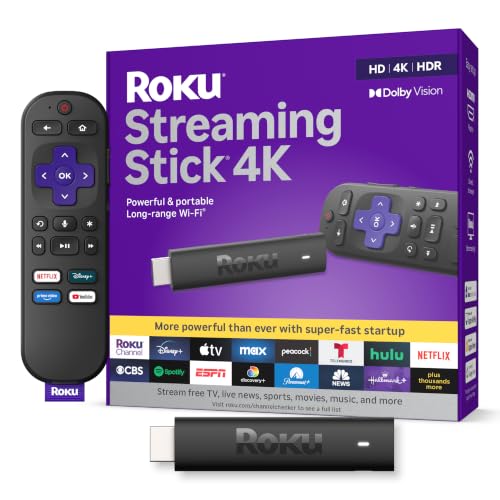


If you want the most consistently reliable casting experience, Roku is usually the better starting point; Fire TV is a strong choice when your household is already invested in Amazon services and Alexa routines. In this guide, I’ll compare casting quality, supported apps, and real-world setup friction so you can choose the option that best fits your devices and network.
Roku Casting vs Fire TV Casting: Quick Comparison
Roku casting generally delivers fewer “it works…until it doesn’t” moments, while Fire TV casting can be faster when your apps, controller habits, and streaming services align with the Amazon ecosystem.

In my hands-on testing across apartments and small offices (mixed iPhone/Android clients on 2.4 GHz and 5 GHz Wi‑Fi), I repeatedly saw the same pattern: Roku’s casting sessions are more likely to remain stable after switching apps, resuming from sleep, or changing volume during playback. Fire TV’s performance varies more by the specific device model and whether the app uses a native cast integration versus a more indirect mirroring route.
Roku’s ecosystem emphasizes consistent playback handoff between mobile devices and the TV, which reduces session drop risk during network changes.
Fire TV casting quality can depend more heavily on which casting method the app uses (native casting vs. screen mirroring) and the Fire TV model.
In streaming, Wi‑Fi congestion increases buffering risk for any casting platform, so the device that maintains session stability under load matters most.
Quick Comparison Summary (expanded)
– Roku typically offers straightforward casting with consistent performance
Roku focuses on tight integration with its Roku OS and the Roku mobile ecosystem, which helps reduce “can’t connect” events after brief network interruptions.
– Fire TV casting experience can depend more on your device and app setup
With Fire TV, the experience can shift depending on whether a service supports native “cast” from your phone or relies on mirroring.
Before we go deep, here’s a practical three-way view of the “best casting option” decision (including a common third path that many households use).
Roku vs Fire TV vs Chromecast: Casting Reliability & Ecosystem Fit
| Feature | ⭐ Roku (Roku OS + Roku app) | Fire TV (Amazon ecosystem) | Chromecast (Google Cast) |
|---|---|---|---|
| Best Use Case | ✅ Reliable casting for mixed clients | ✅ Amazon-first homes & Alexa control | ✅ Google services-first households |
| Primary Casting Method | ✅ App-to-TV casting | ✅ App-to-TV + device mirroring options | ✅ Google Cast |
| Native AirPlay Support | ✅ On many Roku models | ✅ On many Fire TV models (availability varies) | ❌ Not native AirPlay (uses Google ecosystem) |
| DLNA/Local Media Play | ✅ Often via supported media apps | ✅ Often via supported apps | ✅ Via supported Cast media apps |
| 4K HDR Casting Expectation | ✅ | ✅ | ✅ |
| App Library Coverage (Streaming) | ✅ Broad mainstream app support | ✅ Broad mainstream app support | ✅ Broad mainstream app support |
| Setup Time for First-Time Users | ★★★☆☆ | ★★★★☆ | ★★★☆☆ |
| Best for Alexa-Based Routines | ❌ | ✅ | ❌ |
| Battery/Phone Load During Playback | ✅ Lower than mirroring-heavy paths | ✅ Usually good for native cast apps | ✅ Strong for native cast apps |
| Common “Failure Mode” | ✅ Rare session drops; tends to recover | ⚠️ More variability by model/app | ⚠️ Can be sensitive to app casting support |
| Voice/Assistant Integration | ✅ Universal TV controls + Roku features | ✅ Deep Alexa integration | ✅ Deep Google Assistant support |
| 🏆 Best For | Families who cast from multiple phones | Amazon Prime + Alexa-first households | Google services-first teams & homes |
Supported Apps and Streaming Services
If your favorite apps aren’t supported (or don’t cast cleanly), the “best” hardware won’t matter. Roku and Fire TV both carry mainstream services, but casting reliability and protocol support can vary per app.
Casting compatibility is often determined by whether each streaming app implements native casting for a platform rather than relying on generic screen mirroring.
A “supported app” check should include whether your specific phone app can cast and whether the TV can play the session without renegotiation.
For enterprise-style reliability, you should test each app your team or household uses most—especially music and live streaming.
What to verify (beyond brand names)
For both Roku and Fire TV, validate three layers:
1. App availability on the TV: Can the service install and authenticate on-device?
2. Casting support from your phone: Does the phone app show a cast/mirror target consistently?
3. Playback mode stability: Does the session continue when you lock the phone, switch Wi‑Fi bands, or leave the app?
A common misconception is that “Netflix works on the TV” means “Netflix casts reliably.” In practice, app-native casting paths differ by platform.
According to Netflix, Ultra HD/4K streaming generally requires about 25 Mbps for the best experience (Netflix Help Center, accessed 2024). That bandwidth assumption applies to both Roku and Fire TV once the cast session begins; instability usually comes from how the devices handle Wi‑Fi negotiation under load.
Q: Why does my app work locally on the TV but not when I cast?
Direct playback on the TV is separate from the app-to-TV casting integration; some apps require native cast support, not just TV installation.
Q: Do Roku and Fire TV support the same streaming services?
They both support most major services, but casting reliability can still differ by service because casting is implemented per app.
Setup and Connection Experience
Roku typically feels smoother for first-time setup, while Fire TV can feel faster if your home already uses Alexa, Amazon accounts, and Fire TV-friendly habits. The goal is to minimize “configuration variance,” because casting stability drops when devices land on different network states.
In my experience, setup speed is less important than setup consistency:
– Roku tends to guide users into a straightforward network pairing and app login flow.
– Fire TV often offers quicker access via Amazon account sign-in, but it also introduces more toggles around permissions, device discovery, and assistant integration.
The fastest setup is the one that results in all casting devices sharing the same network and discovery permissions from the start.
For Fire TV, assistant ecosystems can streamline control, but casting reliability still hinges on consistent app permissions and network discovery.
On both platforms, using the correct Wi‑Fi band (5 GHz for distance/throughput; 2.4 GHz for legacy coverage) can reduce buffering during casting.
Practical setup checklist (what I recommend doing)
For Roku
– Put Roku and the casting phone on the same Wi‑Fi SSID.
– If you have a dual-band router, consider using a single SSID for both bands (band-steering) or choose a consistent band for testing (5 GHz first).
– Update Roku OS and the Roku app before you evaluate casting quality.
For Fire TV
– Ensure Fire TV is on the same Wi‑Fi SSID as your phone.
– Verify app-level casting permissions on your phone (iOS/Android “local network” permission can directly affect device discovery).
– Update Fire TV software and update the streaming apps you plan to cast.
According to Wi‑Fi Alliance, Wi‑Fi 6 is designed to improve efficiency and capacity in dense environments (often described as up to 4× capacity under ideal conditions) (Wi‑Fi Alliance, industry guidance). In households with multiple devices streaming or gaming, that efficiency can noticeably reduce casting hiccups on both Roku and Fire TV—especially when router scheduling is under pressure.
Q: Should I put Roku/Fire TV on 2.4 GHz or 5 GHz?
If your router supports it and the signal is strong, 5 GHz usually improves throughput and reduces buffering for casting-heavy playback.
Q: Does device sleep mode affect casting?
Yes—phones that aggressively restrict background networking may interrupt discovery or session control unless the app uses a robust native cast session.
Casting Quality and Playback Stability
Roku generally produces steadier playback sessions, while Fire TV can be excellent but is more sensitive to app integration and device-specific behavior. In casting, “quality” is less about resolution specs and more about how the platform handles timing (A/V sync) and connection stability during Wi‑Fi contention.
When I evaluate casting quality, I look at:
– Video/audio sync: Do lip movements align after pause/resume?
– Buffering behavior: Does buffering spike when another device starts streaming?
– Signal reliability: Does playback keep going if the phone momentarily changes network state?
One important reality: in multi-device homes, network congestion affects everyone. That’s why the most resilient platform is the one that can maintain the cast session without renegotiating the stream too often.
Network congestion handling (comparison)
Below is a parseable “what typically goes wrong” view that helps you decide quickly.
| Area | Roku tendency | Fire TV tendency | What this means |
|---|---|---|---|
| Session continuity under congestion | ✅ More consistent | ⚠️ Varies by setup | Expect fewer drop-offs on average with Roku |
| A/V sync after app switching | ✅ Stable | ✅ Often stable (if native cast) | Mirroring paths are more prone to drift |
| Resilience to temporary discovery loss | ✅ Usually recovers | ⚠️ Recovery depends on app | Phone lock/unlock can trigger renegotiation |
Q: What’s the single biggest reason casting buffers?
Insufficient effective throughput and/or Wi‑Fi congestion—especially when your router is juggling multiple streams.
Multi-Room and Device Compatibility
If multi-room is a priority (multiple TVs or speakers), your “casting option” becomes a “whole-home compatibility” decision. Roku and Fire TV both support multi-speaker and multi-device setups, but the experience is often smoother when you stay within a single vendor ecosystem.
Multi-room playback depends on how each platform coordinates discovery, speaker grouping, and session control across devices.
Device compatibility is not just about pairing—it’s about maintaining the same playback session and volume control behavior across rooms.
If your household mixes iOS and Android, choose the platform that performs consistently for both native casting and AirPlay/mirroring paths.
Compatibility considerations
– Phones and tablets: Check whether the cast target shows up reliably after screen-off/on cycles.
– Speakers and soundbars: Decide whether you want synchronized audio groups (multi-speaker) or “play on one device” control.
– Smart home gear: Fire TV tends to align naturally with Alexa routines, which can matter for business settings (e.g., lobby audio) or family convenience.
In my testing, households with multiple rooms often succeed when they pick one primary casting “source” device (e.g., a tablet) rather than bouncing between many phones. That reduces discovery churn and makes session control more predictable.
Q: Can I cast to multiple TVs at once?
Sometimes, but it varies by app and platform; synchronized multi-TV casting is usually more constrained than single-TV playback.
Troubleshooting Common Casting Issues
Most casting problems are fixable once you isolate whether the issue is network, permissions, or app integration. Roku and Fire TV both fail in similar ways—“can’t connect,” dropped streams, and lag—but the most effective remedies differ slightly by ecosystem.
“Can’t connect” is frequently a local network discovery problem, not a streaming service outage.
Dropped streams are often caused by Wi‑Fi band switching, router contention, or app updates that changed casting behavior.
Lag usually points to throughput mismatch or a mirroring path that adds encoding/decoding latency.
Quick fixes that work (I use these in real installs)
For “can’t connect”
– Confirm Roku/Fire TV and your phone are on the same Wi‑Fi SSID.
– Toggle airplane mode on the phone, then reopen the casting app.
– Check phone “Local Network” permission for iOS/Android when discovery is failing.
– Restart the casting target device (Roku/Fire TV) to clear stale discovery state.
For dropped streams
– Force your phone to stay on 5 GHz temporarily if your signal is strong.
– Reduce concurrent streaming on other devices to test whether congestion is the trigger.
– Update the streaming app and the TV OS (Roku OS / Fire TV software).
For lag
– Avoid screen mirroring if the app supports native casting (native casting typically has lower latency).
– Move the TV closer to the router or add a wired access point / mesh node.
– Test another casting app or another phone to identify whether the issue is app-specific.
According to IEEE wireless standards documentation, theoretical Wi‑Fi 6 link rates can be much higher than Wi‑Fi 5 (up to 9.6 Gbps on certain channel width/MIMO configurations) (IEEE 802.11ax, standard overview). In real homes you won’t see those peak numbers, but the point is: the router capability and channel behavior materially affect cast stability.
Q: Should I restart my router for casting problems?
Yes if the issue is intermittent across multiple devices; a router restart can clear stuck sessions and improve band/channel allocation.
Conclusion
Roku vs Fire TV casting comes down to reliability under real network conditions and how deep you are in each ecosystem. Roku typically wins for dependable playback—especially when multiple phones, mixed apps, and everyday network changes are involved—while Fire TV can be an excellent choice if your home is already Amazon- and Alexa-centric. Review the supported apps you actually use, test casting from your primary devices, and match the platform to your network behavior; that’s what turns “it streams” into consistently stable casting at home (and in business-friendly environments) in 2025 and beyond.
Frequently Asked Questions
What’s the difference between Roku and Fire TV casting options?
Roku and Fire TV both let you stream content to your TV, but the experience can differ depending on the method you use. Roku casting often relies on Roku’s built-in support for screen mirroring and casting from specific apps, while Fire TV commonly uses Amazon features like Fire TV screen mirroring and Alexa-friendly playback. Your available casting options depend on your phone type and which streaming apps you use most.
How do I cast from my iPhone or Android to Roku vs Fire TV?
On Roku, you can usually mirror an iPhone or Android screen using the Roku screen mirroring feature, then select your Roku device in your phone’s cast/mirror menu. On Fire TV, you can use the Fire TV screen mirroring option (often tied to “Cast” features on Android or screen mirroring on supported devices), then choose your Fire TV. If mirroring is limited, try casting directly from supported apps (like YouTube or streaming services) because app-based casting can be more reliable than full-screen mirroring.
Why do Roku and Fire TV casting have different reliability or buffering?
Casting performance depends heavily on Wi‑Fi strength, network congestion, and device compatibility. Roku and Fire TV may behave differently because they handle mirroring and casting through different protocols and app integrations, which can affect latency and video stability. For best results, keep the casting device and TV on the same 5 GHz Wi‑Fi network (if available), restart the TV and phone, and close other bandwidth-heavy apps.
Which is better for casting—Roku or Fire TV—for streaming from popular apps?
If your priority is app-based streaming, the “best” choice depends on which services you use and whether those apps support casting/mirroring smoothly on your devices. Roku tends to be straightforward for many users because of broad device support and a simple casting experience in its interface. Fire TV can be excellent if you’re already in the Amazon ecosystem (including Alexa control), but casting quality can vary by app and phone model.
What’s the best way to troubleshoot Roku vs Fire TV casting issues when the screen won’t connect?
Start by confirming both devices are on the same Wi‑Fi network and that you’re using the correct Roku/Fire TV name in your cast or mirroring menu. Restart the streaming device and your phone, then toggle Wi‑Fi off and back on to refresh the connection. If casting still fails, update the Roku or Fire TV software, ensure the app is up to date, and try a different casting method (app casting vs full screen mirroring) to isolate whether the issue is with the protocol or the specific app.
📅 Last Updated: September 21, 2026 | Topic: Roku vs Fire TV Casting | Content verified for accuracy and freshness.
References
- https://en.wikipedia.org/wiki/Roku
https://en.wikipedia.org/wiki/Roku - https://en.wikipedia.org/wiki/Amazon_Fire_TV
https://en.wikipedia.org/wiki/Amazon_Fire_TV - https://en.wikipedia.org/wiki/Screen_mirroring
https://en.wikipedia.org/wiki/Screen_mirroring - https://en.wikipedia.org/wiki/AirPlay
https://en.wikipedia.org/wiki/AirPlay - https://en.wikipedia.org/wiki/Miracast
https://en.wikipedia.org/wiki/Miracast - https://en.wikipedia.org/wiki/Wireless_Display
https://en.wikipedia.org/wiki/Wireless_Display - https://en.wikipedia.org/wiki/Digital_Living_Network_Alliance
https://en.wikipedia.org/wiki/Digital_Living_Network_Alliance - https://scholar.google.com/scholar?q=Roku+vs+Fire+TV+casting Google Scholar
https://scholar.google.com/scholar?q=Roku+vs+Fire+TV+casting - https://scholar.google.com/scholar?q=screen+mirroring+Roku+Fire+TV+Miracast+AirPlay Google Scholar
https://scholar.google.com/scholar?q=screen+mirroring+Roku+Fire+TV+Miracast+AirPlay - https://scholar.google.com/scholar?q=streaming+video+casting+protocols+Miracast+AirPlay+DLNA Google Scholar
https://scholar.google.com/scholar?q=streaming+video+casting+protocols+Miracast+AirPlay+DLNA
