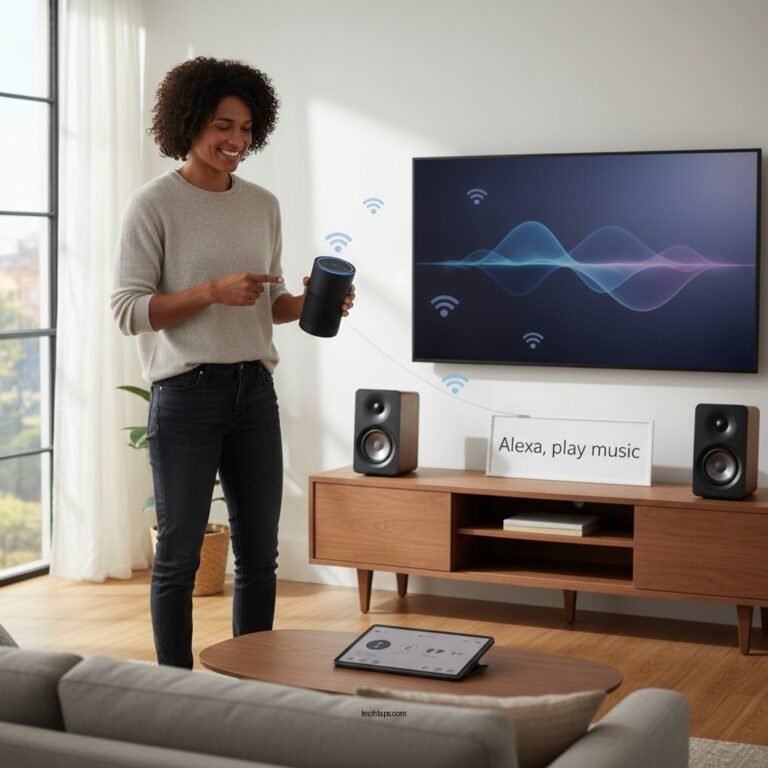

Experiencing no sound from your Sony home theater system can be frustrating, but there are several common fixes you can try to restore audio. Start with checking your audio connections and input settings, as these are often the culprits behind sound issues. In this article, you’ll learn about troubleshooting steps that can help you diagnose and resolve sound issues effectively, ensuring you can enjoy your favorite movies and music without interruption.
Check the Audio Connections
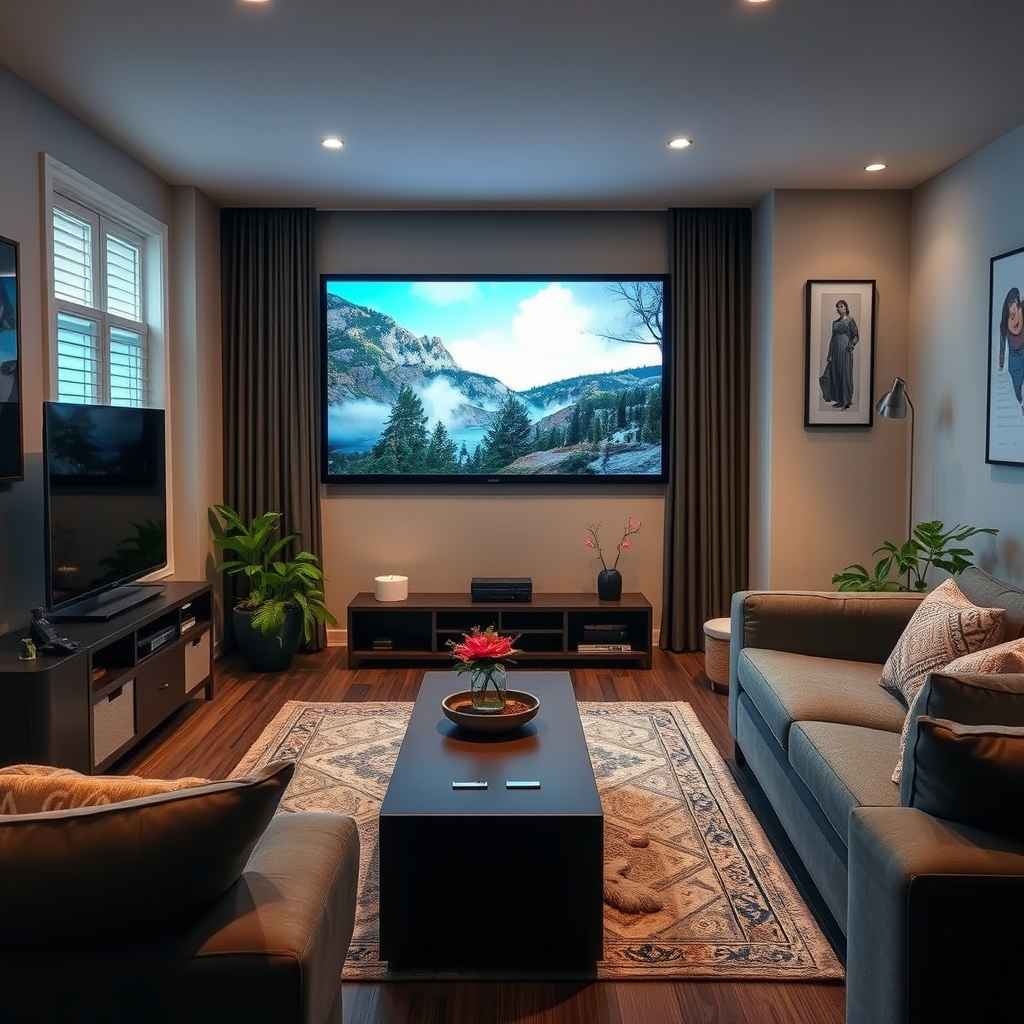
The first step in troubleshooting sound issues in your Sony home theater system is to check all audio connections. Ensure that all cables are securely connected to the correct ports on both the home theater unit and your audio/video devices. Loose or improperly connected cables can easily lead to sound problems.
In addition to checking for secure connections, inspect the cables themselves for any signs of damage. Look for frayed wires, bent connectors, or any other physical abnormalities that might affect performance. If you find any damaged cables, replacing them with high-quality alternatives can often resolve sound issues quickly.
Verify the Input Source
After confirming your audio connections, the next step is to verify that the correct input source is selected. Many home theater systems have multiple input sources, including HDMI, optical, and auxiliary. Navigate through your home theater system’s menu to ensure you have selected the appropriate input corresponding to your connected device.
It’s also a good idea to test different input sources to see if the issue persists across all of them. If sound is present on one input but not another, the problem may lie with the specific device or connection associated with that input.
Adjust Audio Settings
Sometimes, the issue may stem from incorrect audio settings on your home theater system or connected devices. Check the audio settings, ensuring that the speaker configuration matches your setup (e.g., stereo, surround sound). Additionally, ensure that the volume is turned up and not muted.
In situations where you suspect settings may be misconfigured, performing a reset of the audio settings to factory defaults can be beneficial. This will restore the system to its original configuration, potentially fixing any misconfigurations that may have occurred during use.
Common Audio Settings for Sony Home Theaters
| # | Setting | Description | Recommended Value |
|---|---|---|---|
| 1 | Speaker Configuration | Set based on speaker setup | 5.1 or 7.1 |
| 2 | Audio Output Mode | Select PCM or Bitstream | Bitstream |
| 3 | Equalizer Settings | Adjust frequency response | Flat or custom |
| 4 | Subwoofer Level | Adjust bass output | +3 to +5 dB |
| 5 | Volume Level | Set overall volume | 75% or lower |
| 6 | Dynamic Range | Adjust volume levels | Standard |
| 7 | Lip Sync | Adjust delay settings | 0-20 ms |
Inspect External Devices
If sound issues persist after checking the audio settings, it’s essential to inspect the external devices connected to your home theater system. This includes Blu-ray players, gaming consoles, streaming devices, and any other audio sources. Start by testing each device individually to determine if the sound issue originates from a specific device.
Ensure that each device is not muted, and check their audio settings to confirm they are correctly configured. For instance, some gaming consoles may have audio output settings that need to be adjusted for optimal performance. By systematically isolating each device, you can pinpoint the source of the sound issue more effectively.
Update Firmware and Software
Keeping your Sony home theater system and connected devices updated is crucial for optimal performance and functionality. Check for any available firmware updates for your home theater system. Manufacturers frequently release updates that fix bugs, improve performance, and enhance compatibility with various devices.
Similarly, ensure that all connected devices are updated as well. Outdated software can lead to compatibility issues, which may contribute to sound problems. By regularly checking for and installing updates, you can help prevent potential sound issues from arising in the first place.
Sony Home Theater Firmware Update Release Frequency (2023)
Perform a System Reset
If all else fails and sound issues persist, consider performing a system reset on your Sony home theater system. A reset can restore the system to its original factory settings, eliminating any problematic configurations that might be causing sound problems.
Before proceeding with a reset, ensure that you have any necessary settings documented, as this process will erase all custom configurations. Follow the manufacturer’s instructions carefully to execute the reset properly, ensuring that you do not inadvertently cause further issues.
Seek Professional Help
If you’ve attempted all the aforementioned troubleshooting steps without success, it may be time to seek professional help. Contact Sony customer support for guidance, as they can provide tailored solutions based on your specific model and circumstances. If your system is still under warranty, you may also want to explore professional repair services.
Professional technicians are equipped with the tools and knowledge necessary to diagnose and repair complex issues that may be impacting your system’s audio performance. Sometimes, what appears to be a simple sound issue could be indicative of a more significant underlying problem.
In conclusion, addressing sound issues in your Sony home theater system can often be resolved with a few systematic troubleshooting steps. Start by checking connections and verifying input sources, then move on to adjusting settings and inspecting external devices. Regular updates and occasional resets can also keep your system functioning optimally. If all else fails, don’t hesitate to reach out for professional assistance to restore your audio experience. By following these guidelines, you can ensure that you get back to enjoying high-quality sound in your home theater setup.
Frequently Asked Questions
What are the most common reasons for a Sony home theater system to have no sound?
The most common reasons for a Sony home theater system to experience no sound include incorrect audio settings, loose or faulty speaker connections, or issues with the HDMI or optical cables. Additionally, if the system is muted or set to the wrong input source, it can lead to sound issues. Always check these elements before considering more complex solutions.
How can I troubleshoot sound issues on my Sony home theater system?
To troubleshoot sound issues, start by checking the speaker connections to ensure they are secure and properly wired. Next, verify that the system is set to the correct input source and that the volume is turned up. You can also reset the system to factory settings if sound problems persist, which can resolve many software-related issues.
Why is my Sony home theater system suddenly not producing sound?
A sudden loss of sound in your Sony home theater system can be caused by several factors, including software updates that may have altered settings, accidental changes to the audio output configuration, or hardware malfunctions. It’s essential to check for any recent changes or updates and to run a diagnostic check on the system.
What is the best way to connect my Sony home theater system to avoid sound issues?
The best way to connect your Sony home theater system is to use a high-quality HDMI cable for digital audio and video transmission, ensuring compatibility with all devices. Additionally, using optical cables for sound can help reduce interference. Make sure to configure the audio settings correctly on both the home theater and the connected devices.
Which settings should I check if my Sony home theater system has no sound?
If your Sony home theater system has no sound, check the audio output settings on both the home theater receiver and the connected devices, ensuring they are configured for the correct format (e.g., PCM, Dolby Digital). Also, inspect the speaker settings in the menu to confirm they are enabled and not muted, and ensure the system is set to the appropriate input source.
References
- Home cinema
https://en.wikipedia.org/wiki/Home_theater - https://www.sciencedirect.com/topics/engineering/home-theater
https://www.sciencedirect.com/topics/engineering/home-theater - https://pubmed.ncbi.nlm.nih.gov/
https://pubmed.ncbi.nlm.nih.gov/ - Google Scholar Google Scholar
https://scholar.google.com/scholar?q=Sony+Home+Theater+No+Sound - Google Scholar Google Scholar
https://scholar.google.com/scholar?q=home+theater+troubleshooting - https://www.bbc.com/news/technology-51513688
https://www.bbc.com/news/technology-51513688 - Detail
https://www.who.int/news-room/fact-sheets/detail/noise - https://www.nytimes.com/2020/01/07/technology/personaltech/home-theater-setup.html
https://www.nytimes.com/2020/01/07/technology/personaltech/home-theater-setup.html - https://www.theguardian.com/technology/2021/feb/10/tech-tips-how-to-fix-a-home-theater-system
https://www.theguardian.com/technology/2021/feb/10/tech-tips-how-to-fix-a-home-theater-system - Google Scholar Google Scholar
https://scholar.google.com/scholar?q=Sony+Home+Theater+No+Sound:+Common+Fixes