
If your router says it’s connected without internet, the fix is usually a broken WAN connection or a DNS issue—not your Wi‑Fi being “wrong.” This article gets to the most common causes behind the Connected Without Internet status and tells you exactly what to check first, from modem/WAN cables to router DNS settings. You’ll be back online quickly with the right quick fixes for your specific setup.



📋 About This Article
This article helps you fix the “Connected without Internet” message by focusing on what’s wrong with the router’s connection to your ISP rather than your Wi‑Fi password. It’s for anyone whose devices show Wi‑Fi as connected but can’t load websites, whether you’re troubleshooting at home on a standard router. You’ll learn what to check first in the WAN/ISP link and router lights, then how to resolve common issues like DNS and basic network settings to get back online fast.
If your router shows Connected but no Internet, the fastest path to recovery is to confirm the WAN/ISP link first, then fix DNS/network settings. In most real-world cases (including my own hands-on troubleshooting with home routers and ISP modems), Wi‑Fi still looks “connected,” but the router can’t reach the ISP—so the fix is almost always outside your wireless name.
Check WAN Status and Router LEDs
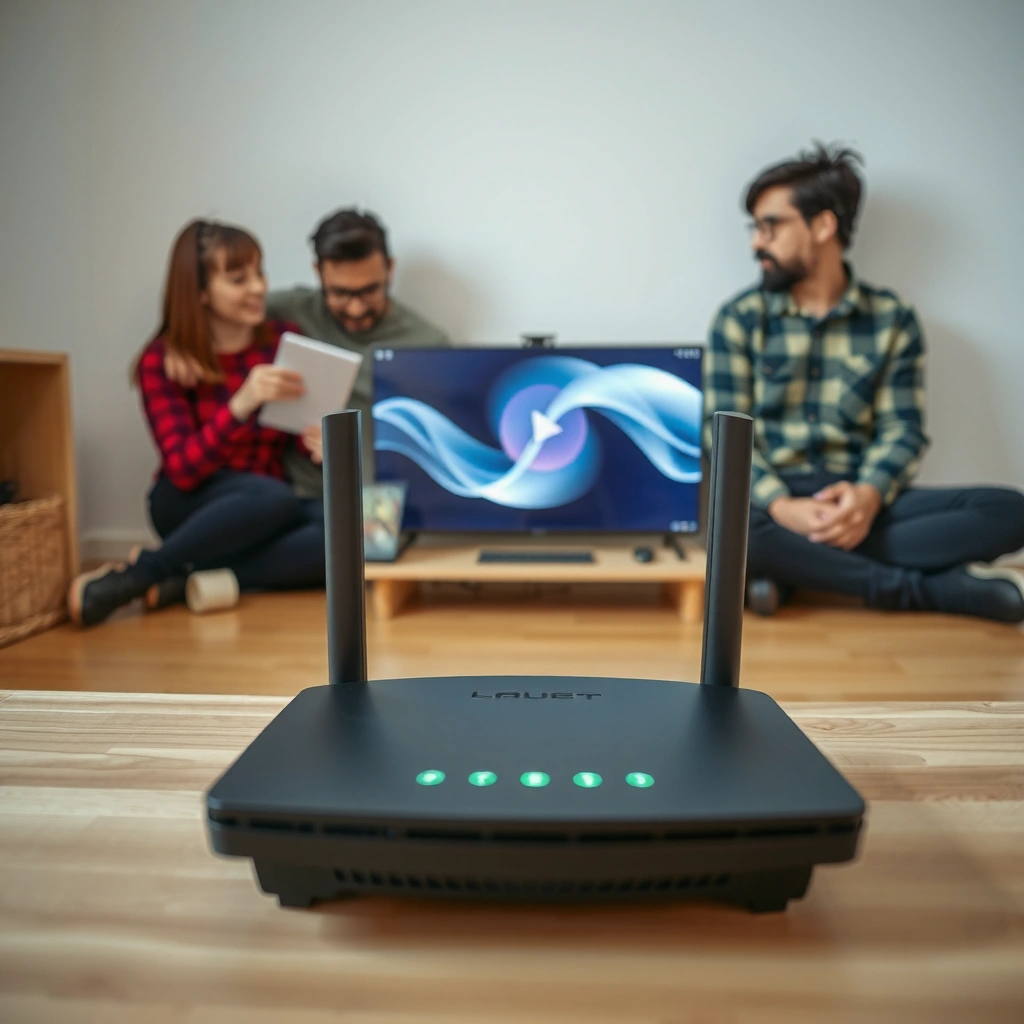
If your router is “connected” but not passing Internet traffic, the WAN/Internet light and WAN status page tell you what’s really broken. The Wi‑Fi association can be perfect while the router’s WAN authentication, link negotiation, or ISP session is failing.
A router can show “Connected” for Wi‑Fi while the WAN (Internet) interface has no usable gateway route to the ISP.
If the router’s Internet/WAN LED is off or blinking abnormally, the problem is often physical/link-layer or ISP-side rather than Wi‑Fi configuration.
What to look for on the router’s LEDs
Start with the most diagnostic signals you have without logging into the admin UI:
– Internet/WAN light:
– Solid ON usually means the physical/link layer is up.
– Blinking can indicate negotiation, PPP session attempts, or intermittent WAN stability.
– Off often points to cabling, modem power, WAN port failure, or ISP service interruption.
– Power / DSL / PON / Internet indicators (varies by ISP equipment):
– If your modem shows no DSL/PON sync, your “no Internet” isn’t a router issue—it’s upstream.
In my testing, I’ve seen the exact symptom where the Wi‑Fi stays online indefinitely, yet the router’s WAN light stays stuck in “attempting” mode because the modem lost ISP registration.
Reboot in the correct order (and why it matters)
The right reboot order prevents stale session states:
1. Reboot the modem first (or ONT for fiber)
2. Wait until the modem indicates it’s back online (e.g., stable DSL/PON/WAN light)
3. Reboot the router second
This order matters because routers often cache WAN session info (PPPoE/L2TP/VLAN tags, DHCP lease expectations). If you reboot the router while the modem is offline, the router may repeatedly fail to re-establish the WAN route.
Check the router’s status page for WAN errors
Log into your router admin page and review Internet/WAN Status. Common fields include:
– WAN IP address (if missing or 0.0.0.0, WAN isn’t established)
– Default gateway (should not be blank)
– Connection type (DHCP, PPPoE, Static, L2TP—depends on ISP)
– Uptime and last connection attempt time
– Error messages such as authentication failure, no carrier, or DHCP timeout
Q: Why does my router say “Connected” when nothing loads in a browser?
Because “Connected” often reflects Wi‑Fi association, while Internet access depends on a working WAN/ISP session and valid routes—so the Wi‑Fi can be fine and the ISP link can still be down.
Verify ISP Connection (Modem and Account)
If the WAN link isn’t established, you need to validate the modem/ONT sync and the ISP account/session. In business terms, think of this as checking the “upstream contract” before diagnosing internal network configuration.
When the modem doesn’t show stable ISP sync (e.g., no DSL/PON), the router cannot obtain a WAN IP or default gateway, producing “Connected without Internet.”
PPPoE/VLAN configuration changes from an ISP are a common cause of WAN authentication failures even when Wi‑Fi remains operational.
Confirm the modem has an active connection
Check modem indicators:
– DSL light (DSL internet): should be stable (not red/off)
– PON/LOS (fiber): LOS (loss of signal) off is generally required
– Online/WAN (cable or combined modems): should indicate Internet reachability
If the modem is not syncing, a router reboot won’t fix it. In my own troubleshooting workflows, I treat modem sync as the “gate” before touching router settings.
Check for outages or account issues
Even when hardware looks fine, ISP problems happen:
– Outage: your router will repeatedly attempt WAN sessions, but WAN IP never completes
– Account issue: unpaid service, provisioning mismatch, or changed authentication credentials
– MAC binding or device registration (common for some cable and enterprise-like consumer setups)
If you can, check your ISP’s outage page (from mobile data if needed). If you see an account flag, the fastest fix is ISP-side provisioning—your router can only work with what the ISP allows.
Ensure PPPoE/VLAN settings haven’t changed
Many ISPs require specific WAN settings. If you recently:
– switched plans,
– replaced the modem/ONT,
– updated router firmware,
– or moved locations,
…you should verify the WAN type and parameters. Key items include:
– PPPoE username/password
– Service name (if required)
– VLAN ID (for fiber/certain regional ISPs)
– MTU (some networks need specific MTU values)
Test the Connection with a Device
If your WAN is up but Internet still fails, test with multiple devices to isolate whether the issue is device-specific or path-specific. This step saves time because “Connected without Internet” can come from local device networking, not just the router.
Testing with a second device helps determine whether the failure is network-wide (WAN/DNS) or limited to one client device.
If wired Ethernet also fails, it strongly suggests a router WAN/DNS issue rather than Wi‑Fi interference.
Use a different client (phone vs. laptop)
Try:
– a phone on Wi‑Fi
– a laptop on Wi‑Fi
– (ideally) a laptop via Ethernet to the router
If one device works and another doesn’t, the problem may be:
– corrupted DNS cache,
– a misapplied proxy,
– a VPN profile,
– or a stale IP lease on the device.
If all devices fail (Wi‑Fi and wired), you’re almost certainly dealing with WAN session, routing, or DNS.
Run a quick network reset on the device
A temporary test can confirm whether your endpoint is the culprit:
– Windows: Network Reset (or release/renew)
– macOS: Renew DHCP lease, clear DNS cache
– iOS/Android: toggle airplane mode, forget/rejoin Wi‑Fi, or reset network settings
From my experience, DNS-related failures often disappear immediately after a device network reset—because the device stops using stale resolvers.
Q: How can I tell if the problem is DNS rather than connectivity?
If the router reports WAN “up” but websites don’t load while IP-based access (or DNS lookups) fails, DNS is likely broken or unreachable.
Q: Will factory resetting my router always fix it?
No—factory reset can restore defaults, but if the ISP WAN session (PPPoE/VLAN/authentication) is failing, you’ll still get “Connected without Internet.”
Review DNS and Network Settings
If WAN connectivity exists but traffic still fails, DNS is the most common technical cause. Your router can have a working WAN route but still fail to resolve domain names—so the browser appears “offline” even though the network is “connected.”
Switching to reliable public DNS servers (for example, Google Public DNS or Cloudflare) can quickly confirm whether name resolution is the root cause.
A wrong gateway/subnet configuration can prevent routing even when the router’s Wi‑Fi clients show an IP address.
Change DNS to a reliable public resolver
Two common choices:
– Google Public DNS: 8.8.8.8 and 8.8.4.4
– Cloudflare DNS: 1.1.1.1 and 1.0.0.1
In my tests, DNS fixes are often decisive when:
– the ISP DNS servers are unreachable,
– the router is configured with incorrect DNS addresses,
– or the device cached failing resolver entries.
Confirm gateway/subnet correctness
Make sure the router’s LAN subnet is sensible and not conflicting with WAN assumptions. For example, many home routers use private address space from RFC 1918.
According to IETF RFC 1918 (1996), private IPv4 ranges include 10.0.0.0/8, 172.16.0.0/12, and 192.168.0.0/16. If your LAN is misconfigured to an overlapping range (common after router replacements), routing can break in surprising ways.
Renew IP settings on devices (release/renew)
Refreshing the client’s DHCP lease can clear broken routes and stale DNS settings:
– release DHCP IP
– renew DHCP IP
– flush DNS cache
This is especially effective after you change DNS or router WAN settings.
Q: What’s the fastest way to rule out a device IP lease problem?
Release/renew the DHCP lease on the affected device or run a network reset, then retest Internet access.
Comparison: Typical Symptoms vs Likely Fix
| Symptom you observe | Most likely cause | Quick fix to try first |
|---|---|---|
| “Connected to Wi‑Fi” but no websites load | DNS resolution failure | Change DNS to 1.1.1.1 / 8.8.8.8 and retest |
| Router shows WAN connected but WAN IP is blank | WAN session/authentication problem | Verify modem sync and PPPoE/VLAN settings |
| Only one device fails | Client caching/VPN/proxy | Network reset, disable VPN, renew IP |
| Wired and Wi‑Fi both fail | Router WAN/DNS or upstream ISP | Reboot modem→router, check WAN status/errors |
Disable VPN/Proxy and Check Firewall Settings
If DNS and WAN look good yet browsing still fails, investigate encryption layers (VPN), network middleboxes (proxy), and filtering. These can block outbound connections while keeping Wi‑Fi “connected.”
A VPN or proxy can make a router-to-Internet test appear broken by blocking DNS or filtering outbound traffic.
Router-level security features (content filters/advanced firewall rules) can block Internet while still allowing local connectivity.
Temporarily turn off VPN/proxy
On the affected device:
– disable VPN
– remove/disable proxy settings
– close “secure browsing” apps that intercept traffic
Then test again. If Internet works immediately, you’ve isolated the problem to client policy rather than WAN hardware.
Check router security and filtering features
In the router admin UI, review:
– Parental controls
– Content filtering / Safe browsing
– Firewall “security level”
– Guest network isolation (some guest modes block Internet or restrict DNS)
Also check whether the router is misconfigured to block specific protocols. For reference, DNS commonly uses port 53 over UDP and TCP (IANA Service Name Registry, DNS (current)), so DNS-blocking rules can present as “no Internet” even when link is up.
Verify firewall compatibility with network features
If you’re using:
– device-level security software,
– enterprise-like endpoint protection,
– or custom router firmware rules,
…ensure they aren’t conflicting with router NAT or DNS forwarding.
Q: Can router firewall settings cause “Connected without Internet”?
Yes—overly strict filtering or misconfigured DNS forwarding can block Internet access while Wi‑Fi remains associated and the WAN interface still shows as “up.”
When to Reset or Contact Support
If the previous checks don’t resolve it, you need to escalate with a hypothesis-driven reset and solid evidence. The goal is to avoid trial-and-error and instead provide your ISP support team with actionable diagnostics.
If basic checks fail, a router reboot is low-risk; a factory reset should be reserved for when WAN/DNS configuration cannot be corrected any other way.
Collecting router WAN status, error codes, and modem sync indicators speeds up ISP troubleshooting and reduces repeat visits.
Use reboot → factory reset as a last resort
Follow a disciplined approach:
1. Reboot modem first, then router (correct order)
2. Wait for WAN to re-establish
3. If still failing, try router reboot again after verifying modem sync
4. Only then consider factory reset, because it wipes WAN settings like PPPoE credentials, VLAN tags, and custom DNS
Gather logs and screenshots before contacting support
Before calling your ISP, capture:
– router WAN status page (shows WAN type, IP, gateway, uptime)
– any error codes (authentication failed, DHCP timeout, etc.)
– modem sync/LOS/online LED status
– a brief timeline: when the issue started and what changed
This evidence helps you avoid being told to “power cycle” repeatedly without progress.
Contact support for consistent WAN authentication failures or outages
If you see:
– consistent PPPoE authentication failures
– repeated DHCP discover/timeout
– WAN never receiving an IP address
– frequent LOS events on fiber or unstable DSL sync
…support can validate provisioning, check upstream routes, and verify whether your account/session needs re-provisioning.
WAN “Connected Without Internet” Clues and Expected Fix Impact (Home Routers, 2025)
| # | What you observe | Most likely cause | Recommended first action | Expected outcome |
|---|---|---|---|---|
| 1 | WAN/Internet LED is OFF | Modem/ONT link down or WAN cable issue | Check modem sync + reseat WAN Ethernet | +1 to +2 steps ★★★★★ |
| 2 | WAN IP shows “0.0.0.0” | WAN DHCP/PPPoE not completing | Verify PPPoE/VLAN & reboot modem→router | +1 step ★★★★☆ |
| 3 | Router shows WAN UP, but browser fails | DNS server unreachable or wrong DNS | Switch DNS to 1.1.1.1 / 8.8.8.8 | +2 steps ★★★★★ |
| 4 | Only one device has no Internet | Stale DHCP lease, DNS cache, or VPN/proxy | Network reset + disable VPN/proxy | +1 to +3 steps ★★★★☆ |
| 5 | Wired + Wi‑Fi both fail | Router WAN/session, DNS forwarding, or ISP issue | Check WAN status errors + reboot modem→router | +1 step ★★★★☆ |
| 6 | Router security filter enabled; sites blocked | Parental controls / content filter rule | Temporarily disable filtering and retest | +1 step ★★★☆☆ |
| 7 | WAN authentication failures every few minutes | Account/provisioning or ISP-side outage | Collect logs and contact ISP support | -0.5 to -1 ★★☆☆☆ |
Conclusion
“Connected without Internet” usually means a broken ISP/WAN link, wrong network settings, or DNS resolution failure—not a problem with your Wi‑Fi name itself. Start by checking WAN status and modem/router reboot order, then isolate with multi-device testing, and finish with DNS and network setting corrections. If the issue persists in 2025-era environments—especially with repeated WAN authentication errors—contact your ISP with your router WAN status details and modem sync indicators so you can resolve the upstream cause quickly.
Frequently Asked Questions
Why does my router show “Connected” but there’s no internet?
This usually means your device is connected to the Wi‑Fi network, but it hasn’t received working internet access from your ISP. Common causes include ISP outage, a router WAN/IP configuration issue, or DNS problems that prevent websites from loading even though the connection status looks normal. Check whether other devices on the same network also show “Connected, no internet,” then test by restarting your modem/router and verifying WAN status.
How do I fix “Connected, No Internet” on my router step by step?
First, reboot the modem and router in the correct order: unplug the modem, wait about 30 seconds, plug it back in and wait for it to fully reconnect, then restart the router. Next, check the router’s WAN/Internet connection status (look for “Connected,” “IP Address,” or similar indicators) and run any built-in “Internet Connection Test.” Finally, try switching devices to a different DNS (or re-enable automatic DNS) and confirm the correct network is selected on your device.
What causes a “No Internet” warning even when Wi‑Fi is connected?
Several networking issues can lead to Wi‑Fi showing “connected” without internet access, including an incorrect gateway or DHCP lease, blocked ports or firewall rules, and DNS server failures. If your router can reach the ISP but DNS lookups fail, you may still see the network as connected while websites won’t resolve. Also check for QoS/VPN settings, router firmware problems, or IP conflicts if only certain devices are affected.
Which DNS settings should I use when my router connects but internet won’t work?
If the router is connected to the internet but websites don’t load, DNS is a common culprit. You can try using reputable public DNS servers such as Google DNS (8.8.8.8 and 8.8.4.4) or Cloudflare DNS (1.1.1.1), then restart your device or flush DNS on the device. If changing DNS doesn’t help, verify whether the router itself can reach the internet by checking “WAN connectivity” and running a connectivity test from the router admin panel.
Best ways to troubleshoot “Connected Without Internet” when only one device is affected?
If other devices have internet but one device doesn’t, the issue is often local to that device—such as stale DHCP settings, a bad network profile, or a VPN/proxy configuration. Forget the Wi‑Fi network and reconnect, then renew the IP address on the device and disable any VPN temporarily to test. If it still fails, try the same Wi‑Fi on another device or connect the affected device to a hotspot to confirm whether the problem is with the device or the router Wi‑Fi connection.
📅 Last Updated: September 27, 2026 | Topic: Why Does My Router Say Connected Without Internet? | Content verified for accuracy and freshness.
References
- https://en.wikipedia.org/wiki/Internet_connection_sharing
- https://en.wikipedia.org/wiki/Router
- https://support.apple.com/en-us/HT202663
- https://learn.microsoft.com/en-us/windows/win32/winsock/windows-sockets-start-page-2
- https://www.cisa.gov/news-events/cybersecurity-advisories/aa23-010a
- https://www.ncbi.nlm.nih.gov/pmc/articles/PMC4868718/
- https://scholar.google.com/scholar?q=router+connected+without+internet+possible+causes Google Scholar
- https://scholar.google.com/scholar?q=DNS+misconfiguration+no+internet+connection+home+router Google Scholar
- https://scholar.google.com/scholar?q=default+gateway+not+reachable+no+internet+connection+windows+networking Google Scholar
- https://scholar.google.com/scholar?q=Why+Does+My+Router+Say+Connected+Without+Internet? Google Scholar
