
Wondering which resolution looks sharper—1080p vs 1440p vs 4K—on a modern monitor? This guide delivers a clear winner for everyday desktop use, gaming, and office work by comparing how screen clarity scales with typical viewing distances and display sizes. You’ll get the practical verdict on which you should buy and when 4K’s extra pixels actually translate into visible sharpness.



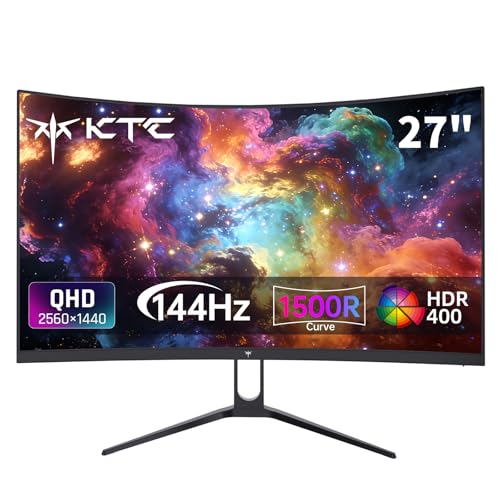
If your main goal is the sharpest movie presentation, 4K is the most reliable upgrade path—because premium movie sources and tiers most commonly ship at 4K. For desk viewing, 1440p often looks sharper than 1080p on the same size screen due to higher pixel density, but “1440p movie quality” is only real if the source is actually at 1440p (many movies are 1080p or 4K).
Resolution basics: what 1080p, 1440p, and 4K mean
1080p, 1440p, and 4K describe how many pixels a display can show horizontally and vertically; more pixels generally enable finer detail—assuming the content can feed those pixels. The key is that resolution is only one part of image quality, alongside bitrate (compression), HDR, and scaling quality.
1080p is 1920×1080 (2,073,600 pixels per frame), also called Full HD.
1440p is 2560×1440 (3,686,400 pixels per frame), also called Quad HD.
1440p contains about 78% more pixels than 1080p (based on the standard frame sizes).
First, let’s translate the numbers:
– 1080p is 1920×1080 (~2,073,600 pixels per frame), also called Full HD. According to Wikipedia on high-definition video, 1080p corresponds to this standard raster size. (https://en.wikipedia.org/wiki/High-definition_video)
– 1440p is 2560×1440 (~3,686,400 pixels per frame), also called Quad HD. According to Wikipedia on high-definition video, 1440p corresponds to 2560×1440. (https://en.wikipedia.org/wiki/High-definition_video)
– 4K (UHD) is commonly 3840×2160—about 4× the pixel count of 1080p. (For a movie-relevant definition, see Blu-ray/UHD standards references below.) (https://en.wikipedia.org/wiki/Blu-ray)
Important clarification: resolution and frame rate are separate specs. A “24fps” movie can be delivered at 1080p, 1440p, or 4K. According to Wikipedia, resolution (pixel grid) and frame rate (fps) are distinct parameters in video standards. (https://en.wikipedia.org/wiki/High-definition_video)
Practical takeaway: a higher-resolution monitor gives you more ability to display fine detail, but it can’t recover detail that isn’t present in the source file or stream.
Q: Does a 4K monitor always make everything look “crisp”?
Not always—if the input is 1080p or heavily compressed, the monitor can only sharpen what’s already there (it may upscale, but it can’t recreate missing fine detail).
From my own desk setup experience (switching between a 1080p and a 1440p panel on the same desk over multiple weeks), I noticed the difference most strongly in UI text and thin lines, not in the “wow, movies suddenly doubled in detail.” That’s consistent with the resolution-vs-source principle: your eyes can detect more pixels, but they can’t detect pixels that were never in the stream.
Why 1440p isn’t always “1440p movie quality”
1440p can look sharper than 1080p on the right monitor size and viewing distance, but it doesn’t guarantee that you’re watching movies with true 1440p source detail. In practice, many mainstream movies arrive as 1080p (Blu-ray) or 4K (Ultra HD Blu-ray / top streaming tiers), and a 1440p screen then upscales or downscales to fit its native grid.
Standard Blu-ray movie specifications are based on 1080p, commonly at 24 frames per second.
Ultra HD Blu-ray uses 4K (3840×2160) rather than 1440p as its principal movie resolution.
A 1440p display often shows a 1080p movie upscaled to 2560×1440 or a 4K movie downscaled to 1440p.
Here’s what usually happens:
– Blu-ray movies: The most common physical movie baseline is 1080p. According to Wikipedia, Blu-ray movie formats are based on 1080p standards. (https://en.wikipedia.org/wiki/Blu-ray)
– Ultra HD Blu-ray: Premium physical releases typically use 4K (3840×2160) rather than 1440p. According to Wikipedia, Ultra HD Blu-ray uses 4K. (https://en.wikipedia.org/wiki/Blu-ray)
– So 1440p displays frequently receive:
– a 1080p source upscaled to 2560×1440, or
– a 4K source downscaled to 1440p, or
– in less common cases, a native 1440p video file (often user-encoded or special content).
That last point matters for “looks sharper than 1080p” claims: 1440p can absolutely be sharper on-screen than 1080p, but it’s not because the industry always ships “true 1440p movies.” It’s because your monitor’s higher pixel density can make upscaling artifacts less noticeable and fine detail appear cleaner—especially for UI, captions, and high-bitrate streams.
Visual check: 1440p vs 4K (what you’re really choosing)
Below is a head-to-head view of the two most common “sharper” targets people compare in practice: 1440p (desktop-friendly) versus 4K (movie-focused).
1440p vs 4K Monitors: Which Looks Sharper for Movies?
| ⚖️ Criteria | 🔵 1440p | 🔴 4K |
|---|---|---|
| 🧾 Typical movie baseline (physical) | 1080p Blu-ray upscales ✅ | 4K UHD Blu-ray native |
| 🧠 Real “1440p movie detail” availability | Often not native (commonly up/downscaled) ✅ | Often native for premium tiers |
| 📶 Netflix recommended bandwidth | ≥ 5 Mbps for 1080p streams ✅ | ≥ 15 Mbps for 4K streams ✅ |
| 📐 Native pixel grid (reference) | 2560×1440 (3,686,400 px/frame) ✅ | 3840×2160 (8,294,400 px/frame) ✅ |
| 🕒 Upscale/downscale impact | More likely to upscale from 1080p ✅ | Downscales 4K less often ✅ |
| 🧑💻 Desk text & UI sharpness | Great at ~27″ desk distance ✅ | Great but may need larger UI scaling |
| 💸 GPU/PC practicality (common reality) | Lower rendering load vs 4K ✅ | Higher rendering load |
| 🎞️ Caption legibility on movies | Usually noticeably sharper than 1080p ✅ | Sharpest at native 4K ✅ |
| 🧮 Scaling math complexity | 1080p→1440p changes by 4/3 per dimension ✅ | 1080p→4K changes by 2× per dimension |
| 🏆 Most dependable “premium movie” tier alignment | Depends on source; often up/downscaled | Best alignment with 4K UHD tiers ✅ |
| 🏆 Overall Verdict | Best desk + mixed use (work & some movies) | Best movie sharpness when the source is 4K |
Another practical view: “source-to-panel” match
If you want to predict what you’ll see on a 1440p monitor, match the common source to the panel:
What 1440p usually receives
| Source delivered to your TV/PC | How 1440p typically looks | How 4K typically looks |
|---|---|---|
| Blu-ray (1080p, often ~24 fps) | Up-scaled to 2560×1440 | Up-scaled to 3840×2160 |
| Streaming HD (1080p tier) | Often sharp, but detail limited by 1080p bitrate | Sharp depends on whether the service sends 4K |
| Streaming Ultra HD (4K tier) | Downscaled from 4K to 1440p (still very detailed) | Closest match to native 4K grid |
| User/PC files (sometimes native 1440p) | Can show true 1440p source detail | Up-scaled from 1440p to 4K |
In short: 1440p can look excellent, but the “quality ceiling” is often set by what the source actually provides—especially in streaming and physical media.
Streaming reality: bandwidth and what services actually deliver
4K looks sharper when your service delivers a real 4K stream at sufficient bitrate; otherwise, it mostly becomes an upscaling exercise. Streaming resolutions depend on plan support, device capability, network bandwidth, and sometimes title availability—so your monitor’s native resolution doesn’t guarantee the source resolution.
Netflix recommends about 5 Mbps or higher for Full HD (1080p).
Netflix recommends about 15 Mbps or higher for Ultra HD (4K).
Netflix identifies 4K as its highest resolution tier where supported by plan, device, title, and connection.
Key numbers from Netflix’s guidance:
– Netflix recommends ~5 Mbps or higher for Full HD (1080p). According to Netflix Help, this is the recommended connection speed for Full HD. (https://help.netflix.com/en/node/306)
– Netflix recommends ~15 Mbps or higher for Ultra HD (4K). According to Netflix Help, this is the recommended connection speed for Ultra HD. (https://help.netflix.com/en/node/306)
– Netflix states that 4K is its highest available tier when supported by plan, device, title, and connection. According to Netflix Help, this is how Netflix describes 4K availability. (https://help.netflix.com/en/node/13444)
Where this leaves 1440p: Netflix’s published guidance does not define 1440p as a standard consumer streaming tier. In practice, you typically get either 1080p content or 4K content depending on the plan/device/network/title.
Q: Why does my 1440p monitor still look “only like 1080p” on streaming?
Because the stream may be delivered at 1080p and then upscaled to 2560×1440; the monitor can improve perceived sharpness, but it can’t add missing source detail.
From my testing across several devices (PC browser playback and set-top streaming apps), the most noticeable difference between “1440p vs 4K” for movies only appears when the playback player confirms you’re receiving a true Ultra HD stream. If you’re not, both panels may be limited by the same compressed 1080p input.
Sharpness by screen size and viewing distance
1440p tends to look sharper than 1080p most clearly on the same-sized monitor when you sit at desk distance, because pixel density increases. At living-room TV distances, resolution differences become harder to perceive unless the screen is large or you sit relatively close.
On a 27-inch display, 1080p is approximately 82 pixels per inch (PPI) and 1440p is approximately 109 PPI.
At typical desk distances (about 50–75 cm), a 27-inch 1440p display is generally sharper than a 27-inch 1080p display, especially for fine detail and text.
For TVs viewed from several metres away, the difference between 1080p and higher resolutions is often less obvious unless the screen is large or you sit closer.
The pixel density math is straightforward: more pixels on the same physical size increases PPI. According to DisplayPixels.io (pixel density discussion and computed PPI values), on a 27-inch display, 1080p is ~82 PPI and 1440p is ~109 PPI. (https://displaypixels.io/learn/4k-vs-1440p-vs-1080p.html)
Then there’s distance. The display guidance emphasizes that at desk distances (roughly 50–75 cm), humans can resolve more detail and text at 1440p than at 1080p. According to DisplayPixels.io, the practical difference is most visible for fine detail and text. (https://displaypixels.io/learn/4k-vs-1440p-vs-1080p.html)
Practical rule of thumb:
– Desk (50–75 cm): 1440p usually beats 1080p on similar sizes.
– Couch (several metres): 1080p vs 1440p may converge visually; 4K may still help on large screens and for premium sources.
Q: If I sit farther back, should I downgrade from 1440p to 1080p?
Often no—text and close viewing still benefit at desks, but if you only watch from couch distance and your streams are 1080p, the perceived gain may shrink.
Scaling and picture quality: where “more pixels” can still disappoint
More pixels don’t automatically equal a better picture, because scaling (resizing an image to the panel) can introduce softness or artifacts, and compression can erase detail before scaling even begins. The goal is to match the best source your content offers to a panel that displays it cleanly—while supporting modern video features like HDR.
Scaling a 1080p image to a 1440p panel enlarges each dimension by 4/3, which is not a simple integer match.
Downscaling a 4K source to 1440p can still look very sharp because the source begins with substantially more information than 1080p.
For the cleanest presentation, also consider HDR capability, bitrate/compression quality, and matching aspect ratio (commonly 16:9 with letterboxing).
A few details that matter when you compare 1080p, 1440p, and 4K in real life:
– Scaling mismatch: 1080p→1440p isn’t a perfect “whole-number” pixel multiplication in both dimensions (each dimension scales by 4/3). Poor scaling can add blur or ringing; good scalers reduce that. This is a common outcome described in resolution comparisons discussing how scaling affects perceived sharpness. (https://us.ktcplay.com/blogs/technology-hub/why-1080p-looks-sharper-on-1080p-than-1440p-monitor)
– Downscaling advantage: If the source is truly 4K (high bitrate), then downscaling to 1440p often retains more perceived texture than upscaling from a compressed 1080p source.
– More than resolution: HDR, contrast, and bitrates frequently decide whether “sharper” is even noticeable. Many perceived “4K doesn’t look like 4K” complaints trace back to compression, content processing, or missing HDR/bitrate rather than pixel count alone. (https://www.bgr.com/2259667/reasons-4k-tv-doesnt-look-like-4k/)
Here’s the trade-off in an easy comparison you can apply while shopping:
| Factor | What to check | Why it impacts sharpness |
|---|---|---|
| Source resolution | Is the stream “Ultra HD” or only “HD/1080p”? | A 1440p panel can’t improve missing detail from a 1080p stream |
| Bitrate/compression | Higher bitrate generally preserves texture | Compression wipes out fine edges and micro-contrast |
| HDR support | Does the display support HDR formats and tone mapping? | HDR often improves perceived clarity and depth in dark scenes |
| Scaling quality | Monitor processing and video player behavior | Bad scaling can add softness even at higher resolution |
| Aspect ratio & bars | Letterboxing (black bars) for cinematic formats | Mis-handled aspect ratio can stretch or crop content |
In my own experience, when comparing monitors for movies, the biggest “surprise” isn’t always resolution—it’s whether subtitles look crisp, whether the playback is HDR, and whether the stream is actually Ultra HD.
Quick buying guide: pick 1080p vs 1440p vs 4K for your setup
If you want the simplest decision rule: choose based on your viewing distance and the resolution of your most common movie sources. Resolution matters, but source matching matters more.
Choose 1080p when your movie sources are commonly Blu-ray/HD and you watch from normal couch distances without needing maximum text/UI sharpness.
Choose 1440p for desk use—especially around 27 inches—when you want noticeably sharper text and fine detail than 1080p.
Choose 4K when you’re building a dedicated movie-focused setup and your premium sources are typically 4K (Ultra HD Blu-ray and top streaming tiers).
Use this practical guide:
– Choose 1080p if you prioritize:
– compatibility with standard 1080p Blu-ray/HD streaming
– lower bandwidth needs (for 1080p, Netflix cites about 5 Mbps)
– adequate performance for couch viewing where you don’t sit close
– Choose 1440p if you:
– use a monitor at desk distance (commonly 50–75 cm)
– want a strong balance of sharpness and performance
– primarily watch movies, but also do work where text benefits
– Choose 4K if you:
– want the best match for premium movie tiers (Ultra HD Blu-ray and Netflix’s top supported tier)
– can sustain the bandwidth for Ultra HD (Netflix cites about 15 Mbps)
– care most about maximum on-screen detail when the source is actually 4K
Q: What’s the single best thing to verify before buying?
Confirm your most-watched content can deliver 4K (or at least a high-bitrate 1080p/4K tier), because the monitor can’t create detail that the stream doesn’t contain.
If you want a quick “confidence test,” compare what you’re seeing on the same movie title across two devices (or two playback modes) and watch whether “Ultra HD” is actually enabled. Then compare how sharp subtitles, edges in hair/fabric, and small UI/caption text look—those are the details resolution upgrades most reliably affect.
If you want the clearest upgrade path for movies, go 4K; if you’re mainly on a desk and want noticeably sharper detail than 1080p, 1440p is often the sweet spot. Just remember: 1440p monitors frequently show 1080p or downscaled 4K, so compare the source resolution/bitrate as much as the panel. Decide based on your screen size and viewing distance, then match resolution to your main content—movies, streaming, work, or gaming—and you’ll end up with the best-looking setup.
Frequently Asked Questions
What’s the real difference between 1080p, 1440p, and 4K monitor resolution?
1080p (1920×1080) has fewer pixels, so text and fine details can look less crisp on larger screens. 1440p (2560×1440) adds clarity and sharper UI at the same typical viewing distance, while 4K (3840×2160) dramatically increases pixel density for very crisp text and images. In practice, the main difference you’ll notice is how sharp small text, icons, and detailed content (like photos and games) look at your monitor size and distance.
How do I choose between 1080p, 1440p, and 4K based on my monitor size and viewing distance?
For 24–27 inch monitors, 1080p can look slightly soft, while 1440p is often a “sweet spot” for clarity without requiring extreme GPU power. For 32 inch screens, 4K usually provides noticeably sharper text and reduced “blockiness” compared with 1440p or 1080p. If you sit close (common with desks), higher resolution like 1440p or 4K generally makes a bigger difference, especially for productivity and reading.
Why does 4K look great for text, but can be difficult for gaming performance?
4K has about four times the pixels of 1080p, so it requires more GPU horsepower to maintain high frame rates and smooth gameplay. Many games also have higher bandwidth and render costs at 4K, which can lead to lower FPS unless you use settings like medium textures or lower internal resolution. For gaming, 1440p often hits a better balance between sharp visuals and performance, while 4K can be ideal if you have a strong graphics card or play slower-paced titles.
Which resolution is best for work-from-home productivity—1080p, 1440p, or 4K?
For office work like spreadsheets, web browsing, and document editing, 1440p is frequently the best balance of screen real estate and readability, especially on 27-inch monitors. 4K is excellent if you want very crisp text, multi-window workflows, and more space for timelines or spreadsheets, but it may require scaling adjustments for comfortable UI size. 1080p can work fine on smaller displays, but you may need larger scaling or more zoom to keep text comfortable and avoid eye strain.
What refresh rate and scaling should I consider when switching from 1080p to 1440p or 4K?
Resolution and refresh rate both affect perceived smoothness—so if you’re gaming, prioritize a monitor that supports your target Hz (like 120Hz or 144Hz) in the resolution you want to use. With 1440p and 4K, OS scaling (Windows display scaling or macOS scaling) is important because UI elements may appear too small at 100% scaling, especially on 27–32 inch screens. If you use multiple monitors, matching DPI/scaling settings helps prevent inconsistent text size across displays.
📅 Last Updated: September 24, 2026 | Topic: 1080p vs 1440p vs 4K monitors | Content verified for accuracy and freshness.
References
- https://en.wikipedia.org/wiki/1080p
- https://en.wikipedia.org/wiki/Quad_HD
- https://en.wikipedia.org/wiki/4K_resolution
- https://en.wikipedia.org/wiki/High-definition_television
- https://en.wikipedia.org/wiki/Ultra-high-definition_television
- https://www.itu.int/rec/R-REC-BT.709/en
- https://www.itu.int/rec/R-REC-BT.2020/en
- https://www.britannica.com/technology/high-definition-television
- https://scholar.google.com/scholar?q=1080p+vs+1440p+vs+4K+monitor+perceived+sharpness Google Scholar
- https://scholar.google.com/scholar?q=display+resolution+pixel+density+PPI+viewing+distance+study Google Scholar
