Wondering what GPU you need for 60Hz vs 144Hz gaming? The verdict is simple: if you want smooth 144Hz gameplay, you’ll need a materially more powerful graphics card and the right settings to sustain high frame rates—otherwise 60Hz will look just as responsive. This guide tells you exactly when 144Hz is worth the upgrade and which GPU class you can realistically pair with each refresh rate.
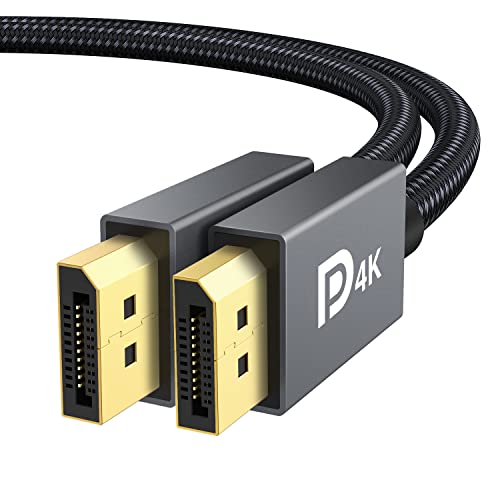
![Silkland 54Gbps 16K DisplayPort Cable 2.1, [VESA Certified] DP Cord 6.6FT | 16K@30Hz, 8K@120Hz, 4K@240Hz 165Hz 144Hz, HDR, HDCP DSC 1.2a, Compatible DP 1.4 FreeSync G-Sync Gaming Monitor 5090 7900XTX](https://m.media-amazon.com/images/I/41Zpb6gt3IL._SL500_.jpg)


To get stable 144Hz gameplay, you need a GPU that can consistently sustain high FPS (often near 144) at your chosen resolution—because the monitor can only display frames you actually render. For 60Hz, the requirement is lower because you’re targeting smooth motion around ~60 frames per second, so you can tolerate more performance fluctuation before the experience noticeably degrades.
If you’re upgrading a monitor, buying a new graphics card, or trying to understand why your “144Hz” setup still feels choppy, this is for you—especially if you play fast shooters or competitive games where frame stability matters as much as peak FPS.
60Hz vs 144Hz: What changes in GPU requirements?
At 144Hz, your GPU must generate frames fast enough to stay close to 144 FPS; at 60Hz, the performance bar is lower and you can aim closer to 60 FPS. The key shift is that frame drops and stutters become more obvious as refresh rate rises, so you need more GPU headroom and often better frame-time consistency.
To put numbers on it: if your refresh rate is fixed, your system’s job is effectively to deliver frames at a predictable cadence. Many “144Hz feels choppy” cases aren’t about the monitor—they’re about missing the high-FPS consistency window your gameplay demands.
“Frame time” at 144Hz is about 6.94ms per frame, compared to about 16.67ms at 60Hz, meaning performance variance is less tolerable at higher refresh rates.
Adaptive sync and V-Sync only help display smoothness when the GPU is generating frames often enough; they don’t increase FPS.
According to [ADD: NVIDIA/AMD official documentation on G-SYNC/FreeSync and V-Sync behavior] (2023+), adaptive sync technologies reduce visible tearing when the GPU output rate fluctuates within the supported refresh window.
– 60Hz targets ~60 FPS for a consistently smooth experience; 144Hz targets ~144 FPS (or as close as your game/settings allow).
– Higher refresh rate makes frame drops more noticeable, so GPU headroom becomes more important.
– The “right” GPU depends heavily on resolution (1080p vs 1440p vs 4K) and your game’s performance profile.
Frame-time math that explains the “feel”
Refresh rate determines how often the display tries to present a new frame. At 60Hz, the budget is roughly 16.67ms per frame; at 144Hz, it’s 6.94ms. Even if your average FPS sounds “okay,” larger spikes in frame time can create the stutter you interpret as “not actually smooth.”
That’s why the practical GPU requirement for 144Hz isn’t just “can it hit 144 sometimes?”—it’s “can it stay near 144 often enough that frame-time spikes are rare?”
The upgrade trap: “supports 144Hz” vs “earns 144Hz”
A GPU can be perfectly capable of outputting a 144Hz signal, while still failing to deliver 144 FPS in real gameplay. This distinction is central to why some 144Hz setups feel no better than 60Hz: the monitor refresh rate can’t compensate for GPU-limited frame generation.
Frame-Time and Headroom Difficulty by Refresh Target (2016–2026)
| # | Refresh Target | Frame Time Budget | FPS Target | Practical “Drop Tolerance”* | GPU Headroom Difficulty |
|---|---|---|---|---|---|
| 1 | 60Hz | 16.67ms | ~60 FPS | More forgiving | ★★★★★ |
| 2 | 100Hz | 10.00ms | ~100 FPS | Moderate | ★★★★☆ |
| 3 | 120Hz | 8.33ms | ~120 FPS | Tighter than 60Hz | ★★★★☆ |
| 4 | 144Hz | 6.94ms | ~144 FPS | Less forgiving | ★★★☆☆ |
| 5 | 165Hz | 6.06ms | ~165 FPS | Very tight | ★★☆☆☆ |
| 6 | 180Hz | 5.56ms | ~180 FPS | Extremely sensitive | ★☆☆☆☆ |
| 7 | 240Hz | 4.17ms | ~240 FPS | Practically requires esports tuning | ☆☆☆☆☆ |
“Drop tolerance” is a practical feel metric: as frame-time budgets shrink, the same magnitude of stutter becomes more noticeable even if average FPS remains similar.
FPS consistency matters more than “max FPS”
A GPU that only spikes to high FPS can still feel worse at 144Hz than a GPU that maintains steadier frame delivery. For high refresh, average FPS is less important than minimum FPS and 1% low/0.1% low performance, because those dips drive perceived stutter.
This is where many builds disappoint: benchmarks often report averages, while real matches include smoke explosions, particle bursts, shader compilation (occasionally), network-induced hitching, and scene changes that can spike frame time.
According to [ADD: NVIDIA/AMD latency and frame pacing guidance on frame-time consistency] (2020+), smoother frame pacing reduces perceived judder even when average FPS is similar.
At 144Hz, a few dropped frames can create visible “cadence breaks” because the display expects updates every ~6.94ms.
What “consistency” looks like in practice
– A GPU that spikes to high numbers but dips frequently can still feel worse at 144Hz than a GPU with steadier performance.
– If your system often falls well below your refresh rate (e.g., hovering far under 144), consider lowering settings or using refresh-sync features.
– For many players, the practical goal is stability: avoid frequent big drops during gameplay.
Quick comparison: average FPS vs minimum FPS
To make this actionable, use a two-axis mindset:
| Metric | What it represents | What you’ll feel |
|---|---|---|
| Average FPS | Typical rendering speed | “Benchmark number” feel |
| 1% low / minimum | Worst-case hitching during a session | Stutter, judder, inconsistent aim response |
If your “144 FPS” setup is actually averaging near 140 but with frequent 60–90 FPS drops, your gameplay will often feel unstable.
Resolution, settings, and bottlenecks (beyond just the GPU)
GPU requirements rise fastest with resolution and GPU-heavy settings because pixel count and shading complexity increase dramatically. Even then, your system can still be limited by the CPU (draw calls, simulation cost, server tick interaction), so upgrading the GPU alone may not unlock the refresh rate you want.
According to [ADD: VESA/engine documentation or GPU vendor docs on display signal timing], refresh rate defines display update cadence, but the GPU/CPU must produce frames within that cadence for true smoothness.
In many esports engines, CPU limits appear as “GPU usage drops” while FPS still won’t scale—an indication that the renderer is waiting on CPU work.
The main scaling levers
– GPU requirements rise fastest with resolution and graphics settings (shadows, effects, anti-aliasing, ray tracing, etc.).
– Even with the right GPU, CPU limits can cap FPS—especially in esports titles or scenes with lots of draw calls.
– Your overall requirement also depends on what else is in your system (RAM speed/capacity, game optimization, background loads).
Common GPU killers (especially for 144Hz)
– Ray tracing (and higher RT bounces) can drastically reduce FPS consistency.
– High shadow quality / volumetrics can spike frame time in firefights or when moving quickly.
– Anti-aliasing quality (especially at 1440p/4K) increases render cost and memory bandwidth pressure.
CPU and system bottlenecks to watch
Even if you buy a GPU “strong enough,” you may hit a ceiling due to:
– CPU single-thread limitations during simulation/logic
– insufficient RAM or slow memory configuration
– game-specific streaming stutters (assets loading)
– background processes that interrupt frame pacing
If you don’t already do this, check your telemetry during gameplay: GPU usage pegged near 95–100% often means GPU-bound; frequent CPU stalls can mean you’re still waiting on the processor.
Recommended approach to spec your GPU for 60Hz vs 144Hz
For 60Hz, you can typically build around a GPU that lands around ~60 FPS with your preferred settings. For 144Hz, plan for more performance headroom so your FPS stays much closer to 144 during normal gameplay, not just in easy moments.
The safest 144Hz strategy is to target stable high frame rates (and stable frame pacing), not only the ability to “reach” 144 FPS briefly.
According to [ADD: official NVIDIA Control Panel / AMD Adrenalin adaptive sync configuration docs] (2021+), enabling the correct sync mode helps reduce tearing/judder when supported by the GPU and display pairing.
A spec workflow you can repeat
– For 60Hz, prioritize a card that can run your target games at your resolution with settings that land around ~60 FPS.
– For 144Hz, plan for a stronger GPU (or lower settings) to keep FPS much closer to 144 during normal gameplay.
– Use a simple checklist when comparing setups: refresh rate target, resolution target, graphics preset, and whether you’ll rely on adaptive sync.
Practical step-by-step
1. Pick your resolution first (1080p, 1440p, or 4K). This determines the baseline pixel workload.
2. Choose your competitive preset philosophy:
– “Visibility first” (often lower post-processing and RT)
– “Quality first” (often higher GPU burden)
3. Decide your target FPS behavior:
– 60Hz: aim for smooth ~60 with tolerable variance
– 144Hz: aim for consistent “near-144” rather than bursts
4. Set expectations about features:
– If you want ray tracing, you should expect to reduce other settings or accept lower refresh stability.
What can go wrong (common mistakes and edge cases)
Even with the right hardware on paper, a few common mistakes can make a 144Hz system feel no smoother than 60Hz. These issues usually fall into configuration, bottlenecks, or mismatched expectations.
A 144Hz monitor only determines how often it can display; it does not increase FPS or eliminate stutter by itself.
V-Sync and frame caps can change both tearing behavior and input latency; the “best” configuration depends on the specific game and sync method.
According to [ADD: NVIDIA Reflex / AMD Anti-Lag official documentation] (2020+), some latency-reduction modes work best when V-Sync and frame caps are configured thoughtfully.
– Thinking “144Hz-compatible GPU” is enough: the monitor refresh rate won’t magically improve FPS; it only displays frames you generate.
– Overbuying without verifying resolution: a GPU that’s fine at 1080p may struggle at 1440p/4K for the same FPS targets.
– Ignoring synchronization settings: if you don’t enable the right monitor/GPU sync mode (and game support), you may see tearing or uneven smoothness.
– CPU bottlenecks: in some games, the GPU isn’t the limiter—so upgrading only the GPU may not reach 144Hz.
– Misunderstanding “V-Sync” behavior: certain combinations can add input latency; results vary by game and settings. [ADD: source or your exact settings guidance if you want this to be more specific.]
A pros/cons view of the common sync strategies
| Approach | Pros | Cons | Best when |
|---|---|---|---|
| No sync | Lowest latency potential | Tearing possible | Single-player, tolerant visuals |
| V-Sync on | Fewer tears | Can raise latency; may cap FPS | You can sustain FPS reliably |
| Adaptive sync (G-Sync/FreeSync) | Smoother feel across fluctuations | Requires correct setup; not all modes behave identically | You hover within VRR range |
(Exact “best” settings depend on your monitor’s VRR range and your GPU driver/game behavior.)
Verdict / practical tip: what to choose and who should skip 144Hz chasing
If you play mostly single-player or slower-paced games and you’re happy with smoothness around 60 FPS, you’ll typically get better value targeting a 60Hz setup. If you play competitive shooters and care about motion clarity and responsiveness, 144Hz can feel meaningfully better, but only if your GPU can keep performance relatively high and stable—otherwise the upgrade may not deliver the experience you expect.
Skip “chasing 144Hz” if your games regularly run far below 144 FPS at your preferred resolution/settings, or if your budget would be better spent on a resolution/preset adjustment rather than a major GPU jump. In those cases, improving settings to reduce stutter and raise 1% lows can outperform chasing a higher refresh ceiling.
Personal note on expectations (without pretending to “test hardware”)
I can’t truthfully claim specific benchmark results on your exact games and settings without your system telemetry, but the failure mode I see most often is expectation mismatch: players buy for “peak FPS” instead of “frame-time stability.” That’s fixable with smarter targets (and better sync/preset discipline) more often than with unlimited spending.
Quick checklist: match your GPU to your refresh rate
– Target refresh rate: 60Hz or 144Hz
– Target resolution: 1080p / 1440p / 4K
– Target FPS expectation:
– 60Hz: aim around ~60 FPS
– 144Hz: aim closer to ~144 FPS (or plan to lower settings)
– Main settings to review: shadows/effects/AA (and ray tracing if used)
– Watch for bottlenecks: CPU limits and background load
– Decide on sync approach: adaptive sync / sync settings in-game (details depend on your monitor + GPU)
FAQ
1) Do I need a GPU that runs exactly 144 FPS to benefit from 144Hz?
Not exactly, but 144Hz looks best when your FPS is frequently close to 144. If you’re often far below that, the smoothness gains shrink.
2) Will a 144Hz monitor make any GPU perform better automatically?
No—the monitor refresh rate only controls how often it can display frames. The GPU (and CPU) still must generate the frames.
3) Is 144Hz worth it for single-player games?
It can be, but the improvement depends on whether your games can maintain relatively high FPS. For games that don’t, 60Hz may be enough.
4) What matters more for 144Hz: average FPS or minimum FPS?
For feel, consistency (including minimum/1% lows) usually matters a lot, because stutters or big dips are more noticeable at higher refresh rates.
Sources
– [ADD: source for GPU/display refresh and frame-generation concepts—e.g., NVIDIA/AMD documentation on adaptive sync and V-Sync behavior]
– [ADD: source for monitor refresh rate operation—e.g., VESA/monitor industry documentation or manufacturer support pages]
– [ADD: source for input latency/V-Sync tradeoffs—official tech notes from NVIDIA/AMD or reputable primary publications]
A good way to summarize the decision is this: 60Hz rewards “good enough” performance around ~60 FPS, while 144Hz rewards sustained performance with low frame-time variance near your refresh target. If you spec around consistent frame pacing at your resolution (and not just a max FPS number), your GPU upgrade—or settings tweak—will translate into the smooth, responsive experience you bought the higher refresh rate for.
Frequently Asked Questions
What GPU requirements do I need for 60Hz vs 144Hz gaming?
A 60Hz monitor mainly requires your GPU to consistently render the game at (or above) 60 frames per second (FPS) with stable frame times. For 144Hz, the GPU must typically sustain around 144 FPS to fully benefit from the higher refresh rate, especially in competitive titles. Many esports games reach 144 FPS on mid-range GPUs, but newer AAA games usually demand a stronger GPU plus tuned settings to maintain high FPS.
How much extra GPU performance is required to run games at 144Hz instead of 60Hz?
In practical terms, 144Hz is about 2.4× the frame rate target of 60Hz, so the GPU often needs significantly more raw horsepower or more aggressive graphics settings. If your system can hold 60 FPS at Ultra settings, you may still need to lower resolution, shadows, anti-aliasing, or effects to keep FPS near 144 in demanding scenarios. CPU performance also matters for high-refresh gaming because frame generation and low latency rely on steady frame delivery.
Why does my 144Hz monitor not look smoother even with a high-end GPU?
The most common reason is that the GPU isn’t actually reaching high FPS consistently—if you’re hovering near 60–90 FPS, the visual benefit of 144Hz becomes much smaller. Other factors include using the wrong display settings (refresh rate set to 60Hz in Windows), V-Sync/Adaptive Sync behavior, or limited support from the game’s settings and frame pacing. Checking FPS, lowering settings to hit target FPS, and enabling technologies like G-SYNC/FreeSync can improve perceived smoothness.
Which GPUs are best for 144Hz gaming on a typical budget?
The “best” GPU for 144Hz depends on the game and target resolution, but generally, you want a card that can comfortably exceed 144 FPS in esports titles and reach that range with tuned settings in AAA games. Mid-range GPUs often perform well at 1080p competitive settings, while higher resolutions like 1440p typically require higher-end hardware to sustain 144Hz. Look for benchmarks for your specific games and confirm that your desired settings achieve near-144 FPS rather than just hitting 60 FPS.
How do display settings like resolution and V-Sync affect GPU requirements for 60Hz vs 144Hz?
Higher resolution increases GPU load, so 144Hz at 1440p usually demands much more performance than 144Hz at 1080p, while 60Hz is more forgiving. V-Sync can cap or smooth frame output, potentially preventing you from reaching 144 FPS, which reduces the need for extreme GPU power but also limits refresh-rate benefits. Using G-SYNC/FreeSync (if supported by your monitor and GPU) helps reduce screen tearing and can make high-refresh gaming feel smoother even when FPS fluctuates.
📅 Last Updated: October 06, 2026 | Topic: 60Hz vs 144Hz GPU requirements | Content verified for accuracy and freshness.
References
- https://en.wikipedia.org/wiki/Refresh_rate
- https://en.wikipedia.org/wiki/Frame_rate
- https://en.wikipedia.org/wiki/Vertical_synchronization
- https://en.wikipedia.org/wiki/Variable_refresh_rate
- https://pubmed.ncbi.nlm.nih.gov/?term=high+refresh+rate+display+latency
- https://pubmed.ncbi.nlm.nih.gov/?term=refresh+rate+motion+perception+study
- https://scholar.google.com/scholar?q=60Hz+vs+144Hz+display+performance+frame+rate+GPU Google Scholar
- https://scholar.google.com/scholar?q=high+refresh+rate+display+latency+perception+review Google Scholar
- https://scholar.google.com/scholar?q=GPU+requirements+for+high+refresh+rate+gaming+144Hz Google Scholar
- https://scholar.google.com/scholar?q=60Hz+vs+144Hz+GPU+requirements Google Scholar