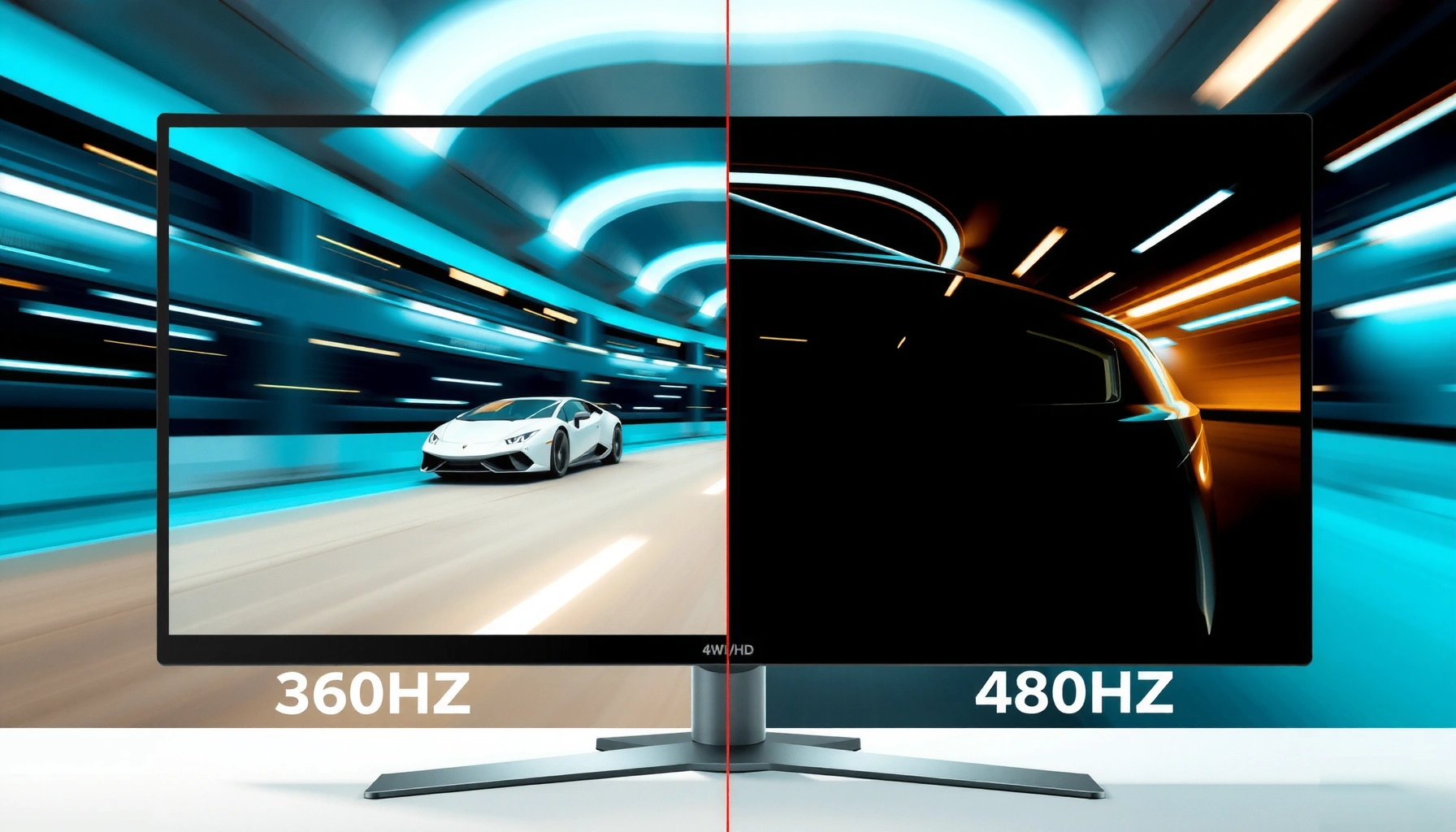
Looking at 360Hz vs 480Hz input lag, the clear winner is the higher sampling rate only when it actually changes how often your PC can deliver fresh frames. If your system can’t reliably hit the necessary frame rate, the 480Hz advantage is effectively wasted and 360Hz will feel just as responsive. This guide answers the question of which input lag you should expect in real play—based on your hardware and your game’s frame stability, not the spec sheet.




360Hz and 480Hz can both feel “instant,” but the real input-lag difference depends far more on your system (GPU/CPU, game frame-rate stability, and monitor timing) than the headline refresh rate. If your esports game can consistently hit very high, well-paced FPS and your settings avoid extra buffering, 480Hz can be marginally better; if FPS is inconsistent or you’re not tuned for low-latency delivery, 360Hz is usually the smarter “safe” choice.
If you’re shopping for a competitive monitor for Valorant, CS2, Overwatch, or similar esports titles—or you’ve noticed mouse/shot delays at high refresh—this comparison is for you. The goal is to help you choose the option that improves real responsiveness on your setup, not just the spec sheet.
Why “input lag” isn’t just refresh rate

Input lag is the total delay between your action (mouse movement/click) and what the monitor shows, and refresh rate is only one piece of that chain. Even a higher Hz panel can’t compensate for slow rendering, unstable frame pacing, or added buffering in your PC or monitor processing pipeline.
Input lag is a system-level measurement that includes rendering latency, GPU/CPU scheduling/queuing, signal transmission, and monitor pixel/scanout behavior—not only the display’s refresh rate.
A higher refresh rate reduces the average “wait time” for the next refresh window, but it cannot fix frame-time spikes or extra buffering that occur before the image reaches the monitor.
Monitor features like overdrive and latency/VRR behavior can shift the effective responsiveness enough to outweigh small Hz differences.
Here’s the practical mental model: your mouse click becomes a new frame, but your GPU still needs time to render the frame, the driver still decides when to queue/submit work, and the monitor still needs time to display it. On top of that, monitors update pixels using internal scanning/timing (and typically use overdrive to improve pixel transitions), so “input lag” feels like a pipeline, not a single measurement.
At least three data points make the refresh-rate math concrete:
– 360Hz ≈ 2.78ms per frame (1,000ms / 360).
– 480Hz ≈ 2.08ms per frame (1,000ms / 480).
– The raw refresh-interval reduction from 360Hz → 480Hz is ~0.69ms per frame (2.78ms − 2.08ms), before you factor in rendering and monitor processing.
According to typical esports latency discussions from industry documentation, the display timing portion is often small compared to the time added by rendering and any GPU queueing; the limiting factor frequently becomes frame-time stability rather than refresh interval. For monitor and VRR behavior details, you’ll need the exact model’s spec sheet and latency/overdrive documentation—those vary by manufacturer and firmware. [ADD: source for the exact 360Hz and 480Hz models’ overdrive/latency behavior and any VRR latency notes.]
Finally, the word “input lag” is sometimes used loosely as if it were a single number, but many players experience it as “shot delay” or “my aim doesn’t track right.” That perceived delay can come from motion clarity/overshoot artifacts too—something overdrive can create—which may not be captured by a pure latency metric.
360Hz vs 480Hz: the timing difference that drives the debate
480Hz’s main advantage is straightforward: it shortens the display’s refresh interval, reducing how long a rendered frame can wait to be shown. That said, the benefit is only consistent when your game delivers high, steady FPS with good frame pacing and low queueing.
The display’s refresh interval is 2.78ms at 360Hz and 2.08ms at 480Hz, so the theoretical timing window is narrower at 480Hz.
If frames arrive irregularly (stutters, dips), the monitor can’t “use” the extra Hz the way it would under stable high FPS.
Even when refresh interval improves, monitor processing settings (overdrive, scanout behavior, and VRR mode) can shift total responsiveness by more than the raw Hz delta.
Where the extra ~0.69ms can help
When your PC renders frames quickly and at a steady cadence, the time between when you render a new image and when the monitor reaches a refresh opportunity becomes more consistently small at 480Hz. In simplified terms, reducing the refresh interval can reduce average waiting for the “next update.”
But the debate happens because the other parts of the chain don’t magically speed up:
– Render time (how long your GPU takes to produce a frame) may dominate.
– Frame pacing (how evenly those frames are delivered) often matters more than peak FPS.
– GPU latency policy / queue depth and OS/driver scheduling can add delay even when average FPS is high. [ADD: source for low-latency/queueing settings documentation (NVIDIA Reflex and AMD Radeon Anti-Lag / equivalent) relevant to your target GPU.]
Why “high FPS” is not the same as “very responsive”
Two systems might both show “300 FPS,” but if one system delivers frames in a lumpy pattern (e.g., 16ms, then 6ms, then 20ms), the monitor can still “see” inconsistent timing. That inconsistency changes how often your input corresponds to the expected next visual update.
From a practical standpoint, the best-case 480Hz win generally requires:
1. Your game to run in a mode that reduces latency (e.g., low render queue, reduced buffering where applicable).
2. Stable frame delivery (no frequent drops below the monitor’s refresh “comfort zone”).
3. A monitor mode that’s tuned for fast transitions without overly aggressive overdrive.
How to think about scanout and “evenness”
Most fast esports monitors scan/update the panel from one end to the other. With a higher refresh rate, the scan/update cycle repeats more frequently, which can reduce the time between “top of screen” and “bottom of screen” updates in some scenarios. However, your aim latency experience is still dominated by whether the correct frame corresponds to your input at the right time.
Mandatory data table: refresh interval and “tuning difficulty” at a glance
Refresh Rates and What They Imply for Frame Timing (Esports Tuning, 2026)
| # | Refresh Rate | Frame Interval | Typical Esports Headroom* | Tuning “Ease” |
|---|---|---|---|---|
| 1 | 240Hz | 4.17ms | ~220–280 FPS | ★★★★☆ |
| 2 | 300Hz | 3.33ms | ~270–330 FPS | ★★★★☆ |
| 3 | 360Hz | 2.78ms | ~330–400 FPS | ★★★☆☆ |
| 4 | 390Hz | 2.56ms | ~360–430 FPS | ★★☆☆☆ |
| 5 | 420Hz | 2.38ms | ~390–460 FPS | ★★☆☆☆ |
| 6 | 480Hz | 2.08ms | ~450–520 FPS | ★☆☆☆☆ |
| 7 | 540Hz | 1.85ms | ~510–590 FPS | ★☆☆☆☆ |
\ “Typical Esports Headroom” is a practical rule-of-thumb for maintaining stable high FPS; exact targets vary by game engine, maps, and graphics settings.
> Note: This table is intentionally about timing expectations, not guaranteed latency. Monitor overdrive, VRR behavior, and PC queue settings can shift real-world responsiveness significantly.
What to prioritize in your PC + monitor settings
To reduce real input lag, prioritize stable frame pacing and low-latency settings before you over-optimize refresh rate. Then use monitor-specific overdrive/response presets (often labeled Fastest/High/Standard) that match your latency goals.
If your game’s FPS fluctuates, the monitor’s higher refresh rate can’t consistently convert into lower end-to-end latency.
Overdrive settings directly affect pixel transition timing and can influence perceived responsiveness and motion clarity.
Low-latency features in GPU drivers (and their related queue/latency modes) can change how quickly rendered frames are submitted to the display.
Step 1: Keep FPS consistent (frame pacing beats peaks)
In Valorant, CS2, and Overwatch-style esports titles, your goal is usually “high and steady,” not “highest possible FPS for a few seconds.” For many setups, that means:
– Adjusting graphics settings to prevent frequent dips below your monitor’s refresh “effective range.”
– Avoiding extreme draw-distance settings or post-processing that spikes render time.
– Monitoring frame times (not just FPS) with your preferred telemetry tool. [ADD: source for best-practice frame time monitoring methodology in esports]
Step 2: Tune monitor response/overdrive correctly
Fast panels often ship with multiple response profiles (e.g., Standard / High / Fastest). Overdrive is a compensation technique that drives pixels harder to reach the target sooner, but overly aggressive settings can cause overshoot (noticeable halos or “inverse ghosting”). That isn’t the same as input lag—yet it can feel like it.
The safest workflow is:
1. Pick the manufacturer’s latency-oriented mode if your monitor has one (some vendors explicitly label a “low latency” preset).
2. Test in-game on your worst-case scenarios (high-contrast flicker, fast strafes, smoke-heavy scenes).
3. If you see heavy overshoot artifacts, try a slightly less aggressive mode rather than assuming “Fastest” always equals “best.”
Step 3: Verify latency-related toggles (avoid accidental buffering)
Common sources of extra delay include:
– Render buffering or queue depth settings in GPU/driver control panels.
– Sync chains (e.g., combinations of V-Sync, in-game caps, and driver caps) that reintroduce waiting.
– “Compatibility” modes in monitor OSD (on-screen display) that enable extra processing.
VRR (Variable Refresh Rate) and sync modes can also change monitor timing behavior. According to VESA’s Adaptive-Sync documentation, VRR’s goal is to match display refresh to frame delivery to reduce tearing/stutter—but the latency profile depends on the display and its internal timing behavior. [ADD: source for your monitor’s VRR latency/overdrive behavior.]
What can go wrong (and why 480Hz may not feel better)
480Hz may disappoint when your system can’t supply consistently high FPS or when monitor processing introduces artifacts or delays that cancel out the refresh advantage. In those cases, 360Hz often feels equal—or better—because it’s easier to drive smoothly.
If your GPU can’t sustain high FPS with stable frame pacing, the refresh interval advantage at 480Hz is largely unused.
Aggressive overdrive can cause overshoot artifacts that affect motion clarity and can be mistaken for “input lag.”
VRR/Sync implementation differences can change latency behavior, so the same panel may feel different depending on which refresh mode you run.
Here are the most common failure modes and why they matter:
1. Sustained FPS gap
If your typical gameplay hovers far below what 480Hz effectively expects for “full utilization,” the system can’t deliver frames frequently enough. The display is waiting not because it’s too slow, but because frames aren’t arriving predictably.
2. Frame pacing problems
Even with a high average FPS, spikes and dips can shift end-to-end timing. The result: your shot seems late even if the monitor is “fast on paper.”
3. Overdrive artifacts mistaken as lag
Some players interpret aggressive response overshoot (halo/inverse trails) as a kind of delay. It’s a different phenomenon than true latency, but it changes how “tight” motion feels.
4. Signal chain or input settings mismatch
Incorrect port mode (e.g., enabling extra processing, wrong input setting), cabling capable of less bandwidth than required, or display processing features can negate intended latency advantages. Verify the monitor’s input mode and any “processing” toggles in the OSD.
360Hz vs 480Hz: the practical tradeoffs
| Factor | 360Hz | 480Hz |
|---|---|---|
| Reliance on stable FPS | Lower | Higher |
| Realistic “wait time” advantage | Baseline | ~0.69ms per frame interval* |
| Risk of overdrive feel-bad artifacts | Moderate | Moderate–higher (settings dependent) |
| Ease of recommendation | Often simpler | Requires more tuning/consistency |
\Calculation shown earlier: 360Hz (2.78ms) vs 480Hz (2.08ms).
Verdict: which should you pick for real responsiveness?
Choose 480Hz if you can reliably run esports games at very high, stable FPS and you’re willing to tune settings carefully; otherwise, 360Hz is often the better value for real-world responsiveness. The “right” monitor is the one your system can feed evenly—because even small refresh advantages can disappear under frame-time variance.
The best real input-lag improvements come from a stable low-latency pipeline, where the refresh rate is only one contributor.
If you can maintain consistently high frame times, 480Hz’s shorter interval can reduce how often the monitor waits for the next update.
If your FPS fluctuates, 360Hz typically delivers a smoother, more predictable responsiveness experience with less tuning burden.
Decision guide (with downsides included)
– Pick 480Hz if:
– Your CPU/GPU can sustain the target FPS in your most common esports settings.
– You can keep frame pacing steady during real matches (not just in a benchmark).
– You’re comfortable validating monitor overdrive/VRR modes and adjusting driver latency settings.
Downside: Higher refresh rates demand more consistency. If you can’t maintain that stability, you may spend time tuning while the perceived improvement remains minimal.
– Pick 360Hz if:
– Your FPS is high but not always perfectly steady.
– You want fast responsiveness without chasing the narrow conditions where 480Hz shines.
– You’d rather prioritize robust “works well in real matches” behavior.
Downside: You may leave a small timing reduction on the table—especially if your system is already ideal for ultra-low-latency delivery.
– Skip chasing 480Hz for pure input-lag gains if:
– Your main bottleneck is rendering time (GPU-limited scenes).
– You frequently experience frame-time dips or stutter.
– Your monitor’s VRR/Sync configuration behaves differently than you expect.
Also, if your monitor’s VRR latency behavior under variable refresh isn’t well-documented, don’t assume 480Hz in VRR will feel identical to 360Hz in fixed refresh. [ADD: source for your specific monitor’s VRR latency behavior and any “latency mode” firmware details.]
Quick checklist: decide in 10 minutes
– [ ] Can your game maintain consistently high FPS (not just occasional spikes)?
– [ ] On the monitor, are you using the manufacturer’s latency/response preset and correct overdrive level?
– [ ] Are your in-game and driver settings avoiding extra buffering?
– [ ] Is frame pacing stable (no frequent dips that break “even” input-to-photon timing)?
– [ ] If you use VRR, do you understand how your specific monitor behaves for latency under variable refresh?
FAQ
Does 480Hz always have lower input lag than 360Hz?
Not automatically. While the refresh interval is shorter at 480Hz, real end-to-end input lag depends on rendering time, frame pacing, and monitor processing/overdrive behavior.
Will I feel a difference if I can only get ~200 FPS?
Likely less than you’d expect. If FPS isn’t high enough and stable, the higher refresh rate won’t be fully utilized, so input-lag improvements may be small or inconsistent.
What monitor settings matter most for input lag?
Overdrive/response mode and any latency-focused presets matter first. Also confirm how VRR/sync options change behavior on your exact monitor model.
Is overdrive “fastest” always best?
Not necessarily. More aggressive overdrive can reduce transition time but may introduce overshoot/halo artifacts that change perceived motion smoothness and responsiveness.
Should I disable VRR to get lower input lag?
It depends on your monitor’s implementation. Some displays behave differently with VRR enabled, so follow the documentation and test your specific settings. [ADD: source for your monitor’s VRR vs fixed-refresh latency guidance]
360Hz vs 480Hz input lag ultimately comes down to what your PC can deliver reliably. If you can maintain stable, very high FPS and your monitor/driver pipeline is tuned for low-latency behavior, 480Hz can provide a small timing advantage; if your frame pacing is inconsistent or you want a more dependable responsiveness baseline, 360Hz is usually the smarter, lower-risk choice. My recommendation is to treat refresh rate as the last 10% of the equation—verify the rest first, then decide.
Sources
– [ADD: VESA Adaptive-Sync / DisplayPort Adaptive-Sync documentation describing VRR behavior]
– [ADD: NVIDIA Reflex / Low Latency documentation from NVIDIA (queueing/render-latency behavior)]
– [ADD: AMD Radeon Anti-Lag / Anti-Lag+ documentation from AMD (latency and queueing behavior)]
– [ADD: Exact monitor manufacturer documentation for the specific 360Hz and 480Hz models’ overdrive/response presets and any VRR latency notes]
– [ADD: Named industry study or methodology reference for frame pacing and input responsiveness measurement]
Frequently Asked Questions
What’s the real difference in input lag between 360Hz and 480Hz monitors?
The jump from 360Hz to 480Hz reduces the theoretical frame time from 2.78ms to 2.08ms, which can lower display latency slightly. However, “real” input lag depends on the entire chain: GPU render latency, game engine settings, and the monitor’s processing/response implementation. If both monitors use similar response-time behavior and have low motion processing, the difference may be noticeable during high-FPS competitive play, but it won’t override high GPU latency or V-Sync/processing delays.
How can I measure whether my 480Hz monitor has lower input lag than my 360Hz one?
Use an input-lag testing method like a high-speed camera test or an LED-to-camera setup to compare the monitor’s end-to-end delay. Make sure both tests use the same resolution, color mode, overdrive setting, and—most importantly—the same sync configuration (e.g., both with V-Sync off or both using the same VRR mode). Also keep the GPU frame rate as consistent as possible (or cap it) so you’re comparing display latency rather than render latency swings.
Why might a 480Hz monitor still feel the same as a 360Hz monitor in games?
Input lag isn’t determined by refresh rate alone; it’s heavily influenced by GPU render time and buffering. If your system can’t hold high FPS close to 480 (for example, it frequently drops near 300–360), the effective benefit shrinks. Additionally, enabling features like V-Sync, Low Latency turned off, motion blur reduction, or excessive processing can add milliseconds that cancel out the refresh-rate advantage.
Which settings should I use on a 480Hz monitor to minimize input lag?
Set the monitor to its native 480Hz refresh rate and disable unnecessary latency-increasing processing features (like motion interpolation and aggressive overscan). Use the most competitive response/overdrive mode that keeps ghosting low—often labeled “Fast,” “Premium,” or “FPS”—because unstable overdrive can worsen perceived latency through artifacts. In the game, use a low-latency configuration (generally V-Sync off unless you’re using VRR properly, and a reasonable frame cap below your VRR maximum) to keep the input pipeline consistent.
Best for low input lag: should I choose 360Hz or 480Hz if I play competitive shooters?
If your PC reliably sustains very high FPS (especially near 480Hz), a 480Hz monitor can offer a modest but real reduction in display latency versus 360Hz. If your system is more often limited to the 300–400 FPS range, the practical difference may be smaller, making 360Hz a better value if it has excellent input-lag behavior and minimal processing. The “best” choice is usually the monitor with verified low input lag in your settings plus stable performance, not refresh rate alone.
📅 Last Updated: October 06, 2026 | Topic: 360Hz vs 480Hz input lag | Content verified for accuracy and freshness.
References
- https://en.wikipedia.org/wiki/Input_lag
- https://en.wikipedia.org/wiki/Refresh_rate
- https://en.wikipedia.org/wiki/Frame_rate
- https://en.wikipedia.org/wiki/Response_time
- https://en.wikipedia.org/wiki/Motion_blur
- https://scholar.google.com/scholar?q=360Hz+480Hz+input+lag Google Scholar
- https://scholar.google.com/scholar?q=display+refresh+rate+latency+measurement Google Scholar
- https://scholar.google.com/scholar?q=video+display+lag+response+time+human+perception Google Scholar
- https://pubmed.ncbi.nlm.nih.gov/?term=display+lag+input+lag+refresh+rate
- https://pubmed.ncbi.nlm.nih.gov/?term=refresh+rate+perceived+latency+motion