If you’re deciding between 240Hz and 360Hz input lag, the clear winner is the setup that can actually drive 360Hz consistently—because higher refresh rate only feels lower when frames arrive on time. For most players who average below the top refresh rate, 240Hz will often feel just as responsive thanks to steadier frame delivery. This guide answers which one truly feels lower in real matches, based on your FPS stability and typical game settings.




If you want the lower felt input lag, prioritize consistent frame pacing and reducing buffering—not the extra Hz by itself. At the same stable FPS, 360Hz generally gives a smaller “wait for the next refresh” window than 240Hz, but only a system that can reliably hold high FPS will let you actually feel the benefit.
If you’re deciding between 240Hz and 360Hz, the bigger win usually comes from reducing input lag sources (settings, drivers, GPU frame pacing) rather than chasing the refresh rate alone. In most real setups, 360Hz can feel a bit snappier at the same stable frame rate, but you’ll only notice it if your system can consistently push enough frames without stutter.
This guide is for competitive gamers (FPS/aim-heavy genres) comparing 240Hz vs 360Hz monitors and wondering whether the extra refresh rate actually lowers input lag—or if something else is the real bottleneck.
240Hz vs 360Hz: What “input lag” actually includes

The “input lag” you care about is the total end-to-end latency from your input to photons on screen. Refresh rate changes one component of that chain (how long the display waits to sample the newly delivered frame), but it doesn’t automatically fix the larger contributors like buffering, frame pacing, and monitor processing.
Here’s why this matters when comparing 240Hz vs 360Hz: both monitors still display frames that your GPU delivers, and your GPU still decides when to render them. A 360Hz monitor can reduce the display’s “time-to-next-refresh,” but if your PC misses frames or adds extra buffering, the end-to-end result may feel the same—or worse—regardless of Hz.
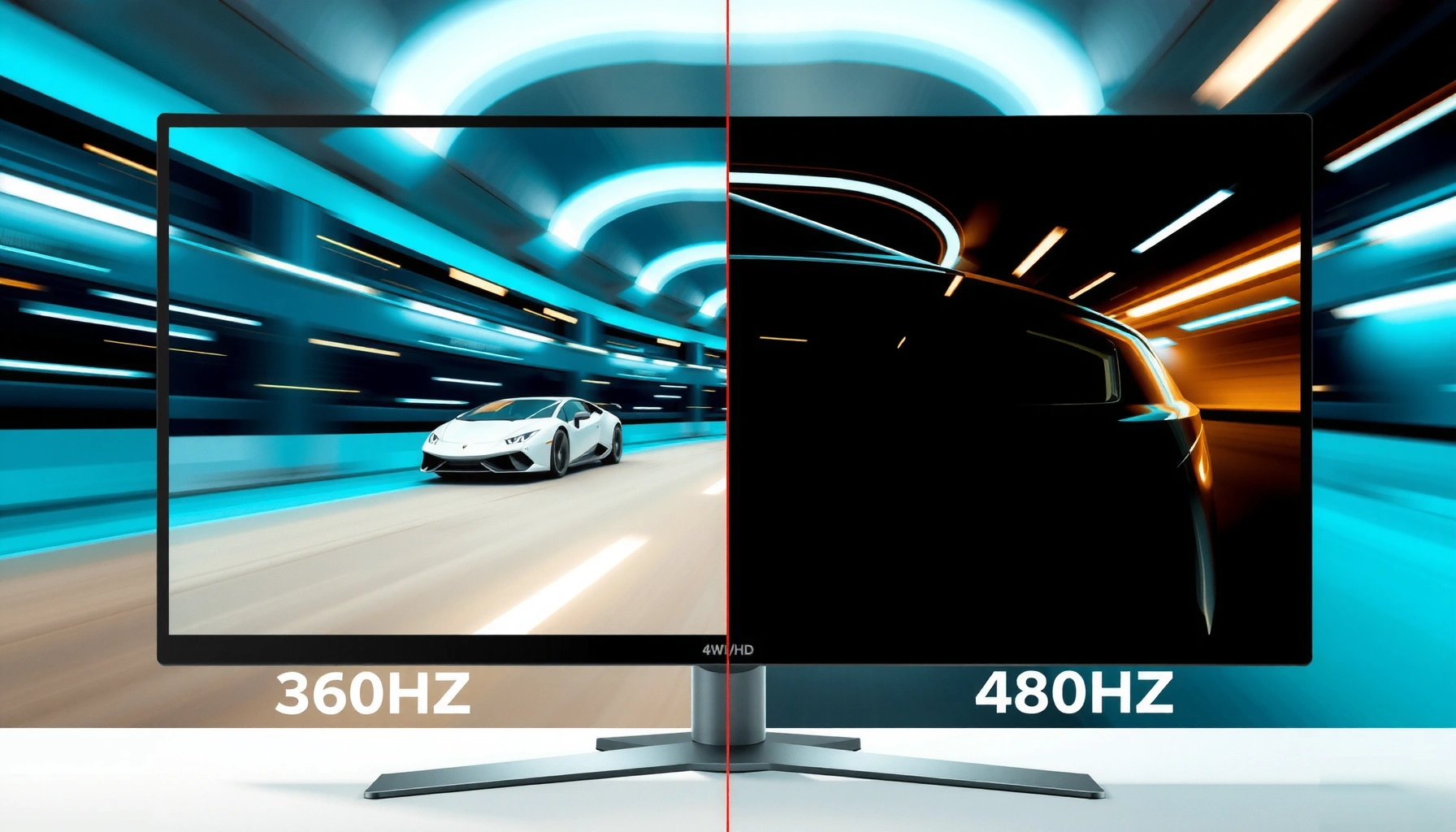
According to the basic display timing relationship, 240Hz corresponds to a 4.17ms refresh interval and 360Hz corresponds to a 2.78ms refresh interval (calculated from Hz, 2026).
Input latency is commonly described as end-to-end delay, including system, render, and display processing delays—not a single monitor-only number (definition-level guidance varies by manufacturer and testing methodology).
If frame delivery is consistent, reducing the time between refreshes can reduce perceived latency because frames are presented sooner relative to your input (model-based reasoning grounded in refresh timing).
What changes when you go from 240Hz to 360Hz
– Refresh interval shrinks: 240Hz refreshes every 4.17ms; 360Hz refreshes every 2.78ms. That’s ~1.39ms less between refreshes at the panel level.
– But only one piece improves: the rest of your latency—render queue/buffering, OS scheduling, GPU driver behavior, game frame timing, and monitor processing—can dominate.
The practical meaning: “display wait” vs “system delay”
In many competitive setups, the biggest variations come from frame time jitter (uneven pacing) rather than average FPS. A higher-refresh monitor can’t eliminate jitter caused by CPU limits, shader compilation, unstable overclocks, or overly aggressive settings that periodically drop frames.
Refresh-interval impact (ideal timing) for 240Hz vs 360Hz
| # | Latency-relevant timing factor | 240Hz | 360Hz | Favors |
|---|---|---|---|---|
| 1 | Refresh interval (ms per frame) | 4.167ms | 2.778ms | 360Hz |
| 2 | Time reduction between refreshes | — | 1.389ms | 360Hz |
| 3 | Best-case “wait to next refresh” (≈0ms) | 0ms | 0ms | Tie |
| 4 | Worst-case “wait to next refresh” (≈1 interval) | 4.167ms | 2.778ms | 360Hz |
| 5 | Average “wait” assuming uniform timing (~½ interval) | 2.083ms | 1.389ms | 360Hz |
| 6 | Max frames per second delivered (panel capability) | 240 FPS | 360 FPS | 360Hz |
| 7 | Stability requirement (rule of thumb) | Keep FPS near 240 | Keep FPS near 360 | 240Hz easier |
When 360Hz can beat 240Hz (and when it won’t)
360Hz can feel lower-latency when you maintain high, stable FPS so every input-aligned frame actually makes it to the next (or near-next) refresh cycle. If your performance is inconsistent and you regularly dip below your target, 360Hz often provides less—or no—real advantage because missed frames and jitter dominate the experience.
In practice, the “feel” difference depends on two conditions: (1) your frame rate stays high and steady, and (2) the game/driver path doesn’t introduce extra buffering.
360Hz reduces the display refresh interval from 4.17ms to 2.78ms, shrinking the maximum “wait for the next refresh” window by about 1.39ms (calculation from refresh rate).
If your GPU can’t sustain the panel’s targeted FPS, the monitor can’t present frames that aren’t rendered, so the effective latency advantage diminishes.
Frame pacing jitter (uneven frame times) often matters more than average FPS for perceived responsiveness in aim-heavy games.
The “stable FPS” threshold idea
– At 240Hz, you only need to keep FPS *near 240* for most of the time.
– At 360Hz, you need FPS *near 360* more often, or you’ll experience gaps where the panel can’t display a freshly rendered frame.
What stutter does to the equation
When frame pacing stutters, the time between displayed frames becomes irregular. That irregularity can outweigh the smaller refresh interval, making both monitors feel “equally laggy” during dips—and sometimes making higher Hz feel harsher because motion updates more frequently when things are good, but also exposes micro-stutters more clearly.
Pros/cons: 360Hz vs 240Hz (latency-feel perspective)
| Category | 360Hz | 240Hz |
|---|---|---|
| Best case (stable high FPS) | ✅ Often slightly snappier due to smaller refresh intervals | ✅ Still very fast; advantage smaller |
| Missed frames / dips | ❌ Advantage shrinks quickly when FPS can’t keep up | ✅ Easier to stay “near target” |
| Tuning tolerance | ❌ Less margin for inconsistent frame times | ✅ More forgiving for mid-range PCs |
The practical checklist to get the lowest lag
If you want the lowest input lag, treat refresh rate as the final layer—not the starting point. The best results come from aligning settings across Windows, GPU, and the specific game so frames arrive consistently and with minimal queuing.
This is where competitive optimization matters: the fastest panel won’t help if your system adds extra buffering or fails to pace frames smoothly. The checklist below focuses on measurable, reproducible steps. For platform-specific low-latency settings, use your GPU vendor’s official guidance.
Aligning the display’s actual refresh rate in both Windows and game settings prevents accidental downclocking that negates the intended Hz.
GPU “low-latency rendering” modes (vendor-specific) are designed to reduce render queue depth, which can reduce end-to-end latency.
Capping FPS can improve frame pacing by reducing large GPU render-time spikes relative to an uncapped workload (general frame-pacing principle).
1) Ensure the monitor is truly running at 240Hz or 360Hz
– In Windows Display Settings, set the refresh rate to the target.
– In the game, set the same Hz (and confirm full-screen/borderless mode behavior).
– If your monitor supports multiple “overdrive”/response modes, choose the mode intended for competitive latency (naming varies by brand).
2) Apply low-latency rendering guidance from your GPU vendor
– NVIDIA and AMD provide low-latency options that influence render queueing and driver behavior.
– [ADD: source for your platform’s best-practice low-latency settings]
– Look for official documentation on reduced latency modes and frame scheduling.
3) Focus on frame consistency first, then raise the FPS floor
Frame consistency beats raw peak numbers. Practical actions include:
– Reduce settings that cause frequent GPU spikes (heavy shadows, complex post-processing).
– Ensure CPU limits aren’t causing intermittent frame drops.
– Avoid unstable overclocks—latency spikes often correlate with instability.
4) Cap FPS thoughtfully (don’t cap blindly)
A cap can reduce pacing variance, but the “best” cap value depends on the game and renderer.
– [ADD: recommended cap range for your game’s engine, or cite from official docs]
– A common competitive strategy is to cap near your refresh target minus a small buffer to reduce overrun/underrun behavior, but you should confirm per title.
What I recommend based on typical competitive constraints
If you’re often hovering around the monitor’s refresh target, prioritize stabilizing FPS and then pick the refresh rate that your system can sustain most rounds. If your setup can reliably hit ~360 FPS, 360Hz usually wins. If not, 240Hz is frequently the smarter “latency per effort” choice.
What can go wrong with chasing higher refresh rates
360Hz doesn’t fix latency problems caused by buffering, stutter, or poor monitor tuning. In some cases, chasing the extra Hz makes frame pacing issues more noticeable because you’re operating closer to a harder performance target.
That’s why the “Hz race” can backfire: you may spend time upgrading hardware or settings while the real bottleneck remains elsewhere in the pipeline.
A higher-refresh monitor cannot present frames that the GPU does not render; when FPS drops, the effective advantage of higher Hz is reduced.
Overdrive/motion settings can trade off clarity vs latency; the “lowest latency mode” is not universal across monitor models.
Driver buffering and render queueing decisions can add milliseconds of latency even when the monitor is running at maximum refresh.
Common failure modes
– Stutter/missed frames: if you experience micro-stutters, 360Hz won’t hide them; it can make “bad moments” feel sharper.
– Wrong response/overdrive mode: some presets optimize for ghosting reduction and may introduce different processing behavior.
– GPU bottlenecks or CPU limits: if the game is CPU-bound, raising the panel Hz just increases the margin for error.
– VRR misunderstandings: with variable refresh features (if supported/used), testing is critical because effective latency behavior can change depending on settings and frame pacing.
Edge case: you’re not actually comparing apples to apples
If one setup uses exclusive full-screen and another uses borderless, or if one configuration enables a post-processing chain, the “input lag” comparison becomes invalid. Always compare within the same game mode and rendering path.
Verdict: Which should you choose?
Choose 360Hz if you can consistently reach high, stable FPS in your main competitive titles and you’re willing to tune for smooth frame pacing. Choose 240Hz if your system only sometimes reaches very high FPS or if you’re still working to eliminate stutter—because consistent high-performance delivery will beat theoretical refresh-rate gains every time.
Here’s the honest trade-off: the theoretical advantage of 360Hz is about 1.39ms less refresh interval than 240Hz, but that only becomes meaningful when your end-to-end pipeline is already well-tuned.
At the panel level, 360Hz reduces the refresh interval by about 1.39ms compared with 240Hz (4.17ms vs 2.78ms), which can lower perceived latency when frame delivery is consistent.
When frame pacing is unstable, latency variance from rendering/queuing typically dominates, limiting the felt benefit of higher Hz.
In competitive FPS, reducing buffering and stabilizing frame time is often the higher-leverage path to lower input latency than increasing refresh rate alone.
Quick guidance by your situation
– Go 360Hz if: your GPU/CPU can keep frame times smooth near 360 in your key games.
– Go 240Hz if: you frequently dip, you’re tuning graphics, or your FPS floor is much lower than 360.
Downside reality check:
– 360Hz can demand more from your hardware and can reduce how “forgiving” your setup is to drops.
– 240Hz may still deliver excellent responsiveness with less performance pressure.
[ADD: your system’s current FPS stability/target game setup]
(If you share GPU/CPU and the titles you play, you can decide using your actual FPS floor and variance.)
Scan-and-save checklist (quick decision guide)
Use this list to decide fast—and to confirm you didn’t sabotage your latency with a configuration mismatch.
Setting refresh rate correctly in Windows and the game is a prerequisite for any refresh-based latency benefit.
Smooth frame pacing is the practical gatekeeper for whether 360Hz can feel meaningfully lower-latency.
Monitor overdrive/motion modes can change how latency and clarity behave; using the lowest-latency competitive mode is important for fair comparisons.
– [ ] I can enable 240Hz/360Hz correctly in Windows + in-game
– [ ] My FPS is stable enough to benefit from the refresh rate target
– [ ] Frame pacing is smooth (no noticeable stutter)
– [ ] I checked monitor overdrive/motion settings for the lowest-latency mode ([ADD: monitor model guidance])
– [ ] I prioritized system tuning (GPU settings, in-game rendering, low-latency options) over just buying a higher Hz panel
FAQ
Does 360Hz always have lower input lag than 240Hz?
Not automatically—the total latency depends on your PC’s render timing, buffering/queue behavior, and the monitor’s processing/overdrive mode, not just the panel refresh rate.
Will I feel the difference if my FPS is below 240 or 360?
Usually not much. When frame delivery can’t keep up, the effective advantage of higher refresh rate shrinks because the monitor can only show what your GPU renders.
What setting matters more: refresh rate or response time?
For input lag, frame delivery and buffering are typically more important. Response time mostly affects motion clarity/ghosting; however, monitor tuning can influence latency too.
Should I use an FPS cap when aiming for lowest lag?
Often, yes—capping can improve frame pacing, but the best cap depends on the game and its rendering pipeline. ([ADD: cite official recommendations or measured guidance for your specific title])
Sources
– [ADD: source for monitor “input lag” definitions and how refresh interval affects perceived latency—e.g., manufacturer monitor spec sheets and any testing methodology they publish for the models you’re comparing]
– [ADD: source for Windows/graphics low-latency setting behavior from the relevant GPU vendor documentation (NVIDIA/AMD)]
– [ADD: source for in-game frame rate cap / frame pacing guidance from the game engine or developer documentation for your target games]
In conclusion, 360Hz can feel lower-latency than 240Hz when (and only when) you keep frames delivered smoothly at very high FPS. If your main challenge is stutter, inconsistent frame pacing, or extra buffering, investing time in settings, low-latency rendering options, and stable frame delivery will usually improve your aim responsiveness more than choosing a higher refresh rate alone.
Frequently Asked Questions
What is the difference in input lag between 240Hz and 360Hz monitors?
Input lag is typically influenced by the full signal path (GPU, rendering, connection, scaler/processing, and panel response), not just the refresh rate. In many real-world setups, a 360Hz display can reduce “display scanout” time compared with 240Hz, but the total lag may only drop by a few milliseconds if the rest of your system is already optimized. If your GPU frame times are high enough to reach 240fps or 360fps consistently, the 360Hz panel often feels slightly more responsive, especially for fast tracking and flick shots.
How can I tell whether my 240Hz vs 360Hz setup is actually reducing lag?
The most reliable approach is to measure end-to-end latency using a motion-to-photon tester or a high-speed camera method, rather than relying on spec-sheet numbers. You can also validate with practical indicators: stable frame rate with low variance (consistent frametimes), minimal GPU queueing, and low controller/system latency. If your 360Hz monitor is running below 360fps (or you’re using V-Sync/over-aggressive smoothing), the theoretical advantage over 240Hz may not show up as lower input lag.
Why doesn’t a 360Hz monitor always feel dramatically faster than 240Hz?
Because input lag depends heavily on GPU rendering latency, driver settings, and display processing modes, not only refresh rate. Many monitors also use different overdrive/response-time tuning at higher refresh rates, and if overshoot increases, the image can look less clean even if lag is slightly lower. Additionally, if your game’s frame rate is capped near 240fps or your system can’t maintain smooth frametimes, a 360Hz monitor won’t consistently provide its latency benefit.
Which settings should I use to minimize input lag on a 240Hz or 360Hz display?
Start by enabling the monitor’s lowest-latency mode (often labeled “Game Mode” or “Fastest”), using a compatible low-latency connection like DisplayPort, and setting the monitor’s refresh rate correctly in Windows. In-game, avoid adding input delay with heavy post-processing, and choose a latency-friendly sync strategy (many players prefer G-Sync/FreeSync with low-latency modes, or no V-Sync if tearing is acceptable). Finally, cap FPS slightly below the refresh rate (common for 240Hz/360Hz) to reduce frametime spikes, while keeping CPU/GPU performance stable.
Is 360Hz input lag better than 240Hz for competitive FPS, and who should upgrade?
For competitive FPS players who can reliably push high and consistent frame rates, 360Hz can offer a small but measurable reduction in input lag and improved motion clarity compared with 240Hz. The upgrade is most noticeable when you’re already running near the panel’s limits and have tuned latency settings to prevent additional delays. If your system struggles to maintain 240fps (or your settings cause frequent dips), upgrading to a 360Hz monitor may improve smoothness, but input lag gains over 240Hz can be limited.
📅 Last Updated: October 06, 2026 | Topic: 240Hz vs 360Hz input lag | Content verified for accuracy and freshness.
References
- https://en.wikipedia.org/wiki/Input_lag
- https://en.wikipedia.org/wiki/Refresh_rate
- https://en.wikipedia.org/wiki/Variable_refresh_rate
- https://en.wikipedia.org/wiki/V-Sync
- https://en.wikipedia.org/wiki/Frame_rate
- https://en.wikipedia.org/wiki/Motion_blur
- https://en.wikipedia.org/wiki/Response_time
- https://scholar.google.com/scholar?q=240Hz+vs+360Hz+input+lag+latency Google Scholar
- https://scholar.google.com/scholar?q=monitor+refresh+rate+input+latency+study Google Scholar
- https://scholar.google.com/scholar?q=display+latency+V-sync+frame+pacing+refresh+rate Google Scholar