
If your Cambridge Audio speaker remote isn’t responding, the first step is to check the batteries to ensure they are correctly installed and functioning. If the remote still doesn’t work, there are several additional troubleshooting steps you can take. This article will guide you through common issues and provide effective solutions to restore functionality to your remote control.




Check the Batteries
One of the most common reasons for a remote control malfunction is depleted batteries. Begin by ensuring that the batteries are inserted correctly, paying attention to the polarity markings inside the battery compartment. If the batteries appear old or depleted, replace them with new, high-quality batteries. Always opt for reputable brands to avoid potential issues related to unreliable power sources.
Additionally, consider testing the batteries with a multimeter to confirm they are functioning properly. If your remote uses rechargeable batteries, ensure they are fully charged. A simple battery check can often resolve the issue without further troubleshooting.
Inspect the Remote Control
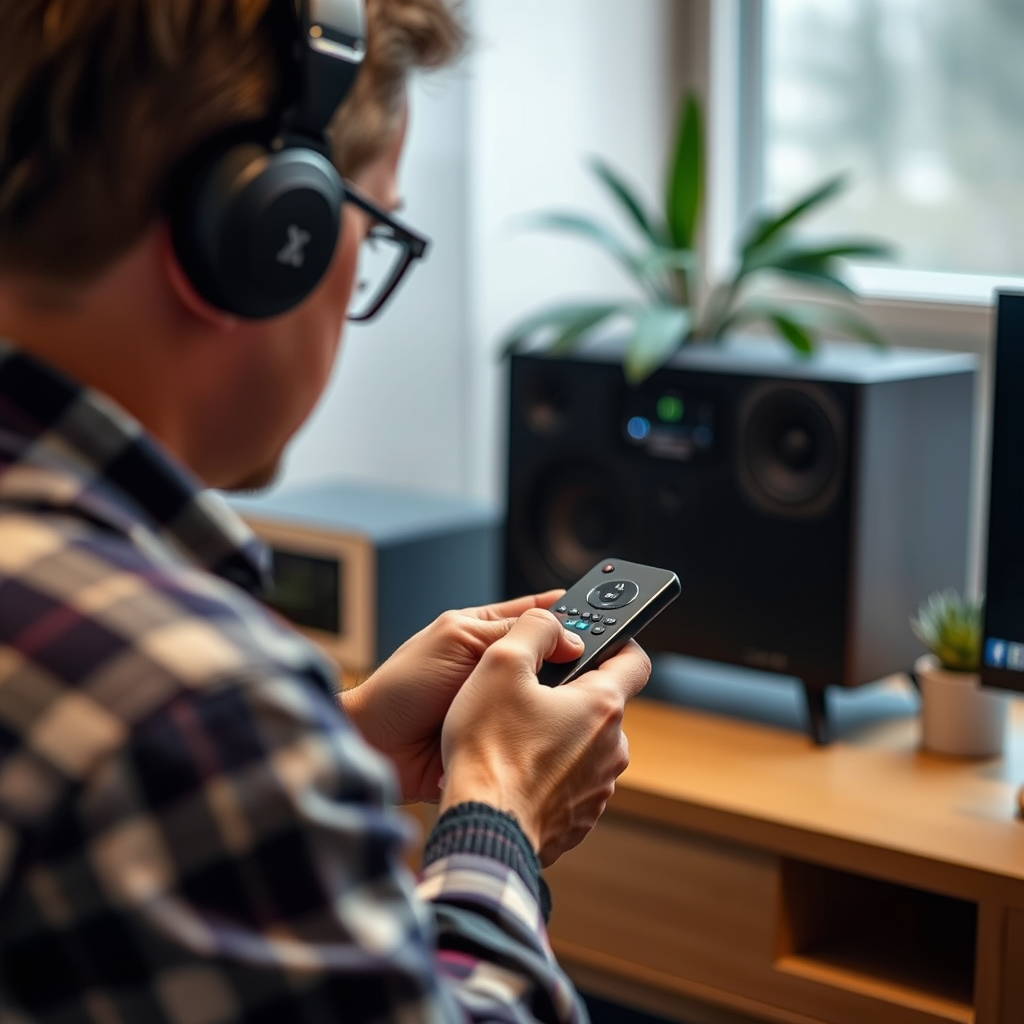
Next, inspect your remote control for any visible damage or wear. Look closely at the buttons to ensure they are not stuck or jammed, as debris can sometimes accumulate around them, inhibiting function. If you notice dirt or grime, clean the remote using a soft cloth slightly dampened with water or a mild cleaning solution. Be cautious not to allow moisture to seep into the device.
Also, examine the infrared emitter (the small LED at the front of the remote). If it appears damaged or dirty, this could be the reason your remote isn’t communicating with your speaker. A quick clean or careful replacement might be necessary.
Verify Speaker Connectivity
Ensure that your Cambridge Audio speaker is powered on and properly connected to the audio source. Check the power cable and ensure it is plugged into a functioning power outlet. If your speaker connects via Bluetooth or Wi-Fi, verify that it is connected to the correct network and that the source device is also linked.
Furthermore, check for any physical obstructions between the remote and the speaker. Objects like furniture or other electronic devices can block the infrared signal, leading to communication issues. It’s advisable to use the remote with a clear line of sight to the speaker to ensure optimal performance.
Reset the Remote
Resetting the remote control can often resolve unresponsive behavior caused by glitches or software issues. To do this, refer to the specific reset instructions for your Cambridge Audio remote model, which can typically be found in the user manual or on the manufacturer’s website.
Generally, the process involves removing the batteries, pressing all buttons individually to discharge any residual power, and then reinserting the batteries. This can reset any temporary faults and restore functionality.
Update Firmware
Sometimes, the issue may stem from outdated firmware in your speaker. Manufacturers frequently release firmware updates to improve performance and fix bugs, including remote control issues. Check if your Cambridge Audio speaker requires a firmware update by visiting the Cambridge Audio website or using their mobile app.
Follow the instructions for downloading and installing updates carefully. Keeping your device up to date can enhance compatibility and resolve many connectivity problems.
Use the App as an Alternative
If your remote continues to fail, consider utilizing the Cambridge Audio app as an alternative control method. The app provides a comprehensive interface for controlling your speaker, allowing you to access features and settings directly from your smartphone.
Download the app from the Apple App Store or Google Play Store, depending on your device. Once installed, connect it to your speaker via Bluetooth or Wi-Fi and enjoy a seamless control experience without the need for a physical remote.
Contact Customer Support
If all troubleshooting steps fail to resolve the issue, it’s advisable to reach out to Cambridge Audio’s customer support for professional assistance. Their representatives can provide further troubleshooting steps tailored to your specific situation or guide you through warranty claims if your remote is defective.
Contacting customer support can save time and provide peace of mind, ensuring that you can continue to enjoy your audio experience without unnecessary interruptions.
Common Remote Control Issues and Solutions
| # | Issue | Solution | Notes |
|---|---|---|---|
| 1 | Batteries Dead | Replace with new batteries | Always check polarity |
| 2 | Dirty Buttons | Clean with damp cloth | Avoid moisture inside |
| 3 | No Power | Check power source | Ensure speaker is on |
| 4 | Signal Blocked | Remove obstructions | Check line of sight |
| 5 | Outdated Firmware | Update firmware | Check manufacturer website |
| 6 | Remote Reset Required | Follow reset instructions | Check model specifics |
| 7 | Defective Remote | Contact support | Warranty options available |
Cambridge Audio Speaker Remote Issues Encountered (2024)
If your Cambridge Audio speaker remote is not responding, systematically checking the batteries, inspecting the remote, and ensuring proper connectivity can often resolve the issue. By following the outlined troubleshooting steps, you can typically restore functionality without needing to replace your remote. Should the issue persist, do not hesitate to reach out to customer support to ensure that your audio experience remains uninterrupted.
Frequently Asked Questions
What should I do if my Cambridge Audio speaker remote is not responding?
If your Cambridge Audio speaker remote is not responding, first check the batteries to ensure they are installed correctly and have enough charge. If the batteries are fine, try resetting the remote by removing the batteries, pressing all buttons for 10 seconds, then reinserting the batteries. Additionally, ensure there are no obstructions between the remote and the speaker.
How can I troubleshoot my Cambridge Audio remote control?
To troubleshoot your Cambridge Audio remote control, start by cleaning the remote’s infrared (IR) emitter and the speaker’s IR receiver with a soft cloth. Check for any software updates for your speaker model, as these can sometimes resolve connectivity issues. If problems persist, consider using the speaker’s manual controls to ensure the device itself is functioning properly.
Why is my Cambridge Audio speaker not responding to the remote after changing batteries?
If your Cambridge Audio speaker is not responding to the remote after changing the batteries, it could be due to a misalignment of the IR signal. Ensure that you are pointing the remote directly at the speaker and that there are no physical barriers blocking the signal. Additionally, try resetting the speaker by unplugging it for a few minutes and then plugging it back in.
What is the best way to reset a Cambridge Audio speaker remote?
The best way to reset a Cambridge Audio speaker remote is to remove the batteries and press each button for about 10 seconds. This process discharges any residual power and can help resolve minor issues. Afterward, reinstall the batteries and check if the remote starts functioning again with your speaker.
Which common issues can cause a Cambridge Audio speaker remote to stop working?
Common issues that can cause a Cambridge Audio speaker remote to stop working include dead or improperly installed batteries, interference from other electronic devices, and physical damage to the remote or receiver. Additionally, outdated firmware on the speaker can lead to connectivity issues, so it’s essential to keep your device updated for optimal performance.
References
- https://www.cambridgeaudio.com/usa/en/support
https://www.cambridgeaudio.com/usa/en/support - Cambridge Audio
https://en.wikipedia.org/wiki/Cambridge_Audio - https://www.bbc.com/news/technology-59860412
https://www.bbc.com/news/technology-59860412 - https://www.theguardian.com/technology/2020/mar/25/tech-support-tips-how-to-fix-your-technology-at-home
https://www.theguardian.com/technology/2020/mar/25/tech-support-tips-how-to-fix-your-technology-at-home - https://www.sciencedirect.com/topics/engineering/audio-systems
https://www.sciencedirect.com/topics/engineering/audio-systems - https://pubmed.ncbi.nlm.nih.gov/
https://pubmed.ncbi.nlm.nih.gov/ - https://www.nature.com/subjects/audio
https://www.nature.com/subjects/audio - Google Scholar Google Scholar
https://scholar.google.com/scholar?q=Cambridge+Audio+Speaker+Remote+Not+Responding - Google Scholar Google Scholar
https://scholar.google.com/scholar?q=fixing+remote+controls - Google Scholar Google Scholar
https://scholar.google.com/scholar?q=troubleshooting+audio+equipment




One thought on “Cambridge Audio Speaker Remote Not Responding? Essential Fixes”