
If your sound system volume is too low, the first step is to check the basics, like the volume settings and connections. By following effective troubleshooting tips, you can quickly identify and resolve low volume issues, ensuring you enjoy your audio experience to the fullest. This guide will delve into several common causes and solutions for low sound levels, enabling you to regain optimal audio performance efficiently.




Check Volume Levels

The initial and most straightforward step in troubleshooting low volume issues is to check the volume levels on all devices involved in your sound system. First, confirm that the volume is adequately increased on both the source device, such as a smartphone, computer, or television, and the sound system itself—this might be a receiver, speakers, or soundbar.
Additionally, many devices and applications feature their own software volume controls, which may be set lower than the overall system volume. For instance, media players, streaming services, or even game consoles often have individual volume settings. Open the settings of the application you are using and ensure that the volume slider is at an appropriate level.
Inspect Connections
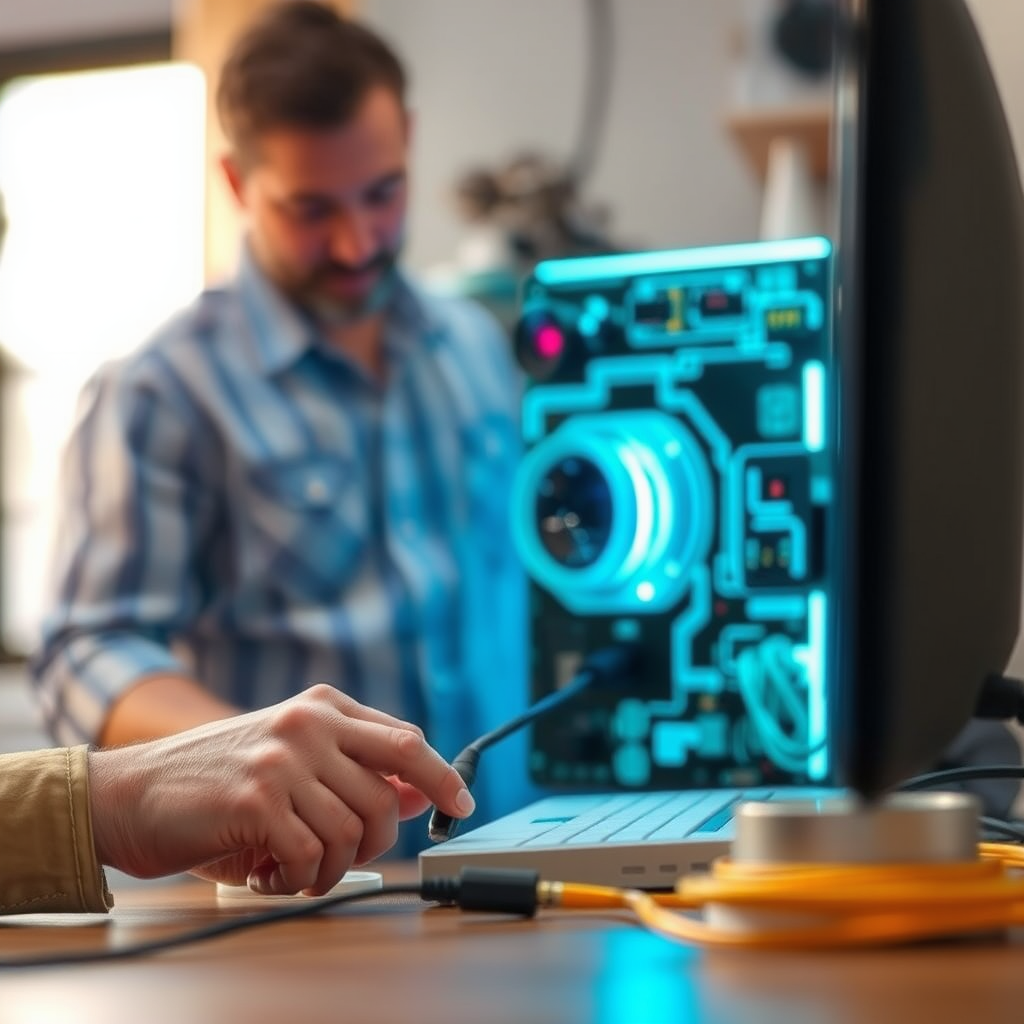
Next, inspect all the physical connections in your sound system. This includes checking the integrity of all cables, ensuring that they are connected securely to both the source device and the sound system. Look for any visible damage or wear on the cables, as frayed or broken wires can significantly affect sound quality.
Common types of connections to check include HDMI, optical audio cables, RCA connections, and speaker wires. If you encounter any issues, consider replacing damaged cables or trying different ports. Sometimes, simply reseating the cables can resolve the problem.
Examine Audio Source
If everything appears to be connected correctly and volume settings are adequate, the next step is to examine the audio source itself. Try testing various audio sources, such as radio, Bluetooth, or streaming services, to determine if the issue is isolated to one specific source or if it affects all audio outputs.
For instance, if you’re streaming music from a specific application and notice low volume, check if the audio file itself is recorded at a low level. You can also try playing different media files or sources to see if the problem persists.
Common Audio Sources and Volume Levels
| # | Audio Source | Typical Volume Level | Notes |
|---|---|---|---|
| 1 | Streaming Apps | 70-100% | Often subject to normalization |
| 2 | Bluetooth Devices | 60-80% | Volume may vary by device |
| 3 | Traditional Radio | 50-100% | Static and background noise can affect perception |
| 4 | Physical Media (CDs, Vinyl) | 60-100% | Quality of recording matters |
| 5 | Digital Files | 60-100% | File compression can lower quality |
| 6 | Game Consoles | 50-90% | May have separate settings |
| 7 | TV Shows/Movies | 70-100% | Dialogue levels vary |
Adjust Equalizer Settings
If volume levels are confirmed to be adequate and audio sources are functioning properly, consider adjusting the equalizer settings on your sound system. Many sound systems include built-in equalizers that allow you to customize audio output according to your preferences.
If your equalizer settings are incorrectly configured, they could inadvertently reduce overall volume or enhance certain frequencies at the expense of others, leading to a perceived low volume. Adjust the equalizer sliders to boost mid-range frequencies, which often contain the bulk of vocals and instruments, while ensuring that bass and treble are balanced. If you’re unsure of the ideal settings, resetting the equalizer to its factory defaults can often resolve imbalances and restore sound quality.
Look for Audio Enhancements
Many modern sound systems incorporate audio enhancements or effects designed to improve the listening experience. However, these features can occasionally limit volume output or cause distortion.
To troubleshoot, check your sound system settings for any enabled enhancements, such as surround sound, bass boost, or dynamic range compression, and consider disabling them temporarily to see if it resolves the low volume issue. Sometimes, these enhancements can alter the audio signal in ways that reduce clarity or volume, especially in systems that over-process the sound.
Update Firmware and Drivers
Keeping your audio devices updated is critical for maintaining optimal performance. Outdated firmware or drivers can lead to compatibility issues, which may manifest as low sound levels or distortion.
Check the manufacturer’s website for your sound system and any connected devices for available firmware updates. Follow the provided instructions to install updates carefully. Additionally, ensure that any audio drivers on your connected devices, such as computers or media players, are also up to date. Updating drivers can resolve glitches that may contribute to low volume output.
Volume Level Variations by Device Type (%)
Seek Professional Help
If you’ve exhausted all troubleshooting steps without improving the volume issue, it may be time to seek professional help. Sometimes, the problem may stem from hardware malfunctions or limitations that require specialized knowledge to diagnose and repair.
A professional technician can perform a comprehensive evaluation of your sound system, identifying any underlying issues that might be causing the low volume. This could include faulty components, such as amplifiers or speakers, that may need repair or replacement. Consulting with an expert ensures that you receive a thorough diagnosis and appropriate solutions tailored to your sound system’s specific needs.
In summary, troubleshooting low volume issues in your sound system involves a systematic approach, beginning with checking volume levels and inspecting connections. If these basic steps do not resolve the issue, exploring the audio source, equalizer settings, audio enhancements, and firmware updates can be beneficial. Should problems persist, do not hesitate to consult a professional technician to restore your audio experience to its full potential. By applying these strategies, you can enhance your sound system’s performance and enjoy a satisfying auditory experience.
Frequently Asked Questions
What are the common reasons for a sound system volume being too low?
Common reasons for low sound system volume include improper speaker connections, incorrect audio settings on your device, or a malfunctioning amplifier. Additionally, if you’re using an outdated audio driver or if the speakers are damaged, these issues can significantly affect overall sound output.
How can I increase the volume on my sound system?
To increase the volume on your sound system, first check the volume settings on both your audio source and the sound system itself. Make sure the volume is turned up on all connected devices, and consider adjusting the equalizer settings to enhance sound output. If the issue persists, inspect the connections and replace any faulty cables.
Why does my sound system sound low even when the volume is maxed out?
If your sound system sounds low despite being at maximum volume, it could be due to low-quality audio files or incorrect sound settings. Additionally, speaker placement can affect perceived volume, so ensure your speakers are positioned correctly and not obstructed. Checking for updates on your audio drivers can also help resolve this issue.
Which troubleshooting steps should I follow if my sound system volume is too low?
Start by checking all cable connections to ensure they are secure and undamaged. Then, verify the audio settings on your device and the sound system, including any equalizer or balance settings. If these steps do not resolve the issue, perform a system reboot and test with different audio sources to isolate the problem.
What is the best way to enhance the volume of my sound system without compromising sound quality?
To enhance your sound system’s volume without sacrificing quality, consider investing in a high-quality amplifier that matches your speakers’ specifications. Additionally, using a digital signal processor (DSP) can help optimize sound output. Regularly maintaining your equipment and ensuring all software and drivers are up to date will also improve overall performance.
References
- Audio signal processing
https://en.wikipedia.org/wiki/Audio_signal_processing - https://www.ncbi.nlm.nih.gov/pmc/articles/PMC7041547/
https://www.ncbi.nlm.nih.gov/pmc/articles/PMC7041547/ - https://www.sciencedirect.com/topics/engineering/audio-signal-processing
https://www.sciencedirect.com/topics/engineering/audio-signal-processing - https://www.mayoclinic.org/healthy-lifestyle/consumer-health/in-depth/hearing-aids/art-20045746
https://www.mayoclinic.org/healthy-lifestyle/consumer-health/in-depth/hearing-aids/art-20045746 - https://www.ncbi.nlm.nih.gov/pmc/articles/PMC5398286/
https://www.ncbi.nlm.nih.gov/pmc/articles/PMC5398286/ - https://www.hindawi.com/journals/jece/2021/5564917/
https://www.hindawi.com/journals/jece/2021/5564917/ - Hearing and Balance
https://www.asha.org/public/hearing/ - https://www.bbc.com/news/technology-56020516
https://www.bbc.com/news/technology-56020516 - Google Scholar Google Scholar
https://scholar.google.com/scholar?q=Sound+System+Volume+Too+Low+Troubleshooting+Tips - Google Scholar Google Scholar
https://scholar.google.com/scholar?q=Audio+Volume+Issues+Solutions+Research




One thought on “Troubleshooting Tips for When Your Sound System Volume is Too Low”