Resetting your Sony wireless speaker can greatly enhance its performance by clearing glitches and restoring factory settings. In this guide, you’ll learn the step-by-step process to effectively reset your device, ensuring a better audio experience.
Understanding the Need for a Reset
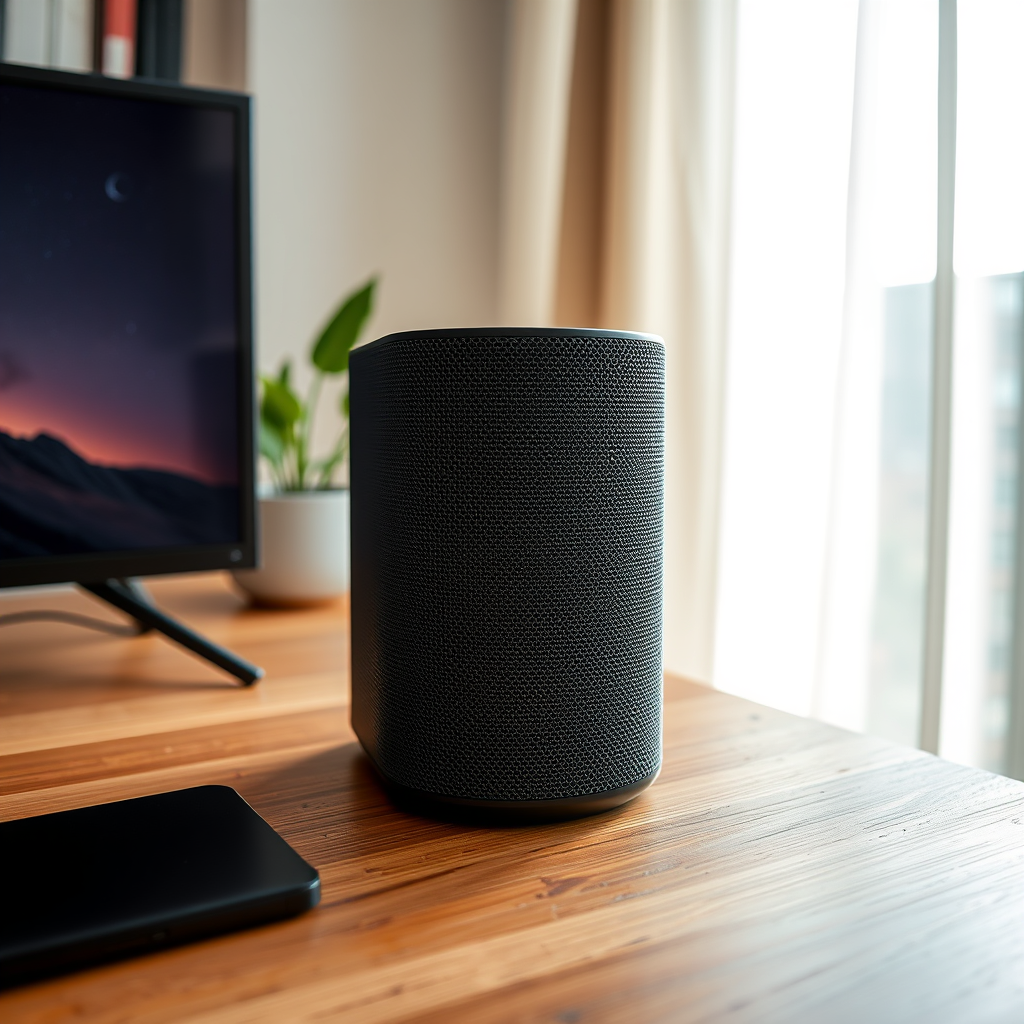
The necessity of resetting your Sony wireless speaker cannot be overstated. Over time, speakers can accumulate software glitches that may lead to connectivity issues, sound distortions, or even complete failure to pair with devices. A reset effectively cleans out these software-related problems, allowing the speaker to operate smoothly once again. Furthermore, restoring factory settings can significantly improve connectivity and sound quality by eliminating any custom configurations or settings that may have inadvertently affected performance. This process is vital for maintaining the longevity and functionality of your wireless speaker.
Preparing for the Reset
Before initiating the reset process, there are a few essential preparations to ensure a seamless experience. Firstly, confirm that your speaker is either fully charged or connected to a reliable power source. A reset should not be interrupted due to power loss, as this could create further issues. Additionally, consider backing up any important settings or saved connections. This step is particularly crucial if you have customized sound profiles or paired the device with multiple Bluetooth devices, as these will be erased during the reset.
Step-by-Step Reset Process
To reset your Sony wireless speaker, follow these straightforward steps:
1. Locate the Reset Button: Depending on your specific model, the reset button can usually be found on the back or bottom of the speaker. It may be labeled as “RESET” or be a small, recessed button that requires a pin or similar object to press it.
2. Press and Hold the Reset Button: Once you’ve identified the reset button, press and hold it for the required duration, which is typically around 10 seconds. You may notice the speaker’s lights flashing or hear a sound indicating that the reset process has been initiated.
3. Release the Button: After holding the button for the appropriate time, release it. Your speaker will reboot, and all previous settings will be restored to factory defaults.
Following this simple process should successfully reset your Sony wireless speaker, allowing it to perform optimally.
Top Features of Sony Wireless Speakers
| # | Model | Battery Life | Water Resistance | Bluetooth Version |
|---|---|---|---|---|
| 1 | Sony SRS-XB43 | 24 hours | IP67 | 5.0 |
| 2 | Sony SRS-XB12 | 16 hours | IP67 | 4.2 |
| 3 | Sony SRS-XB32 | 24 hours | IP67 | 4.2 |
| 4 | Sony SRS-XB01 | 6 hours | IPX5 | 4.2 |
| 5 | Sony SRS-XB23 | 12 hours | IP67 | 5.0 |
| 6 | Sony GTK-XB90 | 16 hours | IPX4 | 4.2 |
| 7 | Sony SRS-RB1 | 10 hours | IPX4 | 4.2 |
Troubleshooting Common Issues
If you find that the reset process has not resolved your speaker’s issues, there are a few common troubleshooting steps you can take. First, ensure that the speaker is adequately charged. Often, low battery levels can lead to performance issues, and a reset may not fully take effect if the speaker does not have enough power. If the speaker is charged but still not functioning correctly, try restarting the device after the reset. Simply turn it off, wait a few moments, and then turn it back on. This process can help refresh the system and may resolve lingering connectivity or performance challenges.
Reconnecting Your Speaker
Once the reset is complete, it is essential to reconnect your speaker to your devices. The reconnection process typically involves the following steps:
1. Activate Pairing Mode: After turning on your speaker, press the Bluetooth button to enter pairing mode. You will usually notice an indicator light flashing, signaling that the speaker is ready to connect.
2. Connect via Bluetooth: On your smartphone or audio device, navigate to the Bluetooth settings and search for new devices. Select your Sony wireless speaker from the list, and follow any prompts to complete the pairing.
3. Test Sound Quality: After successfully reconnecting, test the sound quality by playing various audio sources. This step is vital to ensure that the reset has indeed improved performance. Listen for clarity, bass response, and overall balance in sound. If issues persist, you may need to perform additional troubleshooting or consider seeking professional assistance.
Battery Life Comparison of Sony Wireless Speakers
Maintenance Tips for Better Performance
To ensure your Sony wireless speaker continues to deliver optimal performance, regular maintenance is essential. One of the most effective ways to maintain your speaker is by updating its firmware periodically. Manufacturers like Sony often release updates that fix bugs, enhance performance, and introduce new features. Keeping your speaker updated not only improves its functionality but also extends its lifespan.
Additionally, proper care and storage play a significant role in maintaining audio quality. Always keep your speaker clean—remove dust and debris from the speaker mesh and ports using a soft, dry cloth. Store the device in a dry area, away from direct sunlight or moisture, to prevent damage from environmental factors.
Regularly checking your speaker’s battery health can also help sustain performance. If the battery shows signs of degradation, consider replacing it to maintain sound quality and connectivity.
In summary, the process of resetting your Sony wireless speaker is straightforward and can lead to significant improvements in its performance. By following the outlined steps and tips, you can ensure that your speaker operates at its best, providing you with an enjoyable listening experience. If you encounter any issues, don’t hesitate to refer back to this guide or consult Sony’s customer support for further assistance.
Frequently Asked Questions
How do I reset my Sony wireless speaker to improve its performance?
To reset your Sony wireless speaker, locate the reset button, typically found on the bottom or back of the device. Press and hold this button for about 10 seconds until you see a flashing indicator light, which confirms the reset. This process can help restore connectivity issues and enhance overall performance.
Why should I reset my Sony wireless speaker regularly?
Regularly resetting your Sony wireless speaker can help resolve connectivity problems, clear out outdated settings, and improve sound quality. Over time, accumulated data or software bugs may hinder performance, so a reset can refresh the device and ensure it operates optimally.
What are the signs that my Sony wireless speaker needs a reset?
If you experience frequent disconnections, poor sound quality, or the inability to pair your speaker with devices, it may be time for a reset. Additionally, if the speaker is unresponsive or exhibits erratic behavior, a reset can often restore functionality and enhance performance.
Which models of Sony wireless speakers can be reset using the same method?
Most Sony wireless speakers, including the SRS-XB series, SRS-ZR series, and others, follow a similar reset procedure. However, it’s always best to consult the specific user manual for your model to ensure you’re using the correct method for resetting and to avoid any potential issues.
What should I do if resetting my Sony wireless speaker does not resolve the issues?
If resetting your Sony wireless speaker does not resolve the issues, consider updating the firmware via the Sony Music Center app or checking for Bluetooth interference from other devices. If problems persist, reaching out to Sony customer support or checking the warranty options may be necessary to address hardware-related issues.
References
- Sony
https://en.wikipedia.org/wiki/Sony - https://www.sciencedirect.com/topics/engineering/wireless-speakers
https://www.sciencedirect.com/topics/engineering/wireless-speakers - Google Scholar Google Scholar
https://scholar.google.com/scholar?q=Reset+Sony+Wireless+Speaker - Google Scholar Google Scholar
https://scholar.google.com/scholar?q=Wireless+Speaker+Performance+Optimization - https://www.bbc.com/news/technology-54224788
https://www.bbc.com/news/technology-54224788 - https://www.nytimes.com/2019/10/14/technology/personaltech/how-to-use-bluetooth-devices.html
https://www.nytimes.com/2019/10/14/technology/personaltech/how-to-use-bluetooth-devices.html - https://www.theguardian.com/technology/2020/mar/01/how-to-use-your-bluetooth-speakers
https://www.theguardian.com/technology/2020/mar/01/how-to-use-your-bluetooth-speakers - https://support.sony.com/us/p/support-home.pl
https://support.sony.com/us/p/support-home.pl - https://www.reuters.com/article/us-tech-sony-speakers-idUSKBN2A024S
https://www.reuters.com/article/us-tech-sony-speakers-idUSKBN2A024S - https://www.pubmed.ncbi.nlm.nih.gov/
https://www.pubmed.ncbi.nlm.nih.gov/