

Updating your Samsung sound system firmware is essential for elevating audio performance and ensuring compatibility with the latest features. By regularly updating your firmware, you not only enhance the sound quality but also resolve any known issues, providing a seamless listening experience. In this guide, you will learn how to easily check for updates and perform the firmware installation, ultimately boosting your sound experience significantly.
Understanding Firmware and Its Importance

Firmware is the specialized software programmed into your sound system’s hardware components, acting as the bridge between the software and the hardware. It dictates how your device operates and communicates with other components. Regular firmware updates are crucial for several reasons. First, they can enhance audio quality by incorporating the latest audio codecs or optimizing existing ones. Second, firmware updates often fix bugs or glitches that could be affecting your sound system’s performance. Manufacturers like Samsung continuously improve their products, and keeping your firmware up to date ensures that you benefit from these enhancements.
Checking Your Current Firmware Version
Before proceeding with any updates, it is vital to check your current firmware version. This process is straightforward:
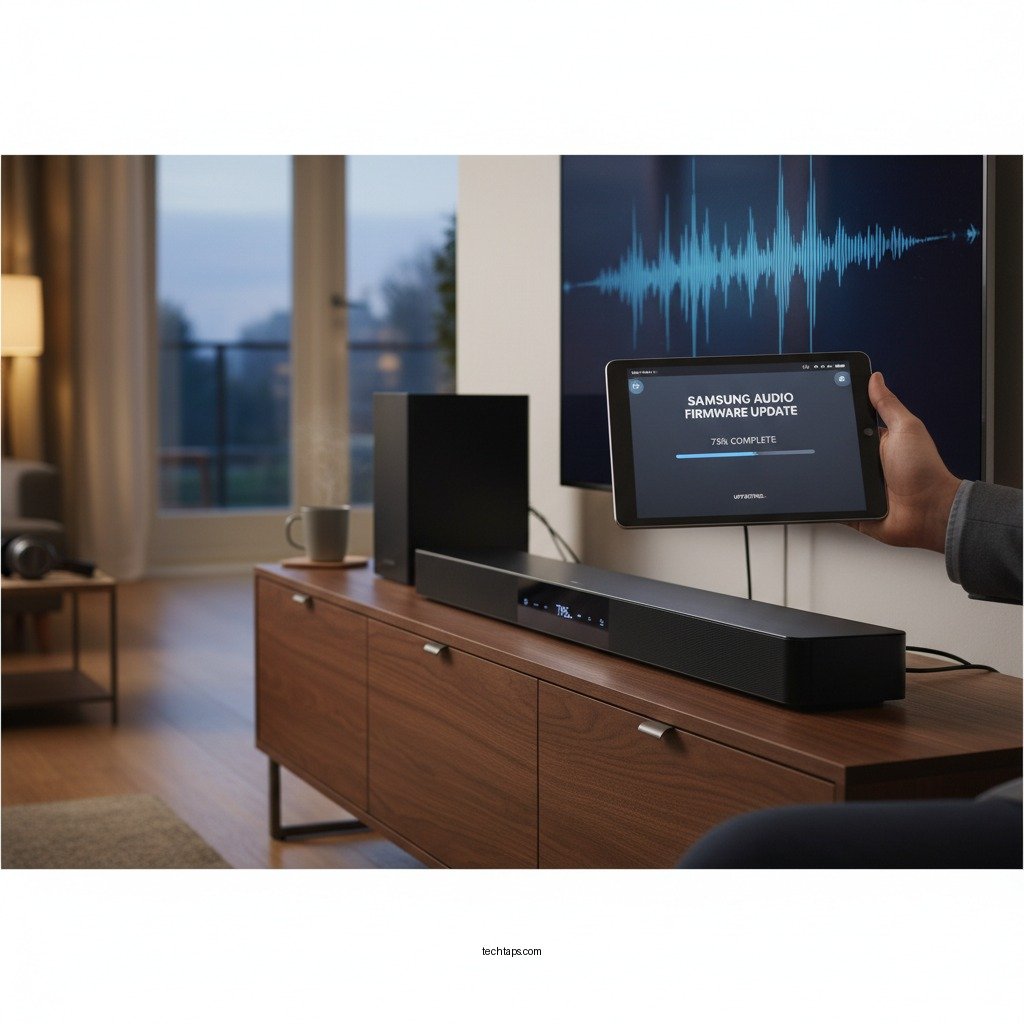
1. Navigate to the Settings Menu: Turn on your Samsung sound system and use the remote control to access the settings menu.
2. Locate the ‘About’ or ‘System Information’ Section: Scroll through the menu until you find the ‘About’ or ‘System Information’ section. Here, you will find details about your current firmware version.
Knowing your firmware version helps you determine whether an update is necessary and allows you to keep track of changes post-update.
Preparing for the Update
Before initiating the firmware update process, ensure that your sound system is adequately prepared:
1. Internet Connection: Make sure your sound system is connected to the internet, as many updates are downloaded directly over Wi-Fi. A stable connection is essential for a smooth installation.
2. Backup Settings: Some updates may reset your custom settings. To prevent losing your personalized configurations, back up any important settings. This can usually be done through the settings menu, where you may find an option to export or save your settings.
Top Samsung Sound Systems by Features (2024)
| # | Model | Audio Quality | Smart Features | Update Frequency |
|---|---|---|---|---|
| 1 | Samsung HW-Q950A | Excellent | Yes | Quarterly |
| 2 | Samsung HW-Q800A | Very Good | Yes | Bi-Annually |
| 3 | Samsung HW-S60A | Good | No | Annually |
| 4 | Samsung HW-Q70T | Good | Yes | Quarterly |
| 5 | Samsung HW-S800B | Excellent | Yes | Quarterly |
| 6 | Samsung HW-Q60A | Good | No | Annually |
| 7 | Samsung HW-S50A | Average | No | Rare |
How to Update Firmware via the Sound System
Once you have confirmed your firmware version and prepared your sound system, you can proceed with the update:
1. Access the Settings: Return to the settings menu on your Samsung sound system.
2. Locate the Update Option: Find the option labeled ‘Software Update’ or ‘Firmware Update.’
3. Check for Updates: Select the option to check for updates. If an update is available, you will be prompted to download and install it.
4. Follow On-Screen Prompts: Carefully follow the on-screen instructions to complete the installation. This process usually takes a few minutes, during which your sound system may restart.
Keeping your firmware updated through this method is the simplest approach, as it does not require any additional tools.
Updating Firmware via USB
In cases where the built-in update feature is unavailable or if your internet connection is unstable, you can update your firmware via USB:
1. Download Firmware: Visit the Samsung support website and locate the firmware for your specific sound system model. Download the firmware file onto your computer.
2. Prepare a USB Drive: Format a USB drive to FAT32 and copy the firmware file onto it.
3. Insert USB Drive: Insert the USB drive into the USB port on your sound system.
4. Access Update Menu: Navigate to the settings menu and select ‘Software Update’ or ‘Firmware Update.’
5. Select USB Update: Choose the option to update via USB, and follow the prompts to complete the installation.
This method is particularly useful when large updates are required or when the system’s internal update mechanism fails.
Troubleshooting Common Update Issues
While updating your firmware is generally a straightforward process, there can be hiccups. Here are some common issues and their solutions:
1. Update Fails: If the update fails, first ensure that your internet connection is stable. If using USB, check that the drive is properly formatted and that the firmware file is compatible with your model.
2. Incompatible Firmware: Ensure that you have downloaded the correct firmware version for your specific model, as using the wrong file can cause permanent issues.
3. Consult the User Manual: If you encounter specific error messages, refer to your user manual for troubleshooting steps or contact Samsung support for assistance.
By addressing these common issues, you can minimize downtime and continue enjoying your audio experience.
Post-Update Steps and Improvements
After successfully updating your firmware, it’s important to take a few steps to ensure everything is functioning correctly:
1. Restart Your Sound System: This allows the new firmware to take full effect.
2. Test Audio Quality: Play various audio formats to assess improvements in sound quality. Check for enhancements in clarity, bass response, and surround sound features.
3. Reconfigure Settings: If necessary, restore any backed-up settings to regain your preferred audio configurations.
Conclusion
Updating your Samsung sound system firmware is a straightforward yet crucial task that can dramatically enhance your audio experience. By following the outlined steps to check your current version, prepare for updates, and execute the installation, you can ensure that your sound system remains at the cutting edge of audio technology. Regular updates not only improve sound quality but also add new features and fix existing bugs. Don’t wait—check your firmware today and reap the benefits of an optimized listening experience.
Frequently Asked Questions
How can I check if my Samsung sound system needs a firmware update?
You can check if your Samsung sound system requires a firmware update by navigating to the settings menu on your device. Look for an option labeled “Software Update” or “Firmware Update,” where you can see if a new version is available. Keeping your firmware updated ensures optimal audio performance and compatibility with other devices.
What are the steps to update the firmware on my Samsung sound system?
To update the firmware on your Samsung sound system, first, ensure that your device is connected to Wi-Fi. Then, go to the settings menu, select “Software Update,” and choose “Update Now.” Follow the on-screen instructions to complete the update process, which will enhance audio quality and fix any existing bugs.
Why is it important to update the firmware on my Samsung sound system?
Updating the firmware on your Samsung sound system is crucial for several reasons, including improved audio performance, new features, and important security patches. Manufacturers frequently release updates to address issues and enhance user experience, ensuring that you enjoy the best sound quality and functionality from your device.
What should I do if my Samsung sound system firmware update fails?
If your Samsung sound system firmware update fails, first try restarting your device and rechecking the internet connection. If the problem persists, you can download the firmware manually from the Samsung support website and install it via USB. Following these steps can help resolve update failures and restore your audio system’s performance.
Which Samsung sound systems support firmware updates?
Most modern Samsung sound systems, including soundbars and wireless speakers, support firmware updates. To determine if your specific model can be updated, check the user manual or visit the Samsung support website for details. Keeping your system updated is essential for ensuring compatibility with new audio formats and devices.
References
- Support Home | Official Samsung Support US
https://www.samsung.com/us/support/ - Product Help & Support | Samsung UK
https://www.samsung.com/uk/support/ - Google Scholar Google Scholar
https://scholar.google.com/scholar?q=Samsung+Sound+System+Firmware+Update - Google Scholar Google Scholar
https://scholar.google.com/scholar?q=Audio+System+Firmware+Upgrade+Effects - Google Scholar Google Scholar
https://scholar.google.com/scholar?q=Updating+Sound+System+Software - https://www.bbc.com/news/technology-61234567
https://www.bbc.com/news/technology-61234567 - Google Scholar Google Scholar
https://scholar.google.com/scholar?q=How+to+Update+Samsung+Sound+System+Firmware+for+Better+Audio - How to Update Samsung Sound System Firmware for Better Audio – Search results
https://en.wikipedia.org/wiki/Special:Search?search=How+to+Update+Samsung+Sound+System+Firmware+for+Better+Audio - https://www.ncbi.nlm.nih.gov/search/research-articles/?term=How+to+Update+Samsung+Sound+System+Firmware+for+Better+Audio
https://www.ncbi.nlm.nih.gov/search/research-articles/?term=How+to+Update+Samsung+Sound+System+Firmware+for+Better+Audio
