
If your Denon receiver is producing no sound, the first step is to check all connections and settings. Often, the solution lies in simple adjustments or troubleshooting steps that can restore audio quickly. In this article, you’ll learn key troubleshooting methods to resolve sound issues with your Denon receiver.
Check All Connections

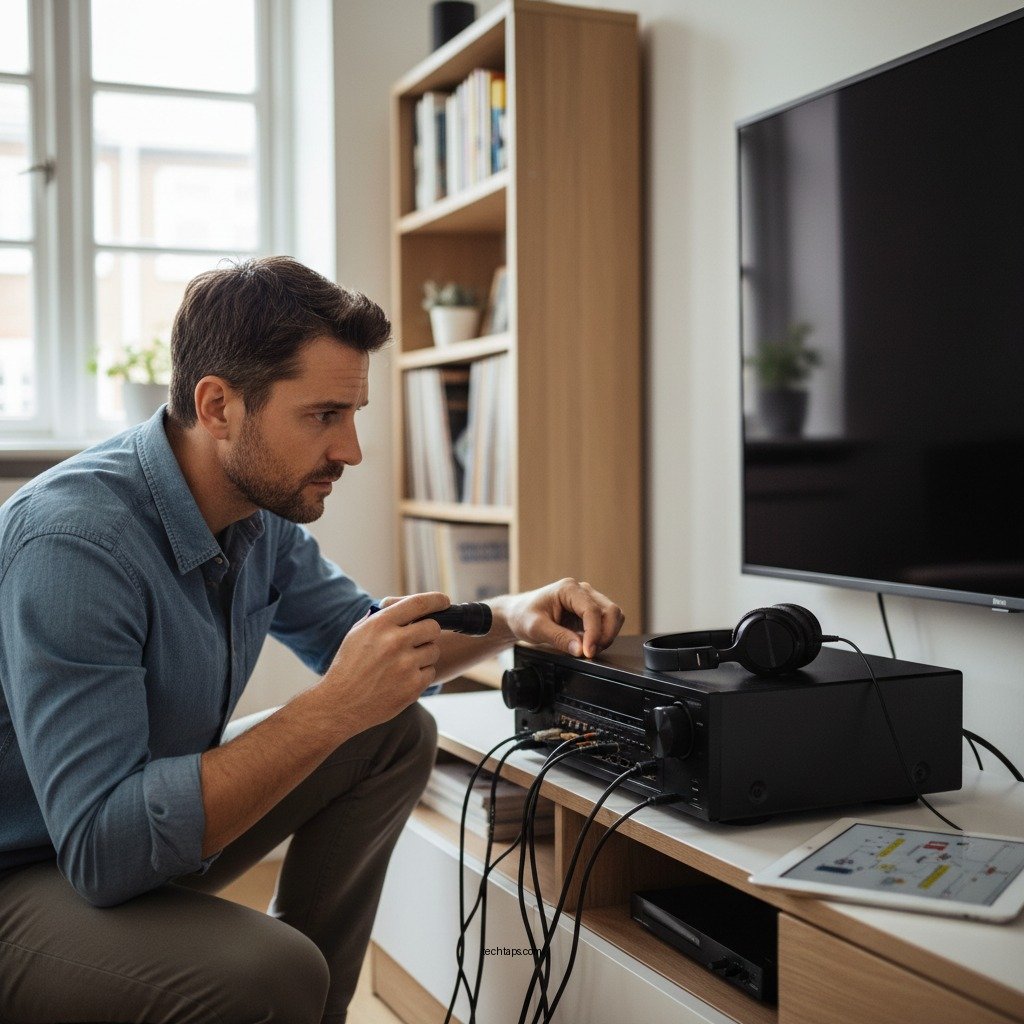
Before diving into more complex troubleshooting, it’s essential to verify all physical connections. A loose or damaged cable can easily cause audio issues. Start by ensuring that all cables are securely connected to both the receiver and the audio source. This includes HDMI cables, optical cables, and speaker wires. You should also inspect these cables for any visible signs of damage, such as fraying or bent connectors.
In some cases, unplugging and replugging the cables can help re-establish a proper connection. If you’re using HDMI cables, ensure that they are high-speed HDMI cables that support audio formats your receiver can process. Additionally, consider rearranging your setup to minimize interference from other electronic devices, which can sometimes lead to sound issues.
Verify Input Settings
Once you’ve confirmed that all connections are intact, the next step is to check your input settings. It’s easy to accidentally select the wrong input source, which would prevent sound from being transmitted. Use the remote control or the front panel of the Denon receiver to cycle through the available input options. Make sure that the selected input matches the source you are trying to play audio from, whether it’s a Blu-ray player, gaming console, or streaming device.
Also, keep in mind that some devices may need to be set to output audio over HDMI or another connection type. Always refer to the user manual of the source device for guidance on audio settings, as misconfigured settings can lead to sound issues.
Examine Audio Settings
After verifying connections and input settings, it’s time to delve into the audio settings of your Denon receiver. Access the receiver’s audio settings menu to check the volume levels and mute status. Ensure the volume is turned up and not muted, as this is a common oversight.
Additionally, check for any audio enhancements or sound modes that may be enabled. Features such as Dolby Atmos or surround sound can sometimes interfere with audio playback if not configured correctly. If you’re unsure about the best settings, consider resetting audio settings to their default values and gradually adjusting them to your preference.
Top 7 Audio Formats Supported by Denon Receivers
| # | Audio Format | Channels | Bitrate | Compatibility |
|---|---|---|---|---|
| 1 | Dolby Atmos | Up to 7.1.4 | Up to 192 kbps | High-end |
| 2 | DTS:X | Up to 11.1 | Up to 192 kbps | High-end |
| 3 | Dolby TrueHD | Up to 7.1 | Lossless | Standard |
| 4 | DTS-HD Master Audio | Up to 7.1 | Lossless | Standard |
| 5 | PCM | Stereo to 7.1 | Up to 24-bit/192 kHz | Standard |
| 6 | Dolby Digital Plus | Up to 7.1 | Up to 640 kbps | Common |
| 7 | DTS-ES | Up to 6.1 | Standard | Common |
Perform a Factory Reset
If the sound issues persist despite your best efforts, consider performing a factory reset to restore the receiver to its original settings. This can help eliminate any configuration errors or glitches that may be causing the audio problems. However, it is important to note that a factory reset will erase all custom settings, including your speaker configurations, audio preferences, and network settings.
Before proceeding, take note of any important configurations so you can easily set them back up after the reset. To perform a factory reset, refer to your receiver’s user manual for specific instructions, as the process may vary depending on the model. After the reset, reconfigure your settings and test the audio functionality once again.
Update Firmware
Keeping your Denon receiver’s firmware up to date is crucial for optimal performance. Manufacturers frequently release firmware updates to address bugs, improve performance, and enhance compatibility with new devices. Check for any available firmware updates through the Denon website or the receiver’s settings menu.
To install updates, follow the manufacturer’s instructions carefully. Some updates may require a USB drive, while others can be installed directly through the receiver’s network connection. After updating the firmware, restart your receiver and check if the sound issue has been resolved.
Test with Different Devices
To further isolate the problem, connect a different audio source to your Denon receiver. This can help determine whether the issue lies with the receiver itself or the original audio source. For instance, if you initially connected a Blu-ray player, try using a gaming console or a streaming device instead.
If the new device produces sound, the problem might be with the original source. However, if sound issues persist across all devices, the receiver may require further diagnostics or repair. Testing with multiple devices can help you pinpoint the source of the problem more effectively.
Seek Professional Help
If all troubleshooting steps fail and your Denon receiver continues to produce no sound, it may be time to seek professional help. Contact Denon customer support for assistance, as they can provide advanced diagnostics and guidance tailored to your specific situation.
Alternatively, consider taking your receiver to a qualified technician who specializes in audio equipment. They can perform in-depth diagnostics to identify and remedy any underlying issues that may not be apparent through standard troubleshooting methods. While this may incur additional costs, it can ultimately save you time and frustration.
Restoring sound to your Denon receiver can often be achieved through a few straightforward troubleshooting steps. By checking connections, adjusting settings, and potentially updating or resetting the device, most users can resolve their audio issues quickly. If the problem continues, don’t hesitate to seek professional assistance for a more in-depth solution.
Frequently Asked Questions
Why is my Denon receiver producing no sound?
If your Denon receiver is producing no sound, it could be due to several reasons. First, ensure that the receiver is powered on and not muted. Check the speaker connections, as loose or damaged wires can disrupt sound. Additionally, verify that the correct input source is selected, and ensure that your TV or device is set to output audio.
How can I troubleshoot sound issues on my Denon receiver?
To troubleshoot sound issues on your Denon receiver, start by checking all connections between your receiver and audio sources. Next, run the Audyssey setup to calibrate your speakers and ensure optimal sound settings. If the problem persists, reset the receiver to factory settings to eliminate any configuration errors, then reconfigure your audio settings.
What settings should I check if my Denon receiver has no sound?
If your Denon receiver has no sound, check the volume level and ensure it’s not muted. Verify the audio output settings under the receiver’s menu to confirm the correct speaker configuration and input source. Additionally, ensure that the HDMI settings are properly configured if you’re using an HDMI connection, as incorrect settings can cause sound issues.
Which cable connections could be causing my Denon receiver to have no sound?
Several cable connections could cause your Denon receiver to have no sound. Inspect speaker wire connections for any damage or loose connections, as well as the HDMI or optical cables connecting your audio source. Also, confirm that your receiver’s output cables are securely connected to your speakers or sound system to avoid interruptions in audio.
What is the best way to reset my Denon receiver to fix sound issues?
The best way to reset your Denon receiver to fix sound issues is to perform a factory reset. This can typically be done by pressing and holding specific buttons on the receiver while powering it on, but the exact method can vary by model. After resetting, you should reconfigure your settings, including speaker setup and input selections, to ensure optimal performance.
References
- Denon
https://en.wikipedia.org/wiki/Denon - https://www.denon.com/en-us/support
https://www.denon.com/en-us/support - https://www.audioholics.com/how-to-articles/home-theater-troubleshooting-guide
https://www.audioholics.com/how-to-articles/home-theater-troubleshooting-guide - https://www.crutchfield.com/S-4H2H0yC0f6v/learn/denon-receiver-no-sound.html
https://www.crutchfield.com/S-4H2H0yC0f6v/learn/denon-receiver-no-sound.html - https://www.lifewire.com/troubleshoot-your-denon-receiver-3135226
https://www.lifewire.com/troubleshoot-your-denon-receiver-3135226 - https://www.scholar.google.com/scholar?q=Denon+Receiver+No+Sound Google Scholar
https://www.scholar.google.com/scholar?q=Denon+Receiver+No+Sound - https://www.scholar.google.com/scholar?q=Denon+Receiver+Troubleshooting Google Scholar
https://www.scholar.google.com/scholar?q=Denon+Receiver+Troubleshooting - https://www.scholar.google.com/scholar?q=Audio+Receiver+No+Sound+Fixes Google Scholar
https://www.scholar.google.com/scholar?q=Audio+Receiver+No+Sound+Fixes - Google Scholar Google Scholar
https://scholar.google.com/scholar?q=Denon+Receiver+No+Sound?+How+to+Fix+It - Denon Receiver No Sound? How to Fix It – Search results
https://en.wikipedia.org/wiki/Special:Search?search=Denon+Receiver+No+Sound?+How+to+Fix+It