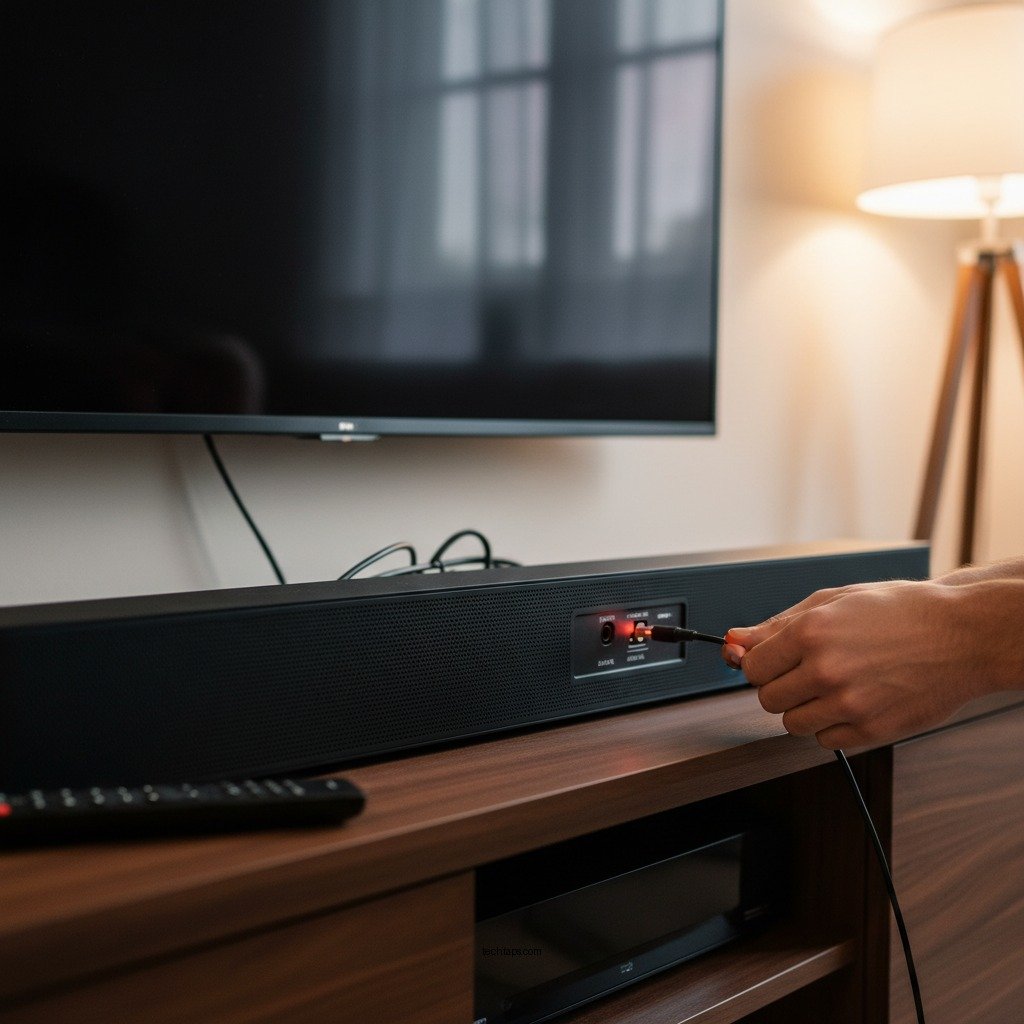

If your soundbar isn’t recognizing the optical input, the first step is to check the connections and settings. Often, simply ensuring that cables are properly connected or adjusting settings on both the soundbar and the source device can resolve the issue. In this article, we’ll explore common troubleshooting steps to help you get your soundbar working again, ensuring you can enjoy high-quality audio from your entertainment systems without disruption.
A soundbar not recognizing optical input can be a frustrating experience, especially when you are ready to unwind with your favorite movie or show. The optical connection is prized for delivering superior audio quality compared to standard analog connections, making it a preferred choice for many users. If you find yourself in this situation, follow these steps to troubleshoot and resolve the issue effectively.
Check Connections

The first and foremost step in troubleshooting your soundbar involves examining the physical connections.
– Secure Connections: Ensure that the optical cable is firmly connected to both the soundbar and the source device, such as a television or gaming console. Sometimes, a loose connection may cause the soundbar to fail to recognize the signal.
– Inspect the Cable: Look for any visible signs of damage or wear on the optical cable. If you notice fraying, kinks, or breaks, it may be time to replace the cable. Optical cables are sensitive, and even minor damage can lead to performance issues.
The quality of the cable itself can also play a role in the soundbar’s ability to receive signals. Investing in a good-quality optical cable can mitigate many connection-related issues.
Verify Soundbar Settings
Once you have confirmed that the connections are secure, the next step is to check the settings on your soundbar.
– Input Selection: Access your soundbar’s settings menu and confirm that the optical input is selected as the active audio source. Many soundbars have multiple input options, and it’s essential to ensure the correct one is chosen.
– Audio Settings: Look for any specific audio settings that may need adjustment for the optical input. Some soundbars offer different sound profiles or enhancements that may interfere with proper audio transmission.
Consult the user manual for your specific soundbar model to navigate the settings accurately.
Examine Source Device Settings
After verifying the soundbar settings, turn your attention to the source device.
– Audio Output Settings: Check the audio output settings on your TV or other connected device to ensure it is configured to output audio via optical. Sometimes, the default setting may not automatically switch to optical when a cable is connected.
– Restart the Device: Restarting the source device can refresh its settings and connections, which may resolve the issue. This simple step often resolves many connectivity problems that arise from software glitches.
Ensure that the source device supports optical audio output. If it does not, then it may not be possible to connect it to your soundbar via optical.
Test with Different Devices
If the soundbar still does not recognize the optical input, it may be time to test with different devices.
– Alternative Source Device: Connect a different source device to the soundbar’s optical input. This will help you determine whether the issue lies with the soundbar itself or the original source device.
– Different Optical Cable: If possible, try using another optical cable. Faulty cables can lead to intermittent connections or complete failure to transmit audio.
Testing with different combinations can help pinpoint the specific cause of the issue.
Update Firmware
Sometimes, the solution lies in updating the software of your soundbar.
– Firmware Updates: Check if there are any firmware updates available for your soundbar that might address compatibility issues with optical inputs. Manufacturers often release updates to improve performance and resolve known issues.
– Follow Instructions: Adhere to manufacturer instructions on how to update the firmware properly. This usually involves downloading the update from the manufacturer’s website or using an app designed for your soundbar.
Keeping your soundbar’s firmware up-to-date can enhance overall performance and compatibility with other devices.
Reset Soundbar
If all else fails, consider performing a factory reset on your soundbar.
– Factory Reset: This step can eliminate any incorrect settings that may be causing the problem. It essentially restores your soundbar to its original state, which can help resolve persistent issues.
– User Manual Reference: Refer to the user manual for specific instructions on how to reset your model. Each soundbar may have a different method for performing a reset, so it’s crucial to follow the correct procedure.
While this step may seem drastic, it can often resolve complex issues that are difficult to diagnose.
Seek Professional Help
If none of the above steps resolve the issue, it may be time to seek professional assistance.
– Customer Support: Contact customer support for your soundbar. They can provide additional troubleshooting steps or identify if there is a known issue with your model.
– Professional Technician: Consider enlisting the help of a professional technician. They can offer hands-on assistance and may be able to diagnose hardware issues that are not immediately apparent.
– Warranty Options: If your soundbar is still under warranty, explore warranty options for potential repairs or replacements. This can save you money and ensure your soundbar is repaired correctly.
By following these troubleshooting steps, you can effectively address the issue of a soundbar not recognizing optical input. If the problem persists, seeking professional help may be your best option to restore functionality. Don’t forget to check your connections and settings first, as these are the most common culprits!
Common Causes of Soundbar Optical Input Issues (2023)
| # | Cause | Description | Resolution |
|---|---|---|---|
| 1 | Loose Connections | Cables not securely connected | Reconnect cables |
| 2 | Faulty Cable | Damaged optical cable | Replace with new cable |
| 3 | Incorrect Input | Wrong audio source selected | Select correct input |
| 4 | Audio Settings | Source device settings misconfigured | Adjust audio settings |
| 5 | Firmware Issues | Outdated soundbar firmware | Update firmware |
| 6 | Device Compatibility | Incompatible device | Change to compatible device |
| 7 | Reset Required | Settings causing conflicts | Perform a reset |
In conclusion, a soundbar not recognizing optical input can often be resolved through a systematic approach to troubleshooting. By checking connections, verifying settings, testing with different devices, and updating firmware, you can often restore functionality. If the problem persists, don’t hesitate to reach out for professional help. Remember, maintaining the integrity of your connections and settings is key to enjoying the high-quality audio that a soundbar offers.
Frequently Asked Questions
What should I do if my soundbar is not recognizing the optical input?
If your soundbar is not recognizing the optical input, first check that the optical cable is securely connected to both the soundbar and the TV. Make sure to select the correct input source on your soundbar, as some models require manual input selection. Additionally, inspect the optical cable for any visible damage and try using a different cable to rule out a faulty connection.
How can I troubleshoot my soundbar’s optical input issue?
To troubleshoot your soundbar’s optical input issue, start by powering off and unplugging both your soundbar and TV, then plug them back in and power them on. Next, check the settings on your TV to ensure that the audio output is set to optical. If the problem persists, updating your soundbar’s firmware may also resolve compatibility issues.
Why is my soundbar not producing sound even when the optical input is connected?
If your soundbar is not producing sound despite being connected via optical input, it may be due to incorrect audio settings on your TV. Ensure that the TV audio output is set to “PCM” or “Stereo,” as some soundbars may not support advanced audio formats. Additionally, verify that the soundbar is set to the correct input source and check the volume levels.
What is the best optical cable to use for a soundbar connection?
The best optical cable for a soundbar connection is one that is high-quality, offers low signal loss, and is properly shielded to prevent interference. Look for cables that are at least 1.5 meters long to avoid excess tension and ensure durability. Brands like AmazonBasics and AudioQuest are popular choices that provide reliable performance for soundbar setups.
Which devices can I connect to my soundbar using optical input?
You can connect a variety of devices to your soundbar using optical input, including televisions, Blu-ray players, gaming consoles, and certain streaming devices. Ensure that the device you are connecting has an optical output, and remember that using optical input typically provides high-quality audio for a better overall sound experience.
References
- Soundbar
https://en.wikipedia.org/wiki/Soundbar - HDMI 2.2 Specification Overview
https://www.hdmi.org/spec/hdmi2_1 - https://www.sciencedirect.com/topics/engineering/sound-barrier
https://www.sciencedirect.com/topics/engineering/sound-barrier - https://www.bbc.com/news/technology-50792475
https://www.bbc.com/news/technology-50792475 - https://pubmed.ncbi.nlm.nih.gov/32607936/
https://pubmed.ncbi.nlm.nih.gov/32607936/ - https://www.nature.com/articles/s41598-021-92214-3
https://www.nature.com/articles/s41598-021-92214-3 - https://www.reuters.com/article/us-technology-soundbar-idUSKBN2A100F
https://www.reuters.com/article/us-technology-soundbar-idUSKBN2A100F - Google Scholar Google Scholar
https://scholar.google.com/scholar?q=how+to+fix+soundbar+not+recognizing+optical+input - Google Scholar Google Scholar
https://scholar.google.com/scholar?q=soundbar+troubleshooting - Google Scholar Google Scholar
https://scholar.google.com/scholar?q=optical+input+issues+with+soundbars