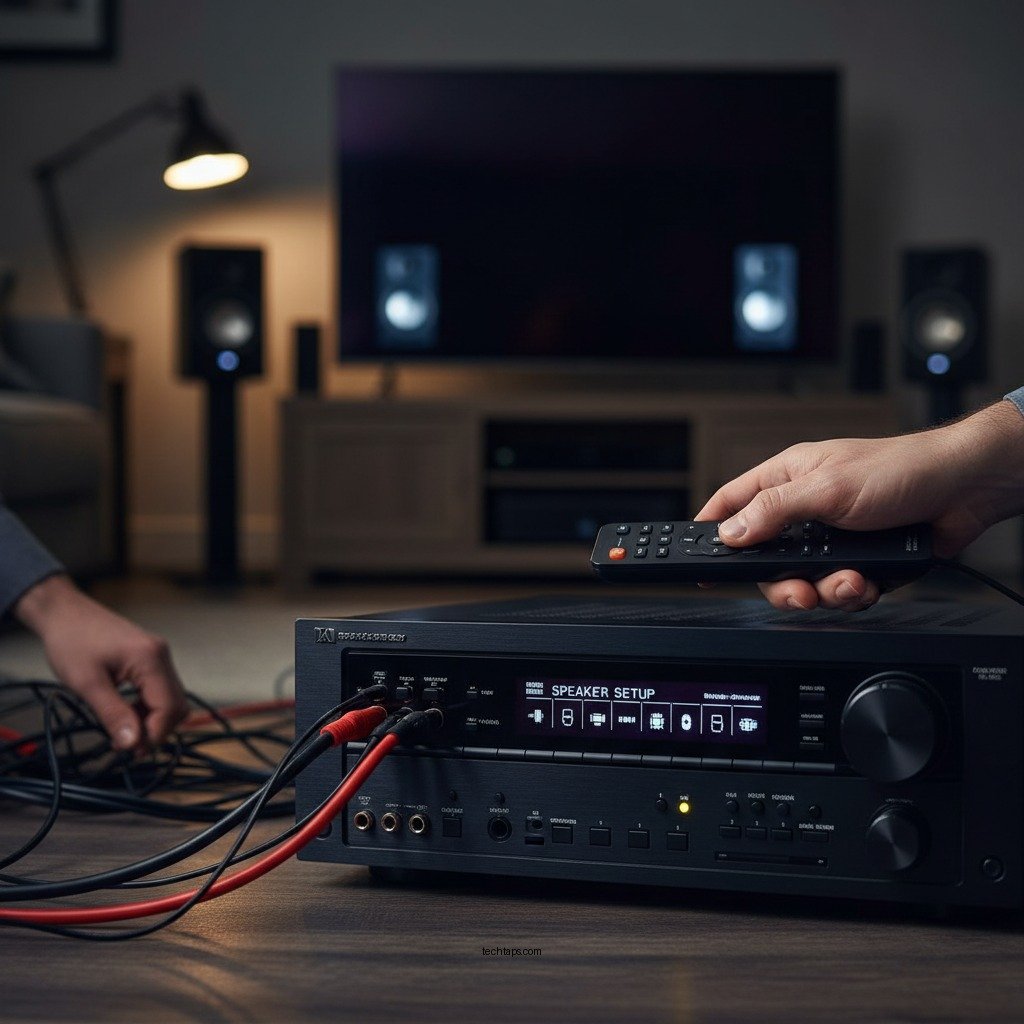

To fix surround sound that’s only playing from front speakers, start by checking your audio settings and ensuring all speakers are properly connected. Often, the issue stems from incorrect configuration in your audio device or media settings. In this article, we’ll guide you through troubleshooting steps and adjustments to restore full surround sound functionality.
Surround sound systems are designed to provide an immersive audio experience, whether you’re watching movies, playing video games, or listening to music. When surround sound only plays from the front speakers, it can significantly detract from your enjoyment and the intended sound experience. This issue can arise from various factors, including connection problems, misconfigured settings, outdated software, and even content limitations. By following the steps outlined below, you can quickly diagnose and resolve these issues, ensuring you get the most out of your audio system.
Check Speaker Connections
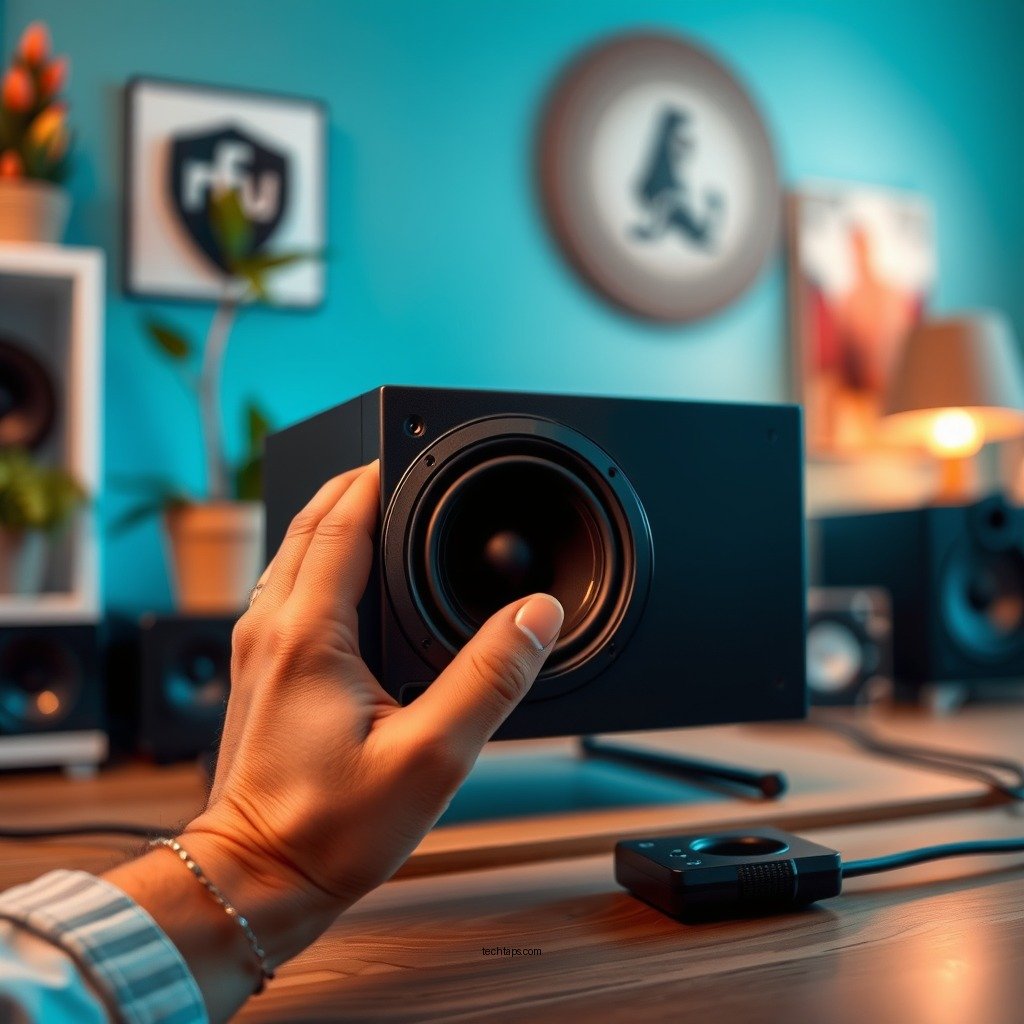
The first step in troubleshooting surround sound issues is to ensure that all speakers are securely connected to the receiver or audio source. This includes checking both the physical connections and the wiring.
– Secure Connections: Make sure that each speaker’s wire is firmly connected to the correct terminals on the receiver or AV system. A loose wire can lead to sound output problems.
– Inspect Wires for Damage: Look for any visible damage to the speaker wires, such as fraying or cuts, which could impede the audio signal. If you find any damaged cables, consider replacing them with new ones to ensure optimal performance.
Check that each speaker is connected to the appropriate channel on the receiver. For instance, the front left and right speakers should be connected to the corresponding outputs labeled on the receiver.
Configure Audio Settings
Once you’ve confirmed the physical connections are secure, the next step is to configure your audio settings correctly.
– Access Audio Settings: Navigate to your device’s audio settings menu. This can often be found in your receiver’s setup menu or within the settings of your streaming device or gaming console.
– Select Surround Sound Format: Ensure that the correct surround sound format is selected, such as Dolby Digital or DTS. Some devices may default to stereo sound, which would only use the front speakers.
– Speaker Configuration: Verify that the speaker setup matches your physical layout in the settings. If you have a 5.1 or 7.1 surround sound system, make sure that the settings reflect this configuration. This ensures that audio signals are appropriately routed to the correct speakers.
Update Audio Drivers and Firmware
Outdated software can also lead to malfunctioning audio systems. Keeping your audio drivers and firmware up to date is essential for maintaining optimal performance.
– Check for Audio Driver Updates: If you are using a computer or gaming console, regularly check for updates to the audio drivers. Manufacturers often release updates to fix bugs or improve compatibility with new audio formats.
– Update Firmware: Similarly, check for firmware updates for your AV receiver or sound system. Updating the firmware can resolve issues that affect sound performance and add new features or enhancements.
Test with Different Content
Sometimes, the issue may not be with your audio setup but rather with the content you’re trying to play. Testing various media types can help you pinpoint the problem.
– Play Different Media Types: Try playing movies, games, and music to see if the issue persists across all formats. Some media may not be mixed in surround sound, leading to sound output from only the front speakers.
– Verify Surround Sound Support: Use content that is known to support surround sound, such as films specifically mixed with Dolby Digital 5.1 or DTS 7.1 audio tracks. This will help you determine if the problem lies with your audio system or the media itself.
Use an Audio Calibration Tool
Many modern AV receivers come equipped with built-in calibration tools that can automatically optimize your audio settings.
– Utilize Built-in Calibration: If your receiver has an auto-calibration feature, use it to set up your speakers. This process typically involves placing a microphone in your listening position and allowing the receiver to analyze the sound environment.
– Sound Meter Applications: Consider using a sound meter app on your smartphone to measure sound levels from each speaker. This can help you ensure that the speaker levels are balanced and that distances from the listening position are accurately configured.
Reset Audio Settings
If you’ve tried the above steps and still experience issues, it may be time to reset your audio settings.
– Factory Reset: Performing a factory reset on your audio device can clear any incorrect configurations that may be causing the problem. This option is usually found in the settings menu of your receiver or audio source.
– Reconfigure Settings: After resetting, reconfigure your audio settings from scratch. This ensures that all settings are set correctly and can help eliminate any lingering issues.
Seek Professional Help
If none of the solutions above resolve the issue, it might be time to consult a professional.
– Manufacturer Support: Reach out to the manufacturer’s support team for assistance. They can provide troubleshooting tips specific to your device and may help identify any known issues.
– Professional Audio Technician: For more complex setups or persistent problems, consider hiring a professional audio technician. They can provide a thorough assessment and fix issues that may not be apparent through standard troubleshooting.
Common Surround Sound Issues and Solutions (2024)
| # | Issue | Possible Cause | Solution |
|---|---|---|---|
| 1 | No Sound from Rear Speakers | Wiring Issue | Check connections |
| 2 | Incorrect Audio Format | Settings Misconfiguration | Change audio settings |
| 3 | Sound Delay | Latency Issues | Adjust settings |
| 4 | Distorted Sound | Speaker Damage | Replace speakers |
| 5 | Inconsistent Volume Levels | Calibration Issues | Use calibration tool |
| 6 | Audio Not Syncing with Video | Latency Problems | Adjust audio delay |
| 7 | No Surround Sound | Format Not Supported | Change media source |
Restoring surround sound that only plays from front speakers can be straightforward with the right steps. By checking connections, adjusting settings, and utilizing calibration tools, you can enjoy the full audio experience as intended. If problems persist, don’t hesitate to seek professional assistance to ensure your system is functioning optimally. Ensuring that your home audio setup is configured correctly not only enhances your entertainment experience but also allows you to appreciate the nuances of sound design in your favorite media.
Frequently Asked Questions
Why is my surround sound only playing from the front speakers?
If your surround sound system is only outputting audio from the front speakers, it could be due to incorrect speaker settings or configuration in your audio receiver. Additionally, ensure that your audio source is in surround sound format; if it’s only stereo, it will not utilize the rear speakers. Check connections and settings in your receiver menu for proper speaker layout and audio format.
How can I troubleshoot my surround sound system to play from all speakers?
To troubleshoot your surround sound system, start by checking all speaker connections to ensure they are secure. Next, access the audio settings on your receiver to confirm that the surround sound mode is selected and that all speakers are correctly configured. You might also want to run a speaker calibration test if your receiver supports it, which can help optimize audio output.
What settings should I adjust if my surround sound is not working properly?
If your surround sound is not functioning as expected, check the speaker configuration settings in your audio receiver. Make sure the correct speaker type (small or large) is selected and that the distance settings for each speaker are accurate. Additionally, confirm that the surround sound mode is correctly set for the input source you are using.
Which audio formats support surround sound, and should I use them?
Surround sound is typically supported by audio formats such as Dolby Digital, DTS, and Dolby Atmos. For the best experience, ensure that your media source (like a Blu-ray or streaming service) is outputting in one of these surround sound formats. Always check your receiver settings to ensure it is set to decode these formats for full surround sound playback.
What is the best way to connect my audio devices for optimal surround sound performance?
For optimal surround sound performance, connect your audio devices using HDMI cables, as they provide high-quality audio and support modern surround sound formats. Ensure that your receiver has the latest firmware updates for compatibility with new audio formats. Also, check the output settings on your devices to ensure they are configured for surround sound output.
References
- Surround sound
https://en.wikipedia.org/wiki/Surround_sound - Google Scholar Google Scholar
https://scholar.google.com/scholar?q=How+to+Fix+Surround+Sound+only+playing+from+Front+Speakers - Google Scholar Google Scholar
https://scholar.google.com/scholar?q=surround+sound+troubleshooting - Google Scholar Google Scholar
https://scholar.google.com/scholar?q=surround+sound+audio+settings - https://www.audioholics.com/tweaks/surround-sound-setup-guide
https://www.audioholics.com/tweaks/surround-sound-setup-guide - 404 – Dolby
https://www.dolby.com/us/en/guide/setup-surround-sound.html - Google Scholar Google Scholar
https://scholar.google.com/scholar?q=How+to+Fix+Surround+Sound+Only+Playing+from+Front+Speakers - How to Fix Surround Sound Only Playing from Front Speakers – Search results
https://en.wikipedia.org/wiki/Special:Search?search=How+to+Fix+Surround+Sound+Only+Playing+from+Front+Speakers - https://www.ncbi.nlm.nih.gov/search/research-articles/?term=How+to+Fix+Surround+Sound+Only+Playing+from+Front+Speakers
https://www.ncbi.nlm.nih.gov/search/research-articles/?term=How+to+Fix+Surround+Sound+Only+Playing+from+Front+Speakers