
If you’re experiencing issues with audio channels not working in your surround sound system, the solution often lies in checking your connections and settings. This guide will help you troubleshoot and resolve common problems, ensuring you enjoy a fully immersive audio experience. A well-functioning surround sound system can significantly enhance your audio experience, whether you’re watching movies or playing video games, so addressing these issues promptly is essential.
Check Your Connections

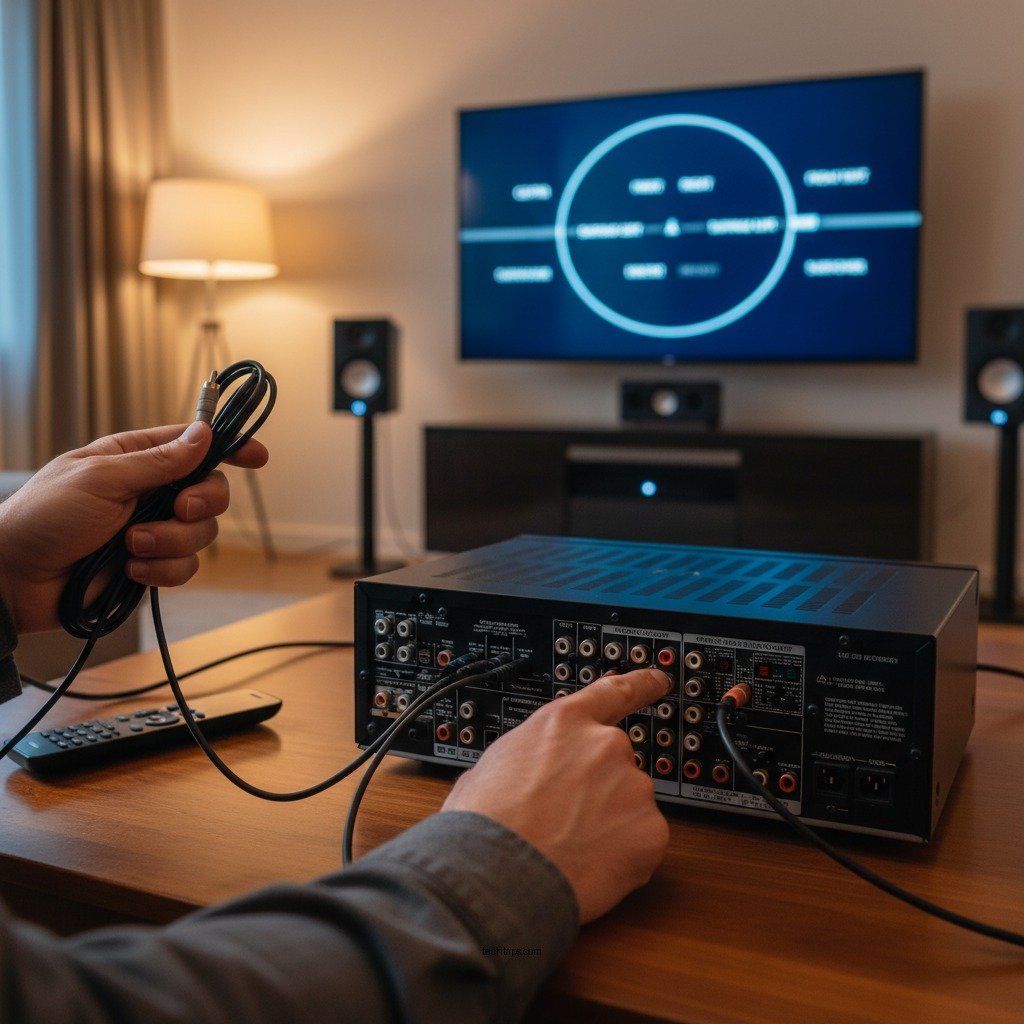
The first step in resolving audio channel issues is to check your connections carefully. Loose or incorrect connections can severely impact audio performance. Begin by ensuring that all speaker wires are securely connected to both the speakers and the receiver. Pay special attention to the polarity of the connections; the positive (usually red) and negative (usually black) terminals must be connected correctly to avoid phase issues that can lead to poor sound quality.
Additionally, verify that the correct audio input source is selected on your receiver. Many receivers have multiple input options, and if the wrong one is selected, you may not hear any sound. If your system includes external devices, such as streaming boxes or gaming consoles, ensure they are properly connected and powered on.
Inspect Audio Settings
Once your connections are confirmed to be secure, the next step is to inspect the audio settings on your surround sound receiver. Access the audio settings menu and confirm that surround sound is enabled. Many receivers have a dedicated button on the remote or a setting in the menu for enabling surround sound formats like Dolby Digital or DTS.
It’s also crucial to check that the speaker configurations match your physical setup. This includes ensuring that the number of speakers (e.g., 5.1, 7.1, etc.) selected in the settings corresponds to your actual setup. If your speakers are arranged in an unusual layout, you may need to adjust the settings to reflect their placement, as improper configurations can lead to audio channels not functioning correctly.
Update Firmware
Outdated firmware can be a common culprit behind audio issues in surround sound systems. Manufacturers periodically release firmware updates to fix bugs and improve the compatibility of their devices with newer technologies. Check the manufacturer’s website for firmware updates for your surround sound receiver and apply any available updates.
To perform a firmware update, you’ll typically need to connect your receiver to the internet, either via Wi-Fi or Ethernet. Follow the instructions provided in the user manual or the manufacturer’s website to ensure the update process is completed correctly. Updating firmware can not only resolve existing issues but also enhance functionality and introduce new features to your system.
Top 7 Surround Sound Formats (2024)
| # | Format | Channels | Bitrate | Compatibility |
|---|---|---|---|---|
| 1 | Dolby Atmos | Up to 128 | Up to 24 Mbps | High |
| 2 | DTS:X | Up to 32 | Up to 24 Mbps | High |
| 3 | Dolby Digital Plus | Up to 7.1 | Up to 6 Mbps | Moderate |
| 4 | DTS-HD Master Audio | Up to 7.1 | Up to 24 Mbps | High |
| 5 | Dolby TrueHD | Up to 7.1 | Up to 18 Mbps | High |
| 6 | Multi-Channel PCM | Up to 8 | Up to 24 Mbps | High |
| 7 | DTS 5.1 | 5.1 | Up to 1.5 Mbps | Moderate |
Test with Different Sources
If you have checked connections and settings but still encounter issues, it’s wise to test your surround sound system with different audio sources. Connect various devices such as a Blu-ray player, gaming console, or streaming device to determine if the problem is device-specific. If the audio works perfectly with one device and not with another, the issue may lie with the original device or the specific content you are trying to play.
Additionally, test various content formats, such as Dolby Digital and DTS. Some formats may not be supported by all devices or configurations. By experimenting with different sources and formats, you can better isolate the root cause of the audio channel issues.
Perform a Factory Reset
If all else fails, performing a factory reset on your surround sound receiver can be a last resort to restore default settings. This action will erase all custom configurations, so it’s essential to back up your settings if possible, especially if you have made specific adjustments that enhance your audio experience.
The factory reset option is usually located in the system settings menu. After resetting, you will need to reconfigure your audio settings, including input sources, speaker configurations, and any audio enhancements you may have previously set.
Seek Professional Help
If you have gone through all the troubleshooting steps and the audio channels are still not functioning correctly, it may be time to consult with a professional technician. They can provide deeper insights into potential hardware issues, such as faulty wiring, defective speakers, or problems within the receiver itself.
Professional technicians have the expertise and tools to diagnose and repair complex issues that may be beyond the scope of standard troubleshooting. If your surround sound system is still under warranty, reaching out to the manufacturer for support can also be a practical option.
Taking these steps will help you identify and resolve audio channel problems in your surround sound system. Regularly checking your connections and settings can prevent issues from occurring in the future. A well-functioning surround sound system enhances your viewing and listening experience, allowing you to fully enjoy the richness of audio that it has to offer.
Frequently Asked Questions
What are the common reasons for audio channels not working in surround sound systems?
Audio channels in surround sound systems may not work due to several common issues, including incorrect speaker connections, misconfigured audio settings on the receiver, or faulty cables. Additionally, the source device might not support surround sound formats, or there could be a problem with the audio driver if you are using a computer.
How can I troubleshoot surround sound audio channel issues?
To troubleshoot surround sound audio channel issues, start by checking all speaker connections to ensure they are securely plugged into the correct ports. Next, access your audio settings on the receiver or TV and confirm that the surround sound mode is activated. Testing different source devices can also help identify whether the problem lies with the audio source or the surround sound system itself.
Why is my surround sound system only playing audio from one channel?
If your surround sound system is only playing audio from one channel, it may be due to a faulty speaker or wiring issue. Another possibility is that the audio format being played is stereo rather than surround sound, which would limit the output to two channels. Checking the audio settings on your device and ensuring the correct surround sound format is selected can also resolve this issue.
What is the best way to set up my surround sound system for optimal audio channel performance?
The best way to set up your surround sound system for optimal audio channel performance involves proper speaker placement, ensuring that all speakers are equidistant from the listening position. Additionally, use a receiver that supports the latest surround sound formats and perform an automatic speaker calibration if available. Regularly updating audio drivers and firmware can also enhance performance and compatibility.
Which settings should I adjust if my surround sound audio is out of sync?
If your surround sound audio is out of sync, you should check the audio delay settings on your receiver or TV. Adjusting the lip-sync correction feature can help align the audio with the video. Additionally, ensure that the audio output format matches the video format of the source device, as mismatched formats can cause synchronization issues.
References
- Surround sound
https://en.wikipedia.org/wiki/Surround_sound - https://www.audiogurus.com/blog/how-to-fix-common-surround-sound-problems
https://www.audiogurus.com/blog/how-to-fix-common-surround-sound-problems - https://www.ncbi.nlm.nih.gov/pmc/articles/PMC8312531/
https://www.ncbi.nlm.nih.gov/pmc/articles/PMC8312531/ - https://www.sciencedirect.com/topics/engineering/surround-sound
https://www.sciencedirect.com/topics/engineering/surround-sound - Google Scholar Google Scholar
https://scholar.google.com/scholar?q=surround+sound+audio+problems - Google Scholar Google Scholar
https://scholar.google.com/scholar?q=audio+channel+issues+surround+sound - Google Scholar Google Scholar
https://scholar.google.com/scholar?q=fixing+surround+sound+audio+channels - Google Scholar Google Scholar
https://scholar.google.com/scholar?q=How+to+Solve+Problems+with+Audio+Channels+Not+Working+in+Surround+Sound - How to Solve Problems with Audio Channels Not Working in Surround Sound – Search results
https://en.wikipedia.org/wiki/Special:Search?search=How+to+Solve+Problems+with+Audio+Channels+Not+Working+in+Surround+Sound - https://www.ncbi.nlm.nih.gov/search/research-articles/?term=How+to+Solve+Problems+with+Audio+Channels+Not+Working+in+Surround+Sound
https://www.ncbi.nlm.nih.gov/search/research-articles/?term=How+to+Solve+Problems+with+Audio+Channels+Not+Working+in+Surround+Sound