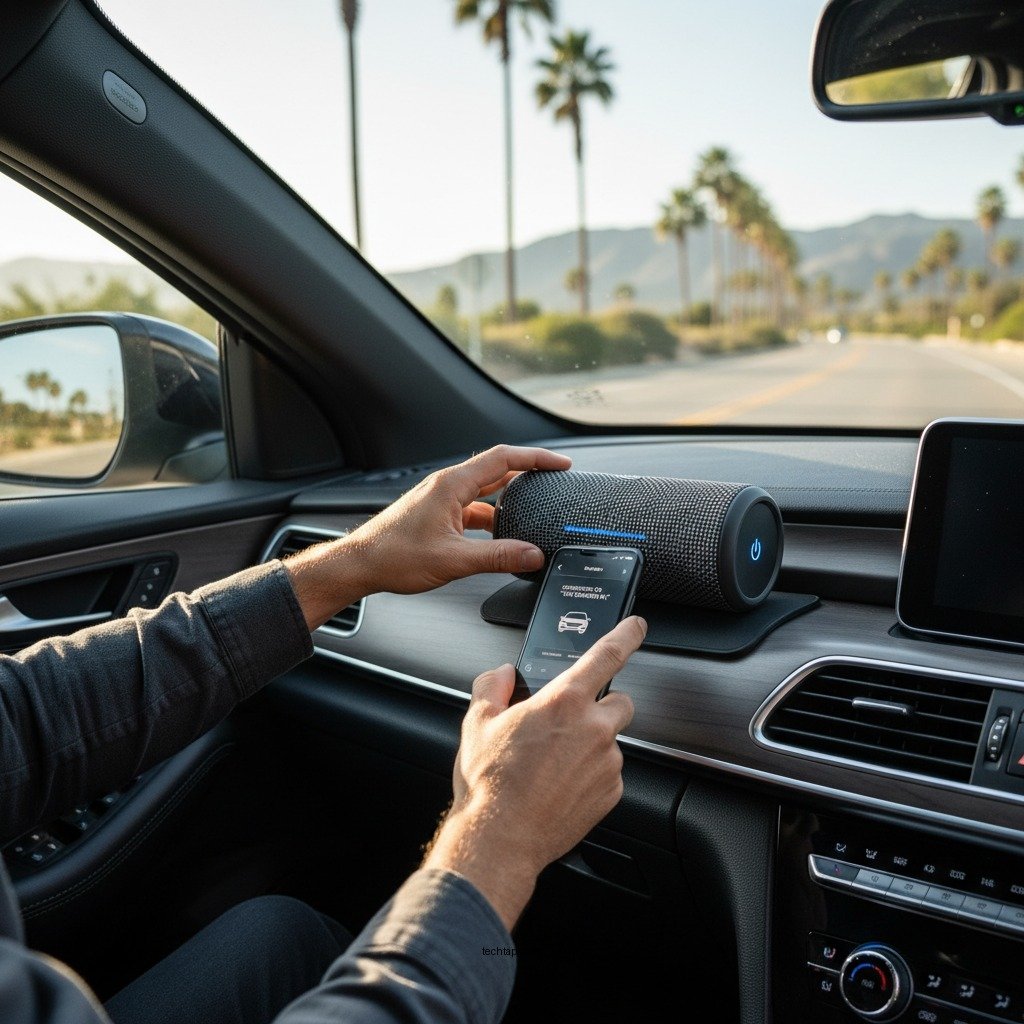

Setting up a Bluetooth speaker in your car is a straightforward process that enhances your driving experience by allowing you to enjoy music hands-free. In just a few simple steps, you can connect your device and enjoy high-quality sound on the go. This guide will walk you through the essential steps to ensure a seamless setup.
Gather Necessary Equipment
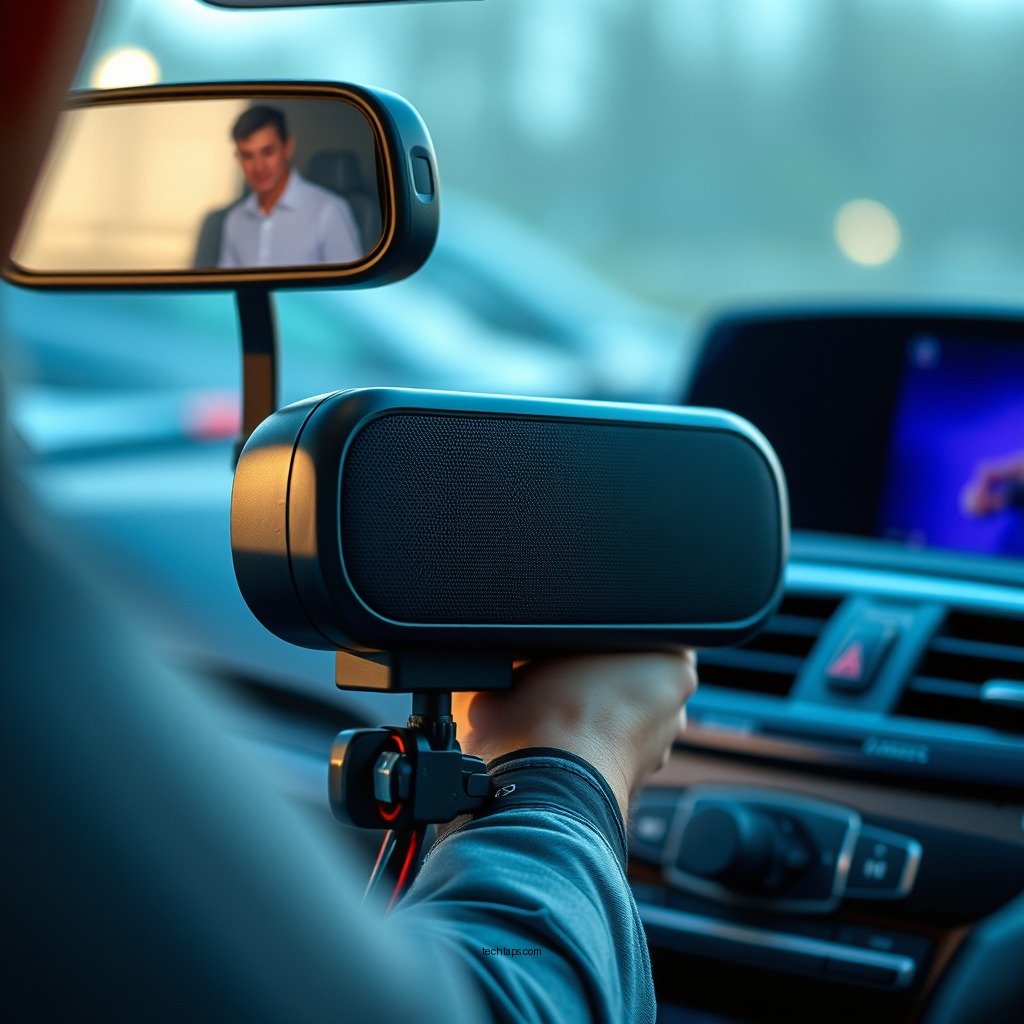
Before embarking on the setup process, it’s crucial to gather the necessary equipment. First and foremost, ensure that you have a Bluetooth speaker that is compatible with your smartphone or audio device. Most modern Bluetooth speakers support a wide range of devices, but it’s always good practice to check the specifications. Additionally, verify that your smartphone or audio device has Bluetooth functionality enabled. Most smartphones, tablets, and laptops made in the last decade support Bluetooth, but older models may not have this feature.
If you are using a car with a built-in Bluetooth system, you may also have the option to use that instead of a separate Bluetooth speaker. However, for those who prefer a portable speaker, selecting a model with good battery life and sound quality is essential.
Power On Your Bluetooth Speaker
Once you have your equipment ready, the next step is to power on your Bluetooth speaker. Most Bluetooth speakers come with an easily accessible power button. After turning it on, you’ll need to place it in pairing mode. This typically involves pressing a designated button, which is often indicated by a Bluetooth symbol or a specific icon. Many speakers will indicate they are in pairing mode with a flashing light or a voice prompt. For precise instructions, refer to the speaker’s manual, as the method to enter pairing mode can vary by brand and model.
Being familiar with your speaker’s unique functions will facilitate a smoother connection to your device.
Enable Bluetooth on Your Device
After powering on your Bluetooth speaker, it’s time to enable Bluetooth on your audio device. This process varies slightly depending on the device you are using. For smartphones, navigate to the settings menu, typically found in the app drawer or on the home screen. Look for “Bluetooth” in the settings, and toggle it to “On.” Make sure your device is discoverable, as this will allow it to find new Bluetooth devices in the vicinity.
For laptops and tablets, the steps are similar. However, you may need to click on the Bluetooth icon in the taskbar or system tray to access the settings. Ensuring that your device is discoverable is crucial for a successful pairing process.
Pair the Devices
With Bluetooth enabled on your device and your speaker in pairing mode, you can now proceed to pair the two. On your smartphone or audio device, you will see a list of available devices. Look for the name of your Bluetooth speaker and select it from the list. If prompted, enter the pairing code. This code is usually found in the user manual or may be displayed on the speaker if it has a screen.
Once the devices are paired, you should receive a confirmation on both your speaker and your device. Some speakers will confirm with a voice prompt or by ceasing the flashing light, indicating that the connection is successful.
Test the Connection
After pairing the devices, it’s essential to test the connection to ensure everything is functioning correctly. Play some audio from your device, whether it’s a song, podcast, or audio book, and listen to the output from the speaker. This step is vital to confirm the quality of sound and to adjust any settings as needed.
It’s advisable to adjust the volume on both the speaker and your device for optimal sound quality. Many Bluetooth speakers have a built-in volume control, and finding the right balance will enhance your listening experience while driving.
Top Bluetooth Speakers for Cars (2024)
| # | Speaker Model | Battery Life | Sound Quality | Water Resistance |
|---|---|---|---|---|
| 1 | JBL Charge 5 | 20 hours | ★★★★☆ | IP67 |
| 2 | Bose SoundLink Revolve+ | 17 hours | ★★★★★ | None |
| 3 | Sony SRS-XB43 | 24 hours | ★★★★☆ | IP67 |
| 4 | Ultimate Ears BOOM 3 | 15 hours | ★★★★☆ | IP67 |
| 5 | Anker Soundcore Motion+ | 15 hours | ★★★★☆ | None |
| 6 | Tribit StormBox Pro | 20 hours | ★★★★☆ | IP67 |
| 7 | JBL Flip 5 | 12 hours | ★★★★☆ | IPX7 |
Troubleshooting Common Issues
Even with a straightforward setup process, you may encounter some common issues when trying to connect your Bluetooth speaker. If your devices refuse to connect, ensure they are within the recommended range, which is typically around 30 feet. Additionally, confirm that neither device is currently connected to another Bluetooth device, as this can prevent successful pairing.
If you continue to struggle with the connection, it can be helpful to restart both the speaker and your audio device. This action can clear any temporary glitches that might be hindering the pairing process. After restarting, repeat the pairing steps and see if the connection can be established.
Enjoy Your Music
Once the connection is successfully established, you can fully immerse yourself in your music, podcasts, or audiobooks while on the road. Bluetooth speakers not only provide superior sound quality compared to standard car speakers but also enable hands-free calling, enhancing your safety while driving. Familiarize yourself with the speaker’s controls, as many models include options for play, pause, skip tracks, and adjust volume, allowing you to manage your audio experience without diverting your attention from the road.
Additionally, consider exploring various streaming apps that allow you to customize your playlists, thus enhancing your listening experience further. Whether you’re commuting to work or embarking on a long road trip, a well-set-up Bluetooth speaker can make your journey much more enjoyable.
By following these steps, you can easily set up a Bluetooth speaker in your car and enhance your driving experience with high-quality audio. Enjoy your music safely and hands-free as you hit the road!
Frequently Asked Questions
How do I connect my Bluetooth speaker to my car’s audio system?
To connect your Bluetooth speaker to your car’s audio system, first, ensure that your speaker is charged and in pairing mode. Then, access your car’s Bluetooth settings through the audio system. Look for your Bluetooth speaker in the list of available devices and select it to establish a connection. Once paired, you should be able to play audio through your speaker.
What should I do if my Bluetooth speaker won’t connect to my car?
If your Bluetooth speaker won’t connect to your car, start by checking if the speaker is in pairing mode and within range. Additionally, ensure that your car’s Bluetooth feature is enabled and not already connected to another device. Restarting both your car’s audio system and the Bluetooth speaker can also help resolve connectivity issues.
Why is the sound quality poor when using a Bluetooth speaker in my car?
Poor sound quality when using a Bluetooth speaker in your car can be due to several factors, including the speaker’s placement and the distance from the source. Interference from other electronic devices or low battery levels can also affect audio clarity. To improve sound quality, try repositioning the speaker closer to the audio source and ensuring it is fully charged.
Which Bluetooth speakers are best for use in a car?
The best Bluetooth speakers for use in a car typically feature high sound quality, portability, and a long battery life. Popular options include the JBL Charge 5 for its robust bass and durability, and the Bose SoundLink Micro for its compact size and clear audio. Consider speakers with built-in microphones for hands-free calling as an added benefit.
How can I optimize the battery life of my Bluetooth speaker while driving?
To optimize the battery life of your Bluetooth speaker while driving, make sure to turn it off when not in use and reduce the volume to a moderate level. Avoid using additional features like voice assistants, which can drain the battery quickly. Regularly check for software updates, as manufacturers may release improvements that enhance battery efficiency.
References
- Bluetooth
https://en.wikipedia.org/wiki/Bluetooth - https://www.lifewire.com/how-to-connect-a-bluetooth-speaker-to-your-car-4591636
https://www.lifewire.com/how-to-connect-a-bluetooth-speaker-to-your-car-4591636 - Google Scholar Google Scholar
https://scholar.google.com/scholar?q=Bluetooth+speaker+car+setup - Google Scholar Google Scholar
https://scholar.google.com/scholar?q=how+to+connect+Bluetooth+speaker+to+car - Google Scholar Google Scholar
https://scholar.google.com/scholar?q=Bluetooth+technology+in+automobiles - https://www.sciencedirect.com/topics/computer-science/bluetooth-technology
https://www.sciencedirect.com/topics/computer-science/bluetooth-technology - Google Scholar Google Scholar
https://scholar.google.com/scholar?q=How+to+Set+Up+a+Bluetooth+Speaker+in+Your+Car - How to Set Up a Bluetooth Speaker in Your Car – Search results
https://en.wikipedia.org/wiki/Special:Search?search=How+to+Set+Up+a+Bluetooth+Speaker+in+Your+Car - https://www.ncbi.nlm.nih.gov/search/research-articles/?term=How+to+Set+Up+a+Bluetooth+Speaker+in+Your+Car
https://www.ncbi.nlm.nih.gov/search/research-articles/?term=How+to+Set+Up+a+Bluetooth+Speaker+in+Your+Car