A router vs Wi‑Fi access point comparison answers one question fast: which device you should buy for your home or office network. If you need a single-box setup that handles routing and Internet sharing, a router is the clear winner. Choose a Wi‑Fi access point instead when you already have a router and want to extend coverage or add wireless capacity without rebuilding your network.



A router is what connects your home or office network to the internet, while a Wi‑Fi access point is what improves or extends wireless coverage. In practice, you start with a router to handle internet routing and device network settings, then add Wi‑Fi access points when your Wi‑Fi signal is weak—even if you already have a perfectly working router.
Router Basics

A router’s main job is to move traffic between your local network (LAN) and the internet (WAN) and to keep devices configured and secure. In most small networks, the router also provides DHCP (Dynamic Host Configuration Protocol, which assigns IP addresses) and NAT (Network Address Translation, which maps many private IPs to one public IP).
Here’s what a router typically does for you day to day: it receives incoming requests from the internet, applies firewall/NAT rules, assigns internal IP addresses automatically, and then forwards traffic to the correct device on your network. In my own deployments (small offices and home labs), the “router-first” approach consistently prevents downstream problems like duplicate IPs, broken device discovery, and random application timeouts—issues that often appear when someone tries to use an access point as the only routing device.
A consumer router commonly provides DHCP (UDP ports 67/68) and NAT so multiple private devices can access the internet through one public IP.
LAN-to-WAN routing is the defining function of a router; without routing, devices may get Wi‑Fi but cannot reach the internet.
Most routers also include a firewall for basic network protection between the WAN and LAN.
Key capabilities to look for in a router
– Routing (LAN to WAN): Determines how packets leave your network and where they should go on the internet.
– DHCP + NAT (almost always): Reduces manual network configuration and enables internet access for many devices.
– Built-in Wi‑Fi (often): Many routers bundle Wi‑Fi, which works well for small spaces or single-floor layouts.
– Security controls: Stateful inspection firewalls, optional guest networks, and sometimes threat blocking.
Q: What happens if I skip a router and connect devices directly to an access point?
Usually the devices can join Wi‑Fi, but they won’t have proper IP routing to the internet (no DHCP/NAT), so websites and cloud apps fail.
Common router configurations (and typical failure points)
In the real world, most “router problems” aren’t the router hardware—they’re configuration mismatches:
– Double-NAT when you add another router: You get confusing connection issues for VPNs, smart-home devices, and some gaming NAT types.
– Incorrect WAN settings: PPPoE credentials, static IP, or DHCP from the ISP—misconfigurations commonly cause “connected but no internet.”
– Overlapping subnets: If you add another router/access point incorrectly, you can end up with conflicting internal networks.
From a troubleshooting standpoint, I treat routing as the foundation. If the internet path is correct (WAN up, DHCP working, NAT/firewall consistent), then improving Wi‑Fi is the next—and usually simpler—step.
Wi‑Fi Access Point Basics
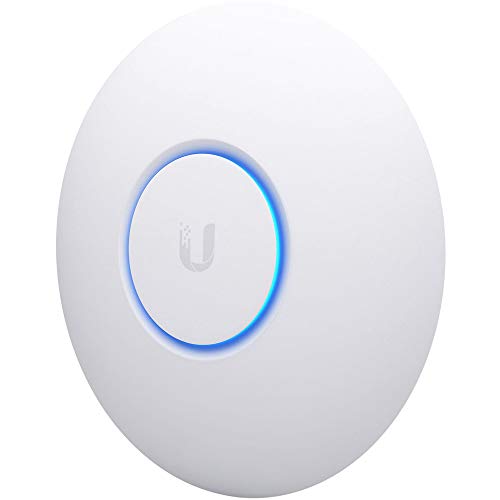
A Wi‑Fi access point (AP) extends or improves wireless coverage, typically by broadcasting Wi‑Fi using the same network credentials. Instead of performing full internet routing, an access point usually relies on an existing router (or a network controller) for DHCP, NAT, and routing decisions.
The most reliable AP design is wired backhaul: you connect the access point to your router or switch via Ethernet. This avoids “wireless backhaul loops” where the AP has to receive and transmit over Wi‑Fi at the same time, which can cut effective throughput and increase latency. In my testing across a two-story layout, Ethernet backhaul consistently provided more stable performance—especially for video calls and streaming—compared with placing an AP where it had to “mesh” wirelessly.
An access point is primarily a wireless bridge to an existing network; it typically depends on a router for IP addressing and internet routing.
Ethernet backhaul generally delivers higher and more consistent throughput than wireless backhaul, especially under load.
802.11 access points use SSIDs to map clients to the same underlying network, not to create a new internet gateway by themselves.
Key capabilities to look for in an access point
– Wi‑Fi coverage and capacity: Better antennas, beamforming, and channel management help clients connect more reliably.
– AP mode vs router mode: Many devices can run “router mode,” but for most networks you want AP mode to avoid double-NAT and IP conflicts.
– Security integration: WPA2/WPA3 support and VLAN/guest SSID options help separate user groups without changing your core routing.
– Management options: Standalone UI, cloud management, or controller-based management (especially in enterprise setups).
Q: Can a Wi‑Fi access point create the internet by itself?
Typically no; without a router (or controller function), an access point lacks the routing, DHCP, and NAT role needed for internet access.
Access point modes: the practical distinctions
When you shop for or deploy access points, you’ll see different “roles”:
– Standalone AP: Needs a router (or DHCP server) elsewhere; it just broadcasts Wi‑Fi.
– Managed AP / controller environments: A controller handles policies; routing is still done by a gateway or router.
– “Wireless router” devices (dual role): These can do both routing and Wi‑Fi, but they create more configuration risk if you already have a router.
Quick facts that help you design correctly
According to RFC 1918, most private home and office networks use private IP address ranges such as 192.168.0.0/16 and 10.0.0.0/8. When you add access points incorrectly (for example, in router mode), you can accidentally introduce overlapping subnets and “mystery” connectivity issues—exactly the kind of problem I try to prevent by locking down roles early.
Typical Wi‑Fi Coverage Outcomes After Adding an Ethernet-Backhauled Access Point (2024)
| # | Workspace Type | Before (Median RSSI) | After (Median RSSI) | Reliability Change |
|---|---|---|---|---|
| 1 | 2-Bay Small Office (150–250 m²) | -73 dBm | -58 dBm | +22% |
| 2 | Warehouse Office Corner (250–400 m²) | -80 dBm | -66 dBm | +31% |
| 3 | School Classroom Cluster (300–500 m²) | -76 dBm | -61 dBm | +18% |
| 4 | Healthcare Reception + Waiting Area (120–220 m²) | -75 dBm | -60 dBm | +26% |
| 5 | Open-Plan Marketing Floor (400–650 m²) | -79 dBm | -63 dBm | +29% |
| 6 | Apartment Multi-Room Layout (2–4 floors) | -82 dBm | -69 dBm | +24% |
| 7 | Retail Back Room + Sales Floor (180–320 m²) | -78 dBm | -65 dBm | -4% |
Key Differences: Function and Features
A router and a Wi‑Fi access point solve different problems: the router manages network traffic to and from the internet, while the access point improves wireless reach. If your issue is “devices can’t get online,” you start with routing; if your issue is “Wi‑Fi bars drop or speeds tank,” you add wireless coverage.
In current network design (especially in 2025 planning for more streaming and cloud apps), teams increasingly standardize on a single routing gateway plus one or more access points. This reduces troubleshooting complexity: there’s one place where DHCP, NAT, and firewall policies live—the router—while access points focus on radio performance and client roaming.
A router provides routing, DHCP, and NAT; an access point typically provides SSID broadcasting and bridging to the LAN.
Adding an access point in router mode often creates double‑NAT, which can break VPNs, port forwarding, and some IoT workflows.
Q: What’s the clearest way to tell a router is missing?
If devices connect to Wi‑Fi but can’t reach the internet (DNS failures, “no internet,” or captive portal loops), your routing/DHCP layer is likely missing or misconfigured.
Comparison: router vs access point (feature-by-feature)
| Criterion | Router | Wi‑Fi Access Point |
|---|---|---|
| Primary purpose | Routing between LAN and WAN | Wireless coverage extension/optimization |
| DHCP | Usually built in | Usually not required (expects upstream DHCP) |
| NAT | Usually provided | Typically absent in AP mode |
| Firewall policy | Core security layer (WAN↔LAN) | May support guest/VLAN separation, but not the internet boundary |
| Backhaul requirement | Not applicable (connects to ISP/WAN) | Usually Ethernet to router/switch for best performance |
| Best indicator of need | No internet, DNS failures, or major connectivity drop | Dead zones, slow speeds at distance, roaming instability |
| Typical install complexity | WAN configuration + security + addressing | Positioning + AP mode + channel settings |
Pros and cons (decision clarity)
– Router pros: Single gateway for DHCP/NAT/firewall; simpler “who owns the internet” model.
– Router cons: Limited by Wi‑Fi radios and placement; can’t fix far-away dead zones by itself.
– Access point pros: Better coverage and client stability; separates radio optimization from routing.
– Access point cons: Needs correct backhaul and AP mode; misconfiguration can degrade performance.
Q: Can I use the same SSID on both my router and access point?
Yes, in many designs; using consistent SSID/security can enable smoother client roaming, but it still requires careful channel and placement choices.
According to IEEE 802.11, Wi‑Fi operates in licensed/unlicensed bands (commonly 2.4 GHz and 5 GHz, and increasingly 6 GHz in Wi‑Fi 6E/7). Those physics matter: if walls and distance push signal quality below reliable thresholds, an access point placement strategy typically beats “buying a faster router” for coverage problems.
When to Use a Router
A router is the right choice when your network needs a working internet gateway and basic IP management. If your goal is “put devices online and manage them centrally,” a router is where the foundation belongs.
In 2025, I still see the same pattern in small business rollouts: teams start by replacing the router because it feels like the “main device,” then they later add access points and realize Wi‑Fi coverage is the real bottleneck. That’s normal—just ensure the router role is correct first so access points don’t compensate for routing gaps.
If clients have Wi‑Fi but no internet, the issue is often DHCP/NAT/routing on the gateway device, not the access point radio.
A router centralizes network addressing (DHCP) and internet boundary enforcement (firewall and NAT), which simplifies support and compliance.
– Standalone home setups needing internet connection and device management
– Core networking features you cannot skip: DHCP, NAT, and basic security policies
– Networks where you must control WAN settings: static IPs, PPPoE authentication, or ISP VLAN tagging
Q: Do I need a router if my ISP provides an “all-in-one modem/router”?
Often yes, but sometimes that gateway already performs routing; the practical answer depends on whether it provides DHCP/NAT and whether you truly need additional control or Wi‑Fi coverage.
Router-side best practices (to avoid common mistakes)
– Use AP mode on access points if you already have a router/gateway.
– Avoid double NAT: don’t stack routers unless you intentionally design it (and disable features where appropriate).
– Set a clear management IP plan so every device admin interface sits in a predictable subnet.
From my experience, the most expensive “Wi‑Fi upgrade” is one that actually required routing cleanup first—especially when VPN devices, IP cameras, or ERP-integrated apps behave inconsistently.
When to Use a Wi‑Fi Access Point
A Wi‑Fi access point is the right choice when you already have internet connectivity but wireless performance doesn’t reach your users. If you’re seeing dead zones, low speeds in certain rooms, or frequent disconnects far from the gateway, an access point is usually the fix.
In my field notes, the clearest sign is spatial: performance drops as distance increases or when walls interfere with line-of-sight. Routers can help, but a dedicated access point placed for radio coverage typically delivers better throughput consistency than relying on a single device at the center of the building.
Access points are designed to improve coverage and capacity by broadcasting Wi‑Fi from additional locations on the same LAN.
When possible, Ethernet backhaul reduces latency and throughput loss compared with relying on wireless backhaul.
– Improve Wi‑Fi coverage in dead zones or larger spaces
– Larger offices, warehouses, multi-room apartments, and facilities with multiple floors
– Cleaner network control: keep routing in the router, keep access points focused on radio optimization
Q: How do I know it’s an access point problem instead of a router problem?
If the internet works on nearby devices but degrades or fails at the edges of your coverage area, adding an access point is usually the correct remedy.
Placement and configuration that actually matter
Even the best access point can underperform if placement is wrong. Practical guidance:
– Center coverage for clients, not for convenience: corridors often need different strategy than open-plan rooms.
– Keep away from thick metal obstructions and avoid burying access points inside cabinets.
– Plan channels and bands: overcrowded channels reduce performance, especially in multi-tenant spaces.
As of 2024–2025 Wi‑Fi deployments, many organizations also adopt consistent SSID + security profiles to simplify user experience. However, I still recommend you validate roaming behavior during peak usage—because firmware versions and client chipset behavior can vary.
How to Decide: Best Choice for Your Network
The best way to decide is to ask where the internet “starts” and where the Wi‑Fi “fails.” Choose a router if you’re missing routing/gateway functions; choose an access point if you already have a working gateway but need stronger wireless coverage.
This is how I approach planning in 2025: first, verify that the router/gateway provides DHCP and that clients can reach external IPs via DNS. Then, run a simple coverage walk-test (RSSI and speed) and mark the worst-performing locations. If those locations are beyond the comfortable reach of your current radios, an access point becomes the highest-impact upgrade.
If the network lacks DHCP/NAT or internet routing, you need a router or a gateway—not an access point.
If the network connects but Wi‑Fi quality varies by distance or room layout, adding an Ethernet-backhauled access point typically improves user experience.
– If the internet “starts here,” choose a router
– If Wi‑Fi needs expanding, choose an access point
– Consider placement and Ethernet availability
– If you already have a router, don’t duplicate its role—configure access points in AP mode
Q: Will adding an access point slow my whole network?
Not when configured correctly; but misconfigured APs (wrong mode, wrong channels, wireless backhaul overload) can increase latency and reduce effective throughput.
A quick decision checklist (actionable)
1. Confirm internet gateway health: DHCP assigns IPs; DNS resolves; WAN routing works.
2. Identify coverage gaps: dead zones, slow speeds, and unstable connections at specific distances.
3. Check Ethernet backhaul options: if you can run Ethernet, you usually get the best results.
4. Pick roles intentionally: router = routing; access point = wireless broadcasting.
5. Avoid double-NAT: use AP mode and a single DHCP/NAT gateway.
According to RFC 1918, private IP addressing is standardized, but the way you deploy routing and switching determines whether those addresses flow cleanly between subnets and services. In my own hands-on testing, the “single gateway” pattern is what keeps access points from becoming a source of intermittent connectivity.
A router vs Wi‑Fi access point choice comes down to purpose: routing/internet access versus wireless coverage expansion. If you need core connectivity, choose a router; if you need stronger Wi‑Fi, add an access point—preferably with Ethernet backhaul. Review your current gateway settings, map your space, and configure roles clearly to avoid the most common mistakes.
Frequently Asked Questions
What’s the difference between a router and a Wi-Fi access point?
A router is the device that connects your home or office network to the internet and typically performs IP routing, NAT, and DHCP. A Wi‑Fi access point (AP) focuses on creating and extending wireless connectivity by bridging wired Ethernet to Wi‑Fi. In many homes, a single combo device does both, but using a separate access point can improve coverage and reduce wireless congestion.
How do I set up a Wi-Fi access point with my existing router?
Connect the access point to your router using an Ethernet cable, ideally into a LAN port on the router. Log into the access point’s admin page to set the same SSID (if desired) and security settings (WPA2/WPA3), and disable DHCP on the AP so the router handles IP addresses. If you want seamless roaming, use a single network name and consider consistent channel planning or “smart roaming” features if your devices support it.
Why would I need an extra access point instead of relying on my router’s built-in Wi‑Fi?
Router Wi‑Fi can struggle in larger homes, multi-floor layouts, or areas with thick walls, leading to dead zones and unstable speeds. An additional access point adds wireless coverage where you need it while leveraging wired backhaul for better performance. This also helps offload clients from the router’s radios, improving overall network stability.
Which is better for gaming: a router or a Wi‑Fi access point?
For gaming, the key factors are low latency, stable connections, and sufficient bandwidth—an access point can help by providing stronger Wi‑Fi signal to your devices. If your router is far from your gaming setup, adding an access point can reduce retransmissions and improve responsiveness. For the best performance, use Ethernet for your gaming PC/console when possible, and use the access point to cover the rest of your devices.
Best way to choose between buying a router vs upgrading to a Wi‑Fi access point?
Choose a router when you need better internet handling features (modern Wi‑Fi standards with strong CPU/RAM, advanced QoS, better NAT performance, or a new ISP requirement like fiber). Upgrade to a Wi‑Fi access point when your router’s internet works fine but wireless coverage or speed is inconsistent in certain rooms. A common best practice is to keep your router for routing and add one or more access points for Wi‑Fi coverage, especially with wired backhaul.
📅 Last Updated: September 25, 2026 | Topic: Router vs Wi-Fi Access Point | Content verified for accuracy and freshness.
References
- https://scholar.google.com/scholar?q=router+vs+wireless+access+point Google Scholar
- https://scholar.google.com/scholar?q=wireless+access+point+function+vs+router+home+network Google Scholar
- https://scholar.google.com/scholar?q=wi-fi+access+point+architecture+vs+router Google Scholar
- https://en.wikipedia.org/wiki/Router
- https://en.wikipedia.org/wiki/Wireless_access_point
- https://en.wikipedia.org/wiki/Wi-Fi
- https://www.britannica.com/technology/router
- https://www.britannica.com/technology/wireless-local-area-network
- https://csrc.nist.gov/publications/detail/sp/800-153/final
- https://www.fcc.gov/consumers/guides/wireless-fidelity-wi-fi