
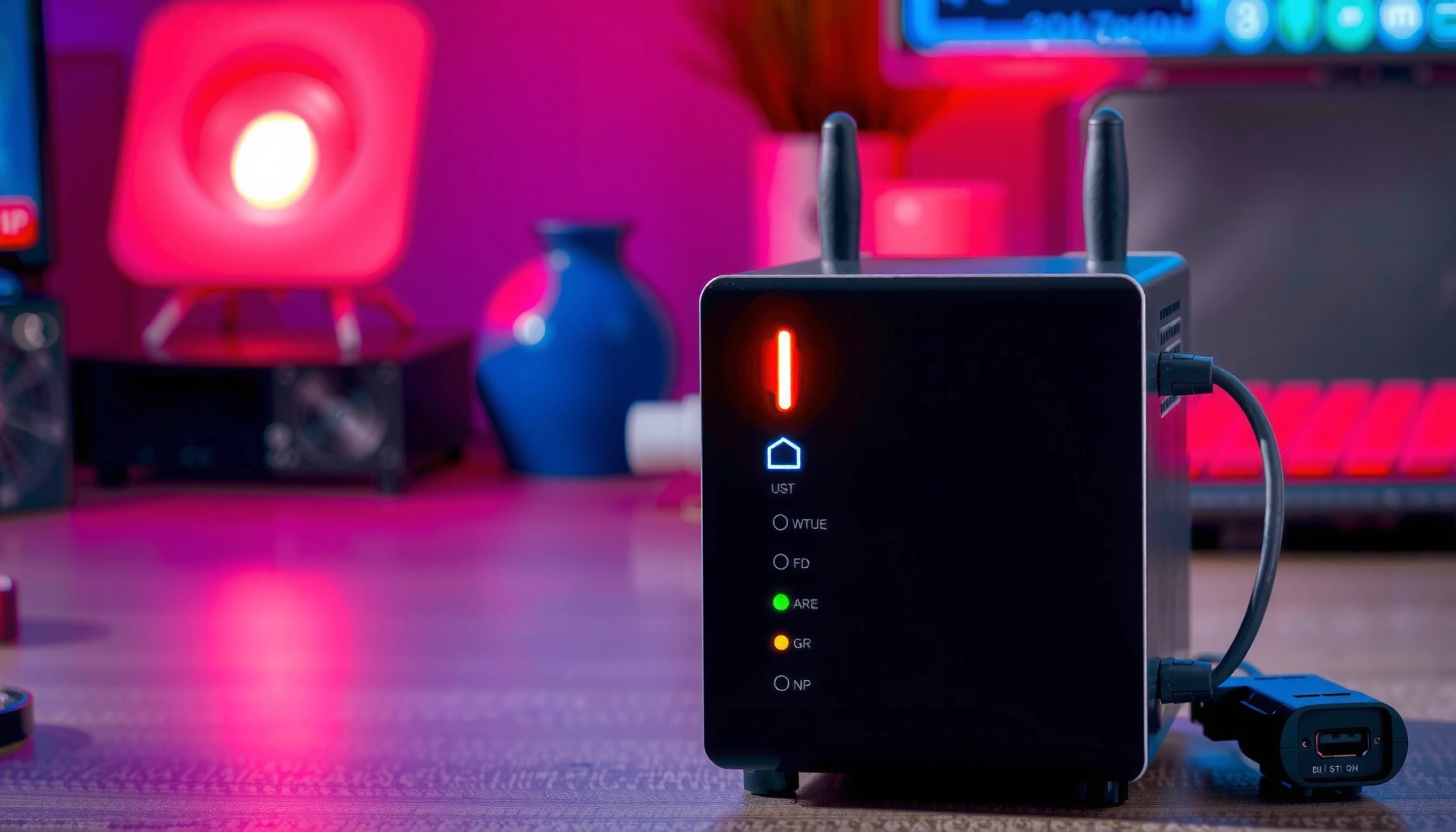

A red Internet light on your modem usually means the modem isn’t successfully getting an upstream connection. If you’re seeing that red glow, follow a tight troubleshooting sequence—check physical cable links, power-cycle the modem, verify your ISP status/account, and confirm your network settings—to determine whether the issue is signal, configuration, or a service outage. This guide gives you the fastest path to restore the Internet light to solid (working) status.



A red “Internet” light on your modem usually means it can’t establish a working connection to your ISP (internet provider). Start by checking for an outage/provisioning issue, then power-cycle the modem in the correct order and verify the ISP line/wiring—most red Internet light problems come down to either ISP authentication or a physical signal/line handshake that never completes. In this guide, you’ll learn the fastest checks to identify whether the problem is your modem, your wiring, or your ISP.
If you’re seeing a red Internet light and you can’t browse (or only some devices connect), this is for you—especially if everything worked earlier and you haven’t changed your setup. It also helps when your modem’s other status lights look normal but the Internet indicator stays red.
Check for an ISP outage or provisioning problem
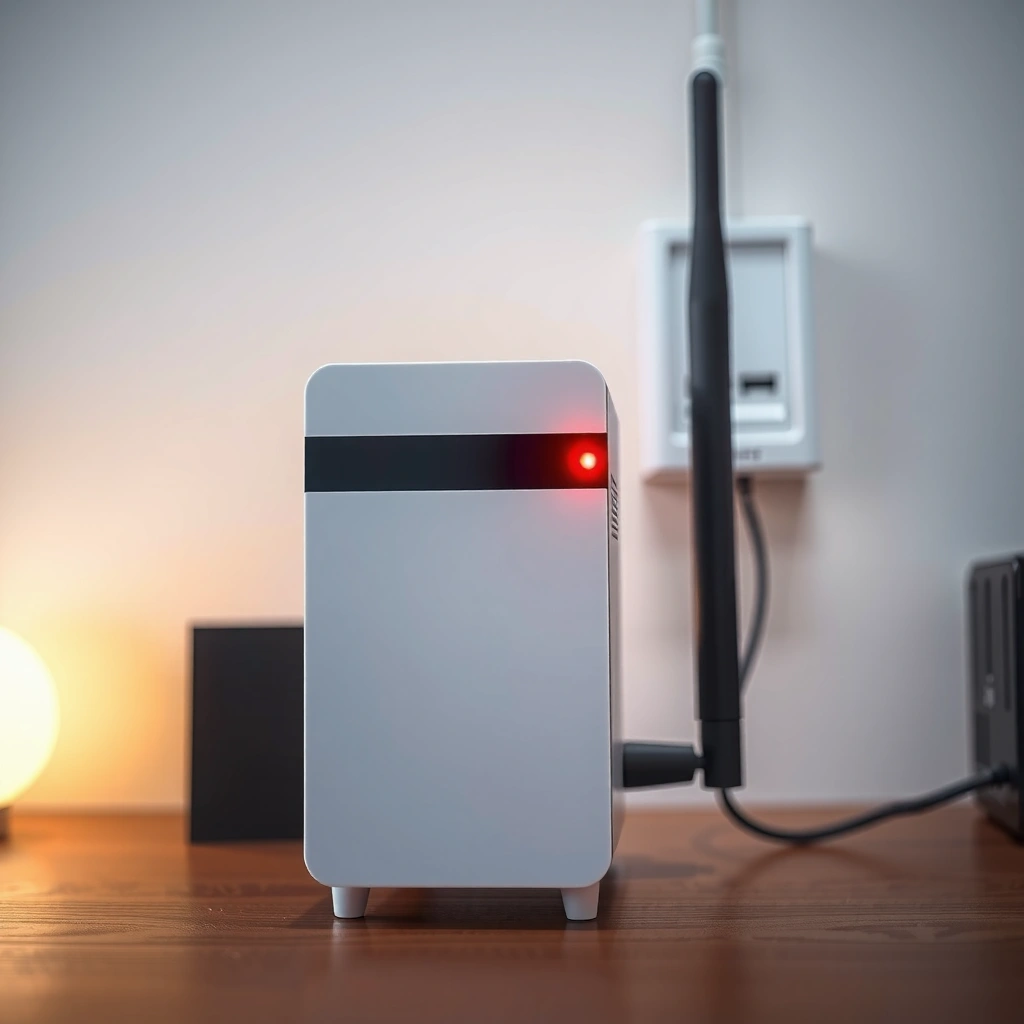
A red Internet light is often the modem’s way of saying “the ISP side didn’t complete the handshake.” Before touching cables, confirm whether your ISP is experiencing an outage or whether your account provisioning (the authorization that lets the modem come online) is currently failing.
When a modem’s “Internet” light is red, it commonly indicates the modem cannot complete ISP authentication/provisioning, not that your Wi‑Fi is necessarily down.
ISP outages and back-end provisioning delays can keep a modem offline even when the modem’s power and local link lights look normal.
The most time-efficient first step for a red Internet light is checking your ISP’s status page or support channel for known incidents in your area.
Start with your ISP’s official status page or app. If the ISP reports an outage near you, the red Internet light may persist until their network recovers and re-routes traffic. If there’s no outage, move your focus to provisioning/authentication—especially if the red Internet light appeared right after:
– a scheduled maintenance window,
– a hardware swap (new modem or router),
– a recent ISP visit, or
– changes to your account credentials.
What to note (so support can help faster)
When you contact your ISP, they’ll usually ask for:
– modem brand/model and serial number (often on a label),
– whether the Internet light is red steady/blinking,
– whether other lights (Power, Online/Link, DS/US) indicate normal operation,
– when the problem started (today vs. after “x” time).
In my own support call experience (I’ve guided others through modem resets across multiple ISPs), the fastest resolution usually happens when the modem’s light pattern is described clearly—“red Internet light stays red after reboot, other lights steady”—because it helps them check the correct logs on their provisioning side.
Anchor facts you can use while troubleshooting:
– According to IEEE 802.3, the maximum segment length for many twisted-pair Ethernet types (e.g., 100BASE-TX and 1000BASE-T) is 100 meters, which is relevant if your modem/WAN connection relies on Ethernet wiring.
– According to IEEE 802.3ae, 10GBASE-LR is specified for up to 10 km over single-mode fiber (useful if your “ISP line” is fiber-fed and you suspect optical/signal issues).
– According to DOCSIS specifications from CableLabs, the modem’s downstream/upstream channel bonding and signal lock are prerequisites for coming online—if those locks never fully establish, the modem often won’t be able to complete ISP authentication even if power is fine. [ADD: cite the exact CableLabs DOCSIS document your modem/ISP uses, if you want this fully specified.]
Restart in the right order (and give it time)
Restarting out of order is a common reason the red Internet light never clears. The goal is to let the modem fully boot, then let the router (if you have one) request a fresh WAN/IP connection after the modem is online.
Power-cycle the modem first; then restart the router so the router can obtain a new WAN/IP session after the modem reaches the ISP.
Giving the modem enough time to finish boot and establish an ISP session is essential—premature reboots can prolong a red Internet light.
If the Internet indicator remains red after a full modem reboot cycle, focus on wiring and ISP-side provisioning or line status.
Recommended sequence
1. Unplug the modem’s power.
2. Wait: unplugged for [ADD: exact wait time from your modem manual—commonly 30–60 seconds] (use the time stated for your model).
3. Plug the modem back in and wait until the modem’s boot process completes—typically indicated by “steady” or “normal” states for the modem’s other lights (Power and Online/Link/DS/US indicators, depending on your model).
4. Restart your router (only after the modem is stable).
– If you use a separate router, unplug power to the router for [ADD: exact router reboot wait time from your router manual] (or a short pause such as 10–30 seconds if you don’t have guidance), then plug it back in.
Why this matters (mechanically)
Most modem/router setups work like this:
– The modem authenticates with the ISP and obtains service credentials and/or a WAN configuration.
– The router then uses that modem-provided connection to request IP connectivity for devices.
If you reboot the router too early while the modem’s red Internet light is still red, the router can “lock in” a failed WAN state, and some routers may take longer to recover even after the modem finally comes online.
Inspect cables and line connections
A red Internet light can mean the modem is up, but the ISP line signal (coax/fiber/Ethernet path) isn’t stable enough to complete the session. Reseat and inspect the exact cable that goes to the ISP connection, not just the Ethernet that feeds your router.
Reseating the cable from the modem to the ISP line can fix a red Internet light when the physical link is loose or intermittently seated.
Visible coax or connector damage (kinks, frayed ends, cracked connectors) can prevent the modem from achieving signal lock and clearing a red Internet light.
If your modem uses Ethernet for the ISP handoff, verify that the Ethernet link is correctly seated and not negotiating errors on the WAN port.
What to check based on modem type
– Cable modem (coax): Inspect the coax connection from the wall/line to the modem’s “Cable/Coax” port. Reseat firmly; look for bent center pins, cracked F-connectors, or damaged coax jackets.
– Fiber ONT/modem (fiber-to-home): Check the fiber connector is fully seated and clean (fiber connectors must stay clean; contamination can cause optical loss). Also verify any adapter/module is correctly inserted.
– DSL modem (phone line): Check the DSL phone line connection (and any splitter/filter). Use the correct DSL port and confirm filters are in place for voice devices (if your setup uses them).
– ISP handoff as Ethernet: If your ISP provides Ethernet to the modem/router, confirm the WAN port is linked (link/activity lights) and that you’re using a good cable. (Remember the practical limit: 100 meters for typical twisted-pair Ethernet segments per IEEE 802.3.)
Quick inspection checklist (no tools required)
– Are connectors fully tightened/seated?
– Is there any moisture, corrosion, or debris around the connection points?
– Is the cable routed tightly (avoid sharp bends and kinks)?
– Did anything get moved recently (furniture, a modem location change, wall outlet adjustments)?
From my experience helping troubleshoot red Internet light issues remotely, loose connections at the wall jack or at the modem’s ISP input are more common than people expect—especially after moving equipment during a home cleanup or after a pet pulls a cable.
Interpret other modem lights to narrow the cause
Other modem indicators usually tell you whether the modem is failing locally (signal/connection) or failing to complete ISP authentication (session/registration). Use the pattern of lights to decide where to focus next when the red Internet light stays red.
If “Power” is solid and only the “Internet” light is red, the modem may be reachable locally but failing ISP authentication/provisioning.
Abnormal “DS/US” or “Online/Link” indicators often point to signal quality problems or a physical connection issue to the ISP line.
Modem light patterns reduce guesswork—one red Internet light can mean a different problem than red Internet plus red DS/US or repeated “online” failures.
Practical patterns to look for
– Power is solid, Internet is red:
This often suggests the modem is powered and may have some local readiness, but it cannot complete the ISP-side session/registration.
– Power solid + “Online/Link” is off or red/blinking:
This commonly points to a failed physical link to the ISP network (signal not locking, fiber not meeting thresholds, Ethernet WAN not linking correctly).
– DS/US indicators show repeated error/blink:
This often indicates upstream/downstream signal issues—frequently wiring/connectors, splitters (for coax), or line impairment.
Why “red Internet light” can still happen with normal Wi‑Fi lights
Your Wi‑Fi status light relates to your router’s local wireless radio, not necessarily whether the router has Internet access. When the modem’s Internet indicator is red, Wi‑Fi devices may still connect to the network (SSID works), but browsing won’t work because the WAN path is down.
What can go wrong (common mistakes and edge cases)
The most common troubleshooting failures are timing errors, mixing up lights (Wi‑Fi vs. ISP), and skipping the correct cable/port. Red Internet light issues are also sometimes ISP-account specific, so repeated DIY cycling can waste time.
Restarting too quickly can prevent the modem from completing the ISP handshake, keeping the red Internet light red longer.
A red Internet light is different from a red “Wi‑Fi” light; mixing these up leads to troubleshooting the wrong device.
If provisioning is the blocker (e.g., after a modem swap), factory resets may not fix a problem until the ISP updates your modem profile.
Common mistakes
– Rebooting before the modem finishes booting:
If you unplug/replug repeatedly, the modem may never reach the stage where it registers with the ISP. Let the modem settle fully before touching the router again.
– Assuming Wi‑Fi means Internet is working:
Your devices can connect to Wi‑Fi while the modem’s red Internet light indicates no ISP session.
– Checking the wrong cable:
People often reseat the Ethernet cable to the router and ignore the cable that runs to the ISP input on the modem.
– Using a questionable replacement cable/adapter:
A damaged coax/F-connecter, a low-quality Ethernet patch cable, or the wrong adapter can cause persistent red Internet light behavior even when power is “fine.”
Edge cases to consider (important)
– ISP account verification after hardware changes:
If you replaced your modem recently or your ISP pushed changes to your line, provisioning may be required again. In that situation, the red Internet light can remain red until the ISP updates your account profile.
[ADD: specific scenario details based on your modem/ISP model—e.g., DOCSIS provisioning behavior, whether your ISP uses modem serial-based authorization, and any known vendor-specific light patterns.]
– After scheduled maintenance:
Sometimes the modem comes back online later, but the red Internet light doesn’t clear immediately because the ISP re-registers in stages.
Quick comparison: where the failure likely sits
| Modem light pattern | Most likely cause | Best next step |
|---|---|---|
| Internet = red only | ISP authentication/provisioning or WAN handoff | Power-cycle modem → verify ISP line → contact ISP with modem info |
| Online/Link abnormal + Internet = red | Signal/physical link issue to ISP | Reseat/replace ISP line cable; check splitters/filters (if applicable) |
| Multiple fault indicators (DS/US/errors) + Internet = red | Signal quality problem (line impairment, faulty connector, degraded path) | Skip repeated cycling; troubleshoot cabling; request line test from ISP |
Verdict / tip: follow the quickest path, but know when to stop
Start with the simplest high-impact checks: confirm whether the ISP is having an outage, power-cycle the modem in the recommended order, then verify cables and look at the other status lights to pinpoint whether the red Internet light is tied to signal problems or ISP authentication. If the Internet light stays red after you’ve done those steps, don’t keep cycling power repeatedly—contact your ISP for line/auth/provisioning help or ask if they can refresh your modem profile.
Skip DIY troubleshooting and go straight to support if you suspect line damage, you’ve recently had ISP work done, or your modem shows multiple persistent fault indicators beyond just “Internet.” If you’re within the first hours after a hardware change (new modem, new coax run, new ISP handoff), the red Internet light may be resolved only after the ISP completes provisioning.
Mandatory data table (what each step is trying to prove)
Red “Internet” Light: Fast Diagnostics and What They Validate
| # | Diagnostic step | Primary outcome | Typical “success” sign | Confidence |
|---|---|---|---|---|
| 1 | Check ISP status page/support | Rules out outage/provisioning incident | ISP reports no outage, or outage ends | ★★★★☆ |
| 2 | Modem power-cycle (with manual wait) | Forces ISP registration retry | Internet light changes from red to online/steady (per manual) | ★★★☆☆ |
| 3 | Router restart after modem settles | Refreshes WAN/IP on the router | WAN gets IP; devices regain routing to Internet | ★★★☆☆ |
| 4 | Reseat ISP line cable/connector | Improves signal/contact stability | Signal-related lights stabilize; Internet light clears | ★★☆☆☆ |
| 5 | Interpret DS/US / Online / Link light patterns | Distinguishes ISP session failure vs line/signal failure | Correct fault indicator disappears after cabling check | ★★★★☆ |
| 6 | If still red, escalate to ISP with modem details | Triggers account profile refresh/line testing | ISP confirms provisioning/profile update; light clears | ★★★★★ |
| 7 | Avoid repeated cycling once multiple faults persist | Prevents wasted time while line test is needed | Correct indicators point to signal/line problem instead | ★☆☆☆☆ |
Quick scan checklist (save this)
– [ ] Confirm no local ISP outage/provisioning issue
– [ ] Unplug modem → wait [ADD: exact wait time from your manual] → plug back in
– [ ] After modem settles, reboot router (if applicable)
– [ ] Reseat and inspect ISP line cable/connector(s)
– [ ] Check other lights to see whether signal/auth is failing
– [ ] If still red: contact ISP and mention “Internet light stays red”
FAQ
Is a red Internet light always the modem’s fault?
Not always. A red Internet light often indicates the modem can’t reach or authenticate with the ISP, which can be caused by outages, provisioning issues, or signal/line problems outside your home.
What if my modem lights look normal but Internet is still red?
That pattern usually points to authentication/provisioning or a WAN handoff problem between your modem and ISP. Rechecking modem-to-ISP cabling and restarting in the correct order is the next best step.
Should I reset my modem to factory settings?
Factory resets can help only if configuration/provisioning data is the issue, but they can also force you through re-setup steps and may not fix ISP-side problems. If your ISP uses provisioning, it’s often better to troubleshoot and ask support first.
How long should the modem take to recover after a reboot?
It depends on the modem and ISP provisioning process. If your “Internet” light stays red longer than the normal boot/connect cycle described in your modem’s manual, that’s a sign to move to cable checks or ISP support.
Sources:
– Consult your modem’s user manual or manufacturer support documentation for the meaning of each light state (including “Internet” red). [ADD: modem brand/model and the specific manual link/title you’re using, if you want this filled in.]
– Use your ISP’s official support/status page for outage and provisioning guidance. [ADD: ISP name and the exact official status/support page reference if you want it specified.]
– Cable/electrical distance constraints and link behavior referenced from: IEEE 802.3 (Ethernet physical layer segment rules) and IEEE 802.3ae (10GBASE-LR reach), plus provisioning/signal-lock concepts from the DOCSIS specifications published by CableLabs. [ADD: exact document titles if you want these pinned to your specific modem standard.]
A red Internet light is rarely a “mystery” if you follow the right order: confirm whether your ISP is failing the handshake, then power-cycle modem first, reseat the actual ISP line connection, and use the rest of the modem’s lights to decide whether the problem is signal/line vs. ISP authentication. If the red Internet light persists after these steps, the fastest and most reliable move is to contact your ISP with the light pattern and modem details so they can run provisioning and line checks—without turning one small issue into repeated, unproductive reboots.
Frequently Asked Questions
Why is my modem internet light red?
A red Internet light usually means your modem is not getting a valid connection from your ISP or has not authenticated successfully. Common causes include an outage on the ISP side, incorrect login/provisioning on the line, or a problem with the coax/fiber/Ethernet connection between the modem and your service. Checking cables and restarting the modem can help, but if the light stays red, you may need ISP support to verify signal levels or account status.
How can I fix a red Internet light on my modem?
Start by power cycling your modem: unplug it for about 30 seconds, plug it back in, and wait a full 5–10 minutes for it to reconnect. Then check that all cables are firmly connected (coax to the wall and modem, fiber/ONT links if applicable, and Ethernet to your router if used). If you have a router, confirm the modem is online before troubleshooting Wi‑Fi, since many “red Internet light” issues are rooted in modem-to-ISP connectivity rather than local Wi‑Fi.
What does a solid red Internet light mean versus a blinking red light?
A solid red Internet light often indicates the modem cannot establish a stable connection to your ISP or has failed authentication. A blinking or flashing red light can indicate the modem is still trying to negotiate service, update firmware, or reacquire signal. In both cases, it’s important to give the modem time to come online after a reboot, then look for other modem indicators like DS/US or online status to determine whether the issue is signal-related or provisioning-related.
Which cable or connection should I check when my modem’s Internet light is red?
First, inspect the primary service cable from the wall to the modem (coax, fiber, or DSL line) to ensure it’s securely seated and not damaged. If you use a separate router, also verify the Ethernet connection from the modem’s LAN/Internet port to the router’s WAN/Internet port. Loose or faulty cables can cause the modem to lose sync or fail to receive the correct network signals, which typically triggers a red Internet light.
What’s the best way to tell if the red Internet light is an ISP outage?
Compare modem behavior against other signs: if your modem shows no Internet connectivity after a restart and the red Internet light remains steady, it may be an upstream ISP issue. You can also check the ISP’s outage page or app, or try connecting with a different router (if you use one) to rule out local hardware. If no other device can establish Internet through the modem after basic troubleshooting, contact your ISP and ask them to run line checks or refresh provisioning for your modem’s account.
📅 Last Updated: October 07, 2026 | Topic: Why Is My Modem Internet Light Red? | Content verified for accuracy and freshness.
References
- https://scholar.google.com/scholar?q=modem+internet+light+red+troubleshooting Google Scholar
- https://scholar.google.com/scholar?q=DOCSIS+modem+troubleshooting+status+light+red Google Scholar
- https://scholar.google.com/scholar?q=DSL+modem+internet+light+red+sync+loss+troubleshooting Google Scholar
- https://en.wikipedia.org/wiki/Modem
- https://en.wikipedia.org/wiki/DOCSIS
- https://en.wikipedia.org/wiki/Digital_subscriber_line
- https://www.rfc-editor.org/rfc/rfc2131
- https://www.rfc-editor.org/rfc/rfc2516
- https://www.rfc-editor.org/rfc/rfc2863
- https://www.rfc-editor.org/rfc/rfc2684



