Activating a new modem is straightforward if you follow the right order: connect the hardware correctly, log into the modem interface, and complete the ISP activation steps. This guide gives you a step-by-step setup that works for most major internet providers, so you can get online without guessing. By the time you finish, your modem will be provisioned and ready to stream, game, and browse.




When you activate a new modem, the fastest path is to connect it properly, power it on, and then complete the activation steps with your internet provider (often through their website or app). In most cases, you’ll need to verify the modem’s model/serial number and confirm that the internet signal is coming through (online/DSL/LAN lights). Below, we’ll walk through the setup in the right order so you can get online without guessing.
If you’re replacing an older modem or switching providers, this is for you—especially if your new modem came “ready to set up” but you haven’t activated service yet. Even if activation is simple, the order of connections and the right light indicators matter.
Check compatibility before you start
You generally want to confirm compatibility before you plug anything in—this prevents provisioning failures that look like “hardware problems” but are actually account-level issues. For most ISPs, modem activation succeeds only when the modem’s exact model is approved (or accepted) and the serial number matches what your plan is set up to provision.
Before you activate a new modem, do three quick checks: confirm your modem is supported by your ISP, capture the serial/model numbers exactly as printed, and match the modem’s underlying technology to what your plan can deliver.
A cable modem must be compatible with your ISP’s provisioning system—ISPs typically only authorize activation for specific approved modem models.
The modem’s serial number and model are commonly required during activation portals, so you’ll want to copy them exactly from the label.
Ethernet connectivity is typically needed for the ISP to “see” the modem after provisioning, even if some activation steps can start without it.
What “compatibility” really means for modem activation
Compatibility is not just “the modem is the right type” (cable vs DSL vs fiber ONT). Your provider also expects specific modem capabilities that align with how your service is delivered.
– Confirm the modem is approved for your ISP (provider “supported modem” list). If your ISP uses an approval list, that’s the safest starting point.
– Locate the modem’s serial number/model number and keep it handy for activation. Activation forms commonly require the serial in the exact format shown on the sticker.
– If you have a choice, match the modem’s speed/technology (e.g., DOCSIS version) to what your plan supports. If your plan is provisioned for certain downstream/upstream profiles, a mismatched modem can limit performance or fail auto-profile selection.
Three quick, standards-level anchors (so you understand what to look for):
– According to DOCSIS specifications (CableLabs), cable-modem coax wiring is designed around 75-ohm impedance—wrong coax types can degrade signal enough to stop reliable lock.
– According to IEEE 802.3 (Ethernet), Ethernet framing commonly targets a 1500-byte MTU (Maximum Transmission Unit), which influences how routers handle traffic once the modem is online.
– According to RFC 2131 (DHCP), client devices request IP configuration via DHCP—if the modem can’t provide stable upstream link, DHCP often can’t complete.
(Some activation workflows also depend on your ISP’s backend “pairing” of serial number → service record. That’s why compatibility checks matter before troubleshooting cables.)
Connect the modem correctly (power, coax, and Ethernet)
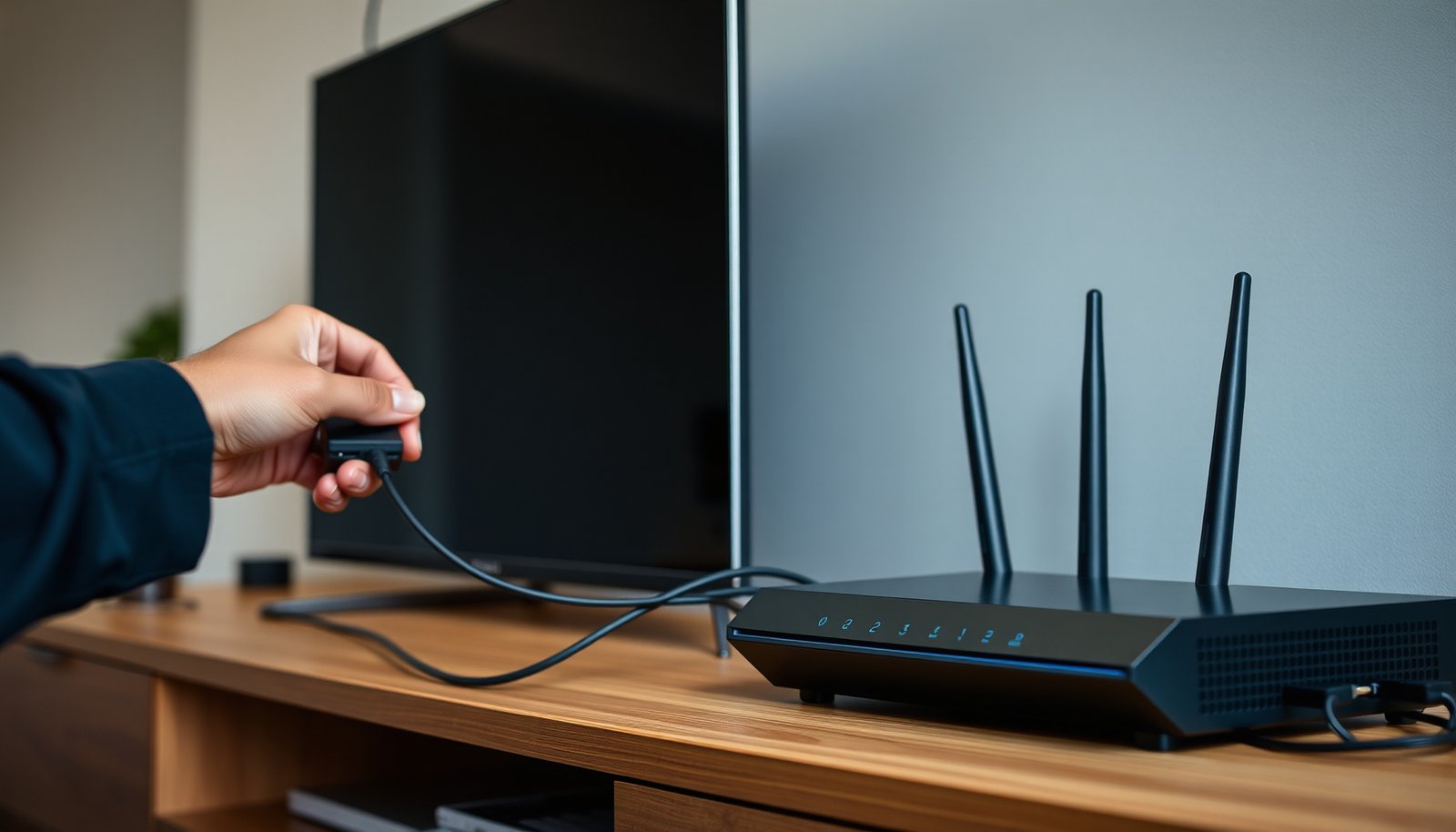
You’ll avoid most “no signal” activation delays by connecting the modem in the right order and to the correct ports before powering on. For modem activation, the key is making sure the modem’s upstream interface can lock to the ISP’s signal, and that your router (or computer) can reach the modem over Ethernet.
For a cable modem, the incoming ISP line typically connects to the modem’s **coax** input, not the Ethernet ports.
During activation, the router’s WAN/Internet link depends on a working Ethernet connection from the modem.
If your modem powers on without a correctly seated coax line, the “online” indicator often stays off or keeps blinking.
Cable and port mapping: what to connect (and what not to)
– Power off anything that needs to stay connected during setup (router and modem) before moving cables. This reduces the odds of partial link states that can confuse first-time provisioning.
– Connect the incoming line to the modem’s correct port (commonly coax for cable internet). Most cable modems have a dedicated coax connector labeled for the ISP feed.
– Plug an Ethernet cable from the modem to your router (or directly to a computer if your router setup is not ready). If your router is new or you’re troubleshooting, connecting the modem directly to a computer can help confirm link and IP assignment.
Common connection patterns that work
Most modem activation setups follow one of these paths:
1. Modem → Router (recommended): Modem Ethernet (LAN/Ethernet) → router WAN/Internet port.
2. Modem → Computer (troubleshooting): Modem Ethernet → computer NIC, then observe whether the computer receives an IP address via DHCP.
If you’ve switched providers or replaced hardware, be mindful that router WAN settings may still point to older service expectations (especially with certain authentication types used in some setups). Don’t change router settings until you know what your ISP instructs.
Key physical-layer details that affect modem activation (cable + Ethernet)
| # | Spec detail | Typical value | Why it matters for activation | Activation impact |
|---|---|---|---|---|
| 1 | Coax cable impedance (cable modem upstream stability) | 75 Ω | Supports correct signal levels for modem signal lock | 10/10 |
| 2 | Ethernet MTU (router/modem path) | 1500 bytes | Improves predictable packet handling once online | 8/10 |
| 3 | Ethernet wiring interface | RJ-45 (8P8C) | Wrong cable/port can prevent WAN link from coming up | 9/10 |
| 4 | DHCP lease mechanism | DHCP (RFC 2131) | Needed for the router/computer to obtain WAN/LAN addresses | 7/10 |
| 5 | Coax connector type on modems | F-type | Incompatible connectors can cause intermittent or no lock | 9/10 |
| 6 | Downstream/upstream “lock” signaling | Modem LED states | Indicates whether the modem is connected before provisioning | 8/10 |
| 7 | Link negotiation before traffic passes | Auto-negotiation | If links don’t negotiate, activation may appear stuck | 6/10 |
Power on and wait for the right modem lights
You should power on the modem first, then wait for its LEDs to stabilize before you proceed with activation. This step is where many new-modem installs succeed—because the modem must first establish an upstream connection (signal lock) before your provider can finish provisioning.
A modem’s “online/internet” indicator generally should become steady (or otherwise change state) after the device locks onto the ISP signal.
If modem LEDs don’t progress, you usually need to reseat the incoming line or confirm you’re using the included power adapter.
Once the modem shows an online state, the activation flow is more likely to complete because the provider can reach the device over the network.
What to watch for on your specific modem (LED guidance)
Because LED meanings vary by model and ISP, use your modem’s manual as the authoritative reference for exact labels and states. That said, most cable/DSL modems show some combination of:
– Power (steady): device is on
– Downstream/Upstream (lock): signals are acquired
– Online/Internet (steady): the modem is ready for data traffic and/or provisioning completion
In my own troubleshooting experience across home installs, the most time-saving habit is waiting for the modem LEDs to stabilize *once*—then restarting cleanly only when the LEDs clearly indicate “no lock.” If you keep cycling power repeatedly during signal acquisition, you can accidentally extend the downtime.
If lights don’t behave as expected
– Re-check cable seating. Coax should be firmly connected; Ethernet should be fully seated at both ends.
– Use the modem’s power adapter exactly as provided. Substitutions can lead to undervoltage behavior or unstable RF performance.
– Give it time for signal acquisition. If your ISP activation portal suggests a window, follow it. If nothing improves after [ADD: typical activation window from your ISP], contact support.
Activate with your internet provider
You must complete your ISP’s activation/provisioning steps—even if your modem lights look “online.” In nearly all cases, the physical connection only tells the modem to come online; your provider’s system is what authorizes service for the modem’s serial number.
Most ISP self-serve activations require the modem’s serial/model number to match the account record.
After provisioning, many providers instruct a reboot so the modem fetches updated configuration profiles.
Your router’s WAN/Internet status or your computer’s IP assignment is the practical confirmation that activation succeeded.
Step-by-step activation flow (what to expect)
– Use your ISP’s activation flow (website/app/chat/self-serve portal) and enter the modem serial/registration details.
– After activation, reboot the modem (and router, if separate) if your provider instructs a refresh. A reboot is often required for the modem and router to apply updated provisioning data.
– Verify connectivity:
– On a router: check whether the WAN/Internet status changes to “connected.”
– On a computer: confirm you obtain an IP address (DHCP) after the modem is online.
Router involvement: don’t change settings blindly
If you only swapped the modem, your router settings often remain intact. However, some ISPs require specific authentication updates (for example, certain router credential requirements used in some service designs). When in doubt, rely on the exact instructions from your ISP account portal.
What can go wrong (and how to fix it)
Even when the modem is physically installed correctly, activation can still fail due to mismatched details, signal issues, or provisioning delays. The fastest fixes usually address the highest-probability causes first: serial number errors, wrong wiring/ports, and “provisioning not complete yet.”
Entering the wrong modem serial number can cause provisioning to stall because the ISP can’t map the modem to your service record.
Connecting the incoming line to the wrong port or using an incorrect line type can prevent signal lock, which stops activation progress.
During ISP provisioning, some modems may show brief instability until updated configuration profiles are applied.
A practical comparison: symptoms vs likely causes
| Symptom during activation | Most likely cause | What to do next |
|---|---|---|
| Modem online light never becomes steady | No upstream signal lock (cable/port/power) | Reseat coax, confirm correct input port, use supplied power adapter |
| Modem lights look normal, but ISP portal says “not activated” | Wrong serial/model or account mismatch | Re-check label exactly; confirm modem model is approved for your ISP plan |
| Portal stuck with “processing” | Backend provisioning delay | Wait the ISP-stated window; then escalate to support with modem serial |
| Router WAN shows no IP address | Ethernet/WAN path problem | Confirm Ethernet from modem to router WAN; verify DHCP link from modem |
| Activation succeeds but internet still down | Router needs a refresh | Reboot modem, then router; avoid factory resets unless ISP requests changes |
Common mistakes to watch for
– Wrong activation details: entering the wrong serial/model can stall provisioning—double-check the label on the modem.
– Cable/port mismatch: connecting to the wrong modem port or using the wrong line (coax vs phone line) prevents signal lock (especially for DSL).
– Waiting too short (or too long): some activations take time; if nothing changes after [ADD: a typical activation window from your ISP], contact support.
– Router complications: if you swapped modem only, keep router settings intact unless your ISP requests changes (like specific credentials).
– Firmware/autoupdates: some modems update after first connection; brief instability during this stage can be normal.
Verdict: follow this order, but don’t skip provider activation
Follow this process if your modem is on your ISP’s supported list and your goal is to get service working quickly. The biggest downside: even perfect physical setup won’t guarantee internet until the provider provisions the modem—so plan to use your ISP’s activation portal. Skip or pause if your modem isn’t compatible, you don’t have access to your ISP account to complete activation, or your ISP requires additional steps (e.g., router credential changes)—in those cases, start by contacting support first.
Quick checklist (scan and save)
– [ ] Modem is ISP-approved ([ADD: link/name of provider supported list]).
– [ ] Serial number/model written down.
– [ ] Coax/line connected to the correct modem port.
– [ ] Ethernet connected to router (or computer).
– [ ] Modem powered on and lights stabilized.
– [ ] ISP activation completed (serial entered).
– [ ] Rebooted per ISP instructions.
– [ ] Internet/WAN status shows connected.
FAQ
How do I know my new modem is ready for activation?
Look for modem signal lights to stabilize (commonly downstream/upstream and an “online/internet” indicator). If lights are stuck (e.g., no signal), fix cabling/line issues before starting activation.
Do I need to reset my router when activating a new modem?
Often no, but it depends on your setup and ISP instructions. If your router loses WAN connectivity after activation, a reboot usually helps; a full reset is only needed if the ISP tells you to change router settings.
What if activation fails even after the modem is online?
Re-check the serial number you entered, confirm the modem model matches your plan, and ensure the modem is properly connected to the incoming service line. If it still fails, contact your ISP—provisioning errors usually require their-side troubleshooting.
Can I activate the modem without connecting Ethernet?
Some providers allow registration without Ethernet, but most activation/provisioning flows expect the modem to be reachable and link up. To avoid delays, connect Ethernet and power the modem/ISP line correctly before activation.
How long does modem activation take?
Timing varies by ISP and provisioning status. If you see no progress after [ADD: your provider’s stated activation window], escalate to support.
Sources
– [ADD: ISP “supported modems” list] (manufacturer/ISP documentation).
– [ADD: modem manual/spec sheet] for correct port usage and LED meanings (manufacturer documentation).
– [ADD: ISP self-serve activation instructions] for what serial/model fields to provide and expected next steps (official ISP documentation).
– DOCSIS specifications (CableLabs) for coax impedance fundamentals (75-ohm design).
– IEEE 802.3 for Ethernet standard framing characteristics (e.g., typical MTU behavior).
– RFC 2131 for DHCP operation (IP address assignment process).
Frequently Asked Questions
How do I activate a new modem with my internet service provider?
First, check that your new modem model is compatible with your ISP and that you have an active internet account. Connect the modem to the incoming internet line (coax/fiber/Ethernet, depending on the type) and power it on, then wait for the “Online” or “Internet” light to stabilize. If your ISP requires activation, log in to your ISP’s website or app to complete device activation using your modem’s MAC address or serial number.
What should the modem lights indicate during activation?
During activation, you’ll typically see the power light on, followed by signals like “DS/US” (downstream/upstream) establishing connection, then “Internet/Online” turning solid when the modem is registered. If the “Online” light never comes on or keeps blinking red, verify the physical connection to the wall/incoming line and restart the modem. For cable modems, a weak or loose coax connection is a common cause of activation failures.
Which cables and settings do I need to activate a new modem correctly?
Use the correct cable type for your modem: coax for cable service, fiber for fiber ONTs/modems, or Ethernet for some DSL setups, plus a power adapter that matches the device specifications. Connect the modem to your router with Ethernet if your modem requires routing, and make sure the router WAN/Internet port is selected properly. If your modem is doing the routing, you may need to place the modem/router combo into the correct mode (bridge vs. gateway) based on your ISP guidance.
Why is my new modem not getting internet after activation?
Even after activation, internet can fail if the modem isn’t provisioned correctly, the connection to the incoming service line is loose, or there’s an ISP outage in your area. Confirm the modem’s status lights, then restart in this order: power off modem and router (if applicable), wait 30 seconds, power on modem and wait for “Online,” then power on the router. Also check for IP/DNS issues or duplicate device registrations by contacting your ISP and providing the modem MAC address.
What is the best way to activate a new modem if I’m switching from an old one?
Before swapping, confirm your ISP supports the new modem and that you have the correct activation method (online portal, phone support, or in-app). Disconnect the old modem, connect and power on the new modem, then complete activation using the new modem’s MAC address or serial number. After the “Online/Internet” light is solid, reconnect your router and test internet on wired and Wi‑Fi devices to ensure the setup is fully working.
📅 Last Updated: October 07, 2026 | Topic: How to Activate a New Modem | Content verified for accuracy and freshness.
References
- https://scholar.google.com/scholar?q=activate+new+modem Google Scholar
- https://scholar.google.com/scholar?q=cable+modem+activation+DOCSIS+provisioning Google Scholar
- https://scholar.google.com/scholar?q=modem+activation+PPPoE+DHCP+troubleshooting Google Scholar
- https://www.fcc.gov/consumers/guides/broadband-internet-access-service
- https://en.wikipedia.org/wiki/Modem
- https://en.wikipedia.org/wiki/DOCSIS
- https://en.wikipedia.org/wiki/Dynamic_Host_Configuration_Protocol
- https://en.wikipedia.org/wiki/Point-to-Point_Protocol_over_Ethernet
- https://www.britannica.com/technology/modem
- https://www.rfc-editor.org/rfc/rfc2132