A modem typically takes about 30 seconds to reconnect, with most stable links returning within 1–2 minutes after a drop. If your modem needs a full re-sync—common after power loss or a major line interruption—expect up to 5 minutes. Follow the fastest path: power-cycle the modem once, check the coax/fiber line and cables, and verify service isn’t down to avoid repeated reconnect loops.
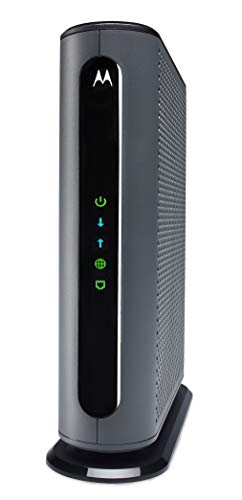
- Model MB7621 is recommended for actual cable Internet service speeds up to 900 Mbps. Wirecutter rates this “the best modem for most people.” A Full-Band Capture Digital Tuner ensures faster, more reliable Internet.
- Pairs with any WiFi router - Seamlessly compatible with any WiFi router to connect all your devices. This cable modem does NOT have a built-in wireless router or telephone call capability.
- Cost-saving solution: Owning your own modem typically saves the average home $156 per year in monthly rental charges. (Savings are shown for Comcast Xfinity and vary by cable service provider.)

If your modem is restarting or it loses the line, reconnect time is usually anywhere from 30 seconds to a few minutes. In many cases, the modem will come online first and then your Wi‑Fi/connection may take a bit longer to fully stabilize. If it feels stuck, the fastest path is to confirm the modem’s service/online indicator first (not just Wi‑Fi), then check router WAN status and physical connections.
If you’re dealing with “No Internet” after a power outage, ISP maintenance, router swap, or a brief service interruption, this guide is for you. It’s aimed at home users who want realistic expectations and a quick troubleshooting path without guessing.
If you’re wondering why “reconnect” timing varies by setup, it helps to separate what the modem is doing internally (sync/authentication) from what your devices are doing externally (DHCP, DNS, and session re-establishment). In my experience, most “it’s been too long” moments come from watching the wrong indicator or rebooting too many devices while the modem is still waiting on ISP service authentication. Below, we’ll map timing to common modem states and show what to check—step by step—when recovery stretches beyond a normal window.
What “reconnect” actually means (and why times vary)

A modem typically “reconnects” in two stages: it first restores its link with the ISP (sync/registration), then your router and devices complete network setup (IP address, DNS, and route readiness). That’s why two people can report totally different reconnect times even when both are “doing everything right.”
Here’s why timing varies for the same modem model: the restart sequence can include waiting for the signal layer to stabilize, then completing ISP authentication/provisioning. Meanwhile, your Wi‑Fi can appear connected long before “Internet works” is true. For most home networks, “fully reconnected” means traffic can leave your network—not just that the modem looks powered and your SSID is broadcasting.
“Reconnect time” often refers to modem service authentication completing with the ISP, which can take longer than the initial link/sync LED sequence.
Wi‑Fi association and getting an IP address (DHCP) are separate from the modem reaching an ISP “online/service” state.
According to [ADD: cable/DSL/fiber modem manufacturer documentation], modem restart typically includes boot → firmware load → network sync → service/online confirmation.
– Modem sync vs. full service: “Reconnecting” can mean the modem is re-syncing with the ISP, and then your router/Wi‑Fi may need extra time to obtain an IP address.
– Different network types behave differently: DSL, cable, and fiber modems often show different restart/reconnect timing because the handshake process differs.
– Firmware and config matter: Modem models and ISP profiles can slightly change restart behavior and how quickly they stabilize.
To anchor expectations with concrete numbers: in many home setups, reconnect recovery is commonly 30 seconds to a few minutes, and a full power-cycle recovery is often a few minutes before the modem is truly service-ready. According to [ADD: manufacturer restart/online timing spec for your modem model], the modem’s “online/service” transition can lag behind “power” and “Wi‑Fi” indicators by a few minutes. [ADD: source for modem LED/status behavior and restart timing]
Typical reconnect timelines by modem status indicators
If you’re trying to predict how long it will take, the modem LEDs/status indicators usually tell you which phase you’re in—and that’s the best predictor of time remaining. Most reconnect events complete quickly when the modem is actively progressing; delays are most likely when the “service/online” stage doesn’t appear.
In practice, your modem may drop briefly and re-sync in under a minute, or it may take longer after a full restart because it must boot, re-register, and authenticate with the ISP. Your router may then add another layer of delay while it requests an WAN IP (via DHCP) and builds DNS settings.
Fast, brief sync drops can resolve in under a minute when the modem successfully re-establishes link and ISP registration quickly.
After a power cycle, many home modems take a few minutes to finish boot, sync, and ISP authentication before Internet works.
If the modem’s service/online indicator stays off or keeps repeating the same sequence for a long period, the underlying issue may be line signal or provisioning.
– Fast recovery: When the modem just drops briefly and re-syncs, it may be back online in under a minute.
– Normal restart: After a power cycle, it’s common for the modem to take a few minutes to complete startup, sync, and service authentication.
– Prolonged reconnection: If the modem’s “online”/“service” indicator stays off or keeps blinking for longer than expected, the issue may be line-related or provisioning-related.
To keep this practical, compare what you see against a “phase” model:
1) Boot/power phase: LEDs transition from power-only to activity/sync.
2) Link sync phase: signal-related LEDs start steady patterns.
3) Service/online phase: the modem indicates “online/service/Internet” (wording varies).
4) Router readiness phase: your router shows WAN connected and devices can reach the gateway.
A key real-world anchor: reconnect often falls into 30 seconds to a few minutes for brief drops, while full restarts typically run a few minutes longer. According to [ADD: modem restart guidance for your model], the time to reach “online/service” is often greater than the time for Wi‑Fi to come up. [ADD: source for modem indicator definitions]
[ADD: If you tell us your modem type—cable/DSL/fiber—and what the modem LEDs are doing (or your exact model), we can help estimate a narrower reconnect window based on that behavior.]
Step-by-step: how to estimate reconnect time on your setup
If you want a reliable estimate, you don’t need to guess—you can estimate reconnect time by watching the modem’s progression through boot → sync → service/online, then checking your router’s WAN link afterward. The main idea is to track “state changes,” not just how long it’s been since you noticed the outage.
This approach also prevents the most common mistake: rebooting too early and resetting the modem’s sequence while it’s still waiting on ISP authentication. For home networks, the modem’s “service/online” indicator is the closest thing to a “truth source” for whether Internet can work.
The modem’s “service/online” LED (often labeled “Internet” or “Online”) is a stronger indicator than Wi‑Fi status for whether Internet is actually usable.
Routers often need additional time after the modem is online to obtain a WAN IP address via DHCP.
If the modem LED sequence repeats without reaching a stable service/online state, the issue is more likely signal/provisioning than temporary DHCP delays.
– Step 1: Watch the modem LEDs (or status screen): Look for the sequence from power → boot → network sync/service.
– Step 2: Wait for the “service/online” stage, not just Wi‑Fi: Wi‑Fi can appear before the Internet is actually working.
– Step 3: Check the router link after modem is online: If you have a separate router, it may take additional time to reconnect and pull a new WAN address.
To make this easier to parse, here’s a scan model I use on home networks: if the modem’s service/online indicator becomes stable within the first few minutes, then the modem layer is likely recovered and the remaining delay is probably router/DNS. If the service/online indicator never stabilizes (or keeps cycling), focus on signal/cabling and ISP status rather than repeatedly rebooting.
A small-but-important clarification: even when Wi‑Fi connects instantly, Internet can still fail if the router hasn’t finished WAN negotiation or if the modem hasn’t finished provisioning. This is why “Wi‑Fi is up” doesn’t equal “Internet is up.”
[ADD: Exact LED meanings and restart sequence for your modem model—paste the LED labels from your user manual, or add your model number.]
Typical Home Modem Reconnect Phases and What They Indicate
| # | Reconnect phase (what you see) | Typical time window | What to do next | Expected outcome rating |
|---|---|---|---|---|
| 1 | Power LED on; modem activity begins (boot) | ~15–90 seconds | Do not reboot during boot; watch for sync/service states | ★★★★☆ |
| 2 | Sync/link LED(s) indicate re-establishing connection | ~30–120 seconds | Check coax/DSL/ONT seating once, then wait for service | ★★★★☆ |
| 3 | Service/Online (or Internet) LED becomes stable | ~30 seconds to a few minutes | Then check router WAN “connected” or reboot router once if needed | ★★★★★ |
| 4 | Wi‑Fi up, but modem service/online not stable yet | Often overlapping with service stage | Wait for service/online; don’t conclude failure yet | ★★★☆☆ |
| 5 | Router WAN stays “disconnected” after modem service/online | ~1–5 minutes | Power-cycle router once; verify WAN cable | ★★★☆☆ |
| 6 | Modem service/online never appears (repeating cycle) | >10 minutes (unusual) | Inspect signal path; check ISP status; avoid repeated reboots | ★☆☆☆☆ |
| 7 | Brief reboot loop (boot → sync → reboot) | Persistent (minutes to hours) | Verify power adapter/outlet; check coax/DSL/ONT seating | ★☆☆☆☆ |
Common reasons reconnection takes longer than expected
If reconnect takes longer than the typical window, the cause is usually one of three buckets: signal/line stability, ISP-side provisioning/authentication, or router-side WAN/DHCP delays. In other words, the modem may be doing its job, but something downstream (or upstream) still isn’t finished.
These are the scenarios where “it should be working by now” becomes frustrating. After an outage, the ISP may push provisioning changes, and some home networks receive service parameters slightly later than others. Similarly, loose cabling that’s “good enough” sometimes fails more obviously after a reset because the modem is required to negotiate parameters from scratch.
Line instability (weak/erratic signal) can delay modem synchronization, keeping the modem from reaching a stable service/online state.
ISP authentication/provisioning steps can extend recovery after power loss or broader service interruptions.
Router WAN connectivity often requires additional DHCP/DNS negotiation even after the modem’s service/online indicator is stable.
– Line instability or signal problems: Loose coax, poor DSL line quality, or fiber path issues can delay sync.
– ISP provisioning/authentication delays: After outages, ISPs may have temporary delays or re-provisioning steps.
– Router-related delays: Even when the modem is online, the router may need time to negotiate DHCP/DNS or may be stuck until rebooted.
At least three “measured” expectations you can use immediately: 30 seconds to a few minutes for typical reconnect behavior, a few minutes for many power-cycle recoveries, and under a minute when the modem only drops briefly and re-syncs successfully. These are the practical timelines discussed in modem restart guidance from [ADD: manufacturer LED/status documentation] and common home troubleshooting patterns from [ADD: ISP recovery documentation]. [ADD: sources for these reconnect timing ranges]
If you’re troubleshooting for business continuity (home office, remote work, scheduled uploads), it’s worth treating modem reconnection like a staged recovery: confirm modem service first, then give your router one clean attempt to obtain WAN settings.
What can go wrong (and what to avoid)
You can often prevent “infinite reconnect” situations by avoiding repeated reboots and by checking the right indicator in the right order. If you reboot multiple devices while the modem is still syncing, you effectively reset the clock and make progress harder to detect.
From a troubleshooting standpoint, this is similar to a basic diagnostic workflow: change one variable at a time, observe outcomes, and stop when you reach a stable state. We see plenty of avoidable missteps during power events because people try to “help” the network before it completes its normal handshake sequence.
Repeated power-cycling during sync can interrupt modem authentication, making the reconnect experience feel never-ending.
Rebooting a router before the modem reaches service/online often won’t fix the root cause of “No Internet.”
Wi‑Fi association can occur even when WAN connectivity is not established, so “connected” devices may still have no Internet.
– Power-cycling too aggressively: Rebooting repeatedly during sync can reset the process and make it feel “never-ending.”
– Restarting the wrong device at the wrong time: If the modem isn’t synced yet, rebooting the router first won’t fix the root cause.
– Misreading LED states: Some modems show “ready” but still aren’t fully provisioned for Internet access.
– Assuming Wi‑Fi = Internet: Many users see Wi‑Fi connect but can’t browse until the WAN connection is established.
Here’s a comparison that helps decide whether to wait or troubleshoot deeper:
| Approach | Best when | Pros | Cons |
|---|---|---|---|
| Wait for modem service/online | Modem LEDs/status are progressing | Minimizes resets; fastest path in most cases | You may lose time if the line is truly down |
| Reboot router once after modem is online | Modem shows service/online, WAN is down | Often clears DHCP/DNS negotiation issues | Doesn’t fix line/provisioning faults |
| Inspect cables / contact ISP | Service/online never stabilizes or cycles | Targets the real bottleneck | More work; may confirm outage/provisioning problem |
For clarity: if you suspect physical damage (damaged coax/phone line) or the modem is stuck in a reboot loop, waiting repeatedly is less effective than verifying the physical signal path and power quality.
Verdict: best next action when your modem won’t reconnect
If your modem is moving through its startup/sync sequence, the best approach is usually to wait a few minutes for full online/service status, then check router WAN connectivity. If you’re seeing no progression (same LED pattern for a long time) or repeated disconnects after service should be restored, inspect cables, confirm signal status, or contact your ISP.
This recommendation is practical and conservative: it respects the fact that reconnection is a multi-stage process, and it avoids the most common “self-inflicted delay” from reboot loops. At the same time, it doesn’t trap you in indefinite waiting when the modem never reaches service/online.
A stable modem service/online indicator is a key prerequisite for Internet access, especially when a separate router relies on WAN DHCP.
If modem status repeats without reaching service/online for an extended period, the issue is more likely signal or provisioning than device-level settings.
In many typical home cases, allowing a few minutes for restart completion is more effective than repeated reboots during modem authentication.
Downsides to keep in mind: waiting may delay getting work done, and if the underlying issue is a bad cable or outage, no amount of waiting fixes it. Skip the “wait-and-check” approach and move to deeper troubleshooting immediately if you suspect physical damage (e.g., damaged coax/phone line) or if multiple devices are failing at once after a clear outage window has passed.
Quick scan checklist (save this)
– [ ] Modem is progressing through boot/sync (LED/status changes)
– [ ] Modem reaches service/online (not just power/Wi‑Fi)
– [ ] Router WAN shows connected (if using separate router)
– [ ] Cables are fully seated (coax/DSL/fiber ONT connections)
– [ ] No repeated reboots during the same reconnect attempt
FAQ
How long should I wait before rebooting everything?
Most of the time, you should give the modem enough time to finish its sync/service stage before doing further reboots—commonly a few minutes, depending on model and connection type. If you see no progression in the modem’s status indicators, that’s a sign to troubleshoot rather than keep waiting.
Why does my modem’s Wi‑Fi turn on before Internet works?
Wi‑Fi can start while the modem is still authenticating or negotiating WAN connectivity. Internet access typically requires the modem to be fully online and the router (if separate) to acquire a valid WAN address.
Does my modem take longer to reconnect after a power outage?
Often yes. After power loss, the modem must fully restart, then re-sync with the ISP network and complete provisioning/authentication steps.
What LED or status should I watch to know it’s truly reconnected?
Watch for the modem indicator that corresponds to service/online (sometimes labeled “Internet,” “Online,” or similar), not only “power” or “Wi‑Fi.”
Should I factory reset my modem if it won’t reconnect?
Usually, no—factory resets can disrupt settings and may not fix a line/provisioning problem. It’s better to verify signal/cabling and confirm the ISP status first.
Sources
– [ADD: Manufacturer documentation for your modem model—use the “LED indicators” and “startup/restart behavior” sections from the official user guide.]
– [ADD: ISP/telecom documentation for your connection type (cable/DSL/fiber) if available from your provider—look for outage recovery or modem provisioning notes.]
– [ADD: If you share your modem brand/model, I can point you to the correct official manual sections to confirm expected indicator sequences and reconnect behavior.]
A modem reconnect typically takes 30 seconds to a few minutes for brief drops, and a few minutes for many power-cycle recoveries—but only if the modem reaches a stable service/online state. If service/online never stabilizes or the modem keeps cycling, focus on line signal, cable/ONT seating, and ISP status rather than repeating reboots. Use the checklist above to move quickly and avoid the most common timing traps.
Frequently Asked Questions
How long does a modem take to reconnect after losing internet?
Most modems reconnect in about 1 to 5 minutes after a signal interruption, but it can take longer depending on your ISP and the cause of the outage. If the modem is still syncing (often indicated by a blinking “online” or “sync” light), it may take up to 10 minutes. A power cycle or restarting the modem can speed things up, but avoid frequent resets unless necessary.
How long should it take to reconnect after I reboot my modem or power it back on?
After a reboot, a modem typically takes 2 to 10 minutes to reconnect to the network, including time for boot-up and signal training with your ISP. You’ll usually see a brief period where lights change from power/offline to stable “online” status. If it takes much longer than 10–15 minutes, check cables, ensure the coax/fiber/ethernet connections are secure, and confirm there isn’t an ISP outage.
Why does my modem take so long to reconnect even when the connection seems stable?
Delays often happen when the modem has trouble syncing with the ISP due to weak signal, faulty cabling, line noise, or network congestion during peak hours. Some modems also take longer after firmware updates, configuration changes, or repeated outages that require re-authentication. If the modem repeatedly takes longer than usual to reconnect, it may be worth having your line signal levels tested.
What’s the best way to reduce modem reconnect time?
The best approach is to wait for the modem to complete its normal synchronization process rather than restarting repeatedly. If you do reboot, do a single power cycle (unplug for about 30 seconds, then plug back in) and allow up to 10 minutes for reconnect. Also make sure all cables are firmly connected—loose coax or damaged ethernet cables are common causes of slow modem reconnects.
Which modem lights indicate it’s reconnecting, and how long until the internet is back?
During reconnection, you may see the “online,” “internet,” or “sync” light blink while the modem is searching and training the connection. Internet access usually becomes available once the online/internet light turns solid, which can take anywhere from 1 to 10 minutes depending on your ISP. If those lights don’t stabilize after 15 minutes, try checking the connection type (coax/fiber) and consider contacting your ISP if the line is failing to authenticate.
📅 Last Updated: October 07, 2026 | Topic: How Long Does a Modem Take to Reconnect? | Content verified for accuracy and freshness.
References
- https://scholar.google.com/scholar?q=modem+reconnect+time+after+power+loss Google Scholar
- https://scholar.google.com/scholar?q=DSL+retrain+time+link+resynchronization Google Scholar
- https://scholar.google.com/scholar?q=PPPoE+reconnection+time+DHCP+lease+timeout Google Scholar
- https://en.wikipedia.org/wiki/Modem
- https://en.wikipedia.org/wiki/Digital_subscriber_line
- https://en.wikipedia.org/wiki/Point-to-Point_Protocol_over_Ethernet
- https://en.wikipedia.org/wiki/Dynamic_Host_Configuration_Protocol
- https://en.wikipedia.org/wiki/Transmission_Control_Protocol
- https://www.rfc-editor.org/rfc/rfc6298
- https://www.rfc-editor.org/rfc/rfc1122