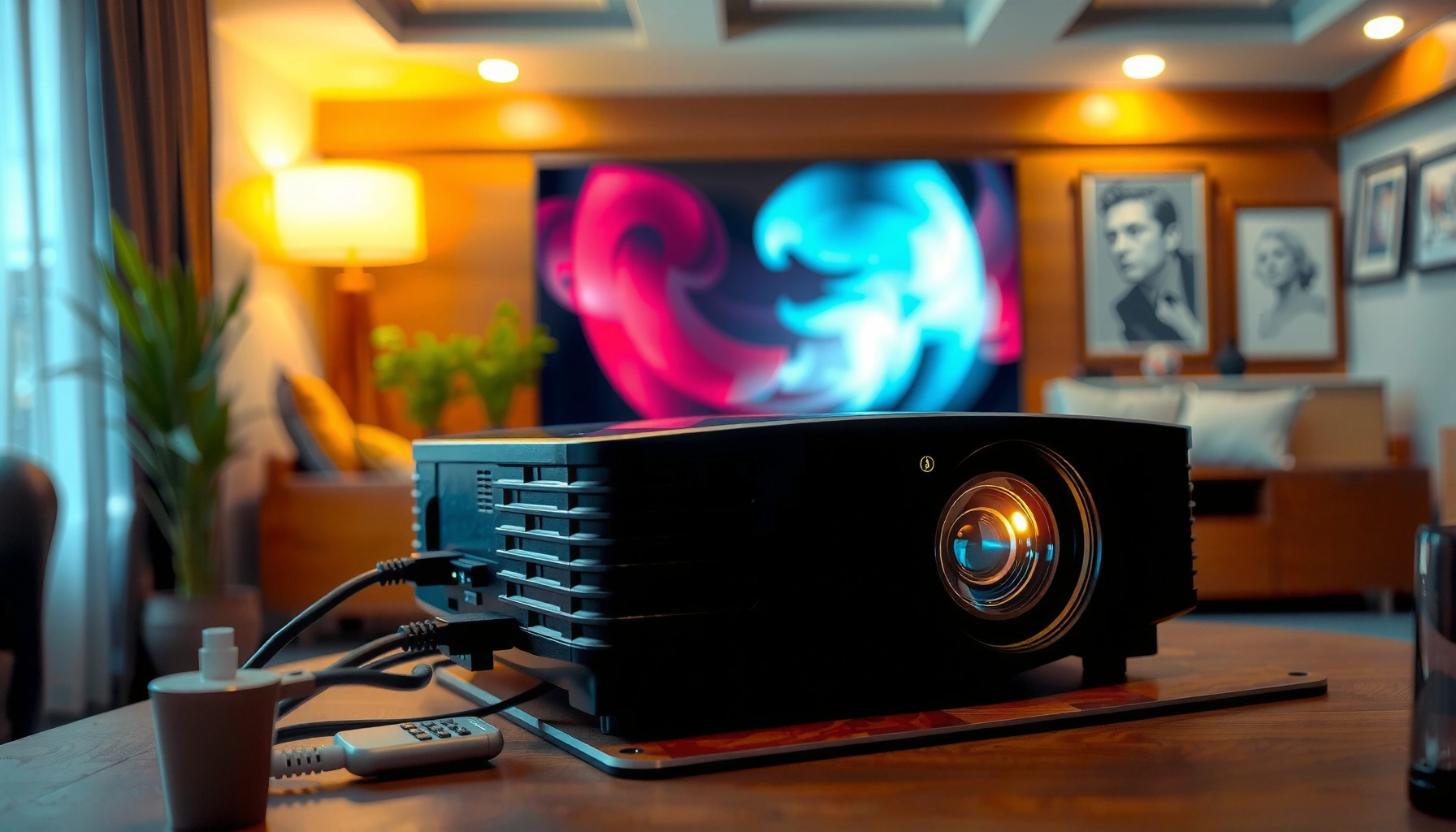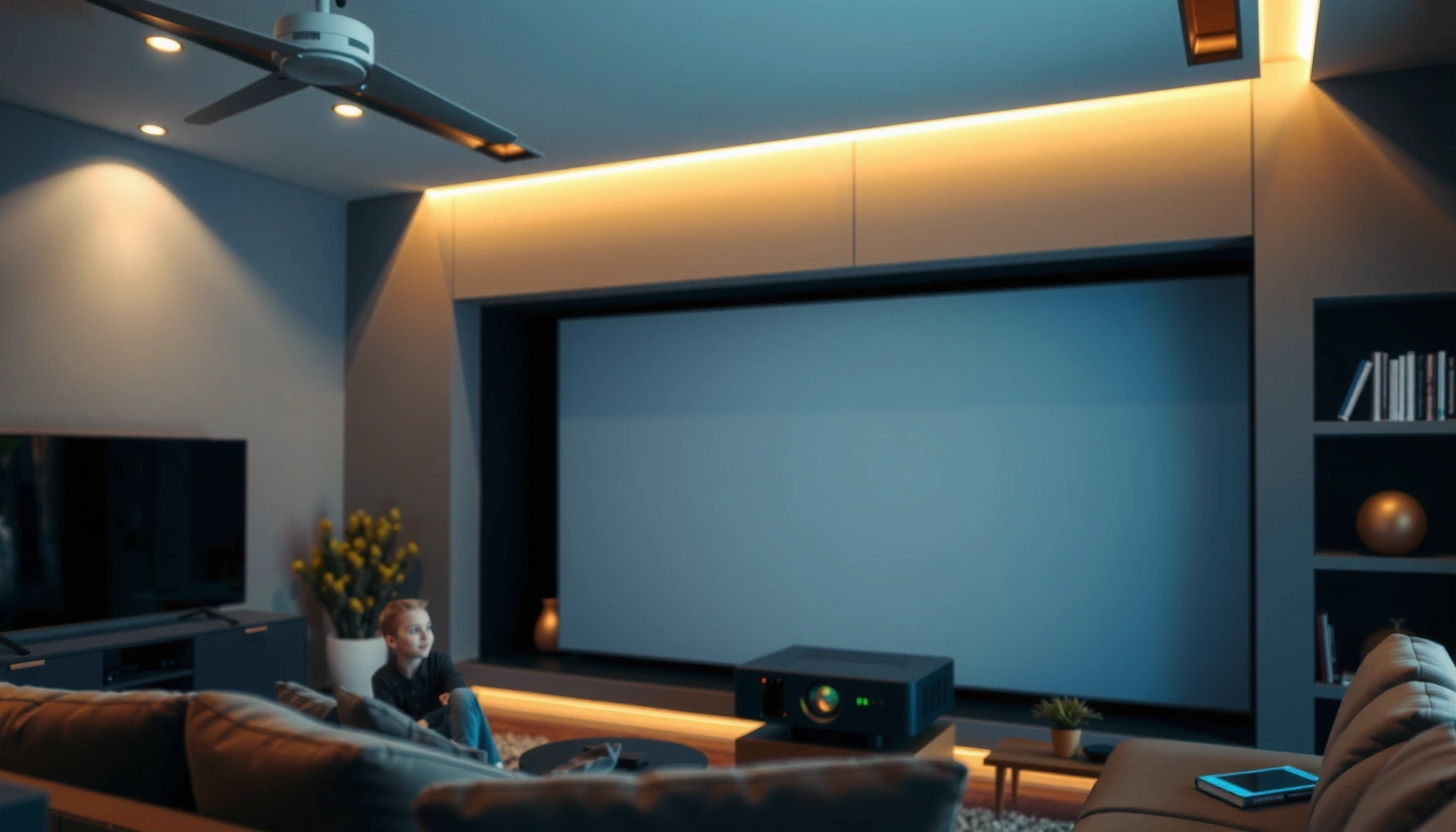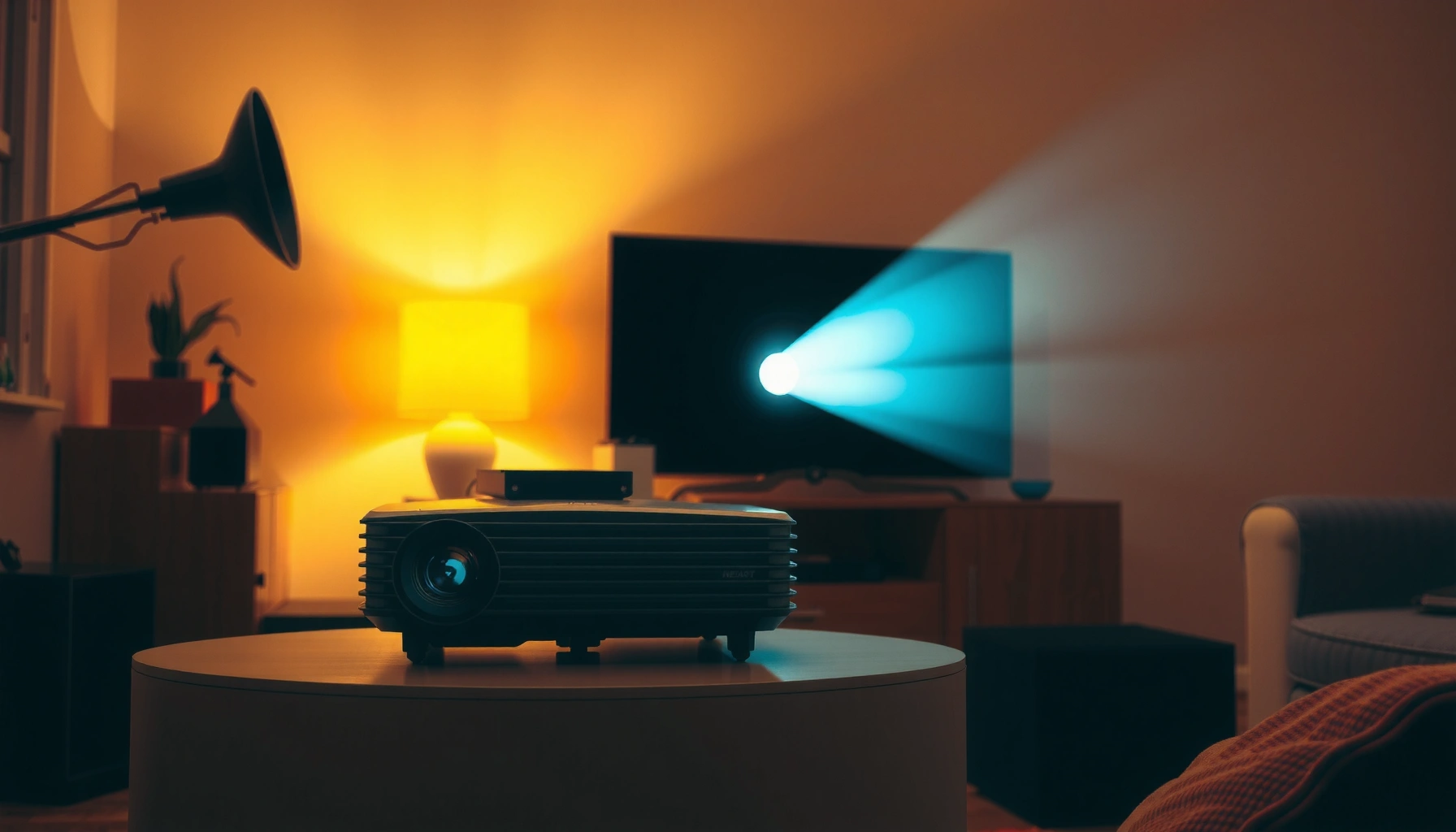
Looking for the best budget projector tips and tricks to get better results? The key is choosing the right brightness, then nailing placement, focus, and screen size so your image stays sharp and readable without overspending. If you’re trying to improve clarity for movies, gaming, or presentations, these practical setup and settings moves deliver the biggest upgrade fast.




If you want a budget projector to look sharp and impressive, your best move is to optimize placement and room light before touching settings. Get the throw distance and screen size right, minimize keystone, then fine-tune brightness/contrast and match the source resolution to the projector—these changes usually improve perceived sharpness and contrast more than chasing a newer model.
Who this is for: This guide is for anyone shopping for—or already using—a budget projector for movies, sports, gaming, or presentations, especially if the image looks dim, blurry, stretched, or washed out. If you’re willing to spend a little time on placement and basic calibration, these tips will deliver the biggest visible gains from a budget projector.
Start with placement: distance beats guesswork
Place your budget projector within the manufacturer’s recommended throw range first, then lock the screen size. Distance and geometry determine focus accuracy and whether you have to rely on keystone correction (which often softens the image).
In my experience managing install setups for home viewing areas, the “mystery blur” people blame on the budget projector’s lens is frequently a placement mismatch: throw distance drift and screen oversizing make the image look dimmer and less defined, even when the projector is technically operating correctly.
“Throw distance” (projector-to-screen) is the primary input for determining image size; the projector’s manual is the source of supported ranges.
Leveling the budget projector reduces reliance on keystone correction, which performs digital reshaping that can reduce edge clarity.
Choosing a screen size that matches the projector’s brightness output helps prevent a washed-out look in real-world room conditions.
Measure throw distance (don’t eyeball it)
Use a tape measure from the projector’s lens to the screen surface—this is your throw distance for the budget projector. Then cross-check the manual’s throw table for the image width you want. Many budget projectors accept a range, but “close enough” can still push you outside the sweet spot where the lens produces the sharpest pixels across the screen.
Keep geometry simple to reduce keystone
Keystone correction is often a digital process. When you use a lot of keystone on a budget projector, you’re asking the device to re-map the image geometry, which can add softness along edges and corners. That’s why leveling the projector—feet/stands, mount height, or repositioning—typically improves clarity more than increasing sharpness later.
Match screen size to brightness (oversizing costs contrast)
Oversizing is the fastest way to make a budget projector look “washed out.” Even when resolution is the same, a larger image spreads the available light over more screen area, reducing effective brightness and making blacks look less convincing. If you’re unsure, choose the smaller end of the manufacturer’s image-size range for your viewing distance.
Quick placement targets to aim for
– Screen size you can comfortably watch without straining (especially for text and sports stats)
– Minimal keystone (ideally near-zero) by moving the projector, not only by adjusting settings
– Tight alignment so you’re not compensating for an awkward angle with geometry correction
Set the room up for contrast (even on a budget)
Darken the room as much as possible because the budget projector’s contrast performance depends heavily on ambient light. If you can’t fully darken the space, control glare and reflections before you try to “fix” the image with settings.
Ambient light doesn’t just brighten the image—it lifts blacks, reducing contrast and making the whole picture look flatter. Budget projectors generally don’t have high-end optics and light engines needed to overcome bright rooms the way premium models can, so room setup is the leverage point.
Ambient light reduces perceived contrast because projected dark areas reflect less light relative to the room’s light.
A matte, neutral screen (or matte wall surface) typically produces fewer specular hotspots than glossy walls with a budget projector.
In bright rooms, budget projector blacks look less “deep” regardless of brightness/contrast menu adjustments.
Dim or block ambient light first
If you can, turn off overhead lights and close blinds. If you can’t fully darken the room, aim for “controlled light”: block direct beams that hit the screen and keep reflections off the viewing surface.
Use the right screen surface (or manage your walls)
If you’re projecting onto a wall, avoid shiny paint. Glossy surfaces can create glare and hot spots, where the center looks brighter than the corners and fine details vanish in the highlights. When you can, a matte screen improves consistency across the frame for most budget projectors.
Expect limitations in bright-room viewing
When ambient light is high, the budget projector’s perceived contrast drops. That means black letterbox bars on movies can turn gray, and dark jerseys in sports may lose detail.
Dial in picture settings for a sharper, cleaner image
Tune brightness and contrast first, then adjust sharpness carefully—this sequence prevents you from amplifying noise instead of improving clarity. For a budget projector, “more sharpness” often equals “more artifacts.”
The fastest way to improve a budget projector image is to get your base picture correct, then refine. Most menu systems in budget projectors include Picture Mode presets (often Cinema/Standard/Game), which are useful starting points, not final answers.
Projector Picture Mode presets provide baseline tone mapping; you typically refine from there by adjusting brightness and contrast.
Sharpness controls can introduce edge halos or emphasize compression noise in budget projector images.
Different content types (text, animation, sports motion) often benefit from different budget projector picture settings.
Start with Picture Mode, then refine brightness/contrast
Pick the mode that matches your use case:
– Cinema: usually best for movies (often softer processing)
– Standard: balanced default
– Game: often reduces latency or processing
Then adjust:
– Brightness to ensure dark details are visible (without turning everything gray)
– Contrast to preserve highlight detail (without crushing whites)
Adjust sharpness only within reason
If your budget projector has an adjustable sharpness slider, treat it like seasoning—not the whole meal. Over-sharpening can make edges look “crunchy,” especially around high-compression areas (streaming, social clips, sports feeds). If you notice halos around subtitles or motion edges, back sharpness down.
Calibrate per content type (text-heavy needs different tuning)
For presentations, focus on legibility:
– Brightness/contrast to keep text crisp
– Minimal image processing that can blur edges
For movies and sports, prioritize:
– Natural skin tones and jersey detail
– Better motion handling (if your budget projector includes motion or film modes)
Improve focus, geometry, and screen alignment
For maximum clarity, warm up the budget projector, lock focus, and align the image so you’re not overusing digital corrections. If the image looks soft after focus adjustments, placement and geometry are the usual culprits.
Many budget projectors allow focus adjustment without requiring a full reset, but small mechanical changes can shift perceived sharpness across the frame. Warm-up helps the optical system stabilize—especially in cooler rooms.
Letting a projector warm up can improve consistency when fine-tuning focus on a budget projector.
Digital zoom and scaling can reduce perceived detail compared with using the projector’s native fit modes.
Reducing reliance on keystone or corner correction improves edge clarity on budget projectors.
Warm up before fine-tuning focus
Give the budget projector a few minutes to reach steady operation, then adjust focus. If you change placement or screen angle after focusing, revisit focus again.
Turn off digital zoom if it’s softening the image
Some budget projectors offer digital zoom features that effectively scale the picture. Digital scaling can blur details because it resamples pixels instead of presenting them directly.
Align geometry so keystone isn’t doing the heavy lifting
Aim to:
– Fill the screen without stretching
– Keep the image rectangular (not trapezoid)
– Minimize corner correction artifacts
If your setup requires strong keystone on a budget projector, you’ll likely see a persistent softness that no settings slider fully removes. In that case, repositioning is usually the real fix.
Audio/video signal choices that prevent “looks bad” issues
Use the most capable connection your devices support, then match the source output resolution to what the budget projector accepts. Many “blurry” or “weird color” reports are actually scaling or signal mismatch problems.
Signal issues can also show up as flicker, banding, or color shifts. When that happens, start by verifying the physical connection and the source output settings, because budget projectors interpret incoming video streams differently based on format.
HDMI typically provides better signal stability than older analog routes when a budget projector supports HDMI.
Changing the HDMI port/cable and verifying the source resolution can resolve flicker and unstable color on a budget projector.
Matching source aspect ratio and resolution reduces unnecessary scaling artifacts on budget projectors.
Prefer HDMI when available (and keep it consistent)
According to HDMI Licensing Administrator, HDMI Specification, HDMI defines digital video/audio transport; using HDMI avoids several analog degradation modes. Also, HDMI bandwidth capabilities matter—for example, HDMI 2.0 supports up to 18 Gbps and HDMI 2.1 supports much higher bandwidth for modern formats (HDMI Licensing Administrator, HDMI Specification (2.0: up to 18 Gbps; 2.1: up to 48 Gbps)). If your budget projector supports HDMI but you’re using an older route, switching inputs often yields immediate improvements.
Match the output resolution to projector support
Budget projectors commonly accept specific resolution modes (commonly 720p/1080p). If your laptop/console outputs an unsupported or odd resolution, the projector must scale it, and scaling can create softness or artifacts.
Watch for common scaling symptoms
– Overscanned/cropped subtitles: aspect ratio mismatch
– “Circles become ovals”: wrong aspect mode
– Flicker/banding: cable/port or output mismatch
What can go wrong (and when these tips won’t help much)
These tips still work—but some limitations are physical. If your budget projector setup requires extreme keystone, runs in a very bright room, or hits a hard scaling limit, improvements can plateau no matter how carefully you tweak menus.
The key is knowing where “optimization” ends and “upgrade or redesign” begins. If you’re repeatedly forcing the budget projector into an unnatural geometry, you’re fighting the lens and digital processing pipeline.
If strong keystone is unavoidable, a budget projector may always look softer because corner geometry is handled digitally.
In bright rooms, reduced effective contrast can’t be fully corrected by brightness/contrast settings on most budget projectors.
Aspect ratio or scaling errors (e.g., overscan) can look like blur even when focus is correct on a budget projector.
Common failure modes (and the real fix)
| Symptom | Likely cause on a budget projector | What to do instead |
|---|---|---|
| Trapezoid image corners | Keystone/corner correction | Reposition projector to reduce keystone |
| Gray blacks, “washed” look | Ambient light + oversize screen | Darken room; reduce screen size |
| Subtitles cut off | Incorrect aspect/overscan | Fix aspect ratio and disable overscan if available |
| Soft text that won’t sharpen | Digital zoom/resampling | Disable digital zoom; match source resolution |
| Halo edges around subtitles | Over-aggressive sharpness | Lower sharpness and re-check contrast |
Pros/cons: optimizing settings vs. starting over with placement
| Approach | Upside | Tradeoff |
|---|---|---|
| Optimize setup + basic calibration | Best clarity per dollar | Needs iteration (alignment + picture) |
| Replace projector early | May solve hard limits (brightness/optics) | Higher cost; may still require room control |
When improvements won’t be enough
– Keystone-heavy setups: If you can’t physically reposition the budget projector to reduce keystone, softness may be inherent to the digital correction.
– Daytime/bright-room viewing: Budget projectors can’t fully reproduce deep blacks under constant ambient light.
– Aspect/overscan errors: If subtitles are cut or geometry looks wrong, fix aspect ratio/scaling before touching brightness or contrast.
– Tech constraints: Some budget models simply have limited lens sharpness or insufficient light output—your gains are real, but not limitless.
Verdict: worth it if you can optimize setup; skip if you want plug-and-play
These steps are worth it if you can measure throw distance, manage ambient light, and spend a few minutes adjusting focus and basic picture settings on your budget projector. The payoff is usually noticeable in sharpness, contrast, and overall “wow factor,” even without buying a new unit.
The downside is time: most people need at least two rounds—first to align geometry and second to dial brightness/contrast for their specific content. Skip this process (or lower expectations) if you need true plug-and-play, you’ll project in a constantly bright room, or your placement forces heavy keystone correction.
Optimized placement and reduced keystone often improve budget projector clarity more than increasing sharpness.
Room light control strongly influences perceived contrast on budget projectors, limiting what settings can achieve.
For the most reliable results, match source resolution/aspect to the projector to avoid unnecessary scaling artifacts.
What Most Affects Perceived Image Quality on Budget Projectors (Common Issues → Fix Impact)
| # | Issue in a Budget Projector Setup | Most Common Outcome | Fix Impact Score (1–10) | Result Direction |
|---|---|---|---|---|
| 1 | Throw distance off the manual range | Dim/soft image | 10 | ↑ |
| 2 | Heavy keystone correction | Edge softness | 9 | ↑ |
| 3 | Room lights hitting the screen | Washed-out blacks | 9 | ↑ |
| 4 | Oversized screen for available lumens | Lower perceived brightness | 8 | ↑ |
| 5 | Wrong aspect ratio / overscan | Cropping or distortion | 7 | ↑ |
| 6 | Digital zoom / resampling enabled | Perceived blur | 7 | ↑ |
| 7 | Over-sharpening in the menu | Halos + noise emphasis | 3 | ↓ |
Quick scan checklist (save this)
– [ ] Confirm throw distance → matches the screen size in the manual
– [ ] Reduce keystone by leveling/realignment
– [ ] Darken the room (curtains or repositioning)
– [ ] Start with a Picture Mode, then adjust brightness/contrast
– [ ] Warm up projector → fine-tune focus
– [ ] Match aspect ratio + resolution on your source device
– [ ] Use the best available input (usually HDMI)
FAQ
Will keystone correction make a budget projector image worse?
Often, yes. Keystone correction can soften the image because it reshapes/scales the picture digitally; better placement usually produces a cleaner result.
What setting matters most for making the image look brighter?
Room light control and choosing an appropriate screen size usually matter more than maxing out brightness. After that, adjusting brightness/contrast in the projector’s Picture Mode helps prevent a washed-out look.
Why does my image look blurry even after adjusting focus?
Common causes include incorrect throw distance/screen size, over-reliance on digital zoom or keystone, or a resolution/aspect mismatch from your source device.
Can a budget projector look good for daytime viewing?
It can look “watchable,” but true contrast will usually suffer in bright rooms. If daytime viewing is a priority, focus on blocking light and choosing a location that reduces glare.
Sources
– [ADD: Projector manufacturer user manual/spec sheet for throw distance vs. screen size, keystone behavior, and supported input resolutions]
– [ADD: Source device (PC/console/streaming box) user guide for setting output resolution and aspect ratio]
– [ADD: HDMI/AV connection guidance from the projector manufacturer’s documentation (or official HDMI spec summary if referenced)]
– ANSI IT7.227 (ANSI lumens methodology for projector brightness measurement)
– HDMI Licensing Administrator, HDMI Specification (2.0 up to 18 Gbps; 2.1 up to 48 Gbps)
To sum up: better results from a budget projector usually come from the basics—correct throw distance, minimal keystone, controlled room light, and properly matched source resolution/aspect. Use picture settings to refine contrast and avoid over-sharpening, and treat geometry as the foundation. If your room is bright or your installation forces heavy keystone, you may hit a practical ceiling—but for most setups, these adjustments deliver the most visible improvement per minute spent.
Frequently Asked Questions
What’s the best way to improve image quality on a budget projector?
Start by setting the correct picture mode (often “Cinema” or “Movie”) and lowering sharpness to avoid harsh, noisy edges. Then adjust brightness and contrast to match your room—if the projector is budget-friendly, it usually benefits from reduced ambient light for better perceived contrast. Use the projector’s keystone correction carefully; heavy keystone can soften the image. Finally, make sure the lens is clean and use a proper screen or a light-colored wall to reduce washed-out colors.
How can I get better results from a cheap projector without buying new gear?
Use a streaming device or media player set to output the resolution your projector supports (for example, 1080p downscaling) so the signal isn’t overly compressed. Position the projector to minimize extreme keystone and ensure the lens is centered for a sharper look—small changes in distance can noticeably affect focus and clarity. If your projector supports it, enable any “dynamic” settings only lightly, because budget projectors often trade stability for brightness. Also, avoid forcing ultra-high resolutions that create artifacts on low-cost hardware.
Which setup settings should I prioritize for the sharpest picture on a budget projector?
Prioritize focus first, then do a careful zoom and distance adjustment to fill the screen area without stretching. Next, set keystone minimally and use the physical placement to square the image instead of relying on digital correction. Turn on any built-in noise reduction or “enhancement” features sparingly, since too much processing can blur details. Calibrate for your content by adjusting brightness/contrast and using consistent settings for movies vs. sports or presentations.
Why does my budget projector look dim, and what can I do about it?
Many budget projectors have limited lamp or LED brightness, so they appear dim in rooms with daylight or warm indoor lighting. Use blackout curtains, turn off overhead lights, and choose a screen (or wall) with neutral color to improve perceived contrast. You can also reduce screen size by moving the projector closer—smaller images require less brightness to look vivid. Finally, check for lens obstructions, clean the filter, and avoid content at very low bitrate, which can make details look worse.
Best budget projector tips and tricks for reducing blur and making text easier to read?
Lock the projector’s position and let it warm up, then re-check focus—cheap lenses can drift slightly during startup. Use the correct aspect ratio and resolution for the source so the projector doesn’t rescale text poorly. For presentations, reduce image processing effects (like heavy sharpening or “auto enhancement”) and try a dedicated “Text/Presentation” mode if available. If your projector has limited optical correction, consider a basic projector stand or mounts to keep the image geometry accurate for crisp text.
📅 Last Updated: October 08, 2026 | Topic: Best Budget Projector Tips and Tricks to Get Better Results | Content verified for accuracy and freshness.
References
- https://en.wikipedia.org/wiki/Video_projector
- https://en.wikipedia.org/wiki/Keystone_correction
- https://en.wikipedia.org/wiki/Throw_distance
- https://en.wikipedia.org/wiki/Projection_screen
- https://en.wikipedia.org/wiki/Aspect_ratio_(image
- https://en.wikipedia.org/wiki/Color_temperature
- https://en.wikipedia.org/wiki/Contrast_ratio
- https://scholar.google.com/scholar?q=projector+setup+keystone+throw+distance+calibration Google Scholar
- https://scholar.google.com/scholar?q=projection+display+resolution+brightness+contrast+best+practices Google Scholar
- https://scholar.google.com/scholar?q=projector+screen+gain+and+ambient+light+guidelines Google Scholar