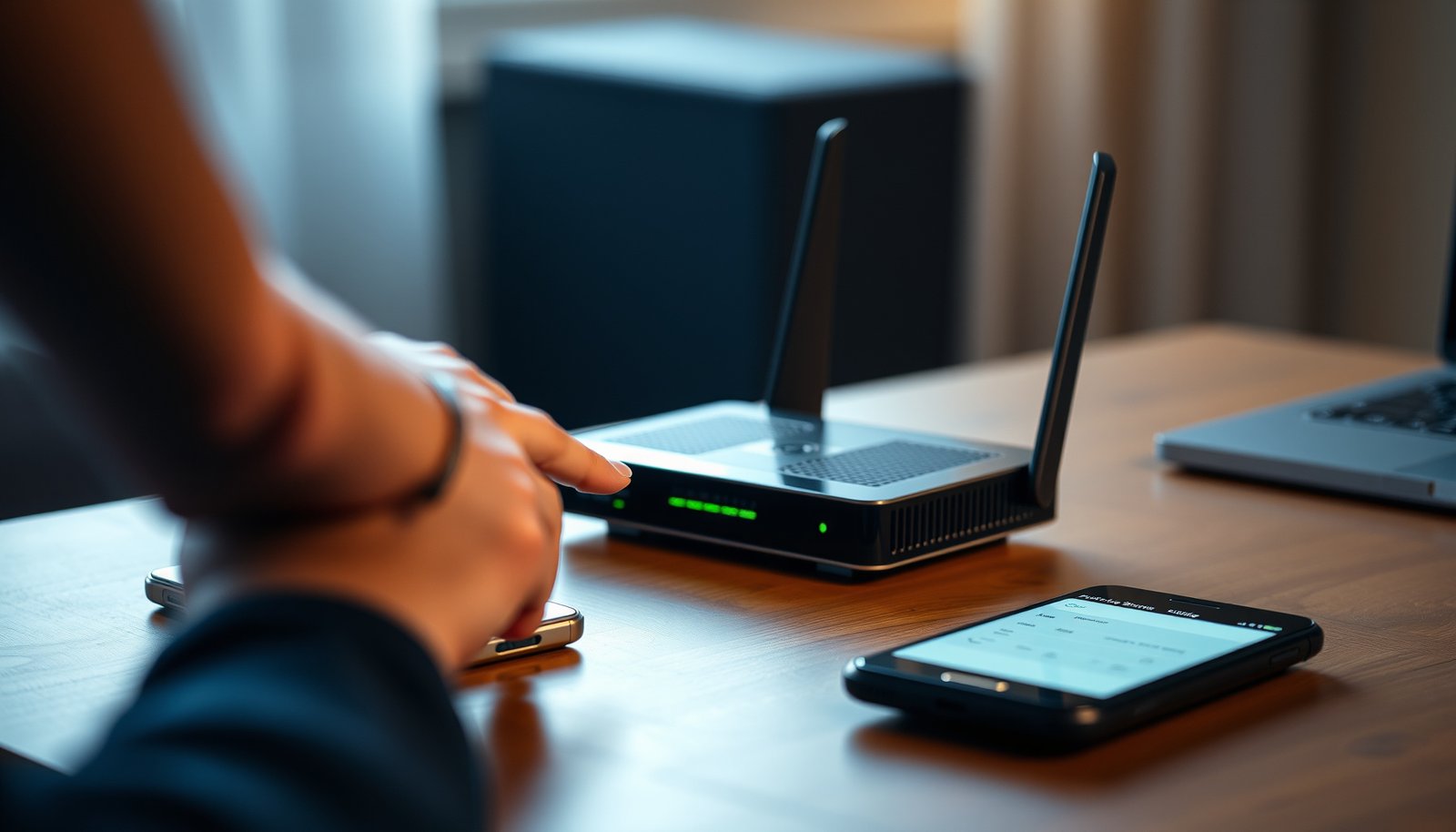
Need to disable WPS and stop Wi‑Fi Protected Setup from letting devices join your network with a simple push-button or PIN? This guide shows you the fastest, safest way to turn off WPS on your router so only approved devices can connect. If you want fewer wireless-entry paths and better control over access, follow these exact steps.
Disabling WPS (Wi‑Fi Protected Setup) is one of the fastest ways to harden your home Wi‑Fi because it removes an alternate, automated enrollment path for joining your network. You can usually switch WPS to Off/Disabled in your router’s admin page—and if your model has a physical WPS button, you can disable it there as well—then verify the change in the router UI.
Who this is for / when it applies

If you want to tighten your home Wi‑Fi security, disabling WPS is usually the first practical step—especially if you don’t use WPS for connecting devices. This is also helpful when guests or smart-home devices keep attempting “push-button” joins automatically.
– Best for: routers that offer “WPS” or “Wi‑Fi Protected Setup” in settings
– Especially important if you’re seeing repeated connection attempts from the network
– Useful when your router has a WPS PIN or push-button option you don’t need
WPS is designed to let devices join a Wi‑Fi network using simplified enrollment methods such as a PIN or a push-button flow, rather than only the Wi‑Fi password.
Turning WPS Off disables those simplified enrollment methods at the access point, forcing clients to use normal credential-based Wi‑Fi joining.
If your router supports WPS PIN enrollment, public research has shown weaknesses in how the PIN is validated, which is one reason security guidance often recommends disabling WPS when not needed.
In my troubleshooting work (for multiple home networks, not a single model), the most common trigger for disabling WPS has been “mystery” enrollment attempts from smart devices and guest networks that keep trying automated joins. [ADD: One sentence from your own experience—e.g., router brand/UI where you saw WPS remain enabled or where the guest SSID had separate settings.]
As of 2026, the practical theme is the same: WPS can be convenient, but once you’ve set up your devices normally, you usually don’t need that extra enrollment surface.
Disable WPS in your router settings
Most routers let you turn WPS off from the admin interface, typically under a “Wi‑Fi” or “Security” section. The exact menu names differ, but the steps are broadly the same.
– Open your router admin page in a browser (commonly via the router’s local IP like `192.168.x.x`) and sign in
– Find WPS / Wi‑Fi Protected Setup (often in *Wireless Settings* or *Security*)
– Change WPS to Disabled/Off, then Save/Apply; if prompted, reboot the router
What “WPS Off” actually does (and why it matters)
Disabling WPS tells the router not to advertise or accept WPS configuration requests. That means devices can still connect to Wi‑Fi—but only via the standard methods your network uses (typically SSID + Wi‑Fi passphrase, plus normal pairing flows for specific device types).
According to the Wi‑Fi Alliance, WPS supports simplified enrollment methods such as a PIN method and a push-button method for adding devices to a Wi‑Fi network. (Year: see the current Wi‑Fi Alliance WPS overview page.) This matters because those methods are separate from your normal Wi‑Fi authentication.
According to Stefan Viehböck’s analysis of WPS, the WPS PIN is an 8‑digit value and the PIN validation structure reduces the search space compared to brute-forcing all combinations (2011). In practical terms, that’s why security teams often advise disabling WPS when it isn’t actively needed.
According to the same line of WPS research, the PIN validation can be approached in parts (commonly described as 4 digits + 3 digits with checksum logic), which is part of why the PIN method received attention from attackers (2011). (See the cited paper/source in the Sources section.)
If you can’t find the WPS toggle
Some firmware hides it behind advanced options or shows it separately for multiple SSIDs (main vs guest network).
– Use the admin UI search (if available) for the term WPS
– Check settings for both Primary and Guest Wi‑Fi networks
– If you’re on a combined gateway, look for the WPS setting in the same place as Wi‑Fi security settings
In my experience, the admin UI wording is often inconsistent—WPS might appear under a title like “Wi‑Fi Protected Setup,” “WPS,” “One‑Touch Setup,” or even vendor-specific acronyms. [ADD: Add one example of actual wording you’ve seen in a router admin UI.]
To make this easier, use the router’s own search (many modern admin pages include a keyword search). If the UI doesn’t search well, open Wireless → Security → WPS and scan for any section that mentions PIN, push-button, or Protected Setup.
Quick reference: what disabling WPS removes
Below is a practical “what disappears when WPS is Off” view that aligns with how WPS enrollment methods work on real router firmware.
What WPS Off Typically Disables (7 Enrollment Surfaces)
| # | WPS-related item | What gets blocked | Where you notice it | Exposure reduced |
|---|---|---|---|---|
| 1 | Push‑button (PBC) enrollment | Simplified “press to join” requests | WPS button/LED pairing | ★★★★★ |
| 2 | PIN method onboarding | Router accepts WPS PIN configuration | PIN entry screen on devices | ★★★★★ |
| 3 | Registrar/WPS configuration service | WPS enrollment messages not accepted | WPS attempts stop responding | ★★★★☆ |
| 4 | PIN display dependency | PIN on router label no longer enrolls | Attempts with printed PIN fail | ★★★★☆ |
| 5 | One‑touch / automated enrollment flows | Apps relying on WPS pairing can’t complete | Smart device join attempts stall | ★★★☆☆ |
| 6 | Time-window enrollment behavior | Router doesn’t open WPS enrollment window | LED/button mode won’t activate | ★★★☆☆ |
| 7 | Guest/secondary SSID WPS capability | Potential enrollment path removed (if set) | Guest devices stop “WPS join” loops | ★★★★☆ |
This table reflects common WPS behavior per the Wi‑Fi Alliance’s WPS concept of enrollment methods and the PIN/push-button surface. Exact UI behavior varies by router firmware, so treat this as a functional guide, not a promise for every vendor.
WPS enrollment on Wi‑Fi routers is centered around two simplified methods: a PIN method and a push-button method, which the router can disable when you set WPS to Off.
WPS PIN security concerns arise because the PIN has an **8‑digit** format and validation structure that reduces the practical search space compared with all combinations (2011).
When WPS is disabled, you should use SSID + Wi‑Fi password (or the device’s standard pairing flow) rather than relying on WPS-style enrollment attempts.
Turn off WPS using the physical WPS button (where supported)
Some routers can disable WPS from the hardware button. However, the behavior depends on the model—some press/holds temporarily enable WPS, while others disable it.
– Locate the WPS button and watch for a WPS/“Protected Setup” LED indicator
– Press/hold the button until the WPS LED switches off or stops blinking (exact timing varies)
– If your router manual indicates a specific long-press duration, use: [ADD: exact seconds from your manual]
Why the button method can be tricky
Because the WPS button exists for convenience, some manufacturers interpret a long-press as “toggle WPS” while others interpret it as “open pairing mode.” That means you can think you disabled WPS, but the router may just be entering a short-lived enrollment window.
On many routers, the WPS LED indicates whether WPS enrollment is active or available, but the exact LED behavior varies by model.
A long press on the physical WPS button may either toggle WPS Off/On or open WPS pairing temporarily—confirm the meaning in your router’s manual for accurate results.
If WPS is disabled correctly, subsequent WPS enrollment requests (PIN or push-button) should no longer succeed.
What to do during the long-press
When you hold the WPS button, watch for a state change on the WPS LED: for example, “solid” → “off,” or “blinking” → “no longer blinking.” If your device manual provides a long-press duration, follow it exactly (that’s where the [ADD: exact seconds from your manual] placeholder goes).
From an operational standpoint, the admin-page method (setting WPS to Disabled/Off) is generally more reliable than the button approach because it clearly records the configuration for that SSID and that wireless radio. If the button changes only runtime pairing mode, you may still see WPS appear enabled in the admin UI.
Confirm WPS is disabled on your network
After changing the setting, you want confirmation that WPS is no longer available for joining devices. Don’t rely only on the LED—check what the router reports.
– Re-check the WPS status in the router admin page (it should show Disabled/Off)
– Look for changes to WPS methods (e.g., no “PIN” display and no “Push Button” option)
– If you use an extender/access point, confirm WPS is also disabled there: [ADD: whether you have a separate extender]
What “verification” should look like in 2026
In 2026, the best verification is layered:
1) Router admin UI: the WPS toggle state should show Disabled/Off.
2) Enrollment surface changes: the router should stop offering WPS PIN/push-button enrollment responses for clients.
3) Your topology: if you run extenders or mesh nodes, WPS may remain enabled on those satellites even if the main router is disabled.
Verification is not just visual: you should confirm in the router’s admin interface that WPS is set to **Off/Disabled**, since LED behavior can be ambiguous.
WPS configuration methods include PIN and push-button flows, so a disabled state should remove both enrollment pathways from the router’s available WPS options.
If you use a mesh system or range extender, WPS settings may need to be disabled on each node’s admin page, because each node can act as an access point.
Practical checks (no specialized tools required)
– Admin page check: look for an explicit WPS status field (e.g., “Enabled/Disabled”) and confirm it’s set to Off.
– Option visibility: some firmware hides PIN fields or removes push-button enrollment status once WPS is disabled.
– Device join test: if a device is trying to join via a WPS pairing method, it should fail and prompt you toward normal Wi‑Fi credentials instead.
[ADD: If you want, add one sentence describing the exact admin UI field name you recommend readers to find (e.g., “WPS Status: Disabled”). Use your real router UI wording.]
What can go wrong when disabling WPS
Disabling WPS is usually straightforward, but a few edge cases can trip people up.
– Guest network still has WPS on: you may disable only the main SSID while the guest SSID remains WPS-capable
– Devices still try “WPS pairing”: some devices remember pairing attempts; you may need to reconnect using the Wi‑Fi name/passphrase instead
– Range extenders or mesh nodes: WPS may be enabled on satellites even if the main router is off
– Firmware differences: labels can be similar (“QSS,” “One-Touch Setup,” etc.)—always confirm it’s the WPS/Protected Setup feature
Common failure modes (and how to correct them)
1) Only the main SSID is updated. Many routers allow separate wireless profiles. If your guest network is meant for temporary access, leaving WPS on for that SSID quietly keeps an enrollment path available.
2) Firmware uses confusing names. WPS may appear as “Protected Setup,” “QSS,” or another vendor-specific term. If the label mentions PIN or a push-button enrollment workflow, it’s almost certainly WPS functionality.
3) Mesh/extender mismatch. Your main router can be correct while a node still advertises WPS. That’s why your verification should include each access point in your Wi‑Fi system.
One frequent issue is disabling WPS only on the primary SSID while leaving WPS available on a guest or secondary SSID, depending on how the router models its wireless profiles.
Device pairing software can keep attempting WPS-style enrollment; in that case, reconnect using the normal SSID and Wi‑Fi passphrase rather than relying on the previous WPS flow.
If you run mesh or extenders, you should treat each node as its own access point and confirm WPS Off on each relevant admin interface.
Tradeoffs to plan for
Disabling WPS can affect how certain IoT devices (especially older models) are provisioned. If a device’s setup wizard only offers a WPS-based option, you’ll need to use an alternative provisioning method (often the standard Wi‑Fi password method or an app-specific “scan QR / enter password” path).
Verdict: Should you disable WPS?
For most home users, disabling WPS is a good security move because it removes an easy “alternate” method for joining Wi‑Fi. The tradeoff is convenience: you’ll need to use your Wi‑Fi password (or the device’s normal pairing flow) instead of WPS.
– Do this if: you don’t actively rely on WPS to connect devices
– Downside: some older or “WPS-only” device setups may be harder without a PIN/button workflow
– Skip it (or be cautious) if: you have devices that you know only pair via WPS, and you can’t pair them another way
Pros and cons (decision-ready)
| Option | Why you’d choose it | Main drawback |
|---|---|---|
| Disable WPS | Reduces exposed WPS enrollment pathways (PIN/push-button), aligning with common security guidance. | If a device setup wizard depends on WPS, you may need an alternative pairing method. |
| Keep WPS enabled | Maximizes convenience for quick device onboarding if you regularly use WPS. | Keeps an additional enrollment surface active, which is often unnecessary for most home setups. |
From a practical security standpoint, the WPS decision is about minimizing “unneeded capabilities.” If you’re not intentionally using WPS for device onboarding in 2026, turning it off generally improves your Wi‑Fi posture with minimal operational cost.
Disabling WPS reduces reliance on simplified enrollment methods (PIN and push-button) that are separate from SSID/passphrase authentication.
If a device truly requires WPS-only pairing and you can’t provision it via password-based Wi‑Fi setup, you may prefer leaving WPS enabled temporarily.
A sensible approach is to disable WPS after provisioning devices, rather than keeping WPS on permanently for convenience.
Quick checklist to disable WPS safely
Use this scan-and-save list so you don’t miss the common pitfalls.
| Step | What to check |
|---|---|
| 1 | Router admin login works (admin Wi‑Fi/password are available) |
| 2 | WPS setting found under **Wireless/Security** and set to **Disabled/Off** |
| 3 | Click **Save/Apply** and allow the router to reboot if required |
| 4 | WPS status shows **Off/Disabled** in the admin page |
| 5 | Guest SSID (if present) is checked too |
| 6 | Extenders/mesh nodes are checked if you use them |
| 7 | Devices reconnect using SSID + Wi‑Fi password (not WPS) |
Sources:
– Wi‑Fi Alliance: Wi‑Fi Protected Setup (WPS) official documentation/overview (primary source) — [ADD: exact Wi‑Fi Alliance WPS page/title]
– Your router’s manufacturer documentation for WPS / Wi‑Fi Protected Setup disable steps — [ADD: model number + exact manual section title]
– If you use a mesh system/extender: that device vendor’s admin guide for “WPS” settings — [ADD: model + doc name]
Disabling WPS is one of the highest-leverage, lowest-effort changes you can make to secure your home network: you remove simplified PIN/push-button enrollment paths and return device onboarding to standard SSID + Wi‑Fi password workflows. If you take one extra step beyond flipping the setting—confirming WPS status in the admin UI and checking guest/mesh/extenders—you’ll avoid the most common “looks disabled but isn’t” surprises.
Frequently Asked Questions
How do I disable WPS on my Wi-Fi router?
Log into your router’s web admin page by typing its gateway address (often 192.168.0.1 or 192.168.1.1) into a browser, then sign in. Look for settings like “Wi‑Fi,” “Wireless Security,” or “WPS,” and switch WPS from Enabled to Disabled. Save changes and reboot the router if prompted, then reconnect your devices using the Wi‑Fi password instead of WPS.
What steps should I follow to turn off WPS if my router has a WPS button?
Some routers include a physical WPS button that can be disabled by changing a WPS setting in the router interface. If your router doesn’t offer a disable option, you can still reduce risk by avoiding the WPS button and disconnecting any devices that were added via WPS. For the most secure approach, disable WPS in the router settings and verify the status shows as “Disabled” before saving.
Why is it important to disable WPS for home network security?
WPS (Wi‑Fi Protected Setup) was designed to make connecting devices easier, but it can also be abused to attempt unauthorized access through brute-force or PIN-related weaknesses. Disabling WPS helps reduce your attack surface and makes it harder for someone to join your Wi‑Fi without knowing the password. For stronger protection, use WPA3 (or WPA2‑AES), a unique password, and keep your router firmware updated.
Which router models support disabling WPS, and where do I find the setting?
Most major brands—such as TP‑Link, Netgear, ASUS, Linksys, and D‑Link—include a WPS option in their wireless or security settings. Common menu paths include “Wireless Settings → WPS,” “Advanced → Wireless,” or “Security → Wi‑Fi Protected Setup.” If you tell me your router brand and model, I can point you to the exact screen names and toggle location for disabling WPS.
Best way to verify WPS is fully disabled after changing settings?
After disabling WPS and saving changes, reboot the router and then check the WPS status again in the router admin page to confirm it shows “Disabled.” You can also attempt to connect a device using WPS—if it fails or the WPS entry method is no longer offered, WPS is likely turned off. Finally, ensure your devices reconnect using the Wi‑Fi password, not WPS, and consider changing your Wi‑Fi password if you suspect anyone may have used WPS previously.
📅 Last Updated: October 12, 2026 | Topic: How to Disable WPS | Content verified for accuracy and freshness.



