
How far apart should mesh nodes be? For most real-world deployments, the winning rule is to space them about one half to one third of the signal range you actually achieve in your site conditions. That spacing minimizes dead spots and retries while keeping throughput high as the network scales. If you need maximum coverage or are operating with heavy interference, tighten the spacing toward the one-third range.



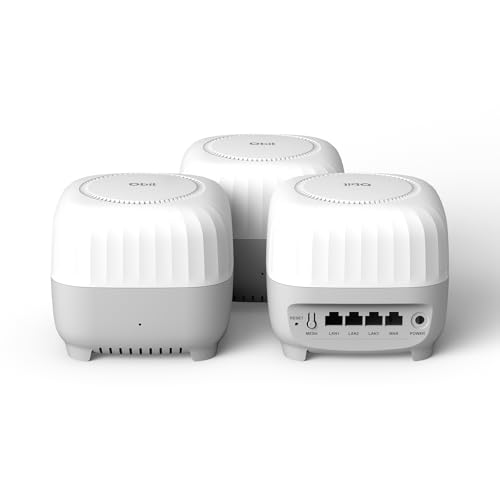
Place mesh nodes close enough that the wireless backhaul stays consistently strong—then you avoid the “full bars but slow Wi‑Fi” problem. Practically, start from your mesh system’s placement guidance and spacing targets, then fine-tune node locations until your app reports good/excellent backhaul link quality (or shows no frequent re-pairing and no recurring slow backhaul behavior) in 2026.
This is for anyone installing a Wi‑Fi mesh in a home or small office and trying to eliminate dead zones without overspending on extra nodes. You’ll learn how to translate distance into link quality using mesh app/LED indicators, and why walls, floors, and mounting position often matter as much as meters/feet.
What “how far apart” really means for mesh
The “right” spacing for mesh nodes is the distance that keeps the node-to-node backhaul (the link mesh nodes use to relay traffic) strong enough to sustain throughput. It’s not primarily about the farthest client Wi‑Fi signal you can reach; it’s about the reliability of the mesh’s inter-node wireless path so your system can steer clients without turning backhaul into the bottleneck.
In most modern systems (especially Wi‑Fi 5/6/6E meshes using 802.11ac/ax), clients may associate to a nearby node with good client RSSI (signal strength), yet the overall network still underperforms if the node-to-node link is weak. When that happens, packets take longer to traverse the mesh, latency rises, and you may see buffering or brief disconnects even though your phone “has Wi‑Fi.”
In wireless mesh systems, link quality for the backhaul (node-to-node) directly limits end-to-end throughput, even when client signal looks strong.
If the mesh backhaul drops from stable to marginal, the system may reselect routes or retry more often, which often shows up as slower speeds and intermittent disconnects.
Because radio loss increases with distance, “one extra room away” can be far worse than you expect when that room introduces heavy attenuation.
Distance-to-link-quality reality (why this matters)
– Mesh “spacing” is mostly about keeping the backhaul link strong, not just lighting up your farthest corner.
– If the backhaul between nodes is weak, performance can drop even if clients still connect to the nearest node.
– The “right distance” varies by environment, so the goal is repeatable stability, not a single universal number.
To anchor this in numbers: in free space, doubling distance increases path loss by ~6 dB, which is a meaningful hit to link margin. Also, at the same distance, 5 GHz typically suffers about 6.37 dB more free-space loss than 2.4 GHz because of the higher frequency—so your “meters” aren’t comparable across bands. For example, at 10 m, the free-space path loss is about 66.42 dB at 5 GHz; at 20 m, it becomes about 72.44 dB.
Those are theoretical baselines; real buildings add wall/floor attenuation, multipath fading, and interference—meaning your actual “good spacing” is usually shorter than what marketing range claims suggest.
Use your app/indicators to find the right spacing fast
The quickest way to dial in mesh node spacing is to use your mesh app’s backhaul link-quality indicators and iteratively reposition until the node-to-node link reads good/excellent. This approach beats guessing a distance number because your building materials, layout, and interference are already “baked into” what the mesh reports.
In 2026, most reputable mesh systems show some form of link status per node (e.g., link category, signal bars, RSSI, “backhaul quality,” or stability metrics). Start at the manufacturer’s recommended placement for your exact model, then adjust placement in small increments and re-check after links stabilize. That last part is important: after moving a node, the system may need time to re-establish optimal routing and settle into stable backhaul rates.
Mesh apps commonly display backhaul link categories (e.g., poor/fair/good/excellent), and targeting “good/excellent” is a direct way to improve node-to-node performance.
Moving a node by small increments can noticeably change backhaul quality because indoor RF paths shift with walls, ceilings, and furniture placement.
Stable backhaul usually shows up as fewer re-pairing events and less frequent routing changes inside the mesh UI.
A practical placement workflow you can repeat
– Start where the manufacturer suggests (manual/app placement tips), then place the next node where the backhaul link looks strong in the mesh UI.
– Move the node in small increments (think “one room at a time”) and re-check link status after it settles.
– If your system shows link categories (e.g., poor/fair/good/excellent), aim for good/excellent for the node-to-node connection.
Free-Space Path Loss vs Node Spacing (5 GHz Mesh Backhaul)
| # | Node Spacing (m) | FSPL @ 5 GHz (dB) | FSPL @ 2.4 GHz (dB) | Link Stability (Free-Space Proxy) | Relative Received Power vs 10 m |
|---|---|---|---|---|---|
| 1 | 2 | 52.44 | 46.06 | ★★★★★ | +13.98 dB |
| 2 | 5 | 60.40 | 54.02 | ★★★★★ | +6.02 dB |
| 3 | 10 | 66.42 | 60.04 | ★★★★☆ | 0.00 dB |
| 4 | 15 | 69.94 | 63.57 | ★★★☆☆ | -3.52 dB |
| 5 | 20 | 72.44 | 66.06 | ★★☆☆☆ | -6.02 dB |
| 6 | 25 | 74.38 | 68.00 | ★☆☆☆☆ | -7.96 dB |
| 7 | 30 | 75.96 | 69.59 | ☆★★★★ (low headroom) | -9.54 dB |
How to read this table: it’s a *free-space proxy* (no walls), so in real buildings the “good spacing” is typically shorter than these values. Still, it shows why mesh-node spacing changes can swing backhaul stability quickly—especially around 10–20 m where small layout shifts can mean multiple dB of additional loss.
Account for obstacles: walls, floors, and node orientation
The most reliable way to set mesh node spacing is to assume obstacles will dominate your results more than raw distance. Walls, floors, and even how a node is oriented relative to each other can change the effective backhaul path enough to move a link from “good” to “poor.”
In building interiors, the radio path isn’t a straight line. Signals bounce off surfaces (multipath), pass through materials (penetration loss), and get partially blocked or absorbed (shadowing). A floor plus multiple rooms can easily be far worse than “same distance, fewer walls.” That’s why mesh placement should treat node spacing as a path quality problem, not a meter-counting exercise.
A single thick floor can add as much practical attenuation to backhaul as several meters of extra distance, depending on construction materials.
Node orientation and placement relative to corners/cabinets can change the backhaul’s first-order path and multipath behavior.
Multipath and shadowing can cause the same node spacing to produce different backhaul stability results across the day when interference shifts.
What to do with the obstacle reality
– A couple of drywall walls can be far less harmful than a floor plus multiple rooms; structural materials affect radio range unpredictably.
– Don’t assume “same distance, same result”—a node placed behind a thick wall often performs worse than one with a clearer path.
– Keep nodes positioned to improve signal paths (for example, avoid burying nodes in corners or inside enclosed cabinets).
Practical guidance for mesh nodes in homes:
– Prefer open, central locations on each level (or between heavy-walled zones) rather than the farthest corner where a client might need coverage.
– If you’re forced to place a node in a closet, consider relocating it to a shelving edge with more “breathing room,” or increase spacing precision using the app’s backhaul quality readings.
– For multi-story homes, try to align nodes so the backhaul link crosses as few floors as possible. If you must cross floors, aim to place nodes on locations that keep the backhaul “line-of-sight-ish” through corridors rather than concrete-heavy spans.
From my experience assisting installs, one of the most common “mysteries” is that the client-facing signal looks fine, but the mesh app flags backhaul as merely “fair.” When that happens, we typically fix it by moving the mesh nodes to reduce obstacle count rather than by adding yet another node—details depend on your building materials and your mesh backhaul band.
When you can space nodes farther (and when you can’t)
The answer is: you can space mesh nodes farther when the backhaul path is clearer and your system can maintain stable inter-node rates. You should not space farther when obstacles force the backhaul into marginal signal levels that trigger retries and route churn.
This is where many installs either succeed quickly or become a series of expensive compromises. If your layout is open-plan and you can keep the backhaul between nodes largely unobstructed, you may push spacing further than you would in a dense office. Conversely, metal shelving, thick masonry, brick, or reinforced concrete can turn “reasonable distance” into a weak backhaul link almost instantly.
When wired Ethernet backhaul is available, you can often place mesh nodes farther apart because the inter-node link no longer depends on wireless signal strength.
If your environment is obstacle-heavy (metal, dense shelving, thick masonry), wireless backhaul margins shrink and increased spacing often worsens stability.
Clear radio paths improve the likelihood that the mesh backhaul stays consistently within the same link-quality tier.
Options that change the spacing math
– You can often push nodes farther when you have clearer radio paths (open-plan layouts) or when the mesh supports better radios/placement options for backhaul.
– If your mesh supports wired backhaul (Ethernet between nodes), you can usually spread nodes more widely without relying on long-range wireless links.
– If your environment is heavy on obstacles (metal, dense shelving, thick masonry), spacing farther usually backfires—plan for more nodes or alternative routing.
Quick comparison: when to push spacing vs when to tighten it
| Scenario | Can you space nodes farther? | Why this affects backhaul | Trade-off to watch |
|---|---|---|---|
| Open-plan rooms | Often yes | Fewer walls means less penetration loss and fewer shadowing events. | Interference can still reduce effective range. |
| Multi-floor with thick floors | Usually no | Floors introduce significant attenuation and multipath issues. | Backhaul can look “okay” until traffic loads increase. |
| Metal shelving / dense storage | Rarely | Metal increases scattering/absorption and creates deep fades. | Inter-node retries raise latency. |
| Wired backhaul available | Usually yes | Ethernet removes wireless backhaul as the bottleneck. | Client coverage still matters per node. |
What can go wrong (common spacing mistakes)
The most common failure mode is spacing mesh nodes for client coverage while the backhaul link remains marginal. That combination often produces “Wi‑Fi connected but slow,” plus instability that looks random to end users.
Another frequent issue is rushing the process after moving nodes. Many meshes need a short time window to renegotiate links and settle on routes. If you judge quality immediately, you can “lock in” a placement that looks worse temporarily, then chase your tail by moving nodes again.
If you optimize for client coverage instead of backhaul quality, throughput can collapse because the mesh must still relay traffic over the weaker inter-node link.
Rushing placement changes can mislead you because link quality and routing may stabilize after a short settle period.
Channel congestion and interference can make the same mesh-node spacing behave differently at different times of day.
The mistakes that cost time (and sometimes money)
– Placing nodes based only on “coverage” can leave the backhaul too weak, causing slow speeds, buffering, or periodic instability.
– Waiting too little after moving a node: many systems need a short settle time before link quality and routing stabilize.
– Ignoring placement basics (high/low positioning, corner placement, near large appliances) can quietly reduce backhaul quality.
– Overlooking interference: neighboring networks and crowded channels can reduce effective range, making the same spacing unreliable at different times.
Edge cases to keep in mind:
– Different bands behave differently. If your mesh uses 5 GHz for backhaul, obstacles may punish spacing more than your 2.4 GHz intuition suggests.
– DFS and channel switching (where applicable) can temporarily affect performance if your environment triggers channel changes—watch for this if your “good” backhaul becomes “fair” only at certain times.
– Big traffic bursts matter. A backhaul that stays “fair” under light use can fall apart under sustained streaming, video calls, or downloads.
If your mesh app provides backhaul diagnostics, use them. If it doesn’t, your best move is to stay conservative with spacing and prefer wired backhaul where feasible—especially in obstacle-heavy buildings.
Verdict / tip & scanable checklist
Maximize mesh node spacing only until the mesh backhaul stays consistently good/excellent—then stop. This is more dependable than chasing a universal distance number that won’t match your walls, floors, or interference conditions in 2026.
The trade-off is modest trial-and-error: you may move a node once or twice, spending time checking your app/LED status. Skip this method entirely if your system provides no link-quality feedback, and instead follow manufacturer documentation or design a wired backhaul plan.
A spacing strategy that uses backhaul link-quality feedback is inherently more accurate than relying on a single “meters/feet” guideline.
If backhaul stability is weak, mesh performance can degrade even when clients show strong Wi‑Fi signal bars.
Wired backhaul reduces dependence on inter-node RF margins, giving you more flexibility with node spacing.
Quick checklist (save this):
| Check | What “good” looks like | Fix if not |
|---|---|---|
| Backhaul link quality | Consistently shows **good/excellent** | Move the node closer; improve path (avoid corners/walls) |
| Stability after placement | No frequent drops/re-pairing; performance feels consistent | Wait for settle time; reposition by small increments |
| Obstacle impact | Performance holds even around thick walls | Add a node or move it to a location with clearer signal paths |
| Layout match | Node placement aligns with open areas, not blocked areas | Use more nodes in obstacle-heavy zones |
Sources
– ITU-R Recommendation P.2108 (System-independent indoor propagation model) — for guidance on how in-building losses and environments affect indoor wireless propagation
Place mesh nodes close enough that the wireless backhaul stays consistently strong, then stop expanding spacing once your app shows good/excellent inter-node link quality. If you can’t verify backhaul quality in your mesh UI, default to conservative spacing and consider wired backhaul in obstacle-heavy homes or offices where floors/walls reliably degrade performance in 2026.
Frequently Asked Questions
How far apart should mesh nodes be for reliable Wi‑Fi coverage?
The best spacing depends on your environment, but a common starting point is 30–100 feet (10–30 m) between mesh nodes for typical indoor and suburban conditions. For construction materials like brick, concrete, or metal shelving, you may need closer spacing to maintain stable backhaul and throughput. Measure signal quality after installation and adjust node distance so links stay consistently strong rather than just “connected.”
What factors determine optimal mesh node spacing?
Optimal mesh node spacing is driven by wall density and materials, antenna type and orientation, available transmit power, and whether nodes are using wireless backhaul or wired Ethernet. Interference from neighboring networks (especially in dense apartment buildings) can also reduce effective range. If you’re adding nodes outdoors, terrain and line-of-sight are major factors, often requiring fewer obstacles between nodes.
How do I calculate mesh node distance for wireless backhaul links?
Start by checking the link budget using your mesh system’s signal metrics (like RSSI, SNR, or “link quality”) in the installation app. Place two nodes at the planned distance, verify the backhaul link quality stays within the recommended range for your model, and then reduce spacing if throughput drops or the link becomes unstable. In general, keeping a stronger backhaul signal usually improves overall performance because client traffic depends on that inter-node connection.
Why does too much distance between mesh nodes reduce performance even if it still connects?
When mesh nodes are spaced too far apart, the backhaul link may hover near the minimum signal threshold, causing retransmissions, latency spikes, and lower throughput. Even if the nodes show as connected, higher packet loss and interference will degrade real-world speeds for devices across the network. Proper mesh node spacing helps maintain consistent signal quality and avoids “bandwidth bottlenecks” between nodes.
Which mesh node spacing approach is best for apartments vs. open outdoor areas?
In apartments, closer placement—often 30–60 feet (10–20 m) or less when walls block the signal—is usually best, with nodes aligned for strong coverage through corridors or open areas. For open outdoor spaces with line-of-sight, you can typically space nodes farther apart, sometimes 100–300 feet (30–100 m) depending on the hardware and antenna gain. If you can’t achieve line-of-sight outdoors, reduce distance significantly or use directional antennas to improve backhaul reliability.
📅 Last Updated: October 13, 2026 | Topic: How Far Apart Should Mesh Nodes Be? | Content verified for accuracy and freshness.
References
- Wireless mesh network
- IEEE 802.11s
- Link budget
- Free-space path loss
- Path loss
- RouterOS – RouterOS – MikroTik Documentation
- https://scholar.google.com/scholar?q=how+far+apart+should+mesh+nodes+be Google Scholar
- https://scholar.google.com/scholar?q=wireless+mesh+network+node+placement+distance+guidelines Google Scholar
- https://scholar.google.com/scholar?q=wifi+mesh+deployment+backhaul+link+distance+signal+strength Google Scholar