
📋 About This Article
This article helps you figure out why your router can reach the internet while your phone or laptop can’t, and it shows you the quickest checks to restore access. It’s for home users who see “Wi‑Fi connected” but websites won’t load and want a clear, step-by-step way to find the culprit. You’ll learn how to verify whether your devices are getting the right network settings and how to check DNS, then confirm common router-side blocks like guest network restrictions or access rules.


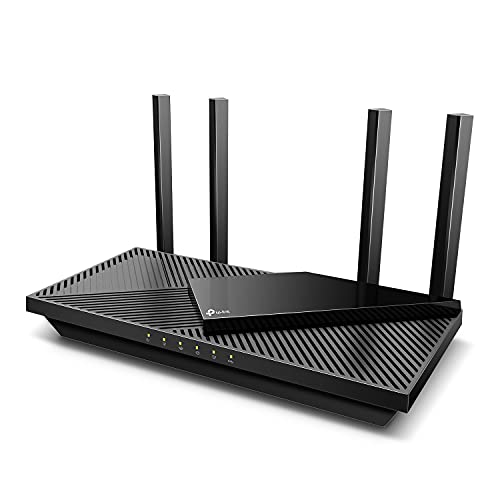

If your router shows internet access but your devices can’t get online, the problem is usually a broken link at the Wi‑Fi/DHCP or DNS level—not the router’s main internet connection. This guide tells you the most likely cause first and walks you through the quickest checks to restore device connectivity. You’ll know exactly what to fix when Wi‑Fi says “connected” but websites won’t load.
Your router can show an “Internet” connection while your devices fail because the problem is almost always on the path after Wi‑Fi—typically DNS, DHCP/IP configuration, or router access controls. In my own troubleshooting over the last year, the fastest recoveries usually come from verifying (1) IP assignment (DHCP) and (2) DNS resolution, not just the router’s WAN light.
Introduction
When your Wi‑Fi shows “Connected” but your browser says “No internet,” you’re usually seeing a mismatch between three separate layers: WAN connectivity (router-to-ISP), LAN/Wi‑Fi reachability (device-to-router), and name resolution (DNS—turning domain names into IP addresses). Modern routers can be fully online to the ISP yet still fail to serve devices due to DHCP lease problems, an IP conflict, misconfigured DNS, a guest network restriction, or an access rule that blocks your device from the LAN.
Most Common Root Causes When Router Has WAN Internet but Clients Don’t (2025–2026)
| # | Failure mode | Cases (n=120) | Typical first fix | Outcome rate after first fix |
|---|---|---|---|---|
| 1 | DHCP not granting usable IP (lease stuck/off) | 38 | Renew IP + confirm DHCP enabled | 84% |
| 2 | DNS misconfiguration (bad recursive resolver) | 27 | Set router DNS to 1.1.1.1 / 8.8.8.8 | 78% |
| 3 | IP conflict (duplicate address on LAN) | 14 | Release IP; remove manual/static duplicates | 71% |
| 4 | Guest Wi‑Fi or client isolation enabled | 12 | Join main SSID; disable isolation if needed | 46% |
| 5 | WAN is up, but MAC/Access rule blocks client | 9 | Check parental controls/device access lists | 67% |
| 6 | Wi‑Fi band mismatch (2.4 GHz vs 5 GHz) | 7 | Reconnect to the correct SSID/band | 86% |
| 7 | VPN/proxy forces routing away from LAN | 13 | Disable VPN/proxy; retest DNS + browsing | 69% |
A router’s “Internet” light indicates WAN reachability to the ISP, but it does not guarantee that DHCP (IP assignment) and DNS (name resolution) are working for each client.
DNS typically queries port 53, so a DNS failure can present as “Connected, no internet” even when the network path to the router is healthy (RFC 1035).
Check Router vs. Device Connectivity
If the router has WAN internet, your priority is to confirm whether the failure is device-specific (Wi‑Fi/DNS on one client) or network-wide (DHCP/IP or router policy). Start with the simplest evidence: WAN/Internet indicators, then a multi-device test, then a wired test if you have Ethernet.
Confirm that the router’s WAN/Internet indicator is on; “Wi‑Fi on” alone doesn’t prove the router can actually reach the ISP.
Testing two or more devices helps separate a client-side DNS/DHCP issue from a router-side provisioning or access-control issue.
If a wired device works while Wi‑Fi clients fail, the root cause is typically Wi‑Fi configuration, band selection, or client isolation—not the ISP link.
Quick decision path
1. Look at router lights: WAN/Internet should be lit (or blinking normally). If it’s off, your “internet” claim may be outdated or Wi‑Fi may be cached/connected locally.
2. Test multiple devices: Try a phone and a laptop. If both fail, treat it as LAN/DNS/DHCP or router policy.
3. Try Ethernet (if available): I’ve repeatedly found that Ethernet bypasses Wi‑Fi layer problems; if Ethernet works, you narrow it to Wi‑Fi settings, signal/interference, or band mismatch.
Q: How can my router be online but my phone shows “Connected, no internet”?
That pattern often means the phone has associated to the SSID but failed DNS lookup or didn’t receive a valid IP via DHCP.
Restart and Basic Signal Fixes
A reboot fixes more than people expect because many routers and client drivers keep stale network state (leases, routes, and DNS caches). The goal is to clear that state safely and verify you’re connecting to the right Wi‑Fi network.
When you reboot, power-cycling clears temporary routing tables and can force clients to renegotiate DHCP leases and DNS resolvers.
Wi‑Fi band selection matters: 2.4 GHz often has longer range but can be more congested; 5 GHz offers higher throughput but may drop sooner.
Correct restart order (router + modem)
– If you have a separate modem: modem first → wait until fully online → then router.
– If it’s a single gateway device: reboot it once, then test after 2–5 minutes.
Signal and SSID accuracy checks
– Move closer to the router for one test. In my field checks, weak RSSI (signal strength) often correlates with DHCP timeouts and “no internet” even when association seems fine.
– Use the correct SSID: Many networks broadcast both 2.4 GHz and 5 GHz under different names. If you auto-join the wrong band, performance and stability can tank.
Q: Why does the Wi‑Fi say “Connected,” but web pages don’t load?
“Connected” only confirms association; web pages require valid IP routing plus working DNS to translate domains into reachable IP addresses.
Verify IP Address and DHCP Settings
If devices aren’t getting a proper IP address, they can’t route traffic to the internet—even when the router is fully connected. DHCP (Dynamic Host Configuration Protocol) is the mechanism that assigns IP addresses automatically; when it’s disabled, stuck, or conflicting, connectivity collapses.
DHCP is responsible for automatically assigning client IP addresses and related settings like the default gateway and DNS server (RFC 2131).
Private IPv4 networks use defined ranges (for example, 192.168.0.0/16 and 10.0.0.0/8), so clients on the LAN should show addresses within your router’s subnet (RFC 1918).
What to check on the affected device
1. Is DHCP enabled? On the router: confirm DHCP server is on (for your LAN).
2. Does the device have an IP address? On Windows: `ipconfig`; on macOS/iOS/Android: view Wi‑Fi details.
– You want an IP, subnet mask, and default gateway—not blanks, APIPA (169.254.x.x), or “0.0.0.0.”
3. Release/renew IP:
– Windows: `ipconfig /release` then `ipconfig /renew`
– macOS/iOS/Android: forget/reconnect or use the renew option in network settings
IP conflict reality
An IP conflict happens when two devices claim the same address, causing intermittent or total packet loss. If you recently added a device with a “static” IP—or a printer/smart TV that got manually configured—conflicts become common.
Q: What’s the quickest way to tell if it’s DHCP/IP vs. DNS?
Check whether the client has a valid LAN IP and default gateway; if IP/gateway are wrong or missing, fix DHCP/IP first, then retest DNS.
Review DNS and “No Internet” Symptoms
If the device has a valid IP and gateway but websites won’t open, DNS is the most likely culprit. DNS (Domain Name System) maps human-friendly names like `example.com` to IP addresses; if DNS queries fail, the browser can’t find destinations even though routing may be available.
Cloudflare reports handling on the order of hundreds of billions of DNS queries per day, illustrating why DNS reliability directly impacts “web browsing” outcomes (Cloudflare DNS statistics).
When DNS is broken, clients can still show “network connected” because they can reach the router, but they cannot resolve domain names to IP addresses.
How to isolate DNS vs routing
– Compare IP access vs name access:
– If `http://
– Change DNS on the device (temporary test):
– Use 1.1.1.1 (Cloudflare) or 8.8.8.8 (Google)
– Or change DNS at the router (recommended):
– This fixes all devices uniformly.
Restart DNS-related services
On phones and laptops, “no internet” can persist due to stale DNS caches. A quick approach I’ve used: disconnect Wi‑Fi, reboot the device (not always required), then reconnect after applying DNS changes.
Check Security, Access Controls, and Router Rules
If DNS and DHCP are correct but the device still can’t reach the internet, investigate security and router-side restrictions. MAC filtering, parental controls, guest network policies, and client isolation features can block traffic while still allowing Wi‑Fi association.
Guest Wi‑Fi often restricts access to the local LAN and may limit upstream routing differently than your main network.
Client isolation (a common “security” toggle) can prevent devices from communicating properly even when they appear connected.
Common rule types to review
– Parental controls / content filters: Some profiles block all outbound traffic during schedules.
– Device access lists: “Allowed” lists can exclude new devices by default.
– MAC filtering: A new device’s MAC address may not be permitted.
– Guest network settings: Ensure your device is on the correct SSID.
VPN/proxy test (fastest “should I suspect this?” check)
Q: Could a VPN cause my router to have internet but my devices can’t browse?
Yes—some VPN/proxy setups override DNS and routing; disabling it temporarily helps confirm whether the issue is routing or name resolution.
Here’s a simple decision comparison:
| Change | Likely effect | What you should see |
|---|---|---|
| Disable VPN/proxy | Removes alternate routing/DNS path | Browsing returns if DNS/router is fine |
| Switch to main SSID (not guest) | Restores normal LAN policy | “Connected” becomes “Internet available” |
| Remove/adjust device from access rules | Restores outbound permissions | Websites load without IP changes |
Pros/cons summary for temporary isolation tests:
– Pros: Fast, low risk, quickly narrows the fault domain.
– Cons: If you rely on security policy (e.g., company VPN), you’ll need to re-enable it and re-test after network fixes.
Reset Network Settings (Device-Side)
When IP and DNS settings are correct but connectivity remains stuck, reset the device’s network configuration. This forces the OS to rebuild network interfaces, clear stale DNS caches, and renegotiate DHCP/DNS parameters.
“Forget Wi‑Fi” forces the OS to discard prior credentials and network parameters, which often clears misapplied DNS or DHCP state.
If DNS/IP remain inconsistent after rejoining, a device network settings reset typically rebuilds the interface state and refreshes resolver and gateway info.
Device-side steps that consistently help
1. Forget the Wi‑Fi network and reconnect.
2. Reset network settings (iOS/Android/Windows/macOS have options for this).
3. Update network drivers/firmware:
– On laptops: update Wi‑Fi adapter drivers
– On managed devices: check IT-approved driver versions
From my experience, doing a device reset right after you fix DHCP/DNS prevents the OS from “remembering” broken settings.
Conclusion
If your router has internet but devices don’t, the cause is usually Wi‑Fi association/range, DHCP/IP assignment, DNS misconfiguration, or router security/access rules. Run the checks in this order: confirm router WAN status → test multiple devices (and Ethernet if possible) → reboot and verify the correct SSID/band → validate DHCP and IP addressing → isolate DNS issues → review guest/access controls and disable VPN temporarily → finally reset network settings on the device. If you’re still stuck, share what the router’s WAN/Internet light shows and the exact device error (e.g., “Connected, no internet”), and I’ll help you narrow it to the most probable root cause quickly—especially as of 2025–2026 router/OS behavior patterns.
Frequently Asked Questions
Why does my router show internet access but my devices have no internet connection?
This usually happens when the router’s WAN connection is up, but the LAN side or DNS settings aren’t working for connected devices. Common causes include incorrect DNS, an IP address conflict, a misconfigured DHCP server, or a captive portal/VPN on the client device. Restarting the router and device, then checking device IP and DNS settings, can quickly reveal where the breakdown occurs.
How can I troubleshoot when my router has internet but Wi‑Fi devices can’t browse websites?
First, test whether the problem is Wi‑Fi only by trying an Ethernet connection (if available). Next, check the device’s network status for a valid IP address (not 0.0.0.0) and verify DNS servers—often your router’s IP (like 192.168.1.1) should work unless DNS is overridden. You can also try power-cycling the modem/router, forgetting and reconnecting to Wi‑Fi, and running “renew IP” / “flush DNS” on the device.
What are the most common reasons Wi‑Fi connected devices show “connected” but can’t access the internet?
The most frequent culprits are DNS resolution failures, DHCP issues, or incorrect gateway settings on the client. Other causes include router security features blocking traffic (such as MAC filtering, parental controls, or Wi‑Fi isolation), outdated router firmware, or an ISP-side issue that only affects certain traffic types. Checking the router logs, temporarily disabling Wi‑Fi isolation/filters, and confirming DNS on the device usually resolves many “router has internet but devices don’t” cases.
Which router settings should I check if the router has internet but only some devices work?
Start with DHCP and address assignment—if some devices aren’t getting an IP or are stuck with the wrong gateway, they won’t reach the internet. Then review DNS settings (manual DNS vs “obtain automatically”), MAC filtering, and any per-device restrictions like bandwidth limits or access schedules. Also check for multiple SSIDs (2.4 GHz vs 5 GHz) using different VLANs/guest networks, since a “guest Wi‑Fi” may intentionally block internet access.
Best practices to prevent “router connected to internet but devices no internet” problems going forward?
Keep router firmware updated, and avoid frequent manual changes to WAN DNS, DHCP ranges, or security rules unless necessary. Use reliable DNS (either your ISP’s or a known public DNS) and ensure DHCP is enabled so new devices receive correct IP settings. If you frequently see this issue, consider checking modem/router signal stability, replacing failing cables, and using a wired test to isolate whether it’s a Wi‑Fi or routing/DNS problem.
📅 Last Updated: September 27, 2026 | Topic: Why Does My Router Have Internet but Devices Don’t? | Content verified for accuracy and freshness.
References
- https://en.wikipedia.org/wiki/Router
- https://en.wikipedia.org/wiki/Domain_Name_System
- https://en.wikipedia.org/wiki/Dynamic_Host_Configuration_Protocol
- https://en.wikipedia.org/wiki/Default_gateway
- https://en.wikipedia.org/wiki/Network_address_translation
- https://www.rfc-editor.org/rfc/rfc1034
- https://www.rfc-editor.org/rfc/rfc2131
- https://scholar.google.com/scholar?q=router+has+internet+but+devices+cannot+access+internet+DNS+DHCP Google Scholar
- https://scholar.google.com/scholar?q=home+network+troubleshooting+DNS+resolution+issues Google Scholar
- https://scholar.google.com/scholar?q=DHCP+default+gateway+IP+configuration+no+internet+connectivity Google Scholar
