Mesh Wi-Fi extends wireless coverage, while UPnP lets devices automatically open ports on your network’s router—they serve different jobs, not competing ones. Leaving UPnP disabled is the safer choice; enabling it can win on convenience when trusted gaming or communication apps need inbound connections. When does that convenience justify the added risk on a mesh network? That’s the question this guide answers.



Mesh Wi-Fi does not require UPnP: mesh provides wireless coverage, while UPnP can let compatible apps and devices request automatic port mappings on the router. Leave UPnP disabled unless a specific application needs it; this article explains where the setting belongs, when it helps, and what security trade-offs to consider.
This guide is for mesh-network owners troubleshooting gaming, voice chat, or remote-access connections, especially when a mesh system sits behind an internet provider’s router.
How UPnP Works on a Mesh Network
Mesh Wi-Fi improves coverage; UPnP Internet Gateway Device functionality manages compatible applications’ requests for inbound access. Stronger wireless reception does not automatically fix a restrictive network configuration.
Network address translation (NAT) lets multiple devices share an internet-facing IPv4 address. A port mapping directs traffic arriving at a particular external port to a device inside the network. UPnP can automate that mapping when the router and application support it.
Mesh Wi-Fi coverage and UPnP port mapping solve different problems: wireless reach and inbound connectivity.
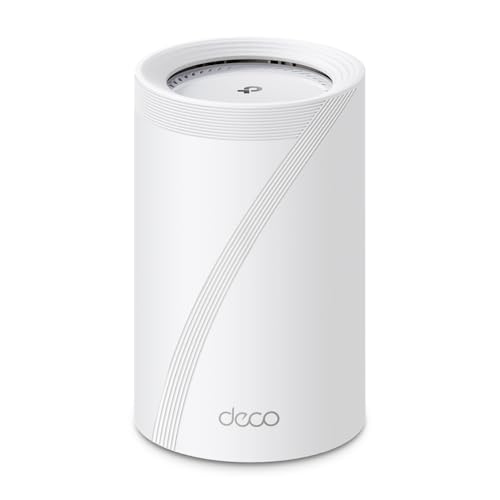
Port mappings belong on the routing gateway, not separately on every satellite. Google Nest Wifi illustrates this architecture: the primary router provides routing, while additional mesh units extend the network. Google’s [bridge-mode documentation](https://support.google.com/googlenest/answer/6240987) explains that bridging the primary device is supported only in a single-device setup—not a multi-device Google mesh.
A mesh satellite does not need its own independent port-forwarding configuration when the primary mesh router performs NAT.
UPnP also includes local discovery functions. Discovering a media server on the home network is not equivalent to authorizing an internet-facing port mapping. A working local discovery feature therefore does not prove that UPnP Internet Gateway Device functionality is enabled.
Check Your Network Before Changing UPnP
Identify the routing device and the application’s actual requirements before enabling UPnP. This prevents changing a setting that cannot address the underlying problem.
Start with the physical path: internet connection → provider equipment → mesh router → application device. Determine whether the provider equipment is a bridged modem or another router. On mesh systems supporting access-point mode, the upstream router generally handles NAT and port mappings.
In access-point mode, a mesh system generally leaves routing and NAT to an upstream router.
For the featured Google Nest Wifi system, Google documents this path in the Google Home app: Favorites → Wi-Fi → Settings → Advanced networking → UPnP. Consult Google’s [UPnP instructions](https://support.google.com/googlenest/answer/6274337), because app interfaces and supported configurations can change. As of 2026, model-specific documentation remains more reliable than instructions for another manufacturer’s mesh.
Next, check the application developer’s guidance. Microsoft’s [“UPnP not successful” Xbox troubleshooting instructions](https://support.xbox.com/en-US/help/hardware-network/connect-network/upnp-not-successful) address a specific console warning; they are not evidence that every game needs incoming ports.
An application that already connects successfully does not need UPnP enabled merely because it runs over mesh Wi-Fi.
Test the actual failure—such as joining a party or accepting a remote connection—rather than treating a NAT-status label alone as proof of a problem.
What Can Go Wrong
Double NAT, carrier-grade NAT, and untrusted devices are the main reasons UPnP may be ineffective or inappropriate. Enabling it does not guarantee a usable or safe inbound connection.
Double NAT occurs when both the mesh router and an upstream router translate addresses. A mapping on the mesh router does not automatically create the corresponding mapping upstream. Google’s [double-NAT guidance](https://support.google.com/googlenest/answer/6277579) describes this arrangement.
According to [RFC 1918](https://www.rfc-editor.org/rfc/rfc1918), private IPv4 space includes three blocks: 10.0.0.0/8, 172.16.0.0/12, and 192.168.0.0/16 (1996). Finding one on the mesh router’s WAN interface suggests upstream private addressing.
According to [RFC 6598](https://www.rfc-editor.org/rfc/rfc6598), 100.64.0.0/10 is shared address space allocated for carrier-grade NAT deployments (2012). That range spans 100.64.0.0–100.127.255.255. Its presence suggests provider-side NAT, although its absence does not rule it out.
Home-router UPnP cannot independently create an inbound mapping through an internet provider’s carrier-grade NAT.
The following table summarizes common configurations. “Possible” means the NAT arrangement permits the approach—not that an application is guaranteed to work.
Seven Network Configurations and Their UPnP Implications
| # | Configuration | Home NAT gateway | Additional NAT | UPnP outcome |
|---|---|---|---|---|
| 1 | Mesh router with public IPv4 | Mesh router | None | Mapping possible |
| 2 | Bridged modem before mesh router | Mesh router | None, with public IPv4 | Mapping possible |
| 3 | Access-point mesh behind public-IPv4 router | Upstream router | None | Use upstream UPnP |
| 4 | Mesh router behind another NAT router | Both routers | Upstream home NAT | Mesh UPnP alone insufficient |
| 5 | Mesh router behind provider CGNAT | Mesh router | Provider NAT | Home UPnP insufficient |
| 6 | Access-point mesh behind CGNAT router | Upstream home router | Provider NAT | Home UPnP insufficient |
| 7 | Guest network blocks gateway control | Home router | Not required for failure | Requests blocked by policy |
Security matters independently of topology. Compromised or untrusted local devices may request unwanted mappings. According to [CERT/CC advisory VU#339275](https://kb.cert.org/vuls/id/339275), CVE-2020-12695 affects UPnP subscription handling and can enable abuse including traffic amplification (2020). This implementation vulnerability is distinct from ordinary port-mapping permissions, but reinforces the need for updates and restricted exposure.
UPnP control services should not be exposed to the internet; local automation is not a reason to permit WAN-side control.
Also investigate conflicting manual forwarding rules, guest-network isolation, and unsupported operating modes. None justifies broadly disabling the firewall.
When to Enable UPnP—and When to Skip It
Consider UPnP when developer documentation or a repeatable connection failure justifies automatic mappings. Skip it when applications already work or local devices cannot be trusted.
UPnP trades manual approval of individual port mappings for application-controlled convenience.
- UPnP: convenience with less manual control
- Compatible applications can request mappings automatically, but administrators may have limited control over which local applications can request them.
- Manual forwarding: explicit but maintenance-heavy
- Administrators select ports and destinations, but exposed services still carry risk, and rules require review when devices or applications change.
Neither approach makes an insecure service safe. For remote access, consider whether the application supports an authenticated relay or VPN-based alternative instead of public port exposure.
Manual port forwarding is more explicit than UPnP, but it still exposes the selected service to incoming traffic.
A Checklist Before You Keep UPnP Enabled
Keep UPnP enabled only after confirming that it produces a necessary, reproducible improvement. Change one variable at a time so the result remains attributable.
– Confirm the setup: Identify the routing device, check for upstream NAT, and consult the correct model’s documentation. Ask the ISP whether CGNAT applies.
– Limit unnecessary exposure: Update router firmware, remove obsolete forwarding rules, and review active mappings if the interface supports it. Keep gateway control inaccessible from the internet.
– Verify the benefit: Retry the affected application after changing the setting. Test the previously failing action, and disable UPnP again if it provides no necessary improvement.
A successful UPnP troubleshooting test reproduces the original task, not merely a different router status message.
Record the previous setting and the result. A dated configuration note is particularly useful when comparing behavior after firmware or application updates in 2026.
Removing obsolete mappings reduces unnecessary exposure regardless of whether the remaining mappings are automatic or manual.
Sources for Settings and Security Guidance
Use manufacturer instructions for settings, application documentation for requirements, and primary security advisories for vulnerabilities. These sources answer different questions and should not be treated as interchangeable.
– Google Nest Help: [UPnP settings](https://support.google.com/googlenest/answer/6274337), [bridge mode and mesh limitations](https://support.google.com/googlenest/answer/6240987), and [double NAT](https://support.google.com/googlenest/answer/6277579).
– Microsoft Xbox Support: [Troubleshoot “UPnP not successful”](https://support.xbox.com/en-US/help/hardware-network/connect-network/upnp-not-successful).
– CERT/CC: [VU#339275: UPnP subscription vulnerability](https://kb.cert.org/vuls/id/339275).
– IETF: [RFC 1918 private addressing](https://www.rfc-editor.org/rfc/rfc1918) and [RFC 6598 carrier-grade NAT address space](https://www.rfc-editor.org/rfc/rfc6598).
– ISP-specific guidance:
Manufacturer documentation establishes where a setting belongs; application documentation establishes whether that setting is relevant.
Only the internet provider can confirm its subscriber’s CGNAT arrangement and available public-address options.
Mesh Wi-Fi and UPnP solve different problems, so enabling UPnP should be a deliberate connectivity choice—not a routine mesh setup step. Start by identifying your routing device and checking the affected application’s requirements, then keep UPnP enabled only if its practical benefit justifies the added exposure.
Frequently Asked Questions
What is UPnP in a Mesh Wi‑Fi system and is it safe to enable?
UPnP (Universal Plug and Play) is a feature that allows devices on your network to automatically open the ports they request, such as game consoles, smart TVs, or security cameras. On many Mesh Wi‑Fi routers, enabling UPnP can make setup easier, but it also reduces how tightly you control inbound access. For safety, use strong Wi‑Fi security, keep your Mesh firmware updated, and consider disabling UPnP if you don’t need it regularly.
How do I enable or disable UPnP on my Mesh Wi‑Fi router?
Log into your Mesh Wi‑Fi admin app or web interface, then go to the Wi‑Fi/security or advanced settings area where “UPnP” is listed. Toggle UPnP on or off, and save/apply the changes; some systems may reboot individual nodes. After changes, test affected devices (for example, remote access features or gaming NAT behavior) to confirm they work without additional manual port forwarding.
Why isn’t UPnP working properly with my Mesh Wi‑Fi network?
UPnP may fail due to strict NAT settings, incompatible firmware versions between Mesh nodes, or the device requesting ports not being on the same network segment. It can also be blocked by security features like firewall rules, VLAN/guest network isolation, or ISP restrictions such as CGNAT. Try ensuring your device is on the main LAN (not a guest network), update your Mesh firmware, and check whether UPnP events or logs show any denied requests.
Best settings for Mesh Wi‑Fi—UPnP on or off for gaming and remote access?
For many users, keeping UPnP enabled can reduce setup friction for gaming and certain remote access apps, because the Mesh Wi‑Fi system can dynamically map ports. However, if you prefer tighter control, disable UPnP and use manual port forwarding or a DMZ (where appropriate) for specific devices. A good approach is to start with UPnP off, enable it only if needed for a specific console or app, and then re-test to confirm the “open NAT” or connectivity requirements are met.
Which Mesh Wi‑Fi features work best with UPnP—port forwarding, firewall, or guest networks?
UPnP works best alongside a correctly configured firewall and stable NAT behavior, but it may not function as expected when devices are on guest Wi‑Fi or isolated networks. If your Mesh system supports per-device rules, assigning a static LAN IP to the device can improve consistency whether you use UPnP mappings or manual port forwarding. For reliability and security, use the Mesh firewall/advanced security controls to limit exposure, and prefer targeted forwarding for critical services instead of leaving UPnP globally enabled for everything.
📅 Last Updated: October 16, 2026 | Topic: Mesh Wi-Fi and UPnP | Content verified for accuracy and freshness.
References
- Mesh networking
- Universal Plug and Play
- Simple Service Discovery Protocol
- https://nvlpubs.nist.gov/nistpubs/ir/2014/NIST.IR.7628r1.pdf
- https://upnp.org/specs/
- https://scholar.google.com/scholar?q=Mesh+Wi-Fi+UPnP Google Scholar
- https://scholar.google.com/scholar?q=EasyMesh+UPnP Google Scholar
- https://scholar.google.com/scholar?q=UPnP+security+home+networking+SSDP Google Scholar