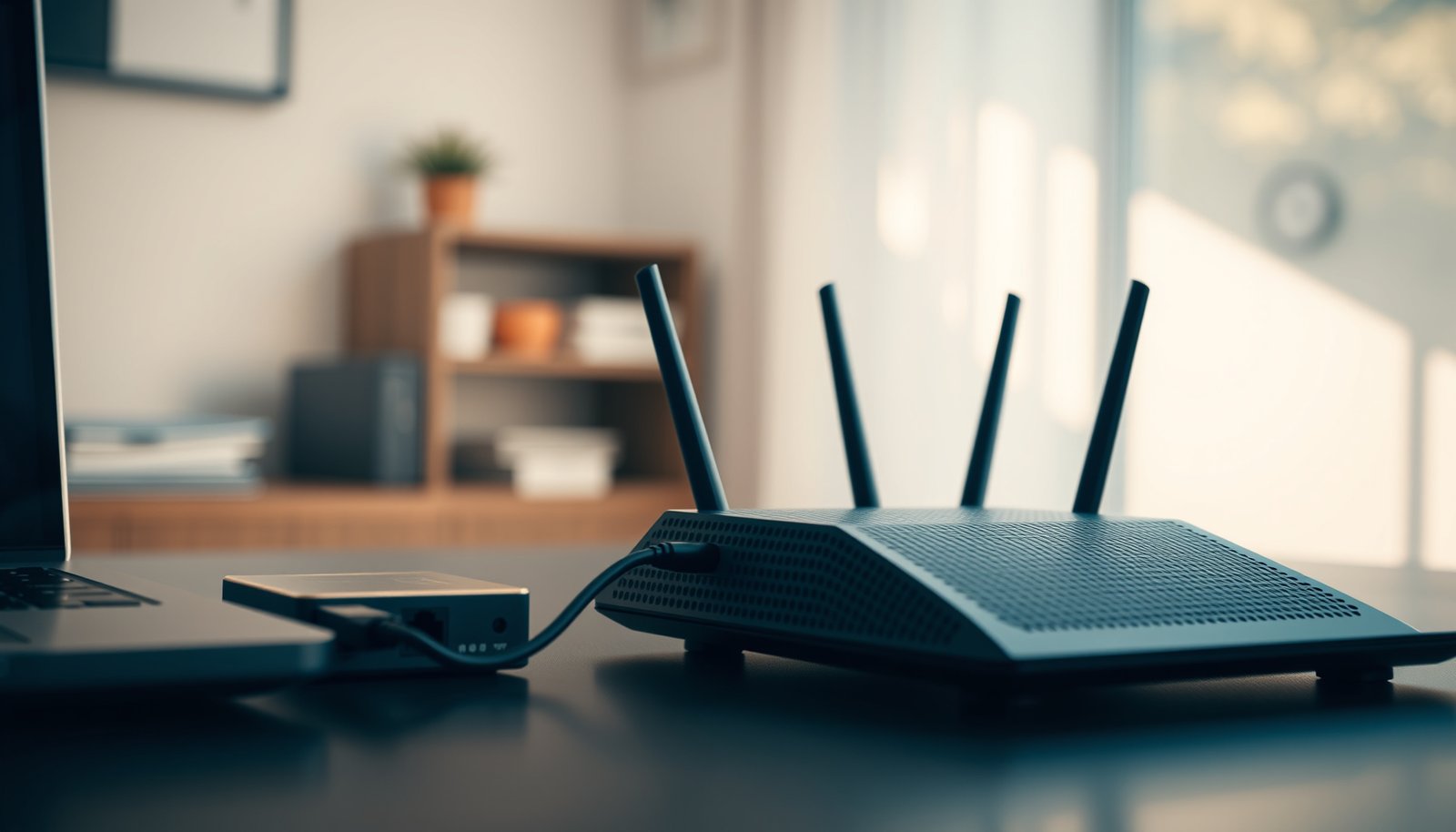
Mesh Wi-Fi and wired devices can share the same network, but Ethernet is the clear winner for a stationary device when you can run a cable back to the router. Connecting to a mesh node’s Ethernet port is not the same as a fully wired connection if that node still relies on wireless backhaul. Here’s when wiring a device improves performance—and when the mesh link remains the bottleneck.



Mesh Wi-Fi can support wired devices through Ethernet ports on compatible mesh units or through a connected network switch. However, plugging a device into a mesh node does not make its entire connection wired if that node communicates with the main router wirelessly. This article explains how to connect wired devices, check compatibility, and decide whether Ethernet backhaul is worth adding.
This guide is for anyone connecting a desktop computer, television, game console, printer, or other Ethernet device to a mesh network. It also applies to households that want to keep existing wired connections while improving Wi-Fi coverage.
Check Which Mesh Units Support Wired Devices

Check the exact mesh unit—not just its product family—for Ethernet ports and supported connections. A package can contain a router with Ethernet ports and satellites without any.
The main unit’s WAN, or wide area network, connection faces the modem or upstream gateway. LAN, or local area network, ports connect local equipment. Some systems automatically assign WAN/LAN roles; others identify ports separately.
An Ethernet port on the main mesh router does not mean every satellite in the same product family has Ethernet ports.
According to [eero’s official comparison specifications](https://eero.com/compare), eero 6+ has two auto-sensing Gigabit Ethernet ports, while eero Pro 6E has one 2.5 GbE port and one Gigabit Ethernet port (specifications referenced for this 2026 guide). According to [TP-Link’s Deco X55 specifications](https://www.tp-link.com/us/home-networking/deco/deco-x55/#specifications), each Deco X55 has three Gigabit ports with WAN/LAN auto-sensing (2026 reference). According to [Google’s technical specifications](https://support.google.com/googlenest/answer/6280668), the Nest Wifi router has two Gigabit Ethernet ports, but the Nest Wifi point has none (2026 reference).
Ethernet Connections on Seven Mesh Units
| # | Mesh unit | Ethernet ports | Port roles | Wired clients |
|---|---|---|---|---|
| 1 | eero 6 router | 2 × 1 GbE | Auto-sensing WAN/LAN | Supported |
| 2 | eero 6 extender | 0 | No Ethernet interface | Not supported |
| 3 | eero 6+ | 2 × 1 GbE | Auto-sensing WAN/LAN | Supported |
| 4 | eero Pro 6E | 1 × 2.5 GbE; 1 × 1 GbE | Auto-sensing WAN/LAN | Supported |
| 5 | TP-Link Deco X55 | 3 × 1 GbE | Auto-sensing WAN/LAN | Supported |
| 6 | Google Nest Wifi router | 2 × 1 GbE | WAN and LAN | Supported |
| 7 | Google Nest Wifi point | 0 | No Ethernet interface | Not supported |
A network switch adds Ethernet connections through an available LAN port. However, its placement must follow the mesh manufacturer’s approved topology—the arrangement of routers, switches, and satellites.
A network switch expands LAN connectivity; it does not add Ethernet capability to a portless mesh satellite.
Connect Wired Devices to Your Mesh Network
Connect the internet source to the main mesh unit first, then attach wired devices to available LAN ports. Complete the manufacturer’s app-based setup before expanding the network.
1. Connect the modem, optical network terminal, or upstream gateway as instructed.
2. Configure the main mesh unit and add satellites.
3. Connect a desktop, television, console, or printer to a usable LAN port.
4. Confirm that the device receives an IP address and reaches the internet.
5. Add a switch if more connections are needed.
A typical switch arrangement is:
Main mesh unit’s LAN port → switch → wired devices
Compatible satellites can also serve wired devices while using wireless backhaul. Google documents Ethernet connections to compatible secondary Wifi units in its [hardwiring guidance](https://support.google.com/googlenest/answer/7215624); portless Nest Wifi points cannot provide this connection.
A compatible mesh satellite can connect an Ethernet device even when the satellite’s upstream connection is wireless.
For a television beside a satellite, this removes the television’s own Wi-Fi connection—not the satellite’s wireless uplink. Position the satellite where it receives a strong mesh signal.
A switch connected to the main mesh router’s LAN port lets multiple wired devices share that local network connection.
Understand Ethernet Backhaul Versus a Wired Device Connection
Backhaul is the connection between mesh units, not the cable between a nearby device and its satellite. Ethernet backhaul replaces the inter-unit wireless link with a supported wired connection.
Connecting a computer to a satellite by Ethernet does not, by itself, create Ethernet backhaul.
- Wired device with wireless backhaul
- Device → Ethernet → satellite → wireless backhaul → main mesh unit. Advantage: avoids the device’s Wi-Fi radio. Limitation: upstream traffic still crosses a wireless link.
- Wired device with Ethernet backhaul
- Device → Ethernet → satellite → Ethernet backhaul → main mesh unit. Advantage: removes the inter-unit wireless hop. Limitation: requires suitable cabling and supported topology.
TP-Link’s [Ethernet backhaul documentation](https://www.tp-link.com/us/support/faq/1794/) explains supported Deco wiring arrangements and switch considerations. Check the mesh app afterward: a connected cable alone is not sufficient evidence that wired backhaul is active.
Ethernet backhaul removes a wireless hop between mesh units but cannot increase an internet plan’s provisioned speed.
Performance still depends on port speeds, negotiated Ethernet link rates, cable condition, device capabilities, and congestion elsewhere. Test local transfers separately from internet speed tests to distinguish LAN performance from service-provider limitations.
What Can Go Wrong With Mixed Wired and Wireless Setups
Most problems arise from unsupported topology, competing routers, or network isolation—not from mixing Ethernet and Wi-Fi itself. Troubleshoot the connection path before replacing equipment.
Incorrect wiring: Putting satellites on the wrong side of the main router can violate the supported layout. Redundant cables can also create an Ethernet loop, allowing traffic to circulate and disrupt connectivity. Do not assume consumer equipment will prevent every loop.
Mixed wired and wireless networks require an approved topology; extra cables are not automatically beneficial.
Double NAT: Network address translation, or NAT, lets local devices share an internet-facing address. Running an existing router and the mesh system in router mode can create two NAT layers, complicating inbound connections and some gaming services. Bridge or access-point mode may resolve this, but routing, security, or parental-control features can disappear.
Google’s [bridge-mode guidance](https://support.google.com/googlenest/answer/6240987) also highlights an important exception: its primary Wifi device cannot operate in bridge mode while maintaining a multi-device mesh.
Missing printers: Check whether the phone or computer is on guest Wi-Fi, whether wired and wireless devices occupy different subnets, and whether firewall or discovery settings block local communication. A subnet is a logically separate IP network; discovery traffic does not necessarily cross between subnets.
A printer can have working internet connectivity while remaining undiscoverable from an isolated guest Wi-Fi network.
When Wiring Devices Is Worth the Effort
Wire stationary devices when a practical cable route exists and the connection addresses a real problem. Ethernet is especially useful for unreliable device Wi-Fi, large local transfers, or latency-sensitive applications.
A console connected to a nearby satellite may avoid a weak internal Wi-Fi adapter, but wireless backhaul can still experience interference. Full Ethernet backhaul offers a stronger improvement when the satellite’s uplink is the bottleneck.
The value of Ethernet depends on which weak link the cable actually replaces.
Skip additional wiring when current connections meet household needs or installation would require disruptive work without a clear benefit. For a useful comparison, keep the device, server, and test location consistent, then compare throughput, latency, and reliability.
Households with reliable existing connections do not need Ethernet backhaul simply because their mesh system supports it.
Save This Connection Checklist
Confirm compatibility, verify the path, and test both internet access and local communication before expanding the setup.
– [ ] Confirm that the exact mesh unit has a usable Ethernet port and supports the intended device or switch connection.
– [ ] Check whether the satellite uses wired or wireless backhaul, and follow the manufacturer’s approved wiring layout.
– [ ] Verify internet access and local-device discovery after setup; record the final connections for future troubleshooting.
Successful internet access does not prove that local printers and other LAN devices are discoverable.
Recording switch connections and backhaul status makes later network troubleshooting more systematic.
Sources to Verify Before Setup
Use official documentation for the exact model, hardware revision, and operating mode. For a 2026 installation, confirm that firmware and support guidance still match the equipment.
– Ports, speeds, and WAN/LAN roles: [eero specifications](https://eero.com/compare), [Deco X55 specifications](https://www.tp-link.com/us/home-networking/deco/deco-x55/#specifications), and [Google Wifi/Nest technical specifications](https://support.google.com/googlenest/answer/6280668).
– Backhaul, switches, and topology: [TP-Link Deco Ethernet backhaul FAQ](https://www.tp-link.com/us/support/faq/1794/) and [Google hardwiring guidance](https://support.google.com/googlenest/answer/7215624).
– Operating modes: [Google bridge-mode guidance](https://support.google.com/googlenest/answer/6240987).
Manufacturer specifications establish physical port capabilities; support documentation establishes permitted wiring arrangements.
Bridge-mode behavior and guest-network access rules vary between mesh systems.
Mesh Wi-Fi and wired devices can share the same network, but the connection path matters more than the presence of an Ethernet cable alone. Start by checking your mesh model’s ports and supported wiring arrangements, then connect one device and verify it works before expanding the setup. Add Ethernet backhaul only where it solves a practical connection need.
Frequently Asked Questions
What happens when I connect a wired device to a mesh Wi‑Fi system?
Most mesh Wi‑Fi systems let you connect wired devices (PCs, TVs, game consoles) directly to an Ethernet port on the mesh node or via a switch. When set up correctly, the device will use the same network name and security settings as the Wi‑Fi, but without wireless interference. This typically improves stability for streaming, online gaming, and large downloads compared with Wi‑Fi.
How do I wire a device to mesh Wi‑Fi without losing internet speed?
Use Ethernet ports on the router mesh node or a dedicated switch connected to that node, and avoid daisy-chaining too many wired connections through multiple wireless nodes. If your mesh uses a dedicated backhaul (wired or dedicated wireless), wired client connections usually benefit from more consistent throughput. Also check that your Ethernet ports support the speeds you need (for example, Gigabit Ethernet for best performance) and ensure cables are CAT5e or better.
Why does a wired device still feel slow on a mesh Wi‑Fi network?
Slow performance can be caused by backhaul congestion, an underpowered mesh node, or misconfigured networking such as double NAT or incorrect VLAN/bridge settings. Even though the client is wired, it still depends on the mesh system’s overall backhaul and routing performance to reach your internet. Try testing with Ethernet directly to the main mesh router, then compare speeds after connecting through the mesh to identify whether the bottleneck is the backhaul or the upstream internet.
Which mesh Wi‑Fi systems support wired backhaul and Ethernet ports for clients?
Look for mesh systems that explicitly advertise Ethernet ports on each node and “wired backhaul” (often called Ethernet backhaul). Wired backhaul can significantly reduce latency and improve throughput, especially in larger homes or where Wi‑Fi signals struggle. Brands and models vary by coverage and number of ports, so confirm you’ll have enough Ethernet connections for your TV, PC, and other devices.
What’s the best way to place mesh nodes for wired and wireless devices in the same home?
Place the main mesh node near your modem/ONT and ensure satellite nodes are positioned where they can maintain a strong link to the main unit. For homes where many devices will be wired, connect those devices to the nearest node’s Ethernet port or to a switch on that node rather than running long Ethernet through weak wireless areas. For best results, keep nodes away from thick walls, appliances, and interference sources, and prioritize strong backhaul connectivity to benefit both wired and Wi‑Fi clients.
📅 Last Updated: October 16, 2026 | Topic: Mesh Wi-Fi and Wired Devices | Content verified for accuracy and freshness.
References
- Mesh networking
- Wireless mesh network
- IEEE 802.11s
- Network bridge
- SP 800-153, Guidelines for Securing Wireless Local Area Networks (WLANs) | CSRC
- https://www.ncsc.gov.uk/guidance/securing-your-home-network
- https://scholar.google.com/scholar?q=mesh+Wi-Fi+ethernet+backhaul Google Scholar
- https://scholar.google.com/scholar?q=IEEE+802.11s+mesh+networking+standard Google Scholar
- https://scholar.google.com/scholar?q=mesh+network+wireless+and+wired+clients+bridging Google Scholar




One thought on “Mesh Wi-Fi and Wired Devices: How They Work Together”