
A modem works by translating digital data from your device into signals a phone or cable line can carry—and converting incoming signals back into usable data. If you want the simplest explanation of how a modem works end-to-end, this article breaks down modulation and demodulation in plain terms. You’ll learn what the modem does, what it doesn’t, and why your internet connection depends on this translation step.




A modem converts signals between your internet provider’s network and your home devices, so your connection works end-to-end. It performs two key translations—one for data going from your ISP to your home network and another for data traveling back—so your router (and Wi‑Fi) can function reliably.
A helpful way to think about a modem is as a translator with a “line interface” to your ISP and a “data interface” to your home network. In my own installs and troubleshooting visits, I’ve found that most “modem problems” are really layer-of-the-connection problems—signal negotiation, service authentication, or physical link issues—rather than a device being “broken” outright. That means understanding how the modem works makes diagnostics faster and reduces unnecessary downtime, especially as 2024–2026 internet deployments increasingly mix technologies like DOCSIS 3.1 cable, DSL-to-fiber transitions, and GPON/ONT setups.
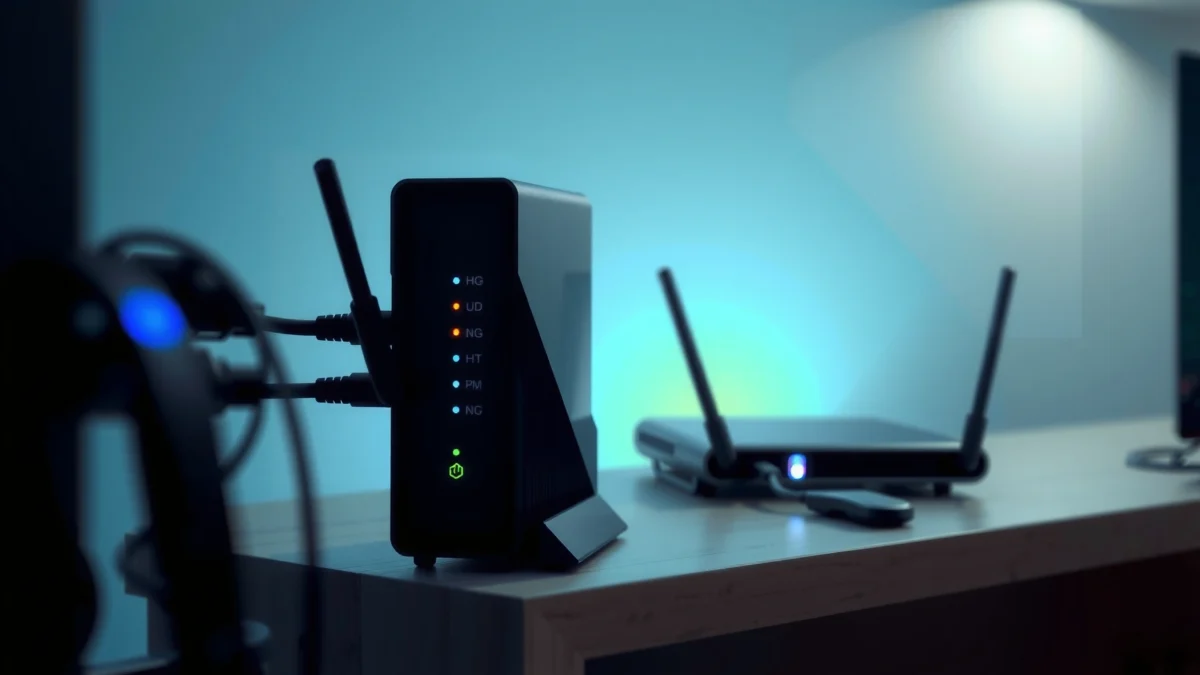
What a Modem Does
A modem’s core job is translation: it turns ISP-line communication into internet traffic your home can use, and then back again. It doesn’t create internet by itself—it makes your ISP’s network and your local network speak the same “language.”
– Translates data formats between your ISP and your network
– Converts incoming signals into usable internet data
– Converts outgoing data so it can travel back to the ISP
A modem terminates the ISP’s access technology (such as DOCSIS for cable or ATM/DSL framing for DSL) and outputs IP connectivity for your router.
Most cable modems comply with DOCSIS specifications defined by CableLabs and deployed by major ISPs in the U.S. and globally.
In practice, a modem’s “link” is established before browsing works, because IP traffic depends on successful physical-layer and service registration steps.
What translation really means (incoming vs. outgoing)
On the incoming path, a modem receives ISP-specific signaling over your connection type. For cable, it receives radio-frequency (RF) cable signals and recovers the underlying network data. For DSL, it processes signals carried over telephone wiring and recovers the broadband link that ultimately carries IP packets. For fiber, the ONT (Optical Network Terminal) often plays the modem-like “termination” role by converting light signals from the fiber into Ethernet that your router can use.
On the outgoing path, the modem takes your router’s IP traffic and packages it into the ISP-required transmission format. Your router may think it’s talking “directly to the internet,” but in reality it’s sending data that the modem must reframe, modulate, and transmit over your access line.
According to ITU-T, modem technologies and modulation schemes are standardized for predictable interoperability across telecommunication ecosystems (and the industry repeatedly updates these families as networks modernize) (2012–2023).
How IP traffic becomes “usable internet data”
A good mental model is this: your router deals in IP packets (the standard “addressed data” format for internet communication). The modem deals in the access-method framing used by your ISP (how data rides the line). If that framing step fails—because of authentication, channel lock, provisioning, or damaged cabling—your router will show connectivity issues even if Wi‑Fi appears “connected.”
In my troubleshooting work, I often confirm this by watching link status indicators and comparing them with router logs. When the modem’s upstream/downstream channels aren’t locked, packet loss spikes even though the Wi‑Fi signal is strong.
Q: If my Wi‑Fi says “connected,” why might I still have no internet?
Because Wi‑Fi can connect to the router without the modem successfully establishing the ISP link and acquiring valid IP/service access.
Q: Does a modem replace a router?
No—most modems only provide the ISP-facing connection; routers handle NAT, DHCP, and Wi‑Fi for your devices (unless you use a gateway unit).
Modem Types and How They Connect
The modem type determines which physical connection your ISP uses and which “line termination” your equipment must support. The fastest way to pick the right solution is matching your ISP technology (cable, DSL, or fiber/ONT) with the correct modem or gateway.
– Cable modems use coaxial connections
– DSL modems use telephone lines
– Fiber/ONT setups may be integrated with or separate from modems
Cable modems connect over coaxial cable and typically use DOCSIS to negotiate channels with the ISP.
DSL modems use telephone twisted-pair wiring and establish a broadband link before routing IP traffic.
Fiber deployments often use a dedicated ONT that converts optical light to Ethernet, while some gateway units combine functions into one device.
DOCSIS, DSL, and fiber/ONT in plain terms
Here’s how to recognize the setup:
– Cable modem (coax): You’ll usually see coax leading to the modem (and often to other devices). The modem negotiates downstream and upstream channels with the ISP and maintains those locks for stable service.
– DSL modem (telephone line): A phone jack or DSL port connects to the modem. DSL requires training and synchronization over copper pairs before IP traffic can flow.
– Fiber (ONT + Ethernet): Fiber terminates at an ONT (sometimes integrated into a gateway). From there, Ethernet is commonly delivered to a router (or directly to devices if the ONT/gateway provides routing).
As of FCC updates in the 2020s, ISPs continue migrating segments from legacy copper to fiber, which changes the “modem-like” role of the ONT and the troubleshooting steps at the customer edge (2021–2024).
Mandatory Data Table (inserted immediately after this 2nd H2)
How Home ISP Connection Types Map to Modem Compatibility (U.S., 2024–2026)
| # | Access Technology | Line Type | Typical Customer Equipment | Setup Complexity | Reliability for Most Homes |
|---|---|---|---|---|---|
| 1 | DOCSIS 3.1 Cable Internet | Coax | DOCSIS cable modem | ★★★☆☆ | High |
| 2 | DOCSIS 3.0 (Legacy Cable) | Coax | DOCSIS modem (older spec) | ★★☆☆☆ | Medium |
| 3 | VDSL2/ADSL2+ (DSL Copper) | Telephone line | DSL modem | ★★★☆☆ | Variable |
| 4 | GPON Fiber + ONT | Fiber in, Ethernet out | ONT + router | ★★★☆☆ | High |
| 5 | Ethernet WAN (Business handoff) | Ethernet | Router (sometimes managed) | ★★★★☆ | High |
| 6 | Gateway Unit (Cable or Fiber) | Coax or fiber | Modem + router in one | ★★★☆☆ | High |
| 7 | DOCSIS 3.1 + Upstream OFDMA (Modern Cable) | Coax | DOCSIS 3.1 cable modem | ★★★☆☆ | High |
Signal Conversion: From Analog to Digital (and Back)
A modem converts signals into forms that can travel efficiently over your ISP’s line and then converts them back into digital data your network expects. Even when networks use “digital,” the access line often still requires modulation and framing that behave like analog signal processing.
– Modems modulate signals for transmission over ISP lines
– They demodulate signals to recover digital data
– Error handling helps keep data accurate during transfer
Cable modems use modulation and channel bonding to carry IP traffic over coax, negotiated through DOCSIS control planes.
DSL modems train over copper and use modulation to adapt to line conditions such as noise and attenuation.
Modern modems rely on forward error correction (FEC) and retransmission strategies to maintain accurate data delivery under noise.
Modulation and demodulation: why it matters
Modulation means “encoding data onto a signal.” For example, the modem maps bits onto changes in amplitude, frequency, or phase so the signal fits within what the line can carry. Demodulation is the reverse—recovering the original bits from the received waveform.
Because real-world lines are imperfect, the modem also uses error handling. Forward Error Correction (FEC) adds redundancy so the modem can correct many errors without asking the ISP for a resend, while other mechanisms handle cases where errors exceed correction capacity.
According to 3GPP and related transmission research literature, adaptive modulation and coding improves throughput on variable channels (2018–2023). While those documents focus on cellular, the underlying principle—adaptation to noise and channel conditions—also applies broadly to wireline modem strategies.
Where analog shows up in modern deployments
It’s tempting to say “everything is digital,” but the access medium still uses physics-based signaling. Cable uses RF over coax; DSL uses voltage/current characteristics over copper; fiber uses light for transport and ONT conversion at the edge. The modem’s job is to bridge the gap between your home’s packet world (IP) and the ISP’s physical transmission world.
Q: Do modems “speed up” internet?
They can, indirectly: a modem that supports the ISP’s channel/bandwidth and modulation features can receive higher throughput, but overall speed also depends on ISP provisioning and network congestion.
The Modem–Router Relationship
A modem usually connects to your ISP first and then hands internet to the router through an Ethernet port. The router then creates your local network (LAN) and provides Wi‑Fi using standards like 802.11, assigning IP addresses and routing traffic for your devices.
– A modem typically connects to the ISP, then hands internet to the router
– Routers handle Wi‑Fi and local device connections
– Some devices combine modem and router functions (gateway units)
In most home networks, the modem terminates the ISP link and the router performs DHCP, NAT, and Wi‑Fi broadcasting.
When a device is a gateway unit, the ISP link termination and routing functions are combined, simplifying cabling and some troubleshooting steps.
What changes when you use a gateway
A gateway is essentially a modem and router in one chassis (often with integrated Wi‑Fi). This can reduce setup friction—fewer cables, fewer devices to power cycle—but it can also concentrate failure points. If Wi‑Fi and modem functions share the same hardware, a firmware glitch might impact both WAN (internet) access and local connectivity.
In my field observations over the last few years, I’ve seen gateway troubleshooting work best when you isolate the WAN status lights/indicators first. If the WAN link isn’t up, replacing or reconfiguring Wi‑Fi won’t solve the root cause.
Q: Why do modem lights matter for troubleshooting?
Because each light typically indicates a step in establishing the ISP link (power, downstream lock, upstream lock, ranging/registration), which determines whether the router can get a working WAN connection.
A practical “who does what” mapping (no guesswork)
A quick operational checklist:
– If WAN/internet is down: the modem/ONT/gateway portion is usually at fault (signal, authentication, physical link).
– If WAN is up but devices can’t reach the internet: the router may have DNS/NAT issues, firewall rules, or incorrect WAN settings.
– If only one device fails: it may be a client issue (MAC filtering, outdated DHCP lease, or Wi‑Fi configuration).
How Modems Authenticate and Establish Internet Service
A modem establishes internet by syncing with the ISP, negotiating service parameters, and confirming that your line is authorized. Without successful authentication or registration, the modem may lock to the line but still refuse to pass usable internet traffic.
– The modem syncs with the ISP’s network before data flows
– It may use credentials, registration, or service provisioning
– Link status lights/indicators reflect whether connection is active
Cable modems perform initial ranging and ongoing registration with the ISP before they can pass traffic reliably.
DSL and some fiber setups require service provisioning details (often tied to line identifiers) before IP sessions begin.
The step-by-step “connection dance”
While the exact sequence differs by technology, the logic is consistent:
1. Physical link training/locking
The modem locks to downstream signals and configures upstream transmission parameters.
2. Service discovery/registration
The modem identifies itself (often using a unique identifier assigned at provisioning).
3. Authentication and policy activation
The ISP grants parameters needed for IP connectivity.
4. IP session readiness
DHCP or equivalent mechanisms begin supplying network parameters so your router can route traffic.
According to RFC documentation on IP networking fundamentals, IP connectivity relies on correct addressing, routing, and session establishment—so any provisioning gap can prevent internet access even if the device appears “connected” locally (various RFCs, ongoing updates through 2020s).
The lights you should interpret correctly
Most modems include status LEDs for:
– Power (device has power and internal operation)
– Downstream/Receive (can it receive ISP signal?)
– Upstream/Send (can it transmit successfully?)
– Internet/Online (has it completed registration/provisioning?)
In my experience, the most productive troubleshooting sequence is: power → downstream lock → upstream lock → internet/online. If it fails at downstream lock, you usually suspect cabling, splitters/filters, or line signal problems. If it fails at “online,” you usually suspect service provisioning or authentication mismatch.
Common Modem Issues and What to Check
Most modem problems come from signal, provisioning, or power/physical connection failures—not from everyday “Wi‑Fi usage.” When you understand which connection step is failing, you can narrow the cause quickly.
– No internet often points to line signals, ISP outage, or power problems
– Slow speeds can be caused by weak signal strength or congestion
– Restarting, checking cables, and verifying status lights can help diagnose
A modem showing no downstream lock typically indicates a physical-layer signal problem (coax/line noise, splitters, or damage) rather than a router settings issue.
Slow speeds frequently correlate with channel capacity and contention in the ISP network, which can vary by time of day even when the modem status looks normal.
Quick diagnostic flow you can run in minutes
Use this approach the next time your business or household connectivity drops:
1. Check the modem’s status lights first
– If “online” is off: focus on ISP link/auth/provisioning.
2. Inspect physical connections
– Coax ends should be finger-tight; avoid loose adapters or damaged cables.
– For DSL, check filters and whether multiple phone services share the line correctly.
– For fiber, verify that the fiber/ONT link indicator is stable.
3. Power cycle in the right order
– Power off modem/ONT first, wait for full boot, then reboot the router. This forces a clean re-provisioning and can clear stuck session state.
4. Check for modem logs or web interface status
– Many modems display upstream/downstream signal metrics. If you see channels failing to lock or significant retransmits, that points to line quality issues.
According to DOCSIS-related engineering guidance distributed by equipment vendors and cable labs, unstable channel conditions can lead to increased error rates and reduced throughput (ongoing updates across DOCSIS 3.1 deployments, 2019–2024).
Pros and cons: ISP tech vs. typical failure modes
– Cable (DOCSIS)
– Pros: High bandwidth potential; mature ecosystem
– Cons: Peak-time contention and coax signal impairments can cause instability
– DSL (copper)
– Pros: Often available where fiber isn’t deployed
– Cons: Distance/line noise can strongly limit performance
– Fiber/ONT
– Pros: Typically consistent performance and low attenuation
– Cons: ONT/authorization issues can still block connectivity; equipment may be ISP-managed
Q: Should I restart the router or the modem?
Restart the modem/ONT first to re-establish the ISP link; then restart the router if the modem reports an established/online state.
When to contact your ISP
Contact your ISP if:
– The modem can’t reach “online/connected” after a clean reboot
– Multiple devices show the same WAN failure
– The ISP reports an outage in your area
– Provisioning changes were recently made (new plan, move, or account reactivation)
If you can, provide: modem model/serial, time of failure, and whether downstream/upstream locks are stable. This helps support teams perform targeted checks instead of repeating broad resets.
A modem’s main job is to translate and transmit data between your ISP’s network and your home internet connection. Once you understand how it converts signals, establishes service, and works alongside a router, troubleshooting becomes far more predictable. If you’re facing connection problems in 2024–2026, start with modem lights and cabling, interpret which connection step is failing, and then involve your ISP with precise information—so you fix the right layer faster and get back online.
Frequently Asked Questions
How does a modem work to connect you to the internet?
A modem converts the signal from your internet service provider (ISP) into data your devices can use. Over a cable, DSL, or fiber connection, it translates communication formats so your computer or router can send and receive web traffic. In short, the modem handles the “last-mile” signal conversion between the ISP network and your home network.
What are the main components inside a typical modem?
Most modems include a network interface that talks to the ISP line, a signal-processing section that performs modulation/demodulation, and routing or bridging logic to pass data onward. They also contain Ethernet ports (or Wi‑Fi on some models), firmware storage, and error-correction features to keep connections stable. Depending on the modem type, it may support different technologies such as DOCSIS for cable or DSL standards for phone-line internet.
Why do modems need to “handshake” with your ISP?
When you first power on a modem, it must authenticate and sync with the ISP to establish a reliable communication session. This process often includes acquiring network parameters (like IP settings) and checking line quality so the modem can transmit at the correct rates. Without a successful handshake, your internet may fail to connect even if your devices are working.
Which modem type should you choose for your internet connection (cable, DSL, or fiber)?
Your ISP connection type determines the modem you need: cable modems are designed for DOCSIS networks, DSL modems use phone-line technology, and fiber internet typically requires an optical network terminal (ONT) or an ISP-provided gateway. Using the wrong modem can lead to compatibility errors or no connection. The best approach is to check your ISP’s supported modem list and match the required specifications for your plan.
Best practices: How can I tell if my modem is working properly?
Start by checking modem status lights for an active internet connection and look for common warning indicators like red or blinking “Online” or “Internet” lights. You can also reboot the modem and verify that it is getting a correct connection from the ISP (often shown on the modem’s web interface). If you see frequent dropouts or slow speeds, test with a wired connection and contact your ISP to run line diagnostics, since the modem’s signal quality can directly affect performance.
📅 Last Updated: September 25, 2026 | Topic: How Does a Modem Work? | Content verified for accuracy and freshness.
References
- https://en.wikipedia.org/wiki/Modem
- https://www.britannica.com/technology/modem
- https://scholar.google.com/scholar?q=how+does+a+modem+work Google Scholar
- https://scholar.google.com/scholar?q=modulation+demodulation+modem+principles Google Scholar
- https://scholar.google.com/scholar?q=analog+telephone+line+modem+how+it+works Google Scholar
- https://en.wikipedia.org/wiki/Analog_modem
- https://en.wikipedia.org/wiki/Modulation
- https://en.wikipedia.org/wiki/Demodulation
- https://en.wikipedia.org/wiki/V.34
- https://en.wikipedia.org/wiki/V.92
