
If your Denon AV receiver isn’t recognizing your speakers, the solution often lies in checking connections, settings, and firmware updates. Following a systematic approach can help diagnose and resolve the issue effectively. In this article, you’ll learn the key troubleshooting steps to get your system back up and running smoothly, ensuring that your home theater experience is restored.




Check Physical Connections
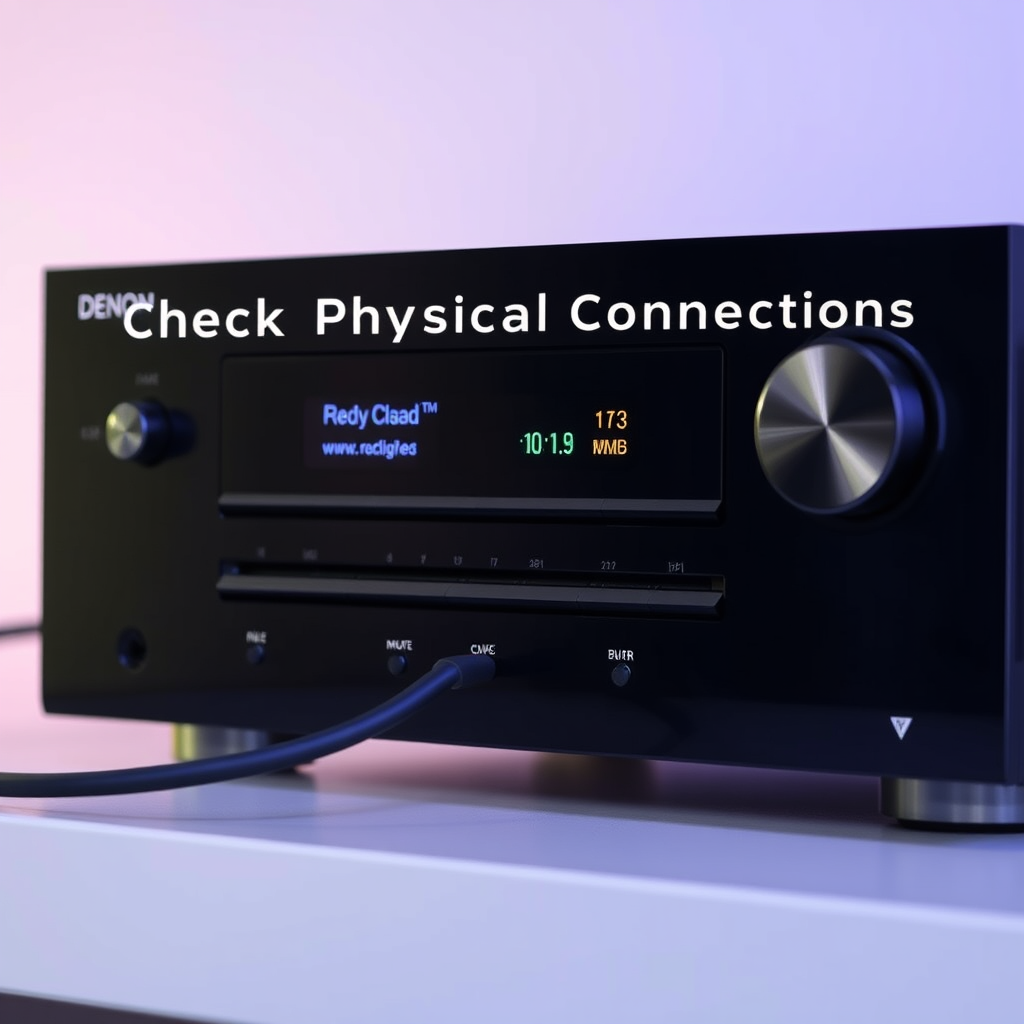
The first step in troubleshooting your Denon AV receiver is to inspect all physical connections. Ensure that all speaker wires are securely connected to both the receiver and the speakers. Loose connections can often cause the receiver to fail in recognizing the speakers. Make it a habit to regularly check these connections, especially if you frequently move your equipment or if it has been a while since your last use.
Additionally, inspect the speaker cables for any signs of damage. Frayed wires or bent connectors can disrupt the audio signal. If you notice any damaged cables, consider replacing them to eliminate this potential issue. Always ensure that the polarity of the connections is correct; the positive and negative terminals should match on both the receiver and the speakers. A simple misconnection can lead to significant sound issues and may prevent the receiver from detecting the speakers altogether.
Verify Speaker Configuration Settings
After confirming that the physical connections are secure, the next step is to verify the speaker configuration settings on your Denon AV receiver. Access the receiver’s setup menu, typically found in the main interface, and navigate to the speaker configuration section. Here, you should confirm that the speaker configuration matches your actual setup, including the number of speakers and their placement in your room.
Make sure to select the correct speaker types and sizes based on your system. For example, if you’re using small bookshelf speakers, ensure that they are classified correctly in the settings. Misconfigured settings can lead to the receiver not recognizing the speakers or not delivering optimal sound quality.
Update Firmware
Keeping your Denon AV receiver updated is crucial for optimal performance. Firmware updates can introduce new features and fix bugs that may be causing issues with speaker recognition. To check for available firmware updates, visit the Denon official website or use the receiver’s built-in network capabilities if it supports them.
Follow the manufacturer’s instructions for performing a firmware update safely. This process usually involves downloading the update to a USB drive and then connecting it to the receiver or downloading it directly over the network. Always ensure that the receiver is powered on and connected to a stable power source during the update process to avoid any interruptions.
Denon AV Receiver Models & Features Comparison
| # | Model | Channels | Power Output (W) | Speaker Config |
|---|---|---|---|---|
| 1 | Denon AVR-X6700H | 11 | 140 | 5.1.4 |
| 2 | Denon AVR-S960H | 7 | 100 | 5.1 |
| 3 | Denon AVR-X250BT | 5 | 70 | 2.1 |
| 4 | Denon AVR-X4500H | 9 | 125 | 5.1.2 |
| 5 | Denon AVR-X1600H | 7 | 80 | 5.1 |
| 6 | Denon AVR-S750H | 7 | 100 | 5.1 |
| 7 | Denon AVR-X8500H | 13 | 150 | 7.1.4 |
Perform a Factory Reset
If issues persist despite checking connections, settings, and updates, performing a factory reset may be necessary. This process restores the receiver to its original factory settings, which can resolve persistent configuration issues. However, it’s important to note that this action will erase all custom settings, including speaker configurations, network settings, and any saved preferences.
Before proceeding, take note of any important configurations you may want to replicate after the reset. The factory reset process typically involves navigating to the settings menu and following the prompts for restoring factory settings. After the reset, you will need to reconfigure your speaker setup, including running any auto calibration features, which we will discuss next.
Use the Auto Setup Feature
Many Denon receivers come equipped with an auto-setup feature, often branded as Audyssey Setup. This feature automatically calibrates the receiver to recognize the connected speakers and optimize audio performance based on your room’s acoustics. To utilize this feature, connect the provided microphone and follow the on-screen prompts.
During the setup, the receiver will play test tones through each speaker to analyze the sound and adjust the settings accordingly. This process can significantly enhance your listening experience by ensuring that the sound is balanced and tailored to your specific environment. Running the auto setup feature can also help in identifying if the receiver is still having trouble recognizing the speakers.
Common Causes for Denon AV Receiver Not Recognizing Speakers
Test with Different Speakers
If you have exhausted the previous troubleshooting steps and your Denon AV receiver still does not recognize your speakers, it may be time to test with a different set of speakers. This method can help you determine whether the issue lies with the receiver or the original speakers.
Connect a different set of speakers to the receiver and observe if they are recognized. If they are, this indicates that the problem likely resides with the original speakers or their connections. If the new speakers are also not recognized, the issue is likely with the receiver itself. This diagnostic step can save you time and effort in addressing the fault.
Seek Professional Help
If none of the above solutions work, consider contacting Denon customer support or seeking help from a professional audio technician. They can provide advanced troubleshooting or repair services if needed. Sometimes, the issue may be more complex, such as a hardware malfunction or an internal failure within the receiver.
Professional technicians have the tools and expertise to diagnose and resolve issues that might be beyond basic troubleshooting. Additionally, they can ensure that repairs are conducted safely and effectively, preserving the longevity of your AV receiver.
Addressing the issue of your Denon AV receiver not recognizing speakers can often be resolved through these straightforward steps. Always begin with the basics: check connections, verify settings, and keep firmware up to date. If you find yourself still struggling, don’t hesitate to reach out for professional assistance. Remember, keeping your receiver updated and properly configured can enhance your audio experience significantly, allowing you to enjoy your favorite movies and music without interruption.
Frequently Asked Questions
How do I troubleshoot my Denon AV receiver that is not recognizing speakers?
To troubleshoot your Denon AV receiver not recognizing speakers, first check all cable connections to ensure they are secure and properly connected. Next, access the receiver’s setup menu to confirm the speaker configuration settings are correct. Additionally, perform a firmware update if available, as this can resolve compatibility issues.
What are the common reasons for a Denon AV receiver not detecting speakers?
Common reasons for a Denon AV receiver not detecting speakers include loose or damaged speaker wires, incorrect speaker configuration settings, or a malfunctioning receiver. Additionally, if the receiver is in a different mode (like HDMI passthrough), it may not recognize the speakers properly. Always check the manual for specific troubleshooting steps related to your model.
Why does my Denon AV receiver show a “No Speaker” message?
A “No Speaker” message on your Denon AV receiver typically indicates that the receiver cannot detect connected speakers due to incorrect wiring or settings. Ensure all speaker wires are firmly connected to both the receiver and the speakers, and verify the speaker configuration in the receiver’s setup menu. If the problem persists, consider resetting the receiver to factory settings.
What is the best way to reset my Denon AV receiver to fix speaker recognition issues?
The best way to reset your Denon AV receiver is to perform a factory reset. To do this, turn off the receiver, then press and hold the “Power” button while simultaneously pressing the “Tone Control” buttons until the display shows “Initialized.” This resets all settings, including speaker configurations, which may resolve any recognition issues.
Which settings should I check if my Denon AV receiver does not recognize my home theater speakers?
If your Denon AV receiver does not recognize your home theater speakers, check the speaker configuration settings in the setup menu to ensure they match your speaker layout. Additionally, verify the audio output settings, ensuring the receiver is set to the correct input source. Lastly, inspect the impedance settings to confirm they are compatible with your speakers.
References
- https://www.denon.com/en-us/support/faq/av-receivers
https://www.denon.com/en-us/support/faq/av-receivers - https://www.audioholics.com/tips-for-audio-setup/denon-avr-setup-guide
https://www.audioholics.com/tips-for-audio-setup/denon-avr-setup-guide - https://www.crutchfield.com/S-6F0f2hW9o63/learn/denon-av-receiver-guide.html
https://www.crutchfield.com/S-6F0f2hW9o63/learn/denon-av-receiver-guide.html - https://www.avforums.com/reviews/denon-avr-s540bt-review.15649
https://www.avforums.com/reviews/denon-avr-s540bt-review.15649 - Google Scholar Google Scholar
https://scholar.google.com/scholar?q=Denon+AV+Receiver+not+recognizing+speakers - Google Scholar Google Scholar
https://scholar.google.com/scholar?q=fix+Denon+AV+Receiver+speaker+issues - Google Scholar Google Scholar
https://scholar.google.com/scholar?q=AV+Receiver+troubleshooting - https://www.fcc.gov/consumers/guides/home-theater-systems-and-av-receivers
https://www.fcc.gov/consumers/guides/home-theater-systems-and-av-receivers - Google Scholar Google Scholar
https://scholar.google.com/scholar?q=How+to+Fix+Denon+AV+Receiver+Not+Recognizing+Speakers - How to Fix Denon AV Receiver Not Recognizing Speakers – Search results
https://en.wikipedia.org/wiki/Special:Search?search=How+to+Fix+Denon+AV+Receiver+Not+Recognizing+Speakers
