
Mesh Wi-Fi Ethernet ports connect wired devices and can link mesh nodes through Ethernet backhaul—but when is using them better than relying on wireless? If you can run cable between compatible nodes, Ethernet backhaul wins for consistent speeds and lower latency, especially through thick walls. Here’s what each port does and how to tell whether a wired connection will improve your setup.




Mesh Wi-Fi Ethernet ports connect your main mesh unit to the internet, let compatible units serve wired devices, and can link mesh units through wired backhaul. Their roles depend on the model: some ports are WAN-only, some are LAN-only, and others automatically switch roles. This guide explains what each connection does and what to check before plugging anything in.
This article is for anyone connecting a computer, TV, console, or Ethernet switch to a mesh system—or considering Ethernet cables between mesh units. Check the documentation for your exact model, because ports and supported wiring arrangements can differ even within the same product family.
What the Ethernet Ports on Mesh Units Do
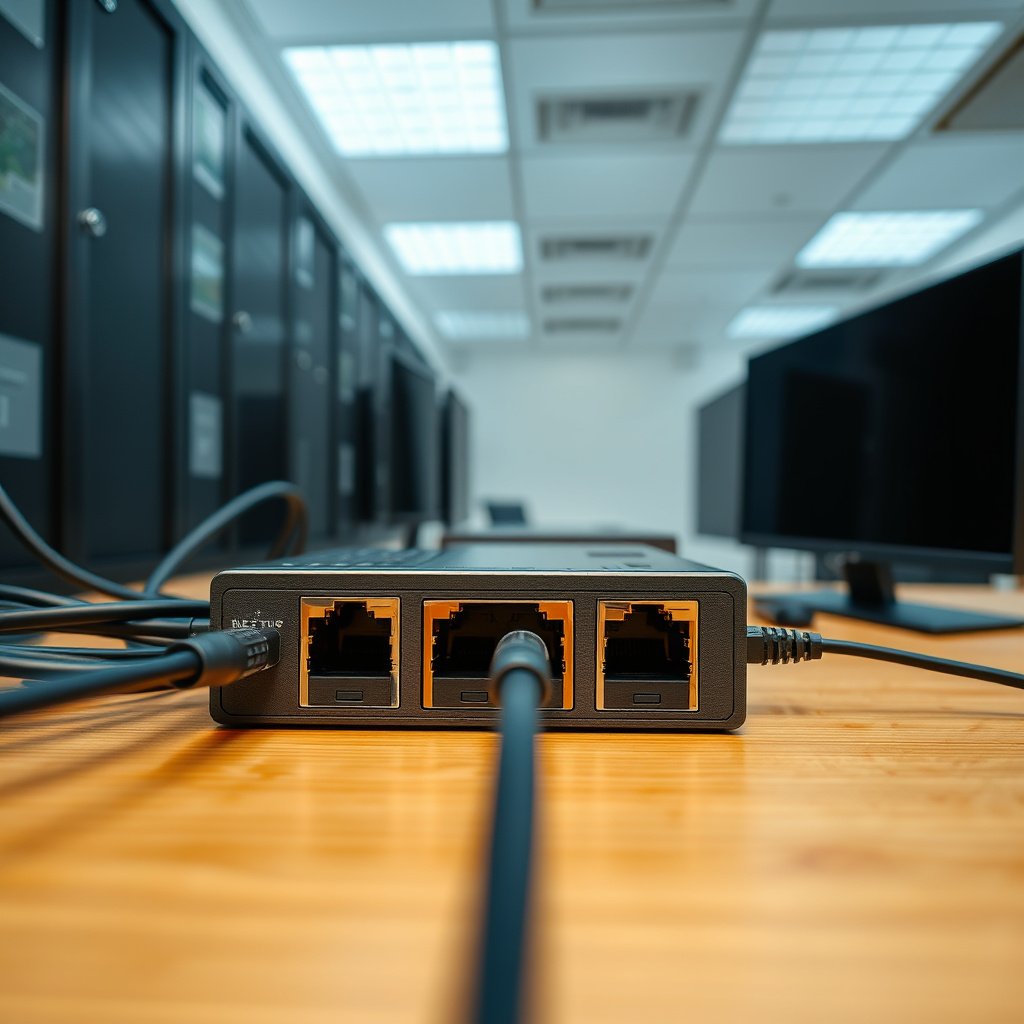
WAN ports connect toward the internet; LAN ports connect devices within your local network. WAN means *wide area network*, while LAN means *local area network*.
The main mesh router typically connects its WAN port to a modem, optical network terminal (ONT), or upstream router. Satellite units extend the network and may provide LAN connections, Ethernet backhaul, or neither. An upstream router may require additional configuration to avoid running two separate routing layers.
A mesh unit’s Ethernet connector shape does not establish its speed, WAN/LAN role, or support for wired backhaul.
For example, TP-Link lists automatic WAN/LAN detection on the Deco models below. Other systems use dedicated ports. Never assume that a port labeled “Internet” can serve a computer without checking its documented role.
According to [TP-Link’s Deco X20 specifications](https://www.tp-link.com/us/deco-mesh-wifi/product-family/deco-x20/#specifications), each Deco X20 has two Gigabit Ethernet ports. According to [Deco XE75 Pro specifications](https://www.tp-link.com/us/deco-mesh-wifi/product-family/deco-xe75-pro/#specifications), each unit has one 2.5 Gbps port and two Gigabit ports. According to [Google’s technical specifications](https://support.google.com/googlenest/answer/6280668), the Nest Wifi point has no Ethernet ports. These distinctions remain important when selecting hardware in 2026.
Google Nest Wifi routers and Nest Wifi points have different Ethernet capabilities; the Nest Wifi point cannot accept an Ethernet cable.
Ethernet Hardware on Seven Mesh Models
| # | Model | Ports per Unit | Port Roles | Ethernet Backhaul |
|---|---|---|---|---|
| 1 | TP-Link Deco X20 | 2 × 1 Gbps | Auto WAN/LAN | Supported |
| 2 | TP-Link Deco X50 | 3 × 1 Gbps | Auto WAN/LAN | Supported |
| 3 | TP-Link Deco X55 | 3 × 1 Gbps | Auto WAN/LAN | Supported |
| 4 | TP-Link Deco XE75 | 3 × 1 Gbps | Auto WAN/LAN | Supported |
| 5 | TP-Link Deco XE75 Pro | 1 × 2.5 Gbps; 2 × 1 Gbps | Auto WAN/LAN | Supported |
| 6 | TP-Link Deco X50-PoE | 1 × 2.5 Gbps; 1 × 1 Gbps | Auto WAN/LAN | Supported |
| 7 | Google Nest Wifi point | 0 | No Ethernet ports | Not supported |
Connecting Devices to a Mesh Unit
Connect a computer, television, console, or other Ethernet-equipped device to an available LAN port. The device normally obtains its network settings automatically; a dedicated WAN port is not interchangeable with a LAN port.
Connecting a device to a wireless satellite by Ethernet wires only the device-to-satellite segment.
For example, a console connected to a satellite still depends on Wi-Fi between that satellite and the main router if wireless backhaul remains active. This can bypass the console’s own Wi-Fi limitations, but it cannot remove interference affecting the satellite’s uplink.
An Ethernet switch adds connections when a usable LAN port is available. Connect the switch upstream to that LAN port, then attach devices to the switch. For satellite connections, follow the manufacturer’s topology and switch-compatibility requirements rather than assuming every switch works identically.
An Ethernet switch expands local port capacity but does not increase the capacity of its upstream connection.
Ethernet Backhaul: Wiring Mesh Units Together
Ethernet backhaul carries traffic between compatible mesh units over cable instead of a wireless link. Its main advantage is reducing dependence on radio conditions between those units.
For Deco in router mode, [TP-Link’s official backhaul guide](https://www.tp-link.com/us/support/faq/1794/) illustrates arrangements such as:
Modem/ONT → main Deco → Ethernet switch → satellite Decos
The satellites sit downstream of the main Deco, not alongside it on an upstream switch. TP-Link’s guide includes topology diagrams and setup instructions; establish the mesh as directed before adding backhaul cables.
Wired backhaul does not increase the speed purchased from an internet provider.
In access-point mode, an existing router handles routing, and supported wiring arrangements can differ. Check the mode-specific diagram before moving cables.
- Benefit
- Wired backhaul reduces exposure to interference, walls, and distance between mesh units.
- Trade-off
- Installation requires cable routes and suitable ports; Wi-Fi clients still need adequate coverage.
Ethernet backhaul improves the connection between mesh units, not necessarily the wireless connection between a client and its nearest unit.
What Can Go Wrong With Mesh Ethernet Connections
Incorrect topology, unsuitable port assignments, and slow links can prevent Ethernet connections from working as expected. Compare the proposed wiring with the approved diagram before changing connections.
Avoid redundant cables that create an unintended network loop. Do not connect both sides of a mesh router to the same upstream network unless its documentation explicitly supports that arrangement. A port reserved or configured for WAN may not accept a local device.
A physically connected Ethernet cable does not prove that the intended network path is active.
Check damaged cables, connector terminations, and negotiated link speed—the rate agreed between connected Ethernet interfaces. A link negotiating at 100 Mbps can bottleneck equipment with Gigabit ports. Likewise, a fast device-to-satellite cable cannot bypass that satellite’s slow wireless uplink.
Ethernet connectivity, Ethernet backhaul, and Power over Ethernet are separate hardware capabilities.
Power over Ethernet (PoE) supplies electrical power through compatible Ethernet equipment. The Deco X50-PoE supports IEEE 802.3at PoE; that feature must not be assumed for the other Deco models listed.
When Using Ethernet Is Worth the Effort
Choose wired backhaul when your system supports it and cable installation is practical. It is particularly useful where walls or distance weaken the connection between mesh units.
Device-to-node Ethernet is worthwhile for a stationary workstation, television, or console, especially when its own Wi-Fi connection is unreliable. However, the satellite’s remaining wireless uplink can still limit performance.
Wiring a stationary device can remove one wireless hop without creating an entirely wired route to the router.
Skip new wiring when the existing network already meets your needs, the hardware lacks support, or installation would require disproportionate disruption. For a 2026 upgrade, verify whether the limiting factor is coverage, backhaul, device capability, or the internet service before buying equipment.
New Ethernet cabling is optional when an existing mesh network already provides reliable performance for its users.
Before You Plug In: A Saveable Checklist
Confirm the hardware, trace the intended path, and verify the result. These checks distinguish a working cable from a correctly configured mesh connection.
– Check the hardware: Confirm the exact model and hardware revision, available ports, WAN/LAN assignments, and documented port speeds. Check PoE separately.
– Check the connection path: Identify whether the goal is connecting a device or creating wired backhaul. Verify the permitted topology, switch placement, and router or access-point mode.
– Check the result: Use the mesh app or administration interface, where supported, to confirm backhaul type and link status. In the Deco interface illustrated by TP-Link’s backhaul guide, open the network map through the Internet icon, select the satellite Deco, and inspect Connection Type. App labels can vary by version.
Backhaul status should be checked in the mesh management interface rather than inferred from an internet speed test.
An Ethernet link’s negotiated speed and an internet speed-test result measure different parts of a network connection.
Sources for Model-Specific Details
Use manufacturer specifications for hardware capabilities and official support guides for wiring rules. Select the correct regional page and hardware revision where applicable.
– Port roles and speeds: TP-Link specifications for [Deco X20](https://www.tp-link.com/us/deco-mesh-wifi/product-family/deco-x20/#specifications), [X50](https://www.tp-link.com/us/deco-mesh-wifi/product-family/deco-x50/#specifications), [X55](https://www.tp-link.com/us/deco-mesh-wifi/product-family/deco-x55/#specifications), [XE75](https://www.tp-link.com/us/deco-mesh-wifi/product-family/deco-xe75/#specifications), and [XE75 Pro](https://www.tp-link.com/us/deco-mesh-wifi/product-family/deco-xe75-pro/#specifications).
– PoE and Ethernet specifications: [TP-Link Deco X50-PoE](https://www.tp-link.com/us/deco-mesh-wifi/product-family/deco-x50-poe/#specifications).
– Models without Ethernet: [Google Nest Wifi and Google Wifi technical specifications](https://support.google.com/googlenest/answer/6280668).
– Backhaul compatibility, topology diagrams, switches, operating modes, and status checks: [TP-Link Ethernet Backhaul FAQ](https://www.tp-link.com/us/support/faq/1794/).
Manufacturer specifications establish Ethernet hardware capabilities; setup documentation establishes supported connection arrangements.
Instructions for one mesh product family should not be treated as universal wiring rules for another.
Mesh Wi-Fi Ethernet ports can serve different purposes, so the right connection depends on both the port’s role and the mesh system’s supported setup. Start by checking your model’s documentation, decide whether you need a wired device connection or wired backhaul, and verify the connection status afterward. If your current network already works reliably, adding cables may not be necessary.
Frequently Asked Questions
What are the Ethernet ports on a mesh Wi-Fi system used for?
Mesh Wi‑Fi Ethernet ports are primarily used to connect devices for stable wired performance and to link mesh nodes to the network. On many systems, an Ethernet port can provide a wired backhaul between nodes, which often improves speed and reduces latency compared to wireless backhaul. Some models also include additional LAN ports for connecting computers, TVs, game consoles, or access points without using Wi‑Fi.
How do I tell which Ethernet port on a mesh node is for WAN, LAN, or backhaul?
Look for labeling in the node’s setup app or on the hardware (commonly “WAN/Internet,” “LAN,” and sometimes a dedicated “Backhaul/Sync” port). In most mesh Wi‑Fi systems, the WAN/Ethernet port connects to your modem or gateway, while LAN ports connect local devices. If your mesh supports wired backhaul, a specific port may be designated for connecting another node via Ethernet—using the wrong port can cause the node to not join correctly.
Why does wired backhaul through mesh Wi‑Fi Ethernet ports improve performance?
When mesh nodes communicate over Ethernet backhaul, they bypass wireless interference and congestion that can limit speeds in busy homes. This typically results in more consistent throughput for streaming, gaming, and video calls across the entire house. Wired backhaul can also reduce latency spikes caused by Wi‑Fi retransmissions between nodes.
Which mesh Wi‑Fi setup is best if I have multiple Ethernet ports in my home?
If you can run Ethernet from the main router location to other rooms, using wired backhaul with the mesh Wi‑Fi Ethernet ports is often the best option for maximum performance. If wired runs aren’t feasible, you can use Wi‑Fi backhaul and reserve Ethernet ports to connect high-bandwidth devices like smart TVs, desktops, or NAS. A common “best practice” is to wire only the links between mesh nodes and keep end devices on LAN for reliable speeds.
Best practices for using mesh Wi‑Fi Ethernet ports with smart home devices and gaming?
For devices that need stability—like game consoles, PCs, and IPTV boxes—use the mesh node’s LAN Ethernet ports to reduce buffering and improve gaming responsiveness. For smart home hubs and cameras, wired connections can also prevent dropouts, but ensure you’re using the correct port type (LAN rather than WAN) to avoid network segmentation issues. After plugging devices in, confirm their connection status in the mesh app and consider enabling QoS/priority features if your system supports them.
📅 Last Updated: October 16, 2026 | Topic: Mesh Wi-Fi Ethernet Ports Explained | Content verified for accuracy and freshness.
References
- Mesh networking
- Wireless mesh network
- IEEE 802.11s
- https://en.wikipedia.org/wiki/Wireless_backhaul
- Backhaul
- Router
- Ethernet
- https://scholar.google.com/scholar?q=mesh+wifi+ethernet+backhaul+ports Google Scholar
- https://scholar.google.com/scholar?q=wired+backhaul+mesh+network+performance Google Scholar
- https://scholar.google.com/scholar?q=802.11s+mesh+network+backhaul+ethernet Google Scholar




One thought on “Mesh Wi-Fi Ethernet Ports Explained”