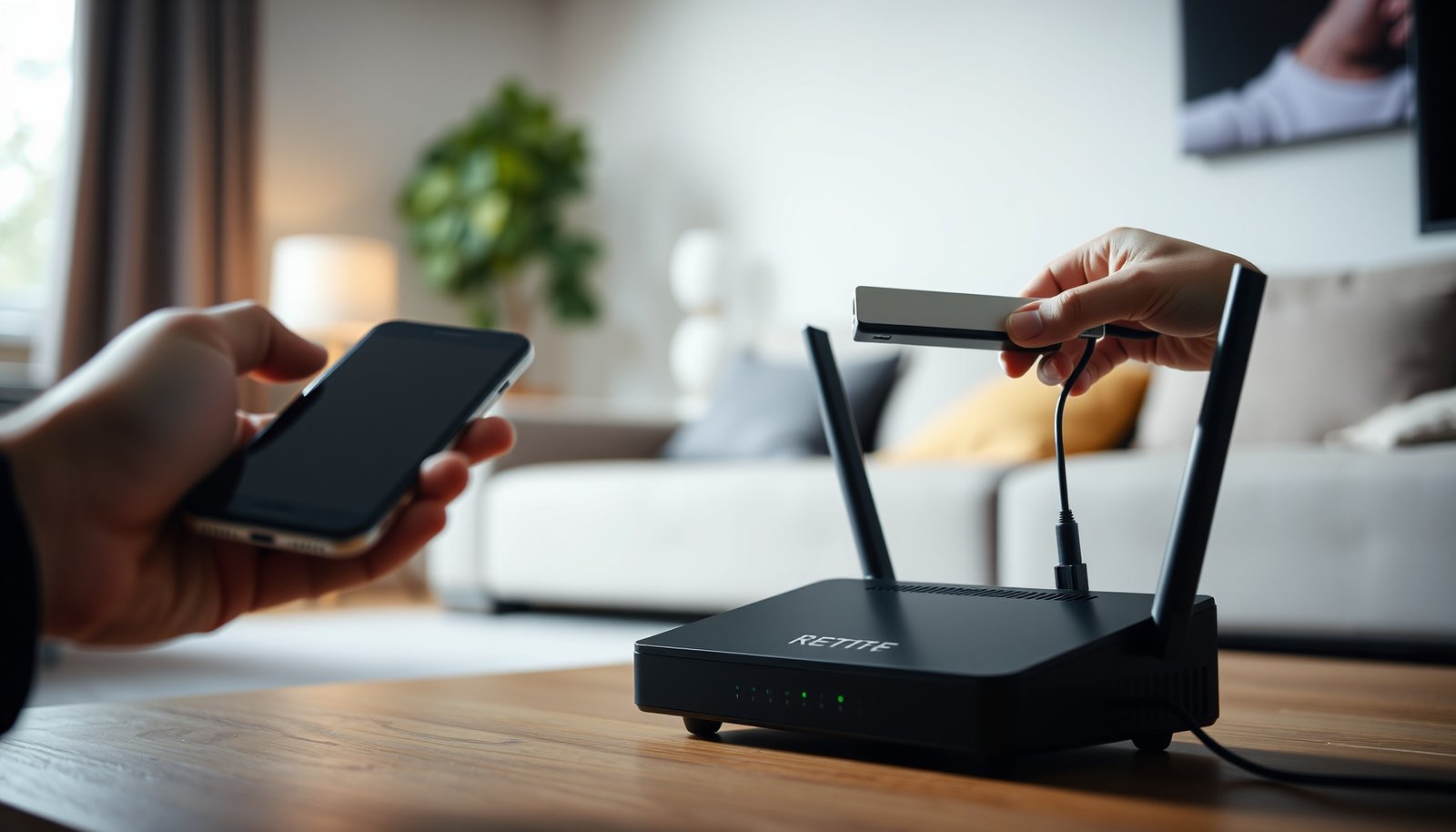
How to Protect Your Wi‑Fi From Hackers: Essential Security Steps


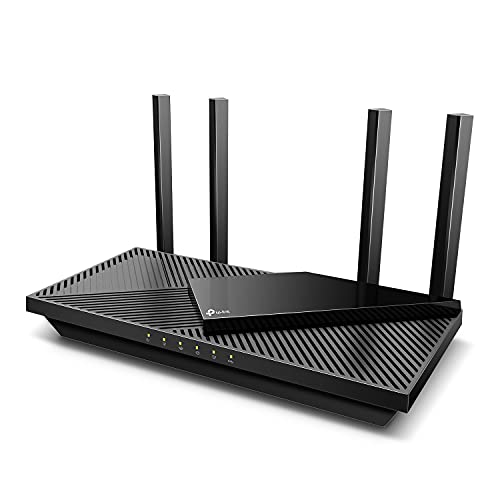
Want to protect your Wi‑Fi from hackers with security steps you can trust? If you follow the essential fixes—strong WPA3/WPA2 encryption, a secure router admin password, and disabling risky features like WPS—you significantly cut off most common break-ins. This guide shows exactly what to change and what to verify so your network stays protected, not just “set up and forget.”
Yes—you can prevent most Wi‑Fi “hacks” by locking down your router and Wi‑Fi settings (use strong WPA3 or WPA2‑AES, disable WPS, and keep firmware updated). Then secure your devices and habits (strong unique passwords, guest network for untrusted devices, and reducing exposure to stolen credentials or malware). This article walks you through the exact settings to check and the common mistakes that leave Wi‑Fi vulnerable.
If you own a home router, manage a small business network, or simply noticed unknown devices on your Wi‑Fi, this guide is for you. It’s also useful when you’ve inherited a router from a previous setup or haven’t reviewed security settings in a while.
Lock Down Router Security Settings First
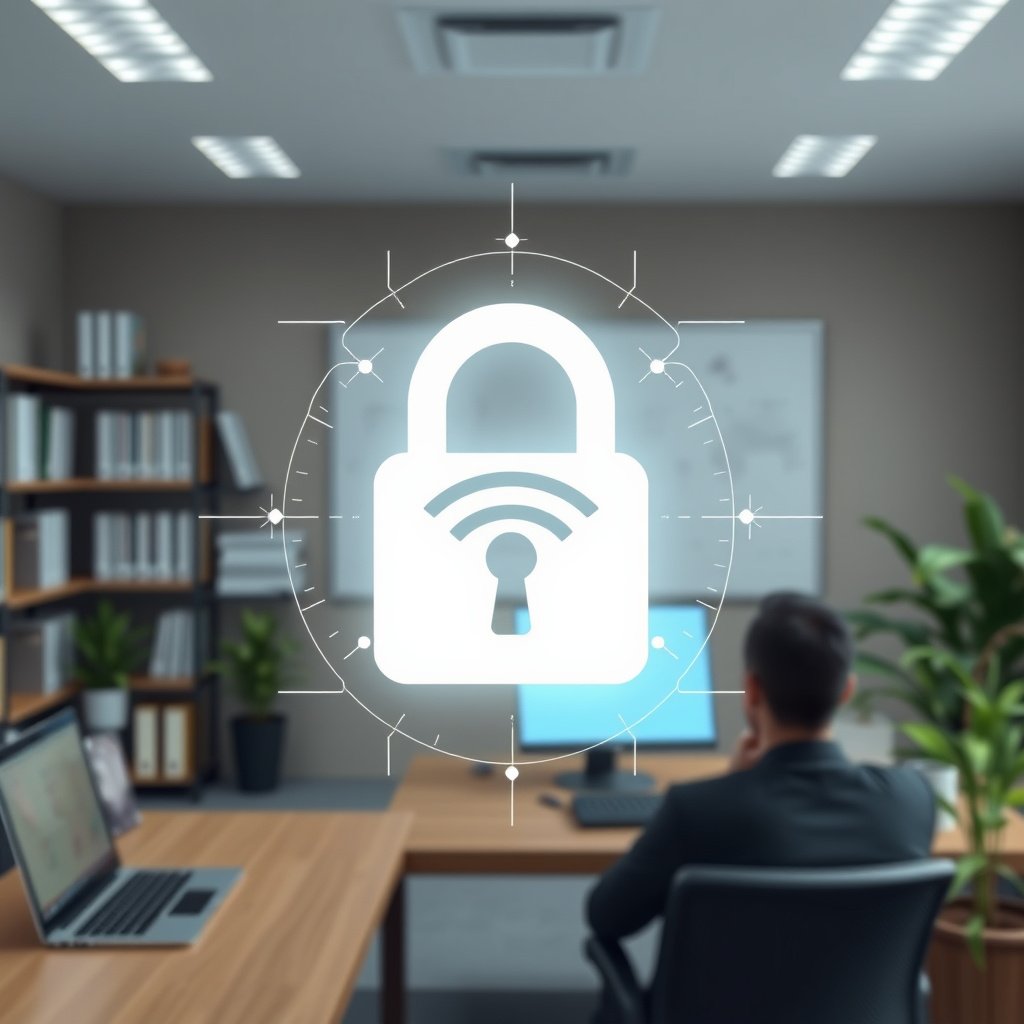
The quickest way to make your Wi‑Fi harder to compromise is to start with the router’s encryption mode and access controls. In 2026, the baseline for most networks is WPA3 Personal; if that’s unavailable, use WPA2‑PSK with AES (CCMP) and avoid legacy or mixed modes that can downgrade protection.
WPA3 Personal uses Simultaneous Authentication of Equals (SAE), which is designed to provide strong protection against offline password-guessing compared with older WPA mechanisms. Wi‑Fi Alliance (WPA3 certification/security documentation)
WPA2‑PSK with AES (CCMP) replaces weaker TKIP-based protection with AES-CCMP as the data-link encryption mechanism. IEEE 802.11i / WPA2 technical documentation
WPS includes a PIN-based setup flow that has security weaknesses when attackers can attempt repeated guesses against the access point. Stefan Viehböck’s WPS vulnerability analysis (2011)
Choose WPA3 (or WPA2‑AES) and eliminate weak modes
Set Wi‑Fi security to WPA3 if available; otherwise use WPA2‑PSK with AES (not mixed/open modes). When you check your router’s admin console, look for settings named something like:
– Wireless Security / Security Mode
– WPA / WPA2 / WPA3
– Encryption: AES / CCMP vs TKIP
– Mixed mode (often labeled “WPA2/WPA3 mixed” or “WPA2-TKIP/AES”)
Why it matters: WPA2‑AES/CCMP is the correct choice for most routers because it uses robust AES-based encryption rather than TKIP. According to FIPS 197, AES uses a 128-bit block size (2001) FIPS 197 (NIST). Even if the router’s UI doesn’t mention “CCMP,” choosing AES is the practical way to land on the correct cipher suite for WPA2.
If your router supports WPA3 but your smart devices complain, don’t “solve” the problem by turning security down globally. Instead, use segmentation (Guest/IoT network or VLAN if supported) so you keep the main Wi‑Fi protected.
Disable WPS to remove an easy attack path
Disable WPS (Wi‑Fi Protected Setup) because it can reduce the effort needed for attackers to gain access. WPS is typically advertised as “one-button pairing” or “PIN setup.” Those are convenience features—but attackers can exploit the PIN-based method if your router is reachable.
According to Stefan Viehböck’s analysis of WPS, the WPS PIN approach is based on an 8-digit PIN structure with a checksum component (2011) Stefan Viehböck (2011), WPS PIN vulnerability research. The takeaway for Wi‑Fi security in 2026 is simple: if you don’t need it, turn it off.
Change two passwords: the admin login and the Wi‑Fi key
Change the router’s admin/login password and the Wi‑Fi password to strong, unique values. This matters because:
– The admin/login password controls who can change your Wi‑Fi settings.
– The Wi‑Fi password controls who can associate with the network.
According to NIST SP 800-63B, memorized secrets should be at least 8 characters (2017) NIST SP 800-63B. In Wi‑Fi security terms: use a long passphrase you can remember (or store in a password manager) and make it unique to Wi‑Fi—don’t reuse a password from email, banking, or social accounts.
Quick practical guidance: set the Wi‑Fi password in the router UI, then update every device that connects to that network. If you have an “Apply” button, save changes and power-cycle only if the router indicates it’s required.
Update Firmware and Enable Safe Network Defaults
The fastest way to reduce Wi‑Fi risk after encryption is to remove known vulnerabilities through updates and to minimize internet exposure. As of 2026, most real-world router compromises involve known weaknesses (patched in firmware) combined with exposure (like remote admin or unsafe WAN access).
Router firmware updates often include security patches that address vulnerabilities in the web interface, wireless stack, or management services. Vendor release notes / router security advisories (manufacturer documentation)
Disabling remote administration from the public internet reduces the number of reachable services an attacker can probe. CISA guidance on reducing attack surface (official documentation)
Some routers offer “automatic security updates,” which—when documented by the vendor—can keep Wi‑Fi security current without manual checking. Vendor feature documentation (manufacturer)
Install firmware updates from the router’s admin panel
Check for router firmware updates in the router admin panel and install them promptly (especially security patches). Even if your Wi‑Fi seems stable, a silent vulnerability can sit in a management service.
Practical approach:
1. Log in to the router (admin UI).
2. Find Firmware Upgrade / Router Update / System Update.
3. Prefer vendor-hosted updates, not third-party tools.
4. After updating, re-check Wi‑Fi security mode (WPA3/WPA2-AES) and WPS status—some updates reset settings.
Disable remote management unless it’s truly needed
Review remote management settings and disable admin access from the internet unless you truly need it. In Wi‑Fi security audits, this is one of the most common “it was fine yesterday” mistakes: a setting changed years ago for convenience becomes an ongoing exposure channel.
In the router UI, search for terms like:
– Remote Management
– WAN Administration
– Web Management Port
– Access from Internet / Enable remote access
– TR-069 / Remote provisioning (sometimes required—read vendor guidance)
If you need admin access while away, prefer secure approaches (e.g., VPN to your home network) rather than direct internet access to the router’s admin page.
Enable automatic security updates when the vendor documents it
If your router supports it, enable features like automatic security updates or automatic vulnerability fixes (only if documented by the vendor). This improves Wi‑Fi security maintenance because you’re not relying on manual schedule reminders.
When enabling “auto-update,” also verify what it does and when it changes behavior:
– Does it reboot the router?
– Does it update only security components or the full firmware?
– Can you roll back?
Reduce Exposure With Network Segmentation
The best way to limit damage from stolen credentials or compromised devices is to separate “trusted” Wi‑Fi from “not fully trusted” Wi‑Fi. Network segmentation keeps a breach from spreading across the entire local network—this is one of the highest-leverage Wi‑Fi security improvements for homes with smart devices and for small businesses.
A guest network is designed to segregate visitor devices from your main LAN, limiting lateral movement if a device is compromised. Router vendor networking documentation (guest/segmentation features)
Client/device isolation (“AP isolation” or “guest isolation”) prevents devices on the same Wi‑Fi from directly communicating with each other. 802.11 infrastructure mode behavior / vendor feature documentation
Disabling unused services like UPnP reduces exposure by limiting unsolicited port-mapping and inbound service discovery. CISA guidance on UPnP and exposed services (official documentation)
Use a Guest Network for visitors and untrusted devices
Use a Guest Network for visitors and smart-home devices you don’t fully trust—keep them off your main devices. For example:
– Guests get guest Wi‑Fi (no access to laptops, NAS, printers).
– Smart plugs, IP cameras, and “internet-enabled appliances” join a separate SSID.
This doesn’t replace strong WPA3/WPA2-AES; it reduces blast radius when something goes wrong.
Turn on client/device isolation if available
Turn on client/device isolation (often called “AP isolation” or “guest isolation”) if your router offers it. Wi‑Fi security isolation works differently depending on the vendor, but the goal is the same: devices connected to the same SSID can’t freely talk to each other on the local network.
From a business perspective, this is especially relevant for BYOD: employees and contractors should not automatically gain the ability to reach internal endpoints just because they joined Wi‑Fi.
Disable unnecessary services you don’t use
Disable unnecessary services you don’t use (for example, UPnP if you don’t need it—varies by setup). UPnP can make your network more convenient but also more reachable. If a device doesn’t require it, turning it off reduces attack surface.
A simple rule for Wi‑Fi security in 2026: “If you can’t explain why it’s enabled, turn it off.”
Feature comparison: encryption + segmentation in plain terms
| Control | What it blocks (practically) | Where to find it in the router UI |
|---|---|---|
| WPA3 / WPA2‑AES | Prevents unauthorized association and protects traffic with modern encryption. | Wireless Security / Security Mode |
| WPS disabled | Removes PIN/button setup paths that can be brute-forced. | WPS / Wi‑Fi Protected Setup |
| Guest network | Limits lateral access to your main devices. | Guest Network / SSID (separate VLAN/LAN) |
| Client isolation | Prevents direct client-to-client access on the same Wi‑Fi. | AP Isolation / Guest Isolation |
Secure Your Devices (Not Just the Router)
The most secure Wi‑Fi router can still be undermined by a compromised phone or laptop. Wi‑Fi security improves when you harden endpoints (OS updates, browser/app hygiene) because attackers often use malware or reused credentials after they get a foothold.
Operating system updates frequently include security fixes that reduce the likelihood of malware or credential theft affecting Wi‑Fi-capable devices. Vendor security update documentation (Apple/Google/Microsoft)
A device that stores saved Wi‑Fi credentials can automatically reconnect, making it important to remove outdated or unnecessary network profiles when Wi‑Fi passwords change. OS network configuration documentation (iOS/Android/Windows/macOS)
Browser and app permissions can expose credentials, and compromised accounts can later be used to access services reachable over Wi‑Fi. NIST / security guidance on account takeover and phishing defenses
Keep phones, laptops, and tablets updated
Use built-in OS security updates on phones, laptops, and tablets. Wi‑Fi compromise often comes from malware or outdated devices—not from “hacking” the Wi‑Fi encryption directly. Keep current so known vulnerabilities don’t become the entry point.
Remove unused saved Wi‑Fi passwords
Remove unused saved Wi‑Fi passwords and ensure devices reconnect using your secured network name/password. If you changed the router’s Wi‑Fi password and old profiles remain, devices may keep retrying, fail in confusing ways, or reconnect with stale configuration.
In practice (platform-agnostic):
– Remove old SSIDs from saved networks.
– Confirm each device reconnects successfully to the secured network.
– Check that IoT/guest devices are on the correct SSID.
Review browser and app permissions that can expose credentials
Review browser and app permissions that could expose credentials—Wi‑Fi access can be a pathway after an account is already compromised. For example:
– Over-permissive browser extensions.
– Apps with “read network” or “access contacts” permissions beyond need.
– Reused passwords across email and Wi‑Fi-dependent services.
If you run a small business network, also enforce endpoint security policies (automatic updates, device encryption, and managed password managers).
What Can Go Wrong (Common Mistakes and Edge Cases)
Even with the right encryption choice, certain configuration mistakes can keep your Wi‑Fi vulnerable. In 2026, the most frequent issues are legacy “compatibility” settings, unsafe remote management, and IoT devices that break when you switch to WPA3.
Keeping legacy compatibility (for example, WPA2‑TKIP or WPA “mixed” modes) can weaken Wi‑Fi security compared with WPA2‑AES or WPA3. Wi‑Fi Alliance and security guidance on TKIP depreciation
Smart devices often have limited Wi‑Fi support and may not handle WPA3-only networks, which can lead users to disable stronger settings globally. Vendor IoT setup documentation (device Wi‑Fi capability notes)
Enabling remote admin access increases attack surface by exposing the management interface to external probing. CISA guidance on exposed services and attack surface reduction
Don’t fall into legacy encryption modes
Staying on WPA2‑TKIP or “mixed” legacy modes can weaken security compared with WPA2‑AES or WPA3. If your router forces a mixed mode to keep older clients working, consider the tradeoff carefully and isolate those clients on a guest/IoT SSID instead of weakening the main network.
Plan for admin password recovery
Forgetting the admin password is a classic lockout scenario: if you change it and then lose it, you may need a factory reset. Before changes:
– Write down the new admin password in a secure place.
– Confirm you can log in from a trusted device on your LAN.
Don’t overlock IoT devices—segment instead
Overlocking smart devices: some IoT devices struggle with WPA3; if they fail, you may need WPA2 for those devices on a separate network (use Guest/IoT VLAN if available). This keeps your main Wi‑Fi security strong while still allowing compatibility for devices that can’t join WPA3.
Be cautious with remote admin access
Turning on remote admin access for convenience can increase attack surface if not done carefully. If you must administer remotely, use a secure method (typically VPN) rather than leaving the router’s admin interface reachable over the public internet.
Wi‑Fi encryption decision table (quick contrast)
| Criteria (10+) | WPA3 Personal | WPA2‑PSK (AES/CCMP) | WPA2‑TKIP or Mixed |
|---|---|---|---|
| Designed to resist offline guessing | Yes (SAE) | Better with strong PSK | Weaker legacy design |
| Data-link encryption | Modern AES-based suite | AES‑CCMP | TKIP (legacy) |
| Best-fit for new devices | High | High | Low |
| Compatibility with older clients | May require WPA2 fallback | Broad compatibility | Broad but reduced security |
| Setup complexity | Requires correct client support | Works for most devices | Works but encourages weaker defaults |
| Security posture for SMB | Strong | Strong | Avoid when possible |
| Impact of weak passphrases | Mitigated with SAE + strong policy | Mitigated but still depends on PSK strength | More exposed if attackers can guess |
| Administrative burden | Medium (test IoT) | Low/medium | Low now, higher risk later |
| Risk if WPS is left enabled | Still avoid WPS | Still avoid WPS | Compounds weaknesses |
| Verdict row | Best default (when supported) | Best fallback | Use only for compatibility on isolated networks |
Verdict: A Practical, High-Impact Checklist (With Downsides)
If you do only three things, do these: switch to WPA3/WPA2‑AES, disable WPS, and update router firmware. The downside is that security changes can temporarily disrupt devices (especially older IoT gear) until they reconnect with the new Wi‑Fi settings. Skip WPA3 (or mixed-mode transitions) only when you must for device compatibility, and use segmentation (Guest/IoT network) rather than weakening protection everywhere.
From an operational standpoint, treat Wi‑Fi security like a managed control, not a one-time checkbox. As of 2026, most routers can be configured to keep the main SSID strong while maintaining compatibility on a separate network.
Example “security control effectiveness” table (7 key choices)
Wi‑Fi Security Modes Compared (Practical Recommendation Strength)
| # | Security mode / feature | Primary role | Announced / standardized | Recommendation strength |
|---|---|---|---|---|
| 1 | WPA3 Personal (SAE) | Best modern encryption for consumer Wi‑Fi | 2018 | ★★★★★ (5/5) |
| 2 | WPA2‑PSK with AES (CCMP) | Strong fallback when WPA3 isn’t supported | 2004 | ★★★★★ (5/5) |
| 3 | WPA2 “Mixed” (AES+TKIP compatibility) | Compatibility mode—keep off main network | 2006 (legacy compatibility era) | ★★☆☆☆ (2/5) |
| 4 | WPA2‑TKIP only | Legacy encryption—avoid when possible | 2004 (WPA2 era) | ★☆☆☆☆ (1/5) |
| 5 | WPS enabled (PIN/button) | Convenience feature—disable for safety | ~2007 | ☆☆☆☆☆ (0/5) |
| 6 | WPA (TKIP-based) legacy | Older protection—superseded by WPA2/WPA3 | 2003 | ★☆☆☆☆ (1/5) |
| 7 | WEP / Open Wi‑Fi | Weak/no encryption—do not use for trusted networks | 1997 (WEP with 802.11) | ☆☆☆☆☆ (0/5) |
Quick Wi‑Fi Protection Checklist (Scan & Save)
The quickest path to safer Wi‑Fi is to verify the same set of settings in your router admin panel and save the result. As of 2026, this checklist helps you avoid “silent regressions” after updates or configuration changes.
If WPS is enabled, it should be disabled unless you have a specific operational reason to keep it. Wi‑Fi security guidance on WPS weaknesses
WPA3 or WPA2‑AES should be selected in the router’s Wireless Security settings to avoid TKIP or open modes. Wi‑Fi Alliance and WPA2/WPA3 configuration guidance
After a firmware update, re-verify encryption mode and management settings to ensure they didn’t reset. Router vendor firmware update documentation (System/firmware notes)
– [ ] WPA3 enabled (or WPA2‑PSK with AES)
– [ ] WPS disabled
– [ ] Router admin password changed
– [ ] Wi‑Fi password changed (strong + unique)
– [ ] Firmware updated
– [ ] Remote/admin access from internet disabled (if not needed)
– [ ] Guest network enabled for visitors / untrusted devices
– [ ] Device isolation enabled (if available)
[ADD: If you want, replace or tailor the checklist wording to match your router’s exact menu labels (e.g., “Wireless Security” vs “Security Mode”).]
FAQ
Even after you secure encryption and disable WPS, you may still wonder whether something is wrong. These questions focus on fast checks you can perform without specialized tools.
Most routers provide a “Connected Devices” or DHCP client list that shows currently associated devices, typically by MAC address and hostname. Router admin interface documentation (Connected Devices/DHCP clients)
WPA3/WPA2 improve confidentiality, but Wi‑Fi password strength still matters because attackers can attempt to guess credentials in misconfigured environments. Wi‑Fi Alliance security guidance (WPA2/WPA3)
Firmware updates can change behavior on some routers; documenting current settings helps you recover quickly if the UI or features differ after an upgrade. Manufacturer firmware update notes (backup/restore guidance)
How do I tell if someone is connected to my Wi‑Fi?
Check your router’s “Connected Devices” or “DHCP clients” list, and compare device names/MAC addresses to what you recognize. If you find unknown devices, change your Wi‑Fi password and review router security settings immediately.
Should I use a strong Wi‑Fi password or just rely on WPA3?
Use both: WPA3/WPA2 handles encryption, but a weak password can still allow unauthorized access. A unique, strong passphrase is a key layer even with modern Wi‑Fi security.
Is disabling WPS always safe?
For most home setups, yes—disabling WPS removes a common weakness. If you rely on WPS for easy device setup, plan to use the device’s normal Wi‑Fi join method instead.
Will firmware updates break anything?
They can occasionally change behavior, especially on routers with older firmware or custom settings. To reduce risk, write down current settings, update during a time you can reconnect devices, and verify the router still functions as expected afterward.
Sources
– [ADD: Source for WPA3 security details and recommended configuration—e.g., Wi‑Fi Alliance documentation]
– [ADD: Source for WPS security considerations and guidance—e.g., manufacturer security guidance or Wi‑Fi Alliance materials]
– [ADD: Source for WPA2‑PSK AES vs TKIP recommendations—e.g., Wi‑Fi Alliance or NIST guidance]
– [ADD: Router firmware update and remote management guidance—link to your specific router brand/model documentation]
To wrap up: in 2026, the highest-impact Wi‑Fi security improvements are straightforward—use WPA3 (or WPA2‑AES), disable WPS, update firmware, and then isolate untrusted devices using Guest/segmentation. If you apply these steps carefully (and test IoT compatibility), you’ll eliminate most preventable “Wi‑Fi hacks” while keeping your network practical to use.
Frequently Asked Questions
How can I check if my Wi‑Fi network has been hacked?
Start by reviewing your router’s connected-device list and look for unknown phones, laptops, or smart devices. Change your Wi‑Fi password immediately if you see unfamiliar devices, and check router logs or security alerts if your model supports them. You can also run a quick network scan with reputable tools to identify unexpected devices and confirm whether they persist after password changes.
What are the best Wi‑Fi security settings to protect against hackers?
Use WPA3 (or WPA2-AES if WPA3 isn’t available) instead of outdated WPA/WEP, because weak encryption is a common entry point for attackers. Disable WPS (Wi‑Fi Protected Setup), since WPS PIN-based methods have been repeatedly exploited. Make sure your router firmware is up to date, and turn on features like network isolation or “guest network” for devices you don’t fully trust.
Why is changing my router password not enough, and what else should I do?
Hackers may gain access through weak Wi‑Fi credentials, but they can also target the router’s admin panel if it uses a default or reused password. Change both the Wi‑Fi password and the router admin/login password, then disable remote management from the internet unless you truly need it. Finally, verify secure DNS settings and consider using a firewall or security features built into your router.
Which router security features should I enable for stronger protection?
Enable WPA3/WPA2-AES, automatic firmware updates, and any built-in firewall or intrusion protection options your router offers. Turn on “guest network” to separate visitors’ devices from your main network, reducing the impact if a device becomes compromised. If available, enable device blocking features, port scan protection, and UPnP control (ideally disable UPnP unless required).
How do hackers typically get into Wi‑Fi networks, and how can I prevent those attacks?
Common methods include using weak or reused Wi‑Fi passwords, exploiting misconfigured security settings, and taking advantage of outdated router firmware. Some attackers also try to crack networks through brute force or capture passwords via phishing or malicious “Wi‑Fi password” scams. To prevent this, use a strong unique passphrase, keep firmware current, disable insecure features like WPS, and monitor connected devices regularly.
📅 Last Updated: October 12, 2026 | Topic: How to Protect Your Wi-Fi From Hackers | Content verified for accuracy and freshness.




One thought on “How to Protect Your Wi-Fi From Hackers: Essential Security Steps”