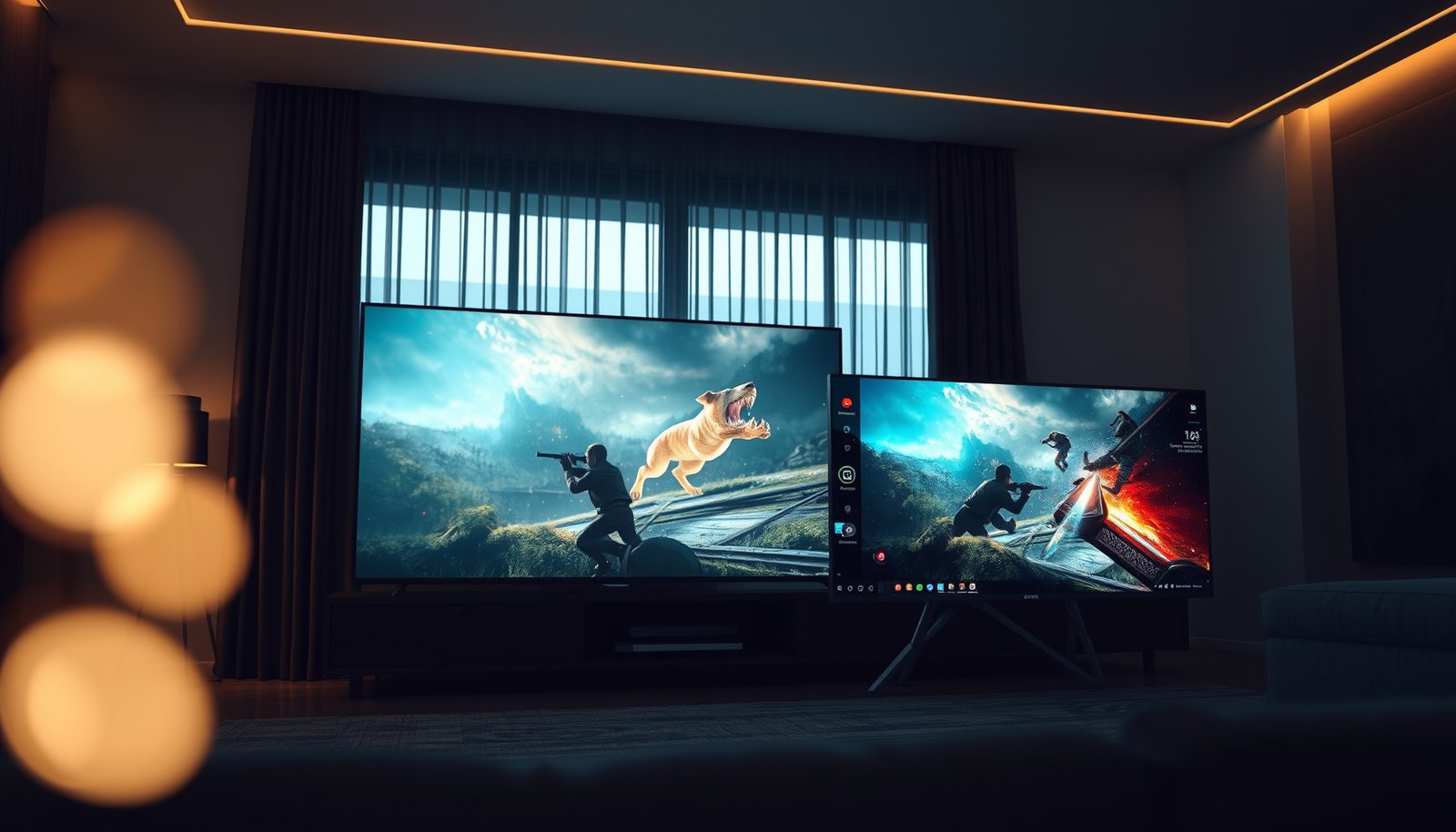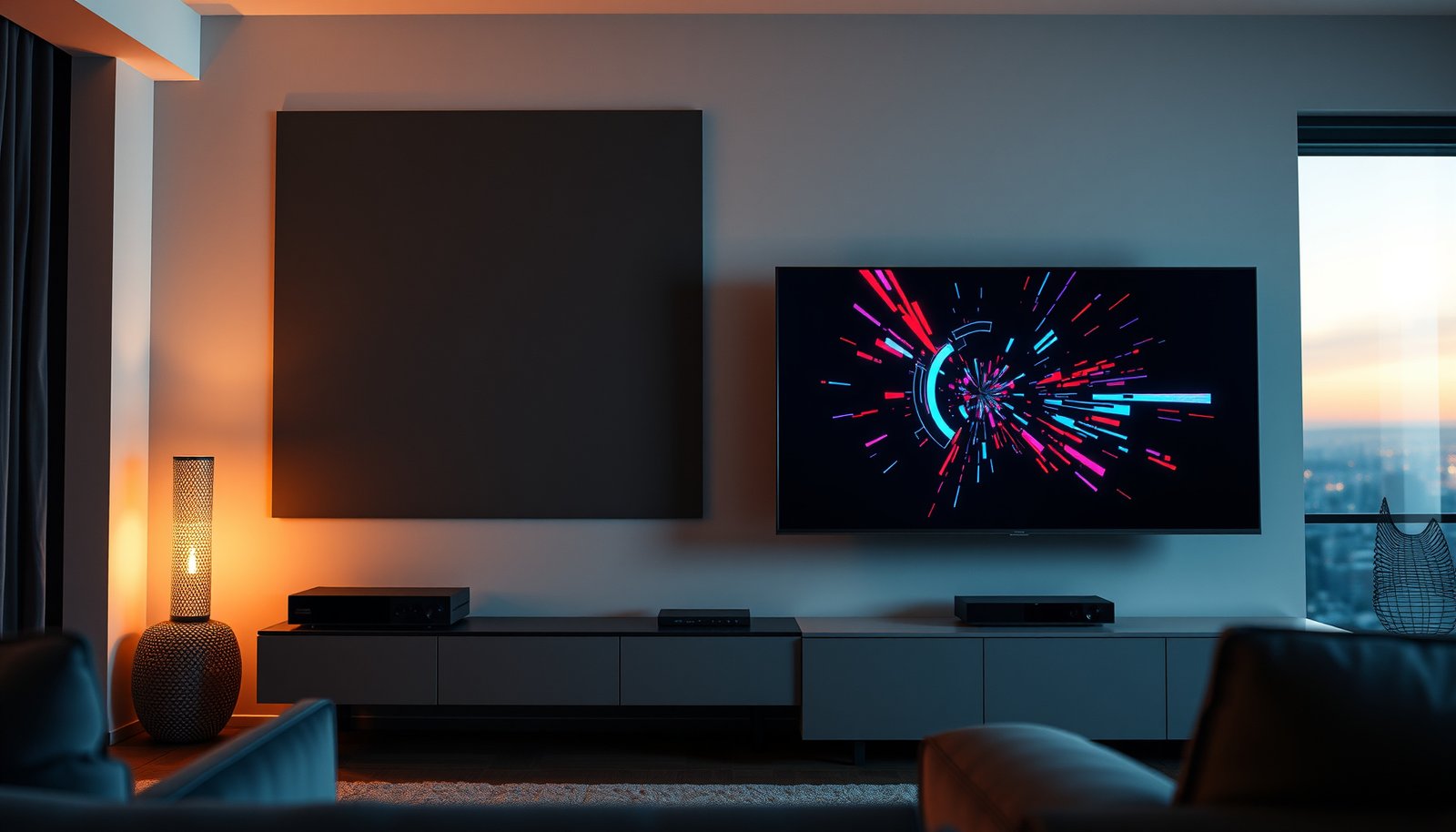
Choosing between a large TV and a gaming monitor comes down to one question: which delivers the better gaming experience for your setup. If you prioritize low input lag, higher refresh rates, and sharper competitive play, a gaming monitor is the clear winner. If you want big-screen convenience for living-room couch gaming and mixed entertainment, a large TV is the better pick.




If you want the smoothest competitive gaming response, a gaming monitor is usually the safer bet because it’s built to minimize input lag and blur at desk distances. A large TV can be a great couch setup option, but you’ll need to confirm features like Game Mode/PC Mode, refresh rate, and VRR support before you commit. This guide helps you compare the tradeoffs so you can pick what fits your play style and setup.
If you game on a desk with mouse/keyboard or you care about fast reaction times, pay extra attention to input lag, motion handling, and scaling. If you mostly play from a couch, stream, and want a big-screen experience, a TV can be the better “one device does it all” choice—provided it supports the right gaming modes and signal types.
Picture size vs desk comfort (how far you sit matters)
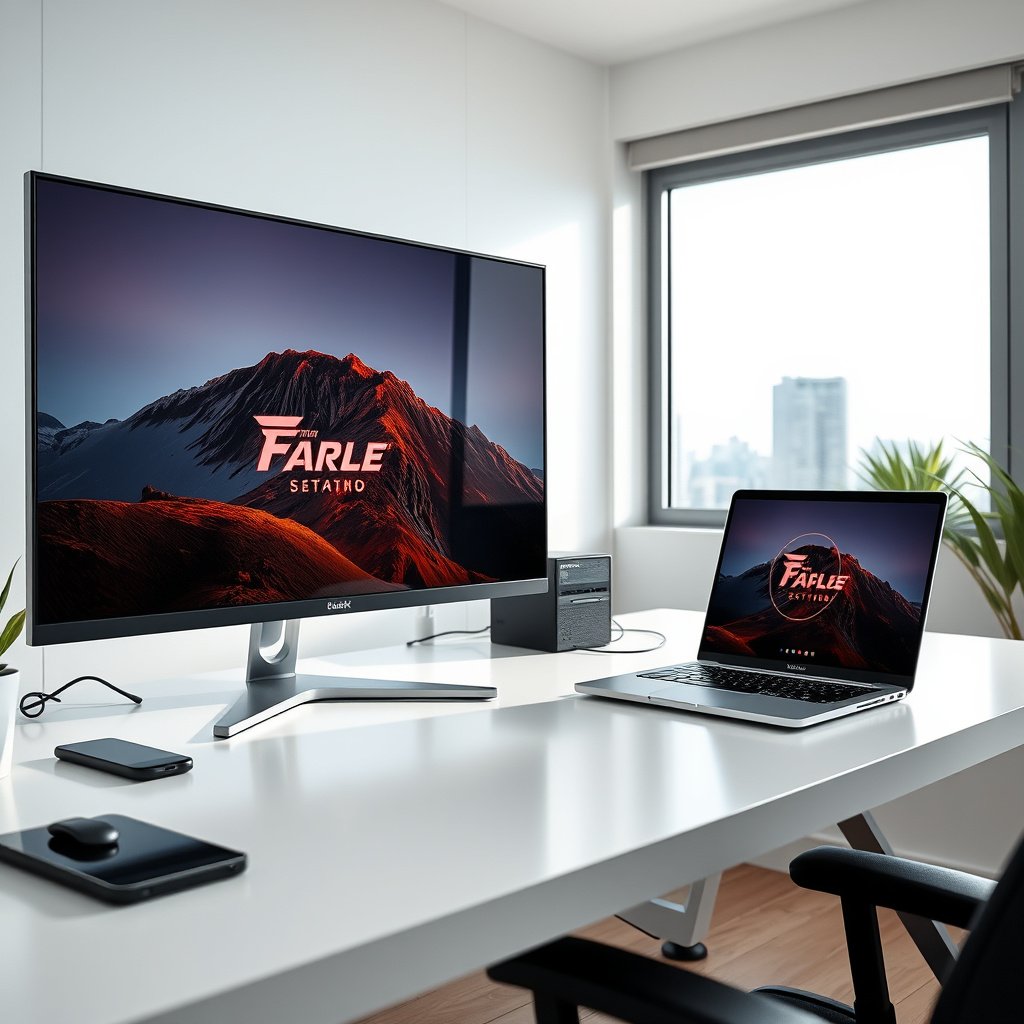
A monitor is usually the better choice for desk setups because it keeps a large image usable at close viewing distances without forcing you into awkward posture. A large TV can still work on a desk, but your seating distance and chair setup determine whether “bigger” actually feels better or just causes fatigue.
When you sit on a couch, a larger display naturally increases immersion: you see more of the game world without cranking your head and eyes constantly. On a desk, however, the same screen can become physically demanding—especially for fast camera movement, inventory management, or reading small UI text. In practice, that means the “best” choice depends more on your viewing distance than on the marketing size alone.
Recommended Seating Distance for Common 16:9 TV Sizes (THX-style 1.5× screen-height)
| # | TV diagonal | Screen height | 1.5× height viewing distance | Typical desk fit* | Gaming comfort rating |
|---|---|---|---|---|---|
| 1 | 43-inch | 21.1 in | 31.6 in | Very plausible | ★★★★★ |
| 2 | 50-inch | 24.5 in | 36.8 in | Often OK | ★★★★☆ |
| 3 | 55-inch | 27.0 in | 40.5 in | Borderline | ★★★☆☆ |
| 4 | 65-inch | 31.9 in | 47.8 in | Usually tight | ★★☆☆☆ |
| 5 | 75-inch | 36.8 in | 55.1 in | Not recommended | ★☆☆☆☆ |
| 6 | 85-inch | 41.7 in | 62.6 in | Desk gaming fatigue | ★☆☆☆☆ |
| 7 | 98-inch | 48.1 in | 72.1 in | Couch-only territory | ☆☆☆☆☆ |
*“Typical desk fit” assumes many desks land around ~3–4 ft from the eyes; measure your own distance first. This table uses the common rule-of-thumb of 1.5× screen height for viewing comfort.
To make the monitor vs TV decision practical, think about what you do most while gaming. If you frequently scan minimaps, read small subtitles, or manage inventory quickly, text clarity and comfortable viewing distance can matter as much as raw specs. Also, TVs used as PC displays often require extra attention to resolution and scaling—while monitors are typically tuned for desktop-friendly text and standard PC timings.
A large TV feels immersive on a couch because the screen subtends a wider visual angle at longer distances.
At desk distance, the same TV size can force extra head and eye movement, which increases fatigue during long play sessions.
PC text clarity often depends on matching the display’s native resolution and using appropriate OS scaling.
Latency and motion blur: where gaming monitors usually win
A gaming monitor is usually the better choice for competitive play because it’s designed to reduce input lag and keep motion consistent at desk distance. A TV can be “good enough” for many games, but you must rely on the TV’s gaming picture modes and verify what they actually change.
Gaming monitors typically minimize the processing steps that add delay—especially when you enable low-latency modes and disable motion interpolation. TVs can also offer dedicated Game Mode / PC Mode, but the final experience depends on how aggressively the TV’s video pipeline processes the signal (for example, motion smoothing, noise reduction, and upscaling). From a planning standpoint, that’s why monitors are often the safer bet for fast reaction times.
Here’s a straightforward way to compare what usually matters in real gameplay:
| Factor | Gaming monitor (typical) | Large TV (typical) |
|---|---|---|
| Input lag path | Lower-friction “gaming preset” signal processing | Can include extra processing unless Game Mode/PC Mode disables it |
| Motion clarity | Often supports blur-reduction behaviors at desk distances | Motion settings can trade clarity vs added processing delay |
| Scaling for PC | Designed for desktop resolutions and standard refresh modes | May require careful resolution + scaling to avoid blurry text |
| Consistency across inputs | Usually fewer “surprise” mode changes when you switch PCs | Mode settings can vary by HDMI input and features like HDR |
– Gaming monitors are designed around fast response and reduced processing delay, and they often let you keep settings like low-latency modes without fighting the TV’s video pipeline.
– TVs can get very playable when you enable their dedicated low-latency modes (commonly called things like Game Mode or PC Mode), but the final latency can still vary by model and signal handling.
– If you play action games, competitive shooters, or anything with lots of camera motion, motion clarity and consistent timing matter as much as refresh rate—so check how the display handles fast movement in its gaming settings.
Game Mode / PC Mode typically reduces or disables extra picture processing stages to lower end-to-end delay.
Motion blur quality is influenced by both response characteristics and processing features like interpolation and blur reduction.
Competitive players often prioritize predictable timing—because inconsistent motion handling can feel worse than a simple “slightly lower refresh.”
If you want a grounded purchasing approach (without relying on marketing claims), look for a TV’s gaming documentation and confirm whether motion “enhancements” can be turned off in the gaming preset.
Also, a note on personal setup: . If you don’t have that firsthand comparison, you can still follow a similar process: enable the gaming preset, disable motion interpolation, and then confirm your game’s frame pacing and your OS’s display timing.
Refresh rate and VRR: both can be fast, but not always
A high refresh rate helps, but VRR (variable refresh rate) is what keeps gameplay smooth when your frame rate fluctuates. A gaming monitor often makes VRR easier to get working, while a TV can support it too—if the exact HDMI input and device handshake are correct.
Many modern monitors offer higher refresh rates (often up to 120Hz/144Hz depending on the model), and they commonly support VRR via DisplayPort (for PC) and/or HDMI (for consoles). Some TVs also support high refresh rates and VRR (for example, HDMI 2.1-related VRR features), but you need to verify it for your exact inputs and console/PC—not just the TV’s headline specs.
According to HDMI Forum — HDMI 2.1 Feature Specifications, HDMI 2.1 supports up to 48 Gbps signaling bandwidth (2017), which is one reason high-frame-rate modes are possible. HDMI Forum — HDMI 2.1 Feature Specifications also describes support for 4K at 120Hz in compatible HDMI 2.1 configurations (2017). And for viewing comfort, commonly recommends a seating distance around 1.5× screen height as a usability baseline (rule-of-thumb described in THX guidance).
That’s why “headline” specs can mislead. If VRR isn’t supported (or it doesn’t turn on with your device), you may see more stutter/tearing during fluctuating frame rates, which can feel worse than a straightforward lower-refresh display.
– Many modern gaming monitors offer higher refresh rates (often up to 120Hz/144Hz), and they commonly support VRR via DisplayPort and/or HDMI.
– Some TVs also support high refresh rates and VRR, but you need to verify it for your exact inputs and device.
– If VRR isn’t supported or it doesn’t activate, tearing/stutter can become noticeable—especially in action-heavy titles.
VRR works only when the display and source negotiate it for the specific connection and mode you’re using.
A TV that supports VRR on one HDMI port may not behave the same way on another port with a different HDMI mode.
When VRR is active, gameplay typically feels more stable at fluctuating frame rates than a fixed refresh approach.
VRR standards in plain terms (so you can verify)
– FreeSync / Adaptive-Sync (commonly on PC) relies on DisplayPort Adaptive-Sync behavior (VESA standard concept), which many monitors implement.
– G-SYNC Compatible (commonly on PC) follows NVIDIA’s compatibility validation rules.
– HDMI VRR on consoles and some TVs depends on the HDMI 2.1 feature set and correct handshake behavior.
Because VRR depends on the handshake, your checklist should include “does it actually turn on?”—not just “does the TV support it.”
Inputs, cables, and setup: the part people skip
A gaming monitor usually reduces setup surprises because its PC-focused signal handling is typically more predictable. A large TV can be just as good, but only if you configure ports, modes, and audio routing intentionally.
Start with the ports your devices will actually use (HDMI vs DisplayPort), and confirm that the TV/monitor supports the signal you want (resolution, refresh rate, and color format). Then plan for mode switching: many TVs require you to enable Game Mode/PC Mode per input, and some settings (like HDR or motion processing) can change latency behavior.
Audio is the hidden hassle. If you connect consoles/PC to the display and then use the TV’s audio out, you may deal with lip-sync delay or you may need a separate soundbar/receiver path. For competitive play, many people prefer low-latency audio paths (direct-to-headset options) to avoid perceived “timing drift.”
– Confirm the ports your device will actually use (HDMI vs DisplayPort), and whether the TV/monitor supports the signal you want (resolution, refresh rate, color format).
– Plan for mode switching: Game Mode/PC Mode can be input-specific, and features like HDR may alter processing.
– Audio routing can become a hidden hassle: if you rely on TV speakers or audio out, check for lip-sync delay and consider your soundbar/receiver configuration.
Game Mode / PC Mode settings often apply per input, so switching HDMI ports can change latency and picture behavior.
HDR and other picture features can introduce additional processing, so “best gaming feel” can require disabling nonessential enhancements.
Audio delay can make actions feel out of sync, so low-latency audio routing matters in competitive games.
If you want this to be painless, use a repeatable setup order:
1. Plug the console/PC into the correct port (the one explicitly supported for VRR/high refresh).
2. Enable the TV/monitor’s gaming preset on that input.
3. Turn off motion interpolation and other “enhancements” that add processing delay.
4. In your game and OS/console settings, verify the actual output refresh rate and VRR activation indicator (if your display shows one).
What can go wrong (and how to avoid the most common mistakes)
The biggest problems come from “almost right” configurations—like a TV that looks correct but isn’t actually in low-latency mode. Monitors can still trip you up, but TVs are more likely to change behavior when you toggle HDR, resolution, or inputs.
Common mistakes usually fall into a short list. Fixing them is mostly about verifying the state of the display, not just the advertised feature set.
– Forgetting to enable low-latency modes: TVs may run with extra processing turned on unless you switch to the correct Game Mode/PC Mode for that input. Fix: enable the mode before judging responsiveness.
– Assuming VRR “works” because the TV has it: VRR support can depend on HDMI version, the specific port, and the device handshake. Fix: verify VRR activation in your console/PC display settings and/or the TV’s on-screen status indicators (if provided).
– Mismatched resolution/scaling: using a TV as a PC display can lead to blurry text or incorrect scaling. Fix: set the desktop resolution to the display’s native resolution and then adjust scaling based on your OS display settings.
– Comfort issues from excessive screen size: sitting too close to a large TV can cause fatigue. Fix: measure your typical viewing distance and choose a size that keeps you from leaning forward.
– Overlooking motion settings: some picture enhancements reduce blur but can add processing delay. Fix: disable extra motion processing when low latency matters most.
Evaluating gaming feel without confirming Game Mode/PC Mode can lead you to judge the “wrong” processing pipeline.
VRR may not activate if the source output mode doesn’t match the TV’s supported HDMI VRR configuration.
Incorrect scaling on TVs can make text and HUD elements feel less readable, which affects both aim and situational awareness.
One more practical edge case: if you switch between streaming apps (often using different picture processing behavior) and game inputs, your TV can carry over settings in ways that change latency. If your setup includes both console gaming and media consumption, treat your gaming preset as a dedicated “profile,” and check it each time you update firmware.
Verdict / tip + scan-ready checklist
If you’re choosing for competitive play, start with a gaming monitor—especially if your priority is consistently low latency, predictable PC scaling, and fewer “surprise” processing modes. If you’re choosing for couch gaming, movies, and a larger-than-life experience, a large TV can work well, but only after you confirm low-latency settings, refresh rate, and VRR support for your specific device.
Skip a TV-as-a-monitor approach if: you sit very close to the screen, you rely heavily on pixel-perfect text clarity, or you can’t access/understand the TV’s gaming/PC mode controls. Skip a monitor approach if: you mainly play casually from farther away and you want one display that doubles as your living-room centerpiece.
Quick checklist (save this):
| What to check | Why it matters | Target outcome |
|---|---|---|
| Game Mode/PC Mode per input | Reduces added processing delay | Low-latency mode is actually enabled |
| Refresh rate support with your device | Smoothness depends on signal | Your device can output the expected Hz |
| VRR support (and it turns on) | Reduces tearing/stutter | VRR is active during gameplay |
| Resolution + scaling behavior | Impacts clarity on PC | Crisp UI/text, correct sizing |
| Motion processing features | Can add blur or latency | Reduced processing for low-latency play |
| Viewing distance/comfort | Prevents fatigue | You can sit comfortably without leaning |
For competitive gaming, the safest path is a monitor plus verified low-latency mode, correct refresh output, and active VRR.
For couch gaming, a TV becomes the “one box” solution only after you validate Game Mode/PC Mode and VRR behavior on your exact HDMI input.
Sources:
– HDMI Forum — HDMI 2.1 Feature Specifications (official documentation for HDMI 2.1 capabilities, including VRR-related features).
– VESA — Adaptive-Sync / DisplayPort Adaptive-Sync documentation (official standard behind VRR behavior on DisplayPort).
– AMD — FreeSync Technology official documentation (capabilities/requirements as defined by AMD).
– NVIDIA — G-SYNC Compatible official documentation (compatibility rules and how support is validated).
– Microsoft — console/PC display guidance for VRR/HDMI behavior (official support pages for supported settings and troubleshooting).
Choose a gaming monitor when desk distance, predictable low-latency behavior, and competitive motion clarity matter most. Choose a large TV when couch viewing and “one screen for everything” are your priorities—but only after you confirm Game Mode/PC Mode behavior, validated refresh rate output, and VRR activation on the exact ports you’ll use.
Frequently Asked Questions
What’s the difference between a large TV and a gaming monitor for PC gaming?
A gaming monitor is designed for low latency, high refresh rates, and responsive input, which helps with fast action games. Large TVs are often better for couch viewing and big-screen immersion, but many rely on higher input lag and slower response settings by default. If you prioritize competitive gameplay, a gaming monitor typically delivers a more consistent “snappy” experience even on larger screens. However, if you mainly play single-player games casually, a large TV can still work—especially if it supports game modes and HDMI 2.1 features.
How can I choose the right screen size when comparing a large TV vs gaming monitor?
Start by matching screen size to your viewing distance: sitting close favors a monitor, while lounging farther back suits a large TV. A good rule of thumb is that at typical desk distances (around 2–4 feet), monitors feel more natural and reduce eye strain, while TVs shine at 6–10 feet or more. Also consider whether you’ll use a controller from a sofa or mouse/keyboard at a desk, since ergonomics affect comfort. Screen size isn’t the only factor—resolution, refresh rate, and pixel density matter too for a satisfying gaming monitor or large TV setup.
Why does input lag matter more on a large TV than people expect?
Input lag is the delay between your controller/mouse action and what appears on screen, which can affect aiming, dodging, and timing in shooters and fighting games. Many large TVs introduce extra processing—like motion smoothing or upscaling—that increases latency unless you enable a dedicated game mode. Gaming monitors are engineered to minimize this delay, often offering faster response times and clearer motion handling. To reduce lag on a large TV, turn on game mode, disable unnecessary picture enhancements, and check the measured input lag specs.
Which is better for 4K HDR gaming: a large TV or a gaming monitor?
For big HDR visuals and immersive contrast, a large TV is often the better choice because many models support strong HDR formats and wide color performance. For competitive 4K gaming, however, a gaming monitor may be preferable if it offers higher refresh rates (like 120Hz or more) with low latency and proper VRR support. The “best” choice depends on whether you value cinematic HDR immersion or maximum smoothness and responsiveness. If your GPU can drive 4K at high frames, prioritize a display that combines HDR capability with low input lag and VRR.
What features should I look for when buying either a large TV or a gaming monitor for consoles and PC?
Look for VRR (variable refresh rate) like HDMI Forum VRR or FreeSync/G-SYNC compatibility to reduce screen tearing, and confirm the refresh rate you’ll actually get at your resolution. For consoles, HDMI 2.1 is important for 4K at higher refresh rates, while PC gamers should prioritize low input lag and fast response times. Also check for game mode options, support for HDR formats (if you care about HDR), and whether the TV or monitor includes clear motion handling without excessive processing. Finally, verify ports and compatibility with your setup (HDMI version, bandwidth, and supported features) so the large TV vs gaming monitor comparison matches real performance.
📅 Last Updated: October 21, 2026 | Topic: Large TV vs Gaming Monitor | Content verified for accuracy and freshness.
References
- https://pubmed.ncbi.nlm.nih.gov/?term=display+latency+video+games+input+lag
- https://pubmed.ncbi.nlm.nih.gov/?term=liquid+crystal+response+time+motion+blur+gaming
- HDMI 2.2 Specification Overview
- Lag (video games)
- Variable refresh rate
- Refresh rate
- https://scholar.google.com/scholar?q=large+tv+vs+gaming+monitor+input+lag Google Scholar
- https://scholar.google.com/scholar?q=variable+refresh+rate+tv+vs+monitor+latency Google Scholar
- https://scholar.google.com/scholar?q=display+latency+gaming+response+time+study Google Scholar