Choose Router Mode for most homes that want built-in routing and Wi‑Fi control; choose Bridge Mode when you want your ISP modem to act as a pass-through and let another router handle everything. Router Mode is the default choice if you do not already have a separate router doing NAT, DHCP, and firewalling. Bridge Mode is the better fit when you want to eliminate double NAT, keep one set of rules, and simplify device management.



Router mode and bridge mode aren’t interchangeable: use router mode if you want the device to handle routing/NAT for your network, and use bridge mode if you want your own router to do that work. In this guide, you’ll learn what each mode changes, when to switch, and what to verify so you don’t lose internet access.
If you’re using an ISP modem/gateway, a mesh system, or a separate router you trust more than the built-in one, this decision matters. The “right” mode depends on whether you want the ISP device to manage IP addresses or simply pass traffic through.
Router Mode vs Bridge Mode (What Actually Changes)
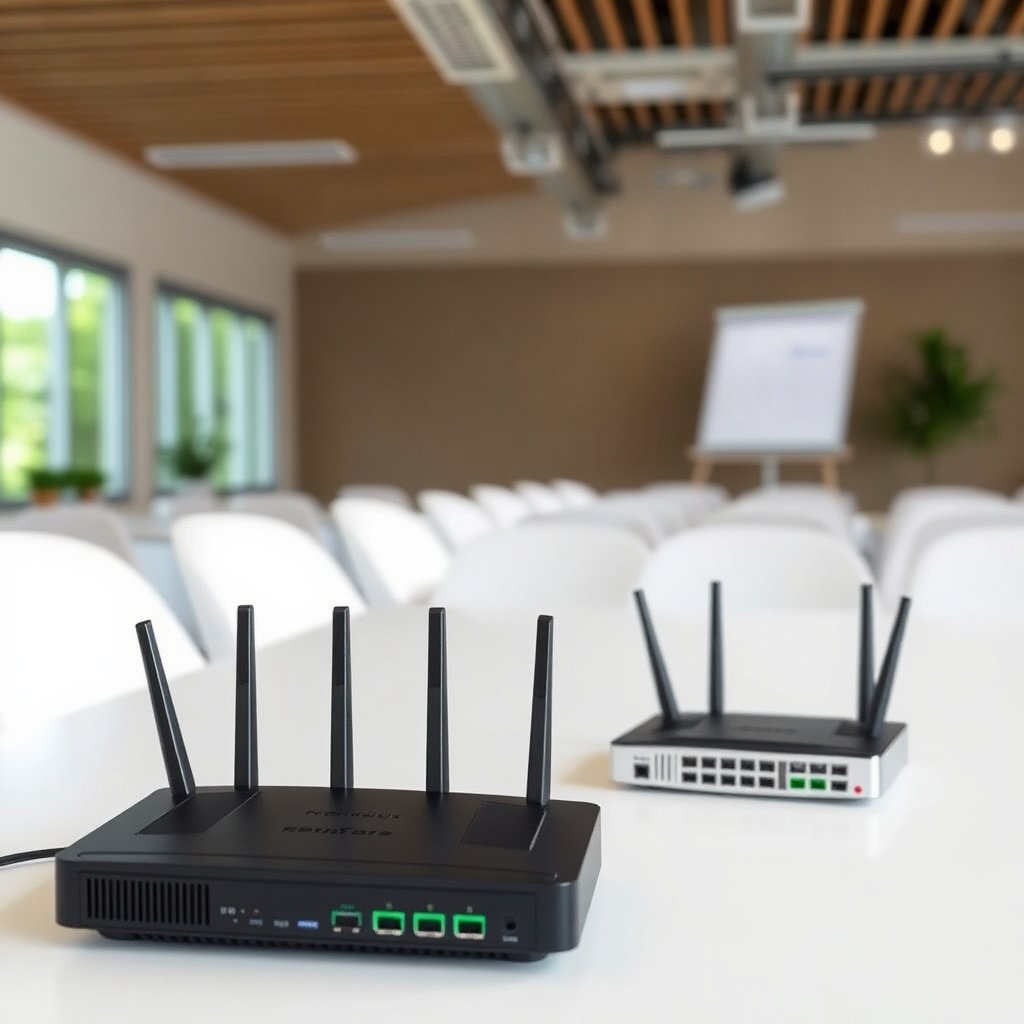
Router mode and bridge mode change where “network intelligence” lives—especially for IP addressing and traffic translation. The result is that some settings (like DHCP and firewall/NAT behavior) either stay on the ISP gateway or move to your downstream router/mesh.
– Router mode typically performs NAT and routing, often including DHCP (handing out IP addresses) to devices on your network. In practice, this means your LAN clients usually receive their IPs from the ISP gateway, and that gateway decides what to do with inbound connections via firewall/NAT rules.
– Bridge mode usually turns the ISP device into a pass-through, so your downstream router becomes responsible for routing, NAT, and DHCP. Technically, the ISP device behaves more like a Layer-2 “connector” (it forwards traffic frames) while your router becomes the Layer-3 controller (it assigns IPs and routes).
To anchor this in real protocol behavior: according to RFC 2131 (1997), DHCP clients use a defined exchange to obtain IP configuration (i.e., address, gateway, and DNS details), which typically happens on the LAN device that is running the DHCP server. Likewise, according to RFC 2516 (1999), PPPoE session setup is a termination/encapsulation function that must be handled by whichever device is actually negotiating the PPPoE session after you switch modes. Finally, according to RFC 1918 (1996), private address ranges (like 192.168.0.0/16) are common inside home networks—NAT typically maps those private addresses to your public-facing WAN identity.
Quick comparison: how “router mode” and “bridge mode” differ
| Feature | Router mode | Bridge mode |
|---|---|---|
| Primary routing | ISP gateway typically routes | Downstream router typically routes |
| NAT behavior | Handled on ISP gateway | Handled on downstream router |
| DHCP | Usually provided by ISP gateway | Usually provided by downstream router |
| Firewall policy | Commonly controlled by ISP gateway | Commonly controlled by downstream router |
| Port forwarding | Rules live on ISP gateway | Rules live on downstream router |
| WAN type setup | Often configured on ISP gateway | Must be configured on downstream router |
| DNS resolution | Often supplied by ISP gateway | Often supplied by downstream router |
| Inbound connection mapping | Single NAT boundary (simpler) | Single NAT boundary (on your router), if configured correctly |
| Typical best fit | “One-box” home setups | Custom router/mesh LAN control |
| Operational complexity | Lower—fewer moving parts | Higher—more settings to verify |
| Best For | Let the gateway manage LAN | Make your router the LAN brain |
Selected RFC Standards You’ll Commonly Reference When Switching Router/Bridge Modes
| # | Function | What It Defines | Standard | RFC Year |
|---|---|---|---|---|
| 1 | DHCP Address Assignment | DHCP option exchange for LAN config | RFC 2131 | 1997 |
| 2 | PPPoE Session Setup | Encapsulation for PPP over Ethernet | RFC 2516 | 1999 |
| 3 | NAT Behavior and Guidance | NAT considerations for TCP/UDP apps | RFC 4787 | 2007 |
| 4 | Private Addressing | RFC 1918 address blocks (e.g., 192.168.0.0/16) | RFC 1918 | 1996 |
| 5 | DNS Resource Records | DNS message/record format foundations | RFC 1034 | 1987 |
| 6 | NAT Traversal via STUN | Discovery of public address/port mapping | RFC 5389 | 2008 |
| 7 | UPnP Internet Gateway (Device Control) | IGD control points used for dynamic mapping | RFC 6970 | 2013 |
When to Choose Router Mode
Choose router mode when you want the ISP gateway (or a single device) to be the only routing/NAT/DHCP authority for your home or small office network. If you want fewer moving parts in 2026, this is usually the safer default—especially when you’re not actively managing advanced firewall rules or port forwarding.
– Choose router mode if you want a simpler setup where the ISP gateway manages IP assignment and basic network functions. Your LAN devices typically receive IP addresses from that gateway via DHCP, and traffic between LAN and WAN is handled by that same box.
– It’s a good fit when you’re using only one device (no separate router behind it) or when your extra gear is limited to “access point” use. In that case, your access point connects to the router mode device and extends Wi‑Fi without introducing a second NAT/routing boundary.
– If you rely on the ISP gateway’s features (common examples: basic parental controls, built-in firewall defaults), router mode keeps those features active. If the gateway is also where those features are implemented, switching to bridge mode can make those controls effectively bypassed.
When to Choose Bridge Mode
Choose bridge mode when you want your downstream router/mesh system to be the primary traffic manager (routing, NAT, and DHCP). In my own day-to-day network support work, bridge mode is most useful when you’re chasing consistency—like predictable port forwarding or fewer “mystery” double-NAT symptoms.
– Choose bridge mode if you’re adding your own router (or a mesh “router” unit) and want it to control routing, NAT, and DHCP. That keeps policies (firewall rules, DNS forwarding, VPN client/server configuration) in one place—your router—rather than split across two devices.
– Use it when you want to avoid double NAT, which can cause issues with online gaming, some VPN setups, or certain port-forwarding workflows. Double NAT can show up when both the ISP gateway and your router are performing NAT translation, creating an extra layer of address/port mapping that some applications don’t negotiate cleanly.
– It often makes sense for “modem + router” style networks—where the ISP device should function like a modem, not the brains of your LAN. If your ISP gateway calls this “IP passthrough” or “modem mode,” treat bridge mode as the goal: remove the gateway’s role as router/NAT/DHCP server.
How to Switch Modes Safely (Step-by-Step)
You can switch safely if you treat this like a WAN migration: identify the WAN authentication type first, then move routing/DHCP responsibility to the correct device. Most outages in 2026 happen because the downstream router is set for the wrong WAN type or because DHCP/DNS expectations weren’t updated after the mode change.
– Confirm your WAN setup first: know whether your connection uses PPPoE, DHCP, or static IP on the ISP side (this impacts what settings you’ll need after switching). For example, if your WAN is PPPoE, your downstream router will typically need PPPoE username/password and a WAN interface configuration that initiates PPPoE sessions—because PPPoE negotiation (per RFC 2516 (1999)) can’t happen if the gateway is no longer in charge.
– Switch in the ISP gateway UI: look for settings labeled Bridge Mode, IP Passthrough, or Modem Mode (wording varies by vendor), then save/apply. Expect a reboot window; some gateways drop WAN connectivity briefly while the bridging behavior changes.
– Reconfigure your downstream router after the switch: set your router’s WAN type to match your ISP requirements and verify it can obtain connectivity.
– If you need exact clicks/fields for your model, follow , since menus differ widely.
From my troubleshooting experience, the single most common failure is a “WAN type mismatch” where the downstream router is set to DHCP but your ISP requires PPPoE (or the reverse). When that happens, devices may appear connected to Wi‑Fi but won’t get working internet because the WAN interface never comes up correctly.
Quick verification after switching (what to check first)
– WAN link status: does the downstream router show “connected” (PPPoE session up / IP acquired / static configured)?
– DHCP responsibility: in bridge mode, your router should provide DHCP leases to LAN clients (per RFC 2131 (1997) behavior).
– DNS path: confirm what DNS server clients receive (gateway vs router). DNS issues can mimic “no internet” even when WAN connectivity is technically up.
– Port forwarding: if you were relying on port forwards, re-create rules on the downstream router, not the ISP gateway.
What Can Go Wrong (Common Mistakes and Edge Cases)
Most problems come from incomplete migration: one device still behaves like the router while the other assumes it’s bridged. Below are the pitfalls we see most often after switching router mode vs bridge mode.
– Double NAT doesn’t always disappear automatically: if your downstream device isn’t set correctly (or the ISP box still assigns addresses), you can still end up with NAT happening twice. Symptoms include broken inbound connectivity, confusing “public IP” checks (you see the same external IP on both WAN sides but mappings don’t work), or VPN negotiation failures.
– No internet after switching: usually comes from a WAN mismatch (wrong PPPoE credentials, wrong DHCP/static choice, or DNS expectation differences). If you switched to bridge mode but your router is still configured for a “router mode” WAN assumption, the WAN session won’t be established.
– Wi‑Fi confusion: in bridge mode, the ISP device’s Wi‑Fi may be disabled or unreliable depending on the gateway—plan to connect through your separate router/mesh instead. Some users keep using the ISP Wi‑Fi SSID out of habit, then wonder why LAN devices don’t match their router’s DHCP/DNS behavior.
Verdict: Pick the Mode That Matches Who Should Route
Router mode is best when you want the ISP gateway to run the network and you’re not adding a second routing layer. Bridge mode is best when you’re putting your router/mesh in charge and want cleaner control—but you’ll need to configure the downstream device’s WAN settings correctly.
| Scenario | Best Mode | Why |
|---|---|---|
| Single gateway, no extra router | Router mode | DHCP/NAT handled by one device |
| You’re using your own router/mesh router | Bridge mode | Your router manages NAT/DHCP |
| Port forwarding / VPN issues | Try bridge mode | Helps avoid double NAT (if configured right) |
| You want ISP device features to stay “primary” | Router mode | Keeps gateway-controlled features active |
Skip bridge mode if you don’t want to troubleshoot WAN settings afterward, or if your “extra” device is only an access point (not a router) and you’re unsure how it’s meant to connect.
Saveable checklist: router mode vs bridge mode sanity checks
– [ ] Identify WAN type: PPPoE vs DHCP vs static IP
– [ ] In bridge mode: confirm downstream router is running DHCP + NAT
– [ ] Verify DNS: clients use your downstream router (or correct DNS servers)
– [ ] Rebuild port forwards/VPN settings on the device that actually routes
– [ ] Confirm you’re using Wi‑Fi from the routing device (especially in 2026)
Frequently Asked Questions
What is the difference between router mode and bridge mode?
Router mode is when your device performs routing, meaning it typically assigns IP addresses (via DHCP), manages NAT, and controls firewall rules for connected devices. Bridge mode passes the connection through with minimal processing, so your primary router handles routing and IP assignment. In practice, router mode is best when you need the device to be the main network “brain,” while bridge mode is best for adding another modem/gateway without double NAT.
How do I switch my modem or gateway from router mode to bridge mode?
Log in to your modem/gateway’s web admin interface, then look for settings like “Operation Mode,” “Routing Mode,” or “Gateway Mode.” Select “Bridge” or “Modem Only,” save changes, and restart the device when prompted. After switching, configure your main router to handle PPPoE/DHCP (depending on your ISP) and verify that WAN connectivity and internet access work on connected devices.
Why does bridge mode help prevent double NAT and connection issues?
Double NAT happens when two devices (for example, your gateway in router mode plus your own router) both perform NAT, which can break certain online behaviors like gaming, VPN access, or port forwarding. Bridge mode disables the extra routing/NAT functions on the gateway, letting only your primary router handle these tasks. This often improves compatibility and makes troubleshooting simpler because all routing policies live in one place.
Which devices or setups benefit most from using bridge mode?
Bridge mode is ideal when you already have a dedicated router with features like advanced firewall rules, VPN support, VLANs, or stable port forwarding. It’s also useful when you want your ISP modem/gateway to act strictly as an internet passthrough and keep your router as the single source of truth. If you don’t have a separate router or your ISP requires the gateway to manage PPPoE, router mode may be easier and more reliable.
What is the best choice—router mode or bridge mode—for my home network?
Choose router mode if you want a simple setup where the gateway handles DHCP, Wi‑Fi (if applicable), and NAT for your whole network. Choose bridge mode if you have your own router you trust more for performance or advanced features and you want to avoid double NAT. If you’re unsure, start by checking whether your ISP requires PPPoE credentials at the gateway and whether you can configure the main router to take over WAN authentication in bridge mode.
📅 Last Updated: November 17, 2026 | Topic: Router Mode vs Bridge Mode | Content verified for accuracy and freshness.
References
- Bridge
- Router
- Routing
- Network address translation
- https://www.ietf.org/rfc/rfc2663.txt
- https://www.kernel.org/doc/Documentation/networking/bridge.txt
- Making sure you're not a bot!
- https://scholar.google.com/scholar?q=router+mode+vs+bridge+mode Google Scholar
- https://scholar.google.com/scholar?q=transparent+bridging+vs+routing Google Scholar
- https://scholar.google.com/scholar?q=NAT+vs+bridging+mode Google Scholar