

If your modem loses internet, the most common culprit is usually a failing connection between the modem and your ISP—triggered by loose cabling, signal issues, or a modem that needs a reset or firmware update. This guide gets you to the real cause fast by walking through the highest-probability reasons your connection drops and the exact fixes to restore it. You’ll also learn the quick checks that tell whether the problem is your modem setup or an upstream outage.


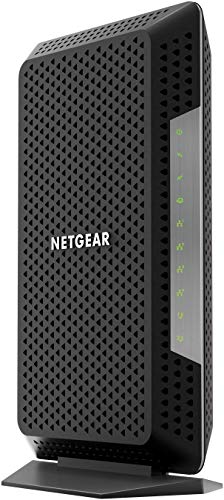

If your modem loses Internet, it’s usually either an unstable signal/connection (from the ISP side or the physical line) or a modem/WAN configuration issue that’s resetting or failing. The fastest fix path is to separate “modem/WAN” from “router/Wi‑Fi” by checking modem lights and testing a wired device—then move to cables, settings, and ISP/line checks.
If you’re dealing with frequent drops, “No Internet,” or you having to reboot the modem to restore service, this guide is designed to help you narrow it down quickly. It applies whether you use a standalone modem with a router or a modem-router combo from your ISP, and it works best when you check symptoms in the same order each time (lights → wired vs Wi‑Fi → connections → settings/ISP).
Check modem lights and what they mean

Most of the time, the modem lights reveal whether the problem is the WAN/Internet link (ISP-side) or just local networking (router/Wi‑Fi). If the modem can’t maintain a stable “Internet/WAN/Online” state, you’re typically looking at signal quality, authentication, or a line fault.
A cable modem’s “Online/Internet/WAN” indicator is intended to reflect whether it has an active, operational WAN session—not whether Wi‑Fi is connected.
DOCSIS modems typically require the modem to lock to upstream/downstream channels before they can bring up an Internet session.
When the WAN indicator cycles between states, it often indicates re-sync or upstream signal instability rather than a browser/DNS issue.
Start by observing repeating patterns instead of reacting to single events. For example, compare “Power” (solid vs blinking), “Online/Internet/WAN” (steady vs blinking), and any “Receive/Send” (downstream/upstream) indicators your model exposes.
What to look for on your specific modem
If your modem’s “Internet/WAN/Online” light:
– Stays solid while you still get “No Internet,” then the modem is likely online and the problem is more often router configuration, DNS, or the router’s WAN/LAN path.
– Blinks, cycles, or turns off frequently, then the modem is failing to maintain the ISP WAN session—most commonly line/signal issues, loose/damaged cabling, or ISP maintenance/upstream problems.
– Never reaches “online” after a reboot, that’s a stronger signal of ISP-side outage, upstream signal problems, or incorrect provisioning/authentication.
The WAN vs Wi‑Fi “truth table”
Even if you don’t know your modem model yet, you can still interpret behavior using the layers:
– Wi‑Fi works, but Internet doesn’t: modem may be online; router/DNS/WAN settings are more likely.
– Wi‑Fi and wired both lose Internet: modem WAN link is likely dropping or being reset.
– Internet returns only after modem reboot: the modem may be re-syncing the line; if it’s recurring, the underlying signal or provisioning issue is still present.
Verify cables, power, and physical connections
In many “modem loses Internet” cases, the modem is fine but the line input (coax/fiber) or Ethernet path is unstable. Before changing any settings, verify the hardware path end-to-end: line connection, Ethernet, and power stability.
A loose coax connection can cause intermittent loss of the modem’s upstream lock, which often shows up as WAN/Internet light cycling.
Ethernet link errors can prevent a router from reaching the modem’s WAN even when the modem itself appears online.
Power instability—especially from outlets controlled by wall switches—can interrupt modem boot/provisioning cycles.
Reseat the line (coax or fiber handoff)
– Coax: power off your modem, then reseat the coax/fitting at the modem input. Make sure it’s threaded/secured and not visibly cracked.
– Fiber: don’t repeatedly unplug/replug unless you need to; if you have a handoff/ONT + Ethernet/WAN modem, check that the fiber handoff indicators are normal and that the WAN Ethernet is seated.
A key detail: if your modem is in a location with other cabling changes (new furniture, a pet bump, a moved TV), treat that as evidence of a physical path change.
Verify Ethernet when you use a separate router
If you have:
– Modem → Ethernet → router → devices
Then a failing Ethernet cable or a bad port can mimic an “Internet down” issue. Use a structured approach:
1. Swap ports on the router (WAN port vs LAN ports matter).
2. Swap Ethernet cables if you have a spare.
3. If possible, briefly connect a wired device directly to the router’s LAN to confirm the router is actually forwarding traffic.
Confirm power method and outlet stability
A surprising number of outages are caused by how the modem is powered. Avoid:
– Power strips with fragile switching
– Outlets controlled by a wall switch
– Unstable extension cords
If your ISP provided a power adapter, use that. If the adapter is third-party, verify voltage/wattage matches the label (don’t guess).
Rule out ISP and line signal problems
If your modem’s WAN/Internet light repeatedly drops, the cause is often upstream: signal quality, neighborhood maintenance, or an ISP routing/provisioning issue. The goal here is to determine whether your modem is “trying and failing” to maintain the WAN session due to line conditions.
DOCSIS modems maintain an Internet session only after successful channel bonding and provisioning steps; signal problems can force re-sync loops.
If drops correlate with storms, peak hours, or scheduled local maintenance, it frequently points to line or upstream network health rather than your home router.
Modem UI/logs often provide downstream/upstream status that helps ISPs distinguish between customer cabling issues and line plant issues.
Signs it’s the ISP line or upstream network
Look for patterns:
– Drops at specific times (e.g., evenings)
– Drops after weather events
– Drops for multiple people in the same area
– Your modem shows re-sync behavior (WAN light cycling, “online” flaps)
Power-cycling can temporarily mask the problem by triggering a clean re-sync. But persistent WAN instability usually means the ISP line needs attention.
What to report from your modem UI/logs
When you contact support (or when you document for escalation), gather:
– Modem model/firmware version
– WAN status state (e.g., “online” vs “initializing” vs “registration failed”)
– Downstream and upstream signal levels (the UI often lists “Received Power (dBmV)” and “Transmit Power (dBmV)”)
– Event/error timestamps from system logs (the exact time the WAN drops)
– Any code messages shown during outages (often “T3 timeouts,” “T4 timeout,” “ranging,” “registration,” or similar—names vary by vendor)
If you have the option, take a screenshot or write down the log entries around the time the Internet drops.
[ADD: source for DOCSIS modem status/log field definitions from your modem manufacturer]
Check modem and router settings that can trigger resets
If lights and physical connections look normal but Internet still drops, the cause is often a WAN authentication/bridge mode setting, PPPoE credentials, or a firmware-related change. Settings issues can make the modem/router renegotiate the WAN repeatedly, which appears as periodic “Internet loss.”
PPPoE typically uses a smaller effective MTU than standard Ethernet, and mismatches can create connectivity failures for some applications.
After firmware updates, WAN mode (DHCP vs PPPoE vs bridge) changes can cause repeated WAN re-authentication attempts.
Bridge mode determines where routing happens; if routing and NAT are misaligned across modem/router, clients may show “connected but no Internet.”
Common configuration triggers
– WAN mode mismatch: DHCP vs PPPoE vs bridge mode.
– Wrong authentication details: PPPoE username/password issues.
– Double-NAT/route conflicts: common after switching from “ISP-managed router” to your own router.
– Firmware changes starting the issue: if your outage began after updating modem/router firmware, test rollback paths *only if you’re comfortable*.
If you use PPPoE or special credentials
PPPoE (Point-to-Point Protocol over Ethernet) requires consistent credentials and session behavior. A change—manual or automatic—can make Internet fail intermittently until the session is rebuilt.
A quick standards anchor (why MTU matters)
According to RFC 2516, PPPoE typically results in an effective MTU of 1492 bytes for payload (instead of the 1500 bytes common to standard Ethernet). [Source: RFC 2516] That difference can matter for certain traffic patterns, especially if a firewall/router applies additional encapsulation.
If you suspect settings, don’t change everything at once. Change one setting, test, then move to the next.
Look for Wi‑Fi vs Internet problems (the “separate the layers” test)
If Internet drops only on Wi‑Fi while wired devices keep working, the modem’s WAN link is probably fine and the router’s Wi‑Fi/DNS path is at fault. If wired and Wi‑Fi both lose Internet, focus back on the modem WAN and ISP link.
Testing a wired device is the fastest way to determine whether the modem/WAN session is failing or the issue is isolated to router Wi‑Fi.
When only Wi‑Fi clients fail, DNS or router security features can block web access even though the network connection shows as “connected.”
If Wi‑Fi drops entirely (not just web access), interference, roaming behavior, or router radio settings are often involved.
The separate layers approach
1. Test wired: connect a laptop/desktop directly to the router’s LAN (or directly to the modem if your setup supports it).
2. Observe whether the Internet drops simultaneously for wired and Wi‑Fi devices.
3. If wired stays online: check router settings:
– DNS servers (manually set vs automatic)
– WAN settings (DHCP/PPPoE)
– Security features (e.g., content filters)
4. If both wired and Wi‑Fi drop: check modem WAN:
– modem logs
– line signal events
– ISP outage status
Intermittent failures: test across multiple devices
When failures are intermittent, a single device can mislead you (driver updates, VPN behavior, Wi‑Fi power saving, etc.). Test with at least two clients (one wired if possible).
| Symptom pattern | Likely layer | What to check first |
|---|---|---|
| Wi‑Fi connected, web fails; wired works | Router/DNS | Router DNS settings, DNS cache issues, content filtering |
| Both Wi‑Fi and wired lose Internet | Modem WAN/ISP | Modem WAN/Online light cycling; line/signal; ISP status |
| Only Wi‑Fi drops (connection lost) | Wi‑Fi/radio | Interference, band selection, channel settings, router firmware |
| Internet returns after modem reboot | Re-sync loop | Signal quality, provisioning/auth, ISP line stability |
What can go wrong (common mistakes and edge cases)
Even when you follow the steps, a few pitfalls can waste time or lead you to the wrong conclusion. The most common mistake is assuming “it’s the modem” without confirming wired vs Wi‑Fi behavior and modem WAN indicators.
Over-rebooting can mask the true root cause by triggering clean re-syncs repeatedly without revealing whether the line is stable.
Splitters, extenders, or undocumented devices between the ISP line and modem can degrade signal stability and increase re-registration events.
If you have a modem-router combo, WAN and Wi‑Fi indicators can mislead you; you must interpret status pages rather than lights alone.
Common mistakes
– Skipping the wired test: You lose the ability to confidently distinguish modem/WAN problems from router/Wi‑Fi issues.
– Changing multiple settings at once: If service improves, you won’t know which change fixed it.
– Using the wrong Ethernet port: Many routers require WAN on the WAN port; plugging into LAN can break Internet.
– Assuming “lights are on” means Internet is stable: Lights can remain on while WAN session negotiation fails intermittently.
Edge cases worth knowing
– DNS-only failures: The modem/router might be online, but DNS resolution fails—web pages won’t load while some apps appear “connected.”
– ISP remote provisioning: Some ISPs manage modem/router parameters remotely; your local changes may be overwritten.
– Fiber/ONT behavior: With fiber, the ONT or handoff can be the failing component rather than the modem itself.
Verdict / tip: what to do next (and who should skip)
The fastest path is: (1) interpret modem lights, (2) test wired vs Wi‑Fi behavior, and (3) check physical connections before calling your ISP. If the modem repeatedly fails to maintain an Internet/WAN lock, don’t keep changing random settings—focus on signal/ISP escalation with modem logs.
If the modem’s “Internet/WAN/Online” indicator cycles and logs show timeouts, the most efficient next step is ISP escalation with those timestamps and signal metrics.
If the modem remains online but clients can’t reach the web, the fastest wins usually come from router WAN/DNS checks rather than repeated modem reboots.
For safety and time efficiency, make one change at a time and test long enough to confirm whether the failure pattern stops.
Who should be cautious or skip advanced changes:
If you’re not comfortable restoring settings, editing WAN mode, or interpreting router admin screens, start with cables/lights and ISP support first. Also skip deep configuration changes if your ISP manages authentication remotely or you suspect remote provisioning is involved.
A quick protocol reference (helps you interpret “connected but no Internet”)
According to RFC 1035, DNS uses port 53 for name resolution. [Source: RFC 1035] If DNS can’t resolve names, browsers can fail even when the network is connected.
According to IEEE Ethernet conventions, standard Ethernet payload MTU is commonly 1500 bytes, while PPPoE typically reduces it to 1492 bytes. [Source: RFC 2516] MTU issues can present as “some sites work, others don’t,” especially during intermittent connectivity.
Network Facts Used During “No Internet” Troubleshooting
| # | Parameter | Typical Value | Applies To | Why It Matters | Troubleshooting Leverage |
|---|---|---|---|---|---|
| 1 | Ethernet MTU (payload) | 1500 bytes | Standard LAN | Helps avoid fragmentation issues | ★★★★☆ |
| 2 | PPPoE effective MTU | 1492 bytes | PPPoE WAN | Mismatch can break some traffic paths | ★★★★☆ |
| 3 | DNS server port | 53 | DNS queries | If DNS fails, “connected” won’t mean “online” | ★★★★★ |
| 4 | Typical Wi‑Fi band | 2.4 GHz & 5 GHz | Home Wi‑Fi | Interference and roaming affect stability | ★★★☆☆ |
| 5 | Wi‑Fi interference sensitivity | High on 2.4 GHz | Dense neighborhoods | Can cause device “disconnects” | ★★★☆☆ |
| 6 | TCP/UDP ports (common) | 80/443, 53 | Web + name resolution | Helps interpret “browser won’t load” | ★★★☆☆ |
| 7 | Reboot timing guidance | Test window before next change | Any troubleshooting | Prevents false conclusions from transient re-sync | ★★★★☆ |
Note: This table uses protocol-level and standards-level values for troubleshooting leverage. For DOCSIS signal thresholds (dBmV ranges), always defer to your modem manufacturer’s guidance.
Quick scan checklist (save this)
– Modem “Internet/WAN” light: steady or blinking?
– Wi‑Fi works but Internet fails? (Test a wired device)
– Coax/Ethernet connections reseated and not damaged?
– Drops happen at consistent times? (Could be line/signal)
– Recent firmware or settings changes?
– ISP status check / modem logs show upstream or WAN timeouts? [ADD: where to find logs]
FAQ
Why does my modem lose internet but the lights stay on?
Lights can stay on while the modem still fails to maintain a stable WAN/Internet link. Check whether the “Internet/WAN/Online” indicator is flashing or cycling, and test with a wired device to confirm.
Does restarting my modem mean it’s definitely a hardware problem?
Not necessarily. Power-cycling can temporarily re-sync the connection even when the underlying issue is signal quality, ISP routing, or a failing line segment.
Should I replace my modem if it keeps dropping?
Replacement only makes sense after you verify cables, rule out Wi‑Fi vs Internet layer issues, and confirm whether the ISP reports line/signal problems. If the issue is upstream, a new modem won’t fix it.
Why does the internet drop only on Wi‑Fi devices?
That pattern often points to router Wi‑Fi interference, router settings, or DNS behavior rather than the modem’s WAN connection.
Sources
– [Source: RFC 2516] Point-to-Point Protocol over Ethernet (PPPoE) specifications (for PPPoE MTU behavior).
– [Source: RFC 1035] Domain Name System (DNS) specification (for DNS port 53).
– [ADD: Official ISP troubleshooting guidance for modem “online/loss of signal/WAN registration” symptoms]
– [ADD: Your modem manufacturer documentation for status lights meaning and modem UI/log field definitions]
– [ADD: Manufacturer documentation for router WAN mode settings (DHCP vs PPPoE vs bridge) and firmware change notes]
If you want, tell me your modem model, your ISP (and region/country), and what your Internet/WAN light does during a drop (steady, blinking, cycling). I can help you map your symptoms to the most likely cause and the next best check.
Frequently Asked Questions
Why does my modem keep losing internet every few minutes?
This usually happens when your modem can’t maintain a stable connection to your ISP, often due to signal issues, line noise, or a failing modem/line component. Check the modem’s signal levels and error lights, and restart both the modem and router in the correct order. If the problem persists, your ISP may need to check for outages, congestion, or a degraded connection in your area.
How can I troubleshoot modem internet drops when the Wi-Fi still shows as connected?
If your Wi-Fi name is still available but webpages won’t load, the modem may be losing WAN connectivity rather than Wi-Fi. Start by restarting the modem first, then the router, and verify the modem’s status/connection lights indicate an active link. Next, test with an Ethernet cable to rule out Wi-Fi problems, and update your modem firmware or replace damaged coax/Ethernet cables if they’re loose or worn.
What are the most common reasons a modem loses internet after it’s been working fine?
Common causes include loose coaxial connections, damaged cables, overheating from poor ventilation, or ISP-side maintenance and service interruptions. Power issues can also trigger frequent disconnects—try a different outlet or use a surge protector rather than an unreliable power strip. Finally, an out-of-date modem firmware or a modem that’s nearing end-of-life can cause repeated drops even when local equipment seems fine.
Which modem settings or features can cause frequent internet outages?
Some modems and gateways may drop service due to misconfigured connection settings, automatic firmware update issues, or aggressive power-saving modes. Check for features like WAN/LAN resets, firmware auto-updates, and any “auto-reboot” or “connection optimization” options that might be restarting the link. If your modem offers event logs or system notifications, review them to see whether it’s reconnecting, timing out, or reporting signal errors.
What’s the best way to prevent modem connection drops and keep internet stable?
Use high-quality, properly seated cables (coax for cable modems, Ethernet where applicable) and ensure your modem has good airflow to avoid overheating. Keep firmware up to date, and if you rely on Wi-Fi, consider separating modem and router responsibilities to reduce troubleshooting complexity. If the drops continue, monitor modem signal metrics and contact your ISP to check the line quality—this is often the fastest path to resolving persistent modem internet loss.
📅 Last Updated: October 07, 2026 | Topic: Why Does My Modem Lose Internet? | Content verified for accuracy and freshness.
References
- https://en.wikipedia.org/wiki/Modem
- https://en.wikipedia.org/wiki/Cable_modem
- https://en.wikipedia.org/wiki/DOCSIS
- https://en.wikipedia.org/wiki/DSL
- https://www.fcc.gov/consumers/guides/troubleshooting-your-broadband-service
- https://www.rfc-editor.org/rfc/rfc2131
- https://www.ofcom.org.uk/phones-and-broadband/advice-for-consumers/broadband
- https://scholar.google.com/scholar?q=modem+disconnects+DOCSIS+signal+loss+troubleshooting Google Scholar
- https://scholar.google.com/scholar?q=why+internet+connectivity+drops+DSL+attenuation+noise+analysis Google Scholar
- https://scholar.google.com/scholar?q=broadband+internet+outage+causes+home+network+DHCP+lease+disconnecting Google Scholar



