

If your modem is not connecting to your ISP, the culprit is usually one of three things: an incorrect connection or cabling setup, an ISP-side outage/account issue, or a modem configuration/firmware problem. This guide tells you exactly how to diagnose which one it is—starting with the fastest checks you can do in minutes. Get to the root cause and the most likely fix without wasting time on guesswork.



If your modem won’t connect to your ISP, the quickest path to resolution is to verify the physical link (correct cables/ports and signal) and then confirm the modem actually provisions/authenticates on the ISP network. Most “no connection” cases come from loose/wrong cabling, a stalled cable/line link, or an ISP-side provisioning/outage issue—not from complex router settings.
This guide is for home users dealing with a modem that won’t establish an internet connection, especially after an outage, move, or new setup. You don’t need advanced networking skills—just follow the checks in order so you can narrow it down quickly.
Check the basics: cables, ports, and modem power
Your modem can’t reach your ISP if the physical connection isn’t correct or stable. Start by confirming you’re plugged into the right port(s), using the correct cable type, and receiving proper power so the modem can start ranging/registering.
A cable modem depends on a live upstream/downstream RF link; without correct coax wiring into the modem’s “Cable/Coax” input, it will typically never progress to “online/connected.”
If the modem powers on but the link LEDs indicate “no signal” (labeling varies), troubleshooting should focus on the ISP drop and coax path before changing router settings.
Ethernet miswiring is common: the modem-to-router link must use the modem’s Ethernet port intended for WAN/Internet (often labeled “ETH” or “LAN/WAN”).
Confirm the correct ports and cable types
In practice, the fastest “first fix” is making sure every connection is going to the correct destination:
– Coax (cable internet): coax must go into the modem’s coax/cable input (not a router port). If you recently added splitters for TVs, confirm the modem is on the splitter output that maintains service for internet.
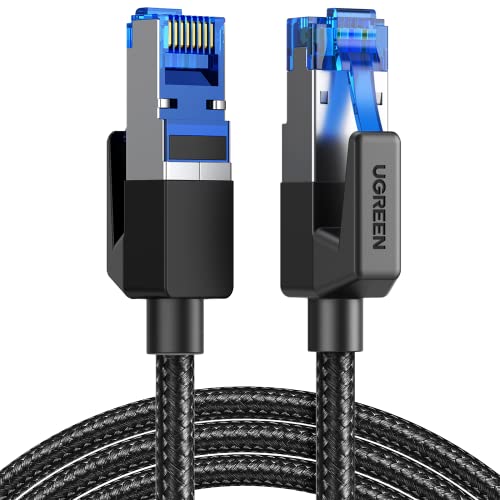
– Ethernet (modem → router): use a standard Ethernet cable from the modem’s Ethernet port to the router’s WAN/Internet port (not LAN).
– Fiber (fiber ONT/modem setups): fiber-to-ONT runs are different from coax setups; confirm the fiber is seated and the ONT/modem is receiving light/LOS status as instructed by your vendor.
Reseat connections and inspect for damage
Loose connectors can create intermittent or “stuck” provisioning attempts. Reseat at both ends and look for:
– Bent center pin or loose F-connector on coax
– Frayed coax jacket or crushed cable sections
– Damaged Ethernet ports (especially if the cable was yanked during a move)
– Missing or mismatched adapters (common when upgrading from an old modem or switching splitters)
Validate power and confirm expected LED behavior
Check that the modem is actually receiving stable power. Indicator lights vary by brand/model, but the modem should usually progress through stages such as “power,” then “receiving/signal,” then “ranging/registration,” and finally “online/connected.”
If your modem is stuck before “online,” that’s your clue: it’s generally not the router.
Power cycle correctly (modem first, then router)
A clean reboot sequence matters because most ISPs require the modem to re-establish RF link, then complete authentication/provisioning. If you reboot the router first, you can end up chasing symptoms (WAN not reachable) while the underlying modem-to-ISP session never properly resets.
Most ISP-provisioned cable modems should be power-cycled in the order: modem first, then router, to ensure WAN negotiation starts after the modem is online.
After power restoration, cable modems typically take longer than routers to reach an “online/connected” state because they must perform ranging and network registration.
Many modem troubleshooting guides explicitly recommend leaving the modem offline briefly so it can clear failed provisioning attempts and re-request configuration.
Power cycle with the right timing
– Unplug the modem from power. Wait about 30–60 seconds, then plug it back in.
– Wait for the modem to fully restart and reach its “connected/provisioned” state. Depending on your ISP and network conditions, this can take longer than your router reboot.
– Reboot the router only after the modem is online so the router can obtain a WAN address (via DHCP) from the modem/ISP path.
What “success” looks like
Success usually means at least one of these modem indicators becomes stable (exact wording varies):
– Online / Connected
– Registration completed
– Internet ready / Operational
If the modem never progresses to those states after several restart attempts, you should stop “reboot loops” and move to signal/provisioning checks.
Look at modem LEDs/connection status for the real clue
Modem LEDs are the fastest way to determine whether the problem is signal/RF link, provisioning/authentication, or post-provisioning connectivity. Treat the modem as the authority: if it can’t reach “online/connected,” don’t sink time into router configuration first.
Cable modem troubleshooting commonly maps LED states to provisioning stages such as “ranging” and “registration,” which helps isolate signal issues from authentication issues.
A persistent “no signal” indicator typically points to the coax path (splitter, drop, or connector) rather than router WAN settings.
When a modem reaches “online” but the router has no internet, the issue often becomes DHCP/WAN configuration or a router-to-modem Ethernet problem.
Decode the stage: no signal vs ranging vs registration vs online
Use your modem manual for the exact LED names, but the troubleshooting logic is consistent:
– No signal / Offline: focus on coax/fiber path, splitter placement, and ISP drop connectivity.
– Ranging / Registering / Auth ongoing: focus on signal quality and ISP provisioning readiness.
– Online / Connected but no internet: focus on DHCP/WAN on the router and whether the router is set to the correct WAN mode (typically DHCP for consumer routers with cable modems).
Signal quality affects provisioning more than many users expect
Many “it used to work yesterday” failures are actually signal-level changes (e.g., a bad splitter, loose connector after a house move, or a storm affecting the outside drop). Even if the modem powers on, weak signal can prevent the modem from completing the ISP handshake.
Practical comparison: what to do based on modem state
If you want a quick decision rule, this is a reliable mental model:
| Modem status you see | Most likely cause | Best next action |
|---|---|---|
| No signal / Offline | ISP drop/coax/fiber path | Reseat/inspect cables; check splitters; contact ISP if outside plant is likely |
| Ranging / Registering repeatedly | Signal instability or provisioning delay | Re-check coax/splitter; wait; confirm your account is active |
| Online/Connected but no internet | Router WAN/DHCP or Ethernet miswire | Verify router WAN port, WAN type, and Ethernet link |
Confirm ISP account provisioning and activation
Your modem must be correctly provisioned and authorized on the ISP’s side, or it can keep retrying forever without reaching “online.” If you recently changed equipment, moved, or the ISP says your service isn’t active, modem LEDs may show repeating registration attempts without ever stabilizing online.
ISP provisioning typically authorizes the modem’s unique identifier (e.g., cable modem MAC/serial) so the modem can receive configuration and service authorization.
If a modem never reaches “online,” repeated retries can indicate missing or stale provisioning that only the ISP can refresh.
When service is suspended or not yet activated, modems often power on and attempt network registration but fail to complete authentication.
Verify the service is active (especially after moves or outages)
Check these practical items:
– Is your service active, not suspended, and not pending installation?
– Did you move addresses or switch from one service tier to another?
– Are you still within an activation window where provisioning hasn’t completed?
Confirm modem compatibility and registration status
Even if your modem is “DOCSIS-compatible” (for cable) or supported (for fiber), ISPs commonly require the specific modem model to be approved and registered.
– Check your ISP’s “supported modems” list (or device registration portal).
– If you replaced the modem, confirm the new device has been added to your account.
Data point: why these stages matter
DOCSIS-based cable networks define how modems transmit and how they negotiate service on specific modulation/capability profiles. For example, cable modems may support multiple modulation formats; higher-order QAM can improve efficiency but generally requires stable signal conditions.
Common QAM Modulation Formats and Theoretical Bits per Symbol (Cable Modems)
| # | Modulation format | Bits per symbol (log2(M)) | Typical network impact | Connection outcome |
|---|---|---|---|---|
| 1 | QPSK (M=4) | 2 | Most robust under poor signal | ★★★☆☆ |
| 2 | 16-QAM (M=16) | 4 | Balanced for moderate signal | ★★★★☆ |
| 3 | 64-QAM (M=64) | 6 | Requires better signal stability | ★★★★☆ |
| 4 | 256-QAM (M=256) | 8 | Higher efficiency; less tolerant | ★★★★☆ |
| 5 | 1024-QAM (M=1024) | 10 | Better efficiency when signal is strong | ★★★★★ |
| 6 | 4096-QAM (M=4096) | 12 | Highest efficiency; most sensitive to noise | ★★★★★ |
| 7 | QAM (general) — higher M | ↑ log2(M) | Efficiency increases with M | ★★☆☆☆ |
(These values use the mathematical relationship bits per symbol = log2(M) for M-QAM. Exact modulation profiles depend on your ISP and modem negotiation; see your modem’s “downstream/upstream” pages.)
What can go wrong (common mistakes and edge cases)
Even when you follow the steps, a few patterns can keep your modem from ever reaching “online.” The goal here is to recognize the trap early—so you don’t waste time rebooting devices while the actual blocker remains.
Using an unsupported modem model or unregistered device can cause repeated “registration” attempts without ever reaching an “online/connected” state.
If coax is split too aggressively, signal levels can drop enough to prevent stable ranging, which leads to ongoing provisioning failures.
Rebooting only the router while the modem is “offline/no signal” won’t fix DHCP, because the router never receives a WAN path from the modem.
Common mistakes that stall progress
– Wrong port / wrong cable: Ethernet into LAN instead of WAN, or coax into the wrong device.
– Bad splitter configuration: too many split stages, or mixing splitter types that don’t support the needed frequency range.
– Double-NAT / bridge-mode confusion (combo systems): some modem-router combos and mesh/router setups can create conflicts if WAN/bridge settings aren’t aligned.
– ISP provisioning still pending: especially after moves, equipment swaps, or service reactivation.
Quick pros/cons: “Keep rebooting” vs “Escalate to ISP”
- Keep rebooting (modem/router)
- Pros: can clear temporary DHCP/WAN glitches; quick if LEDs show progress.
- Cons: doesn’t resolve missing provisioning; can waste 20–30 minutes if modem shows “no signal/offline.”
- Escalate to ISP support
- Pros: ISP can refresh provisioning, verify device authorization, and check for outages in your node.
- Cons: may require you to provide modem model/serial and the exact LED/state and any error codes.
Edge cases worth noting
– Storms or construction damage: can degrade the outside plant path; modem may show weak signal and keep retrying.
– Damaged coax connectors after a move: even one loose connector can drop link stability.
– Fiber ONT/LOS issues: a fiber “link down” indicator generally needs correct seating/ISP-side check, not router tweaking.
Verdict / tip: follow the order, and know when to call ISP
Start with physical connections, then do a controlled modem power cycle, and use the modem’s LED/status to decide whether you’re dealing with signal, provisioning, or authentication. If your modem never reaches “online/connected” after basic checks, call your ISP with your modem model and the specific LED/state you’re seeing—don’t waste time changing router settings that won’t affect ISP authorization.
Important downside: if the issue is outside (damaged drop line, splitter installed incorrectly by prior owners, or a broader outage), you may not be able to fully resolve it without ISP intervention. Also, skip deeper router troubleshooting if the modem itself indicates “no signal/offline,” because the ISP link is the likely blocker.
Quick scan checklist (save this)
- Coax/Ethernet cable is in the correct port and fully seated
- Modem power is stable; restart modem (modem first)
- LEDs/stats show “online/connected” (or progress like ranging/registration)
- Account/service is active; modem is ISP-compatible and activated/registered
- If modem is offline: stop and escalate to ISP support sooner
FAQ
How do I tell if the problem is my modem or my ISP?
If the modem never reaches an “online/connected” state—and LEDs suggest “no signal/offline”—the issue is often outside your router, typically either cable/signal problems or ISP provisioning/authorization.
What should I do if my modem LEDs keep flashing but internet never works?
Check whether the modem gets stuck at a specific stage (signal/ranging/registration). If it doesn’t complete, internet won’t come up—focus on ISP activation/provisioning and signal first.
Should I reboot my router if the modem isn’t connected?
Only reboot the router after the modem is fully online. If the modem remains offline, router reboots usually won’t solve the underlying ISP connection failure.
Can a wrong splitter or cable stop my modem from connecting?
Yes. Damaged coax, incorrect splitters, or excessive splitting can reduce signal enough to prevent successful connection and provisioning.
Sources
– Your modem/router manufacturer’s documentation for LED/status meanings, supported connection states, and reboot/power-cycle guidance: [ADD: link or document name for your modem brand/model manual]
– ISP device compatibility and activation/provisioning instructions (many require ISP approval/registration): [ADD: your ISP official “supported modems” and activation/provisioning page source]
– DOCSIS/QAM modulation fundamentals (used to interpret how signal stability impacts modem negotiation): [ADD: CableLabs DOCSIS PHY/spec reference or official CableLabs overview document]
– General modem troubleshooting logic and provisioning behavior as described in manufacturer support articles: [ADD: your modem vendor official support troubleshooting flow]
If you tell me your modem brand/model, whether your service is coax or fiber, and the exact LED/state sequence you see (even just the names on the lights), I can tailor the troubleshooting order to match that platform precisely.
Frequently Asked Questions
Why is my modem not connecting to my ISP even though the lights are on?
If the power and modem “online” lights appear on but the connection to your ISP fails, the issue is often related to authentication (wrong username/password), provisioning problems, or a weak/unstable signal. Check whether the modem shows an “Internet,” “WAN,” or “Online” status light specifically—many modems will light up power without fully registering with the ISP. Restart the modem and, if possible, check the coax/fiber/ethernet connections to ensure the modem is receiving a proper signal for ISP registration.
How can I troubleshoot my modem not connecting to the ISP step by step?
Start by verifying physical connections: power, coax/fiber, and Ethernet links are firmly seated and not damaged. Reboot in the correct order (unplug modem for 30–60 seconds, then reconnect; if you use a router, reconnect it after the modem is fully online), and observe ISP-related lights like “Online” and “Internet.” Next, try a direct connection from a laptop to the modem using Ethernet to rule out router issues, and check for modem logs or error codes in the modem’s web interface.
What ISP settings could cause my modem to fail connecting?
Common causes include incorrect APN settings (for cellular/4G LTE modems), outdated credentials, or ISP-required MAC address registration. Some ISPs also need your modem to be properly provisioned when you replace equipment—if the modem has not been activated or authorized, it may keep failing to establish a PPPoE/DHCP session. Review your modem’s WAN/Internet status, confirm the service is active on the ISP side, and update any PPPoE or network credentials only if your ISP provides them.
Which cables and connections should I check when my modem won’t get internet from the ISP?
For cable or fiber setups, inspect the coax or fiber connection for tight fit and visible damage, and avoid splitters or loose wall plates unless your ISP supports them. If you’re using Ethernet from modem to router, replace questionable cables and confirm the Ethernet link light is active on both devices. Poor signal quality from the ISP side often triggers “no ranging response,” intermittent connectivity, or repeated connection attempts—these symptoms can be confirmed by checking signal levels in the modem interface.
What is the best way to fix modem connectivity issues—restart, factory reset, or contact the ISP?
The best first step is usually a modem reboot (power cycle) and verifying cabling, since this resolves many ISP handshake and session issues quickly. Only consider a factory reset if your modem shows persistent configuration errors or if the ISP confirms the modem must be reprovisioned; a reset can temporarily wipe settings and may require reactivation. If the modem can’t authenticate, keeps dropping during “online” registration, or shows repeated ISP failure codes, contact your ISP—there may be an outage, account provisioning issue, or a line/signal problem that only they can correct remotely.
📅 Last Updated: October 07, 2026 | Topic: Why Is My Modem Not Connecting to ISP? | Content verified for accuracy and freshness.
References
- https://en.wikipedia.org/wiki/Modem
- https://en.wikipedia.org/wiki/Modem#Troubleshooting
- https://www.fcc.gov/consumers/guides/choosing-right-internet-service-provider
- https://www.fcc.gov/consumers/guides/troubleshooting-your-internet-connection
- https://www.cisa.gov/news-events/cybersecurity-advisories/aa22-273a-tips-to-protect-your-home-network
- https://www.cdc.gov/hygiene/cleaning/household-hygiene.html
- https://www.who.int/news-room/fact-sheets/detail/household-air-pollution
- https://scholar.google.com/scholar?q=modem+not+connecting+to+isp+troubleshooting Google Scholar
- https://scholar.google.com/scholar?q=internet+connection+troubleshooting+ISP+modem+no+sync Google Scholar
- https://scholar.google.com/scholar?q=DOCSIS+modem+no+internet+light+not+connecting+to+ISP Google Scholar



