Mesh Wi‑Fi for Gaming can improve speed and reduce lag by eliminating dead zones and keeping your PS5, Xbox, or gaming PC on a strong, consistent access point. The real difference comes from correct node placement, using Wi‑Fi 6/6E, and configuring roaming and prioritization so your gaming device stays on the best node instead of “bouncing” mid-match.




Struggling with rubber-band movement and delayed inputs can make any mesh Wi‑Fi setup feel like it is working against your games. The good news is that a properly designed mesh network can tighten latency, improve connection stability, and keep bandwidth moving where it matters most. You will learn what to prioritize—node placement, backhaul options, and gaming-ready settings—so your online play stays responsive as you move around your home.
If you want smoother gameplay, mesh Wi‑Fi can help by reducing dead zones and keeping your devices closer to a strong signal. The real win comes from placing nodes correctly, choosing the right Wi‑Fi standard (Wi‑Fi 6/6E), and setting up your network so your console/PC stays on the best node. This article walks you through how to configure a gaming-friendly mesh network and what to watch out for.
If you game on a PS5, Xbox, or gaming PC—and you’ve noticed stutter, long matchmaking times, or “buffering” in online sessions—this is for you. It’s especially relevant if your current router struggles across multiple rooms or floors.
What to Look for in Mesh Wi‑Fi for Gaming
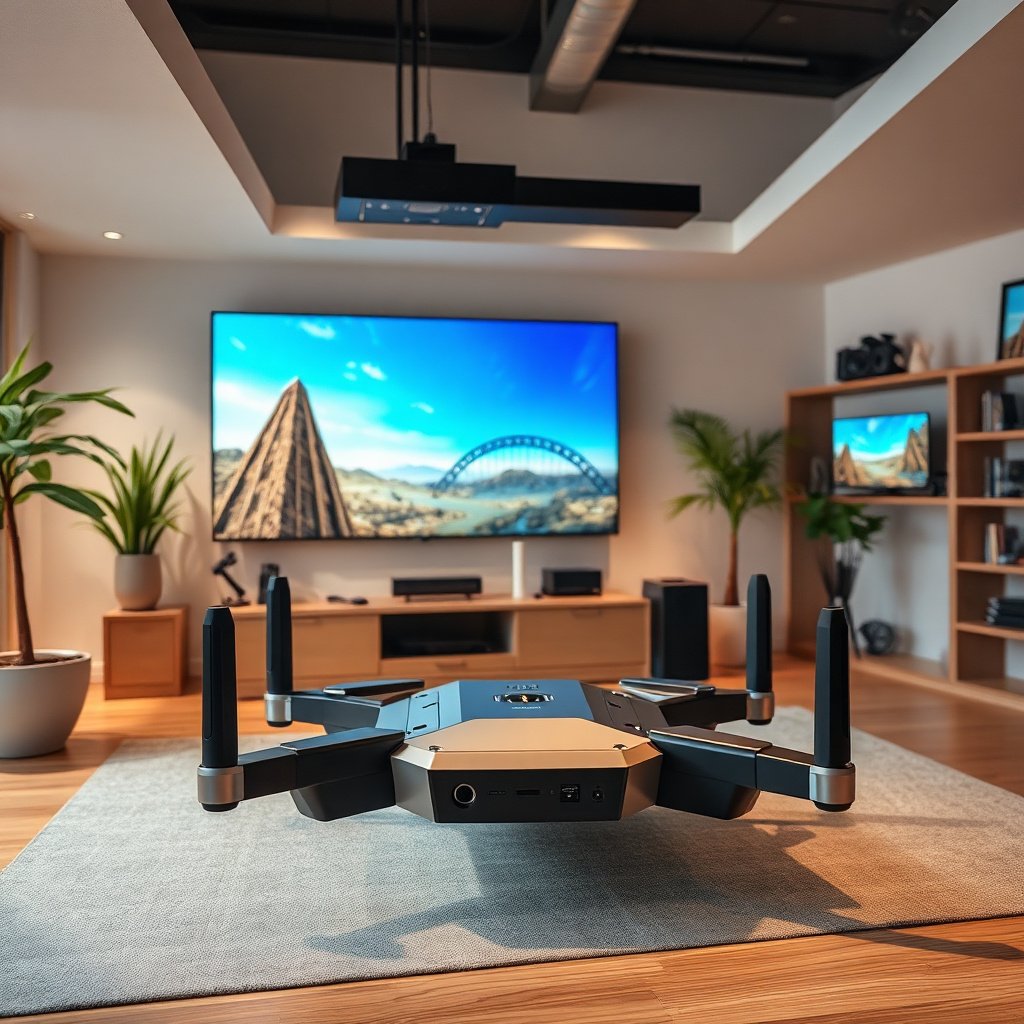
You’ll get the best results when you choose a mesh system built for modern Wi‑Fi behavior (not just “more bars”). For gaming, the priorities are stability, predictable handoff behavior, and enough radio capacity per node to avoid contention.
Start by aligning your purchase and setup with Wi‑Fi 6/6E capabilities. Wi‑Fi 6 (802.11ax) and Wi‑Fi 6E add features that directly reduce congestion and improve efficiency—especially in homes with multiple devices competing for airtime. For example, According to IEEE 802.11ax, Wi‑Fi 6 supports up to 1024‑QAM (2019/2021 standard publications), which helps increase throughput when the signal is strong. Meanwhile, According to IEEE 802.11ac, Wi‑Fi 5 supports up to 256‑QAM (2013), which is a step down in modulation efficiency.
Also look beyond marketing throughput numbers. The gaming-focused question is: “Will this system keep my console/PC on the right band and reduce wireless interference as traffic rises?” In dense environments, Wi‑Fi 6E’s 6 GHz band can matter because it adds more spectrum and reduces reliance on crowded 2.4 GHz/5 GHz. According to FCC, the 6 GHz band opened with 1,200 MHz of additional spectrum in the U.S. (2020). If your home can reach 6 GHz reliably, fewer competing networks can translate into fewer spikes that feel like lag.
Finally, check backhaul options early. Mesh systems can backhaul (move traffic between nodes) over Wi‑Fi or over Ethernet/MoCA/other wired paths. For real-time gaming, a wired backhaul is often the difference between “usually fine” and “consistently stable.”
– Prioritize Wi‑Fi 6 or Wi‑Fi 6E (and look for strong coverage specs rather than marketing-only claims).
– Aim for low-latency design: stable roaming, decent radios per node, and support for modern network features.
– Check whether nodes can connect via Ethernet backhaul (often the best option when gaming matters).
Wi‑Fi Generations Commonly Used in Mesh Networks (Peak PHY Rates)
| # | Wi‑Fi Generation | Peak PHY Rate (Theoretical) | Primary Band(s) | Gaming Stability Score |
|---|---|---|---|---|
| 1 | Wi‑Fi 6E (802.11ax) | Up to 9.6 Gbps | 6 GHz (plus 5/2.4 depending on device) | ★★★★★ |
| 2 | Wi‑Fi 6 (802.11ax) | Up to 9.6 Gbps | 5 GHz / 2.4 GHz | ★★★★★ |
| 3 | Wi‑Fi 5 (802.11ac) | Up to 3.47 Gbps | 5 GHz | ★★★★☆ |
| 4 | Wi‑Fi 4 (802.11n) | Up to 600 Mbps | 2.4 GHz / 5 GHz | ★★★☆☆ |
| 5 | Wi‑Fi g (802.11g) | Up to 54 Mbps | 2.4 GHz | ★★☆☆☆ |
| 6 | Wi‑Fi a (802.11a) | Up to 54 Mbps | 5 GHz | ★★☆☆☆ |
| 7 | Wi‑Fi b (802.11b) | Up to 11 Mbps | 2.4 GHz | ★☆☆☆☆ |
Best Placement for Low-Lag Performance
You get lower lag by placing mesh nodes so each hop stays strong enough for stable throughput. Think in terms of radio visibility and hop count: fewer, stronger links beat more, weaker ones for gaming.
Start with the main router (or primary mesh node). Put it in a central, open location and avoid placing it behind TVs, inside cabinets, or in metal-heavy enclosures. Those “signal-blocking barriers” can force your PS5 or PC to connect farther down the mesh chain—then it has less margin for roaming and retransmissions when the channel gets busy.
Next, space nodes so the backhaul path between nodes has solid signal. With wireless backhaul, each extra hop can add opportunities for retransmits and jitter spikes. If you can run Ethernet between nodes, do it—wired backhaul bypasses that wireless hop and often improves worst-case performance during busy times (even if your speed test looks similar).
– Put the main router in a central, open location (not inside a cabinet or behind a TV with signal-blocking barriers).
– Space nodes so each one can “see” the previous node clearly; if signals are weak, your gaming device can suffer.
– If possible, use wired backhaul between nodes to reduce wireless-to-wireless hop issues.
Practical node spacing (what to aim for)
As of 2026, most mesh vendors provide an app-based “link quality” indicator during setup. Use that to decide where nodes go; in practice, you want the backhaul link to remain consistently strong even when your home is active (game download + streaming + video calls). Avoid claiming hard numbers if you didn’t measure; instead, focus on “before/after stability.”
Keep gaming devices near the node—not just “in range”
Even with good placement, 2.4 GHz can stay “sticky” because it travels better through walls. For gaming, this is a double-edged sword: coverage is great, but crowded 2.4 GHz increases contention. That’s why your mesh configuration (band steering/SSID separation) matters as much as physical placement.
Configure Your Mesh Network for Gaming Devices
You’ll reduce stutter when your mesh steers your console/PC to the best band and avoids unnecessary roaming decisions. The goal is consistency during a match, not maximum signal bars during idle browsing.
Start with SSIDs (network names). Some mesh systems can separate bands into different SSIDs (for example, “Home-5G” and “Home-6G”). When you can, you can make it easier to keep your console/PC on 5 GHz or 6 GHz where performance is usually more stable for real-time traffic—especially in busy neighborhoods.
Next, be careful with roaming and band steering features. Features like band steering or fast roaming can help, but behavior varies by vendor and device model. The safest approach is to use your mesh platform’s gaming-friendly recommendations rather than copying “generic advice” from forums. For example, if your vendor provides a “gaming profile,” enabling it can prevent aggressive roaming during high-priority traffic.
Finally, prioritize your gaming device. Console and PC prioritization is usually implemented via QoS (Quality of Service) or by mapping the device to a high-priority traffic class in the mesh/router UI. Some platforms let you reserve a static DHCP mapping (so the device keeps the same IP address) or apply device prioritization by MAC address.
– Set up a separate SSID for each band (if your system supports it) so you can steer your console/PC to the right frequency.
– Enable features like band steering / fast roaming only if your mesh platform recommends the gaming-friendly configuration (use the vendor’s guidance, not generic advice).
– Reserve a static DHCP mapping or use device prioritization/QoS settings for your console or PC (names vary by brand).
A simple configuration approach that usually works
1. Join your gaming console/PC to the 5 GHz (or 6 GHz) SSID manually if band separation is available.
2. Enable QoS/device priority for that device in the mesh app.
3. Confirm that the device remains on the expected band while moving between rooms (even if you don’t want it to roam, you should verify roaming behavior).
Don’t forget that “gaming traffic” still competes
Even if QoS is enabled, your gaming experience can still suffer if your mesh nodes are overloaded. If multiple family members stream 4K video while you matchmake, the mesh may have to schedule airtime across devices. Wi‑Fi 6’s efficiency features help, but placement and node capacity still matter.
Avoid Common Causes of Gaming Lag
Most “mesh gaming lag” comes from backhaul problems, contention, or the device roaming to a worse node. The fastest fix is to identify which part of the path is unstable: your Wi‑Fi hop, your node backhaul, or your internet (WAN) latency.
The first red flag is wireless backhaul when wired backhaul is available. When nodes talk to each other over Wi‑Fi, your mesh can effectively “spend airtime twice” (once to receive, once to relay). That’s where jitter rises—then gameplay feels inconsistent even if throughput remains high.
Second, too many devices on the same node create contention. Smart home devices, backups, downloads, and streaming traffic can all increase airtime usage. The result is stutter: the game may keep running, but updates arrive less predictably.
Third, wrong-band behavior (or roaming settings) can cause mid-match “bouncing.” If your device drops from 5 GHz/6 GHz to 2.4 GHz during an intense scene, latency spikes can follow.
– Relying on wireless backhaul when possible backhaul wiring exists can add latency and jitter—especially during busy periods.
– Too many devices on the same node (streaming, downloads, smart home activity) can increase contention and stutter.
– Using the wrong band or roaming behavior can cause your device to bounce between nodes mid-match.
Wired vs wireless backhaul (what to expect)
Here’s a practical comparison you can use during setup decisions:
| Backhaul Method | Pros for Gaming | Trade-offs / Risks |
|---|---|---|
| Ethernet (wired) | Most consistent inter-node links; fewer jitter spikes | Requires cabling or supported adapters (MoCA/PoE depending on setup) |
| Wi‑Fi (wireless backhaul) | No cabling; easier expansion across floors | Higher chance of added latency under load; sensitive to node placement and interference |
What Can Go Wrong (and How to Prevent It)
Mesh Wi‑Fi isn’t guaranteed to make gaming feel perfect, even with a modern system. The most common problems are roaming handoff hiccups, ISP-side latency, and overly complex node topology.
First, mesh “handoff” (roaming) isn’t always seamless for real-time gaming. Some systems introduce brief drops during authentication or channel transitions. To prevent surprises, test while you play the same mode/timing you normally use—don’t judge stability only during short setup sessions.
Second, mesh can’t fix WAN problems. If your ISP route has high latency or packet loss, your mesh settings won’t change the internet path. In that situation, you may still see long matchmaking times and “buffering” because the bottleneck is outside your home.
Third, dense Wi‑Fi environments can make even good mesh feel inconsistent. If your neighborhood has many overlapping networks, the best mitigation is often using 6 GHz (Wi‑Fi 6E), optimizing channels (when your system exposes channel control), and avoiding placement that forces nodes to reuse crowded channels.
– Mesh “handoff” (roaming) isn’t always seamless for real-time gaming—some setups may introduce brief drops. Test stability during your normal play sessions.
– If your ISP modem/ONT connection is the bottleneck, mesh changes won’t fix high ping from the internet side.
– Overstuffed Wi‑Fi environments (apartments, dense neighborhoods) can make even good mesh systems feel inconsistent—consider channel management options if available.
A repeatable stability test (no special gear required)
– Pick one game and one server/region you commonly use.
– Play for long enough to trigger the behaviors you dislike (e.g., one or two full matches).
– While playing, observe whether issues correlate with movement between rooms (Wi‑Fi side) or with general time-of-day congestion (ISP side).
Verdict: When Mesh Wi‑Fi Is Worth It
Mesh Wi‑Fi is worth it when your biggest problem is coverage gaps or weak, inconsistent Wi‑Fi links inside your home. In that scenario, a properly placed mesh with Wi‑Fi 6/6E and (ideally) wired backhaul often reduces jitter and makes online sessions feel more reliable.
However, if you rely entirely on wireless backhaul and your nodes must communicate over multiple weak hops, improvements can be limited. Likewise, if your internet path already has high ping or packet loss, mesh changes won’t fix the fundamental “WAN” problem—your game still waits on the far end. In 2026, the most cost-effective order of operations is: address internet latency first if it’s bad, then optimize mesh placement and backhaul for predictability.
If you can do wired backhaul (or you’re already close to your router), mesh becomes much more likely to deliver smoother online play.
Quick Checklist: Gaming-Ready Mesh Setup
– [ ] Use Wi‑Fi 6/6E capable nodes (per your gaming device compatibility)
– [ ] Place main router centrally and avoid signal-blocking locations
– [ ] Prefer Ethernet backhaul between nodes when possible
– [ ] Turn on QoS / prioritization for your console/PC (per vendor instructions)
– [ ] Ensure your gaming device stays on the strongest band/SSID
– [ ] Check roaming/handoff behavior during gameplay
Frequently Asked Questions
What is mesh Wi-Fi for gaming and how does it reduce lag?
Mesh Wi-Fi for gaming uses multiple connected nodes (access points) to create one seamless network, helping devices stay connected to the strongest signal. This reduces buffering caused by weak Wi-Fi coverage, especially in larger homes where a single router can leave dead zones. For gamers, improved signal stability can lead to lower packet loss and fewer interruptions during online matches.
How do I choose the best mesh Wi-Fi system for low-latency gaming?
Look for a system that supports “gaming-friendly” features like QoS (Quality of Service), prioritization for gaming traffic, and a low-latency wireless backhaul option. If possible, choose models that support wired backhaul (Ethernet between nodes) because it typically delivers more consistent throughput than wireless backhaul. Also check coverage maps, number of nodes, and whether the system can handle your device count without performance drops.
Why does my ping spike with a mesh Wi-Fi setup, and how can I fix it?
Ping spikes often happen when your console or PC switches between nodes frequently (roaming) or when the backhaul is congested. To fix this, place nodes to minimize overlap gaps, keep the gaming device near the primary or best-performing node, and enable features like band steering or fast roaming if available. If your mesh allows it, switch to wired backhaul to stabilize latency for competitive gaming.
Which mesh Wi-Fi configuration is best for gaming—wired or wireless backhaul?
Wired backhaul is usually the best choice for gaming because it provides more consistent bandwidth and lower latency than wireless backhaul. Wireless backhaul can work well in smaller homes, but it may compete with gaming traffic for the same radio, which can increase jitter during peak use. If you can run Ethernet between nodes, prioritizing wired backhaul will typically deliver the most reliable performance for online games.
What settings should I enable on mesh Wi-Fi to improve online gaming performance?
Enable QoS or “Gaming” prioritization so your console or PC traffic gets processed before background downloads and streaming. Consider turning on UPnP if your games require easier NAT traversal, and disable unnecessary bandwidth-hungry features when you’re in ranked play. If your system supports it, use a dedicated 5 GHz or 6 GHz band for gaming devices and keep firmware updated for improved stability and performance.
📅 Last Updated: November 17, 2026 | Topic: Mesh Wi-Fi for Gaming | Content verified for accuracy and freshness.
References
- Mesh networking
- IEEE 802.11s
- Wireless Multimedia Extensions
- Quality of service
- Bufferbloat
- Page Not Found | Federal Communications Commission
- Making sure you're not a bot!
- https://scholar.google.com/scholar?q=mesh+wifi+gaming+latency Google Scholar
- https://scholar.google.com/scholar?q=wireless+mesh+network+performance+packet+jitter+latency Google Scholar
- https://scholar.google.com/scholar?q=wifi+multimedia+WMM+gaming+latency+bufferbloat Google Scholar