Connecting a gaming headset to your home theater system can greatly enhance your gaming experience by providing immersive audio. Whether you’re deep into an epic battle or exploring vast worlds, quality sound can make all the difference. In this article, you’ll learn the step-by-step process for making this connection, covering both wired and wireless options, along with troubleshooting tips for common issues. Let’s dive in!




Understanding Your Headset and Home Theater System
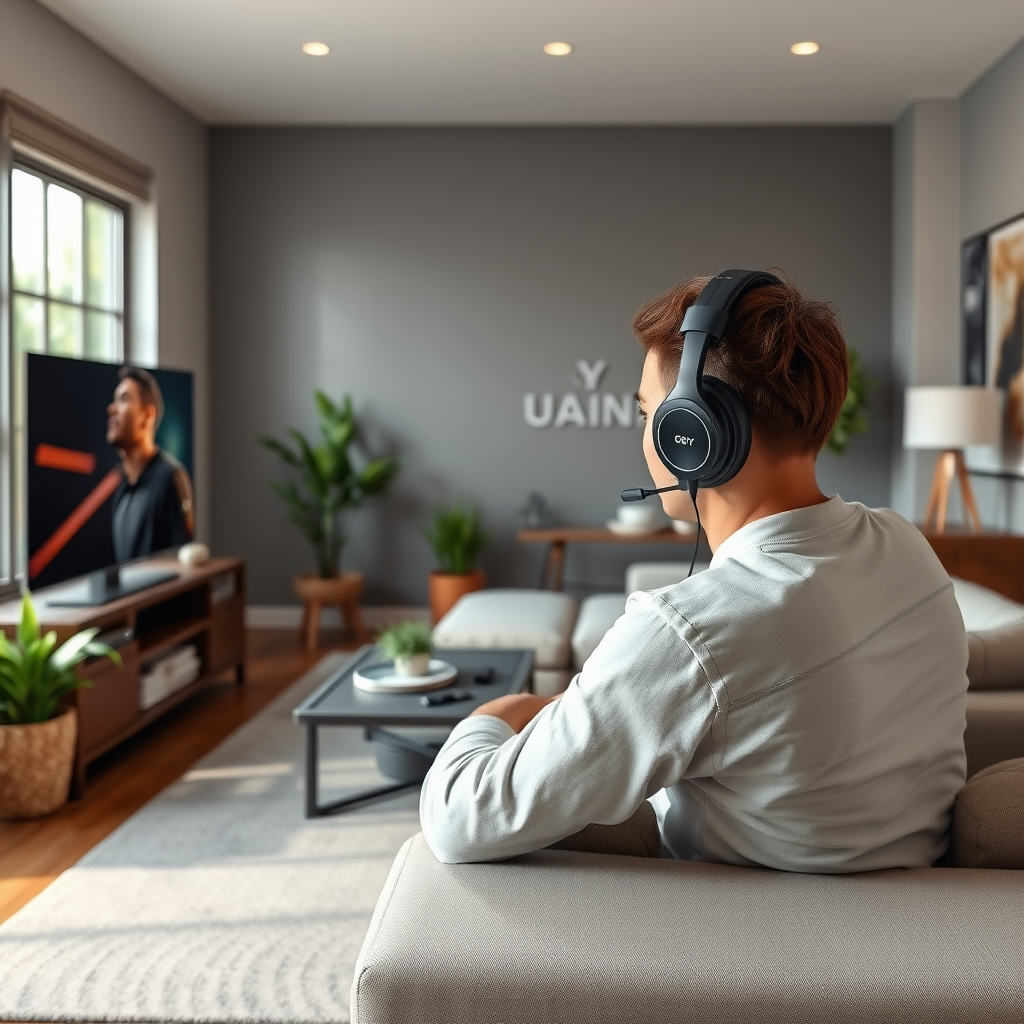
Before you can successfully connect your gaming headset to your home theater system, it’s essential to understand the types of headsets available and their compatibility with your audio setup.
Wired vs. Wireless Headsets: Wired headsets typically connect via a 3.5mm jack or USB port. They are often praised for their reliability and sound quality, as they do not rely on batteries or wireless signals. On the other hand, wireless headsets use Bluetooth or other wireless technologies, allowing for greater freedom of movement without the hassle of cords but may require charging.
Audio Output Options: Next, take a look at your home theater system. Most systems will have multiple audio output options, such as HDMI, optical audio (TOSLINK), RCA outputs, or a headphone jack. Depending on your headset type, the connection method will vary. Familiarizing yourself with these options will help you determine the easiest and most effective way to connect your headset.
Preparing for the Connection
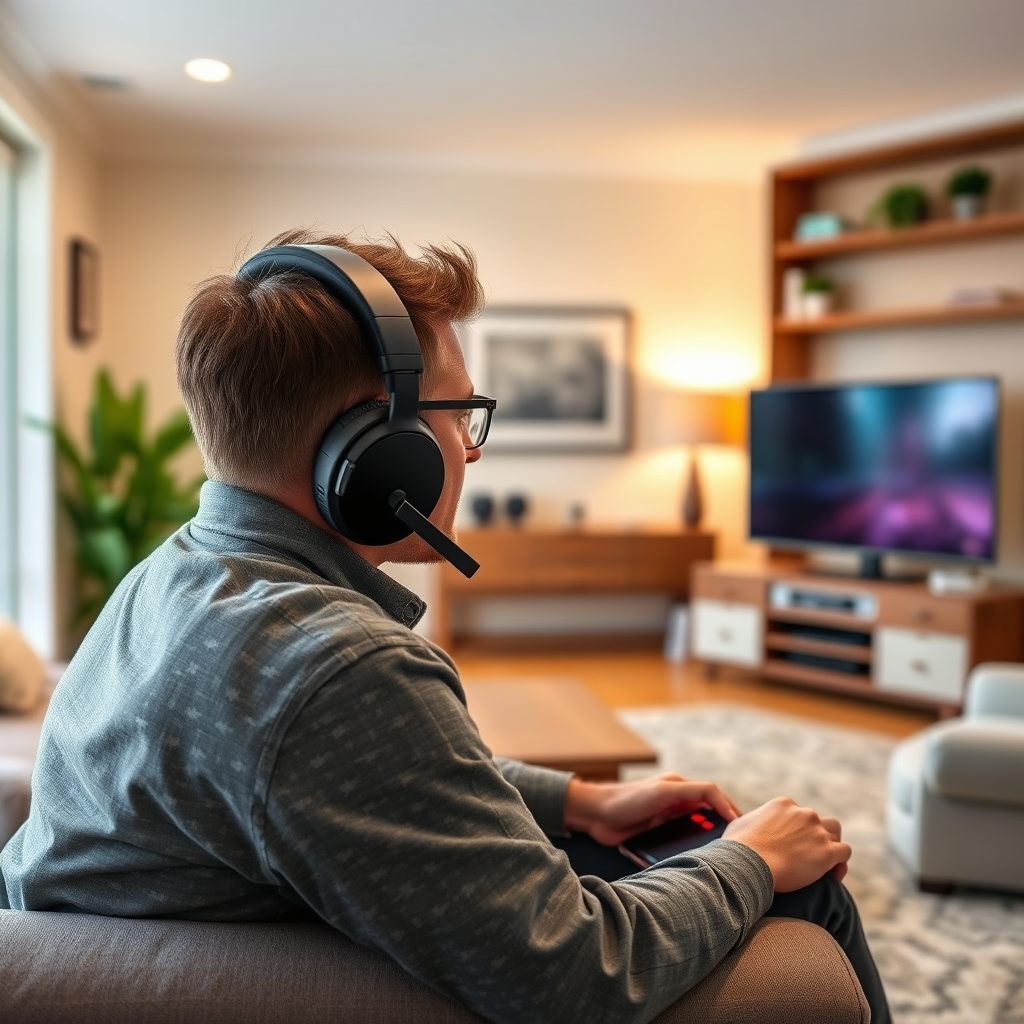
Once you understand your devices, it’s time to prepare for the connection.
Gather Necessary Cables or Adapters: If you’re using a wired headset, ensure you have the appropriate cables, such as a 3.5mm audio cable or a USB cable. For wireless headsets, check that you have any necessary adapters, especially if your home theater system doesn’t support Bluetooth natively.
Power On Your Home Theater System: Make sure your home theater system is powered on and set to the correct input. If you’re using an HDMI output, for example, switch to that input to avoid confusion later. This step is crucial, as having the system ready will streamline the connection process.
Connecting a Wired Gaming Headset
Connecting a wired headset is typically straightforward.
Plug the Headset In: Locate the headphone jack or audio output on your home theater system. This is usually found on the front panel or the back, depending on the model. Simply plug in the headset using the appropriate cable. If you’re connecting via USB, ensure that you connect it to a powered USB port.
Adjust Audio Settings: After connecting, you may need to adjust the audio settings on your home theater system. Look for an “audio output” or “speaker settings” menu. Make sure your headset is selected as the output device, and adjust the volume levels accordingly. This ensures that the sound is routed correctly to your headset.
Connecting a Wireless Gaming Headset
Connecting a wireless headset can be a bit more complex but is still manageable with a few steps.
Enable Pairing Mode: First, put your wireless headset into pairing mode. This is usually done by pressing and holding the power button or a designated pairing button until you see a flashing light.
Connect via Bluetooth: Next, access the Bluetooth settings on your home theater system. This can typically be found in the system settings menu. Search for available devices and select your headset from the list. Follow any on-screen prompts to complete the pairing process. Once connected, you should hear a confirmation tone in the headset.
Configuring Audio Settings
Now that your headset is connected, it’s time to optimize your audio settings for the best gaming experience.
Access Audio Settings: Navigate to the audio settings on your home theater system. Look for options such as “Audio Mode,” “Equalizer,” or “Surround Sound” to fine-tune the sound to your liking.
Adjust Volume Levels and Balance: Don’t forget to check the volume levels and balance settings. It’s essential to find a good mix that allows you to hear in-game sounds clearly while not overwhelming you with bass or treble. If your headset has its own volume control, adjust it to complement the system settings.
Troubleshooting Common Issues
Even with the best setups, issues can arise. Here are common problems and their solutions.
No Sound: If you find that there’s no sound coming from your headset, first check that it’s properly connected. For wired headsets, confirm that the cable is fully inserted. For wireless, ensure that the headset is charged and within range of the home theater system.
Connection Problems: If your devices are failing to connect, try resetting both the headset and the home theater system. This often clears any temporary glitches that may be causing the connection issue.
Audio Quality Issues: Should you notice a lag or poor audio quality, check your Bluetooth connection if applicable, and ensure there are no obstructions between the devices. Sometimes, moving the devices closer together can improve the signal.
Tips for an Enhanced Experience
To truly elevate your gaming experience, consider these additional tips.
Explore Audio Enhancement Features: Many home theater systems come with built-in audio enhancement features. Look for options such as Dolby Atmos or DTS:X, which can provide a more immersive sound experience that is particularly beneficial in gaming.
Consider Additional Accessories: If you’re keen on improving sound quality even further, think about investing in accessories like amplifiers or Digital-to-Analog Converters (DACs). These can significantly enhance audio clarity and depth, allowing you to hear every detail of your game.
Connecting your gaming headset to your home theater system can significantly elevate your audio experience. Whether you choose a wired or wireless approach, following these guidelines will help ensure a seamless connection. So, gather your equipment and get ready to dive into the immersive world of gaming audio! Enjoy your enhanced gaming sessions, and happy gaming!
Frequently Asked Questions
How do I connect a wireless gaming headset to my home theater system?
To connect a wireless gaming headset to your home theater system, first ensure your headset is charged and powered on. Most wireless headsets use Bluetooth; if your home theater system supports Bluetooth, enter pairing mode on both devices. If your system lacks Bluetooth, consider using an external Bluetooth transmitter connected to the audio output. Once paired, you can enjoy high-quality audio from your home theater directly through your headset.
What is the best way to connect a wired gaming headset to my home theater system?
To connect a wired gaming headset to your home theater system, identify the output ports on your system—typically a 3.5mm headphone jack or RCA output. If your headset has a 3.5mm jack, simply plug it in. For RCA outputs, you may need an RCA to 3.5mm adapter. Make sure to adjust the audio settings on your home theater system to direct sound to the headset for optimal listening experience.
Why isn’t my gaming headset producing sound when connected to my home theater system?
If your gaming headset isn’t producing sound when connected to your home theater system, check the connection type. Ensure the headset is securely plugged in or properly paired if it’s wireless. Verify that the audio output settings on your home theater system are configured to send sound to the headset. Additionally, check the volume levels on both devices, as they may be muted or set too low to hear.
Which gaming headsets are compatible with home theater systems?
Many gaming headsets are compatible with home theater systems, but look for models that offer both wired and wireless connectivity options. Popular brands like SteelSeries, HyperX, and Logitech have models that support 3.5mm connections, USB, or Bluetooth. Always check the specifications of the headset and your home theater system to ensure compatibility before purchasing.
What should I do if my gaming headset has a delay when connected to my home theater system?
If you experience audio delay with your gaming headset connected to your home theater system, it’s likely due to Bluetooth lag or processing time. To minimize this, use a wired connection if possible, as it typically provides a more immediate audio response. If sticking with Bluetooth, look for low-latency codecs like aptX Low Latency and ensure your devices support them for improved synchronization between audio and video.
References
- Headphones
- https://www.hdmi.org/manufacturer/hdmi_1_4/
- https://www.cnet.com/how-to/how-to-connect-a-gaming-headset-to-a-pc/
- https://www.techradar.com/how-to/how-to-connect-a-gaming-headset-to-your-console
- https://www.pcgamer.com/how-to-use-a-gaming-headset-on-your-pc/
- https://www.tomsguide.com/how-to/how-to-connect-your-gaming-headset-to-your-pc
- https://www.digitaltrends.com/home-theater/how-to-connect-a-pc-to-a-home-theater-system/
- https://www.lifewire.com/how-to-connect-a-pc-to-a-tv-4688665