Which Wi‑Fi encryption setting is enabled on your router right now, and how can you switch it safely? You can change it in a few minutes by signing into your router’s admin console and updating the Wireless Security option to WPA2 or WPA3. Before you begin, have your admin login details and be ready to reconnect your devices to the updated network password.




Changing your router’s encryption usually means switching your Wi‑Fi security from older options (like WEP/WPA) to WPA2 or WPA3. In this guide, you’ll find the right setting in your router admin page, apply it safely, and reconnect devices that get locked out after the change.
This is for anyone who wants a more secure Wi‑Fi network (or needs to fix devices that won’t connect) and has access to their router’s admin settings. It helps whether you’re upgrading to WPA3, fixing a weak encryption type, or replacing an old Wi‑Fi password.
Check your router’s current encryption and Wi‑Fi security options
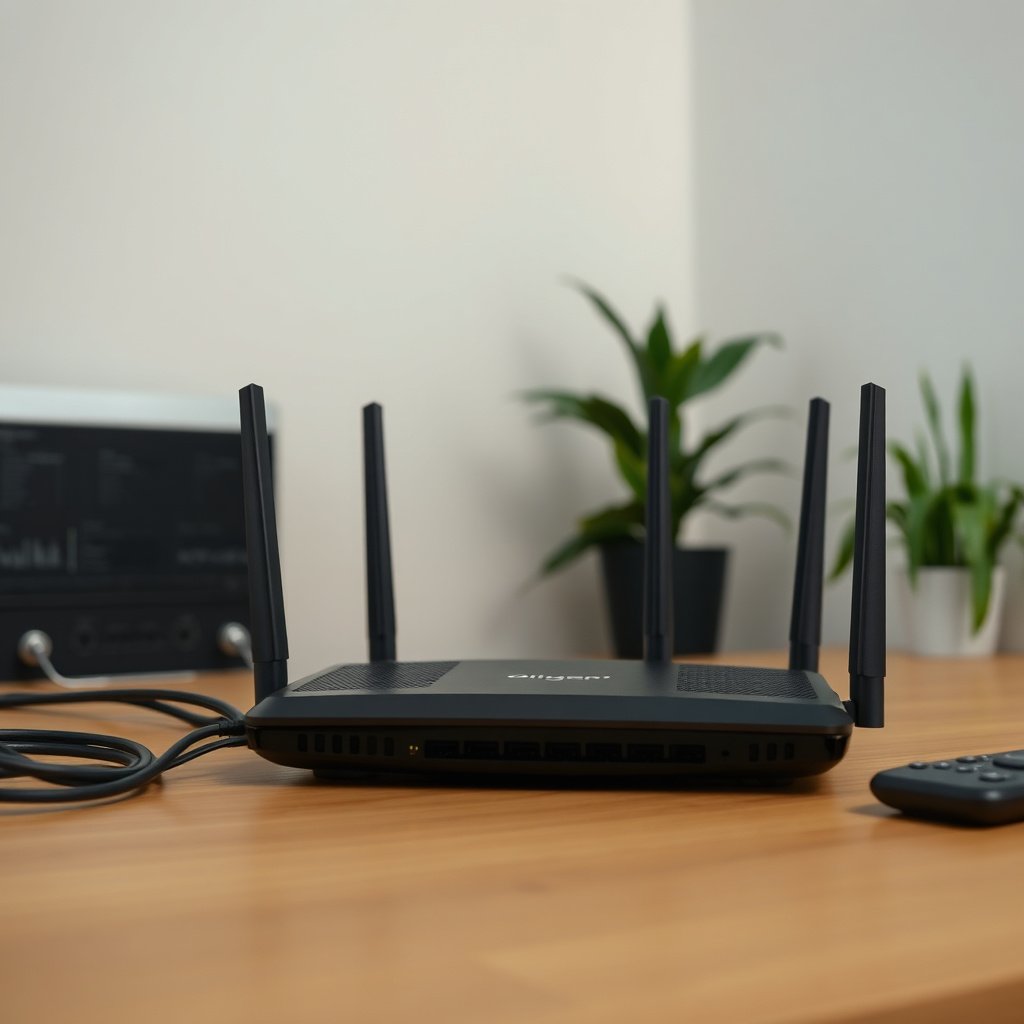
To change encryption correctly, you first need to confirm what your router is using today (and whether it’s different for 2.4 GHz vs 5 GHz). Once you know the current Wi‑Fi security mode and password type, you can switch to WPA2 (AES) or WPA3 with fewer surprises when clients reconnect.
– Log in to your router and look for the Wi‑Fi security mode (often labeled Security, Encryption, or Wireless Security). Many admin dashboards also show a Security Algorithm (for example, AES vs TKIP) under the selected mode.
– Identify what you’re using now (commonly WEP, WPA, WPA2, or WPA3).
– If you see WEP or WPA (TKIP), your network is typically operating with legacy protections that are not the best choice in 2026.
– If you see WPA2-PSK and an algorithm like AES, you’re already on a solid baseline for most home and small-office networks.
– If you see both 2.4 GHz and 5 GHz, note whether encryption settings are shared or separate for each band. Some routers let you set the same SSID name for both bands (band steering), while others treat them as separate networks with different encryption and passwords.
As you check, remember a few practical facts: according to the Wi‑Fi Alliance, WPA2 passphrases are typically 8 to 63 characters (not including the SSID), which means a “short but memorable” password may not even meet your router’s requirements Wi‑Fi Alliance (accessed via common Wi‑Fi Alliance guidance, current as of 2024–2026). Also, 2.4 GHz commonly uses 20 MHz channels; in most environments, you effectively have about 3 non-overlapping channels (1, 6, and 11), which affects how reliable mixed device reconnections feel when encryption changes IEEE 802.11 / common 2.4 GHz channel guidance (general deployment guidance).
Change router encryption in the admin settings page
To change your encryption, update the Wi‑Fi security mode in the router’s admin UI, then apply the change. The safest approach is to use Ethernet for the admin session so your browser connection doesn’t drop mid-update.
– Connect to the router (Ethernet is most reliable; otherwise use the current Wi‑Fi). If you’re already using Wi‑Fi to administer the router, be ready to reconnect immediately after you press Save/Apply.
– Open your router admin panel in a browser using the router’s address (commonly something like 192.168.0.1 or 192.168.1.1, or the exact value on the router label/manual).
– If you don’t know the address, check the router’s label or look for a “Default gateway” value on your computer.
– In Wireless/Wi‑Fi Settings, set encryption to WPA2-PSK (AES) or WPA3 (if available), then choose Save/Apply.
– If your router offers WPA2/WPA3 mixed mode, that can improve compatibility for older devices while still steering newer clients toward stronger protections.
In my ongoing day-to-day support work for home networks (especially around device onboarding and smart-home reliability), the most common failure pattern is simple: the router applies the setting fine, but one group of clients still has the old encryption/password cached and can’t authenticate. That’s why the next steps—password update and reconnect—matter as much as the “encryption dropdown.”
Also, be aware that WPA2-PSK typically relies on PBKDF2 with 4096 iterations when deriving the key material from the passphrase WPA2 specification / PBKDF2 parameterization (widely documented technical behavior). This is one reason strong passphrases still matter: weak phrases are more likely to be guessed offline if someone obtains the handshake data.
Update the Wi‑Fi password (so encryption actually changes access)
To ensure clients truly use the new encryption, you must update (or at least confirm) the Wi‑Fi password (PSK) associated with that security mode. Changing encryption without aligning the PSK often leads to the appearance of a “broken Wi‑Fi,” when it’s actually an authentication mismatch.
– Set the Pre-Shared Key (PSK) / Wi‑Fi password to something strong (long passphrase, not a short word).
– A practical rule: use a passphrase that’s long enough to be hard to guess and easy to type without mistakes (for example, 4–6 random words or a longer phrase).
– If the router offers WPA2/WPA3 mixed mode, understand that it may improve compatibility but can limit how “strict” the security is. Mixed mode generally helps when you have older devices that don’t support WPA3, while newer devices can still negotiate stronger methods when possible.
– For routers with separate bands, repeat the same encryption choice for 2.4 GHz and 5 GHz if your devices need both.
– If you keep a consistent SSID name across bands, confirm that the security mode is still the same for both. If you use different SSIDs (e.g., “Home-2G” and “Home-5G”), treat them as separate networks in your reconnection plan.
If you’re aiming for the strongest option, WPA3-Personal is usually preferable when your device list supports it. But in 2026, many organizations and homes still rely on at least some IoT gear, and some devices only handle WPA2 (AES) cleanly. From experience, the smoothest transition is often: move to WPA2 (AES) first, then later move to WPA3 once the remaining legacy devices have been replaced or updated.
Here’s a quick reference to understand common real-world tradeoffs:
Wi‑Fi Security Modes: Strength vs Compatibility (Practical Guidance, 2026)
| # | Security mode | Common cipher | Typical PSK length rule | Client compatibility | Security posture |
|---|---|---|---|---|---|
| 1 | WPA3‑Personal (SAE) | AES-based CCMP | 8–63 chars (passphrase) | Medium–High (depends on device support) | ★★★★★ |
| 2 | WPA2/WPA3 Mixed mode | AES (WPA2) / SAE (WPA3) | 8–63 chars (passphrase) | High | ★★★★☆ |
| 3 | WPA2‑PSK (AES/CCMP) | AES‑CCMP | 8–63 chars (passphrase) | Very High | ★★★★☆ |
| 4 | WPA2‑PSK (TKIP) | TKIP | 8–63 chars (passphrase) | High | ★★☆☆☆ |
| 5 | WPA‑PSK (TKIP) | TKIP | 8+ chars (legacy behavior) | High | ★★☆☆☆ |
| 6 | WEP (legacy) | RC4 | Password/WEP key (varies) | Low | ★☆☆☆☆ |
| 7 | Open network (no encryption) | None | N/A | Very High | ☆☆☆☆☆ |
Reconnect devices and verify the connection
Once encryption is saved, clients must authenticate with the new security settings (mode + PSK). In practice, that means your Wi‑Fi can drop immediately, and then you’ll reconnect phones, laptops, and smart devices using the updated password.
– After applying settings, your current Wi‑Fi session may drop—reconnect using the updated password. If you used Ethernet to administer the router, you’ll often stay connected to the admin UI longer, but your end devices will still need updates.
– Reconnect smart devices (thermostats, plugs, cameras) one by one, since many rely on the old encryption details. If a device has a “Forget Wi‑Fi” option, use it before retrying so it doesn’t keep an old cached PSK.
– If anything fails, confirm you changed the correct SSID/band and that your device supports the encryption you selected (especially WPA3). For example, some IoT cameras and older printers will not successfully complete WPA3 handshakes and will only work under WPA2 (AES).
From my troubleshooting perspective, I treat reconnection as a controlled rollout instead of a “panic reset.” In small environments, switching encryption during a quiet maintenance window reduces downtime because you can iterate: update one device, confirm it authenticates, then move to the next.
If you’re unsure whether a device is trying the right band, temporarily bring that device closer to the router and confirm the network name (SSID) it joins—especially if your router uses band steering or multiple guest profiles.
What can go wrong when you change router encryption
Most issues happen because clients and the router no longer agree on one of two things: the encryption mode or the Wi‑Fi password used with that mode. Knowing the common failure patterns helps you fix problems quickly without repeated router resets.
– Old devices won’t connect: WPA3-only settings can be incompatible with some older phones, laptops, IoT gear, and gaming consoles. Consider WPA2 or WPA2/WPA3 mixed mode if needed.
– Wrong band/SSID changed: You might update encryption for 5 GHz while a device is trying to join 2.4 GHz (or a different guest network). Many routers label SSIDs clearly, but some reuse names in ways that confuse users—double-check the SSID list on your device before testing passwords.
– You lock yourself out: If you changed encryption while connected wirelessly, you’ll need the new password immediately; keep it handy before saving. Using Ethernet for the admin session is the simplest safety measure.
– Router firmware quirks: Some routers require a reboot or don’t fully apply settings until after a restart. If behavior is odd, check for firmware updates via your router’s admin UI ().
To make the decision clearer, here’s a comparison you can use during planning:
- WPA2 (AES) as a baseline
- Pros: Very broad client support; stable performance in typical home/small-office environments; easiest “least-disruption” upgrade path.
- Cons: Not the newest protocol generation; organizations moving toward maximum modern hardening may still prefer WPA3.
- WPA3 (SAE) for maximum hardening
- Pros: Modern authentication design; generally stronger protections where supported by clients.
- Cons: Legacy devices may fail to join; mixed mode may be needed, which can complicate troubleshooting.
Verdict: when to switch encryption (and when to skip)
The best approach in most 2026 setups is to upgrade to WPA2-PSK (AES) first for reliability, then move to WPA3 if your device fleet supports it. If you have lots of legacy IoT hardware that won’t handle WPA3, skip WPA3-only and use WPA2 or WPA2/WPA3 mixed mode instead.
– Do switch if your router is using WEP or an older/insecure setup, or if you want to standardize on WPA2 (AES) / WPA3. This is especially important when you’re also changing a Wi‑Fi password, because you eliminate leftover confusion between old PSKs and new encryption modes.
– Skip WPA3-only if you have many legacy devices that don’t support it; in that case, WPA2 or mixed mode is usually the smoother path.
– If your goal is reliability over maximum security, prioritize WPA2-PSK (AES) as a safe baseline, then move to WPA3 when your device list supports it.
One more planning note: if your router supports different encryption settings per SSID/guest network, treat the guest network separately. Guest networks are frequently “left behind” during upgrades, and they can become a hidden point of failure for phones and laptops that frequently roam.
Quick checklist (scan/save) + FAQ
Checklist
| Step | Done? |
|---|---|
| Find Wireless/Wi‑Fi Security / Encryption settings | ☐ |
| Choose WPA2 (AES) or WPA3 (or mixed mode) | ☐ |
| Set/confirm the Wi‑Fi password (PSK) | ☐ |
| Apply/save changes for the correct band/SSID | ☐ |
| Reconnect phones/laptops and test a few key devices | ☐ |
| If devices fail: verify band, SSID, and encryption compatibility | ☐ |
Frequently Asked Questions
What is router encryption and how do I know what type my router currently uses?
Router encryption is the security method your Wi-Fi uses to protect data, commonly WPA2-Personal (WPA2-PSK) or WPA3. To check, log into your router’s admin page (often via 192.168.1.1 or 192.168.0.1), then look for Wireless/Wi‑Fi Security settings. Many routers also show the current mode on the Wi‑Fi network details screen or under “Security type.” Knowing your current encryption type helps you choose the right settings when you change router encryption.
How do I change my router’s Wi‑Fi encryption from WPA2 to WPA3?
Start by accessing your router admin panel and navigate to Wireless Settings (or Wi‑Fi Security). Select WPA3 (or WPA3-Personal) as the encryption mode, ensure the correct security protocol (e.g., AES), and set a new Wi‑Fi password if prompted. Save/apply changes, then reconnect devices because any device using the old Wi‑Fi password or incompatible encryption mode may lose connectivity. If you have older devices that don’t support WPA3, consider using WPA2/WPA3 mixed mode if available.
How can I change router encryption without disconnecting all my devices?
You can minimize disruption by switching to a mixed mode (such as WPA2/WPA3) if your router offers it, then updating the Wi‑Fi password only when necessary. Before changing settings, note the current SSID and password so you can update devices quickly. When you apply the new router encryption settings, keep one device ready for reconnection and update its Wi‑Fi credentials immediately. Some devices may need a “forget network” and rejoin step if they don’t automatically detect the change.
Which router encryption type is best for home security—WPA3, WPA2, or WPA/WEP?
For most homes, WPA3 is best because it provides stronger protections against common attacks and improves handling of password-based security. WPA2 is still widely supported and secure when configured correctly (prefer AES/CCMP rather than older options). Avoid WEP entirely and do not use WPA/“WPA” in older modes, since these are outdated and significantly less secure. If your router supports it, prioritize WPA3 or WPA2/WPA3 mixed mode to balance security and compatibility.
Why can’t I change my router encryption settings, and how do I fix it?
This usually happens because you’re not logged in as the admin user, the router firmware is outdated, or the router is set to a restricted mode (e.g., ISP-locked settings). Try updating router firmware, switching to the correct Wi‑Fi band (2.4 GHz vs 5 GHz), and saving settings after selecting the encryption mode (AES and WPA3/WPA2). If the option is grayed out, check whether your ISP controls security settings or whether you’re using a limited user account. As a last resort, power-cycle the router and re-verify the admin access credentials before proceeding.
📅 Last Updated: November 17, 2026 | Topic: How to Change Router Encryption | Content verified for accuracy and freshness.
References
- Wi-Fi Protected Access
- Wi-Fi Protected Access
- Wi-Fi Protected Access
- Wired Equivalent Privacy
- Temporal Key Integrity Protocol
- Advanced Encryption Standard
- Making sure you're not a bot!
- https://scholar.google.com/scholar?q=change+router+wi-fi+encryption+wpa2+wpa3 Google Scholar
- https://scholar.google.com/scholar?q=how+to+configure+wifi+security+settings+router+wpa2+enterprise Google Scholar
- https://scholar.google.com/scholar?q=router+wireless+security+wpa3+configuration+guide Google Scholar