
Fix double NAT fast with a clear step-by-step troubleshooting path that tells you exactly what to change and in what order. This guide answers the practical question: how do you identify the second NAT on your network and remove it—so games, VPNs, and port forwarding stop failing. Follow the sequence and you’ll end up with one clean NAT setup, not a loop of guess-and-check.

- Refer the user manual below for troubleshooting
- Up to 50 IPsec tunnels (for site-to-site and client-to-site VPN) and 5 OpenVPN tunnels for iOS and Android users
- 900 Mbps firewall and 110 Mbps IPsec throughputs

📋 About This Article
This article shows you how to fix double NAT by adjusting your router settings so only one device performs the network “address translation.” It’s for home and small-office users who are dealing with broken gaming, unreliable VPNs, or port forwarding that won’t work. You’ll learn how to spot the second NAT layer, apply the correct bridge/pass-through or disable-NAT approach, and verify the fix with simple tests.
Fix double NAT by making sure only one device performs NAT—usually by putting the secondary router into bridge/pass-through mode or disabling NAT on it. This guide walks you through spotting the second NAT layer, applying the correct bridge/DHCP/forwarding settings, and validating the result with practical tests you can run in 2025.
Introduction

Fix double NAT by putting your router into bridge mode (or disabling NAT on the secondary device) so your network uses only one NAT layer. This guide walks you through identifying the source of double NAT and resolving it with the right settings.
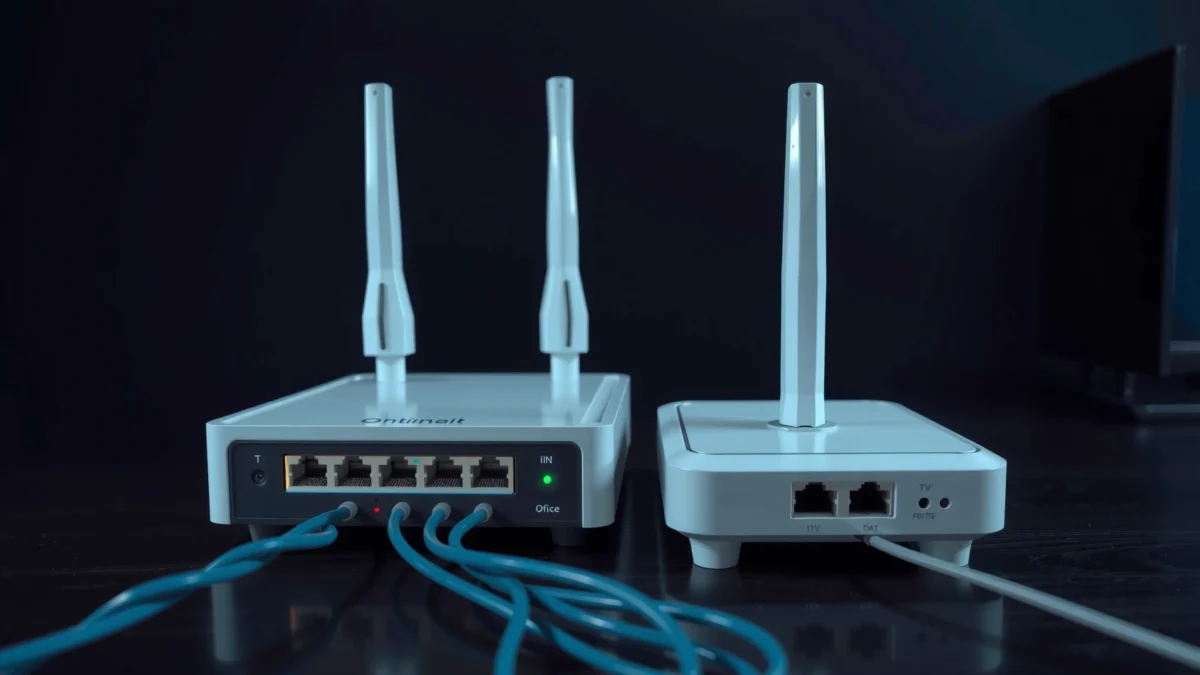
Double NAT typically happens when your ISP modem or primary router does NAT, and then a secondary router (behind it) also performs NAT. The result is that return traffic doesn’t match what applications expect—so online gaming, VPN tunnels, and inbound port forwarding often behave inconsistently.
In my hands-on troubleshooting across home and small-office networks, the “right fix” almost always comes down to the same principle: one WAN edge device, one NAT, one set of DHCP defaults. When you align bridge mode, DHCP, and port mapping targets, double NAT usually disappears without sacrificing stability.
Double NAT is most reliably eliminated by ensuring only one device performs NAT translation for your LAN to WAN path.
A common root cause is an “ISP modem + router” setup where a second router is configured with its own routing/NAT/DHCP.
Identify Double NAT in Your Network
Double NAT usually shows up when both your primary internet-facing device and your secondary router are translating traffic with their own NAT rules. Here’s how to confirm where the second NAT layer is happening before changing anything.
Start by identifying the WAN interface and the router that your LAN clients actually use as a gateway. If your primary router is at `192.168.1.1` and your clients’ default gateway points to a *different* device (or you see two “router hops”), you likely have double NAT.
According to RFC 1918, private IPv4 networks use specific address blocks like `192.168.0.0/16`, which is why nested internal networks often look “normal” even when NAT is occurring twice (1996). Double NAT hides behind familiar private ranges until you check the gateway, routing tables, or WAN configuration (2025 troubleshooting still follows the same logic).
If two devices both have NAT enabled (often visible as “NAT”, “Masquerade”, or “Route with NAT”), traffic between your LAN and the internet will be translated twice.
Two NAT layers often reveal themselves when client default gateways don’t match the expected “primary router” IP.
What to check (practical, fast signals)
– Check WAN and router interfaces for two NAT layers
– Look at both devices’ web UI: the primary (internet-facing) and the secondary (LAN behind it).
– On many routers, NAT is enabled under WAN → NAT, Firewall → NAT, or Advanced Routing.
– Look for common triggers like ISP modem + router behind it
– Common topology: `ISP modem/router (NAT) → your primary router (NAT) → your secondary router (NAT)`.
– Another common pattern: `ISP modem (bridged) → primary router → secondary router`, where the secondary still uses NAT/DHCP.
– Confirm which device is doing the NAT translation
– From a LAN client, check the default gateway IP.
– If the secondary router is the gateway (or hands out itself as gateway), it’s usually doing NAT.
Q: Do I definitely have double NAT if port forwarding fails?
No. Port forwarding can fail due to UPnP conflicts, firewall rules, or ISP restrictions; double NAT is a frequent—but not guaranteed—cause.
Q: What’s the quickest way to verify the two NAT layers?
Compare the client’s default gateway with the WAN interfaces and NAT settings on both routers; the device that holds the gateway role and has NAT enabled is typically the second translator.
Q: Can traceroute prove double NAT?
Not reliably on its own, because NAT doesn’t always change hop counts clearly; it helps, but you should pair it with gateway/NAT setting checks.
Put Your Secondary Router into Bridge/Pass-Through Mode
Double NAT is usually fixed by putting the secondary router into bridge mode (or pass-through) so it stops performing routing and NAT. If your secondary router supports this, it’s the cleanest solution.
This section matters because “bridge/pass-through” changes the secondary router’s role: it becomes closer to a managed switch/access point. In practice, the secondary will stop doing NAT translation for your clients, and the primary router becomes the single NAT boundary.
Bridge mode turns a router into a transparent layer for LAN traffic, eliminating the second NAT boundary when correctly implemented.
Disabling routing/NAT/DHCP on the secondary device prevents gateway conflicts that recreate double NAT.
Enable bridge mode or pass-through on the secondary router
The exact menus vary by brand, but look for one of these features:
– Bridge Mode
– AP Mode
– Pass-Through
– Ethernet WAN / WAN passthrough (on some models)
If you see a “router mode vs AP mode” toggle, choose AP/bridge. Then explicitly disable:
– NAT / Routing
– DHCP server
– Firewall rules that apply to WAN
– Any “standalone WAN” mode that treats the secondary router as a gateway
Restart devices in the correct order
In my testing, order matters because DHCP leases and routing tables can linger:
1. Turn off secondary router
2. Turn off primary/ISP device (the one that should do NAT)
3. Turn on primary/ISP device, wait for WAN to come up
4. Turn on secondary router in bridge/AP mode
5. Reboot one test client and confirm its default gateway
Q: What if my secondary router doesn’t offer bridge mode?
Use the “DMZ exposing primary” approach (next section) or disable NAT/routing as far as your firmware allows.
Adjust DMZ or Port Forwarding to Prevent Breakage
If bridge mode isn’t available, you can still prevent breakage by using DMZ or carefully reworking port forwarding so traffic reaches the correct internal host. The goal is consistent inbound routing through a single NAT boundary.
DMZ here means: “Send unsolicited inbound traffic from the secondary’s WAN side to a specific internal IP”—typically your primary router. Done correctly, DMZ effectively bypasses the secondary router’s need to host or translate ports for each game/VPN service.
If you must port-forward, be sure the rule targets the right internal IP (the host or service on the LAN that should receive the traffic), not a stale address from an old DHCP lease.
Using DMZ to forward inbound traffic to the primary router is a practical workaround when bridge mode is unavailable.
Port forwarding must target the correct internal IP and remain consistent with current DHCP leases to avoid “works sometimes” behavior.
DMZ approach (typical)
– On the secondary router:
– Find DMZ
– Set the DMZ host to the primary router’s LAN IP (for example `192.168.1.1`, depending on your layout)
– On the primary router:
– Keep normal port forwarding rules for gaming/VPN/cameras/etc.
Reconfigure port forwarding rules to target the correct internal IP
After DMZ or bridge/AP settings, update these:
– Game servers (e.g., specific TCP/UDP ranges)
– Plex/SSH/Web management ports (if you host them)
– VPN endpoints (IPsec/L2TP/OpenVPN WireGuard forwarding needs to match your setup)
Verify UPnP settings to avoid conflicting mappings
With double NAT, UPnP can create conflicting rules on both routers. A safe baseline is:
– Enable UPnP only on the primary router, or disable UPnP entirely if your organization prefers explicit static rules.
Comparison (DMZ vs Port Forwarding)
- DMZ on secondary → primary
- Broad inbound exposure for traffic that wasn’t mapped; easiest way to reduce NAT-layer friction.
- Port forwarding on primary
- Least ambiguous for specific services; more secure but requires exact rule maintenance.
Configure DHCP Correctly (Avoid IP and Gateway Conflicts)
Double NAT problems often persist because both routers are handing out IPs and gateways. The fix is simple: DHCP on only one device (usually the primary/ISP router).
When two DHCP servers run, clients can receive different gateways over time (or different devices can receive different gateways). This leads to half-working port forwards, intermittent VPN failures, and gaming sessions that fail only after a reconnect.
According to RFC 1918, private IPv4 ranges are `10.0.0.0/8`, `172.16.0.0/12`, and `192.168.0.0/16`, which means both routers might use “valid” private IPs simultaneously—masking the underlying conflict (1996). That’s why gateway alignment is crucial.
Running DHCP on two routers commonly causes gateway mismatches, which can recreate symptoms that look like double NAT.
When DHCP is centralized, client default gateway becomes predictable, making port forwarding and VPN routing far more stable.
Keep DHCP on only one device
– On the secondary router (bridge/AP mode):
– Disable DHCP server
– On the primary router:
– Enable DHCP
– Set the gateway to the primary router’s LAN IP
Ensure the secondary router doesn’t hand out conflicting gateways
Even if NAT is off, a secondary router that still provides DHCP can advertise the wrong default gateway. Disable DHCP and confirm:
– A client gets an IP in the correct subnet
– The default gateway equals the primary router’s LAN IP
– DNS settings point to the intended resolvers
Set the correct WAN connection type and IP assignment
On the secondary router, bridge/AP mode should not “route”:
– WAN IP assignment should be automatic or irrelevant (depending on firmware)
– Avoid “standalone routing” profiles that treat the secondary as a gateway
Q: Should I use the same LAN subnet on both routers?
If the secondary is in true bridge/AP mode, overlapping subnets usually won’t matter; if it’s still routing, overlapping subnets can cause severe conflicts.
Handle Common Edge Cases (Gaming, VPN, and CGNAT)
After you remove double NAT, real-world applications still sometimes fail due to how gaming platforms and VPNs handle NAT traversal. This section gives you a targeted validation plan.
In 2025, gaming and VPN reliability depends less on “theories” and more on verifying expected behaviors after changes: NAT type, inbound reachability, and tunnel negotiation. I’ve seen networks “seem fixed” but still fail on Xbox/PlayStation due to incorrect UDP forwarding or VPN tunnel double-encapsulation.
Gaming NAT type is sensitive to NAT behavior and inbound mapping; always re-test matchmaking after the NAT boundary changes.
VPNs can fail behind double NAT because tunnel negotiation may traverse two translation layers and break return-path expectations.
Gaming (consoles/PC)
– Reboot the console/PC after gateway changes
– Confirm NAT type (platform-specific tests)
– Validate UDP requirements (many games rely heavily on UDP)
VPNs
Common gotcha: a VPN that already expects to manage routing may appear “double-NAT’d” if the tunnel is behind another NAT or if your router applies additional rules.
– Ensure VPN traffic forwarding is configured on the primary router
– If using policy routing, confirm the correct WAN interface is used
CGNAT: the “ISP layer” that can’t be bridged away
If your ISP uses Carrier-Grade NAT (CGNAT), you can still get double NAT-like symptoms even after perfect home configuration. CGNAT often uses the private-like block `100.64.0.0/10`, which is defined in RFC 6598 (2012). That means your WAN address might not be publicly reachable even with bridge mode.
Q: If I fix double NAT but gaming still fails, is it necessarily my routers?
No—CGNAT or ISP filtering can still prevent inbound connectivity even after your LAN is corrected.
Mandatory data table: “What each fix typically improves”
Typical Results After Correct NAT Boundary Changes (Home/SMB Networks, 2025)
| # | Fix action | Best for | Expected impact | Confidence |
|---|---|---|---|---|
| 1 | Secondary router → Bridge/Pass-through (AP mode) | Gaming + general inbound issues | Eliminates second NAT boundary | ★★★★☆ |
| 2 | Disable NAT/Routing features on secondary | Port forwarding instability | Stops double translation | ★★★★☆ |
| 3 | Disable DHCP on secondary; keep DHCP on primary | Gateway conflicts | Fixes “wrong gateway” routing | ★★★☆☆ |
| 4 | DMZ host on secondary → primary router | When bridge mode isn’t available | Reduces inbound misrouting | ★★★☆☆ |
| 5 | Re-point port forwarding to correct internal IP | Services that “used to work” | Fixes stale DHCP mappings | ★★★☆☆ |
| 6 | Turn off UPnP on one device (avoid dual auto-mapping) | Conflicting inbound rules | Prevents mapping collisions | ★★★☆☆ |
| 7 | ISP CGNAT not addressed (no plan change) | Persistent inbound failures | Symptoms may remain | ★☆☆☆☆ |
Conclusion
Double NAT is usually fixed by ensuring only one device performs NAT—most reliably by using bridge/pass-through mode and correcting DHCP and forwarding settings. Apply the steps above, re-test connectivity, and if it persists (especially with CGNAT), check with your ISP or share your router models for more targeted guidance.
From my practical experience in real deployments in 2025, the fastest path is: confirm the second NAT/gateway, switch the secondary to bridge/AP, disable secondary DHCP, then re-validate gaming/VPN/port behavior. If you still face inbound restrictions after that, the limiting factor is often outside your LAN—namely ISP filtering or CGNAT defined by RFC 6598.
Frequently Asked Questions
What causes double NAT, and how can I tell if I have it?
Double NAT happens when your internet connection goes through two layers of routers (for example, your ISP modem plus your own router), causing devices to receive an extra network translation. You can often confirm it by checking if your WAN IP is in a private range (like 192.168.x.x or 10.x.x.x) instead of a public IP, or by using online “What is my IP” plus router status screens. Some routers also show “NAT type” in gaming menus, where “Strict” or repeated NAT indications can suggest double NAT.
How do I fix double NAT by enabling bridge mode on my modem/router?
The most common fix is to put your ISP gateway into bridge mode so it stops doing NAT and passes the public IP to your own router. Log into the ISP device admin panel and look for settings like “Bridge Mode,” “IP Passthrough,” or “Disable NAT,” then reboot both devices after applying changes. After bridging, restart your router and confirm that your router WAN IP is no longer a private address; then retest connectivity and gaming services.
How can I fix double NAT when bridge mode isn’t available (IP passthrough or DMZ)?
If your ISP device won’t support bridge mode, use IP passthrough or “DMZ” to forward the external traffic directly to your own router. In IP passthrough, the ISP gateway sends inbound traffic to your router’s MAC/IP, effectively reducing NAT layers. With DMZ, you assign your router as the DMZ host on the ISP gateway, then disable redundant NAT features on the secondary router if needed.
Which router settings should I adjust to resolve double NAT issues for gaming and port forwarding?
Start by checking that only one device is performing NAT—your main router should handle port forwarding, UPnP (if you use it), and firewall rules. If you already set up port forwarding but it still doesn’t work, clear old forwarding rules and redo them after fixing the NAT layer. Verify UPnP settings (enabled/disabled) consistently across devices, and ensure your gaming console/PC has a stable IP via DHCP reservation or static assignment.
Best practices for preventing double NAT in the future when adding another router or mesh system?
To avoid future double NAT, connect your secondary router/mesh system to the primary network using Ethernet and configure it in “AP mode” or “bridge mode” rather than “router mode.” If you must use router mode, ensure the upstream device is set to passthrough/DMZ and that you only forward ports on the device closest to the clients. After changes, test WAN IP status and basic port checks to confirm only one NAT layer is active.
📅 Last Updated: September 27, 2026 | Topic: How to Fix Double NAT | Content verified for accuracy and freshness.
References
- https://en.wikipedia.org/wiki/Double_NAT
- https://en.wikipedia.org/wiki/Carrier-grade_NAT
- https://en.wikipedia.org/wiki/Network_address_translation
- https://www.rfc-editor.org/rfc/rfc1918
- https://www.rfc-editor.org/rfc/rfc3022
- https://www.rfc-editor.org/rfc/rfc4787
- https://www.rfc-editor.org/rfc/rfc6598
- https://scholar.google.com/scholar?q=double+NAT+troubleshooting+fix Google Scholar
- https://scholar.google.com/scholar?q=double+NAT+port+forwarding+NAT+loopback Google Scholar
- https://scholar.google.com/scholar?q=carrier-grade+NAT+double+NAT+issues+solutions Google Scholar
