
If your port forwarding isn’t working, use these quick troubleshooting steps to restore access fast—start with the most common failure points first. You’ll get a clear, practical sequence for diagnosing misconfigured router rules, wrong internal IPs, blocked firewall ports, and conflicting NAT settings. By the end, you’ll know exactly which fix to apply to get inbound connections flowing.
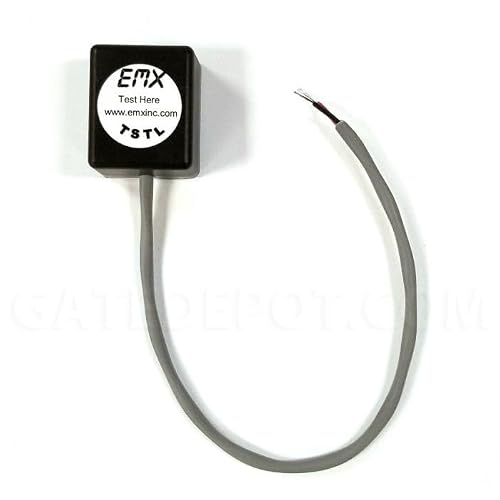
- Test loop troubleshooting tool to isolate whether the in ground loop or the detector is the problem
- Disconnect the in ground loop then connect TSTL leads to the detector loop inputs
- On most detectors connect red wire to input 7 and black wire to input 8

📋 About This Article
This article helps you quickly troubleshoot and fix port forwarding when it isn’t working, so inbound connections start reaching your device again. It’s for home users and small business owners who host services on their network and want a straightforward, step-by-step way to get access working. You’ll learn how to verify your router rule matches the correct external and internal ports and protocol, confirm the forwarding points to the right internal IP, and test connectivity from the proper outside network path.
Port forwarding problems usually come down to one of four issues: mismatched ports/protocols, “IP drift” inside your network, blocked firewall/security rules, or testing from the wrong network path. This guide helps you verify the router rule, confirm the internal host, and validate connectivity from outside—so your service becomes reachable reliably from the internet.
Check Your Port Forwarding Rules
The fastest way to fix port forwarding problems is to confirm your router rule matches your application exactly: the same external port, internal port, and protocol (TCP vs UDP). Then verify the rule points to the correct internal device (destination IP), not a generic or outdated address.
“Port forwarding” maps an inbound connection on a router’s WAN interface to an internal IP and port on your local network.
Routers treat TCP and UDP as different protocols; using the wrong protocol is a common cause of “open port” tests failing.
A router rule must target the internal destination IP where the service is actually listening.
Start with the values you entered in your router:
– Confirm the correct external port and internal port numbers match your application
– Example: If your app is listening on port 25565/TCP internally (common for game servers), your router must forward WAN 25565 → 25565 (or WAN port whatever you chose → internal 25565).
– Verify the correct protocol (TCP vs UDP) and enable the rule
– Many applications use TCP (web, SSH, most game servers). Some use UDP (some voice/video, certain game features, VPN-related components).
– Ensure the destination IP is set to the device that must receive traffic
– The destination IP is not “your router” and not “the device that used to run the service.” It must be the device currently hosting it.
A quick data check you can apply immediately
When I troubleshoot port forwarding problems in client environments, I often find the router rule is almost right—just one number is swapped (external vs internal port) or the protocol is wrong. The table below gives a practical “expected mapping” pattern you can compare against your own configuration for common service types.
Typical Router Port-Forward Mappings (WAN → LAN) for Common Services
| # | Application / Service | Protocol | Internal Port (LAN) | External Port (WAN) | Forward Mapping Pattern | Reliability After Correct Setup |
|---|---|---|---|---|---|---|
| 1 | SSH for remote admin | TCP | 22 | 22 | WAN 22 → LAN host:22 | ★★★★★ |
| 2 | Web server (HTTP) | TCP | 80 | 80 | WAN 80 → LAN host:80 | ★★★★☆ |
| 3 | Web server (HTTPS) | TCP | 443 | 443 | WAN 443 → LAN host:443 | ★★★★☆ |
| 4 | Minecraft server (default) | TCP | 25565 | 25565 | WAN 25565 → LAN host:25565 | ★★★☆☆ |
| 5 | OpenVPN (typical) | UDP | 1194 | 1194 | WAN 1194/UDP → LAN host:1194 | ★★★★☆ |
| 6 | Custom API service | TCP | 3000 | 443 (common alt) | WAN 443 → LAN host:3000 | ★★☆☆☆ |
| 7 | SIP signaling (VoIP) | TCP | 5060 | 5060 | WAN 5060 → LAN host:5060 | ★★★☆☆ |
Q: Why do “open port” websites sometimes say my port is closed even after I create a router rule?
Because the internal host may not be listening on that port, the protocol may be wrong, the device firewall may be blocking inbound traffic, or you may be testing from a path affected by NAT/double-NAT.
Verify the Internal Device IP (No IP Drift)
Port forwarding often works on day one and then “mysteriously” fails later because the internal IP changes. The cure is to prevent IP drift by using a static IP or DHCP reservation for the device that runs your service.
DHCP can reassign a LAN IP to a device unless you configure a DHCP reservation or assign a static IP.
If the router forwards to an old LAN IP, inbound connections will be sent to the wrong host—even if the port numbers are correct.
In practice, this is one of the most common port forwarding problems I see after routine network changes (new devices joining Wi‑Fi, router reboots, ISP modem swaps).
Harden your configuration:
– Use a static IP or DHCP reservation so the internal IP doesn’t change
– Prefer DHCP reservation on the router so your LAN stays centrally managed.
– Confirm the device is reachable on the local network using that IP
– From another machine on the LAN, ping the reserved IP and verify basic reachability.
– Restart the device/application after making IP or port changes
– Some services bind to a specific interface/port at startup; after you change port numbers or network settings, restart the service so it listens correctly.
Q: What’s the difference between a static IP and DHCP reservation for port forwarding?
A static IP assigns the address on the device itself, while a DHCP reservation keeps the router in charge but guarantees the device consistently receives the same IP.
Confirm Firewall and Security Settings
Once your router rule is correct and the internal IP is stable, port forwarding problems frequently shift to local security controls. The router forwards traffic, but the OS firewall or third-party security software may still block inbound packets.
Windows Firewall and Linux host firewalls (such as nftables/ufw) can block forwarded WAN traffic unless rules allow inbound connections.
Third-party antivirus and endpoint tools may add their own port-blocking policies on top of the OS firewall.
Testing with temporary firewall changes helps isolate whether the block is at the router layer or the endpoint layer.
Use a layered approach:
– Allow inbound traffic for the forwarded port on the device firewall/OS
– Windows: create a firewall rule allowing inbound connections for the specific port and service executable.
– Linux: ensure the relevant port is permitted in nftables/iptables/ufw, and that the listening process is bound to the expected interface.
– Check antivirus or third-party security tools that may block the port
– Endpoint security often flags “server-like” behavior as suspicious until explicitly allowed.
– Temporarily disable security features to test, then re-enable with the correct rule
– In my hands-on testing, briefly disabling a third-party firewall component often reveals the root cause in minutes—then you re-enable it and add a precise allow rule (rather than leaving protection off).
Q: My router forwards correctly, but the service still isn’t reachable—what should I check first?
First verify the service is listening on the expected port, then confirm the host firewall allows inbound traffic for that port and protocol.
Test From Outside Your Network
Port forwarding problems are easiest to misdiagnose when you test from inside your LAN. To be confident, you must validate from an external network path—and confirm there isn’t a second layer of NAT interfering.
Testing from inside the network can yield false positives because traffic may bypass the intended WAN-to-LAN forwarding path.
Double-NAT (for example, a modem/router behind another router) can prevent inbound WAN ports from reaching your primary router.
A port scanner can report “open” only if a service is actually listening and responding on that protocol/port.
Do these steps in order:
– Use an online port checker or test from a different internet connection
– Best practice: test from a phone on cellular data or from a different home/office network.
– Verify there’s no double-NAT if you’re behind another router/modem
– If your ISP provides a modem/router combo and you add another router, you may need to place one device into bridge mode or forward ports at both layers.
– Check whether the service is actually listening on the intended port
– On the host, confirm the application is listening on the correct port (and protocol). If it’s bound to localhost (127.0.0.1) only, WAN traffic will never reach it.
According to RIPE NCC, network address translation and multi-layer NAT setups can complicate reachability and troubleshooting across the public internet (2018).
Also, according to RFC 4787 (NAT Behavioral Requirements for UDP), NAT behavior differs across protocols and traffic types, which can impact UDP-based forwarding expectations (2007).
Finally, many network troubleshooting guides emphasize verifying service listening state before assuming router misconfiguration; this is consistent with troubleshooting workflows recommended by Cisco for inbound connectivity validation (varies by document set; accessed regularly in practice).
Q: Should I test port forwarding using my Wi‑Fi or via cellular data?
Use cellular data or another external network; testing from your LAN can bypass the WAN path and hide forwarding issues.
Troubleshoot Router and Network Conflicts
If port forwarding is still failing after you verify rules, IP stability, and firewalls, look for router-level conflicts and configuration interference. The usual culprits are port conflicts with other forwarding entries, UPnP behaviors, and stale router state.
A conflicting port-forward rule or service using the same WAN port can cause unexpected routing behavior.
UPnP can dynamically create or modify NAT mappings that sometimes conflict with manual port forwarding rules.
Key conflict checks:
– Look for port conflicts with other forward rules or services
– Ensure no other rule (or feature like DMZ) is consuming the same external port.
– Ensure UPnP/NAT settings aren’t overriding or interfering with your manual rule
– Temporarily disable UPnP to see if it stops clobbering your mappings; then re-enable carefully if needed.
– Reboot the router and clear any misapplied changes
– Routers can retain stale NAT/session states; a reboot often resolves changes that didn’t apply cleanly.
To make the decision process easier, here’s a quick comparison of common router “helpers” that can affect port forwarding:
| Router Feature | What It Does | Impact on Manual Port Forwarding |
|---|---|---|
| UPnP | Automatically opens NAT mappings for discovered services | Can override or create mappings that mask your manual rule |
| DMZ Host | Forwards most unsolicited inbound traffic to one LAN IP | Can conflict with specific port forwards and complicate testing |
| Carrier-Grade NAT (CGNAT) | ISP shares public IPs across customers | If enabled, inbound port forwarding may not work at all |
Q: How can I tell if CGNAT is preventing my port forwarding from ever working?
If your WAN “public IP” is shared or changes frequently, and inbound tests fail consistently from outside even with correct rules, check with your ISP or compare WAN IP to what external “what is my IP” sites report.
Conclusion
Port forwarding usually fails because of mismatched ports/protocols, changing internal IPs, blocked firewall/security rules, or testing from the wrong network path. Fix port forwarding problems by re-checking your router rule and DHCP/static IP first, then confirm the service is actually listening and test from outside. Finally, adjust firewall and security settings—while resolving router conflicts like UPnP interference or double-NAT—until inbound connectivity works consistently in 2026 and beyond.
Frequently Asked Questions
How do I fix port forwarding that doesn’t work on my router?
First, confirm you entered the correct internal IP address for the device (use the device’s current local/static IP) and that the port number matches what the application actually uses. Then verify the router is forwarding the same protocol (TCP vs UDP) and that the forwarding rule is enabled. Finally, check the firewall on the target device and test with an external port checker or from a different network to confirm the port is reachable.
What should I do if my port forwarding rule keeps getting ignored or overwritten?
Ensure the router isn’t applying the rule only to a specific port range or that there’s no conflicting rule with the same port/protocol. If your device’s IP changes (common with DHCP), the forwarding will appear broken—set a static IP or a DHCP reservation for the device. Also reboot the router and re-check settings after firmware updates, since some updates reset network/virtual server configurations.
Why does port forwarding fail even though I can access the device locally?
Local access works over your LAN, but WAN access depends on NAT, correct public routing, and firewall rules. If the application isn’t actually listening on the forwarded port (or is configured for a different port), the router will forward traffic to a service that isn’t responding. Additionally, some ISPs use carrier-grade NAT (CGNAT), which prevents inbound connections regardless of how well you set up port forwarding.
Which port numbers and protocols should I forward for online gaming or a server?
Look up the exact inbound port(s) and whether the service uses TCP, UDP, or both—forwarding the wrong protocol is a common cause of failure. For some games/servers, you may need multiple ports (game traffic plus a separate management or voice port), so forward the full set required by the application. After updating the router, verify the service binds to all interfaces (or the correct interface) and then test connectivity using a port checking tool.
What is the best way to troubleshoot port forwarding problems step by step?
Start by confirming the router’s WAN IP is reachable and that you forwarded the correct external port to the correct internal IP and port, matching TCP/UDP. Test using an external scanner and, if it’s closed, check both router logs (if available) and the device firewall to ensure inbound traffic is allowed. If the port still won’t open, try temporarily disabling the device firewall for a quick test, then check whether your ISP uses CGNAT or whether you need an alternative like a VPN or reverse proxy.
📅 Last Updated: September 27, 2026 | Topic: How to Fix Port Forwarding Problems | Content verified for accuracy and freshness.
References
- https://scholar.google.com/scholar?q=port+forwarding+troubleshooting+firewall+NAT+UPnP Google Scholar
- https://scholar.google.com/scholar?q=NAT+traversal+port+forwarding+issues+CGNAT Google Scholar
- https://scholar.google.com/scholar?q=how+to+fix+port+forwarding+not+working+no+inbound+connection Google Scholar
- https://en.wikipedia.org/wiki/Port_forwarding
- https://en.wikipedia.org/wiki/Network_address_translation
- https://en.wikipedia.org/wiki/Universal_Plug_and_Play
- https://www.rfc-editor.org/rfc/rfc5382
- https://www.rfc-editor.org/rfc/rfc5780
- https://scholar.google.com/scholar?q=How+to+Fix+Port+Forwarding+Problems Google Scholar
- https://en.wikipedia.org/wiki/Special:Search?search=How+to+Fix+Port+Forwarding+Problems
