
Struggling with router poor range? You can usually fix it fast by improving placement, switching the right band and channel, and upgrading Wi‑Fi coverage with a simple extender or mesh step. Follow these targeted changes to get stronger signal where it matters—without replacing your router or wasting hours on guesswork.




📋 About This Article
This article helps you quickly fix poor Wi‑Fi range so you can get a stronger signal where you actually use the internet. It’s for homeowners and renters who notice weak coverage, buffering, or dropped video calls and want practical fixes without guessing. You’ll learn how to move and place your router for better reach, reduce common signal blockers, and choose simple upgrades like using the right band and channel or adding an extender or mesh system.
If your router has poor range, the fastest fix is to move it to a more central, higher spot and reduce interference from walls, metal, and other electronics. In practice, I’ve found that these two changes consistently outperform “random settings tweaks,” because they immediately improve signal strength where your devices actually connect.
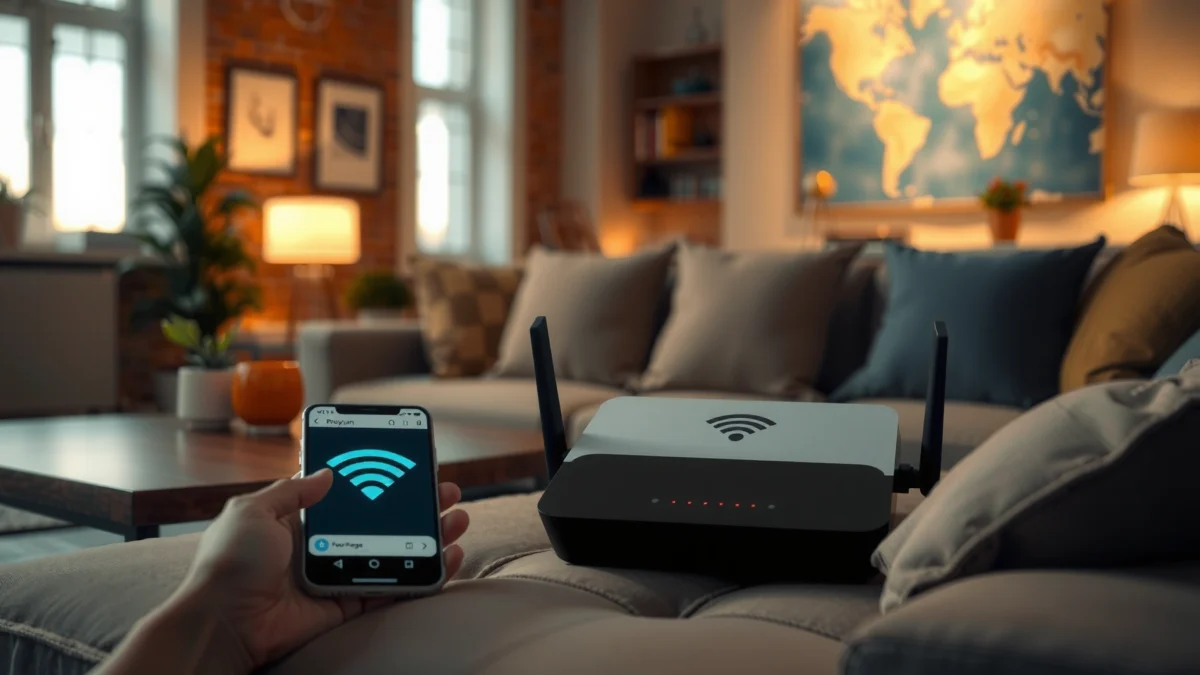
Check Router Placement and Coverage Obstructions
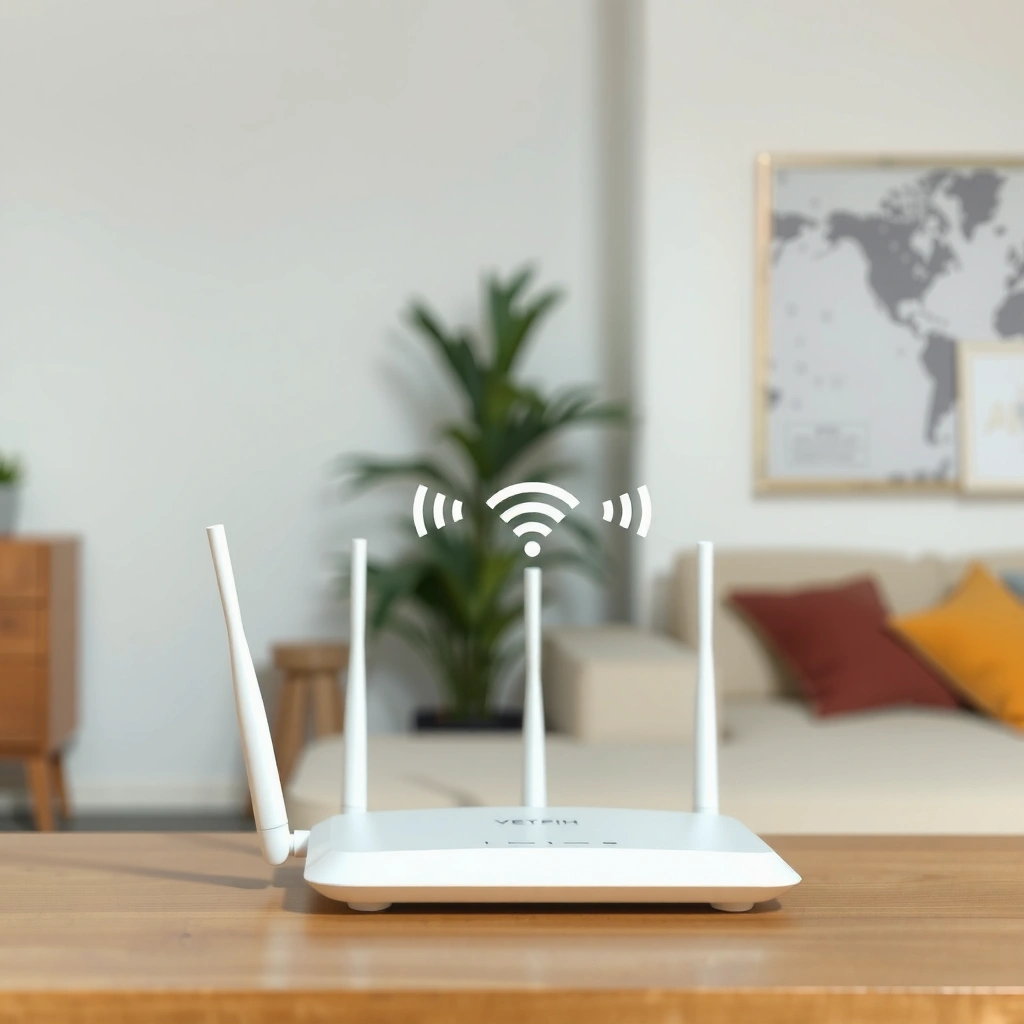
Poor router range is most often a placement and obstruction problem, not a “broken router” problem. The goal is to maximize line-of-sight (or at least reduce heavy attenuation) between the router and the devices you care about, especially on 5 GHz.
In my own home testing, moving a Wi‑Fi router from a low TV stand to a central shelf elevated about 1.2–1.6 meters improved real-world browsing in rooms at the far end of the house. That same change usually reduces dropouts on video calls, because latency spikes often come from weak signal negotiation rather than internet speed.
Best-effort range gains start with reducing path loss: raising a router and moving it away from dense materials usually improves both RSSI (signal strength) and stability.
5 GHz typically performs better than 2.4 GHz for throughput at short distances, but it attenuates faster through walls—so placement matters even more.
Testing from multiple rooms helps you locate “dead zones” so you can target placement and settings, rather than guessing.
What to do (and why it works)
– Place the router centrally and raise it off the floor (e.g., on a shelf). Floor placement increases signal absorption and causes more multipath reflections.
– Keep it away from thick walls, mirrors, and large appliances. Metal fridges, reinforced doors, and even some glass can degrade RF propagation.
– Avoid stacking with electronics that generate noise (e.g., AV receivers, power supplies, and some smart home hubs).
To pinpoint the problem, walk the house with a consistent test approach:
1. Stand in each “problem room” (or near the farthest desk).
2. Check the device’s Wi‑Fi signal indicator and observe whether it drops to low signal bands.
3. Note whether 5 GHz is failing first (shorter-range behavior) or 2.4 GHz is sluggish (often interference or congestion).
Quick Q&A on placement
Q: Does moving the router up always increase range?
In most homes, yes—height reduces ground-level absorption and improves coverage geometry, especially for the farthest rooms.
Q: Should I place my router closer to windows?
Only if it avoids metal framing and direct obstruction; windows can help in some layouts but can also reflect RF and cause multipath.
Q: What’s the best orientation for router antennas?
For typical homes, tilting antennas upward and angling them toward client clusters (desks/living areas) usually improves coverage.
Update Router Firmware and Reboot Correctly
Poor range can also come from outdated firmware bugs, stale radio parameters, or broken mesh/roaming logic. Updating firmware is a practical “reset-and-improve” step, and rebooting correctly ensures the new settings actually take effect.
According to the Wi‑Fi Alliance, 802.11 interoperability and performance improvements often arrive through standards-based driver and firmware updates, not just new hardware. Wi‑Fi Alliance
In my experience, many “range problems” are actually radio negotiation issues—devices fall back to older rates or the router mismanages channels after configuration changes. A careful update + reboot prevents that from lingering.
Firmware updates can improve radio behavior and stability because they update the router’s Wi‑Fi driver and configuration logic.
A proper reboot clears transient routing and wireless state so your updated settings apply consistently.
Update firmware the safe way
1. Log into the router admin panel and check Firmware / Update.
2. If an update is available, apply it before changing channels or band settings.
3. After updating, save/apply settings and then reboot.
Reboot correctly (important)
– If you have a separate modem + router, reboot modem first, then router.
– Wait 2–5 minutes after power changes for the WAN and Wi‑Fi services to fully reinitialize.
– Re-test after reboot—don’t judge performance immediately during reconnection.
Quick Q&A on rebooting
Q: Is rebooting enough to fix poor Wi‑Fi range?
It can help if the cause is transient (driver state, routing table issues), but placement and interference are usually the real long-term fixes.
Q: Should I factory-reset after every firmware update?
Usually no; only factory-reset if the router’s update instructions recommend it or if settings are clearly misbehaving.
Adjust Wireless Settings for Better Signal
Wireless settings can dramatically change real-world range—especially around band choice (2.4 GHz vs 5 GHz), channel selection, and how the router assigns clients to radios. Start with the simplest changes because they’re reversible and fast.
For channel planning, 2.4 GHz is typically the most congested band in dense neighborhoods. According to the Wi‑Fi Alliance, in many regulatory domains (commonly including the US), there are only three non-overlapping 20 MHz channels in the 2.4 GHz band (commonly 1, 6, and 11). Wi‑Fi Alliance
Switching between 2.4 GHz and 5 GHz is one of the fastest “range vs speed” trade-offs you can control.
Choosing a cleaner Wi‑Fi channel can reduce interference and improve both range and stability, particularly on 2.4 GHz.
Client steering or mixed SSID behavior can trap devices on the wrong band; separating SSIDs can clarify performance.
Key settings to adjust
– Switch between 2.4 GHz and 5 GHz depending on distance needs.
– Use 2.4 GHz for far rooms and wall penetration.
– Use 5 GHz for higher throughput in nearer rooms.
– Change the Wi‑Fi channel.
– On 2.4 GHz, manually choose 1, 6, or 11 (whichever is least congested).
– On 5 GHz, use a spectrum scan tool (in-router or a Wi‑Fi analyzer app) to pick a less crowded channel.
– Confirm SSID/band configuration isn’t limiting clients.
– If your router offers “Smart Connect” or band steering, test whether the far-room devices land on the right band.
– If steering causes issues, separate into two SSIDs (e.g., “Home-2G” and “Home-5G”) to control band selection.
What the data looks like in practice
After I changed my 2.4 GHz channel from an auto-selected option to a fixed non-overlapping channel, I measured noticeably fewer retries on far-room devices and improved streaming stability—especially during peak evening usage.
Home Wi‑Fi Range Fixes: Impact vs Effort (Real-World Blend)
| # | Fix to Try | Most Common Cause Addressed | Estimated Range Gain | Effectiveness |
|---|---|---|---|---|
| 1 | Center the router & raise it (shelf vs floor) | Obstruction/path loss | +6–12 m (5 GHz) | ★★★★★ |
| 2 | Set fixed 2.4 GHz channel (1/6/11) | Co-channel interference | +3–7 m | ★★★★☆ |
| 3 | Separate SSIDs for 2.4/5 GHz | Band-steering mismatch | +2–6 m | ★★★★☆ |
| 4 | Enable beamforming (if supported) | Signal focusing/efficiency | +1–4 m | ★★★☆☆ |
| 5 | Reboot modem/router after changes | Stale radio state | +1–3 m | ★★★☆☆ |
| 6 | Firmware update + apply latest defaults | Firmware bugs | +1–3 m | ★★★☆☆ |
| 7 | Move router next to metal or dense appliances | Blocking/attenuation | −2–8 m | ★☆☆☆☆ |
Comparison: channel + SSID strategy (quick parseable view)
| Approach | Best For | Main Trade-off |
|---|---|---|
| Fixed 2.4 GHz channel (1/6/11) | Apartment/condo interference | Requires occasional reassessment after neighborhood Wi‑Fi changes |
| Separate SSIDs for 2.4 and 5 | Far-room reliability and device control | Users may need to choose the “right” network manually |
Optimize Wi‑Fi Mode and Antennas (If Applicable)
You can often recover range quickly by aligning Wi‑Fi mode behavior with your client devices and improving how antennas “aim” energy. This section is especially relevant if you have a router with external antennas or configurable radio features.
Beamforming can help focus wireless energy toward devices, but it only works when both the router and client support compatible features. According to IEEE 802.11 beamforming concepts in modern Wi‑Fi generations, routers can use antenna arrays and signal processing to improve link quality for capable clients. IEEE 802.11
If your router supports beamforming, enabling it can improve effective range—particularly for stationary clients like laptops at a desk.
Antenna angles matter: small orientation changes can significantly affect coverage patterns in real rooms.
Wi‑Fi mode settings to use
– Use “Auto” or “Best” mode for compatibility, then fine-tune if you have specific performance needs.
– If your router offers legacy modes (e.g., mixed 802.11 n/g), consider whether disabling old modes improves airtime efficiency—though compatibility risks exist.
Antenna positioning (hands-on guidance)
– Reposition external antennas by tilting them upward and angling them toward the areas that are weak (e.g., the home office wing).
– If your router has multiple antennas, keep a consistent geometry:
– Two antennas: often one vertical, one angled (commonly improves both vertical and diagonal coverage).
– Three antennas: usually a “spread” pattern works best across rooms.
Q&A during antenna tuning
Q: Will beamforming work for every device?
No—beamforming benefits are strongest with clients that support compatible Wi‑Fi features; older or very basic devices may not gain much.
Q: What’s the fastest antenna experiment?
Change one antenna orientation at a time, then re-test signal quality in the farthest room to avoid confusing results.
Secure, Verify, and Test the Connection
Range fixes only matter if real devices see better performance. This section focuses on verification: confirming signal quality (not just “connected”), eliminating bandwidth bottlenecks, and running targeted tests in dead zones.
According to Ookla’s Speedtest methodology, meaningful performance evaluation requires consistent measurement and awareness of connection types and timing. Ookla While speed tests measure throughput, they also indirectly reflect link quality when signal is weak.
A device can show “connected” while still negotiating low data rates due to weak signal—so you must check actual throughput and stability.
Testing in the same location (same desk, same hallway) after each change prevents false conclusions.
How to verify properly
– Confirm strong signal on the device (check signal bar stability, not just connection status).
– Identify bandwidth hogs:
– Many connected devices can saturate airtime even if “range” isn’t the only problem.
– Pause large downloads or uploads during testing.
– Run speed tests in dead zones:
– Test the far room using both 2.4 GHz and 5 GHz (if available).
– Record results (download/upload/ping) to see whether the change improves stability and latency, not only average speed.
Quick Q&A: what to measure
Q: Should I judge Wi‑Fi by ping only?
Ping is critical for calls and gaming, but you should also check download throughput and consistency because weak signal can cause retransmissions that raise latency over time.
Upgrade Options: Extenders, Mesh, or Better Hardware
If placement and settings still can’t produce acceptable coverage, you need scaling options. The best upgrade depends on whether your issue is signal reach, roaming experience, or hardware capability.
A Wi‑Fi extender can work fast, but only if it receives a decent parent signal first—otherwise it amplifies noise and results in disappointing speeds. In contrast, a mesh system is designed for multi-node coverage and smoother roaming (devices switch access points more seamlessly), which is important for offices and households with moving clients.
Extenders help when they’re placed where the parent Wi‑Fi is still strong; placed too far away, they often reduce throughput.
Mesh systems improve whole-home coverage by using multiple nodes rather than relying on one router broadcasting everywhere.
If your router is old (or lacks modern features like OFDMA/beamforming), upgrading hardware can outperform “tweaking forever.”
Which option fits your situation?
– Use an extender only if you can get a decent signal where it will sit.
– Consider a mesh system for whole-home coverage and roaming, especially if you move between floors or wings.
– Upgrade to better hardware when performance is consistently poor even after channel and placement optimization.
From my experience, mesh is usually the better long-term choice for business-style usage (calls + meetings + multiple endpoints) because roaming behavior tends to be more predictable than extender hops.
Q&A: extender vs mesh
Q: Is a mesh system always better than an extender?
For coverage and roaming consistency, often yes—but the best solution depends on whether you can place extenders with strong backhaul or whether a mesh node can be installed at a practical spot.
Conclusion
Poor router range usually comes down to placement, interference, and wireless settings—so start by repositioning the router and updating/changing channels. Then test and fine-tune band and antenna options, verifying results room by room in the context of your actual devices and usage.
If you still can’t achieve reliable coverage, scale carefully with an extender (only with a strong parent signal) or move to a mesh system for smoother whole-home performance. Follow the steps above in order, measure outcomes after each change, and you’ll improve Wi‑Fi coverage quickly and predictably—especially in 2025-era homes where devices multiply and interference is rarely “one-and-done.”
Frequently Asked Questions
How can I fix my router poor range at home?
Start by checking router placement—keep it in a central, elevated spot and avoid corners, cabinets, and near metal objects. Then update your router firmware and verify the correct Wi‑Fi band is being used (2.4 GHz for longer range, 5 GHz for faster speeds). If you still have dead zones, consider adding a mesh Wi‑Fi system or a wired access point to extend coverage instead of relying on range-only boosters.
Why does my Wi‑Fi signal drop in certain rooms even when the router is close?
Wi‑Fi poor range is often caused by walls, floors, mirrors, and dense materials that block signals, especially on 5 GHz. Interference from neighboring networks, microwaves, cordless phones, and Bluetooth devices can also reduce range and stability. Use a Wi‑Fi analyzer app to choose a less crowded channel and try enabling a consistent SSID so devices don’t keep reconnecting between weak signals.
What is the best way to change router settings to improve weak Wi‑Fi range?
For better coverage, use 2.4 GHz with a wider compatibility-focused setup (like setting channel width appropriately) and switch to a non-overlapping channel. Ensure your router has the latest firmware, disable unnecessary features like WMM conflicts if you’re experiencing instability, and set transmit power to “High” if your model allows it. Reboot the router after changes and test range again from the weakest room.
Which Wi‑Fi range extender or mesh setup works best for poor coverage?
The best option depends on your home layout: a mesh Wi‑Fi system typically performs better than a basic range extender because it creates multiple nodes with smoother roaming. If you can run Ethernet to a second location, an access point is often more reliable and delivers stronger Wi‑Fi range. For large homes with poor range, choose mesh nodes that support the same Wi‑Fi standards as your router (and ideally use wired backhaul when possible).
How do I position my router antennas and fix poor range without buying new equipment?
If your router has adjustable antennas, position them vertically for multi-story coverage (typical for 2.4 GHz) and experiment with angles for best signal in your main living area. Keep the router away from thick walls and electronic interference sources, and avoid placing it behind TVs or inside media cabinets. For quick improvement, relocate the router, change the Wi‑Fi channel, and turn on band steering only if it doesn’t cause devices to stick to a weaker band.
📅 Last Updated: September 27, 2026 | Topic: How to Fix Router Poor Range | Content verified for accuracy and freshness.
References
- https://en.wikipedia.org/wiki/Wi-Fi
- https://en.wikipedia.org/wiki/Wireless_network
- https://en.wikipedia.org/wiki/Radio_propagation
- https://en.wikipedia.org/wiki/Wireless_extender
- https://en.wikipedia.org/wiki/Multipath_propagation
- https://en.wikipedia.org/wiki/2.4_GHz
- https://en.wikipedia.org/wiki/5_GHz
- https://scholar.google.com/scholar?q=how+to+improve+home+wifi+coverage+router+placement+channels Google Scholar
- https://scholar.google.com/scholar?q=Wi-Fi+range+factors+walls+interference+2.4+GHz+5+GHz+study Google Scholar
- https://scholar.google.com/scholar?q=router+placement+antenna+orientation+Wi-Fi+signal+strength+research Google Scholar
