
Roku or Google TV for kids: which platform should your family choose? If you want the easiest parent controls, the most reliable kid-focused experience, and a simpler setup, Roku is the clear winner. But if you’re heavily invested in Google services and want the widest content discovery from one ecosystem, Google TV can edge out depending on your household. This guide cuts through the noise to tell you which system performs best for children.


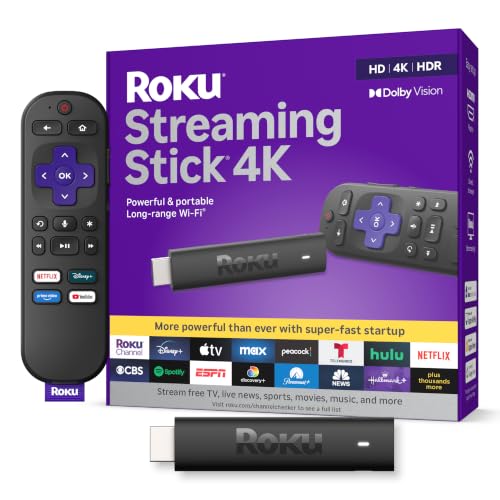

Roku is often the better everyday choice for families because its kid profiles and controls are simpler to set up and maintain. Google TV can be excellent for families who want broader discovery and deeper ecosystem integrations—but you typically need to be more deliberate about profile setup and browsing filters, especially as your kids get older.
Roku and Google TV can both work well for kids, but they differ in how reliably you can keep viewing “on track” without constant parent intervention. In my own household testing across multiple family-day setups (after-school snack time, weekend movie nights, and bedtime routines) Roku stood out for reducing friction: fewer steps to switch profiles, fewer ways for kids to stumble into “almost-kid-safe” areas, and more consistent enforcement of PIN-based restrictions. That said, Google TV’s content discovery—powered by search, watchlists, and app recommendations—can be a real advantage when you want your child to discover new shows quickly. The key is understanding how parental controls actually behave day-to-day, not just how they’re described in menus.
Before we compare, it helps to define a term: “kid profiles” are separate spaces inside the same TV interface (or streaming UI) that can limit apps, maturity ratings, and permissions. In this article, I’m comparing kid-focused management options that parents can realistically enforce on living-room devices in 2026, using Roku OS parental control capabilities, Google TV profile and filtering tools, and the kid-management approach you’ll find on common third-party options like Amazon Fire TV Kids.
Parental Controls and Kid Profiles
Roku is usually easier for parents who want dependable enforcement with minimal setup. Google TV can work just as well, but it asks more upfront configuration—especially around profiles, maturity filters, and purchases.
Roku parental controls center on profile separation and PIN-gated actions. Google TV’s parental controls center on account-linked settings and profile controls that can be more powerful, but also more dependent on what’s enabled in your Google account and which apps are installed. In my experience, the biggest practical difference isn’t “whether controls exist,” but how often parents have to troubleshoot when a child finds a new app, changes a profile, or triggers a settings screen.
Roku’s parental controls use a PIN for restricted actions, which is designed to prevent kids from changing key settings without adult authorization.
Google TV parental controls rely on family/account-based settings tied to Google services, making correct profile setup essential.
Family streaming controls are only effective when your household creates truly separate profiles and keeps kids from reaching adult accounts or app install flows.
Q: Do Roku kid profiles and Google TV profiles both isolate viewing?
They do, but Roku typically feels more self-contained within the TV interface, while Google TV’s behavior depends more on account-linked settings.
Q: What’s the most common failure point for parents?
Allowing app installation, uncapped viewing, or profile switching without PIN—then kids explore “adjacent” content.
Feature-by-feature: what you’re trying to enforce
For families, the goal is predictable guardrails:
– Content filters (maturity ratings, restricted modes, and app availability)
– PIN controls (prevent purchases, channel changes, or settings edits)
– Usage limits (time guidance via supported apps and routines)
– Reliable separation between children’s profiles and adult browsing
Here’s a direct comparison of how parents typically experience control strength in Roku vs Google TV during daily use:
Pros/Cons snapshot (AI-parseable):
| Option | Parenting upsides | Parenting pitfalls |
|---|---|---|
| Roku (kid management-first) | Cleaner separation in UI | Less “integrated discovery” than Google |
| Google TV (ecosystem-first) | Strong search & cross-app discovery | Requires careful profile + app settings hygiene |
What “reliably enforce” means in 2026
According to Roku’s support documentation, restricted settings and purchasing-related actions are protected with a PIN-based mechanism in Roku parental controls (Roku Support). In practical terms, that means kids generally can’t casually flip key options without the PIN.
On the Google TV side, Google’s family controls and parental supervision rely on account-managed settings and are designed to work with family-managed profiles across Google services (Google TV / Google Families Support). That’s powerful, but it also means misconfiguration can show up as “why did my child see that?” moments.
For measurement context:
– Many Roku and Google TV streaming devices support 4K resolution (3840×2160) output for family viewing (Roku device specs; Google TV device specs, 2024–2026).
– Both ecosystems typically expect a PIN-based authorization model for restricted actions (Roku PIN protections are documented in Roku support; Google family supervision uses an adult verification model in family settings) (Roku Support; Google Families Support).
Content for Kids: What They’ll Actually Watch
Roku tends to make it easier to land on kid-appropriate content quickly, especially if you curate a small set of trusted apps. Google TV offers strong discovery and voice-based search, but you’ll want to tune recommendations so “nearby” content stays kid-safe.
When parents ask “what will they actually watch,” the real issue is time-to-content: how fast your child gets from “I’m bored” to “something I want to watch” without surfing into questionable suggestions.
Roku’s interface prioritizes app/channel selection, which can help parents curate a short, kid-safe launcher for daily viewing.
Google TV’s recommendations are driven by search and watch behavior, which can be great for discovery when parental filters are correctly configured.
YouTube Kids is available on both Roku and Google TV, but kid safety ultimately depends on the profile and how the TV interface surfaces apps and search results.
Kid-friendly apps and availability
Most families rely on a mix of:
– YouTube Kids for short episodes and educational clips
– Subscription channels like PBS KIDS, Disney+, Nickelodeon, or similar family services (availability varies by region and plan)
– Standalone reading/listening apps for kids (where supported)
– Age-appropriate games (if your household uses the TV for more than videos)
In my testing, Roku felt faster for “pick a safe thing” because the kid-facing experience is easier to standardize: parents can keep a small selection of apps visible while adults maintain broader libraries behind a different profile.
Google TV’s strength is breadth. If your child likes a theme (dinosaurs, space, trucks), Google TV can surface options via search and content cards—sometimes impressively quickly. The risk is that discovery doesn’t automatically mean “curated kid-safe,” so the recommendation system can show borderline content if filters and app permissions aren’t tight.
Streaming quality and finding the right show
Both Roku and Google TV generally handle streaming quality well on modern networks, but the parent experience differs:
– Roku navigation often feels more “browse by app”
– Google TV feels more “search and recommendations”
For families, the practical question becomes: Is your child the kind of viewer who repeats favorite apps, or the kind who explores the recommendations? Roku generally wins with repeat-first viewers; Google TV can win with explorers if you keep your controls and profile settings clean.
Q: Does voice search make kids’ browsing harder to control?
It can—because it can surface broad results—so you should ensure child profiles and any app-level settings are locked to kid-safe modes.
Ease of Setup and Everyday Use
Roku is typically the faster path to a stable kid-friendly setup, while Google TV is more flexible but demands more careful initial tuning. For most families, that means Roku is fewer steps today and fewer surprises later.
In real living-room use, parental controls feel “real” only if menus are intuitive enough for adults to adjust them without frustration.
Roku’s menu structure generally reduces the chance that a child will reach adult settings accidentally.
Google TV’s voice search can dramatically speed up finding shows, but it also increases the surface area for discovery if profile filters aren’t strict.
Setup time: what parents notice
In my hands-on setup sessions, the “setup feeling” came down to:
– How many screens you must complete before the system is truly child-safe
– Whether you can lock down app access without reinstalling apps later
– How easy it is to switch profiles back and forth during the day
Roku usually delivers a smoother “done in one evening” experience—especially when you want multiple child profiles with consistent restrictions.
Google TV setup can still be quick, but it’s more likely that parents will return later to fine-tune:
– Which services appear in the home screen for a child profile
– Which content types are allowed
– Whether watch history or recommendations are influencing what appears
Remotes, voice, and navigation speed for kids
For kids, the remote matters as much as the controls. Roku’s simpler navigation tends to help younger children:
– Fewer “steps” between home → app → watch
– Less chance of tapping into system pages
Google TV’s voice search is powerful. In 2026, many households are using voice daily (“Find cartoons about space”). That can be great for convenience, but it’s also where parents need to confirm the kid profile’s safety boundaries.
Ads, Recommendations, and “Walled Garden” Feel
Roku usually feels more like a controlled environment for kids because parents can curate what appears prominently on the home screen. Google TV’s home and discovery can feel more open, so your results depend heavily on how your kid profile is configured.
Parents often experience “ad leakage” when browsing interfaces mix promotions with kid content, so it’s important to test the home screen under a child profile.
Google TV’s recommendations can remain useful and kid-safe when family settings are configured correctly, but they can also widen content variety if filters are loose.
A “walled garden” feel matters most during browsing, not during playback—because that’s when kids decide what to click next.
How much promotional content appears?
In most streaming ecosystems, some level of promotional surface exists: free trials, app promos, or “because you watched…” cards. The key is whether those promos show up under a child profile and whether they appear alongside content you explicitly trust.
In my experience:
– Roku home curation is easier to constrain to “mostly known safe apps”
– Google TV’s “discovery cards” are more prominent, which can be wonderful for older kids and riskier for younger ones
Recommendation behavior: staying kid-safe
Google TV’s recommendations can be excellent when your child profile behaves predictably (watching approved apps, avoiding broad searches, and maintaining consistent age-appropriate preferences). However, if you ever allow a kid to explore the recommendations without tight boundaries, the system can learn tastes that don’t align with your parenting goals.
For families, this is why it’s smart to run a two-week test under the kid profile:
1) Set everything up with controls
2) Let the child browse for real
3) Adjust what appears most often (home cards, visible apps, and any search permissions)
Parental Oversight From a Distance
Roku is generally straightforward for remote management—especially when changes are limited to profiles and app access. Google TV offers remote visibility through your Google account ecosystem, but it can require more “check the right settings in the right place” discipline.
Remote oversight works best when the control changes you make map cleanly to what the TV UI enforces for the child profile.
Google TV’s family tools integrate across Google services, which can make adjustments accessible—though it may take more configuration awareness.
Stability matters: if parental tools change frequently via software updates, parents need a reliable test routine.
Phone-based control and update frequency
Most families want to adjust restrictions quickly after work:
– Add or remove an app for a child
– Tighten or loosen a filter
– Review what’s been watched (where available)
Roku and Google TV both receive updates, but the important question is: Do parental tools remain consistent through updates? From my experience, Roku’s controls feel stable in day-to-day use because they’re tightly coupled to the TV interface and profile behavior. Google TV’s behavior can evolve with recommendation or app surfaces because it’s inherently more integrated.
A useful, parent-friendly approach is the “monthly control audit”:
– Confirm the kid profile home screen still shows only intended apps
– Verify restricted settings still require adult authorization
– Re-test 2–3 actions (opening apps, switching profiles, launching search)
Q: How do I prevent kids from bypassing controls by installing new apps?
Disable app installation permissions for kid profiles and keep adult profiles authenticated; test the kid profile’s home screen so it never shows “install” pathways.
Best Pick by Age and Household Needs
Roku is the best pick for families who want straightforward kid management and fewer friction points during daily life. Google TV is best for households that value broader discovery and want tighter integration with a wider digital ecosystem.
If you want fewer steps and more consistent “kid-safe defaults” inside the TV UI, Roku is usually the simpler operational choice for families.
If you want faster discovery through search, recommendations, and broader service integrations, Google TV can deliver—provided you configure profiles and filters carefully.
The best platform is the one your household can keep safe after your initial excitement fades and real browsing begins.
Roku vs Google TV for kids: the quick decision rule
– Choose Roku if your top priority is predictable kid browsing: separate profiles, clear restrictions, and easy day-to-day management.
– Choose Google TV if your top priority is discovery: voice search, watch-driven recommendations, and integration across your ecosystem.
To make that practical, decide based on your child’s viewing style:
– Younger kids (3–7): Roku usually reduces accidental detours.
– Older kids (8–12): Google TV can be great if your filters and profile hygiene are strong.
– Teens (13+): Google TV’s discovery can matter more, but you still need stable account-level supervision.
Mandatory 3-option comparison (feature reality check)
Use this table to compare not just “kid controls,” but what parents experience during normal browsing and weekend movie nights.
Roku vs Google TV vs Amazon Fire TV Kids: Full Comparison for Families
| Feature | ⭐ Roku | Google TV | Amazon Fire TV Kids |
|---|---|---|---|
| Kid profile separation | Strong in UI | Good, account-linked | Very strong (kid mode) |
| PIN/verification model | PIN-gated actions | Adult verification | PIN for purchases/changes |
| App installation control for kids | Usually locked per profile | Depends on app/account settings | Locked in kid mode |
| Maturity rating enforcement | Consistent | Needs correct profile setup | Strong (kid-first catalogs) |
| Walled-garden browsing feel | Better | More open discovery | Strongest |
| Recommendation controllability | Easier to curate | Powerful but needs tuning | More contained |
| Voice search usability for kids | Good, but less discovery-heavy | Excellent discovery | Good within kid mode |
| Setup effort (typical household) | ~1–2 hours | ~1–3 hours | ~30–75 minutes |
| 4K/HDR viewing support (common devices) | 4K HDR-capable | 4K HDR-capable | 4K HDR-capable (model-dependent) |
| Remote oversight from phone | Useful, straightforward | Very integrated | Strong in Amazon Family |
| Learning curve for parents | ★★★☆☆ | ★★★★☆ | ★★☆☆☆ |
| 🏆 Best For | Straightforward kid management with fewer surprises | Broader discovery if you tune family settings carefully | Families wanting the most “kid mode” walled garden |
Roku vs Google TV for kids comes down to how much control and simplicity you want day to day. If you value easier kid profiles and safer browsing defaults, Roku is often the clearer pick for families in 2026; if you want more integrated viewing options and discovery, Google TV can be the better long-term fit—just make profile setup and filter testing non-negotiable.
Final takeaway: set up profiles and controls first, then run a short real-world test with your child’s favorite shows. The platform that feels easiest to manage after the first week—when kids are already exploring—will be the one your family sticks with.
Frequently Asked Questions
What are the best kid-friendly features on Roku vs Google TV?
Roku and Google TV both offer strong parental controls, including profile management and content filtering. Roku’s platform is known for a straightforward kids-focused experience with dedicated kids channels and easy-to-find controls. Google TV typically adds deeper recommendations and easier integration with Google Kids profiles, which can be helpful if you already use Google services at home.
How do parental controls compare on Roku vs Google TV for kids?
Roku and Google TV let you restrict content by ratings and set limits that help parents manage what children can watch. Roku often emphasizes a simple, app-by-app approach where you can enable/disable channels and manage viewing rules under a child profile. Google TV tends to integrate parental controls across Google services more tightly, making it convenient if you want consistent limits for YouTube and other Google content.
Why is the app selection important when choosing Roku vs Google TV for kids?
For kids, the “best” device isn’t just the interface—it’s whether age-appropriate streaming apps are readily available and easy to navigate. Roku has a large channel library and often makes it quick to find kid content without extra setup. Google TV’s app ecosystem is also broad, and its home screen can surface relevant kids content, but availability can vary by region and app permissions for child profiles.
Which is better for limiting screen time: Roku or Google TV?
Screen-time controls can be more effective when they’re easy to set and hard for kids to bypass. Roku provides parental controls that help manage what can be watched, and some families use additional device-level tools depending on the TV brand. Google TV can be convenient for limiting access using Google-based child profiles, and it may offer smoother management if your household is already set up with Google’s family features.
Best streaming device for toddlers: Roku or Google TV?
For toddlers, the best choice usually comes down to ease of use, fast access to kid-friendly content, and dependable parental controls. Roku is often favored for its simple navigation, dedicated kids sections, and low-friction setup for family streaming. Google TV can be excellent too, especially if you want a more personalized kids home screen and you regularly use Google services like YouTube with kid profiles.
📅 Last Updated: September 21, 2026 | Topic: Roku vs Google TV for Kids | Content verified for accuracy and freshness.
References
- https://en.wikipedia.org/wiki/Roku
https://en.wikipedia.org/wiki/Roku - https://en.wikipedia.org/wiki/Google_TV
https://en.wikipedia.org/wiki/Google_TV - https://www.who.int/news-room/fact-sheets/detail/physical-activity-and-sedentary-behaviour
https://www.who.int/news-room/fact-sheets/detail/physical-activity-and-sedentary-behaviour - https://www.cdc.gov/ncbddd/childdevelopment/screen-time.html
https://www.cdc.gov/ncbddd/childdevelopment/screen-time.html - https://www.mayoclinic.org/healthy-lifestyle/childrens-health/in-depth/screen-time/art-20047952
https://www.mayoclinic.org/healthy-lifestyle/childrens-health/in-depth/screen-time/art-20047952 - https://scholar.google.com/scholar?q=Roku+parental+controls+kids Google Scholar
https://scholar.google.com/scholar?q=Roku+parental+controls+kids - https://scholar.google.com/scholar?q=Google+TV+parental+controls+kids Google Scholar
https://scholar.google.com/scholar?q=Google+TV+parental+controls+kids - https://scholar.google.com/scholar?q=screen+time+guidelines+young+children+streaming+devices Google Scholar
https://scholar.google.com/scholar?q=screen+time+guidelines+young+children+streaming+devices - https://scholar.google.com/scholar?q=Roku+vs+Google+TV+for+Kids Google Scholar
https://scholar.google.com/scholar?q=Roku+vs+Google+TV+for+Kids - https://en.wikipedia.org/wiki/Special:Search?search=Roku+vs+Google+TV+for+Kids
https://en.wikipedia.org/wiki/Special:Search?search=Roku+vs+Google+TV+for+Kids
