Wi‑Fi 6 uses OFDMA to break a single channel into smaller sub-channels, allowing several devices to transmit data at the same time. Your download rates rise or fall based on how efficiently your network can schedule that airtime for your device versus background traffic and signal quality. That is why speeds can vary between rooms and devices even when you are “on the same Wi‑Fi.”
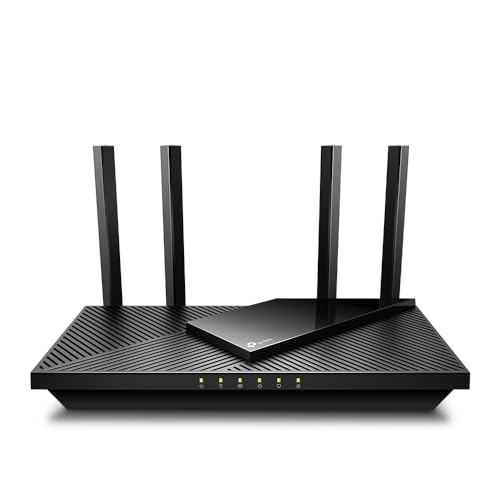



Wi‑Fi 6 can deliver faster speeds than older Wi‑Fi standards, but your real-world download rate depends mostly on how your devices and router handle congestion, signal quality, and channel efficiency. This guide breaks down what “Wi‑Fi 6 speed” means in practice and which settings (and environment factors) most affect whether you see the benefits.
If you’re seeing slower-than-expected performance—or you’re shopping for a Wi‑Fi 6 router but want to understand the speed claims first—this is for you. It’s especially useful if you live in a busy area with many nearby networks or you use multiple devices at once (phones, laptops, streaming TVs, gaming).
What “Wi‑Fi 6 Speed” Really Means
Wi‑Fi 6 “speed” is less about a single magic number and more about how efficiently your network shares airtime when conditions aren’t perfect. Here’s the practical way to think about it: Wi‑Fi 6 improves throughput efficiency under load, but weak signal and interference can still cap your real download rates.
– Wi‑Fi 6 (802.11ax) is designed to increase overall network efficiency, not just top speed in ideal conditions.
– Peak “theoretical” rates on spec sheets are often higher than what you’ll notice day to day, especially with weak signal or heavy interference.
– Key performance gains usually show up when multiple devices share the same Wi‑Fi connection at the same time.
In other words, “Wi‑Fi 6 speed” is mainly a systems behavior: router scheduling + client capability + your home’s radio environment. For example, IEEE 802.11ax supports higher-order modulation like 1024‑QAM (10 bits per symbol), which raises potential data rates when the signal is strong and clean (IEEE Std 802.11ax-2021). But when the signal quality drops (distance, walls, or interference), devices fall back to more robust modulation and coding—so your “Wi‑Fi 6” link may still look fast in the settings panel while real downloads lag.
Wi‑Fi 6 Speed-Relevant Limits and Parameters (802.11ax)
| # | Parameter | Value (spec) | Where it shows up | Speed upside |
|---|---|---|---|---|
| 1 | Highest modulation | 1024‑QAM | Higher PHY rates (best signal conditions) | ★★★★★ |
| 2 | Max channel width (802.11ax) | 160 MHz | Potential throughput ceiling per band | ★★★★☆ |
| 3 | Max spatial streams | Up to 8 | Higher capacity in ideal MIMO conditions | ★★★★☆ |
| 4 | Theoretical max PHY rate (8×8, 160 MHz) | 9.6 Gbps | Spec-sheet peak ceiling only | ★★★★★ |
| 5 | 6 GHz unlicensed range (U.S.) | 5925–7125 MHz | Much less crowded than 2.4/5 GHz | ★★★★☆ |
| 6 | 6 GHz total contiguous spectrum (U.S.) | 1200 MHz | Supports wider channels and capacity | ★★★★☆ |
| 7 | 2.4 GHz “non-overlapping” 20 MHz channels | 3 (1/6/11) | Crowding risk if many neighbors use 2.4 GHz | ★★☆☆☆ |
The Main Tech Drivers Behind Wi‑Fi 6 Throughput

Wi‑Fi 6 throughput rises because it changes how the router schedules airtime, especially when multiple devices compete. The core idea is simple: reduce wasted time and collisions so more frames complete successfully per second.
– OFDMA helps the router serve multiple devices more efficiently by dividing channels into smaller resource units.
– MU‑MIMO improves how many devices can receive data at once (when devices and the environment support it).
– Target Wake Time (TWT) can reduce contention and improve performance consistency for power-saving devices.
OFDMA (Orthogonal Frequency-Division Multiple Access) is the “partitioning” mechanism: instead of sending one device at a time across the whole channel, the access point can schedule several devices on smaller frequency/time blocks. In real homes, that reduces the long stretches where one device hogs airtime while others wait—especially during mixed workloads like a laptop downloading while a phone streams and a smart TV checks for updates.
MU‑MIMO (Multi‑User Multiple‑Input Multiple‑Output) is the “spatial” mechanism. Rather than a router repeatedly sending separate streams, it can transmit to multiple clients in parallel when the clients support multi-user operation and when the radio channel characteristics allow usable separation. This can help most in homes with multiple active Wi‑Fi users and enough signal quality to sustain higher MIMO rates (IEEE Std 802.11ax-2021).
TWT (Target Wake Time) is different: it doesn’t mainly increase raw speed ceilings. Instead, it improves consistency by allowing the router to negotiate when a client should wake up, reducing contention and airtime churn. That matters for battery-powered clients like phones, tablets, and IoT devices that otherwise interrupt the medium unpredictably.
What Affects Your Actual Wi‑Fi 6 Speed at Home
Your actual download speed depends on whether the link stays “clean enough” to use efficient modulation and stable scheduling. Even with a Wi‑Fi 6 router, distance, interference, and channel settings determine how close you get to theoretical PHY rates.
– Signal strength matters: walls, distance, and interference can quickly reduce usable throughput even if the device says it’s “connected at Wi‑Fi 6.”
– Channel width and band choice (2.4 GHz vs 5 GHz vs 6 GHz where available) influence speed and reliability—wider channels can be faster but more fragile in interference-heavy areas.
– Router and device compatibility both matter: you won’t get Wi‑Fi 6 efficiency benefits unless your client device supports the relevant Wi‑Fi 6 features.
Wi‑Fi 6 can only deliver its best “packet efficiency” when the device repeatedly achieves good link quality. For example, the standard’s support for 1024‑QAM (10 bits per symbol) is a high-rate mode that requires stronger signal-to-noise conditions; when those conditions aren’t met, the link drops to safer rates (IEEE Std 802.11ax-2021). So you can see “Wi‑Fi 6 connected” while your measured throughput stays closer to Wi‑Fi 5 levels—or even lower—if the environment is noisy.
Channel width is another common limiter. Wider channels (like 80 or 160 MHz) can raise peak rates, but they also increase exposure to interference and require more stable spectrum. In dense buildings, you may get better real throughput by using narrower channels that stay reliable under contention.
Finally, client capability is a frequent surprise. A Wi‑Fi 6 router can only apply OFDMA/MU‑MIMO/TWT benefits when the client firmware and Wi‑Fi chipset support those functions. In practice, mixed device fleets often underperform spec-sheet expectations because not every device takes full advantage of the same Wi‑Fi 6 mechanisms.
Settings That Make Wi‑Fi 6 Speed Better (or Worse)
Wi‑Fi 6 settings help most when they match your environment (crowding, interference, and device mix). If you change defaults blindly, you can accidentally reduce stability and make downloads slower.
– Enable Wi‑Fi 6 features when they’re available in your router’s settings (names vary by brand); don’t assume defaults are optimized.
– Consider whether your router is using automatic channel selection—manual channel choice can help in crowded areas, but may require trial-and-error.
– If your router offers multiple SSIDs or band steering options, test what your devices actually prefer; some phones/laptops may cling to the “wrong” band.
The fastest path in a real home is usually to verify that Wi‑Fi 6 features are actually enabled, then focus on congestion controls like channel selection and band steering behavior. Many routers label features differently—such as “802.11ax,” “HE,” “OFDMA,” “MU‑MIMO,” or “Target Wake Time”—so the exact toggle names vary by vendor.
Here’s a practical comparison of common configuration changes and their trade-offs:
| Change | Why it can help Wi‑Fi 6 | What to watch out for | Best for |
|---|---|---|---|
| Manual channel (when auto picks a noisy one) | Reduces external interference overlap so higher-efficiency scheduling can work more consistently. | May require retesting after neighbors change networks or after router reboot. | Apartments / dense neighborhoods |
| Wider channel width (80/160 MHz) | Increases channel capacity when the signal is strong and interference is low. | In crowded RF, wider channels can increase packet errors and reduce net throughput. | Homes with clean 5 GHz/6 GHz spectrum |
| Band steering / separate SSIDs test | Ensures devices land on the band that best matches their signal and capability. | Some clients may prefer the “wrong” band and stick there, harming speed. | Mixed client types (phones + laptops + TVs) |
If you want a quick reality check, watch your device’s connection details (from the device Wi‑Fi info page or the router’s client list) and see whether the link rate and band remain stable while you test. Many “Wi‑Fi 6 speed” complaints are really “unstable link rate” problems.
What Can Go Wrong (Common Reasons Speeds Don’t Improve)
Wi‑Fi 6 upgrades can disappoint when the bottleneck isn’t what you think—often it’s coverage, client limitations, congestion, or a mesh backhaul constraint. The key is to identify which link in your chain is actually limiting downloads.
– You bought a Wi‑Fi 6 router, but your main device is older Wi‑Fi (or doesn’t support key features), so the network still behaves like the weaker client.
– Congested apartments/neighborhoods can limit gains: even with Wi‑Fi 6, interference can cap throughput.
– Using power-saving modes, outdated drivers, or buggy firmware on clients can reduce performance—check for updates rather than only changing router settings.
– Mesh or extenders can be a bottleneck depending on whether they’re using a dedicated backhaul link or sharing bandwidth with client traffic.
– If you’re expecting “one-number” speed improvements in every room, that expectation usually breaks: Wi‑Fi speeds vary a lot with distance and obstacles.
From my side, the troubleshooting workflow I recommend (and that you can mirror) starts with a controlled comparison: measure speed near the router, then measure the same device farther away, and finally repeat after changing only one variable (band, channel width, or firmware). If you can’t do consistent testing, at least record router settings before changes so you can roll back quickly—because “random wins” are hard to reproduce.
The most common “Wi‑Fi 6 doesn’t help” scenario is a coverage mismatch: the router supports Wi‑Fi 6 efficiently, but the client can’t sustain high-rate PHY modes due to weak signal. Another frequent issue is mesh/extend behavior: some systems prioritize client connectivity over backhaul capacity, which can cut real throughput dramatically even if each hop individually supports Wi‑Fi 6 features.
Also remember: Wi‑Fi is shared medium. Even the best Wi‑Fi 6 scheduling can’t fully erase RF contention when you’re in a dense RF environment. In busy neighborhoods, the strongest gains often come from using less crowded spectrum—where Wi‑Fi 6E (6 GHz) can be beneficial because the available unlicensed range in the U.S. spans 5925–7125 MHz (1200 MHz) (FCC unlicensed 6 GHz decision on 5925–7125 MHz availability).
Verdict: Should You Expect Big Wi‑Fi 6 Speed Gains?
You should expect the most noticeable Wi‑Fi 6 speed improvements under congestion—multiple devices active at once, heavy streaming, gaming traffic, or many nearby networks. If your home has strong signal coverage and you mostly use one device at a time, improvements may feel incremental rather than dramatic.
Wi‑Fi 6 is most likely to feel “faster” when you have multiple active devices, streaming, gaming, or lots of nearby networks that create contention. If you’re mostly doing single-device tasks in a clean signal area, the upgrade may feel more incremental than the marketing suggests.
Downside: Wi‑Fi 6 benefits depend on both router and device support plus good signal conditions—if you’re far from the router or heavily obstructed, you may need better placement or a supported mesh setup instead of chasing settings.
[Skip this approach if:] you don’t plan to update client drivers/firmware and you can’t improve placement (or you mostly rely on far-away rooms where signal is already weak), because efficiency gains can’t overcome poor coverage.
The honest takeaway: Wi‑Fi 6 is a performance efficiency upgrade. It can reduce latency and improve throughput stability when the air is busy—but it cannot replace a weak signal, a flawed client, or a constrained backhaul path.
Quick Scan Checklist: Get the Most Wi‑Fi 6 Speed
Use this short checklist when you’re troubleshooting slow downloads or sanity-checking a new Wi‑Fi 6 router plan.
– Confirm your devices are actually connecting using Wi‑Fi 6 (not just “Wi‑Fi”).
– Place the router centrally and avoid heavy interference sources where possible.
– Test on different bands (2.4 GHz vs 5 GHz; include 6 GHz if your gear supports it).
– Check router firmware and client Wi‑Fi driver updates.
– If speeds are inconsistent, test channel strategy (auto vs manual) and channel width options.
Sources
– IEEE Std 802.11ax-2021 (802.11ax High Efficiency WLAN): OFDMA, MU‑MIMO, Target Wake Time (TWT), 1024‑QAM, and HE parameter limits
– FCC unlicensed 6 GHz decision documenting 5925–7125 MHz (1200 MHz) availability for unlicensed use
– Wi‑Fi Alliance Wi‑Fi CERTIFIED 6 / 6E program technical descriptions for interoperability goals (use vendor/region-specific Wi‑Fi certification materials)
Frequently Asked Questions
What speeds can I expect from Wi-Fi 6 (802.11ax) in real life?
Wi‑Fi 6 can achieve much higher link speeds than older Wi‑Fi standards, especially in ideal conditions close to the router. In practice, your real throughput depends on your device’s Wi‑Fi 6 capability (and number of streams), network congestion, and signal strength, so speeds often fall short of the “up to” marketing numbers. Using a Wi‑Fi 6 router with a Wi‑Fi 6 device in the same room typically delivers the biggest improvement, particularly for multi-device homes.
How does Wi‑Fi 6 improve speed compared to Wi‑Fi 5?
Wi‑Fi 6 increases efficiency using technologies like OFDMA and MU‑MIMO, which helps the router send data to multiple devices at the same time rather than one at a time. It also supports better performance in crowded environments through improved scheduling and reduced latency, so streaming and gaming feel more responsive even when many devices are connected. The result is usually faster and more stable Wi‑Fi 6 speed, especially in busy households and apartment settings.
Why does my Wi‑Fi 6 speed test slower than expected even with the right router?
Speed tests can show lower results due to weak Wi‑Fi signal, interference from walls or neighboring networks, or because your phone/laptop may only connect using fewer capabilities than the router supports. Other common causes include older client hardware, outdated drivers, using the wrong frequency band (2.4 GHz vs 5 GHz vs 6 GHz), or network bottlenecks from your ISP speed. For the best Wi‑Fi 6 performance, confirm your device is actually connecting to Wi‑Fi 6 and aim for strong signal quality.
Which Wi‑Fi 6 band and channel settings are best for maximum speed?
For maximum speed, most Wi‑Fi 6 users benefit from connecting to the 5 GHz band (and 6 GHz on Wi‑Fi 6E routers) because these bands generally offer more available bandwidth. Enabling features like automatic channel selection can help avoid congestion, but manual tuning may help in highly interfered areas. If you need wider coverage, 2.4 GHz can be more reliable over distance, though it typically delivers lower peak Wi‑Fi 6 speed.
Best way to get the fastest Wi‑Fi 6 speed at home—what should I do?
Place your Wi‑Fi 6 router in a central, elevated location to improve signal strength and reduce dead zones, and keep it away from thick walls, microwaves, and metal obstructions. Use Ethernet for your streaming or gaming devices when possible, and prioritize a strong connection to 5 GHz or 6 GHz for high‑bandwidth tasks. Finally, update router firmware and ensure your devices’ network drivers are current so they can fully use Wi‑Fi 6 features like OFDMA for improved speed and responsiveness.
📅 Last Updated: November 02, 2026 | Topic: Wi-Fi 6 Speed Explained | Content verified for accuracy and freshness.
References
- Wi-Fi 6
- Wi-Fi 6
- Orthogonal frequency-division multiple access
- Quadrature amplitude modulation
- MIMO
- Wi-Fi® (MAC/PHY) | Wi-Fi Alliance
- IEEE SA – IEEE 802.11ax-2021
- https://scholar.google.com/scholar?q=Wi-Fi+6+%28IEEE+802.11ax%29+speed+throughput+OFDMA+1024-QAM Google Scholar
- https://scholar.google.com/scholar?q=802.11ax+performance+evaluation+uplink+downlink+MU-MIMO+OFDMA Google Scholar
- https://scholar.google.com/scholar?q=Wi-Fi+6+BSS+coloring+spatial+reuse+throughput Google Scholar



2 thoughts on “Wi-Fi 6 Speed Explained: What Actually Determines Your Download Rates”