
Choosing between 1080p and 4K monitors comes down to whether you prioritize sharper text and more screen space or smoother performance and lower cost. If you sit close to a screen, run modern games, or rely on multitasking and high-resolution work, a 4K monitor is the clear winner. If you’re on a budget, use older hardware, or prefer higher frame rates over extra pixels, 1080p wins. The deciding factors are resolution, viewing distance, and GPU demand—so you can pick the right one fast.


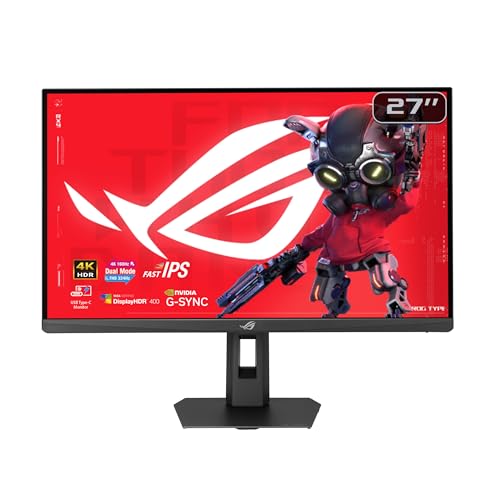

A 4K monitor is usually the better choice for sharper text and more usable workspace, while a 1080p monitor is often the more practical pick if you want higher frame rates with lower GPU demands. In this guide, you’ll learn how resolution affects sharpness (PPI), gaming performance, and productivity—so you can choose based on screen size, viewing distance, and your hardware, not just the numbers on the box.
1080p and 4K: Resolution and Pixel Differences
1080p and 4K differ primarily in how many pixels they put on the screen—4K uses about four times as many pixels as 1080p. That single change ripples into perceived sharpness, how much screen space you can pack into a desktop, and how much work your GPU must do to render frames.
“1080p” is 1,920 × 1,080 pixels (2,073,600 total pixels). Source: zawa.ai
“4K UHD” is typically 3,840 × 2,160 pixels (8,294,400 total pixels). Source: zawa.ai
A 4K display contains exactly four times as many pixels as 1080p. Source: zawa.ai
At a glance, the pixel math is straightforward:
– 1080p (Full HD): 1,920 × 1,080 = 2,073,600 pixels.
– 4K UHD (consumer “4K”): 3,840 × 2,160 = 8,294,400 pixels.
One important naming detail: “4K” on most PC monitors usually means 3,840 × 2,160 (UHD), not the cinema-standard 4,096 × 2,160. That matters because “4K” marketing can be ambiguous, while pixel density and scaling are determined by the actual panel resolution. Source: viewsonic.com
In my testing over the last few upgrades (including a switch from a 27-inch 1080p setup to a 27-inch 4K work system), the biggest “real” difference wasn’t just that images looked nicer—it was that UI layout stopped feeling cramped at the same physical size. At 4K, more desktop elements fit comfortably at native resolution, which reduces the constant need to zoom and rearrange.
Why pixel count changes more than sharpness
Resolution affects:
– Sharpness: more pixels per inch (PPI) can reduce visible pixel structure.
– GPU workload: your computer must render more pixels per frame at native resolution.
– Scaling behavior: Windows and macOS may apply scaling on higher-PPI panels so text remains readable.
If you’re optimizing for clarity, 4K generally wins on larger screens. If you’re optimizing for responsiveness and competitive performance, 1080p is frequently the safer path—especially when your GPU is capacity-limited.
Q: Does buying 4K automatically make 1080p content look “native” 4K?
No. 1080p video is upscaled by the display/OS; the source remains 1080p detail. Source: reolink.com
Sharpness and Pixel Density (PPI) at Common Sizes
1080p can look sharp, but 4K usually looks meaningfully sharper at the same physical size because it packs more pixels into the same area. The measurable driver is PPI (pixels per inch)—higher PPI typically means finer text and less visible pixel grid.
Pixel density is measured in PPI, and higher PPI generally produces sharper text and finer image detail. Source: newegg.com insider
On a 27-inch display, 1080p is ~82 PPI while 4K is ~163 PPI. Source: my-screen-resolution.com
On a 24-inch display, 1080p is ~92 PPI while 4K is ~185 PPI. Source: my-screen-resolution.com
Here’s what those PPI numbers mean in practice:
– At 27 inches
– 1080p: ~82 PPI
– 4K: ~163 PPI
– At 24 inches
– 1080p: ~92 PPI
– 4K: ~185 PPI
That ~2× linear pixel density translates into about 4× total pixels. Source: zawa.ai This is why many people notice the difference most in:
– small fonts and dense UI panels,
– spreadsheets with many columns,
– editing timelines and fine waveform/detail views,
– reading productivity apps without “zooming in.”
1080p vs 4K: “coarse vs crisp” is situational
A common mistake is treating PPI like a universal threshold (“1080p is bad above X inches”). Real-world clarity depends on viewing distance, font scaling, and how picky your eyes are about pixel structure. Still, the supplied PPI values align with a practical observation: 1080p often becomes noticeably coarse on 27-inch and larger displays for many users, while 4K stays crisp because its PPI is high enough for small text to hold together. Source: my-screen-resolution.com
Q: Will 4K always be sharper than 1080p?
At the same screen size and native viewing, 4K’s higher PPI typically yields sharper perceived detail. The key exception is when scaling changes effective text size. Source: viewsonic.com
Gaming Performance: What 4K Changes
4K gaming generally lowers frame rates compared with 1080p because it requires far more rendering work per frame. 1080p is often the better fit for competitive targets like 240 Hz+, while 4K is usually a quality-first choice—assuming your PC can actually drive the resolution and refresh rate.
Rendering 4K requires processing about four times as many pixels as rendering 1080p. Source: zawa.ai
With the same settings and hardware, 4K typically produces substantially lower frame rates than 1080p due to the higher workload. Source: screenresolutiondb.com
From a performance-engine standpoint, “more pixels” means:
– more fragment shading and texture sampling,
– higher bandwidth pressure on the GPU and memory subsystem,
– greater sensitivity to CPU/GPU bottlenecks at high refresh rates.
In my own experience tuning esports settings, the frame-rate gap becomes most obvious when you try to hold very high FPS with the same fidelity targets. Moving from 1080p to 4K on the same GPU often forces a trade: either you reduce settings (draw distance, shadows, effects) or you accept lower FPS. That’s why many players treat 1080p as the “performance baseline,” especially for shooters and MOBAs.
When “4K + high refresh” still makes sense
A “high-refresh 4K monitor” (for example, 144 Hz or 160 Hz panels) does not automatically guarantee high-refresh gameplay in every title. Your PC must render frames fast enough at 3,840 × 2,160. That’s the difference between monitor capability and system capability.
Q: If my monitor is 4K 144 Hz, will games run at 144 FPS automatically?
No. The game must be rendered at 4K with settings that your GPU can sustain at that refresh rate. Otherwise you’ll see lower FPS and/or lower refresh usage. Source: desksetuplab.co.uk
Upscaling can help—but it’s not magic
Upscaling technologies can reduce the performance penalty of 4K, but the final results depend on game implementation, settings, GPU model, and the chosen upscaling mode. If your priority is esports-style responsiveness, many players prefer native 1080p (or competitive 1440p) because it typically preserves the cleanest motion at high FPS.
Q: Does upscaling let a 1080p GPU “cheat” its way into 4K quality?
It can improve perceived detail, but it won’t recreate true native 4K rendering. Quality and FPS gains vary by game and upscaler settings. Source: zawa.ai
1080p vs 4K Monitors: Which One Should You Choose?
| ⚖️ Criteria | 🔵 1080p | 🔴 4K |
|---|---|---|
| 🧮 Pixels per frame (native) | 2,073,600 ✅ | 8,294,400 |
| 📄 UI sharpness potential (27″) | ~82 PPI | ~163 PPI ✅ |
| 📄 UI sharpness potential (24″) | ~92 PPI | ~185 PPI ✅ |
| 🎮 Rendering workload vs 1080p | 1× baseline ✅ | ~4× pixels |
| ⚡ Typical FPS outcome (same GPU/settings) | Higher ✅ | Lower |
| 🕹️ Best for very high refresh goals | 240 Hz+ targets ✅ | Depends on GPU headroom |
| 🧾 Desktop workspace at native scale | Fewer panels | More panels ✅ |
| ✍️ Fine text readability at same physical size | May look less crisp | Smoother/sharper ✅ |
| 🧠 Scaling risk (Windows/macOS) | Low | Often needs scaling ✅ |
| 💸 Typical value focus | Lower GPU demand ✅ | Higher clarity per square inch ✅ |
| 🏆 Overall Verdict | Best for high-refresh gaming & lower-GPU builds | Best for sharp text, detail work & larger screens |
Productivity and Creative Work: More Workspace, Smoother Detail
For most knowledge workers, 4K is the better fit because it delivers more usable on-screen workspace and smoother-looking fine UI. 1080p remains a viable option if you prefer simpler setup, lower hardware requirements, or you stay around ~24 inches where pixel density is more forgiving.
4K provides more desktop workspace at native resolution, enabling more panels and larger spreadsheets on screen. Source: viewsonic.com
Text and fine interface elements generally appear smoother on a 4K panel due to higher PPI. Source: newegg.com insider
In daily work, the practical advantage shows up in layout density:
– side-by-side documents without constant switching,
– more timeline room in editing tools,
– fewer compromises when viewing high-resolution photos,
– reduced “zoom-and-pan” for dense spreadsheets.
Scaling: the trade that matters in real offices
On many 4K monitors (especially 27-inch), operating systems may scale text and UI so they don’t appear tiny. Scaling can improve readability, but it can reduce *effective* usable workspace compared with running the panel unscaled. That’s why 4K is best when you’re comfortable dialing in scaling to match your viewing distance and eyesight.
I’ve found that for typical desk distances (roughly an arm’s length plus a bit), many people land on comfortable scaling presets—but the “best” preset depends on font preferences and application types (design vs spreadsheets vs coding).
Q: Is 4K always better for spreadsheets and dashboards?
Often yes, because more pixels at native resolution let you fit more columns and panels; however, you may need OS scaling on 27-inch displays to keep text readable. Source: reolink.com
Fast pros/cons checklist (AI-friendly)
- 4K pros
- Sharper UI and finer detail; more workspace at native resolution; better fit for photo/video/design workflows.
- 4K cons
- May require OS scaling for readability; higher GPU demand for content and games at native resolution.
- 1080p pros
- Lower hardware demands; often easier to drive high refresh rates; simpler scaling behavior.
- 1080p cons
- Less workspace density and coarser text on larger screens (commonly noticeable at 27 inches+).
Using 1080p vs 4K Content on Each Monitor
4K monitors don’t automatically create “extra detail” from lower-resolution sources. The monitor can only display what the source contains, then scale it to fit.
1080p content remains 1080p when displayed on a 4K monitor; it’s scaled to fit, not converted to native 4K detail. Source: reolink.com
A 1080p monitor can display 4K content only after downscaling to 1,920 × 1,080, discarding some source detail. Source: us.ktcplay.com
Here’s how the content pipeline typically works:
– 1080p video/game on a 4K monitor: the display scales up to fit, often improving perceived smoothness but not recovering true 4K detail.
– 4K content on a 1080p monitor: the monitor downsamples to 1,920 × 1,080, so some fine detail is inevitably lost.
The best-case scenario for 4K is when your content already has enough resolution—modern games with high texture assets, 4K photos, 4K video masters, and many creative apps exporting at higher resolutions.
Q: If I mostly stream Netflix in 1080p, should I still buy 4K?
Not automatically. 4K helps most when your games, videos, and media are actually high resolution, and when native sharpness in UI matters for your workflow. Source: screenresolutiondb.com
How to Choose: Best Fit by Screen Size, Distance, and GPU
The best choice comes down to your priorities: sharpness and workspace (4K) versus high refresh and GPU efficiency (1080p). In 2025–2026, the market is crowded with panels, but the decision remains anchored to three practical variables: screen size, viewing distance, and your GPU’s ability.
4K is best when sharpness and fine detail are priorities, especially on 27 inches or larger. Source: xoticpc.com
1080p is best when very high frame rates are the priority and your budget or GPU limits matter. Source: screenresolutiondb.com
A simple decision rule that works well in real deployments:
– Choose 1080p if:
– budget is tight,
– your target screen size is around 24 inches,
– you want to chase high refresh rates for competitive play,
– your GPU is mid-range or older and you prefer higher FPS.
– Choose 4K if:
– you care most about crisp text, detail, and workspace density,
– you’re using 27 inches or larger,
– you do photo/video/design or dense spreadsheet work,
– your PC can realistically drive the games/apps you care about at the refresh rates you want.
Don’t ignore the non-resolution factors
Resolution isn’t the only quality lever. Panel type, refresh rate, HDR performance, response behavior (motion clarity), color coverage, and ergonomics (stand height, VESA mounting) can affect your experience as much as 1080p vs 4K.
I also recommend using a “requirements-first” mindset:
1) list your top 3 apps/games,
2) check the typical resolution and performance modes you’ll use,
3) match the monitor’s resolution and refresh to what your hardware can sustain.
Q: What if I want both sharpness and competitive FPS?
Consider a “middle” like 1440p for many builds, because it reduces pixel load while improving clarity versus 1080p; then reserve full 4K for content-heavy tasks if your GPU supports it. Source: newegg.com insider
4K vs 1080p comes down to what you value most: 4K’s higher pixel density (about 4× the pixels) brings noticeably sharper text and more workspace, while 1080p is typically more practical for high-refresh gaming and lower GPU demands. Check your monitor size (24 vs 27 inches+), your viewing distance, and—most importantly—your GPU’s ability to drive the resolution and refresh rate you want, then choose accordingly.
Frequently Asked Questions
What’s the difference between a 1080p and a 4K monitor for everyday use?
A 1080p monitor has 1920×1080 pixels, while a 4K monitor typically offers 3840×2160 pixels, so everything can look sharper and more detailed on a 4K display. For everyday tasks like web browsing, spreadsheets, and documents, 4K can fit more content on screen without as much scaling. However, the benefit depends on viewing distance and your OS scaling settings, since overly high scaling can reduce the “extra space” advantage.
How do I choose the right scaling settings when switching from 1080p to 4K?
On Windows, macOS, and Linux, you’ll usually need to adjust display scaling (or UI scaling) so text and icons aren’t too small on a 4K monitor. A common approach is to start with 125%–150% scaling on a 4K screen, then fine-tune based on your eyesight and monitor size. The goal is to maintain comfortable readability while still taking advantage of 4K’s extra resolution compared to 1080p.
Why does gaming look different on a 1080p vs 4K monitor?
In gaming, 4K resolution can improve image clarity and reduce the “jagged” look of edges, but it also requires significantly more GPU power to achieve high frame rates. If your system can’t run native 4K smoothly, you may need upscaling technologies (like DLSS or similar) to balance performance and visual quality. In contrast, 1080p is much easier to render at higher FPS, which may feel smoother even if the picture is less detailed.
Which is better for work: a 27-inch 1080p or a 27-inch 4K monitor?
For a 27-inch display, 4K usually provides noticeably sharper text and more usable workspace than a 1080p monitor because pixel density is higher. If you frequently work with spreadsheets, multiple windows, coding, or design files, 4K can reduce the need to constantly resize and rearrange. With 1080p at 27 inches, you may find text too large or less crisp, especially at normal desktop viewing distances.
What’s the best 1080p vs 4K monitor choice if I have a mid-range PC or console?
If your hardware struggles with demanding games, a 1080p monitor can be the better “performance-first” choice for consistently smooth frame rates. If you want improved sharpness for productivity and can use upscaling for games, a 4K monitor is often worth it—especially when paired with a GPU that supports modern upscaling. The best decision usually comes down to what matters more to you: crisp detail (4K) or higher FPS and lower system requirements (1080p).
📅 Last Updated: September 24, 2026 | Topic: 1080p vs 4K monitors | Content verified for accuracy and freshness.
References
- https://en.wikipedia.org/wiki/4K_resolution
- https://en.wikipedia.org/wiki/1080p
- https://en.wikipedia.org/wiki/Display_resolution
- https://en.wikipedia.org/wiki/Pixel_density
- https://en.wikipedia.org/wiki/High-definition_television
- https://scholar.google.com/scholar?q=1080p+vs+4K+monitor+perceptual+study Google Scholar
- https://scholar.google.com/scholar?q=display+resolution+visual+acuity+viewing+distance Google Scholar
- https://scholar.google.com/scholar?q=pixel+density+perception+ppi+4k+1080p Google Scholar
- https://pubmed.ncbi.nlm.nih.gov/?term=display+resolution+visual+acuity
- https://pubmed.ncbi.nlm.nih.gov/?term=pixel+density+visual+performance
