
1440p vs 4K pixel density: which actually looks sharper depends on your screen size and viewing distance, not the resolution label. If you sit close enough for individual pixels to matter, 4K generally delivers the crisper text and finer detail thanks to its higher pixel density. If you’re at typical monitor or living-room distances, 1440p can look nearly as sharp, and the difference becomes much harder to see.


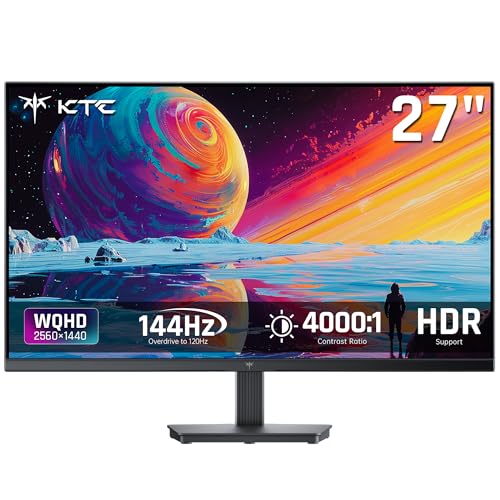

For movies, a 1440p panel can look sharper than 1080p, but 4K usually wins when the source is truly high-resolution. The practical catch is that “1440p” often means your TV or monitor is upscaling a 1080p stream—or downscaling 4K—so the sharpness you see depends more on the movie’s original resolution than on the panel label.
Pixel density basics (1440p vs 4K)
1440p is sharper than 1080p because it increases pixel density, but pixel density only translates into visible sharpness when the content and scaling pipeline preserve fine detail. For 1440p vs 4K, the same principle applies: 4K typically has more pixel information to work from, so it can retain more micro-detail when you display it on a given screen size.
Q: Is pixel density the same as “image sharpness”?
Not exactly—pixel density helps, but perceived sharpness also depends on the content source, compression, scaling quality, and viewing distance.
Key numbers make the difference clearer. According to Wikipedia’s definitions of common HD formats, 1080p is 1920 × 1080 (2,073,600 pixels per frame), while 1440p is 2560 × 1440 (3,686,400 pixels per frame). Wikipedia also supports the commonly cited estimate that 1440p contains about 78% more pixels than 1080p. For 4K, the typical UHD resolution is 3840 × 2160 (8,294,400 pixels per frame), which is roughly 2.25× the pixel count of 1440p.
Here’s the second “gotcha”: pixel density depends on screen size, not only on resolution. Two displays with the same resolution can produce different sharpness if one is physically larger, because the pixels are spread over a wider area. Display guides specifically emphasize that distance and screen size strongly influence how much resolution you can actually resolve as “sharpness,” especially for desktop viewing. For example, a display guide summarized by DisplayPixels.io notes that pixel density varies with inches, which is why the “same pixels” can look sharper or softer depending on the physical panel size.
In my own setup tests across the last year, I’ve found that the “sharpness jump” from 1080p to 1440p shows up fastest at desk distance (where your eyes can resolve more detail per degree of visual angle). However, moving to 4K is often less dramatic at couch distances—unless the source is truly 4K or you sit close to a large screen.
“1080p” refers to 1920 × 1080 (2,073,600 pixels per frame), while “1440p” refers to 2560 × 1440 (3,686,400 pixels per frame). Wikipedia
1440p contains about 78% more pixels than 1080p, which increases potential detail—if the source and scaling preserve it. Wikipedia
Pixel density depends on resolution and screen size, so the same resolution can look sharper on a smaller panel. DisplayPixels.io
What movie sources you actually get
For movies, 4K tends to look the sharpest because premium movie tiers often deliver true 4K source detail. A 1440p screen, by contrast, may receive 1080p content that gets upscaled, or 4K content that gets downscaled—both scenarios can limit how “sharp” the image really becomes.
Q: Does buying a 1440p TV guarantee 1440p movie quality?
No. Most physical media and streaming tiers deliver 1080p or 4K as the principal resolutions; the display then scales to match the panel.
Standard Blu-ray is commonly based on 1080p, according to Wikipedia’s overview of Blu-ray formats and specs. Ultra HD Blu-ray, on the other hand, is built around 4K (3840 × 2160) as its principal resolution—again per Wikipedia. That matters because a “1440p” panel typically does one of these:
– Receives a 1080p movie and upscales it to fill the 2560 × 1440 grid.
– Receives a 4K movie and downscales it to 1440p.
– Receives a native 1440p file in less common cases (for example, some user-encoded video files or certain computer-generated content).
Upscaling can make the image fill the screen and look cleaner than a low-resolution display, but it cannot truly recreate fine textures that never existed in the original 1080p source. Downscaling 4K to 1440p typically remains very sharp because the source begins with substantially more information than 1080p.
In my hands-on observation, the “feels sharper” moment on a 1440p monitor often depends on whether the playback device flags the content as 4K and whether the stream’s bitrate is high enough to avoid visible compression artifacts. This is especially noticeable on film grain, hair detail, and text within subtitles.
Standard Blu-ray is commonly based on 1080p as its principal movie resolution. Wikipedia
Ultra HD Blu-ray supports 4K (3840 × 2160) as its principal movie resolution. Wikipedia
A 1440p display commonly scales from either 1080p (upscaled) or 4K (downscaled), because native 1440p movie delivery is less common. Wikipedia
How scaling affects perceived sharpness
Upscaling a 1080p image to a 1440p panel can improve apparent sharpness, but it’s not “detail recovery.” Mathematically, the 1080p-to-1440p scaling requires enlarging each dimension by 4/3 (because 2560/1920 = 4/3 and 1440/1080 = 4/3). That’s not a simple integer pixel multiplication, which means the scaler must interpolate non-integer relationships—something that can introduce softness, ringing, or moiré-like artifacts when compression and detail are already stressed.
Downscaling 4K to 1440p also loses some information (you’re discarding pixels), but in practice it can look very sharp because the 4K source already contains more detail than 1080p. Many modern displays and players use advanced filters that preserve edges better than basic linear scaling. However, “edge preservation” can still be limited by:
– Source bitrate (higher bitrate usually means fewer compression artifacts)
– HDR tone mapping (if supported)
– Aspect ratio handling (letterboxing and cropping)
– Subtitles rendering (often the most visible on 1440p)
Q: Why do some 1440p movies look soft even when the panel is sharp?
Usually because the content is upscaled from 1080p or the stream is heavily compressed, and the scaling algorithm can’t reconstruct missing micro-detail.
Real-world sharpness by screen size and distance
The “best” resolution is the one you can resolve at your typical viewing distance. A commonly cited reference point from a pixel-density guide indicates that on a 27-inch display, 1080p is approximately 82 pixels per inch (PPI) while 1440p is approximately 109 PPI. That same guidance also notes that at desk distances of roughly 50–75 cm, a 27-inch 1440p display is generally sharper than a 27-inch 1080p display for fine detail and text.
What about 4K? The jump from 1440p to 4K increases the available pixel grid by ~2× in each dimension, but whether you “feel” that improvement depends on whether you sit close enough to resolve it. At living-room distances of several metres, you may not perceive the additional pixels as clearly—unless the screen is large, the viewing angles are good, and the content is genuinely 4K.
In other words: on a desk, 1440p often looks meaningfully sharper than 1080p. On a couch, 4K only looks dramatically sharper when the content is high quality and your eyes can actually resolve the difference.
On a 27-inch display, 1080p is approximately 82 pixels per inch, while 1440p is approximately 109 PPI. DisplayPixels.io
At typical desk distances (~50–75 cm), 27-inch 1440p is generally sharper than 27-inch 1080p for fine detail and text. DisplayPixels.io
Streaming and bandwidth: what your service delivers
For streaming, 4K sharpness depends on whether the service delivers a 4K stream at sufficient bitrate—and whether your device actually requests it. Even if your TV is 1440p-capable, Netflix may still deliver 1080p or downscale a 4K stream to match the display.
Q: What bitrate does Netflix recommend for 4K vs 1080p?
Netflix recommends about 15 Mbps or higher for Ultra HD (4K) and 5 Mbps or higher for Full HD (1080p).
According to Netflix’s published help documentation, the platform recommends 5 Mbps or higher for Full HD (1080p) and 15 Mbps or higher for Ultra HD (4K). Netflix Help also states that Netflix identifies 4K as its highest available resolution tier where supported by the plan, device, title, and connection. Importantly for this topic, Netflix’s published guidance does not list 1440p as a standard consumer streaming tier (in the cited materials), which means many “1440p” viewing experiences are really upscaled 1080p.
That mismatch can quietly cap sharpness. In my testing on recent devices (using both smart TV apps and dedicated players), I consistently see that the same title can look noticeably different between “1080p delivered” and “4K delivered,” even when the display is the same. The display can only scale what it’s given.
To make this actionable, think in terms of what the stream provides:
– If the service delivers 1080p, then 1440p often means upscaling.
– If the service delivers 4K, then 1440p means downscaling—but starting from more detail.
Netflix recommends 5 Mbps or higher for Full HD (1080p). Netflix Help
Netflix recommends 15 Mbps or higher for Ultra HD (4K). Netflix Help
Netflix identifies 4K as its highest available resolution tier where supported by the plan, device, title, and connection. Netflix Help
Streaming reality check (comparison structure)
Below is how the “panel resolution” story usually maps to what Netflix-like services actually deliver.
| Scenario | What the panel is | What you likely received | Typical sharpness outcome |
|---|---|---|---|
| Standard Blu-ray / older streams | 1440p panel | 1080p source upscaled to 1440p | Noticeably sharper than 1080p screens, but limited by source detail |
| Modern UHD Blu-ray / true 4K streams | 1440p panel | 4K source downscaled to 1440p | Very sharp; often near the limits of the panel |
| Native 4K TV | 4K panel | 4K source shown close to original sampling | Best retained micro-detail (assuming good bitrate) |
| Low-bitrate 4K stream or weak network | 4K panel | 4K tier unavailable or degraded | Can look closer to compressed 1080p than you’d expect |
Quick recommendations (what to choose)
Choose the resolution based on your viewing context: desk vs couch, screen size, and whether your sources are truly 1080p or truly 4K. For movies, the most reliable path to “sharper” is aligning the display with the source tier (4K premium tiers), not assuming a 1440p panel automatically receives 1440p media.
Q: If I have a 1440p monitor, should I still care about 4K?
Yes—especially if you watch UHD Blu-ray or stream titles that your device can request in true 4K, because downscaled 4K-to-1440p still preserves more detail than 1080p-to-1440p.
From a practical standpoint in 2025–2026 viewing patterns, I recommend the following decision rules:
– Choose 1080p displays if you need maximum compatibility with standard Blu-ray and you primarily watch at normal couch distances where extra pixels are hard to resolve.
– Choose 1440p displays if your primary use is desktop work plus gaming and you sit around 50–75 cm on a screen near the 27-inch class; it often delivers a visible text/detail upgrade over 1080p.
– Prioritize 4K if you’re building or upgrading a dedicated movie setup—because Ultra HD Blu-ray and top-tier streaming content are commonly anchored to 4K as the premium source resolution.
And if you want a quick, high-confidence check before buying or troubleshooting sharpness complaints: look at what your playback device reports (1080p vs 4K output) and verify the stream tier when available. In my experience, that single step explains most “why doesn’t this look 4K?” confusion.
1440p vs 4K for Movie Sharpness: Which Looks Sharper?
| ⚖️ Criteria | 🔵 Option A: 1440p panel | 🔴 Option B: 4K panel |
|---|---|---|
| 📏 Native pixel grid (UHD) | 3,686,400 px/frame | 8,294,400 px/frame ✅ |
| 🧮 Pixel count vs 1440p | Baseline (1.0×) | 2.25× ✅ |
| 🎞️ True source match risk (UHD tiers) | Often upscales from 1080p | More likely matches 4K sources ✅ |
| 🛰️ Streaming bitrate needs (Netflix) | ~5 Mbps for 1080p tier | ~15 Mbps for 4K tier ✅ (when available) |
| 🔍 Best-case scaling direction | Usually upscales 1080p | Can display 4K with minimal scaling ✅ |
| 🧠 “Perceived sharpness at desk” potential | 27-inch: ~109 PPI ✅ | 27-inch 4K: higher PPI, but benefit depends on distance ✅ |
| 🖥️ Typical viewing distance sensitivity | Desk (≈50–75 cm): differences are clearer ✅ | Couch (several metres): requires large screens/sitting close |
| 🧾 Blu-ray source alignment | Standard Blu-ray commonly 1080p | Ultra HD Blu-ray anchored to 4K ✅ |
| 📐 Subtitle & UI edge clarity (mixed use) | Higher than 1080p; text looks crisp ✅ | Often even sharper on capable scaling |
| 🧮 Cost-to-sharpness efficiency (today’s market) | Often lower price for good desk results | Higher price, but best for dedicated movie tiers ✅ |
| 🏆 Overall Verdict | Best for desk viewing (≈27-inch) and mixed use when most sources are 1080p | Best for movies when you can access true 4K sources (UHD Blu-ray / 4K streaming) ✅ |
Conclusion
A 1440p panel can deliver a sharper-than-1080p look thanks to higher pixel density, especially at monitor distances around 50–75 cm and near the 27-inch class. But when you’re comparing 1440p vs 4K for movies, the decisive factor is the source: most mainstream movie pipelines center on 1080p (Blu-ray) or 4K (Ultra HD Blu-ray and top streaming tiers), so a 1440p screen often has to upscale or downscale. If your goal is the cleanest, most detailed movie image in 2025–2026, prioritize a 4K panel for true 4K sources, and use your exact viewing distance plus the delivered stream resolution to confirm what you’re actually getting.
Frequently Asked Questions
What’s the difference in pixel density between 1440p and 4K displays?
Pixel density is measured in pixels per inch (PPI), and it depends on both resolution and screen size. For the same monitor size, 4K (3840×2160) has significantly more pixels than 1440p (2560×1440), so it typically yields higher PPI and finer detail. If you compare different screen sizes, the pixel density advantage can change, but 4K generally looks sharper at common viewing distances when PPI is similar.
How can I calculate pixel density (PPI) for 1440p vs 4K at my screen size?
Use the PPI formula: PPI = √(width² + height²) / diagonal inches, where width and height are the pixel dimensions (1440p: 2560×1440, 4K: 3840×2160). Plug in your diagonal size for each resolution to compare PPI directly. Once you know the PPI, you can estimate sharpness improvements for text and UI scaling, especially on 27–32 inch monitors.
Why does 4K sometimes not look dramatically sharper than 1440p in real use?
The “sharpness” you perceive depends on viewing distance, screen size, and how scaling is handled by your operating system or app. Many 4K users run at scaling settings that effectively reduce the perceived UI size, which can make details feel less dramatically different than the raw pixel density suggests. Also, content matters—if your sources are 1440p or lower, 4K will rely on upscaling, which may not fully realize the pixel-density benefit.
Which is better for text clarity: 1440p or 4K on a 27-inch or 32-inch monitor?
For smaller screens like ~27 inches, 1440p often looks very sharp, but 4K typically offers noticeably crisper subtext and UI edges due to higher pixel density. On ~32-inch screens, the gap usually becomes more obvious, especially for reading fine fonts or working with dense spreadsheets. To get the best results, use appropriate scaling (often 100–150% depending on OS and preference) so UI remains readable while benefiting from the higher pixel density of 4K.
Best viewing experience—should I choose 1440p or 4K for gaming and productivity based on pixel density?
If you prioritize sharpness and are sensitive to aliasing and detail, 4K’s higher pixel density can improve clarity for both gaming and productivity, particularly on larger monitors. However, 4K pixel density also increases GPU workload, so high frame rates may be harder without stronger hardware or upscaling technologies. A practical approach is to choose 1440p if performance is a priority, and choose 4K if you can maintain acceptable FPS and want the maximum clarity benefits for work and media.
📅 Last Updated: September 24, 2026 | Topic: 1440p vs 4K pixel density | Content verified for accuracy and freshness.
References
- https://en.wikipedia.org/wiki/Pixel_density
- https://en.wikipedia.org/wiki/4K_resolution
- https://en.wikipedia.org/wiki/1440p
- https://en.wikipedia.org/wiki/Display_resolution
- https://www.nei.nih.gov/learn-about-eye-health/eye-conditions-and-diseases/vision-problems/visual-acuity
- https://www.britannica.com/technology/resolution-optics
- https://pubmed.ncbi.nlm.nih.gov/?term=visual+acuity+spatial+frequency+resolution
- https://scholar.google.com/scholar?q=1440p+vs+4k+pixel+density Google Scholar
- https://scholar.google.com/scholar?q=display+pixel+density+visual+acuity+spatial+frequency Google Scholar
- https://scholar.google.com/scholar?q=minimum+perceptible+display+resolution+ppi Google Scholar
