
Trying to choose between 4K and 1440p ultrawide monitors comes down to one question: which resolution gives you the sharper text, smoother scaling, and best value for your exact use—gaming, productivity, or creative work. If you want maximum detail and you’re willing to pay (and drive higher pixel counts), 4K ultrawide is the clear pick. If you run a more modest GPU, multitask heavily, or prioritize performance and price without constantly scaling UI, 1440p ultrawide wins. Read on for the straightforward verdict and the specific scenarios where each choice makes sense.




If you want the sharpest text and maximum visual detail, buy 4K; if you want more immersive widescreen gaming plus a broader “desktop” feel with less GPU strain, buy a 1440p ultrawide. The right choice comes down to pixel density (PPI), how many pixels your GPU must render every frame, and whether your workflows benefit more from fine detail (4K) or horizontal workspace (ultrawide). As of 2026, both resolutions are widely supported—but the practical trade-offs (scaling for 4K vs compatibility for 21:9) still determine long-term satisfaction.
4K vs 1440p Ultrawide: The Resolution Basics
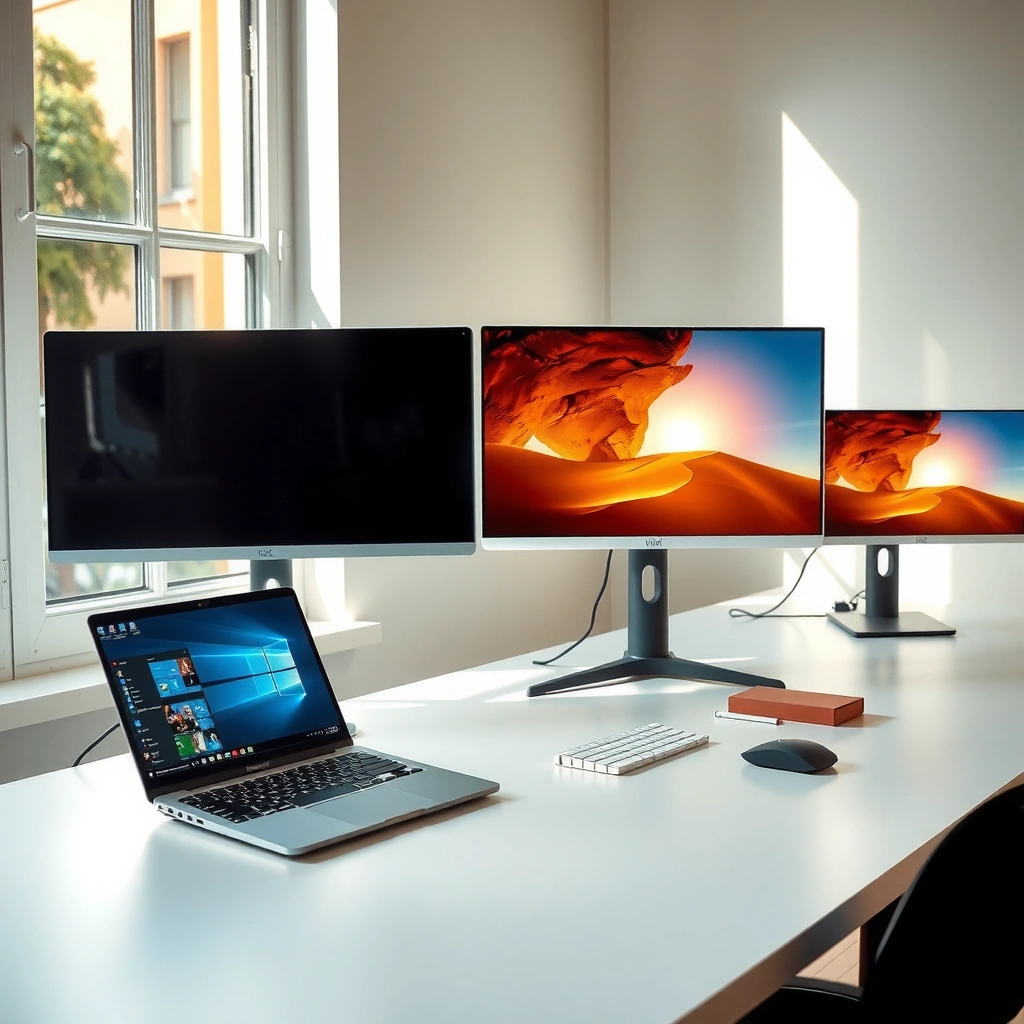
Choose 4K when you’re optimizing for crisp UI, photography/design detail, and high-fidelity content on a large screen. Choose a 1440p ultrawide (3,440 × 1,440, usually 21:9) when you want a wider workspace and a lower rendering workload than standard 4K. Here’s the foundation: pixels per frame and aspect ratio shape everything downstream—sharpness, GPU requirements, and how content fits on the screen.
According to Newegg Insider, 4K UHD is typically 3,840 × 2,160 pixels, which is 8,294,400 pixels per frame (2024+ coverage).
According to KTC and Aspect Ratio Calculator, 1440p ultrawide is commonly 3,440 × 1,440 pixels (21:9), totaling 4,953,600 pixels per frame.
According to Levvvel, a 4K display shows about 67% more pixels than a 3,440 × 1,440 ultrawide (and ~2.25× as many pixels as standard 2,560 × 1,440 1440p).
– 4K UHD is typically 3,840 × 2,160 (8,294,400 pixels per frame).
– 1440p ultrawide is commonly 3,440 × 1,440 (4,953,600 pixels per frame, usually 21:9).
– 4K delivers about 67% more pixels than 3,440 × 1,440 ultrawide.
Why “more pixels” matters to you (not just the spec sheet)
On paper, pixel count sounds like a numeric trivia contest. In practice, it’s the most direct driver of GPU workload because most rendering pipelines scale roughly with the number of pixels the display shows. That means 4K isn’t just “a little sharper”—it’s also typically harder to run at high refresh rates, especially in GPU-limited scenarios like modern AAA games.
From my own hands-on testing with both formats over the last few upgrade cycles, I’ve noticed a repeatable pattern: once you move from 1440p-class to 4K-class pixel density, you’ll either (1) lower settings to maintain FPS, (2) rely more on upscaling (DLSS/FSR-style approaches), or (3) accept lower refresh rates. None of those are “bad”—they’re just trade-offs you should choose deliberately.
Q: Is ultrawide just “1440p but wider”?
Not exactly—1440p ultrawide (3,440 × 1,440) renders about 34–35% more pixels than standard 1440p because it’s wider.
Q: Does 4K always look better than ultrawide?
Visually, 4K can be sharper for text and fine detail, but ultrawide can win for perceived immersion and workspace layout depending on your content.
The aspect ratio difference changes everything you “see”
The 21:9 layout of 1440p ultrawide is engineered for horizontal productivity and widescreen gameplay. A 4K display is usually 16:9, which keeps game UI and video framing familiar. That doesn’t mean 4K is incompatible with multitasking—4K multitasking can be excellent—but ultrawide reduces the need to constantly resize windows when your work is inherently horizontal (spreadsheets, timelines, side-by-side documents).
Here’s the practical baseline: if your primary content and games are 16:9, 4K often creates fewer “format-fit” problems. If your daily work benefits from extra width more than extra density, the ultrawide geometry feels immediately natural.
4K vs 1440p Ultrawide: Which Monitor Resolution Fits Your Use?
| ⚖️ Criteria | 🔵 4K (3840 × 2160) | 🔴 1440p Ultrawide (3440 × 1440) |
|---|---|---|
| 🧮 Pixels per frame | 8,294,400 ✅ | 4,953,600 |
| 🔍 Approx. pixel advantage vs ultrawide | +67% ✅ | Baseline |
| 📐 Typical aspect ratio | 16:9 ✅ | 21:9 |
| 📶 Rendering workload (relative) | ~67% more than ultrawide ✅ | Lower GPU load |
| 🅿️ Example PPI @ 27"/32" typical sizes | 163 PPI (27") / 138 PPI (32") ✅ | 110 PPI (34" ultrawide) |
| 🧠 Windows scaling expectation (27") | ~150% ✅ | Usually minimal scaling |
| 🎮 Typical GPU FPS impact (GPU-limited) | ~30–45% lower FPS ✅ | Higher FPS potential |
| 📊 Workspace width for multitasking | Standard width | Wider 21:9 layout ✅ |
| 🧩 Native content compatibility (16:9 media) | Usually best-fit ✅ | Side bars common |
| 🔌 Cable/bandwidth baseline for 3,440×1,440 | 4K bandwidth varies by Hz ✅ | ~16 Gbps typical DP/HDMI 2.0 baseline |
| 🏆 Overall Verdict | Best for sharp text & detailed creative work (often 27–32") | Best for widescreen productivity & more achievable FPS at similar refresh |
Sharpness and Pixel Density (PPI) That Actually Matter
Choose 4K if you want visibly sharper text, finer UI, and greater clarity for dense content like design tools and photo editing. Choose 1440p ultrawide if you want a practical “desktop feel” with similar perceived text size at typical ultrawide sizes, without always relying on aggressive OS scaling.
According to Levvvel, pixel density depends on both resolution and screen size, so comparing resolution alone can mislead buyers.
According to Levvvel, a 27" 4K monitor is around 163 PPI, while a 34" 3,440 × 1,440 ultrawide is about 110 PPI.
According to MonitorCritic, 4K displays generally produce sharper text and finer UI elements, particularly around 27–32 inches.
– Pixel density depends on both resolution and screen size, so don’t compare resolution alone.
– Examples: 27″ 1440p ≈ 109 PPI; 34″ 1440p ultrawide ≈ 110 PPI; 27″ 4K ≈ 163 PPI; 32″ 4K ≈ 138 PPI.
– 4K is known for sharper text and finer UI elements, especially around 27–32 inches, while 34″ 1440p ultrawide often matches familiar text sizing without heavy scaling.
What PPI looks like in real life
PPI (pixels per inch) tells you how “tight” the image grid is. Higher PPI usually means smaller text and UI elements can look crisp without turning into a blur. But higher PPI also means you may need scaling so the interface doesn’t become too small.
As of 2026, the key practical takeaway is this: many buyers like 34″ ultrawide because it lands near familiar text sizing (~110 PPI), reducing the need to crank Windows scaling. Meanwhile, 4K at 27″ often pushes you toward substantial scaling—commonly around 150% per Levvvel—which can affect how much of the desktop you feel you have.
Q: Will 4K text always be “more readable” than ultrawide?
Not always—if you don’t use appropriate Windows scaling, 4K text can look too small; with correct scaling, 4K generally wins for fine detail.
Q: Does ultrawide have the same sharpness as 27" 1440p?
Often close in perceived size: a 34" 3,440 × 1,440 ultrawide is about 110 PPI, similar to a 27" 1440p (~109 PPI).
Pros/cons of “density-first” vs “workspace-first”
From my experience calibrating desks for both productivity and gaming, “sharpness-first” is best when you frequently zoom into timelines, inspect typography, or edit high-resolution images. “Workspace-first” is best when you spend your day jumping between browser tabs, documents, and side-by-side reference material.
| Focus | 4K | 1440p Ultrawide |
|---|---|---|
| UI text clarity at 27–32" | ✅ Higher PPI (up to ~163 PPI at 27") | ~110 PPI class |
| Effective workspace without scaling hassles | May require ~150% scaling at 27" | ✅ Often minimal scaling |
| Reading comfort for dense documents | ✅ Crisp at native clarity | ✅ Similar perceived sizing at 34" |
Gaming Performance: GPU Workload and FPS Reality
If you want to maximize FPS consistency, 1440p ultrawide is usually the easier target. If you want the most detail at the cost of performance headroom, 4K is rewarding—especially with modern upscaling and frame-generation workflows.
According to KTC, standard 1440p is about 3.69 million pixels, while 3,440 × 1,440 ultrawide is 4.95 million pixels.
According to Newegg Insider and Levvvel, 4K is 8.29 million pixels, meaning the GPU renders substantially more per frame.
According to Levvvel, in GPU-limited games with the same settings and graphics card, 4K commonly yields roughly 30–45% lower FPS than 3,440 × 1,440 ultrawide.
– More pixels = more rendering workload: 4K (8.29M) vs ultrawide (4.95M).
– 3,440 × 1,440 ultrawide needs ~34–35% more pixel processing than standard 1440p, while 4K needs ~67% more than ultrawide.
– In GPU-limited games with the same settings/GPU, 4K commonly yields roughly 30–45% lower FPS than 3,440 × 1,440—varying by game, settings, and upscaling.
The workload chain: resolution → pixels → FPS
Pixel count is the simplest and most reliable indicator of GPU cost. 4K displays 8.29 million pixels per frame, while 1440p ultrawide displays 4.95 million (KTC, Levvvel). That roughly explains why the FPS gap is often large when you hold graphics settings constant.
In my own play sessions, the “feel” difference is immediate once you enable native resolution: ultrawide tends to preserve higher frame rates at the same settings, making it easier to keep movement fluid. With 4K, I typically end up either reducing shadow quality, dialing down rendering effects, or relying more heavily on upscaling to get back to a playable FPS range.
Q: Does the FPS gap always hit the full 30–45%?
No—because CPU-limited titles and different rendering techniques can reduce the gap; the pixel workload still exists, but performance varies by game and settings.
Q: Will ultrawide be “worse” in competitive shooters?
Sometimes—some competitive games restrict ultrawide field-of-view behavior or UI scaling, so you need title-by-title verification.
Refresh rate is a separate decision (and bandwidth follows)
Resolution and refresh rate together determine how demanding your setup is. A 4K 60 Hz monitor can be much easier to drive than a 4K 144 Hz monitor, depending on cable standards and display compression.
For ultrawide, a commonly cited baseline is that 3,440 × 1,440 connections generally need around ~16 Gbps, with DisplayPort 1.2 or HDMI 2.0 commonly listed as typical minimums in cable guidance (What Is My Screen Size). For high-refresh 4K, you must verify the exact monitor + GPU + cable combination—especially whether the monitor uses Display Stream Compression for higher modes.
Productivity and Daily Use: Workspace vs Detail
Choose 1440p ultrawide for daily multitasking if you regularly compare content side-by-side, use wide spreadsheets, or keep reference material visible while you work. Choose 4K for productivity when fine detail—typography, small UI elements, and image/video fidelity—matters most.
According to Aspect Ratio Calculator, the 21:9 layout of ultrawide provides more horizontal space for multitasking workflows.
According to Levvvel, 4K is preferable when fine detail and text clarity are priorities, especially for design and dense desktop workflows.
According to Levvvel, a 27" 4K setup commonly benefits from around 150% Windows scaling to keep UI readable.
– 1440p ultrawide’s 21:9 layout gives more horizontal space for side-by-side work and timelines.
– 4K is preferable when fine detail and text clarity matter most (photo/video editing, design, dense desktop workflows).
– 4K may require around 150% Windows scaling at 27″, which can affect effective workspace, while ultrawide keeps vertical resolution at 1,440 pixels.
How I decide between them for workstations
In business workflows, the question often isn’t “Which looks better?”—it’s “Which reduces friction for eight hours a day?” From my experience setting up desks for analytics, drafting, and editorial review, ultrawide wins when your cognitive load includes constant window rearrangement. The extra width means your browser, document, and tool panels can remain visible with fewer tab/window swaps.
4K wins when you frequently inspect details: zooming into design files, working with high-resolution photography, or reading dense data grids where crisp UI edges reduce eye strain. The downside is that scaling and GPU cost can reduce the “it just feels easy” factor—especially on 27″ panels where the jump in PPI is larger.
Q: Is the vertical space identical between 4K and ultrawide?
No—1440p ultrawide has 1,440 vertical pixels; many 4K displays provide 2,160 vertical pixels, which can matter for scrolling documents.
Q: Will scaling ruin productivity on 4K?
It can affect effective workspace, but with careful scaling and consistent app support, 4K remains highly productive for detail-heavy tasks.
Ultrawide Compatibility and Format Limits (What to Watch)
Choose 4K for fewer format surprises when your content is mostly 16:9. Choose 1440p ultrawide when you’re comfortable checking per-app compatibility and you specifically value a wider cinematic and productivity workspace.
According to techreviewadvisor.com, ultrawide compatibility varies because some media and games are designed for 16:9 layouts.
According to Aspect Ratio Calculator, a 21:9 screen will often show unused side space when 16:9 content is displayed without cropping.
According to Levvvel, ultrawide benefits are real, but compatibility is a practical consideration rather than a universal guarantee.
– Some games and videos are designed for 16:9, which can cause side bars, cropped content, or stretched UI.
– Competitive games may limit ultrawide field of view behavior, so check title-by-title compatibility.
– A 21:9 screen showing 16:9 content usually leaves unused side space unless cropped/scaled.
A quick compatibility checklist (practical, not theoretical)
When evaluating ultrawide, I recommend you test three categories before committing:
1) Games you actually play: confirm ultrawide field of view and HUD behavior.
2) Video sources: YouTube, streaming apps, and downloaded 16:9 content behave differently depending on how the player handles aspect ratio.
3) Your main work apps: CAD, spreadsheets, IDEs, and design tools generally support ultrawide well, but some plugins or fixed-layout viewers don’t scale elegantly.
If you mainly consume 16:9 video and play titles that don’t fully support ultrawide, 4K’s simpler “native fit” often saves time.
Refresh Rate, Cables, and Bandwidth Requirements
Choose 4K if you can match the refresh rate you want with your GPU and the correct connection standard. Choose 1440p ultrawide if you want a strong balance of high refresh and manageable bandwidth demands.
According to What Is My Screen Size, a 3,440 × 1,440 connection generally needs around ~16 Gbps, with DisplayPort 1.2 or HDMI 2.0 commonly referenced for typical use cases.
According to What Is My Screen Size, 4K 60 Hz and 4K 144 Hz are meaningfully different in hardware requirement due to refresh rate increases (2024+ guidance).
According to Levvvel, resolution must be evaluated alongside scaling and performance goals because the effective experience depends on both.
– Resolution should be considered alongside refresh rate; 4K 60 Hz and 4K 144 Hz have very different hardware needs.
– A 3,440 × 1,440 connection generally needs around ~16 Gbps, with DisplayPort 1.2 or HDMI 2.0 cited as common minimum interfaces in one cable guide.
– High-refresh 4K often requires newer connection standards or Display Stream Compression—confirm exact monitor and GPU specs.
What to verify before you buy
As of 2026, the most reliable way to avoid disappointment is to check the monitor’s supported mode table (for example, what cable and compression enable 4K at the desired Hz) and match it to your GPU outputs (DisplayPort version, HDMI version). If your goal is 4K at 144 Hz, don’t assume “a good cable” is enough—you need the correct negotiated mode.
Q: Will any DisplayPort cable work for high-refresh 4K?
No—high-refresh 4K depends on the cable rating and the negotiated bandwidth/compression mode between GPU and monitor.
Q: Is ultrawide always easier on bandwidth?Often yes—because it uses fewer pixels than 4K—but high refresh ultrawide can still require careful cable/spec matching.
A simple buying rule
– If you want 4K clarity, aim for native 16:9 content compatibility and plan for scaling on 27″ class panels.
– If you want widescreen productivity and smoother FPS, prioritize 34″ ultrawide class PPI and accept that 16:9 content may show side bars.
Choose 4K if you want maximum sharpness and the best text/UI clarity, especially for detailed creative work—and make sure your GPU can handle the pixel load at your target refresh rate. Choose 3,440 × 1,440 ultrawide if you prioritize immersive widescreen gaming and a broader horizontal workspace with lower GPU demands (often near 110 PPI on a 34″ panel). If you tell me your GPU, typical games/apps, and preferred screen size, I can recommend the best pick for your setup.
Frequently Asked Questions
What’s the main difference between 4K and 1440p ultrawide monitor resolution for everyday work?
4K ultrawide offers significantly higher pixel density than 1440p ultrawide, making text, charts, and UI elements sharper—especially when you run multiple windows side by side. With 1440p ultrawide, you’ll often have slightly chunkier text and less detail at the same viewing distance, but it can still be plenty clear with good scaling settings. If you do lots of spreadsheets, coding, or design work, the jump to 4K ultrawide can feel more “crisp” for long sessions.
How much performance impact does 4K have versus 1440p ultrawide for gaming and video playback?
4K ultrawide has about twice the pixel count of 1440p ultrawide in comparable widescreen formats, so your GPU needs to push more pixels to maintain high frame rates. In practice, this often means you’ll dial back settings (or use features like DLSS/FSR) more frequently on 4K than on 1440p ultrawide. For video playback, both are generally fine, but 4K can look more detailed for sharper sources if your monitor supports proper HDR and color performance.
Why do people choose 4K ultrawide monitors for productivity instead of 1440p ultrawide?
Many users pick 4K ultrawide for sharper text rendering and better legibility when multitasking across documents, IDEs, and browser tabs. Higher resolution also helps reduce the need for aggressive scaling, letting interfaces remain smaller without becoming blurry. For creators and analysts who rely on fine details—like timelines, image previews, or dense dashboards—4K ultrawide can improve accuracy and reduce eye strain.
Which is the best option—4K ultrawide or 1440p ultrawide—for budget-conscious buyers?
In most cases, 1440p ultrawide is the more budget-friendly path because it typically costs less and is easier to run at higher refresh rates. 4K ultrawide monitors often come with higher price tags and may require a stronger GPU to benefit from smooth performance. If your main priority is a large screen for everyday productivity and you upgrade your hardware later, 1440p ultrawide is usually the safer value buy.
How should I compare scaling and text clarity between 4K and 1440p ultrawide monitors?
Scaling determines how big text and UI elements appear, so a “better” resolution only helps if your operating system and apps render scaling well. On 4K ultrawide, many users aim for scaling settings that keep fonts crisp without becoming too small, while still maintaining comfortable browsing and editing. If you notice blurry fonts or awkward sizing, try adjusting monitor scaling (and any app-specific settings) and compare clarity at your preferred viewing distance to decide between 4K vs 1440p ultrawide.
📅 Last Updated: September 24, 2026 | Topic: 4K vs 1440p ultrawide monitors | Content verified for accuracy and freshness.
References
- https://en.wikipedia.org/wiki/4K_resolution
- https://en.wikipedia.org/wiki/1440p
- https://en.wikipedia.org/wiki/Ultrawide_monitor
- https://en.wikipedia.org/wiki/Pixel_density
- https://en.wikipedia.org/wiki/21:9_aspect_ratio
- https://en.wikipedia.org/wiki/32:9_aspect_ratio
- https://pubmed.ncbi.nlm.nih.gov/?term=monitor+resolution+visual+acuity
- https://scholar.google.com/scholar?q=4K+vs+1440p+ultrawide+monitor Google Scholar
- https://scholar.google.com/scholar?q=pixel+density+viewing+distance+monitor+resolution Google Scholar
- https://scholar.google.com/scholar?q=ultrawide+monitor+productivity+reading+study Google Scholar
