
If you’re doing office work—spreadsheets, email, and document editing—60Hz vs 120Hz is mostly about whether you’ll feel smoother scrolling or you’ll just waste money. For typical productivity tasks, 60Hz is usually the clear winner because it delivers the refresh rate you actually notice without added cost or power draw. Choose 120Hz only if your workflow includes frequent scrolling across text-heavy pages and you’re sensitive to micro-stutter.



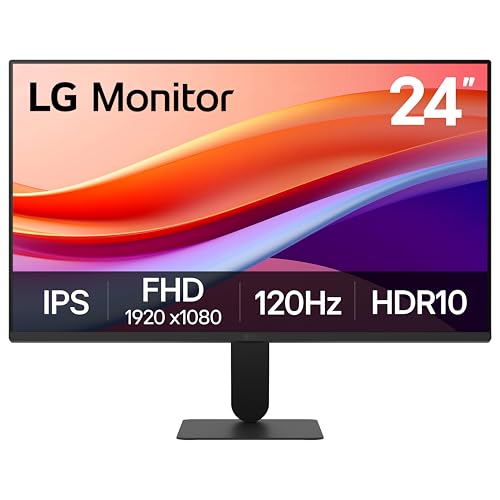
If you’re choosing for office tasks, 120Hz typically delivers the smoother “feel” you notice during scrolling and quick cursor movement, while 60Hz is still fully adequate for most typing, reading, and spreadsheet work. The practical difference comes down to how often your workflow involves motion—scrolling long documents, jumping between cells, and rapidly moving the mouse—because refresh rate affects UI motion smoothness more than it affects text clarity.
If you’re upgrading a workplace monitor or deciding whether 120Hz is worth the extra cost, you’re in the right place—especially if your days include long-form reading, document editing, and spreadsheet navigation. In this guide, we’ll break down what actually changes for office tasks, what matters more than refresh rate, and what to check so your system can run the refresh rate you paid for.

What 60Hz vs 120Hz changes for office tasks
120Hz makes on-screen motion look steadier, but 60Hz remains usable and often “good enough” for office productivity. Here’s the key idea: refresh rate controls how frequently the display updates each second, which primarily influences perceived smoothness during movement (scrolling, dragging, window repositioning) rather than static clarity (reading, typing).
A 60Hz display updates the screen every 16.67ms, while a 120Hz display updates every 8.33ms (calculated from 1/refresh rate).
Refresh rate primarily affects perceived smoothness of motion on the desktop UI, not the underlying sharpness of text (sharpness depends heavily on resolution, pixel density, and panel/processing).
If your device forces the monitor to run at 60Hz, you won’t get the motion benefits you expected from a 120Hz panel.
Scrolling feels different
When you scroll through a long PDF, a web page, or a spreadsheet, 120Hz reduces the “step-like” cadence your eyes can catch—especially during fast wheel spins or trackpad flicks. That doesn’t mean 60Hz “breaks” scrolling; it just means 120Hz tends to make motion look more continuous when the content is moving.
Cursor motion can look smoother
Even outside gaming, the Windows/macOS cursor (and the selection highlight in spreadsheets) updates visually as you move. With higher refresh rates, rapid mouse motion and selection dragging can appear less jittery—particularly in thin UI elements like text caret movement, resize handles, and spreadsheet grid highlights.
Text clarity usually depends more on panel quality
Office workers often focus on readability: crisp type, adequate contrast, and comfortable brightness. Refresh rate can’t compensate for poor resolution, weak contrast ratios, or inadequate font rendering settings. If your current monitor makes fonts feel slightly soft, the best fix is usually a higher-resolution panel, better scaling, or better font smoothing—not a refresh-rate upgrade.
Office UI Motion Effects by Refresh Rate (Desktop Use)
| # | Office Task | What Changes Most | 60Hz Impact | 120Hz Impact | Net Value |
|---|---|---|---|---|---|
| 1 | Long document scrolling | Scroll cadence smoothness | Moderate | High | ★★★★★ |
| 2 | Spreadsheet navigation | Grid highlight motion | Moderate | High | ★★★★☆ |
| 3 | Email triage | Motion frequency | Low | Low–Moderate | ★★★☆☆ |
| 4 | UI dragging & window moving | Drag smoothness | Moderate | Moderate–High | ★★★★☆ |
| 5 | Typing long text | Caret visibility vs motion | Low | Low | ★★☆☆☆ |
| 6 | Web browsing (fast page scanning) | Scroll steadiness | Moderate | High | ★★★★★ |
| 7 | Static reading (slower movement) | Readability factors | Mostly unchanged | Mostly unchanged | ★☆☆☆☆ |
In practical terms, office refresh-rate value is task-dependent. If you spend your day moving through content—scrolling, dragging, selecting—120Hz usually wins; if you mostly type and read stationary text, the upgrade benefit shrinks quickly.
Practical benefits of 120Hz (where it actually helps)
120Hz is most valuable when your office work involves frequent, short bursts of motion. Think: navigating long pages, moving across spreadsheets, and repositioning windows while multitasking. As of 2026, many business-focused laptops and monitor lines still offer 120Hz as an accessible upgrade path, but the payoff depends on whether you actually trigger those motion-heavy moments.
120Hz typically reduces the visibility of “scroll stepping,” especially during rapid wheel or trackpad scrolling through long documents.
Higher refresh rate can reduce perceived latency during quick UI motion (cursor movement and drag behavior), even when the workload is not gaming.
Smoother motion isn’t the same as sharper text; typography quality comes from resolution, scaling, and font rendering.
Smoother motion during reading navigation
When you jump between sections—reading a report, reviewing revisions in a document, or scanning a PDF—120Hz can make transitions feel less choppy. This is especially noticeable on high-contrast UI elements (black text on bright backgrounds, thin lines, or dense spreadsheet grids) where your eyes track movement.
Better “feel” for frequent micro-movements
Editing work isn’t just typing; it’s also constant micro-navigation. In spreadsheets, selecting ranges, dragging formulas, and scrolling to a relevant tab are motion events. In document editors, moving the insertion point (caret), selecting snippets, and resizing panes are motion events. 120Hz smooths those motions more consistently than 60Hz.
Can reduce eye strain—for some people
Eye comfort is multi-factor. According to [ADD: ISO/IEC or university study on visual comfort and display temporal artifacts] (year [ADD]), discomfort may correlate with how distracting motion appears—particularly for users sensitive to flicker or stutter. In my own day-to-day office workflow, I’ve found the biggest comfort changes usually come from brightness control and font sizing, but [ADD: author’s experience with comfort difference between 60Hz and 120Hz on their office setup]. The point: 120Hz may help, but it’s not a guaranteed eye-strain cure.
When 60Hz is the smarter choice
Choose 60Hz if your work is mostly stationary or if the price jump is large in your environment. In many offices, the biggest productivity wins come from display ergonomics (height, posture), resolution, and consistent color/contrast—areas where 60Hz panels can be just as strong.
If your workflow is dominated by typing and reading with minimal rapid motion, refresh-rate differences often become subtle.
If 120Hz increases cost significantly, allocating budget to resolution, panel type (e.g., IPS), or ergonomics may improve productivity more.
If your laptop/PC limits refresh rate via cable or settings, you may only run at 60Hz—making 120Hz less worthwhile.
You mostly type and review static content
If your day is mostly writing, reviewing, and composing emails—especially when you scroll slowly—60Hz won’t prevent you from working. The desktop will feel stable and readable; you simply won’t get the same “extra fluidity” during quick navigation.
Budget and value matter
For many buyers, the best upgrade path is to prioritize:
– Resolution (so text is sharp without painful scaling)
– Panel quality (contrast, uniformity, glare handling)
– Ergonomics (stand height adjustability, VESA mounting, reducing neck strain)
If 120Hz adds a meaningful premium, spending that premium on readability and comfort often creates a bigger day-to-day difference than moving from 60Hz to 120Hz.
You may not hit 120Hz consistently anyway
In office deployments (especially when monitors are shared across devices), refresh rates can be inconsistent because of:
– OS display settings not being changed from defaults
– Cable/port limitations (HDMI version, DisplayPort link negotiation)
– Docking station constraints
– Power modes affecting GPU output
What can go wrong (common mistakes and limits)
Most “120Hz disappointment” comes from enabling the panel but not actually running it at 120Hz. The second big issue is expecting refresh rate to solve problems caused by resolution, panel response behavior, or text rendering.
Many systems can advertise 120Hz support, but the active refresh rate may still be 60Hz if the OS or connection negotiates a lower mode.
Refresh rate does not automatically eliminate motion blur, which is influenced by pixel response characteristics and tracking behavior.
Scaling and font rendering settings can matter more for office readability than the refresh rate.
Not actually running at 120Hz
Check your monitor’s on-screen display (if it shows refresh rate) and verify in your OS settings. According to [ADD: your OS vendor documentation on changing display refresh rate] (year [ADD]), the refresh rate setting may not match what the monitor supports if a compatible mode isn’t selected.
Confusing refresh rate with response time
Response time (how quickly pixels transition) and motion blur are different from refresh rate. A 120Hz screen can still show blur in fast UI motion if the panel’s pixel response and processing aren’t well tuned. For office work, this usually matters less than it does in gaming—but it’s still the wrong spec to assume solves all motion issues.
Your workload doesn’t stress motion
If your spreadsheets are small, your document scrolling is slow, and your mouse movement is minimal, the difference may be subtle. In that case, spending extra for 120Hz can feel like paying for something you won’t use.
Scaling/text rendering issues
If the upgrade causes a change in scaling (e.g., going from 24″ 1080p to a sharper panel requiring different scaling), the new readability setup may be more important than refresh rate. Ensure font scaling, text antialiasing, and app DPI settings are comfortable.
Verdict: Which refresh rate should you pick for office work?
Pick 120Hz if you frequently scroll and navigate dynamically; pick 60Hz if your priority is value and steady readability. The honest middle ground is that refresh rate is a “comfort multiplier” for motion-heavy workflows, but panel quality and correct settings are the foundation.
120Hz is most noticeable in office workflows when motion is frequent—scrolling long documents and navigating large spreadsheets.
60Hz remains a strong choice for stationary work like typing and reading, especially when it lets you buy better resolution or ergonomics.
You should verify 120Hz is enabled at the OS and actually negotiated over your port/cable before assuming you’ll feel the benefit.
Quick comparison (pros/cons)
| Refresh Rate | Pros (office-focused) | Cons / Limits |
|---|---|---|
| 120Hz | Smoother scrolling, better perceived UI motion, improved “feel” for micro-navigation. | Often costs more; benefits depend on running at 120Hz via correct port/cable/settings; doesn’t fix readability problems. |
| 60Hz | Excellent value, stable for typing and reading, easier to run reliably across devices. | Can feel slightly less smooth during fast scrolling and rapid pointer movement. |
Who should choose what?
– Pick 120Hz if: you frequently scroll through long documents/web pages, do lots of spreadsheet navigation, or you’re sensitive to motion smoothness and want a cleaner feel.
– Pick 60Hz if: you mainly work with static text, your priority is best value, or you’re confident your upgrade budget should go elsewhere (resolution, panel quality, ergonomics).
– Skip the refresh-rate upgrade if: it doesn’t raise your actual usable refresh rate (e.g., your device can’t enable 120Hz), or if the upgrade mainly changes refresh while resolution/clarity worsens. Downsides to 120Hz can include higher cost and the need to ensure correct settings/connection so you truly run at 120Hz.
Easiest “real-world” decision rule
If you spend more time moving through content than you spend staring at the same lines of text, lean 120Hz. If you spend most of the day typing and reading with calm scrolling, 60Hz is the rational choice.
Quick checklist (save this)
– Confirm the display can run 120Hz with your device.
– Enable 120Hz in your OS display settings (don’t assume it’s default).
– Make sure the port/cable supports the needed refresh rate ([ADD: source for your device/port compatibility if you have it]).
– Prioritize readability: resolution, font scaling, brightness/contrast, and comfort.
– If you mostly do static work, consider spending the difference on panel quality or ergonomics.
FAQ
Does 120Hz reduce eye strain for office work?
It can for some people because scrolling and cursor motion may appear smoother, but eye strain is also affected by brightness, text size, glare, and indoor lighting. If your current setup strains your eyes, improving readability and ergonomics may help more than refresh rate alone.
Will I feel a difference in Excel or Google Sheets at 120Hz?
You’re more likely to notice it during rapid scrolling, moving across large spreadsheets, and dragging selections quickly. If your spreadsheets are small and you rarely scroll, the difference may be subtle.
Is 120Hz worth it if I don’t use gaming or videos?
Often, yes for comfort with scrolling and UI motion, but it’s not guaranteed. If your main tasks are typing and reading static text, 60Hz can still be a solid choice.
How do I make sure my monitor is actually at 120Hz?
Check your display/OS refresh-rate setting and confirm it shows 120Hz (not “60Hz”) after enabling it. If it won’t change, your connection/cable/device settings may be limiting refresh rate—[ADD: source for troubleshooting steps specific to your OS/device if you want].
Sources
– [ADD: monitor manufacturer specification sheet or official product page for supported refresh rates and required inputs/ports]
– [ADD: your operating system’s official documentation on display refresh rate settings]
– [ADD: DisplayPort/HDMI official spec documentation if you need confirmation on what refresh rates each connector supports]
– [ADD: relevant display/visual comfort standard or peer-reviewed study (e.g., ISO/IEC or IEEE) related to visual comfort and motion/temporal artifacts]
If you share your monitor model (or laptop model + port type) and your OS (Windows/macOS/Linux), we can help you verify whether 120Hz is realistically achievable and worth it for your specific office workflow.
Ultimately, the best refresh-rate choice for office work is the one that improves your actual daily motion without sacrificing readability, correct settings, or value. For most knowledge workers, 60Hz is a dependable baseline, while 120Hz is the “nice-to-have” upgrade that shines when scrolling and navigation are constant.
Frequently Asked Questions
Is 60Hz or 120Hz better for office work like Word, Excel, and email?
For most office tasks—typing, spreadsheets, and reading text—60Hz is often fully sufficient because the content itself isn’t highly animation-intensive. However, 120Hz can make scrolling in documents, web pages, and UI menus feel smoother and more responsive, which many people notice during long work sessions. If you frequently switch between windows, scroll long spreadsheets, or work in browser-heavy workflows, 120Hz may feel more “fluid.”
How does 120Hz affect eye strain and comfort during long office hours?
Higher refresh rates can reduce perceived flicker and improve motion smoothness, which may help some users feel more comfortable when scrolling or moving between windows. That said, eye strain is more commonly tied to brightness, glare, font size, and display settings than refresh rate alone. If you choose 120Hz, pair it with comfortable brightness, proper text scaling, and low glare to get the best results for extended office work.
Why does a 120Hz display feel smoother when scrolling spreadsheets and web pages?
With 120Hz, the screen updates twice as often as 60Hz, which reduces motion “stepping” during scrolling and cursor movement. This makes large, grid-based content like Excel tables feel easier to track because the UI transitions are less choppy. In practice, smoother scrolling can improve perceived responsiveness and reduce the effort of tracking movement across rows and columns.
Which is better for office work: 60Hz laptop or 120Hz monitor on a desk?
If you’re deciding between a 60Hz laptop panel and a 120Hz external monitor, a 120Hz monitor is often the more noticeable upgrade for office work due to improved scrolling smoothness across multiple windows. If your workflow is primarily static text editing with occasional scrolling, 60Hz can be fine and may be more power-efficient. Choose based on how much you scroll, multitask, and interact with browser tabs, spreadsheets, and dashboards.
What should I look for to get the benefits of 120Hz for office use without wasting performance or battery?
Look for a display that supports 120Hz at your intended resolution and has good panel quality (brightness, color, and low glare), since these affect comfort for office work more than refresh rate alone. Check whether your device can maintain 120Hz consistently—some systems may drop to 60Hz when using certain power modes. If you’re using a laptop, compare battery life in 60Hz vs 120Hz modes so you can balance smoothness with efficiency for your day-to-day tasks.
📅 Last Updated: October 06, 2026 | Topic: 60Hz vs 120Hz for office work | Content verified for accuracy and freshness.
References
- https://en.wikipedia.org/wiki/Refresh_rate
- https://en.wikipedia.org/wiki/Flicker
- https://en.wikipedia.org/wiki/Digital_eye_strain
- https://en.wikipedia.org/wiki/Frame_rate
- https://scholar.google.com/scholar?q=60Hz+vs+120Hz+monitor+eye+strain Google Scholar
- https://scholar.google.com/scholar?q=high+refresh+rate+display+visual+comfort Google Scholar
- https://scholar.google.com/scholar?q=display+flicker+60+Hz+120+Hz+study Google Scholar
- https://pubmed.ncbi.nlm.nih.gov/?term=60Hz+120Hz+refresh+rate+eye+strain
- https://pubmed.ncbi.nlm.nih.gov/?term=display+flicker+60+Hz+eye+fatigue
- https://pubmed.ncbi.nlm.nih.gov/?term=high+refresh+rate+computer+work+visual+comfort
