
To ensure your home theater system works with Dolby Vision and Dolby Atmos, you need to verify compatibility of your components, including your TV, receiver, and source devices. This guide will walk you through the necessary steps to set up and optimize your system for the best viewing and listening experience.
In the evolving world of home entertainment, Dolby Vision and Dolby Atmos have emerged as leading technologies, enhancing both visual and audio experiences. Dolby Vision, a high dynamic range (HDR) format, provides stunning picture quality by delivering richer colors and deeper contrasts. In parallel, Dolby Atmos revolutionizes how sound is experienced, allowing for a more immersive audio environment by adding height channels to traditional surround sound systems. To fully leverage these technologies, your home theater system must be compatible with them. Below, we will explore the essential components and steps necessary to ensure your system is optimized for Dolby Vision and Dolby Atmos.
Check Your TV for Dolby Vision Support
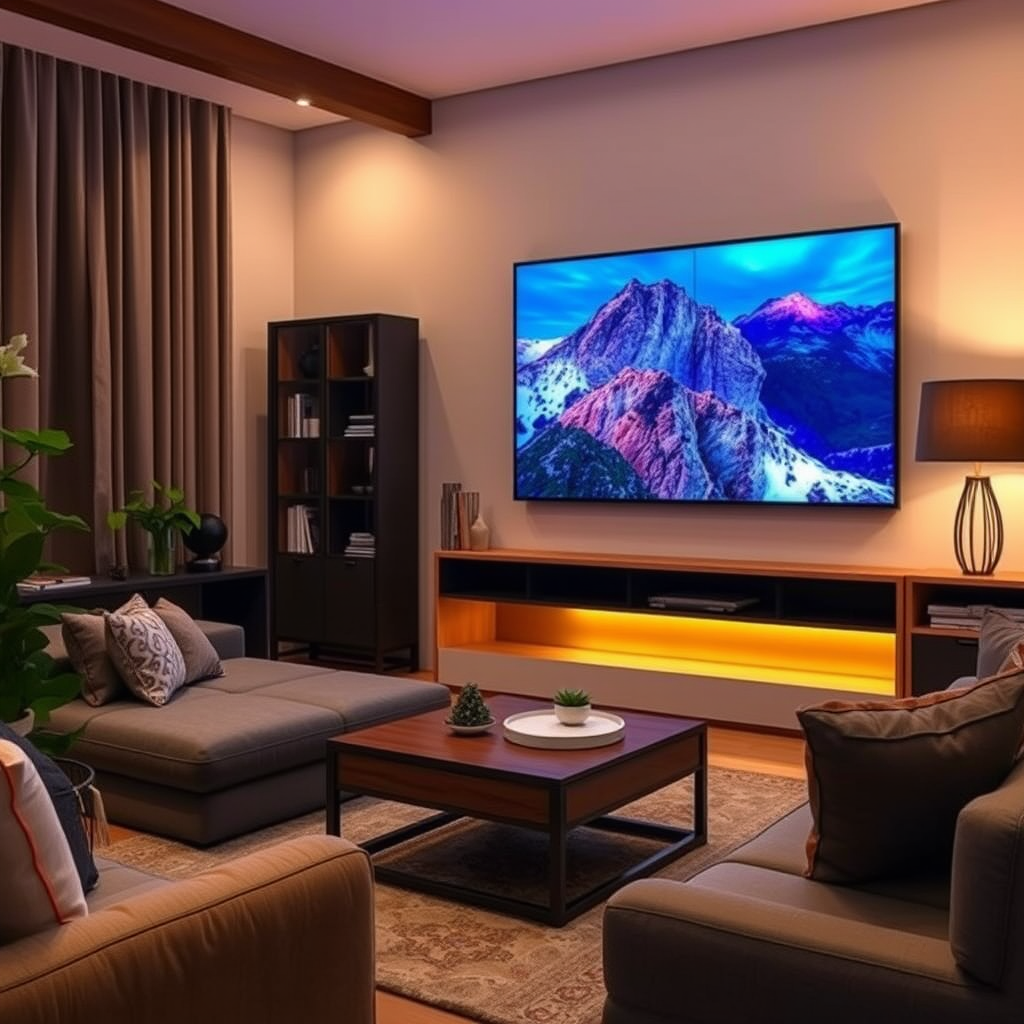
The first step in ensuring your home theater system supports Dolby Vision is to check whether your TV is compatible. Not all TVs are created equal, and specific features are vital for enabling Dolby Vision playback.
– HDMI Compatibility: Confirm that your TV features HDMI 2.0 or higher. This version of HDMI is crucial because it supports the bandwidth necessary for transmitting high-quality HDR content, including Dolby Vision.
– Specifications Verification: Look at your TV’s specifications directly. Many manufacturers include Dolby Vision support in their premium models, but it’s important to ensure that it is explicitly stated. For example, televisions from brands like LG, Sony, and Samsung often support Dolby Vision, but you should always double-check the product details.
Investing in a TV that supports Dolby Vision not only enhances your viewing experience today but also prepares you for future content releases that utilize this technology.
Ensure Your AV Receiver is Compatible
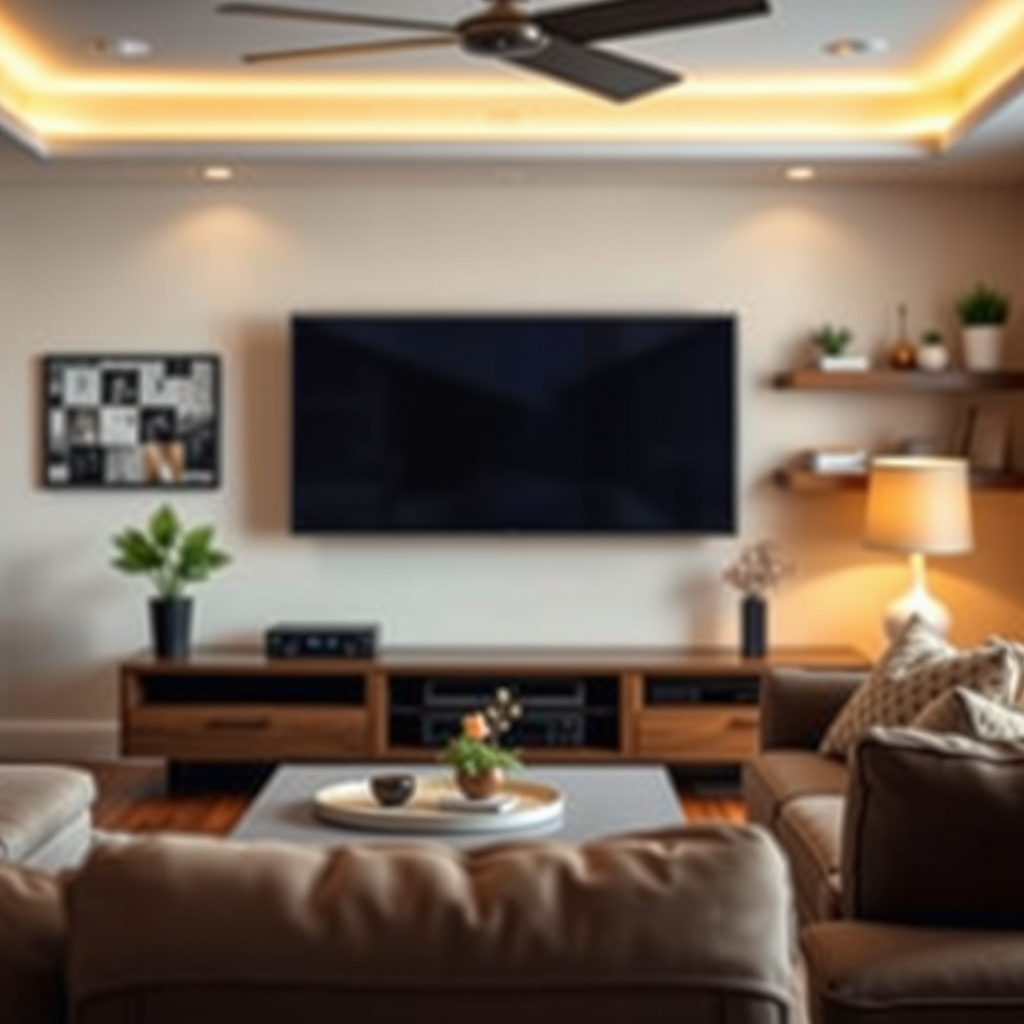
The role of your AV receiver cannot be overstated when setting up a Dolby Atmos system. It acts as the central hub for your audio and video components.
– Dolby Atmos Support: Ensure your AV receiver explicitly states that it supports Dolby Atmos. This feature is critical as it allows the receiver to decode the immersive audio signals sent from various source devices.
– HDMI Inputs: Your receiver should have multiple HDMI inputs that support HDCP 2.2 or higher. This is necessary for receiving high-bandwidth signals from 4K content sources.
– Firmware Updates: Manufacturers often release firmware updates that can enhance compatibility with new technologies. Regularly check for updates on your AV receiver to ensure it operates optimally with Dolby technologies.
By confirming your AV receiver’s compatibility, you can guarantee that you will receive the best audio quality available, which is vital for fully enjoying Dolby Atmos content.
Choose the Right Source Devices
Selecting the right source devices is crucial for ensuring that your home theater system can deliver Dolby Vision and Dolby Atmos content effectively.
– Streaming Devices: Many popular streaming devices, such as Roku Ultra, Apple TV 4K, and Amazon Fire TV Stick 4K, support both Dolby Vision and Dolby Atmos. Make sure to choose devices that explicitly mention support for these formats.
– Blu-ray Players: If you prefer physical media, look for 4K Ultra HD Blu-ray players that support Dolby Vision and Atmos. Players from brands like Panasonic and Sony often include these features.
– Game Consoles: Modern gaming consoles like the PlayStation 5 and Xbox Series X also support Dolby Vision and Dolby Atmos, making them excellent choices for both gaming and media consumption.
– Content Availability: Not all content is created equal. Ensure your content source, such as Netflix or Disney+, offers titles that support Dolby Vision and Atmos. Checking the specifications or tags on the content can help.
Selecting compatible source devices is essential for maximizing your viewing experience and ensuring you can access the rich library of Dolby-enabled content.
Top Streaming Devices Supporting Dolby Vision and Atmos (2024)
| # | Device | Dolby Vision | Dolby Atmos | 4K Support |
|---|---|---|---|---|
| 1 | Apple TV 4K | Yes | Yes | Yes |
| 2 | Roku Ultra | Yes | Yes | Yes |
| 3 | Amazon Fire TV Stick 4K | Yes | Yes | Yes |
| 4 | NVIDIA Shield TV Pro | Yes | Yes | Yes |
| 5 | Chromecast Ultra | Yes | Yes | Yes |
| 6 | Blu-ray Player (Sony UBP-X800M2) | Yes | Yes | Yes |
| 7 | Game Console (PS5) | Yes | Yes | Yes |
Properly Connect Your Components
Once you have verified that your TV, AV receiver, and source devices are compatible with Dolby Vision and Dolby Atmos, the next step is to ensure they are properly connected.
– High-Speed HDMI Cables: Use high-speed HDMI cables that can support 18 Gbps or more to handle the bandwidth required for both Dolby Vision and Atmos. These cables are essential for transmitting high-quality video and audio signals without degradation.
– Connection Order: The general best practice is to connect your source device to the AV receiver first, and then connect the receiver to the TV. This allows the receiver to process the audio and video before sending it to the TV, ensuring that you receive the best possible quality.
– Check Settings After Connection: Once everything is connected, check the settings on each device to ensure they are configured to allow the transmission of Dolby Vision and Atmos signals. Often, this can be found in the settings menu under video output or audio settings.
Properly connecting your components is crucial for ensuring that your system can effectively deliver the premium audio and visual experience that Dolby Vision and Atmos promise.
Bandwidth Requirements for Dolby Technologies
Optimize Your Settings for Best Performance
After connecting your components, you should take the time to optimize your settings for the best performance. This step is crucial to ensure that you are getting the most out of your Dolby Vision and Atmos capabilities.
– Video Settings: Access your TV’s video settings and enable Dolby Vision. This option is typically found in the picture settings menu. Some TVs may also have specific modes for HDR content; make sure these are activated as well.
– Audio Settings: Similarly, access your AV receiver’s settings to enable Dolby Atmos. Many receivers have dedicated settings for speaker configurations, so ensure that your speaker setup (such as the number of speakers and their positions) is correctly configured to take advantage of Atmos technology.
– Calibration: For the best results, consider using a calibration tool or service to fine-tune your audio and video settings. This can help eliminate any discrepancies in color accuracy, brightness, and audio balance.
Optimizing your settings not only enhances your viewing and listening experience but also ensures that you are utilizing the full capabilities of your home theater system.
Test Your Setup with Compatible Content
Finally, once everything is set up and optimized, it’s time to put your system to the test with compatible content. This step is crucial for assessing whether your system delivers the expected performance.
– Select High-Quality Titles: Look for movies or shows that are known to support both Dolby Vision and Dolby Atmos. Popular examples include titles like “Dune,” “The Mandalorian,” and “Blade Runner 2049.” These films take full advantage of the capabilities of both technologies.
– Evaluate the Experience: As you watch, pay attention to both visual quality and audio immersion. Dolby Vision should provide vibrant colors and deep contrasts, while Dolby Atmos should envelop you in sound, creating a three-dimensional audio landscape.
– Adjust if Necessary: If you notice any issues, revisit your settings and connections. Sometimes, minor adjustments can significantly impact the overall experience.
Testing your setup with high-quality content is the best way to ensure that your system is performing as expected and providing the immersive experience that Dolby technologies are designed to deliver.
In summary, ensuring your home theater system works with Dolby Vision and Dolby Atmos involves checking the compatibility of your TV, receiver, and source devices, making proper connections, and optimizing settings. Start by verifying your components today for an enhanced viewing experience. By following these steps, you can enjoy a cinematic experience in the comfort of your home, with stunning visuals and immersive audio that bring your favorite movies and shows to life.
Frequently Asked Questions
What components do I need for a home theater system that supports Dolby Vision and Dolby Atmos?
To ensure your home theater system supports both Dolby Vision and Dolby Atmos, you’ll need a compatible 4K Ultra HD TV or projector that can display Dolby Vision, an AV receiver that decodes Dolby Atmos, and Blu-ray players or streaming devices that support these formats. Additionally, using high-quality HDMI cables rated for 2.0 or higher is crucial to transmit the necessary bandwidth for these features.
How can I set up my home theater to utilize Dolby Vision and Dolby Atmos effectively?
To set up your home theater for Dolby Vision and Dolby Atmos, start by connecting your 4K Ultra HD source device to your AV receiver via HDMI, then connect the receiver to your TV or projector. Ensure that all devices are updated with the latest firmware, and check your TV settings to enable Dolby Vision and your receiver settings for Dolby Atmos. Finally, arrange your speakers according to Dolby Atmos configurations for optimal sound immersion.
Why is my home theater not displaying Dolby Vision or playing Dolby Atmos sound?
If your home theater system is not displaying Dolby Vision or playing Dolby Atmos sound, it could be due to incompatible devices or incorrect settings. Ensure all components, including your TV, receiver, and source devices, are Dolby Vision and Dolby Atmos compatible. Additionally, check your HDMI connections and settings to make sure they are configured to support these formats.
What are the best HDMI cables for supporting Dolby Vision and Dolby Atmos?
The best HDMI cables for supporting Dolby Vision and Dolby Atmos are those that are rated as High Speed with Ethernet or Ultra High Speed HDMI cables. Look for cables that are certified to handle 4K video at 60Hz and HDR to ensure optimal performance. Brands such as Belkin, Amazon Basics, and Monster offer reliable options that can handle the required bandwidth for these advanced features.
Which streaming services offer content in Dolby Vision and Dolby Atmos?
Several popular streaming services provide content in both Dolby Vision and Dolby Atmos, including Netflix, Disney+, Amazon Prime Video, and Apple TV+. To access this content, ensure your subscription includes titles with these features, and that your streaming device or smart TV is compatible. Always check the specific titles, as not all content on these platforms will support Dolby Vision and Atmos.
References
- https://www.wikiwand.com/en/Dolby_Vision
https://www.wikiwand.com/en/Dolby_Vision - https://www.wikiwand.com/en/Dolby_Atmos
https://www.wikiwand.com/en/Dolby_Atmos - https://www.sciencedirect.com/topics/engineering/dolby-vision
https://www.sciencedirect.com/topics/engineering/dolby-vision - https://www.sciencedirect.com/science/article/pii/S1877050920304145
https://www.sciencedirect.com/science/article/pii/S1877050920304145 - https://www.bbc.com/news/technology-48915038
https://www.bbc.com/news/technology-48915038 - https://www.theguardian.com/technology/2020/jun/11/dolby-vision-dolby-atmos-home-theater-guide
https://www.theguardian.com/technology/2020/jun/11/dolby-vision-dolby-atmos-home-theater-guide - https://www.nytimes.com/2022/01/05/technology/personaltech/home-theater-dolby-vision-atmos.html
https://www.nytimes.com/2022/01/05/technology/personaltech/home-theater-dolby-vision-atmos.html - Google Scholar Google Scholar
https://scholar.google.com/scholar?q=How+to+Ensure+Your+Home+Theater+System+Works+with+Dolby+Vision+and+Dolby+Atmos - Google Scholar Google Scholar
https://scholar.google.com/scholar?q=Dolby+Vision+and+Dolby+Atmos+home+theater+setup - Google Scholar Google Scholar
https://scholar.google.com/scholar?q=home+theater+system+Dolby+Vision+Dolby+Atmos+compatibility