
Resetting your Cambridge Audio sound system is a straightforward process that can significantly enhance its performance. By following a few simple steps, you can restore your system to its optimal settings, resolving issues like connectivity problems or audio quality degradation. This guide will walk you through the reset process to ensure you get the best audio experience.
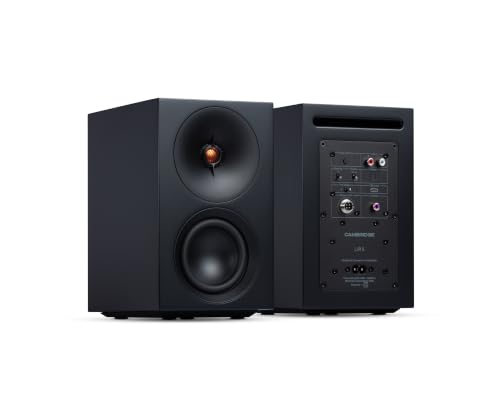



Understanding When to Reset Your Sound System
Recognizing when to reset your sound system is crucial for maintaining its performance. Symptoms such as persistent audio issues—like crackling sounds, distorted output, or complete sound failure—are clear indicators that a reset may be necessary. Additionally, if you encounter connectivity issues, such as your devices failing to pair or dropouts during streaming, a reset can often solve these frustrating problems.
The benefits of resetting your Cambridge Audio system extend beyond just troubleshooting. A reset can lead to improved sound quality, as it clears any corrupted settings that may have accumulated over time. It restores functionality, ensuring that all features and settings operate as intended. Regular resets can help maintain a fresh and optimal listening experience, particularly in environments that frequently change, such as home theaters or personal music studios.
Preparing for the Reset
Before diving into the reset process, it’s essential to prepare adequately. Start by gathering all necessary equipment, which typically includes the system’s remote control, the main unit, and your user manual. The user manual is particularly important as it contains model-specific instructions that can vary between different Cambridge Audio products.
Backing up your custom settings and preferences is another critical step. Depending on the model, your system may allow you to save settings for equalization, speaker configurations, and input sources. Take note of these settings or use any built-in backup features if available. This precaution will make it easier to restore your personalized audio experience after the reset.
Step-by-Step Reset Process
Resetting your Cambridge Audio sound system can generally be categorized into two methods: a soft reset and a factory reset.
Soft Reset
1. Turn Off the System: Begin by turning off the system and unplugging it from the power source.
2. Wait: Leave the system unplugged for at least 30 seconds. This duration allows the internal memory to clear.
3. Reconnect: Plug the system back in and turn it on. A soft reset often resolves minor glitches and connectivity issues without erasing your settings.
Factory Reset
1. Locate Reset Button: Depending on your model, find the reset button, which is usually located on the back or bottom of the unit.
2. Press and Hold: Press and hold the reset button for several seconds until you see an indicator light blink or hear a confirmation sound.
3. Confirmation: Release the button, and the system will usually display a message confirming that it has been reset to factory settings.
During the reset process, you may experience temporary disconnections of connected devices, but this is normal. After the reset, the system may take a moment to restart and re-establish its connections.
Common Resetting Features of Cambridge Audio Systems
| # | Feature | Soft Reset | Factory Reset |
|---|---|---|---|
| 1 | Clears minor glitches | ✔️ | ✔️ |
| 2 | Restores factory settings | ❌ | ✔️ |
| 3 | Resolves connectivity issues | ✔️ | ✔️ |
| 4 | Clears audio distortion | ✔️ | ✔️ |
| 5 | Resets input configurations | ❌ | ✔️ |
| 6 | Restores equalizer settings | ❌ | ✔️ |
| 7 | Clears saved Bluetooth pairings | ❌ | ✔️ |
Reconfiguring After the Reset
Once you have successfully reset your Cambridge Audio system, the next step is to reconfigure it for optimal performance. Start by establishing connections with your devices. This involves reconnecting any Bluetooth devices, streaming services, or wired connections you may have been using. For Bluetooth devices, ensure that your audio system is discoverable and that the devices are within range.
Restoring your settings is crucial for achieving the audio quality you desire. If you have backed up your custom settings, now is the time to reapply them. For those without a backup, consider optimal settings for your audio environment. For instance, in a home theater, a surround sound configuration with a calibrated equalizer can significantly enhance your experience. Conversely, for music listening in a smaller space, a stereo output with adjusted bass and treble might be preferable.
Troubleshooting Post-Reset Issues
After performing a reset, you might encounter some common issues that require troubleshooting. One frequent problem is the inability to reconnect to previously paired devices. If this occurs, ensure that Bluetooth is enabled on both the sound system and the device you are attempting to connect. Removing and re-adding the device in the Bluetooth settings can often resolve this.
Another issue could be audio quality degradation, such as distortion or low volumes. If you experience this, double-check your equalizer settings and input selections. Ensure that the correct input source is selected and that there are no physical obstructions to your speaker placement.
For additional support, the Cambridge Audio customer service team is available for assistance. They can provide guidance through complex issues, and online forums dedicated to Cambridge Audio products often have a wealth of shared user experiences that can be invaluable.
Maintenance Tips for Optimal Performance
To ensure that your Cambridge Audio sound system continues to perform at its best, regular maintenance is key. Simple practices such as keeping the unit dust-free and ensuring adequate ventilation can prevent overheating and performance issues.
Additionally, staying updated with software updates is essential. Cambridge Audio frequently releases firmware updates that can improve functionality and resolve known issues. Regularly checking for updates through the system’s settings can keep your device running smoothly.
Periodic resets are also recommended. Depending on your usage, performing a reset every few months can help maintain system integrity and audio quality, ensuring that your listening experience remains exceptional.
By following these steps to reset your Cambridge Audio sound system, you can ensure that it operates at peak performance. Remember to periodically review and maintain your system for the best listening experience. For further assistance or detailed questions, refer to the user manual or reach out to Cambridge Audio’s support team.
Frequently Asked Questions
How do I perform a factory reset on my Cambridge Audio sound system?
To perform a factory reset on your Cambridge Audio sound system, locate the reset button on the device, usually found on the back or underside. Press and hold this button for about 10 seconds until the system indicates that the reset is complete. This process restores the device to its original settings, which can help resolve performance issues.
What are the benefits of resetting my Cambridge Audio sound system?
Resetting your Cambridge Audio sound system can enhance audio quality by eliminating glitches or performance issues caused by software bugs or incorrect settings. It also allows you to start fresh, ensuring that all firmware and feature updates are applied correctly, which can optimize your listening experience.
Why is my Cambridge Audio sound system not performing optimally, and how can a reset help?
Common reasons for suboptimal performance in a Cambridge Audio sound system include outdated firmware, accumulated settings errors, or interference from connected devices. A reset can help by clearing these issues, allowing the system to recalibrate itself and function with the latest updates and settings for improved sound quality.
Which models of Cambridge Audio sound systems support a reset feature?
Most Cambridge Audio sound systems, including popular models like the CX series and Azur series, support a reset feature. It’s essential to consult the user manual specific to your model for detailed instructions, as the reset process may vary slightly between different devices.
What should I do after resetting my Cambridge Audio sound system for optimal performance?
After resetting your Cambridge Audio sound system, check for any firmware updates and install them to ensure your device is running the latest software. Reconfigure your audio settings to suit your preferences, and reconnect any external devices to achieve the best sound quality and performance tailored to your setup.
References
- Cambridge Audio
https://en.wikipedia.org/wiki/Cambridge_Audio - https://www.cambridgeaudio.com/usa/en/support
https://www.cambridgeaudio.com/usa/en/support - https://www.cambridgeaudio.com/usa/en/blog/cambridge-audio-guide-high-performance-audio
https://www.cambridgeaudio.com/usa/en/blog/cambridge-audio-guide-high-performance-audio - Google Scholar Google Scholar
https://scholar.google.com/scholar?q=reset+Cambridge+Audio+Sound+System - Google Scholar Google Scholar
https://scholar.google.com/scholar?q=optimal+performance+audio+systems - Google Scholar Google Scholar
https://scholar.google.com/scholar?q=Cambridge+Audio+reset+instructions - https://www.bbc.com/news/technology-56859406
https://www.bbc.com/news/technology-56859406 - https://www.nature.com/articles/s41598-020-65827-9
https://www.nature.com/articles/s41598-020-65827-9 - Google Scholar Google Scholar
https://scholar.google.com/scholar?q=How+to+Reset+a+Cambridge+Audio+Sound+System+for+Optimal+Performance - How to Reset a Cambridge Audio Sound System for Optimal Performance – Search results
https://en.wikipedia.org/wiki/Special:Search?search=How+to+Reset+a+Cambridge+Audio+Sound+System+for+Optimal+Performance




One thought on “How to Reset a Cambridge Audio Sound System for Best Performance”